audio TOYOTA YARIS HATCHBACK 2020 (in English) Repair Manual
[x] Cancel search | Manufacturer: TOYOTA, Model Year: 2020, Model line: YARIS HATCHBACK, Model: TOYOTA YARIS HATCHBACK 2020Pages: 572, PDF Size: 7.94 MB
Page 326 of 572

326
YARIS_YARIS HATCHBACK_OM_OM99V59z_(U)
4-2. Audio System
■If the Android Auto™ connection setting cannot be changed
Depending on your Android™ Smart phone, the connection setting
may have been in charging mode only when the connector cord is
connected.
In this case, switch off the Android Auto™ connection setting o nce,
and then switch it back on while connected to USB mode.
The connection setting can be changed to the Android Auto™ con-
nection in the tab on the Settings screen ( P. 3 0 0 ) .
Page 327 of 572
327
YARIS_YARIS HATCHBACK_OM_OM99V59z_(U)
4-3. Bluetooth®
4
Interior Features
Bluetooth®
■Bluetooth® Hands-Free outline
When a Bluetooth
® device (mobile phone) is connected to the vehi-
cle’s Bluetooth® unit via radio wave transmission, a call can be
made or received by pressing the talk button, pick-up button, o r
hang-up button on the audio remote control switch, or by operat ing
the center display.
■Bluetooth® audio outline
When a portable audio unit equipped with the Bluetooth
® communi-
cation function is paired to the vehicle, you can listen to mus ic
stored on the paired portable audio device from the vehicle’s s peak-
ers. It is not necessary to c onnect the portable audio device t o the
vehicle’s external input terminal. After programming, operate t he
vehicle audio control panel to play/stop the audio.
■Applicable Bluetooth® specification (Recommended)
Ver. 1.1/1.2/2.0 + EDR/2.1 + EDR/3.0 (conformity)
● For your safety, a device can be paired only when the vehicle i s parked. If
the vehicle starts to move, the pairing procedure will end. Par k the vehicle in
a safe place before pairing.
● The communication range of a Bluetooth
® equipped device is about 32 ft.
(10 m) or less.
● Basic audio operation is available using voice commands even if Bluetooth
®
is not connected.
● For safety reasons, operation of the center display is disabled while the
vehicle is being driven. However, items not displayed in gray can be oper-
ated using the commander switch while the vehicle is being driv en.
NOTICE
Some Bluetooth® mobile devices are not compatible with the vehicle. Con-
sult your Toyota dealer, Toyota Customer Experience Center (U.S .A. Only),
Toyota Canada Customer Interaction Centre (Canada Only) or Web support
center for information regarding Bluetooth
® mobile device compatibility:
● U.S.A.
Phone: 1-800-331-4331 (Toll-free)
Web: http://www.toyota.com/entune
● Canada
Phone: 1-888-TOYOTA-8 or 1-888-869-6828 (Toll-free)
Web: http://www.toyota.ca
Page 328 of 572
328
YARIS_YARIS HATCHBACK_OM_OM99V59z_(U)
4-3. Bluetooth®
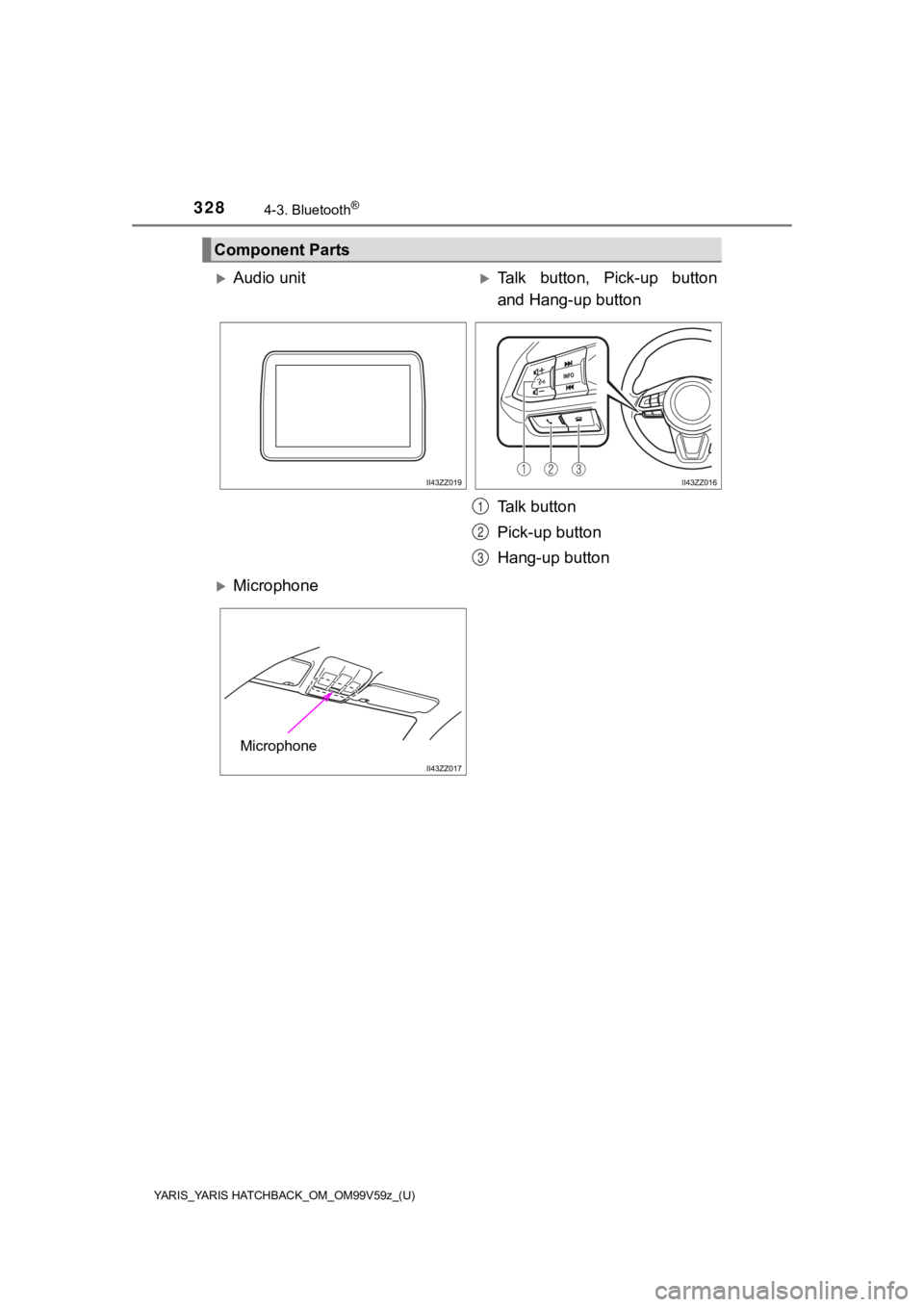
Component Parts
Audio unitTalk button, Pick-up button
and Hang-up button
Talk button
Pick-up button
Hang-up button
Microphone
1
2
3
Microphone
Page 329 of 572

YARIS_YARIS HATCHBACK_OM_OM99V59z_(U)
3294-3. Bluetooth®
4
Interior Features
■Microphone (hands-free)
The microphone is used for speaking voice commands or when
making a Hands-free call.
■Talk button, Pick-Up button and Hang-Up button (hands-free)
The basic functions of Bluetooth
® Hands-Free can be used for such
things as making calls or hanging up using the talk, pick-up an d
hang-up buttons on the steering wheel.
■Commander switch
The commander switch is used for volume adjustment and display
operation. Tilt or turn the commander knob to move the cursor.
Press the commander knob to select the icon.
■Volume adjustment
The volume dial of the commander s witch is used to adjust the vol-
ume. Turn the dial to the right to increase volume, to the left to
decrease it.
The volume can also be adjusted using the volume button on the
steering wheel.
• Press the volume dial to switch the audio MUTE on and off.
• If the volume is lower compared to other audio modes, increase the vol- ume from the device side.
Conversation volume and the vo lume of the voice guidance and
ringtone can each be set in advance.
Select the icon on the home screen and display the Com-
munication screen.
Select .
Adjust the and the using the slider.
1
2
3
Page 330 of 572
330
YARIS_YARIS HATCHBACK_OM_OM99V59z_(U)
4-3. Bluetooth®
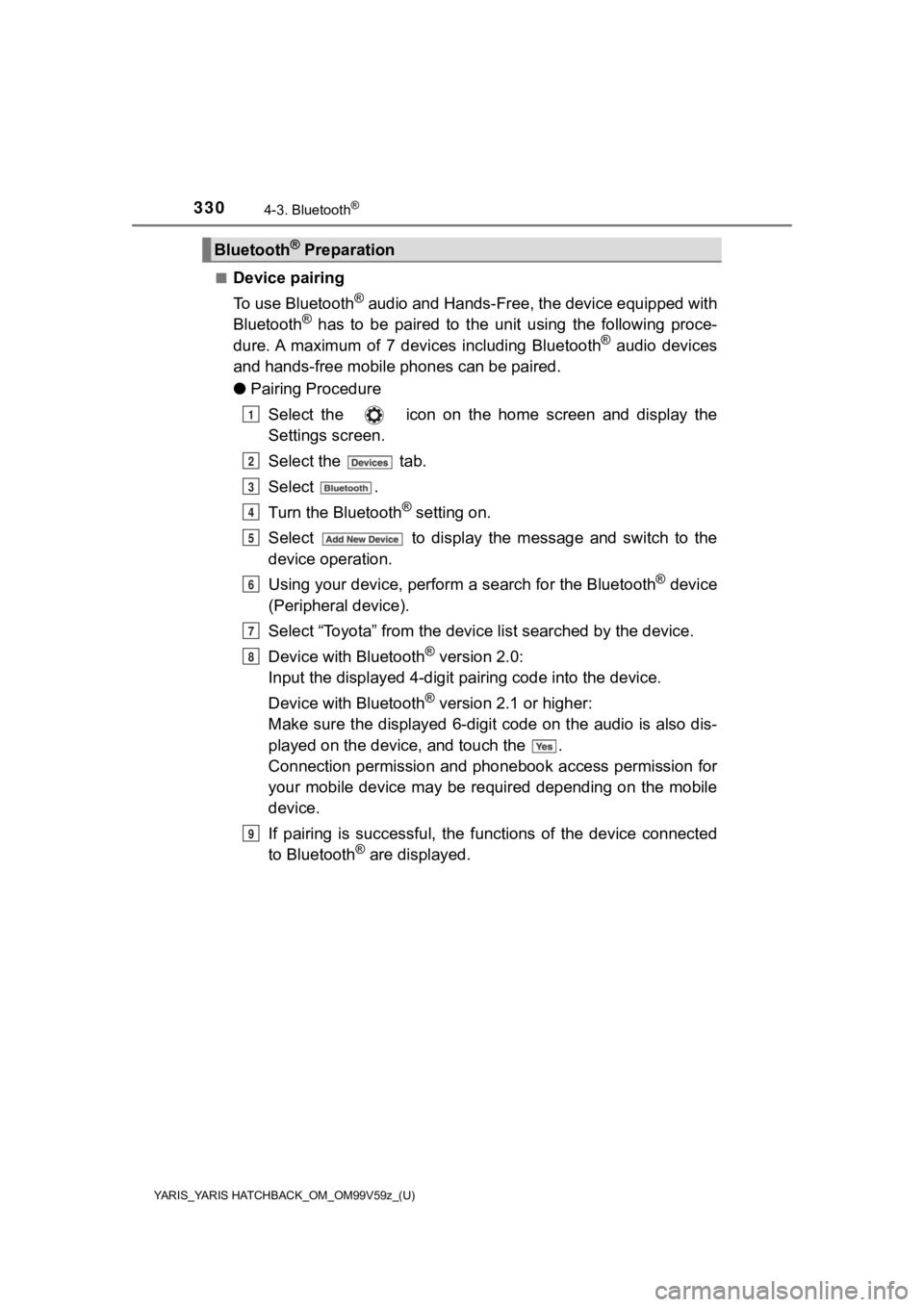
■Device pairing
To use Bluetooth
® audio and Hands-Free, the device equipped with
Bluetooth® has to be paired to the unit using the following proce-
dure. A maximum of 7 devices including Bluetooth® audio devices
and hands-free mobile phones can be paired.
● Pairing Procedure
Select the icon on the home screen and display the
Settings screen.
Select the tab.
Select .
Turn the Bluetooth
® setting on.
Select to display the message and switch to the
device operation.
Using your device, perform a search for the Bluetooth
® device
(Peripheral device).
Select “Toyota” from the device list searched by the device.
Device with Bluetooth
® version 2.0:
Input the displayed 4-digit pairing code into the device.
Device with Bluetooth
® version 2.1 or higher:
Make sure the displayed 6-digit code on the audio is also dis-
played on the device, and touch the .
Connection permission and pho nebook access permission for
your mobile device may be required depending on the mobile
device.
If pairing is successful, the f unctions of the device connected
to Bluetooth
® are displayed.
Bluetooth® Preparation
1
2
3
4
5
6
7
8
9
Page 332 of 572
332
YARIS_YARIS HATCHBACK_OM_OM99V59z_(U)
4-3. Bluetooth®
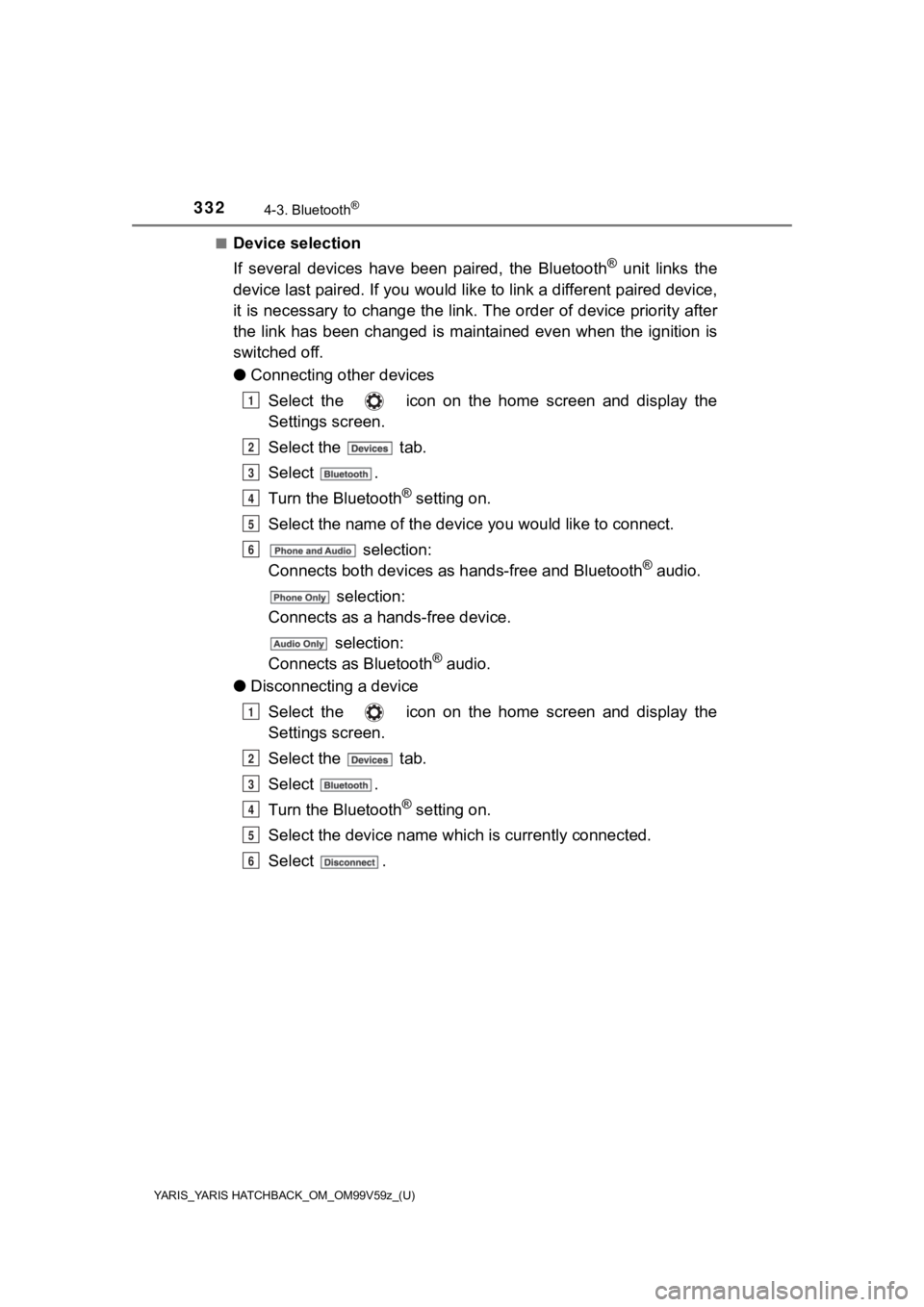
■Device selection
If several devices have been paired, the Bluetooth
® unit links the
device last paired. If you would like to link a different paire d device,
it is necessary to change the link. The order of device priorit y after
the link has been changed is maintained even when the ignition is
switched off.
● Connecting other devices
Select the icon on the home screen and display the
Settings screen.
Select the tab.
Select .
Turn the Bluetooth
® setting on.
Select the name of the device you would like to connect.
selection:
Connects both devi ces as hands-free and Bluetooth
® audio.
selection:
Connects as a hands -free device.
selection:
Connects as Bluetooth
® audio.
● Disconnecting a device
Select the icon on the home screen and display the
Settings screen.
Select the tab.
Select .
Turn the Bluetooth
® setting on.
Select the device name whi ch is currently connected.
Select .
1
2
3
4
5
6
1
2
3
4
5
6
Page 334 of 572

334
YARIS_YARIS HATCHBACK_OM_OM99V59z_(U)
4-3. Bluetooth®
■Bluetooth® Preparation
The Bluetooth® system may not operate for 1 or 2 minutes after the ignition is
switched to ACC or ON. However, this does not indicate a proble m. If the
Bluetooth
® system does not connect automatically after 1 or 2 minutes have
elapsed, make sure that the Bluetooth® setting on the device is normal and
attempt to reconnect the Bluetooth® device from the vehicle side.
■ Device selection
The following functions can be used for the Hands-free or audio.
●Hands-free: Phone calls and E-mail/SMS
● Audio: Bluetooth
® audio, Pandora®, Aha™, Stitcher™ radio
The Bluetooth® Hands-Free System applies to the following lan-
guages: • English
• Spanish
•French
Refer to Settings on P. 300.
Available Language
Page 336 of 572

336
YARIS_YARIS HATCHBACK_OM_OM99V59z_(U)
4-3. Bluetooth®
■To prevent a deterioration in the voice recognition rate and
voice quality, the following points should be observed:
• The voice recognition cannot be performed while voice guidance
or the beep sound is operating. Wait until the voice guidance o r
the beep sound is finished bef ore saying your commands.
• Phone related commands are available only when your phone is connected via Bluetooth
®. Make sure your phone is connected
via Bluetooth® before you operate phone related voice com-
mands.
• Music play commands, such as Play Artist and Play Album can be used only in USB audio mode.
• Do not speak too slowly o r loudly (no loud voice).
• Speak clearly, without pausi ng between words or numbers.
• Dialects or different wording other than hands-free prompts ca n-
not be recognized by voice recognition. Speak in the wording
specified by the voice commands.
• It is not necessary to face the microphone or approach it. Spe ak
the voice commands while maint aining a safe driving position.
• Close the windows to reduce loud noises from outside the vehi- cle, or turn down the airflow of the air-conditioning system wh ile
Bluetooth
® Hands-Free is being used.
• Make sure the vents are not directing air up towards the micro -
phone.
If the voice recognition perf ormance is not satisfactory.
Refer to Troubleshooting on P. 366.
Page 337 of 572
YARIS_YARIS HATCHBACK_OM_OM99V59z_(U)
3374-3. Bluetooth®
4
Interior Features
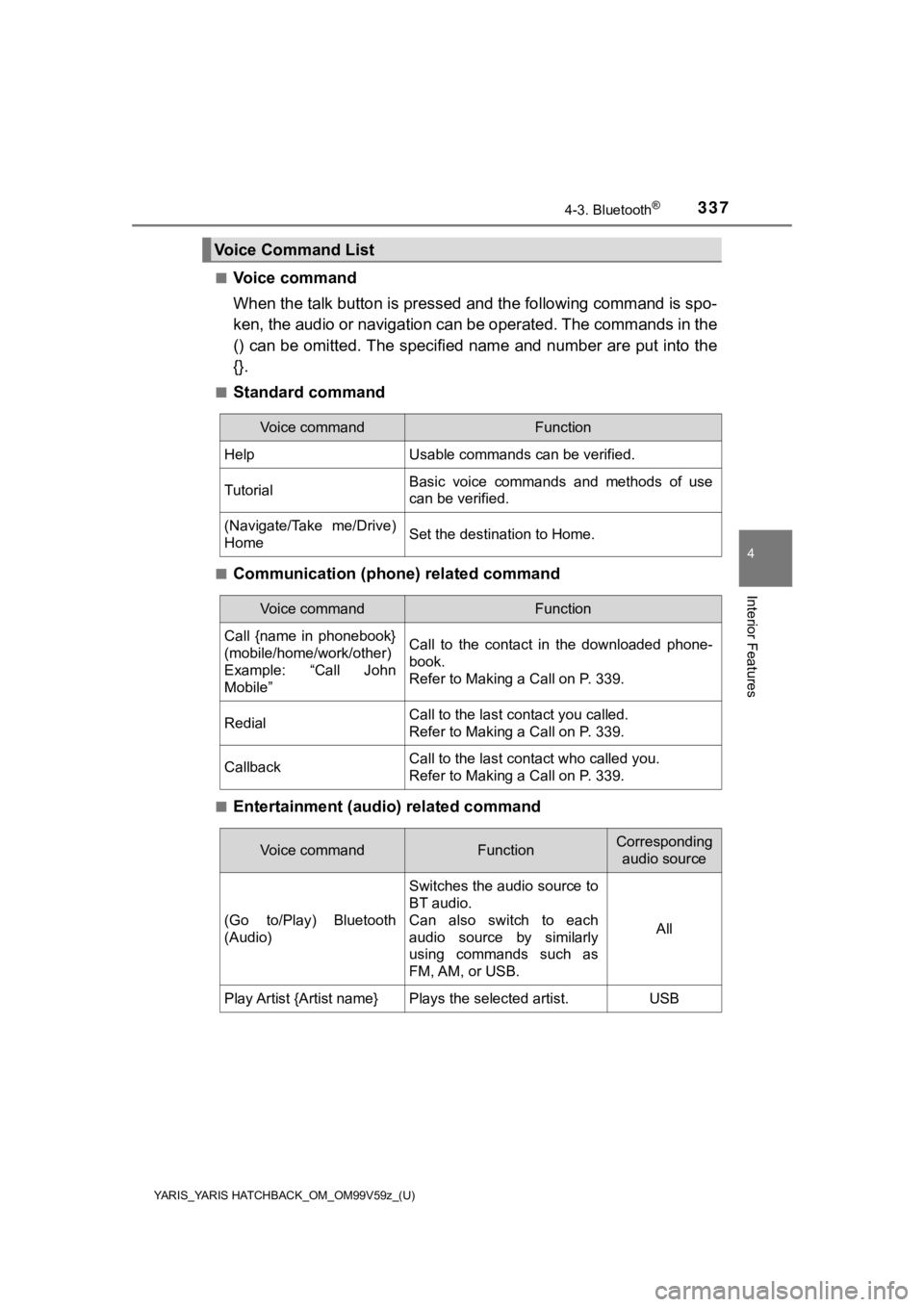
■Voice command
When the talk button is pressed and the following command is sp o-
ken, the audio or navigation c an be operated. The commands in t he
() can be omitted. The specified name and number are put into the
{}.
■Standard command
■Communication (phone) related command
■Entertainment (audi o) related command
Voice Command List
Voice commandFunction
HelpUsable commands can be verified.
TutorialBasic voice commands and methods of use
can be verified.
(Navigate/Take me/Drive)
HomeSet the destination to Home.
Voice commandFunction
Call {name in phonebook}
(mobile/home/work/other)
Example: “Call John
Mobile”Call to the contact in the downloaded phone-
book.
Refer to Making a Call on P. 339.
RedialCall to the last contact you called.
Refer to Making a Call on P. 339.
CallbackCall to the last contact who called you.
Refer to Making a Call on P. 339.
Voice commandFunctionCorresponding
audio source
(Go to/Play) Bluetooth
(Audio)
Switches the audio source to
BT audio.
Can also switch to each
audio source by similarly
using commands such as
FM, AM, or USB.
All
Play Artist {Artist name}Plays the selected artist.USB
Page 343 of 572
YARIS_YARIS HATCHBACK_OM_OM99V59z_(U)
3434-3. Bluetooth®
4
Interior Features
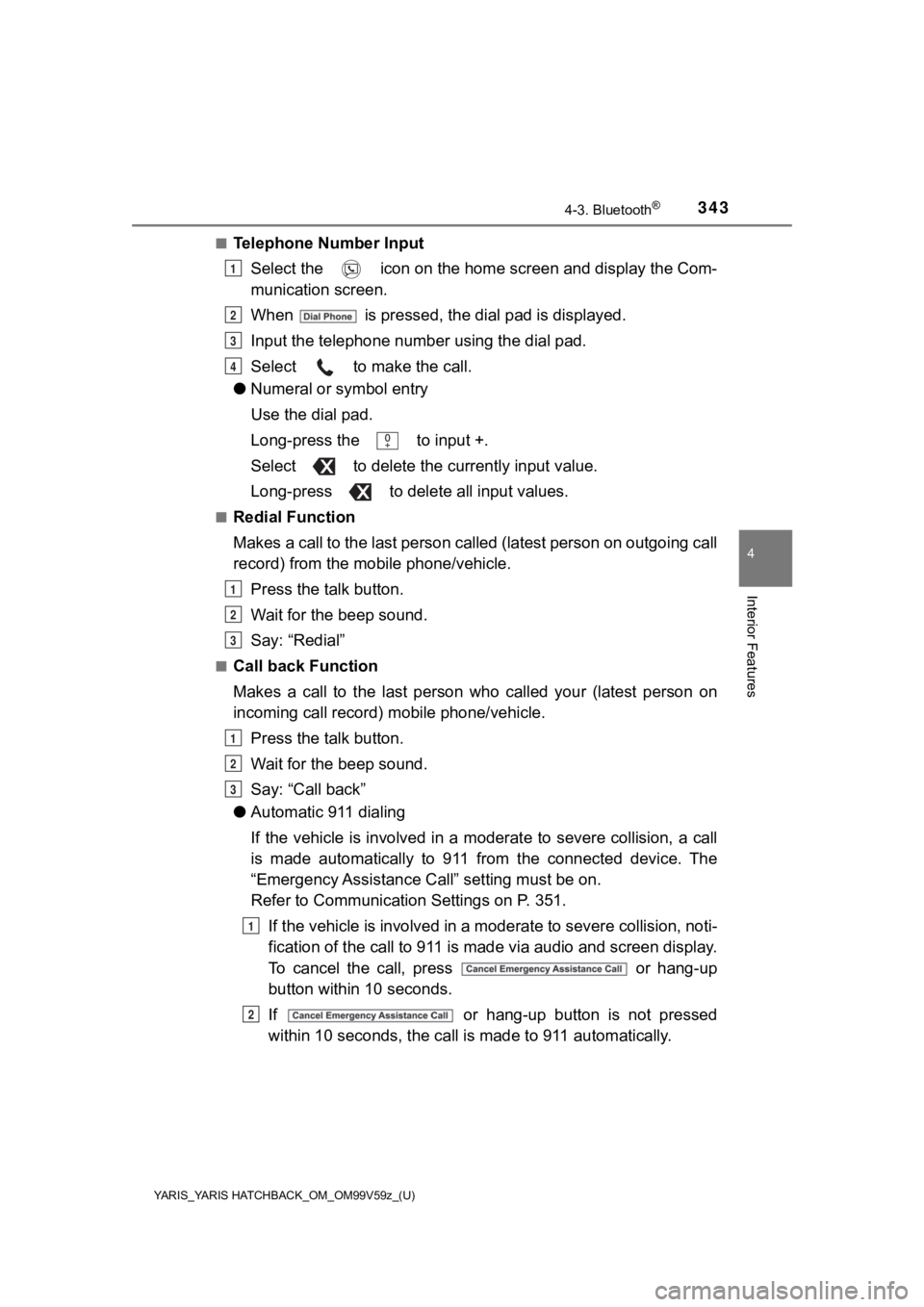
■Telephone Number InputSelect the icon on the home screen and display the Com-
munication screen.
When is pressed, the dial pad is displayed.
Input the telephone number using the dial pad.
Select to make the call.
● Numeral or symbol entry
Use the dial pad.
Long-press the to input +.
Select to delete the currently input value.
Long-press to delete all input values.
■Redial Function
Makes a call to the last person called (latest person on outgoi ng call
record) from the mobile phone/vehicle.
Press the talk button.
Wait for the beep sound.
Say: “Redial”
■Call back Function
Makes a call to the last person who called your (latest person on
incoming call record) mobile phone/vehicle.
Press the talk button.
Wait for the beep sound.
Say: “Call back”
● Automatic 911 dialing
If the vehicle is involved in a moderate to severe collision, a call
is made automatically to 911 from the connected device. The
“Emergency Assistance Cal l” setting must be on.
Refer to Communication Settings on P. 351.
If the vehicle is involved in a moderate to severe collision, n oti-
fication of the call to 911 is made via audio and screen displa y.
To cancel the call, press or hang-up
button withi n 10 seconds.
If or hang-up button is not pressed
within 10 seconds, the call i s made to 911 automatically.
1
2
3
4
1
2
3
1
2
3
1
2