Mp3 VAUXHALL ASTRA J 2015 Infotainment system
[x] Cancel search | Manufacturer: VAUXHALL, Model Year: 2015, Model line: ASTRA J, Model: VAUXHALL ASTRA J 2015Pages: 179, PDF Size: 2.77 MB
Page 137 of 179

Introduction137
1 RADIO................................. 145
Activate radio or change
waveband ........................... 145
2 CD ....................................... 157
Start CD/MP3/WMA
playback .............................. 157
3 Search backwards ..............145
Radio: search backwards ...145
CD/MP3/WMA: skip track
backwards ........................... 155
4 Radio station buttons 1...6 ..146
Long press: save station .....146
Short press: select station ..146
5 m knob ................................ 139
Press: switch on/off ............139
Infotainment system ...........139
Turn: adjust volume ............139
6 Search forwards ..................145
Radio: search forwards .......145
CD/MP3/WMA: skip track
forwards .............................. 1557 AS 1/2................................. 146
Automatic memory levels
(preset radio stations) .........146
Short press: select
autostore list ........................ 146
Long press: save stations
automatically ....................... 146
8 FAV 1/2/3 ............................ 146
Lists of favourites (preset
radio stations) .....................146
9 TP ....................................... 150
Activate or deactivate
radio traffic service ..............150
If Infotainment system is
switched off: display time
and date .............................. 150
10 CD ejection ......................... 155
11 CONFIG .............................. 143
Open settings menu ............14312 INFO ................................... 136
Radio: information on the
currently played station .......145
CD/MP3/WMA:
information on the
currently inserted CD ..........155
13 Multifunction knob ...............140
Turn: mark menu options
or set numeric values .........140
Press: select/activate the
marked option; confirm set
value; switch function on/off 140
14 CD slot ................................ 155
15 BACK .................................. 140
Menu: one level back ..........140
Input: delete last character or entire entry ...................... 140
16 TONE .................................. 143
Tone settings ...................... 143
17 PHONE ............................... 163
Open telephone main menu 166
Activate mute ...................... 139
Page 138 of 179
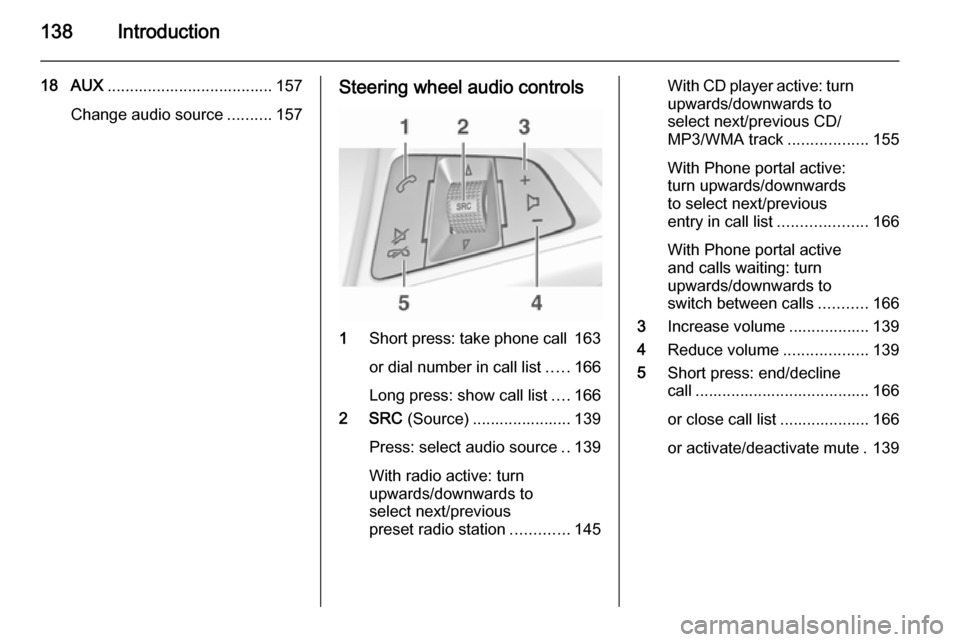
138Introduction
18 AUX..................................... 157
Change audio source ..........157Steering wheel audio controls
1Short press: take phone call 163
or dial number in call list .....166
Long press: show call list ....166
2 SRC (Source) ...................... 139
Press: select audio source ..139
With radio active: turn
upwards/downwards to
select next/previous
preset radio station .............145
With CD player active: turn
upwards/downwards to
select next/previous CD/
MP3/WMA track ..................155
With Phone portal active:
turn upwards/downwards
to select next/previous
entry in call list ....................166
With Phone portal active
and calls waiting: turn
upwards/downwards to
switch between calls ...........166
3 Increase volume .................. 139
4 Reduce volume ...................139
5 Short press: end/decline
call ....................................... 166
or close call list .................... 166
or activate/deactivate mute . 139
Page 151 of 179

Radio151
Radio text
If the RDS function is activated and a RDS station is currently received,
information about the current
programme and the music track
currently playing are displayed below
the programme name.
To show or hide the information, set
Radio text to On or Off.
TA volume
The volume of traffic announcements
(TA) can be preset. For a detailed
description 3 143.
Radio traffic service
(TP = Traffic Programme)
Radio traffic service stations are RDS stations that broadcast traffic news.
Switching the radio traffic service on
and off
To switch the traffic announcement
standby facility of the Infotainment
system on and off:
Press the TP button.■ If the radio traffic service is
switched on, [ ] is displayed in the
radio main menu.
■ Only radio traffic service stations are received.
■ If the current station is not a radio traffic service station, a search is
started automatically for the next
radio traffic service station.
■ If a radio traffic service station has been found, [TP] is displayed in the
radio main menu.
■ Traffic announcements are played at the preset TA volume 3 143.
■ If the radio traffic service is switched on, CD/MP3 playback is
interrupted for the duration of the
traffic announcement.
Listening to traffic announcements only
Switch on the radio traffic service and
completely turn down the volume of
the Infotainment system.
Blocking out traffic announcements
To block out a traffic announcement,
e.g. during CD/MP3 playback:Press the TP button or the
multifunction knob to confirm the
cancelling message on the display.
The traffic announcement is
cancelled, but the radio traffic service
remains switched on.
Digital audio broadcastingDigital audio broadcasting (DAB) is
an innovative and universal
broadcast system.
DAB stations are indicated by the
programme name instead of the
broadcasting frequency.
Page 154 of 179

154CD PlayerCD PlayerGeneral information...................154
Usage ........................................ 155General information
The Infotainment system's CD player
can play audio CDs and MP3/WMA
CDs.
Important informationCaution
Under no circumstances place
single-CDs with a diameter of 8 cm
or shaped CDs in the audio player.
You must not put any stickers on
CDs. These discs can get jammed
in the CD drive and ruin the player.
Replacement of the device will
then be necessary.
■ The following CD formats can be used:
CD-ROM Mode 1 and Mode 2.
CD-ROM XA Mode 2, Form 1 and
Form 2.
■ The following file formats can be used:
ISO 9660 Level 1, Level 2 (Romeo,
Joliet).
MP3 and WMA files written in any format other than listed above may
not play correctly and their file
names and folder names may not
be displayed correctly.
■ Audio CDs with copy protection, which are not in compliance with
the audio CD standard, may not
play correctly or not at all.
■ Self-recorded CD-Rs and CD-RWs
are more vulnerable to mishandling
than prerecorded CDs. Correct
handling, especially in the case of
self-recorded CD-Rs and CD-RWs, must be ensured (see below).
■ Self-recorded CD-Rs and CD-RWs
may not play correctly or not at all.
In such cases it is not the
equipment that is at fault.
■ On mixed mode CDs (audio tracks and compressed files, e.g. MP3,
are stored), the audio tracks part
and the compressed files part can
be played separately.
■ Avoid leaving fingerprints when you
change CDs.
Page 155 of 179

CD Player155
■ Put CDs back in their sleevesimmediately after removing them
from the CD player in order to
protect them from damage and dirt.
■ Dirt and liquids on CDs can smear the lens of the CD player inside the
device and cause faults.
■ Protect CDs from heat and direct sunlight.
■ The following restrictions apply to MP3/WMA CDs:
Bit rate: 8 kbit/s - 320 kbit/s.
Sampling frequency: 48 kHz,
44.1 kHz, 32 kHz (for MPEG-1) and
24 kHz, 22.05 kHz, 16kHz (for
MPEG-2).
■ The following restrictions apply to the data stored on an MP3/WMA
CD:
Number of tracks: max. 999.
Number of tracks per folder level:
max. 512.
Folder structure depth: max.
10 levels.Notice
This chapter deals only with playing
MP3 files since the operation for
MP3 and WMA files is identical.
When a CD with WMA files is loaded
MP3 related menus are displayed.
Usage
Starting CD playback Press the CD button once or several
times to open the CD or MP3 main
menu.
If there is a CD in the CD player, CD
playback is started.
Depending on the data stored on the
audio CD or MP3 CD, differing
information about the CD and the current music track will be shown on
the display.
Inserting a CD
Insert a CD with the printed side
facing up into the CD slot until it is
drawn in.
Notice
If a CD is inserted, 0 is shown on the
display.
Skipping to the next or previous
track
Briefly press the buttons s or u .
Fast forward or rewind Press the buttons s or u and
hold them down to fast forward or fast
rewind the current track.
Selecting tracks using the audio CD menu
Press the multifunction knob to open
the CD menu .
Page 156 of 179

156CD Player
Shuffle songs
To play all tracks in a random order:
set this function to On.
Notice
If this function is activated, 2 is
shown in the respective main menu.
Repeat
To repeatedly listen to a track: set this
function to On.
Notice
If this function is activated, 1 is
shown in the respective main menu.
Track list
To select a track on the CD: select
Track list and then select the desired
track.
Folders
To select a track from a folder: select
Folders . A list of the folders stored on
the CD is displayed.
Select one of the folders and then
select the desired track.
Notice
This menu item is only available, if
an MP3 CD is inserted.
Search...
To open a menu for track search and selection: select Search....
Select one of the categories and then
select the desired track.
Notice
This menu item is only available, if
an MP3 CD is inserted.
Removing a CD
Press the d button.
The CD is pushed out of the CD slot.If the CD is not removed after
ejection, it will be drawn back in again automatically after a few seconds.
Page 158 of 179

158USB portUSB portGeneral information...................158
Playing saved audio files ...........159General information
In the centre console below the
climate controls there is a USB socket for the connection of external audio
data sources.
Notice
The socket must always be kept
clean and dry.
An MP3 player, USB drive, SD card
(via USB connector/adapter), or iPod
can be connected to the USB port.
When connected to the USB port,
various functions of the above
devices can be operated via the
controls and menus of the
Infotainment system.
Notice
Not all MP3 player, USB drive, SD
card or iPod models are supported
by the Infotainment system.
Important information ■ The external devices connected to the USB port must comply with the
USB Mass Storage Class
specification (USB MSC).■ Devices connected via USB are supported according to USB
Specification V 2.0. Maximum
supported speed: 12 Mbit/s.
■ Only devices with a FAT16/FAT32 file system are supported.
■ Hard disk drives (HDD) are not supported.
■ USB hubs are not supported.
■ The following file formats can be used:
ISO9660 Level 1, Level 2 (Romeo,
Joliet).
MP3 and WMA files written in
another format than listed above
may not play correctly, and their file names and folder names may not
be displayed correctly.
■ The following restrictions apply to the files stored on the external
device:
Bit rate: 8 kbit/s - 320 kbit/s.
Sampling frequency: 48 kHz,
44.1 kHz, 32 kHz (for MPEG-1) and
Page 159 of 179

USB port159
24 kHz, 22.05 kHz, 16kHz (for
MPEG-2).
■ The following restrictions apply to the data stored on external devices
connected to the USB port:
Number of tracks: max. 999.
Number of tracks per folder level:
max. 512.
Folder structure depth: max.
10 levels.
WMA files with Digital Rights
Management (DRM) from online music shops cannot be played.
WMA files can only be played
safely, if they were created with Windows Media Player version 9 or later.
Applicable playlist
extensions: .m3u, .pls, .wpl.
Playlist entries must be in the form
of relative paths.
The system attribute for folders/
files that contain audio data must
not be set.Playing saved audio files
Press the AUX button once or several
times to activate the MP3 or iPod
mode.
Playback of the audio data stored on
the device is started automatically.
Using the device-specific menu
Press the multifunction knob to open
the menu of the device currently
connected.
Shuffle songs
To play all tracks in a random order: set this function to On.
Notice
If this function is activated, 2 is
shown in the respective main menu.
Repeat
To repeatedly listen to a track: set this function to On.
Notice
If this function is activated, 1 is
shown in the respective main menu.
Page 161 of 179

Bluetooth music161Bluetooth musicGeneral information...................161
Operation ................................... 161General information
Bluetooth enabled audio sources (e.g. music mobile phones, MP3
players featuring Bluetooth, etc.)
which support the Bluetooth music
protocol A2DP can be connected
wirelessly to the Infotainment system.
Important information ■ The Infotainment system only connects to Bluetooth devices that
support A2DP (Advanced Audio
Distribution Profile) version 1.2 or
higher.
■ The Bluetooth device must support
AVRCP (Audio Video Remote
Control Profile) version 1.0 or
higher. If the device does not
support AVRCP, only the volume
can be controlled via the
Infotainment system.
■ Before connecting the Bluetooth device to the Infotainment system,
become acquainted with its user
guide for Bluetooth functions.Operation
Prerequisites
The following prerequisites must be
met in order to use the Bluetooth
music mode of the Infotainment
system:
■ The Bluetooth function of the Infotainment system must be
activated 3 164.
■ The Bluetooth function of the external Bluetooth audio source
must be activated (see user guide
of the device).
■ Depending on the external Bluetooth audio source, it may be
required to set the device to
"visible" (see user guide of the
device).
■ The external Bluetooth audio source must be paired and
connected to the Infotainment
system 3 164.