radio VAUXHALL ASTRA J 2015 Infotainment system
[x] Cancel search | Manufacturer: VAUXHALL, Model Year: 2015, Model line: ASTRA J, Model: VAUXHALL ASTRA J 2015Pages: 179, PDF Size: 2.77 MB
Page 147 of 179
Radio147
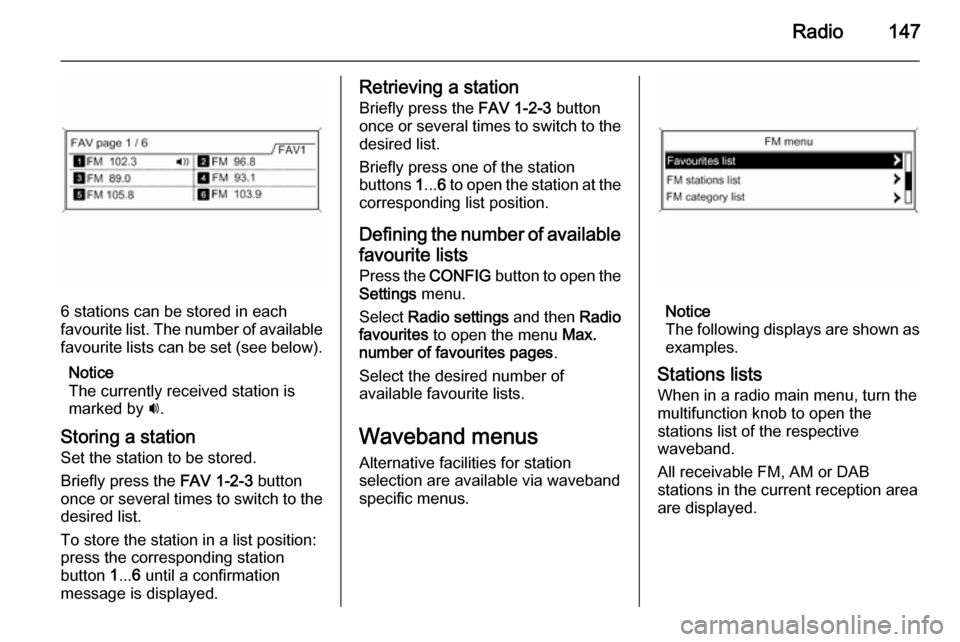
6 stations can be stored in each
favourite list. The number of available favourite lists can be set (see below).
Notice
The currently received station is
marked by i.
Storing a station Set the station to be stored.
Briefly press the FAV 1-2-3 button
once or several times to switch to the
desired list.
To store the station in a list position:
press the corresponding station
button 1... 6 until a confirmation
message is displayed.
Retrieving a station
Briefly press the FAV 1-2-3 button
once or several times to switch to the desired list.
Briefly press one of the station
buttons 1... 6 to open the station at the
corresponding list position.
Defining the number of available favourite lists
Press the CONFIG button to open the
Settings menu.
Select Radio settings and then Radio
favourites to open the menu Max.
number of favourites pages .
Select the desired number of
available favourite lists.
Waveband menus Alternative facilities for station
selection are available via waveband
specific menus.
Notice
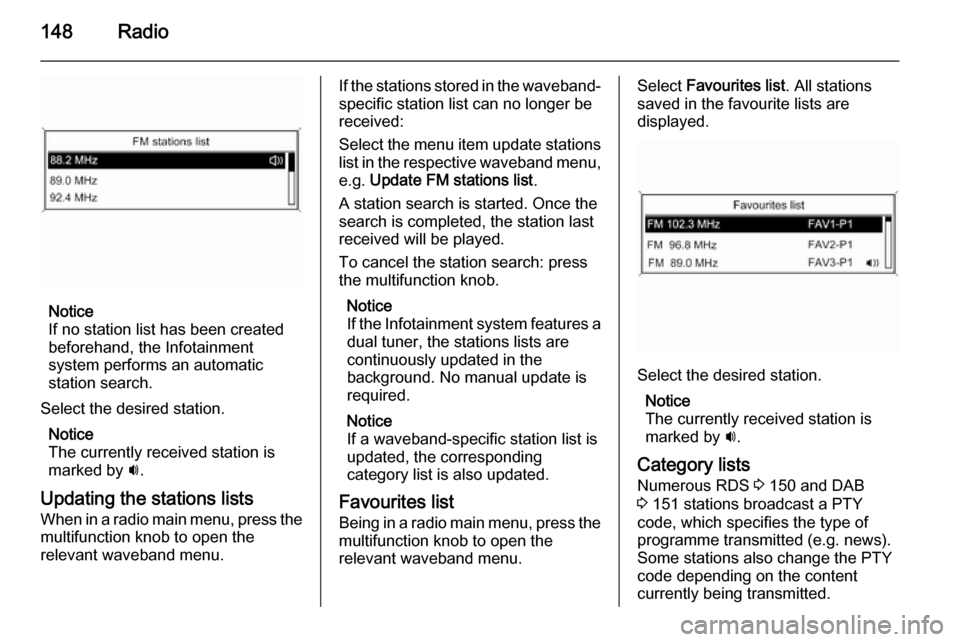
The following displays are shown as examples.
Stations lists When in a radio main menu, turn the
multifunction knob to open the
stations list of the respective
waveband.
All receivable FM, AM or DAB
stations in the current reception area are displayed.
Page 148 of 179
148Radio
Notice
If no station list has been created
beforehand, the Infotainment
system performs an automatic
station search.
Select the desired station. Notice
The currently received station is marked by i.
Updating the stations lists
When in a radio main menu, press the multifunction knob to open the
relevant waveband menu.
If the stations stored in the waveband-
specific station list can no longer be
received:
Select the menu item update stations
list in the respective waveband menu, e.g. Update FM stations list .
A station search is started. Once the
search is completed, the station last
received will be played.
To cancel the station search: press
the multifunction knob.
Notice
If the Infotainment system features a
dual tuner, the stations lists are
continuously updated in the
background. No manual update is
required.
Notice
If a waveband-specific station list is
updated, the corresponding
category list is also updated.
Favourites list
Being in a radio main menu, press the multifunction knob to open the
relevant waveband menu.Select Favourites list . All stations
saved in the favourite lists are
displayed.
Select the desired station.
Notice
The currently received station is
marked by i.
Category lists
Numerous RDS 3 150 and DAB
3 151 stations broadcast a PTY
code, which specifies the type of
programme transmitted (e.g. news).
Some stations also change the PTY
code depending on the content
currently being transmitted.
Page 149 of 179
Radio149
The Infotainment system stores these
stations, sorted by programme type, in the corresponding category list.
To search for a programme type
determined by station: select the
waveband specific category list
option.
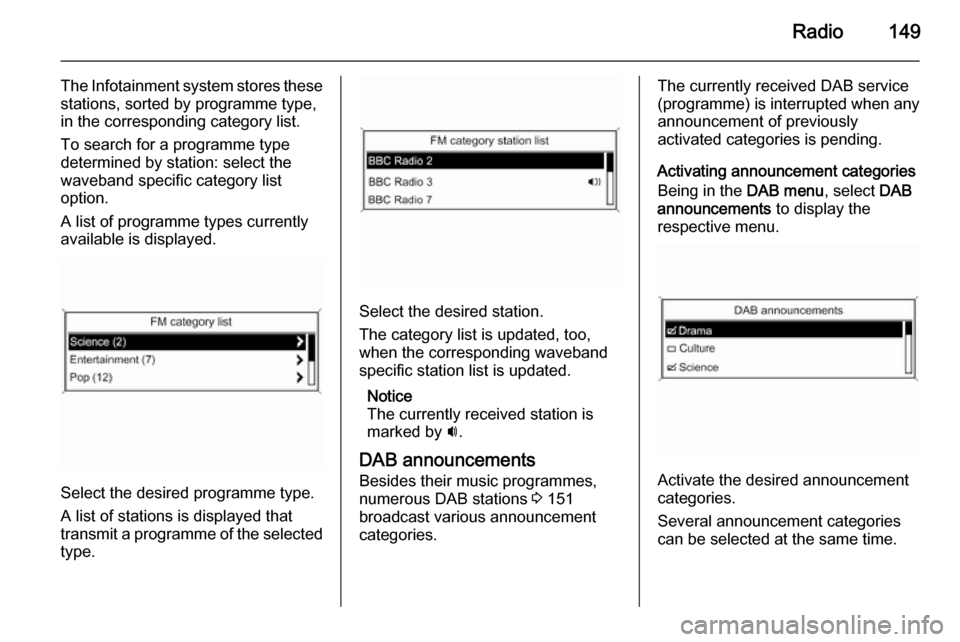
A list of programme types currently
available is displayed.
Select the desired programme type.
A list of stations is displayed that
transmit a programme of the selected
type.
Select the desired station.
The category list is updated, too,
when the corresponding waveband specific station list is updated.
Notice
The currently received station is marked by i.
DAB announcements
Besides their music programmes,
numerous DAB stations 3 151
broadcast various announcement
categories.
The currently received DAB service (programme) is interrupted when any
announcement of previously
activated categories is pending.
Activating announcement categories
Being in the DAB menu, select DAB
announcements to display the
respective menu.
Activate the desired announcement
categories.
Several announcement categories
can be selected at the same time.
Page 150 of 179
150Radio
Notice
The following options are only
available, if RDS is set to On.
Radio data system (RDS) RDS is a service of FM stations that
considerably facilitates the finding of
the desired station and its fault-free
reception.
Advantages of RDS ■ On the display, the programme name of the set station appears
instead of its frequency.
■ During a station search, the Infotainment system tunes in to
RDS stations only.
■ The Infotainment system always tunes into the best receivable
broadcasting frequency of the set
station by means of AF (Alternative Frequency).
■ Depending on the station that is received, the Infotainment systemdisplays radio text that can contain,
e.g. information about the current
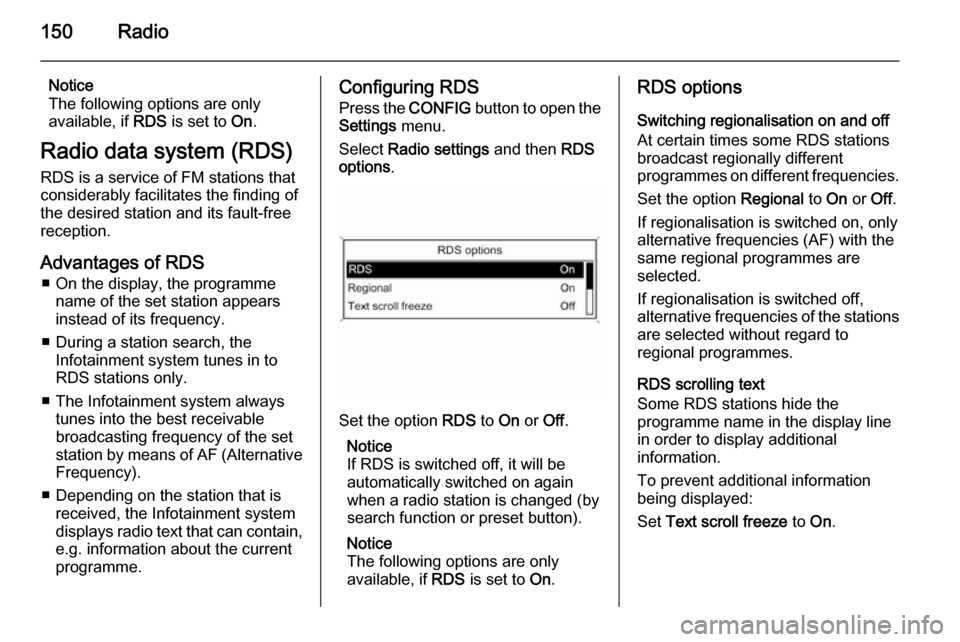
programme.Configuring RDS
Press the CONFIG button to open the
Settings menu.
Select Radio settings and then RDS
options .
Set the option RDS to On or Off.
Notice
If RDS is switched off, it will be
automatically switched on again when a radio station is changed (bysearch function or preset button).
Notice
The following options are only
available, if RDS is set to On.
RDS options
Switching regionalisation on and off
At certain times some RDS stations
broadcast regionally different
programmes on different frequencies.
Set the option Regional to On or Off.
If regionalisation is switched on, only alternative frequencies (AF) with the
same regional programmes are
selected.
If regionalisation is switched off,
alternative frequencies of the stations
are selected without regard to
regional programmes.
RDS scrolling text
Some RDS stations hide the
programme name in the display line
in order to display additional
information.
To prevent additional information
being displayed:
Set Text scroll freeze to On.
Page 151 of 179

Radio151
Radio text
If the RDS function is activated and a RDS station is currently received,
information about the current
programme and the music track
currently playing are displayed below
the programme name.
To show or hide the information, set
Radio text to On or Off.
TA volume
The volume of traffic announcements
(TA) can be preset. For a detailed
description 3 143.
Radio traffic service
(TP = Traffic Programme)
Radio traffic service stations are RDS stations that broadcast traffic news.
Switching the radio traffic service on
and off
To switch the traffic announcement
standby facility of the Infotainment
system on and off:
Press the TP button.■ If the radio traffic service is
switched on, [ ] is displayed in the
radio main menu.
■ Only radio traffic service stations are received.
■ If the current station is not a radio traffic service station, a search is
started automatically for the next
radio traffic service station.
■ If a radio traffic service station has been found, [TP] is displayed in the
radio main menu.
■ Traffic announcements are played at the preset TA volume 3 143.
■ If the radio traffic service is switched on, CD/MP3 playback is
interrupted for the duration of the
traffic announcement.
Listening to traffic announcements only
Switch on the radio traffic service and
completely turn down the volume of
the Infotainment system.
Blocking out traffic announcements
To block out a traffic announcement,
e.g. during CD/MP3 playback:Press the TP button or the
multifunction knob to confirm the
cancelling message on the display.
The traffic announcement is
cancelled, but the radio traffic service
remains switched on.
Digital audio broadcastingDigital audio broadcasting (DAB) is
an innovative and universal
broadcast system.
DAB stations are indicated by the
programme name instead of the
broadcasting frequency.
Page 152 of 179

152Radio
General information■ With DAB, several radio programmes (services) can be
broadcasted on a single frequency
(ensemble).
■ Besides high-quality digital audio services, DAB is also able to
transmit programme-associated
data and a multitude of other data
services including travel and traffic
information.
■ As long as a given DAB receiver can pick up the signal sent out by a
broadcasting station (even if the signal is very weak), sound
reproduction is ensured.
■ There is no fading (weakening of the sound that is typical of AM or
FM reception). The DAB signal is
reproduced at a constant volume.
■ If the DAB signal is too weak to be picked up by the receiver, receptionis interrupted completely. This
incident can be avoided by
activating Auto ensemble linking
and/or Auto linking DAB-FM in the
DAB settings menu.■ Interference caused by stations that are on nearby frequencies (aphenomenon that is typical of AM
and FM reception) does not occur with DAB.
■ If the DAB signal is reflected by natural obstacles or buildings, the
reception quality of DAB is
improved, whereas AM or FM
reception is considerably impaired in such cases.
■ When DAB reception is enabled, the FM tuner of the Infotainment
system remains active in the
background and continually
searches for the best receivable FM stations. If TP 3 150 is activated,
traffic announcements of the FM
station which is currently best
receivable are issued. Deactivate
TP, if DAB reception should not be
interrupted by FM traffic
announcements.
Configuring DAB Press the CONFIG button.
Select Radio settings and then DAB
settings .The following options are available in
the configuration menu:
Auto ensemble linking
With this function activated, the
device switches over to the same
service (programme) on another DAB
ensemble (frequency) when the DAB
signal is too weak to be picked up by
the receiver.
Set the function to On or Off.
Auto linking DAB-FM
With this function activated, the
device switches over to a
corresponding FM station of the
active DAB service when the DAB
signal is too weak to be picked up by
the receiver.
Set the function to On or Off.
Dynamic audio adaption
With this function activated, the
dynamic range of the DAB signal is
reduced. That means the level of the
loud sounds is reduced and the level
of the quiet sounds is increased.
Therefore, the volume of the
Infotainment system can be raised to
Page 153 of 179

Radio153
a point where the quiet sounds are
audible, without the loud sounds being too loud.
Set the function to On or Off.
Band selection
Select the menu item Band selection
to display the respective menu.
To define which DAB wavebands are
to be received by the Infotainment
system, activate one of the options:
L-Band : 1452 - 1492 MHz, earth and
satellite radio
Band III : 174 - 240 MHz, earth radio
Both
Page 163 of 179

Phone163PhoneGeneral information...................163
Bluetooth connection .................164
Emergency call .......................... 166
Operation ................................... 166
Mobile phones and CB radio
equipment .................................. 170General information
The Phone portal provides you with
the possibility of having mobile phone conversations via a vehicle
microphone and the vehicle
loudspeakers as well as operating the
most important mobile phone
functions via the Infotainment system in the vehicle. To be able to use the
Phone portal, the mobile phone must
be connected to the Infotainment
system via Bluetooth.
Not all Phone portal functions are
supported by every mobile phone.
The possible phone functions depend on the relevant mobile phone and
network provider. You will find further
information on this in the operating
instructions for your mobile phone or you can enquire about them with your network provider.Important information for
operation and traffic safety9 Warning
Mobile phones have effects on
your environment. For this reason, safety regulations and directions
have been prepared. You should
be familiar with the related
directions before you use the
telephone function.
9 Warning
Use of the hands-free facility while
driving can be dangerous because
your concentration is reduced
when telephoning. Park your
vehicle before you use the hands- free facility. Follow the stipulations
of the country in which you find
yourself at present.
Do not forget to follow the special
regulations that apply in specific areas and always switch off the
mobile phone if the use of mobile
Page 164 of 179
164Phonephones is prohibited, if
interference is caused by the
mobile phone or if dangerous
situations can occur.
Bluetooth
The Phone portal is certified by the
Bluetooth Special Interest Group
(SIG).
You will find further information about the specification on the Internet at
http://www.bluetooth.com
Bluetooth connection Bluetooth is a radio standard for the
wireless connection of e.g. a
telephone with other devices. Data
such as a telephone book, call lists,
the network operator's name, and
field strength can be transferred. The
functionality can be restricted
depending on the telephone type.
To be able to set up a Bluetooth
connection with the Phone portal, the
Bluetooth function of the mobile
phone must be activated and the
mobile phone must be set to "visible".
Find a detailed description in the
operating instructions for the mobile
phone.
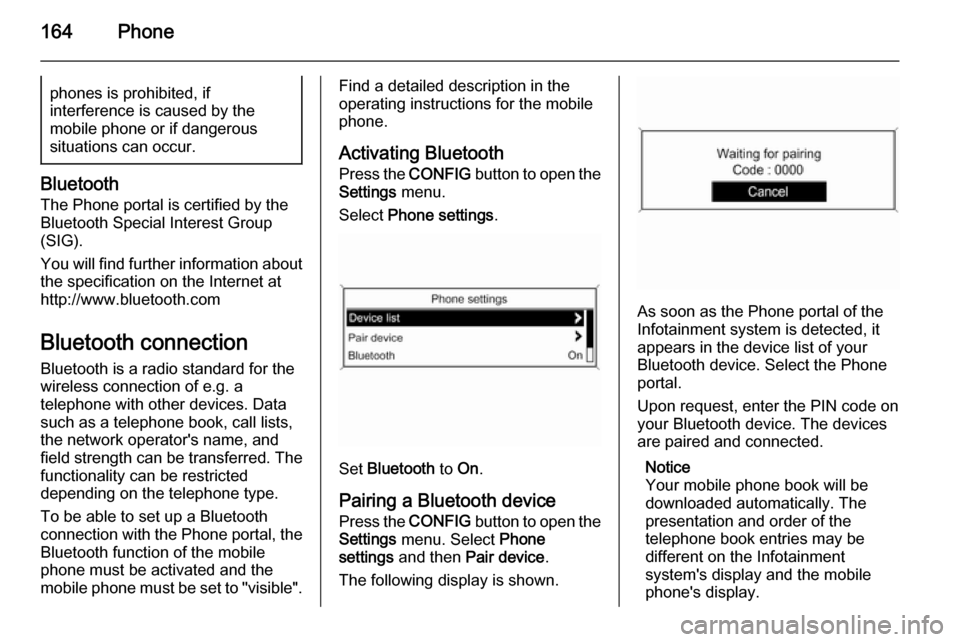
Activating BluetoothPress the CONFIG button to open the
Settings menu.
Select Phone settings .
Set Bluetooth to On.
Pairing a Bluetooth device
Press the CONFIG button to open the
Settings menu. Select Phone
settings and then Pair device .
The following display is shown.
As soon as the Phone portal of the
Infotainment system is detected, it
appears in the device list of your
Bluetooth device. Select the Phone
portal.
Upon request, enter the PIN code on
your Bluetooth device. The devices
are paired and connected.
Notice
Your mobile phone book will be
downloaded automatically. The
presentation and order of the
telephone book entries may be
different on the Infotainment
system's display and the mobile
phone's display.
Page 169 of 179

Phone169
Select the desired call list, e.g.
Missed calls . A menu with the
corresponding call list is displayed.
To initiate a phone call: select the
desired list entry. The corresponding
phone number is dialled.
Redialling a phone number
The last dialled phone number can be
redialled.
Press the 7 button on the steering
wheel to open the Redial menu.
Press the 7 button again to start
dialling.
Press the xn button on the steering
wheel to exit the Redial menu. You
may optionally use the multifunction
knob to select No on the display.
Incoming phone call If an audio mode, e.g. the radio or CD
mode, is active at the time of an
incoming call, the relating audio
source will be muted and stay muted
until the call ends.
To answer the call: select Answer on
the display.
To reject the call: select Decline on
the display.
Second incoming phone call
If a second phone call comes in
during an ongoing call, a message is
displayed.
To answer the second call and end the ongoing call: select Answer on the
display.
To reject the second call and continue the ongoing call: select Decline on the
display.Changing the ring tone
Press the CONFIG button to open the
Settings menu.
Select Phone settings , Sound &
Signals and then Ring tone. A list of
all ring tones available is displayed.
Select the desired ring tone.
For a detailed description of the ring
tone volume 3 143.
Functions during a phone call
During an ongoing phone call, the
phone main menu is displayed.
Select Menu on the display to open
the menu Connected .
Select Hang up on the display to end
the call.
Activating the private mode
In the Connected menu, select the
submenu item Private call to switch
the call to the mobile phone.
To switch the call back to the
Infotainment system, select Menu on
the display and then Transfer call.