buttons VAUXHALL ASTRA J 2016.25 Infotainment system
[x] Cancel search | Manufacturer: VAUXHALL, Model Year: 2016.25, Model line: ASTRA J, Model: VAUXHALL ASTRA J 2016.25Pages: 161, PDF Size: 2.95 MB
Page 89 of 161

Introduction891Display / Touch screen .........93
2 Home menu .......................... 93
Screen buttons for access to:
AUDIO : audio functions
GALLERY : picture and
movie functions
PHONE : mobile phone functions
PROJECTION : phone projection
SETTINGS : system settings
OnStar : OnStar Wi-Fi
settings .................................. 91
3 Time, date and
temperature indicators ..........97
4 g
Short press: open phone
menu ................................... 117
or open phone projection
function (if activated) ...........110
Long press: activate
speech recognition ..............1125v
Radio: short press: skip to
next station; long press:
seek up ................................. 99
External devices: short
press: skip to next track;
long press: fast forward ......107
6 m
If turned off: short press:
switch on Infotainment
system ................................... 91
If turned on: short press:
mute system; long press:
switch off Infotainment
system ................................... 91
Turn: adjust volume ..............91
7 t
Radio: short press: skip to
previous station; long
press: seek down ..................99
External devices: short press: skip to previous
track; long press: fast
rewind ................................. 1078;
Short press: open Home
menu ..................................... 91
Long press: open phone
projection function (if
activated) ............................ 110
Page 91 of 161

Introduction91Usage
Control elements
The Infotainment system is operated
via function buttons, a touch screen
and menus that are shown on the
display.
Inputs are made optionally via: ● the central control unit in the control panel 3 88
● the touch screen 3 93
● audio controls on the steering wheel 3 88
● the speech recognition 3 112
Switching the Infotainment
system on or off
Press X. After switching on, the last
selected Infotainment source
becomes active.
Automatic switch-off
If the Infotainment system has been
switched on pressing X while the
ignition is switched off, it will switch off
again automatically 10 minutes after
the last user input.Setting the volume
Turn X. The current setting is shown
on the display.
When the Infotainment system is
switched on, the last selected volume is set, provided that it is lower than themaximum start-up volume. For a
detailed description 3 96.
Speed compensated volume
When the speed compensated
volume is activated 3 96, the
volume is adapted automatically to
make up for the road and wind noise
as you drive.
Mute
Press X to mute the Infotainment
system.
To cancel the mute function: press
X again. The last selected volume is
set again.Volume limitation at high
temperatures
At very high temperatures inside the
vehicle, the Infotainment system
limits the maximum adjustable
volume. If necessary, the volume is
decreased automatically.
Modes of operation Press ; to display the Home menu.
Notice
For a detailed description of menu
operation via touch screen 3 93.
AUDIO
Select AUDIO to open the main menu
of the last selected audio mode.
Page 94 of 161
94IntroductionSelecting or activating a screenbutton or menu item
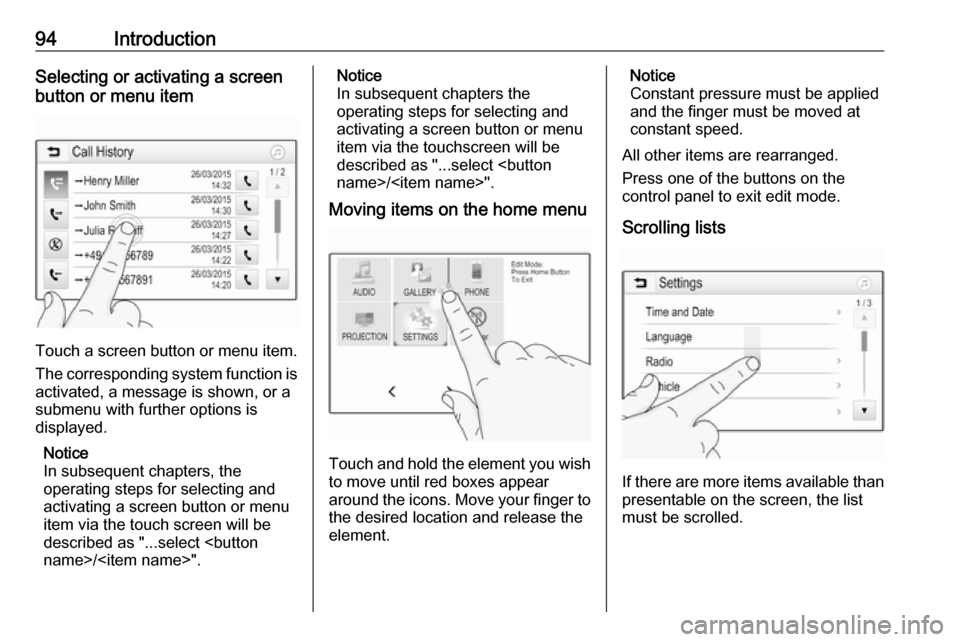
Touch a screen button or menu item.
The corresponding system function is activated, a message is shown, or a
submenu with further options is
displayed.
Notice
In subsequent chapters, the
operating steps for selecting and
activating a screen button or menu
item via the touch screen will be
described as "...select
Notice
In subsequent chapters the
operating steps for selecting and
activating a screen button or menu
item via the touchscreen will be
described as "...select
Moving items on the home menu
Touch and hold the element you wish
to move until red boxes appear
around the icons. Move your finger to
the desired location and release the
element.
Notice
Constant pressure must be applied and the finger must be moved at
constant speed.
All other items are rearranged.
Press one of the buttons on the
control panel to exit edit mode.
Scrolling lists
If there are more items available than
presentable on the screen, the list
must be scrolled.
Page 97 of 161
Introduction97Activating or deactivating the
audible touch feedback function
If the audible touch feedback function
is activated, each touch of a screen
button or menu item is indicated by a
beeping sound.
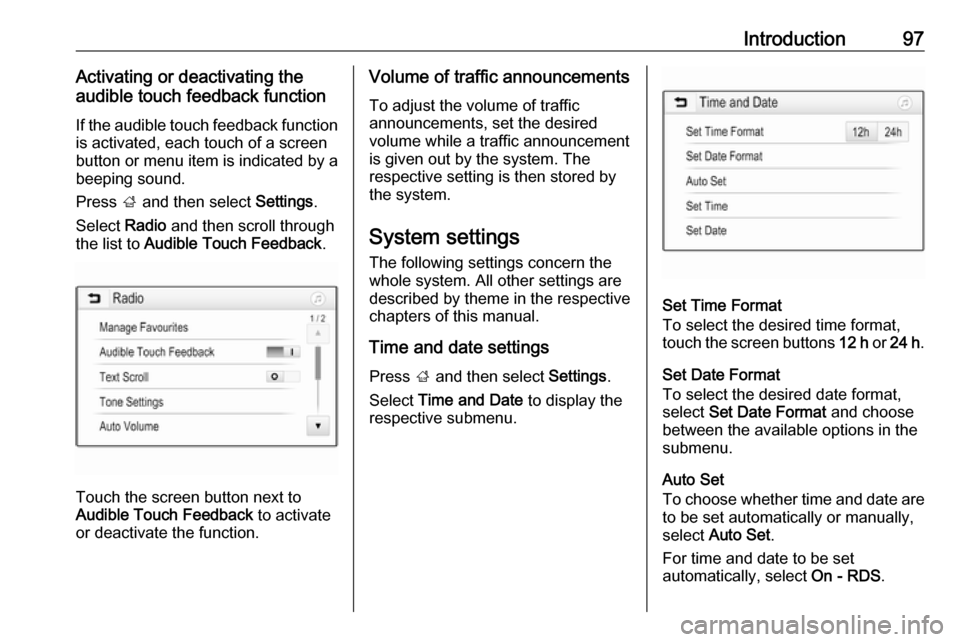
Press ; and then select Settings.
Select Radio and then scroll through
the list to Audible Touch Feedback .
Touch the screen button next to
Audible Touch Feedback to activate
or deactivate the function.
Volume of traffic announcements
To adjust the volume of traffic
announcements, set the desired volume while a traffic announcement
is given out by the system. The
respective setting is then stored by
the system.
System settings The following settings concern the
whole system. All other settings are
described by theme in the respective chapters of this manual.
Time and date settings
Press ; and then select Settings.
Select Time and Date to display the
respective submenu.
Set Time Format
To select the desired time format,
touch the screen buttons 12 h or 24 h .
Set Date Format
To select the desired date format,
select Set Date Format and choose
between the available options in the
submenu.
Auto Set
To choose whether time and date are to be set automatically or manually,
select Auto Set .
For time and date to be set
automatically, select On - RDS.
Page 107 of 161

External devices107Audio files
The playable audio file formats
are .mp3, .wma, .ogg and .wav.
When playing a file with ID3 tag
information, the Infotainment system
can display information, e.g. on the
track title and artist.
Picture files
The displayable picture file formats are .jpg, .bmp, .png and .gif.
.jpg files must have a size of 64 to
5000 pixels in width and 64 to
5000 pixels in height.
.bmp, .png and .gif files must have a
size of 64 to 1024 pixels in width and
64 to 1024 pixels in height.
Movie files
The playable movie file formats
are .avi, .mpg, .mp4, .divx, .xvid
and .wmv.
The resolution of the files must be
within a range of 720 pixels in width
and 576 pixels in height. The frame
rate must be less that 30 fps.
Usable codecs are divx, xvid,
mpeg-1, mpeg-4 (mpg4, mp42,
mp43) and wmv9 (wmv3).The playable audio formats
are .mp3, .ac3, .aac and .wma.
The displayable subtitle format
is .smi.
Playing audio Activating the music function
If the device is not yet connected to
the Infotainment system, connect the
device 3 105.
Usually, the respective audio main menu is displayed automatically.
If playback is not started
automatically e.g. if USB Auto
Launch is deactivated 3 105 , take the
following steps:
Press ; and then select AUDIO to
open the audio main menu last
selected.
Select Source in the interaction
selector bar and then select the
desired audio source to open the
respective audio main menu.
Playback of the audio tracks starts automatically.
Function buttons
Notice
During AUX playback, the function
buttons are not available.
Interrupting and resuming playback
Touch = to interrupt playback. The
screen button changes to l.
Touch l to resume playback.
Playing the next or previous track
Touch v to play the next track.
Touch t within the first 2 seconds of
the track playing to return to the
previous track.
Page 109 of 161

External devices109Function buttonsFull screen mode
Select x to display the picture in full
screen mode. Touch the screen to
exit full screen mode.
Viewing the next or previous picture
Touch j or swipe to the left to view the
next picture
Touch i or swipe to the right to view
the previous picture.
Rotating a picture
Select v to rotate the picture.
Zoom in on a picture
Touch w once or several times to
zoom in on a picture or to return to its original size.
Viewing a slide show
Select t to view the pictures stored
on the USB device in a slide show.
Touch the screen to end the slide
show.Picture menu
Select Menu in the bottom line of the
screen to display the Picture Menu.
Slide show time
Select Slide Show Time to display a
list of possible time sequences.
Activate the desired time sequence in which one picture is supposed to be
displayed in a slide show.
Clock and temperature display
If you want the time and temperature
to be displayed in full screen mode,
activate Clock. Temp. Display .
Display settings
Select Display Settings to open a
submenu for the adjustment of
brightness and contrast.
Touch + or - to adjust the settings.
Playing movies
You can view movies from a USB
device connected to the USB port.
Notice
For your safety, the movie function is
not available while driving.
Activating the movie function
If the device is not yet connected to
the Infotainment system, connect the
device 3 105.
Press ; and then select GALLERY
to open the media main menu.
Touch m to open the movie main
menu and then select the desired folder and/or movie.
The movie is shown.
Page 110 of 161
110External devices
Function buttonsFull screen
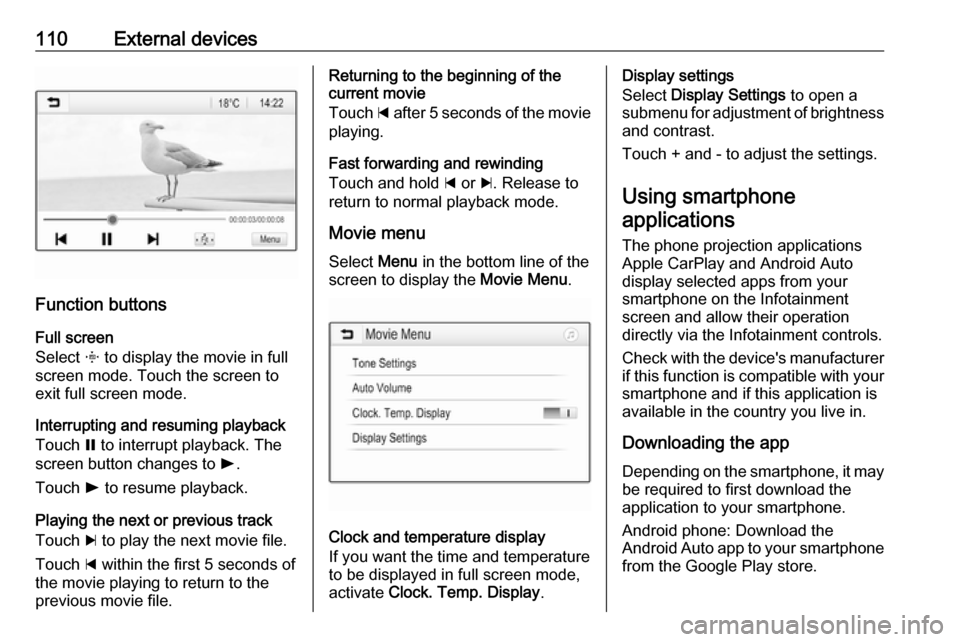
Select x to display the movie in full
screen mode. Touch the screen to
exit full screen mode.
Interrupting and resuming playback
Touch = to interrupt playback. The
screen button changes to l.
Touch l to resume playback.
Playing the next or previous track
Touch c to play the next movie file.
Touch d within the first 5 seconds of
the movie playing to return to the
previous movie file.
Returning to the beginning of the
current movie
Touch d after 5 seconds of the movie
playing.
Fast forwarding and rewinding
Touch and hold d or c. Release to
return to normal playback mode.
Movie menu Select Menu in the bottom line of the
screen to display the Movie Menu.
Clock and temperature display
If you want the time and temperature
to be displayed in full screen mode,
activate Clock. Temp. Display .
Display settings
Select Display Settings to open a
submenu for adjustment of brightness and contrast.
Touch + and - to adjust the settings.
Using smartphone
applications
The phone projection applications
Apple CarPlay and Android Auto
display selected apps from your
smartphone on the Infotainment
screen and allow their operation
directly via the Infotainment controls.
Check with the device's manufacturer if this function is compatible with your
smartphone and if this application is
available in the country you live in.
Downloading the app
Depending on the smartphone, it may be required to first download the
application to your smartphone.
Android phone: Download the
Android Auto app to your smartphone from the Google Play store.
Page 118 of 161
118PhoneSelect Contacts in the phone main
menu.Quick search 1. Select u to display a list of all
contacts.
2. Scroll through the list of contacts entries.
3. Touch the contact you wish to call.
A menu with all phone numbers
stored for the selected contact is
displayed.
4. Select the desired phone number to initiate the call.Search menu
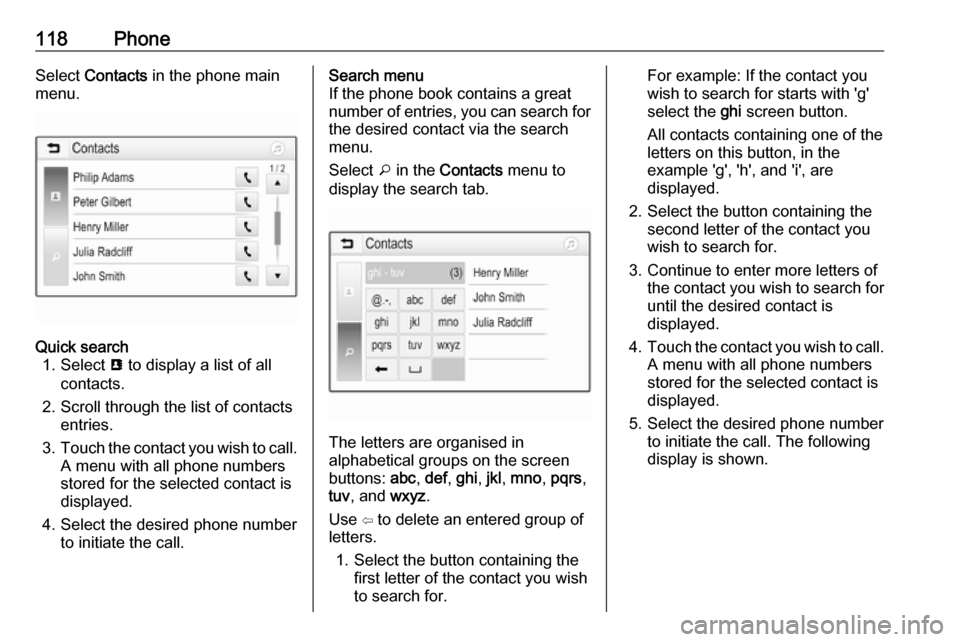
If the phone book contains a great
number of entries, you can search for
the desired contact via the search
menu.
Select o in the Contacts menu to
display the search tab.
The letters are organised in
alphabetical groups on the screen
buttons: abc, def , ghi , jkl , mno , pqrs ,
tuv , and wxyz.
Use ⇦ to delete an entered group of
letters.
1. Select the button containing the first letter of the contact you wish
to search for.
For example: If the contact you
wish to search for starts with 'g'
select the ghi screen button.
All contacts containing one of the
letters on this button, in the example 'g', 'h', and 'i', are
displayed.
2. Select the button containing the second letter of the contact you
wish to search for.
3. Continue to enter more letters of the contact you wish to search for
until the desired contact is
displayed.
4. Touch the contact you wish to call.
A menu with all phone numbers
stored for the selected contact is
displayed.
5. Select the desired phone number to initiate the call. The following
display is shown.
Page 129 of 161

Introduction1291X......................................... 130
If switched off: short press:
switch power on
If switched on: short press: mute system; long press:
switch power off
Turn: adjust volume
2 RADIO
Activate radio or change
waveband ........................... 136
3 MEDIA
Activate media or change
media source ...................... 143
4 t v
Radio: short press: skip to
previous or next station;
press and hold: seek down or up .................................... 136
External devices: short
press: skip to previous or
next track; press and hold:
rewind or fast forward .........1435PHONE
Short press: open phone
menu ................................... 145
Long press: activate
speech recognition ..............144
6 BACK
Menu: one level back ..........132
Input: delete last character
or entire entry ......................132
7 MENU ................................. 132
Turn: mark screen buttons or menu items; set
numeric values
Press: select/activate a
marked screen button or
menu item; confirm set
value; switch to different
setting option; open
application-specific menu
(if available)8 Softkeys
Favourites: press: select
favourites; press and hold:
save radio stations as
favourites ............................ 137
Menu: press: select
corresponding screen
button .................................. 132
9 FAV
Press: display favourites
bar ....................................... 137
Page 130 of 161
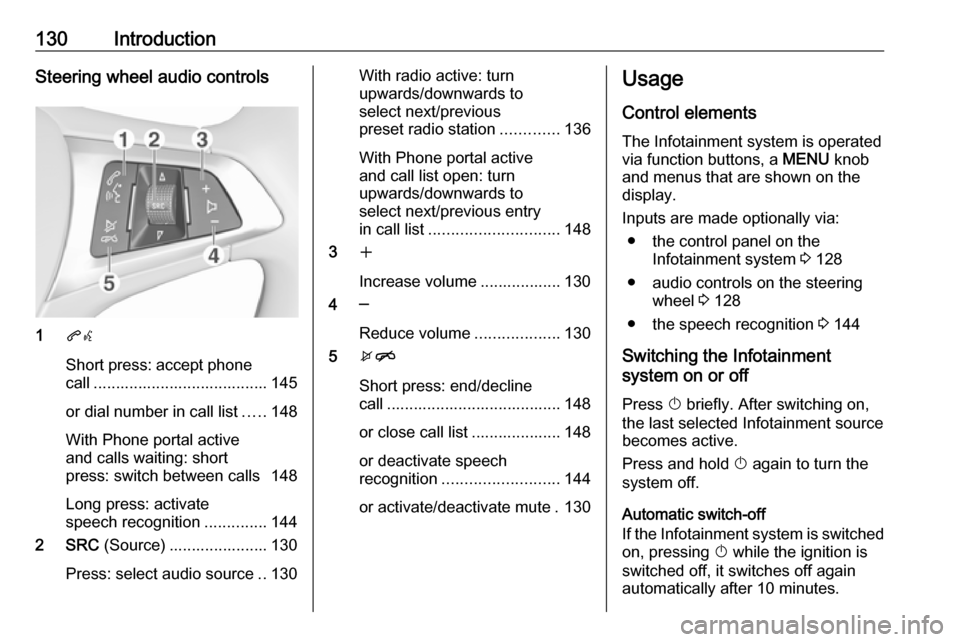
130IntroductionSteering wheel audio controls
1qw
Short press: accept phone
call ....................................... 145
or dial number in call list .....148
With Phone portal active
and calls waiting: short
press: switch between calls 148
Long press: activate
speech recognition ..............144
2 SRC (Source) ...................... 130
Press: select audio source ..130
With radio active: turn
upwards/downwards to
select next/previous
preset radio station .............136
With Phone portal active
and call list open: turn
upwards/downwards to
select next/previous entry
in call list ............................. 148
3 w
Increase volume .................. 130
4 ─
Reduce volume ...................130
5 xn
Short press: end/decline
call ....................................... 148
or close call list .................... 148
or deactivate speech
recognition .......................... 144
or activate/deactivate mute . 130Usage
Control elements
The Infotainment system is operated
via function buttons, a MENU knob
and menus that are shown on the display.
Inputs are made optionally via: ● the control panel on the Infotainment system 3 128
● audio controls on the steering wheel 3 128
● the speech recognition 3 144
Switching the Infotainment
system on or off
Press X briefly. After switching on,
the last selected Infotainment source
becomes active.
Press and hold X again to turn the
system off.
Automatic switch-off
If the Infotainment system is switched
on, pressing X while the ignition is
switched off, it switches off again
automatically after 10 minutes.