External devices143Notice
Some files may not be played
properly. This might be due to a
different recording format or the
condition of the file.
Files from online shops to which
Digital Rights Management (DRM)
has been applied cannot be played.
The playable audio file formats
are .mp3, .wma, .aac and .aif.
When playing a file with ID3 tag
information, the Infotainment system
can display information, e.g. on the
track title and artist.
Playing audio Starting playback
Connect the device 3 141.
Repeatedly press MEDIA to activate
the desired media source.
Example: USB source.
Notice
The following operation functions
are not available for AUX devices.
Function buttons
Skipping to previous or next file
Press t or v to play the previous
or next track.
If t is pressed within the first five
seconds of the song playing, the
system skips to the beginning of the
current track.
Fast forwarding or rewinding
Press and hold t or v to rewind or
fast forward.
Playback order
Press MENU in the respective audio
source and scroll through the list to
Shuffle Songs .
To play the songs on the device in
random order, set Shuffle Songs to
On .
To play the songs in normal order, set
Shuffle Songs to Off.
Browsing for a song
Depending on the device, you may
browse for songs in categories and
subcategories or a folder structure.
Notice
For this function to be available, the
indexing process must be
completed.
Categories
To browse for a song, press MENU in
the respective audio source and then select Browse .
Navigate through the browse
structure and select the desired track.
Folders
To browse a song, press MENU and
then select Folder View . The folder
structure on the respective device is displayed.
Navigate through the folder structure and select the desired track.
158Phone holder
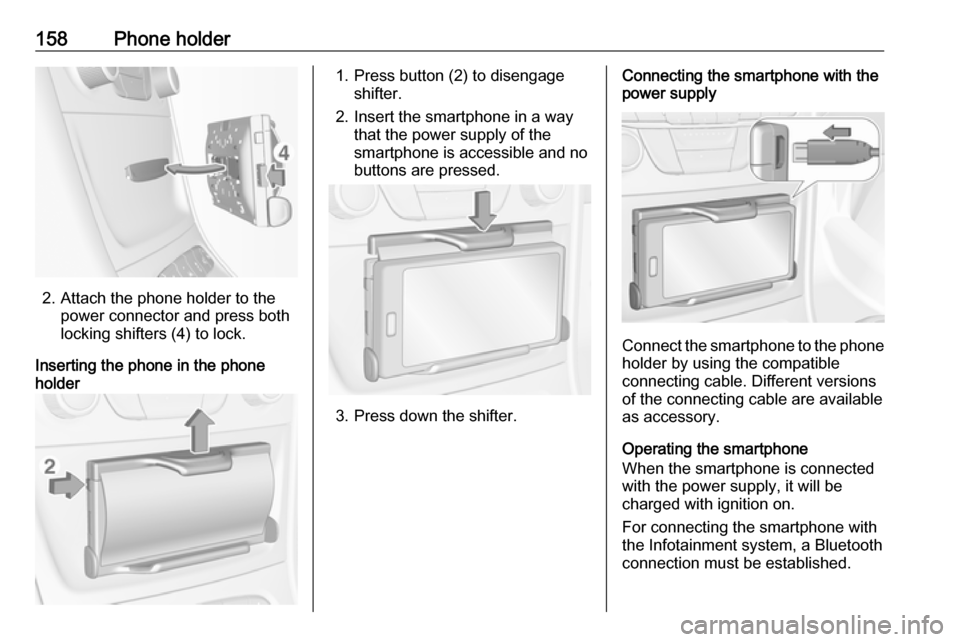
2. Attach the phone holder to thepower connector and press both
locking shifters (4) to lock.
Inserting the phone in the phone holder
1. Press button (2) to disengage
shifter.
2. Insert the smartphone in a way that the power supply of the
smartphone is accessible and no
buttons are pressed.
3. Press down the shifter.
Connecting the smartphone with the power supply
Connect the smartphone to the phone
holder by using the compatible
connecting cable. Different versions
of the connecting cable are available
as accessory.
Operating the smartphone
When the smartphone is connected with the power supply, it will be
charged with ignition on.
For connecting the smartphone with
the Infotainment system, a Bluetooth
connection must be established.