AUX VAUXHALL ASTRA J 2016.5 Infotainment system
[x] Cancel search | Manufacturer: VAUXHALL, Model Year: 2016.5, Model line: ASTRA J, Model: VAUXHALL ASTRA J 2016.5Pages: 163, PDF Size: 2.95 MB
Page 106 of 163

106External devicesExternal devicesGeneral information...................106
Playing audio ............................. 108
Displaying pictures ..................... 109
Playing movies ........................... 110
Using smartphone applications . 111General information
An AUX and USB socket for the
connection of external devices is located in the centre console.
Two USB ports for charging devices
only are located at the rear of the
centre console.
Notice
The sockets must always be kept
clean and dry.
AUX input
It is possible to connect e.g. an iPod
or another auxiliary device with a
3.5 mm jack plug to the AUX input.
When connected to the AUX input,
the audio signal of the auxiliary device
is transmitted via the speakers of the
Infotainment system.
The volume and the tone settings can be adjusted via the Infotainment
system. All other control functions
must be operated via the auxiliary
device.Connecting a device
To connect the auxiliary device to the
AUX input socket of the Infotainment
system, use a 3-pole connector for
audio and a 4-pole connector for
movie sources.
Connect the AUX device to the AUX
port.
USB port
An MP3 player, USB drive, SD card
(via USB connector/adapter), iPod or
smartphone can be connected to the
USB port.
Up to two USB devices can be
connected to the Infotainment system at a time.
The Infotainment system can play
audio files, show picture files or play
movie files contained in USB storage
devices.
When connected to the USB port,
various functions of the devices
mentioned above can be operated via the controls and menus of the
Infotainment system.
Page 108 of 163

108External devicesAudio files
The playable audio file formats are
MP3 (MPEG-1 Layer 3, MPEG-2
Layer 3), WMA, AAC, AAC+, ALAC OGG WAF (PCM), AIFF, 3GPP
(audio only), Audio Books and LPCM. iPod and iPhone devices play ALAC,
AIFF, Audio Books and LPCM.
When playing a file with ID3 tag
information, the Infotainment system
can display information, e.g. on the
track title and artist.
Picture files
The displayable picture file formats
are JPG, JPEG, BMP, PNG and GIF.
JPG files must have 64 to
5000 pixels in width and 64 to
5000 pixels in height.
BMP, PNG and GIF files must have
64 to 1024 pixels in width and 64 to 1024 pixels in height.
The pictures should not exceed a file
size of 1MB.
Movie files
The playable movie file formats are
AVI and MP4.The maximum resolution is 1280 x
720 pixels. The frame rate must be
less than 30 fps.
The usable codec is H.264/MPEG-4
AVC.
The playable audio formats are MP3,
AC3, AAC and WMA.
The displayable subtitle format is
SMI.
Playing audio Activating the music function
If the device is not yet connected to
the Infotainment system, connect the
device 3 106.
Usually, the respective audio main
menu is displayed automatically.
If playback is not started
automatically e.g. if USB Auto
Launch is deactivated 3 106 , take the
following steps:
Press ; and then select AUDIO to
open the audio main menu last selected.Select Source in the interaction
selector bar and then select the
desired audio source to open the respective audio main menu.
Playback of the audio tracks starts automatically.
Function buttons
Notice
During AUX playback, the function buttons are not available.
Interrupting and resuming playback
Touch = to interrupt playback. The
screen button changes to l.
Touch l to resume playback.
Page 109 of 163
External devices109Playing the next or previous track
Touch v to play the next track.
Touch t within the first 2 seconds of
the track playing to return to the
previous track.
Returning to the beginning of the
current track
Touch t after 2 seconds of the track
playing.
Fast forwarding and rewinding
Touch and hold t or v. Release to
return to normal playback mode.
Alternatively, you can move the slider
showing the current track position to
the left or right.
Playing tracks randomly
Touch n to play the tracks in random
order. The screen button changes to
o .
Touch o again to deactivate the
shuffle function and go back to the normal playback mode.Browse Music function
Notice
The browse function is not available
for AUX sources and, depending on
the device, it may only be partially
available for Bluetooth sources.
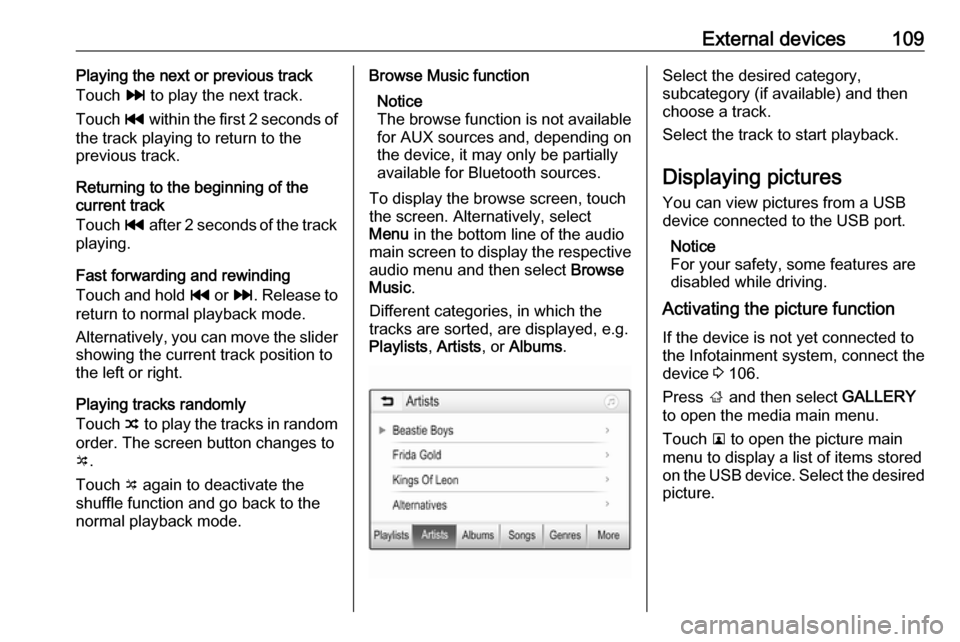
To display the browse screen, touch
the screen. Alternatively, select
Menu in the bottom line of the audio
main screen to display the respective audio menu and then select Browse
Music .
Different categories, in which the tracks are sorted, are displayed, e.g.
Playlists , Artists , or Albums .Select the desired category,
subcategory (if available) and then
choose a track.
Select the track to start playback.
Displaying pictures
You can view pictures from a USB
device connected to the USB port.
Notice
For your safety, some features are
disabled while driving.
Activating the picture function
If the device is not yet connected to
the Infotainment system, connect the
device 3 106.
Press ; and then select GALLERY
to open the media main menu.
Touch l to open the picture main
menu to display a list of items stored on the USB device. Select the desired
picture.
Page 124 of 163

124IndexAActivating AUX audio ..................108
Activating Bluetooth music .........108
Activating iPod audio ..................108
Activating phone .........................118
Activating phone projection ........111
Activating radio ........................... 100
Activating USB audio ..................108
Activating USB movie .................110
Activating USB picture ................109
Audio files ................................... 106
Auto volume.................................. 97
AUX AUX audio menu .....................108
Connecting device ..................106
General information ................106
B Basic operation ............................. 94
Bluetooth Bluetooth connection ..............115
Bluetooth music menu ............108
Connecting device ..................106
General information ................106
Pairing ..................................... 115
Phone ...................................... 118
Bluetooth connection ..................115C
Call Functions during a call ............118
Incoming call ........................... 118
Initiating a phone call ..............118
Ring tone ................................. 118
Call history .................................. 118
Control elements Infotainment system ..................88
Steering wheel .......................... 88
Control elements overview ...........88
D DAB ............................................ 104
Digital audio broadcasting ..........104
Displaying pictures .....................109
Display settings ..................109, 110
E Emergency call ........................... 117
F
Favourite lists ............................. 102
Retrieving stations................... 102
Storing stations .......................102
File formats Audio files................................ 106
Movie files ............................... 106
Picture files.............................. 106
Page 125 of 163

125GGeneral information ....106, 113, 114
AUX ......................................... 106
Bluetooth ................................. 106
DAB ......................................... 104
Infotainment system ..................86
Phone ...................................... 114
Smartphone applications ........106
USB ......................................... 106
H Home menu .................................. 94
I
Infotainment control panel ............88
Intellitext ..................................... 104
iPod ............................................ 106
Connecting device ..................106
iPod audio menu .....................108
M
Maximum startup volume .............97
Menu operation............................. 94
Mobile phones and CB radio equipment .............................. 122
Movie files................................... 106
Mute.............................................. 91
O Operation .................................... 118
External devices ......................106Menu......................................... 94
Phone ...................................... 118
Radio ....................................... 100
P
Pairing ........................................ 115
Phone Bluetooth ................................. 114
Bluetooth connection ..............115
Call history .............................. 118
Emergency calls ......................117
Entering a number ..................118
Functions during a call ............118
General information ................114
Incoming call ........................... 118
Phone book ............................. 118
Phone main menu ...................118
Selecting the ring tone ............118
Speed dial number ..................118
Phone book ................................ 118
Phone projection ........................111
Picture files ................................. 106
Playing audio .............................. 108
Playing movies ........................... 110
R
Radio Activating................................. 100
Configuring DAB .....................104
Configuring RDS .....................103
DAB announcements ..............104Digital audio broadcasting
(DAB) ...................................... 104
Favourite lists .......................... 102
Intellitext .................................. 104
Radio data system (RDS) .......103
Regional .................................. 103
Regionalisation ....................... 103
Retrieving stations................... 102
Selecting the waveband ..........100
Station search ......................... 100
Station tuning .......................... 100
Storing stations .......................102
Usage ...................................... 100
Radio data system (RDS) ..........103
RDS ............................................ 103
Regional ..................................... 103
Regionalisation ........................... 103
Retrieving stations ......................102
Ring tone Changing the ring tone ............118
Ring tone volume ......................97
S Smartphone ................................ 106
Phone projection .....................111
Speech recognition .....................113
Speed dial numbers ...................118
Station search............................. 100
Steering wheel audio controls ......88
Storing stations ........................... 102
Page 126 of 163

126Switching the Infotainmentsystem on .................................. 91
System settings ............................ 98
T
Theft-deterrent feature ................. 87
Tone settings ................................ 96
Touch beep volume ......................97
TP volume .................................... 97
U Usage ........................... 91, 100, 113
AUX ......................................... 106
Bluetooth ................................. 106
iPod ......................................... 106
Menu ......................................... 94
Phone ...................................... 118
Radio ....................................... 100
USB ......................................... 106
USB Connecting device ..................106
General information ................106
USB audio menu .....................108
USB movie menu ....................110
USB picture menu ...................109
Using smartphone applications ..111V
Voice recognition ........................113
Volume Auto volume .............................. 97
Maximum startup volume ..........97
Mute function............................. 91
Ring tone volume ......................97
Setting the volume ....................91
Speed compensated volume ....97
Touch beep volume ..................97
TP volume ................................. 97
Volume limitation at high
temperatures ............................. 91
Volume settings ............................ 97
W
Waveband selection ...................100
Page 128 of 163

128IntroductionIntroductionGeneral information...................128
Theft-deterrent feature ...............129
Control elements overview ........130
Usage ........................................ 132General information
The Infotainment system provides
you with state-of-the-art in-car
infotainment.
Using the FM, AM or DAB radio
functions, you can register a large
number of stations on different
favourites pages.
You can connect external data
storage devices, e.g. iPod, USB
devices, or other auxiliary devices to
the Infotainment system as further
audio sources; either via a cable or
via Bluetooth.
The digital sound processor provides
you with several preset equaliser
modes for sound optimisation.
In addition, the Infotainment system is equipped with a Phone portal that
allows comfortable and safe use of
your mobile phone in the vehicle.
Optionally, the Infotainment system
can be operated using the control
panel or the controls on the steering
wheel, or - if provided by your mobile
phone - via speech recognition.Notice
This manual describes all options
and features available for the
various Infotainment systems.
Certain descriptions, including those
for display and menu functions, may not apply to your vehicle due to
model variant, country
specifications, special equipment or
accessories.
Important information on
operation and traffic safety9 Warning
Drive safely at all times when
using the Infotainment system.
If in doubt, stop the vehicle before operating the Infotainment
system.
Page 143 of 163

External devices143External devicesGeneral information...................143
Playing audio ............................. 145General information
An AUX and USB socket for the
connection of external devices is located in the centre console.
Two USB ports for charging devices
only are located at the rear of the
centre console.
Notice
The sockets must always be kept
clean and dry.
AUX input
It is possible to connect e.g. an iPod,
a smartphone or another auxiliary
device to the AUX input.
When connected to the AUX input, the audio signal of the auxiliary device
is transmitted via the speakers of the
Infotainment system.
The volume and the tone settings can be adjusted via the Infotainment
system. All other control functions
must be operated via the auxiliary device.
The Infotainment system can play music files contained in auxiliary
devices, e.g. iPod or smartphone.Connecting/disconnecting a device
To connect the auxiliary device to the
AUX input socket of the Infotainment
system, use the following cable:
3-pole for audio source.
To disconnect the AUX device, select
another function and then remove the AUX device.Caution
Avoid disconnecting the device
during playback. This may
damage the device or the
Infotainment system.
USB port
An MP3 player, USB drive, iPod or
smartphone can be connected to the
USB port.
When connected to the USB port, the devices mentioned above can be
operated via the controls and menus
of the Infotainment system.
Page 145 of 163

External devices145Notice
Some files may not be played
properly. This might be due to a
different recording format or the
condition of the file.
Files from online shops to which
Digital Rights Management (DRM)
has been applied cannot be played.
The playable audio file formats are
MP3, WMA, AAC and AIF.
When playing a file with ID3 tag
information, the Infotainment system
can display information, e.g. on the
track title and artist.
Playing audio Starting playback
Connect the device 3 143.
Repeatedly press MEDIA to activate
the desired media source.
Example: USB source.
Notice
The following operation functions
are not available for AUX devices.
Function buttons
Skipping to previous or next file
Press t or v to play the previous
or next track.
If t is pressed within the first five
seconds of the song playing, the
system skips to the beginning of the
current track.
Fast forwarding or rewinding
Press and hold t or v to rewind or
fast forward.
Playback order
Press MENU in the respective audio
source and scroll through the list to
Shuffle Songs .
To play the songs on the device in
random order, set Shuffle Songs to
On .
To play the songs in normal order, set
Shuffle Songs to Off.
Browsing for a song
Depending on the device, you may
browse for songs in categories and
subcategories or a folder structure.
Notice
For this function to be available, the
indexing process must be
completed.
Categories
To browse for a song, press MENU in
the respective audio source and then select Browse .
Navigate through the browse
structure and select the desired track.
Folders
To browse a song, press MENU and
then select Folder View . The folder
structure on the respective device is displayed.
Navigate through the folder structure and select the desired track.
Page 154 of 163

154IndexAActivating AUX............................ 145
Activating Bluetooth music .........145
Activating radio ........................... 138
Activating the Infotainment system ..................................... 132
Activating the phone portal .........150
Activating USB............................ 145
Audio files ................................... 143
Auto Set ...................................... 135
Auto volume control ....................135
AUX ............................................ 143
B BACK button ............................... 134
Basic operation ........................... 134
Control panel ........................... 134
Bluetooth connection ..................148
Bluetooth music .......................... 143
C Category list................................ 138
Control elements Infotainment system ................130
Steering wheel ........................ 130
Control elements overview .........130
D
DAB ............................................ 140
DAB linking ................................. 140
Digital audio broadcasting ..........140E
Emergency call ........................... 149
F Favourite lists ............................. 139
Retrieving stations................... 139
Storing stations .......................139
File formats Audio files................................ 143
Frequency list ............................. 138
G
General information ....143, 146, 147
AUX ......................................... 143
Bluetooth music....................... 143
Infotainment system ................128
Phone ...................................... 147
Radio ....................................... 138
USB ......................................... 143
I
Infotainment control panel ..........130
Intellitext ..................................... 140
L
Language ................................... 135
L-Band ........................................ 140
M
Maximum startup volume ...........135
MENU knob ................................ 134
Menu operation .......................... 134