navi VAUXHALL ASTRA K 2020 Infotainment system
[x] Cancel search | Manufacturer: VAUXHALL, Model Year: 2020, Model line: ASTRA K, Model: VAUXHALL ASTRA K 2020Pages: 85, PDF Size: 5.78 MB
Page 41 of 85
Basic operation41
To directly jump to the Audio menu,
select k.
To directly jump to the Navigation
menu, select j.
Notice
The j symbol is only available if
route guidance is active.
Tone settings
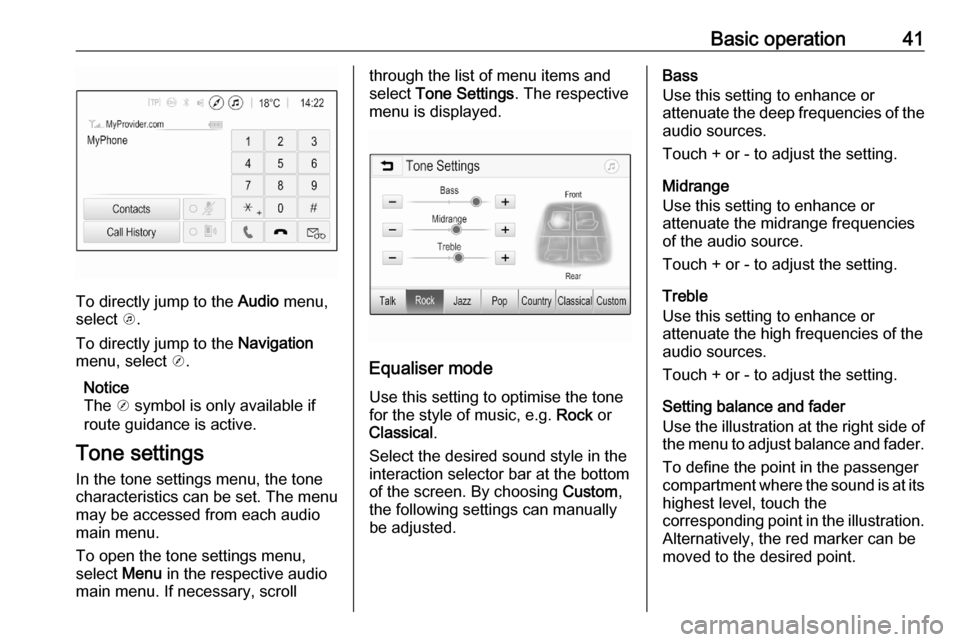
In the tone settings menu, the tone characteristics can be set. The menu
may be accessed from each audio
main menu.
To open the tone settings menu,
select Menu in the respective audio
main menu. If necessary, scroll
through the list of menu items and
select Tone Settings . The respective
menu is displayed.
Equaliser mode
Use this setting to optimise the tone for the style of music, e.g. Rock or
Classical .
Select the desired sound style in the
interaction selector bar at the bottom of the screen. By choosing Custom,
the following settings can manually
be adjusted.
Bass
Use this setting to enhance or
attenuate the deep frequencies of the audio sources.
Touch + or - to adjust the setting.
Midrange
Use this setting to enhance or
attenuate the midrange frequencies
of the audio source.
Touch + or - to adjust the setting.
Treble
Use this setting to enhance or
attenuate the high frequencies of the
audio sources.
Touch + or - to adjust the setting.
Setting balance and fader
Use the illustration at the right side of
the menu to adjust balance and fader.
To define the point in the passenger
compartment where the sound is at its
highest level, touch the
corresponding point in the illustration.
Alternatively, the red marker can be
moved to the desired point.
Page 43 of 85
Basic operation43
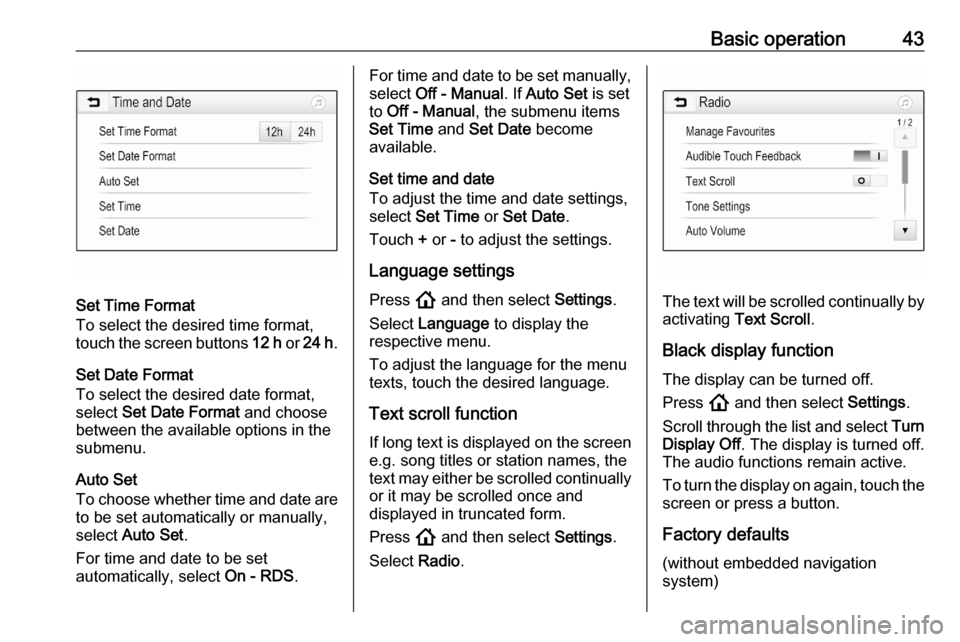
Set Time Format
To select the desired time format,
touch the screen buttons 12 h or 24 h .
Set Date Format
To select the desired date format,
select Set Date Format and choose
between the available options in the
submenu.
Auto Set
To choose whether time and date are
to be set automatically or manually,
select Auto Set .
For time and date to be set
automatically, select On - RDS.
For time and date to be set manually,
select Off - Manual . If Auto Set is set
to Off - Manual , the submenu items
Set Time and Set Date become
available.
Set time and date
To adjust the time and date settings, select Set Time or Set Date .
Touch + or - to adjust the settings.
Language settings
Press ! and then select Settings.
Select Language to display the
respective menu.
To adjust the language for the menu
texts, touch the desired language.
Text scroll function If long text is displayed on the screen
e.g. song titles or station names, the
text may either be scrolled continually or it may be scrolled once and
displayed in truncated form.
Press ! and then select Settings.
Select Radio.
The text will be scrolled continually by
activating Text Scroll .
Black display function The display can be turned off.
Press ! and then select Settings.
Scroll through the list and select Turn
Display Off . The display is turned off.
The audio functions remain active.
To turn the display on again, touch the
screen or press a button.
Factory defaults (without embedded navigation
system)
Page 44 of 85

44Basic operationPress ! and then select Settings.
Scroll through the list and select
Return to Factory Settings .
To restore all vehicle personalisation
settings, select Restore Vehicle
Settings .
To delete the paired Bluetooth
devices, the contacts list and the
voice mail numbers stored, select
Clear All Private Data .
To reset tone and volume settings, delete all favourites, and erase the
ringtone selection, select Restore
Radio Settings .
In each case, a warning message is
displayed. Select Continue to reset
the settings.
Factory defaults
(with embedded navigation system)
Press ! and then select Settings.
Scroll through the list and select
Restore Factory Settings .
Vehicle settings
To restore all vehicle personalisation
settings, select Reset Vehicle
Settings .A pop-up is displayed. Confirm the
pop-up message.
Phone information
To delete the paired Bluetooth
devices, the contacts list and the
voice mail numbers stored, select Clear all phone information .
A pop-up is displayed. Confirm the
pop-up message.
Radio settings
To reset tone and volume settings
and delete all favourites, select
Restore Radio Settings .
A pop-up is displayed. Confirm the
pop-up message.
Navigation settings
To reset all navigation parameters
and navigation system settings,
select Restore Navigation Settings . A
submenu is displayed.
To reset a specific set of parameters, select Clear navigation history (recent
destinations), Clear navigation
favourites (favourites) or Reset
navigation options and settings (e.g.
settings concerning map display,
voice output or route options).A pop-up is displayed. Confirm the
pop-up message.
System version Press ! and then select Settings.
Scroll through the list and select Software Information .
If a USB device is connected, the
vehicle information can be saved to
this USB device.
Select System Update and then Save
Vehicle Info to USB .
For a system update, contact a
workshop.
Vehicle settingsVehicle settings are described in the
Owner's Manual.
Page 57 of 85

External devices57Make sure the respective application
is activated.
Connecting the mobile phone
Connect the smartphone to the USB
port 3 51.
Starting phone projection
To start the phone projection function,
press ! and then select Projection.
Notice
If the application is recognised by the Infotainment system, the
application icon may change to Apple CarPlay or Android Auto .
Alternatively, the function can be
started by pressing ! for a few
seconds.
The phone projection screen
displayed depends on the
smartphone and software version.
Returning to the home screen
Press !.
BringGo
BringGo is a navigation app providing location search, map display and
route guidance.Notice
Before downloading the app, check
whether BringGo is available in this
vehicle.
Downloading the app
Before BringGo can be operated
using the controls and menus of the
Infotainment system, the respective
application must be installed on the
smartphone.
Download the app from App Store ®
or
Google Play Store.
Activating BringGo in the settings
menu
Press ! to display the home screen
and then select Settings.
Scroll through the list to BringGo.
Make sure the application is
activated.
Connecting the mobile phone
Connect the smartphone to the USB
port 3 51.
Starting BringGo
To start the app, press ! and then
select the Nav icon.The main menu of the application is
shown on the Info Display.
For further information on how to
operate the app, see the instructions
on the manufacturer's website.
Page 58 of 85
58NavigationNavigationGeneral information.....................58
Usage .......................................... 59
Destination input ..........................64
Guidance ..................................... 68General information
This chapter is about the embedded
navigation system.
The current traffic situation is taken
into account in the route calculation.
For this purpose, the Infotainment
system receives traffic
announcements in the current
reception area via RDS-TMC.
The navigation system cannot,
however, take into account traffic
incidents, traffic regulations changed
at short notice and hazards or
problems that arise suddenly (e.g.
road works).Caution
The usage of the navigation
system does not release the driver
from the responsibility for a
correct, vigilant attitude in road
traffic. The relevant traffic
regulations must always be
followed. If a navigation instruction contradicts traffic regulations, the
traffic regulations always apply.
Functioning of the navigation
system
The position and movement of the
vehicle are detected by the navigation
system using sensors. The travelled
distance is determined by the
vehicle's speedometer signal, turning
movements on bends by a sensor.
The position is determined by the
GPS (Global Positioning System)
satellites.
By comparing the sensor signals with the digital maps, it is possible to
determine the position with an
accuracy of approx. 10 metres.
The system will also work with poor
GPS reception. However, the
accuracy of the determination of the
position will be reduced.
After the entry of the destination
address or point of interest (nearest
petrol station, hotel, etc.), the route is
calculated from the current location to the destination selected.
Route guidance is provided by voice
output and an arrow, as well as with
the aid of a multi-colour map display.
Page 59 of 85
Navigation59Important informationTMC traffic information system and
dynamic route guidance
The TMC traffic information system
receives all current traffic information from TMC radio stations. This
information is included in the
calculation of the overall route. During
this process, the route is planned so that traffic problems related to pre-
selected criteria are avoided.
If there is a traffic problem during
active route guidance, depending on
the pre-settings, a message appears
as to whether the route should be
changed.
TMC traffic information is displayed in
the map display as symbols or as
detailed text on the TMC messages
menu.
To be able to use TMC traffic
information, the system must receive
TMC stations in the relevant region.
The TMC traffic stations can be
selected in the navigation menu
3 59.Map data
All required map data is stored within
the Infotainment system.
To update the navigation map data,
purchase new data at the Opel Dealer or on our home page
http://opel.navigation.com/. The
update will be provided on a USB
device.
Connect the USB device to the USB
port and follow the instructions on the screen. The vehicle must be turned
on during the update process.
If the vehicle is equipped with more
than one USB port, the other USB
ports must not be used.
Notice
The vehicle remains operational
during the update process. If the vehicle is turned off, the update can
be paused. The navigation
application, Bluetooth and other
external devices are unavailable
until the update process is finished.
Usage To display the navigation map,
press ! and then select the
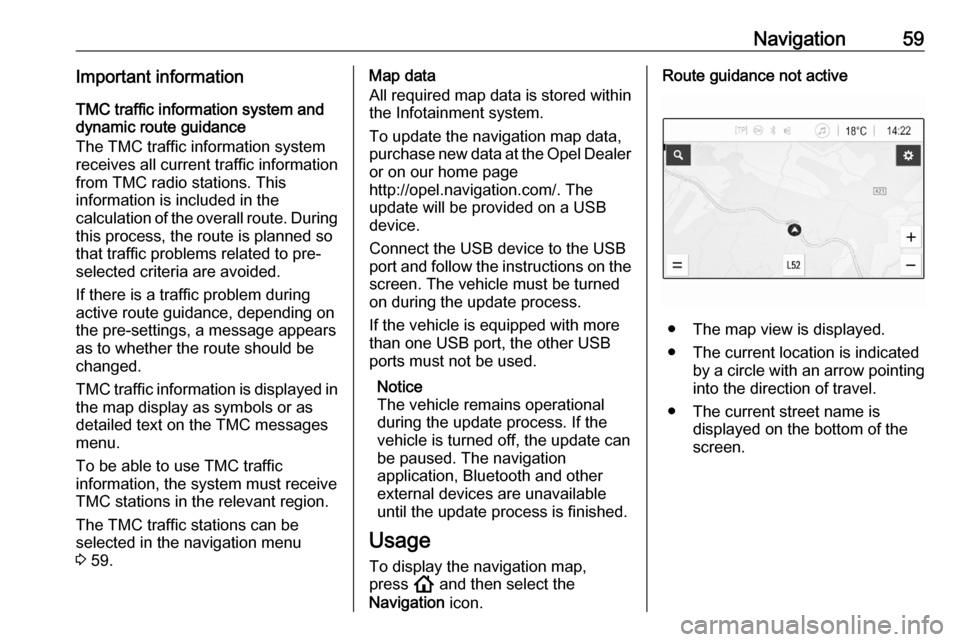
Navigation icon.Route guidance not active
● The map view is displayed.
● The current location is indicated by a circle with an arrow pointing
into the direction of travel.
● The current street name is displayed on the bottom of the
screen.
Page 60 of 85
60NavigationRoute guidance active
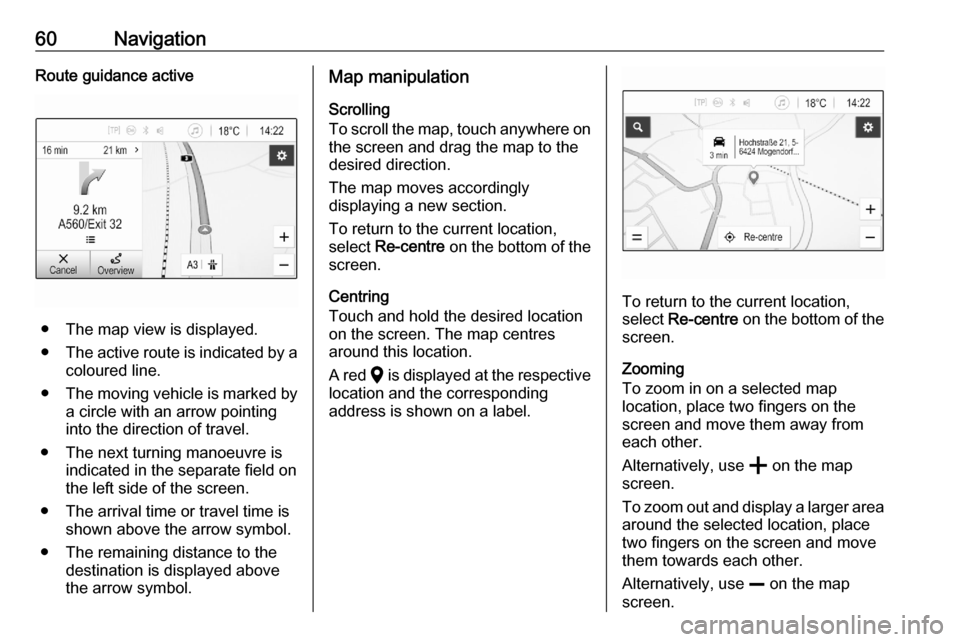
● The map view is displayed.
● The active route is indicated by a
coloured line.
● The moving vehicle is marked by
a circle with an arrow pointing
into the direction of travel.
● The next turning manoeuvre is indicated in the separate field on
the left side of the screen.
● The arrival time or travel time is shown above the arrow symbol.
● The remaining distance to the destination is displayed above
the arrow symbol.
Map manipulation
Scrolling
To scroll the map, touch anywhere on
the screen and drag the map to the
desired direction.
The map moves accordingly
displaying a new section.
To return to the current location,
select Re-centre on the bottom of the
screen.
Centring
Touch and hold the desired location
on the screen. The map centres
around this location.
A red K is displayed at the respective
location and the corresponding
address is shown on a label.
To return to the current location, select Re-centre on the bottom of the
screen.
Zooming
To zoom in on a selected map
location, place two fingers on the
screen and move them away from
each other.
Alternatively, use g on the map
screen.
To zoom out and display a larger area around the selected location, place
two fingers on the screen and move
them towards each other.
Alternatively, use h on the map
screen.
Page 61 of 85
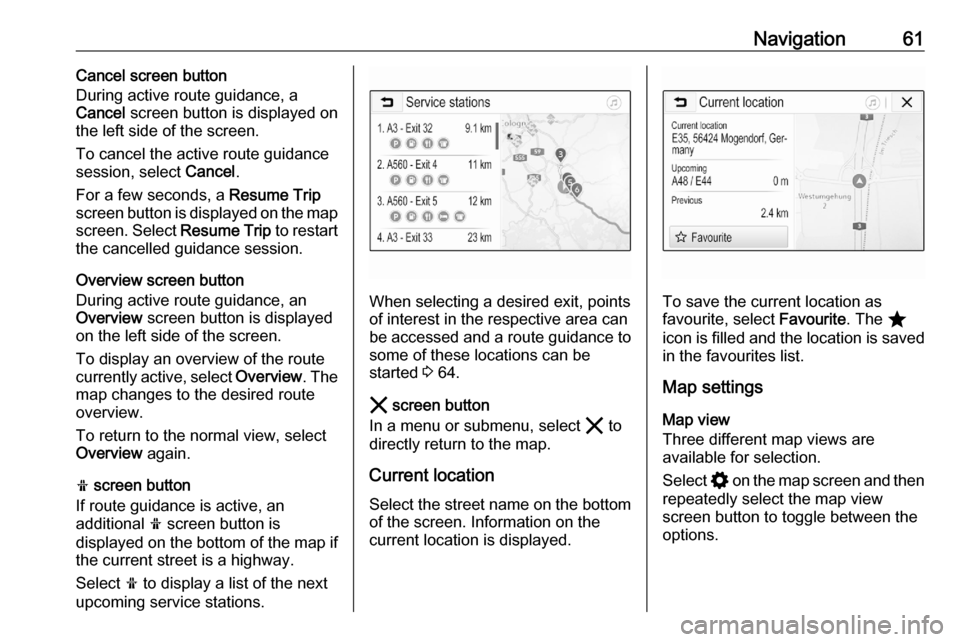
Navigation61Cancel screen button
During active route guidance, a
Cancel screen button is displayed on
the left side of the screen.
To cancel the active route guidance session, select Cancel.
For a few seconds, a Resume Trip
screen button is displayed on the map
screen. Select Resume Trip to restart
the cancelled guidance session.
Overview screen button
During active route guidance, an
Overview screen button is displayed
on the left side of the screen.
To display an overview of the route
currently active, select Overview. The
map changes to the desired route
overview.
To return to the normal view, select
Overview again.
f screen button
If route guidance is active, an
additional f screen button is
displayed on the bottom of the map if
the current street is a highway.
Select f to display a list of the next
upcoming service stations.
When selecting a desired exit, points
of interest in the respective area can
be accessed and a route guidance to some of these locations can be
started 3 64.
& screen button
In a menu or submenu, select & to
directly return to the map.
Current location
Select the street name on the bottom of the screen. Information on the
current location is displayed.To save the current location as
favourite, select Favourite. The ;
icon is filled and the location is saved
in the favourites list.
Map settings
Map view
Three different map views are
available for selection.
Select % on the map screen and then
repeatedly select the map view
screen button to toggle between the
options.
Page 62 of 85
62Navigation
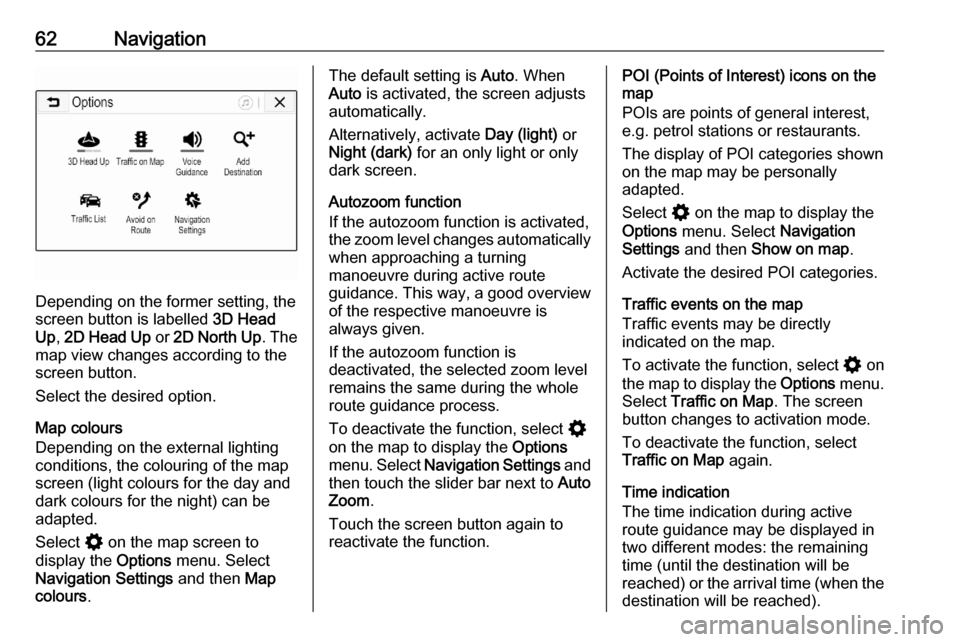
Depending on the former setting, the
screen button is labelled 3D Head
Up , 2D Head Up or 2D North Up . The
map view changes according to the
screen button.
Select the desired option.
Map colours
Depending on the external lighting
conditions, the colouring of the map
screen (light colours for the day and
dark colours for the night) can be
adapted.
Select % on the map screen to
display the Options menu. Select
Navigation Settings and then Map
colours .
The default setting is Auto. When
Auto is activated, the screen adjusts
automatically.
Alternatively, activate Day (light) or
Night (dark) for an only light or only
dark screen.
Autozoom function
If the autozoom function is activated,
the zoom level changes automatically
when approaching a turning
manoeuvre during active route
guidance. This way, a good overview
of the respective manoeuvre is
always given.
If the autozoom function is
deactivated, the selected zoom level
remains the same during the whole
route guidance process.
To deactivate the function, select %
on the map to display the Options
menu. Select Navigation Settings and
then touch the slider bar next to Auto
Zoom .
Touch the screen button again to
reactivate the function.POI (Points of Interest) icons on the
map
POIs are points of general interest,
e.g. petrol stations or restaurants.
The display of POI categories shown
on the map may be personally
adapted.
Select % on the map to display the
Options menu. Select Navigation
Settings and then Show on map .
Activate the desired POI categories.
Traffic events on the map
Traffic events may be directly
indicated on the map.
To activate the function, select % on
the map to display the Options menu.
Select Traffic on Map . The screen
button changes to activation mode.
To deactivate the function, select
Traffic on Map again.
Time indication
The time indication during active
route guidance may be displayed in two different modes: the remaining
time (until the destination will be
reached) or the arrival time (when the destination will be reached).
Page 63 of 85

Navigation63Select % on the map to display the
Options menu. Select Navigation
Settings and then Time to Destination
Format .
Activate the desired option in the
submenu.
Notice
During active route guidance, the
time indication can be changed by
simply tapping on the time indication
field on the screen.
Alert preferences
If desired, an additional notification in
specific traffic zones can be received.
Select % on the map to display the
Options menu. Select Navigation
Settings and then Alert Preferences .
If Safety camera is activated, a
warning will appear when
approaching a stationary speed
camera.
Notice
This function is only available if such an alert system corresponds to the
legal provisions applicable in the
country you are in.
Activate the desired option.Voice guidance
The route guidance process can be
supported by voice prompts given out by the system.
Notice
The navigation voice prompts
function is not supported for all
languages. If there are no voice
prompts available, the system
automatically plays a tone to
indicate a manoeuvre ahead.
Activation
The voice guidance function is
activated by default. To deactivate
the function, select % on the map to
display the Options menu and then
touch Voice Guidance . The screen
button changes.
Select the screen button again to
reactivate the function.
Voice guidance settings
To define which system outputs may assist during active route guidance,
select % on the map, Navigation
Settings and then Voice Guidance .If Normal voice guidance is activated,
a voice announces the next turning
manoeuvre to be taken.
If Beep only is activated, only beep
tones are given out for notification.
In the submenu of Prompts during
Phone Call , the possible voice
outputs during a phone call can be
set.
Activate the desired options.
Notice
Voice guidance prompts are only
given out if Voice Guidance is
activated in the Options menu, see
above.
Information
Select % on the map to display the
Options menu. Select Navigation
Settings and then About.
The texts of the manufacturer's terms and conditions or privacy statement
can be accessed via the respective
menu items.
The navigation map version is
displayed.