phone VAUXHALL CORSA 2014.5 Infotainment system
[x] Cancel search | Manufacturer: VAUXHALL, Model Year: 2014.5, Model line: CORSA, Model: VAUXHALL CORSA 2014.5Pages: 177, PDF Size: 2.97 MB
Page 84 of 177

84Phone
Deactivating the handsfree mode
temporarily (privacy mode)
Select the Handset screen button.
The conversation can be continued only via the mobile phone.
To return to the handsfree mode:
select the Handset screen button
again.
Notice
If the handsfree mode of the Phone
portal is temporarily deactivated, the label of the Handset screen button is
highlighted in orange.
Deactivating the microphone
temporarily
Select the Mic. off screen button. The
caller will not hear you any longer.
To reactivate the microphone: select
the Mic. off screen button again.
Notice
If the microphone of the Phone
portal is deactivated, the label of the
Mic. off screen button is highlighted
in orange.
Notice
If the ignition is turned off during a
phone call, the connection remains
active until the phone call is ended.
Ending a phone call
Select the } screen button. The
phone main menu is displayed again.
Phone book setup After pairing and connecting a mobile
phone to the Infotainment system,
your mobile phone book with phone
numbers and names (if available) will be automatically downloaded to the
Infotainment system.Notice
Depending on the number of phone
book entries and the connected
mobile phone, the data download
can take several minutes.
As long as the mobile phone is paired
to the Infotainment system, the phone book stays permanently stored on the
Infotainment system.
If there were new phone book entries stored on your mobile phone, you candownload the expanded mobile
phone book to the Infotainment
system via the PHONE SETUP
menu, see "Download phone book",
below.
Each phone book entry (contact) can
have a first name, a last name, and up to five phone numbers with different
categories (e.g. "Mobile", "Work",
etc.). The mobile phone book may
contain more information elements
which will not be downloaded to the
Infotainment system.
Maximum number of phone book
entries that can be stored on the
Infotainment system: 2500 entries
with 5 numbers per entry.
Page 85 of 177

Phone85
Downloading the phone book
To open the PHONE SETUP menu:
press the SETUP button, select the
Bluetooth & telephone menu item and
then select the Telephone settings
menu item.
Select the Download Phonebook
Now menu item. The data download
from the connected mobile phone
starts.
Notice
Depending on the number of phone
book entries and the connected
mobile phone, the data download
can take several minutes.
Adjusting the sorting order
Set Sort Phonebook By to First
Name or Last Name to adjust the
sorting order for the phone book entries accordingly.
Adjusting the display mode
Typically, there are two different
phone books available on mobile
phones: the phone book on the SIM
card of the mobile phone, and the
phone book stored on the mobile
phone itself, see user guide of your
mobile phone.
Both phone books of the connected
mobile phone will be downloaded to
the Infotainment system, if possible.
You can adjust, whether you want to
see only the entries of one of the
downloaded phone books, or if you
want to see the entries of both phone
books (if available):
Set Phonebook to Phone , SIM or
Both .Notice
In case you select a phone book that
was not downloaded from the
connected mobile phone, the
Phonebk screen button in the
PHONE menu will not be selectable.
Page 87 of 177

87
NNavigation adding waypoints ......................65
address book............................. 48
control elements ........................37
creating user POIs ....................37
direct address entry................... 48
dynamic guidance .....................70
functioning ................................. 36
guidance.................................... 65
home address ........................... 48
map display ............................... 37
map SD card ....................... 36, 71
points of interest ........................48
previous destinations ................48
replacing a map SD card ..........37
route calculation ........................65
route guidance .......................... 65
route list..................................... 65
selecting user POIs ...................48
setup ......................................... 37
symbols overview ......................73
TMC (traffic) messages .............65
traffic information system (TMC) 36
usage ........................................ 37
visual instructions ......................65
voice commands .......................65
Navigation setup ........................... 37O
Operating a Bluetooth music device ........................................ 34
Operation ......................... 11, 34, 79
P Pairing a Bluetooth device ............76
Phone ........................................... 75
Bluetooth ................................... 75
call lists...................................... 79
control elements ........................75
dialling a number .......................79
emergency calls ........................78
functions during a call ...............79
important information ................75
phone book ............................... 79
privacy mode ............................. 79
Playing saved audio files ..............32
POI symbols ................................. 73
Previous destinations ...................48
R
Radio Radio data system (RDS) .........22
activating ................................... 20
selecting the waveband ............20
station search ............................ 21
usage ........................................ 20
Radio data system (RDS) ............22
RDS .............................................. 22Regionalization............................. 22
Replacing a map SD card............. 37
Route calculation ..........................65
Route guidance ......................65, 70
Route list....................................... 65
S SD card......................................... 71
Selecting the waveband ...............20
Setting the volume ........................11
Speed compensated volume ........11
Starting CD replay ........................26
Station search............................... 21
Switching the Infotainment system on or off......................... 11
Switching the radio on ..................20
Symbols overview ........................ 73
T
Theft-deterrent feature ................... 7
TMC .............................................. 36
TMC messages ............................ 65
TMC symbols................................ 73
Touch screen ................................ 11
Traffic information system ............36
Traffic messages .......................... 65
Traffic symbols ............................. 73
Page 90 of 177

90IntroductionIntroductionGeneral information.....................90
Theft-deterrent feature .................91
Overview ...................................... 92
Operation ..................................... 94
Tone settings ............................. 101
Volume settings .........................102General information
The Infotainment system provides
you with state-of-the-art in-car
infotainment.
The radio has nine automatic station
memories for each waveband: FM,
AM and DAB (if available).
The integrated audio player will
entertain you with audio CDs and
MP3 CDs.
Furthermore, you can connect
external data storage devices, e.g.
iPod, MP3 player or USB stick, or a
portable CD player to the
Infotainment system as further audio
sources.
The on-board computer can be
accessed from the Infotainment
System. For details please consult
the Owner's Manual for your car.
The digital sound processor provides
you with several preset equalizer
modes for sound optimisation.
Optionally, the Infotainment system
can be operated using controls on the steering wheel.In addition the Infotainment systemcan be equipped with a Mobile phone portal.
The well-thought-out design of the
control elements and the clear
displays enable you to control the
system easily and intuitively.
Notice
This manual describes all options
and features available for the
various Infotainment systems.
Certain descriptions, including those for display and menu functions, may
not apply to your vehicle due to
model variant, country
specifications, special equipment or
accessories.
Important information on
operation and traffic safety9 Warning
The Infotainment system has to be
used so that the vehicle can be
driven safely at all times. If in doubt
Page 95 of 177

Introduction95
■ If the automatic switch-on isdisabled, the Infotainment system
can only be switched on with the
e switch and with the j button for
CD ejection and off with the e
button.
■ If the Infotainment system is switched off when the ignition is
switched off, regardless of the
current setting of the automatic
switch-on, it can only be switched
on via the e button and with the
j button for CD ejection.
■ The automatic start is always enabled after the Infotainmentsystem has been disconnected
from the operating voltage and re-
connected.
Enable/Disable Ignition Logic
In the main menu press SETTINGS
button.
The system Settings menu is
displayed.
Enable/disable Ignition logic tick box.
Enabled: on the right side of the
display the message appears "Turn
on/off Radio via Ignition logic".Disabled: on the right side of the
display the message appears "Turn
on Radio via ON/OFF button only".
Automatic switch-off
The Infotainment system switches
itself off automatically after one hour
if you switch it on with the ignition off.
Setting the volume Turn the e knob.
■ The Infotainment system plays at the volume last set, provided the
volume was below the maximum
switch-on volume 3 102.
■ Traffic announcements and external audio sources are inserted
at a preset minimum volume
3 102.
■ If the respective source is enabled,
the volume of the traffic
announcements, the external audio
sources and the radio and CD can
be adjusted separately.Speed dependent volume control
(SDVC)
When SDVC is activated 3 102, the
volume is adapted automatically to make up for the road and wind noise
when driving.
External source An external source, e.g. a mobile
phone or a navigation system, can be
connected to the Infotainment
system.
In this case External In appears in the
display.
We recommend having appliances
installed by a Vauxhall Authorised
Repairer.
AUX input
An external audio source, e.g. a
portable CD player, can be connected via the AUX input of your vehicle.
Stereo sound from this source is
played back via the loudspeakers of
the Infotainment system.
Location of AUX input connector
3 121.
Page 98 of 177

98Introduction
In the following chapters of the
operating instructions, the requests
for action described above are
summarised into the following
request for action:
Select the desired list item. ■ If you move the cursor to the top or
bottom area of the display, other list
items appear. A scroll-bar on the
right edge of the display indicates
the current cursor position in the
list.
■ The last list item selected is marked
with an arrow in some lists.
■ The name of the list and the number
of items in it are displayed above
the list.
Pop-up menus
In certain cases the display shows additional notes and information of
the Infotainment system or other
vehicle components as a pop-up.
For this purpose, the currently
displayed menu is overlaid with the
pop-up.You have to confirm some of the pop- ups (e.g. traffic announcements
during a telephone conversation),
others will automatically disappear
after a short period.
In CD mode, for example, the traffic
station is displayed during a traffic
announcement when TP is active.
Selecting the main menu
To access the main menu, proceed
as follows:
Press MAIN button.
The main menu is displayed.
Or:
Turn the multifunction knob to the
right until menu item Main appears in
the footer.
Press the multifunction knob.
The main menu is displayed.
Or:
Repeat the following steps until the
main menu is displayed:
Turn the multifunction knob to the left until menu item Return is displayed
on the title bar.
Press the multifunction knob.
Selecting the radio menu Press TUNER button.
The radio menu is displayed.
The station last tuned in to is
displayed.
You will hear the last station tuned in.
Page 100 of 177
100Introduction
This option is not available in lists,
input menus and the main menu.
Using the function buttons to exit from menu
You can use the MEDIA, TUNER ,
SETTINGS , SOUND or MAIN
function buttons to exit from a menu.
■ Press MEDIA button.
An audio source menu is displayed.
■ Press TUNER button.
The radio menu is displayed.
■ Press SETTINGS button.
The Settings menu is displayed.
Menus opened via the SETTINGS
button can also be left via that
button.
■ Press SOUND button.
The Sound menu is displayed.
■ Press MAIN button.
The main menu is displayed.Main menu
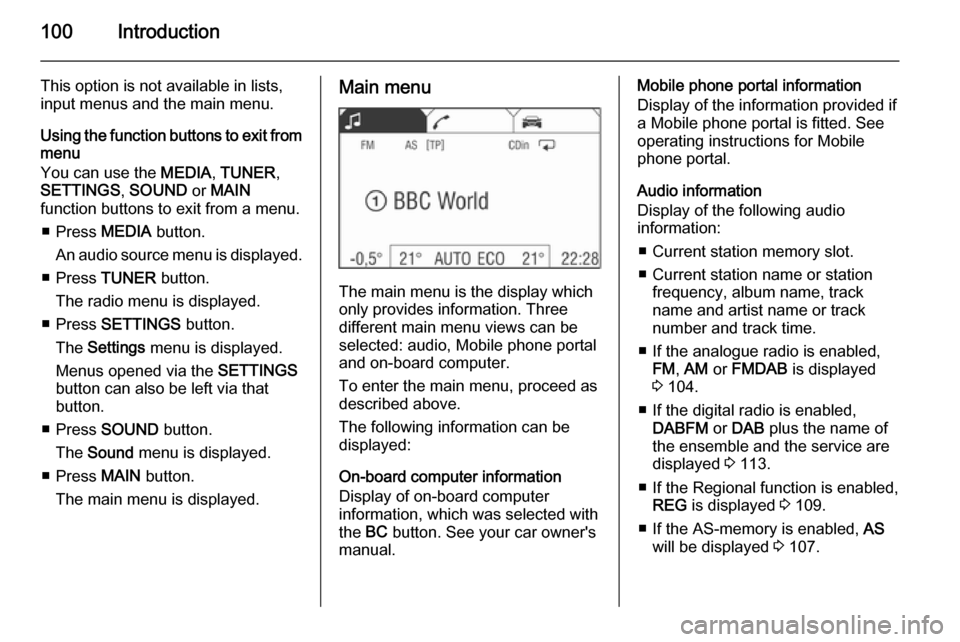
The main menu is the display which
only provides information. Three
different main menu views can be
selected: audio, Mobile phone portal
and on-board computer.
To enter the main menu, proceed as
described above.
The following information can be
displayed:
On-board computer information
Display of on-board computer
information, which was selected with
the BC button. See your car owner's
manual.
Mobile phone portal information
Display of the information provided if
a Mobile phone portal is fitted. See
operating instructions for Mobile
phone portal.
Audio information
Display of the following audio
information:
■ Current station memory slot.
■ Current station name or station frequency, album name, track
name and artist name or track
number and track time.
■ If the analogue radio is enabled, FM , AM or FMDAB is displayed
3 104.
■ If the digital radio is enabled, DABFM or DAB plus the name of
the ensemble and the service are
displayed 3 113.
■ If the Regional function is enabled, REG is displayed 3 109.
■ If the AS-memory is enabled, AS
will be displayed 3 107.
Page 102 of 177
102Introduction
Sound
If you prefer a preset sound style
there are five options to select from.
Select menu item Sound.
The following options are available:
User (user-defined sound colour),
Jazz , Speech , Pop , Classic and
Rock .
Activate the desired sound style.
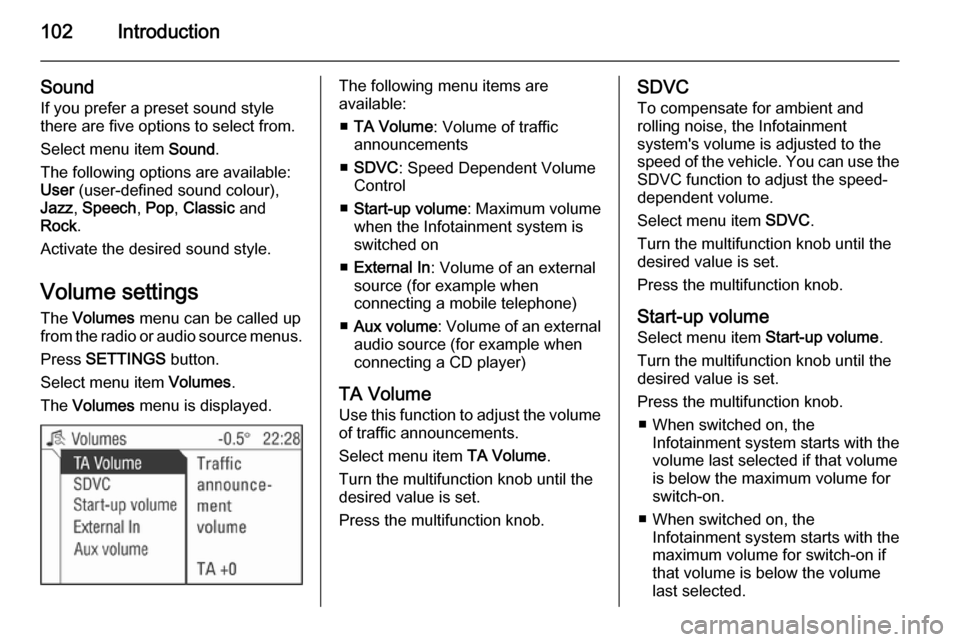
Volume settings The Volumes menu can be called up
from the radio or audio source menus.
Press SETTINGS button.
Select menu item Volumes.
The Volumes menu is displayed.The following menu items are
available:
■ TA Volume : Volume of traffic
announcements
■ SDVC : Speed Dependent Volume
Control
■ Start-up volume : Maximum volume
when the Infotainment system is
switched on
■ External In : Volume of an external
source (for example when
connecting a mobile telephone)
■ Aux volume : Volume of an external
audio source (for example when
connecting a CD player)
TA Volume
Use this function to adjust the volume
of traffic announcements.
Select menu item TA Volume.
Turn the multifunction knob until the
desired value is set.
Press the multifunction knob.SDVC
To compensate for ambient and
rolling noise, the Infotainment
system's volume is adjusted to the
speed of the vehicle. You can use the SDVC function to adjust the speed-
dependent volume.
Select menu item SDVC.
Turn the multifunction knob until the
desired value is set.
Press the multifunction knob.
Start-up volume Select menu item Start-up volume.
Turn the multifunction knob until the
desired value is set.
Press the multifunction knob. ■ When switched on, the Infotainment system starts with the
volume last selected if that volume
is below the maximum volume for
switch-on.
■ When switched on, the Infotainment system starts with the
maximum volume for switch-on if
that volume is below the volume
last selected.
Page 103 of 177

Introduction103
External InUse this function to adjust the volume
of external sources such as a mobile
phone.
Select menu item External In.
Turn the multifunction knob until the
desired value is set.
Press the multifunction knob.
Aux volume
Use this function to adjust the volume of external audio sources such as a
CD player.
Select menu item Aux volume.
Turn the multifunction knob until the desired value is set.
Press the multifunction knob.
Page 112 of 177
![VAUXHALL CORSA 2014.5 Infotainment system 112Radio
Traffic stations can be recognised by
the TP symbol in the display.
Switching traffic programme on/off ■ If on standby for traffic announcement is enabled, [TP] or
[ ] is displayed in th](/img/38/19421/w960_19421-111.png "VAUXHALL CORSA 2014.5 Infotainment system 112Radio
Traffic stations can be recognised by
the TP symbol in the display.
Switching traffic programme on/off ■ If on standby for traffic announcement is enabled, [TP] or
[ ] is displayed in th")
112Radio
Traffic stations can be recognised by
the TP symbol in the display.
Switching traffic programme on/off ■ If on standby for traffic announcement is enabled, [TP] or
[ ] is displayed in the upper display
line.
■ If the current station is a traffic programme station, [TP] appears in
the upper line of the display.
■ This function is set with the TP
button.
Press TP button to enable/disable
on standby for traffic
announcement.
If on standby for traffic
announcement is enabled, [ ] is
displayed. If on standby for traffic
announcement is disabled, [ ] is not
displayed.
Or:
Press SETTINGS button.
The audio settings menu is displayed.
Enable/disable the TP tick box.
If on standby for traffic announcement
is enabled, [ ] is displayed.
If on standby for traffic announcement is disabled, [ ] is not displayed.
■ If on standby for traffic announcement is switched on, thenplayback of an audio source or DAB
reception are interrupted during a
traffic announcement.
■ Traffic announcements are played at the preset traffic announcement
volume 3 102.
Traffic programme station search
This function is only possible within
the FM waveband.
Enable the TP tick box.
Keep the rocker switch m or n
pressed until Seek is displayed.
The radio only searches for traffic
programme stations.
Hearing traffic announcements only
Being on standby for traffic
announcements must be enabled.
Turn the knob e to the left to reduce
the volume to zero.
Deactivating traffic announcements
To switch off a traffic announcement,
e. g. during playback of an audio
source, proceed as follows:
Press TP button.
The traffic announcement is stopped.
On standby for traffic announcement
remains switched on.
Traffic announcement while an
external source is active
The external source (e. g. mobile
phone) has priority over traffic
announcements. However, if
necessary you can hear a traffic