radio VAUXHALL CORSA 2014.5 Infotainment system
[x] Cancel search | Manufacturer: VAUXHALL, Model Year: 2014.5, Model line: CORSA, Model: VAUXHALL CORSA 2014.5Pages: 177, PDF Size: 2.97 MB
Page 146 of 177

146Radio
■ If on standby for trafficannouncement is switched on, thenCD playback or DAB reception are
interrupted during a traffic
announcement.
■ Traffic announcements are played at the preset traffic announcement
volume 3 139.
Press the TP button again to switch
TP off.
[ ] is no longer displayed.
Traffic programme station search
This function is only possible within
the FM waveband.
Keep the m or n pressed for
approximately 1 second.
The radio only searches for traffic
programme stations.
Hearing traffic announcements only Being on standby for traffic
announcements must be enabled.
Turn the knob o to the left to
reduce the volume to zero.Traffic announcements are played at
the preset volume for traffic
announcement 3 139.
Deactivating traffic announcements To switch off a traffic announcement,
e.g. during CD playback, proceed as
follows:
Press TP button.
The traffic announcement is stopped.
The most recent CD/MP3 track plays. On standby for traffic announcement
remains switched on.
Traffic announcement whilst an
external source is active
The external source (e.g. mobile
phone) has priority over traffic
announcements.
During the phone call no traffic
announcement will be heard or
displayed.
Digital audio broadcasting Digital audio broadcasting (DAB) is
an innovative and universal
broadcast system.DAB stations are indicated by the
programme name instead of the
broadcasting frequency.General information ■ With DAB, several radio programmes (services) can be
broadcast on a single frequency (ensemble).
■ As long as a given DAB receiver can pick up the signal sent out by a
broadcasting station (even if the signal is very weak), sound
reproduction is ensured.
■ There is no fading (weakening of the sound) that is typical of AM or
FM reception. The DAB signal is
reproduced at a constant volume.
■ If the DAB signal is too weak to be picked up by the receiver, receptionis interrupted completely. This can
be avoided by activating DAB AF
and/or DAB FM in the audio
settings menu.
■ Interference caused by stations that are on nearby frequencies (aphenomenon that is typical of AM
and FM reception) does not occur
with DAB.
Page 147 of 177

Radio147
■ If the DAB signal is reflected bynatural obstacles or buildings, the
reception quality of DAB is
improved, whereas AM or FM
reception is considerably impaired
in such cases.
■ The radio is also capable of reveicing DAB+ and DMB-Audio.
Ensemble
Several programmes are always
combined into a so-called ensemble on a frequency.
Scrolling through ensembles
You can scroll through ensembles
which you have already received
once (the ensembles need to be
receivable).
The DAB waveband must be
selected.
Press and hold the rocker switch m
or n .
The first available programme of the
ensemble is played.DAB AF
By setting DAB AF to On you can
define that when you drive into
another ensemble area, the same
station is received as in the previous
ensemble area.
This function can only be performed if the station is included in the new
ensemble.
The DAB waveband must be
selected.
Press the SETTINGS button to
display the Settings menu.
Press the SETTINGS button again to
display DAB AF On or Off, indicating
the current state of that setting.
Press the rocker switch m or n to
change the setting.
Press the TUNER button to return to
the radio menu.
DAB FM
By setting DAB FM to On you can
define that when the DAB signal is too weak to be picked up by the receiver,
the system switches over to acorresponding FM station (if
available) of the active DAB
programme.
The DAB waveband must be
selected.
Press the SETTINGS button to
display the Settings menu.
Press the SETTINGS button twice to
display DAB FM On or Off, indicating
the current state of that setting.
Press the rocker switch m or n to
change the setting.
Press the TUNER button to return to
the radio menu.
Page 149 of 177
CD Player149
Applicable playlist extensions:
"m3u" or "pls".
When generating (coding) the MP3 files from audio data, a bitrate of up
to max. 256 kbit/s should be used.
To use MP3 files in the Infotainment system, the MP3 files must have
the file extension ".mp3".
■ A total of 367 playable tracks can be stored on one CD. It will not be
possible to play any additional
tracks.
■ A maximum of 99 albums can be saved on an MP3 CD for use with
the Infotainment System. The
albums can be selected individually with the Infotainment system.
Usage Inserting a CDInsert the CD with the printed side up
into the CD slot.
The CD is automatically drawn in.
Do not prevent or assist the CD being drawn in.Read CD and CD in appears on the
display, then the number of CD tracks
is displayed.
As soon as the first track starts to
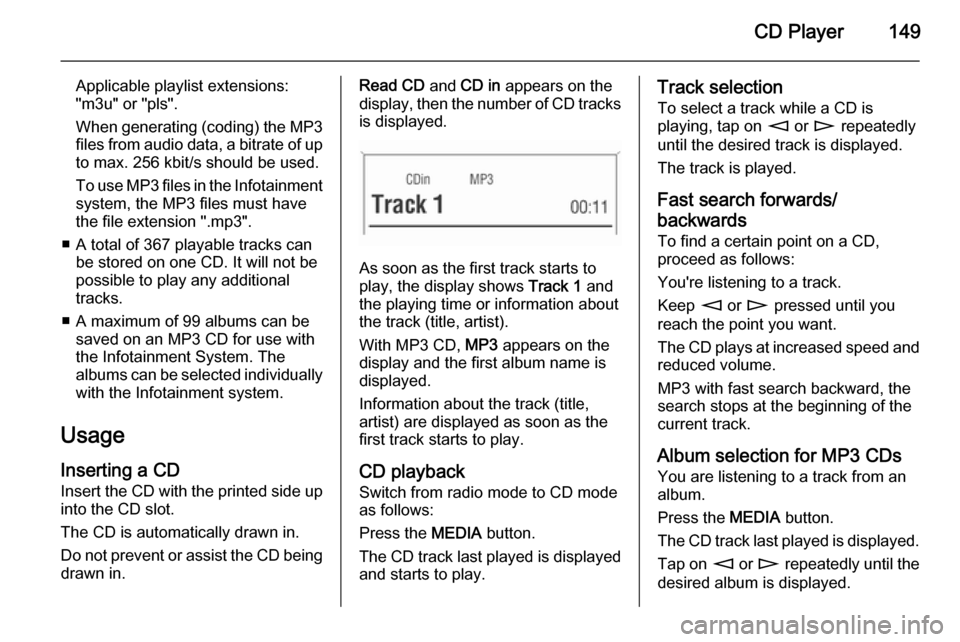
play, the display shows Track 1 and
the playing time or information about
the track (title, artist).
With MP3 CD, MP3 appears on the
display and the first album name is
displayed.
Information about the track (title,
artist) are displayed as soon as the
first track starts to play.
CD playback
Switch from radio mode to CD mode as follows:
Press the MEDIA button.
The CD track last played is displayed and starts to play.
Track selection
To select a track while a CD is
playing, tap on m or n repeatedly
until the desired track is displayed.
The track is played.
Fast search forwards/
backwards To find a certain point on a CD,
proceed as follows:
You're listening to a track.
Keep m or n pressed until you
reach the point you want.
The CD plays at increased speed and
reduced volume.
MP3 with fast search backward, the
search stops at the beginning of the current track.
Album selection for MP3 CDs You are listening to a track from an
album.
Press the MEDIA button.
The CD track last played is displayed. Tap on m or n repeatedly until the
desired album is displayed.
Page 151 of 177

CD Player151
Eject CD appears on the display.
If a CD is ejected, the last radio station used will automatically be played.
A CD can be ejected even if the
appliance is turned off. The appliance
switches off after the CD has been
removed.
If the CD is not removed, it will return
to the player automatically after a
short time.
Page 152 of 177

152AUX inputAUX inputGeneral information...................152
Usage ........................................ 152General information
In the centre console in front of the
gearshift lever there is an AUX socket
for the connection of external audio
sources.
Notice
The socket must always be kept clean and dry.
It is possible, for example, to connect a portable CD player with a 3.5 mm
jack plug to the AUX input.
Usage To play back an audio source
connected to the AUX input of the
vehicle, e.g. a portable CD player, via
the Infotainment system
loudspeakers, the audio source has
to be enabled:
When the radio is on.
Connect the audio source to the AUX input of the vehicle.
Press the MEDIA button until Aux
appears on the display.The external audio source is
transferred through on the
Infotainment system.
Enable the external audio source and
set it to maximum volume.
If required: adjust the AUX input level in relation to the connected external
source 3 139.
The audio source signal is played
back via the Infotainment system
loudspeakers.
Page 154 of 177

154IndexAActivating CD player ...................149
AM .............................................. 141
AS ............................................... 142
Automatic search ........................141
Automatic switch off.................... 135
Autostore level ............................ 142
Autostore lists ............................. 142
AUX input ........................... 135, 152
socket ...................................... 152
AUX volume................................ 139
B Balance....................................... 137
Bass............................................ 137
C CD, eject ..................................... 149
CD, insert.................................... 149
CD text........................................ 149
D DAB ............................................ 146
Digital audio broadcasting ..........146
E Ensemble.................................... 146
External In Volume .....................139F
Fader .......................................... 137
FM .............................................. 141
G
General information ....130, 148, 152
I
Ignition logic................................ 135
M
Main display................................ 135
Manual tuning ............................. 141
Multifunction knob....................... 135
O
On Volume.................................. 139
Operation ................................... 135
Overview .................................... 132
P Programme type .........................143
PTY............................................. 143
R Radio data system (RDS) ..........143
Random mode ............................ 149
Regional programmes ................143
Page 158 of 177

158IntroductionIntroductionGeneral information...................158
Bluetooth connection .................160
Emergency call .......................... 163
Operation ................................... 164
Mobile phones and CB radio
equipment .................................. 167General information
The Mobile phone portal offers the opportunity to hold telephone
conversations using the mobile
phone via a vehicle microphone and vehicle loud speaker system and to
operate the most important mobile telephone functions via the
Infotainment system in the vehicle.
The Mobile phone portal is operated
via the steering wheel remote control
system, a speech recognition system
and a multifunction button on the
radio. The menu-driven operations
and status are shown via the info
display.
The fact that the most important
content on the telephone display is
shown on the info display enables you to operate the whole portal
comfortably.
When a telephone connection is active, the radio sound is switched off.
When the telephone connection has
ended, the radio sound is switched on
again.General advice on these
operating instructions
You can find detailed functional
descriptions for your Infotainment
system in the operating instructions
included with your Infotainment
system.
Not all Mobile phone portal functions
are supported by every phone. The
telephone functions possible depend
on the mobile telephone used and the
network operator. Further information
is given in the operating instructions
for the mobile telephone and can be
obtained from the network operator.9 Warning
The Infotainment system has to be
used so that the vehicle can bedriven safely at all times. If in doubt
stop your vehicle and operate the Infotainment system while the
vehicle is stationary.
Page 159 of 177

Introduction159
Operating the mobile telephoneMobile telephones affect your
environment. This is the reason why
safety rules and regulations were
drawn up. You should find out about
the relevant regulations before you
use the telephone function.9 Warning
Use of the hands-free facility while
driving can be dangerous because
your concentration is reduced
when telephoning. Park your
vehicle before you use the hands- free facility. Follow the stipulations
of the country in which you find
yourself at present.
Do not forget to follow the special
regulations that apply in specific areas and always switch off the
mobile phone if the use of mobile
phones is prohibited, if
interference is caused by the
mobile phone or if dangerous
situations can occur.
Bluetooth™
The Mobile telephone portal supports
Bluetooth™ Handsfree Profile V. 1.5
and is specified to Bluetooth™
Special Interest Group (SIG).
Further information on the
specification can be found on the
interned under
http://qualweb.bluetooth.org. The Bluetooth™ qualification code of the
Mobile phone portal is B02237.
When devices are being paired, a
random PIN code of at least four digits should be selected for reasons of
safety.
Declaration of conformityWe hereby declare that the Mobile
phone portal is compliant with the
basic requirements and other
relevant stipulations of the guideline
1999/5/EC.Operating the speech
recognition system Do not use the speech recognition
system in emergencies because your voice can change so much in stressful situations that you can no longer be
sufficiently recognised in order for the
desired connection to be created
quickly enough.
Control elements
The Mobile phone portal can be
operated via a steering wheel remote
control system, speech recognition
system and a multifunction knob on
the radio.
As soon as the Mobile phone portal
has been switched on and the mobile telephone is logged in, the start pageappears on the display.
Page 160 of 177
160Introduction
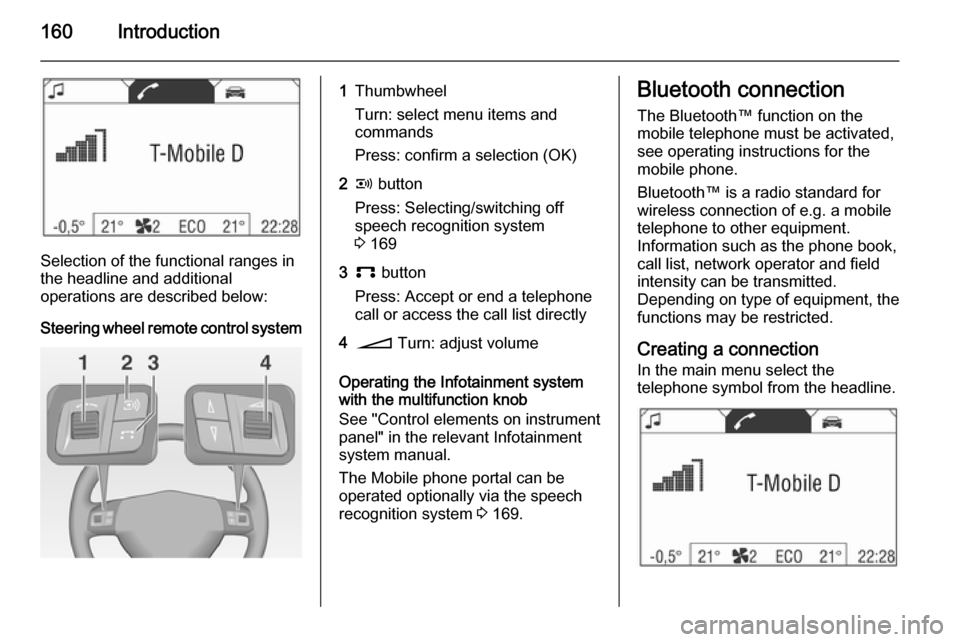
Selection of the functional ranges in
the headline and additional
operations are described below:
Steering wheel remote control system
1Thumbwheel
Turn: select menu items and
commands
Press: confirm a selection (OK)2q button
Press: Selecting/switching off
speech recognition system
3 1693p button
Press: Accept or end a telephone
call or access the call list directly4o Turn: adjust volume
Operating the Infotainment system
with the multifunction knob
See "Control elements on instrument
panel" in the relevant Infotainment
system manual.
The Mobile phone portal can be
operated optionally via the speech
recognition system 3 169.
Bluetooth connection
The Bluetooth™ function on the
mobile telephone must be activated,
see operating instructions for the
mobile phone.
Bluetooth™ is a radio standard for
wireless connection of e.g. a mobile
telephone to other equipment.
Information such as the phone book,
call list, network operator and field
intensity can be transmitted.
Depending on type of equipment, the functions may be restricted.
Creating a connectionIn the main menu select the
telephone symbol from the headline.
Page 167 of 177
Introduction167
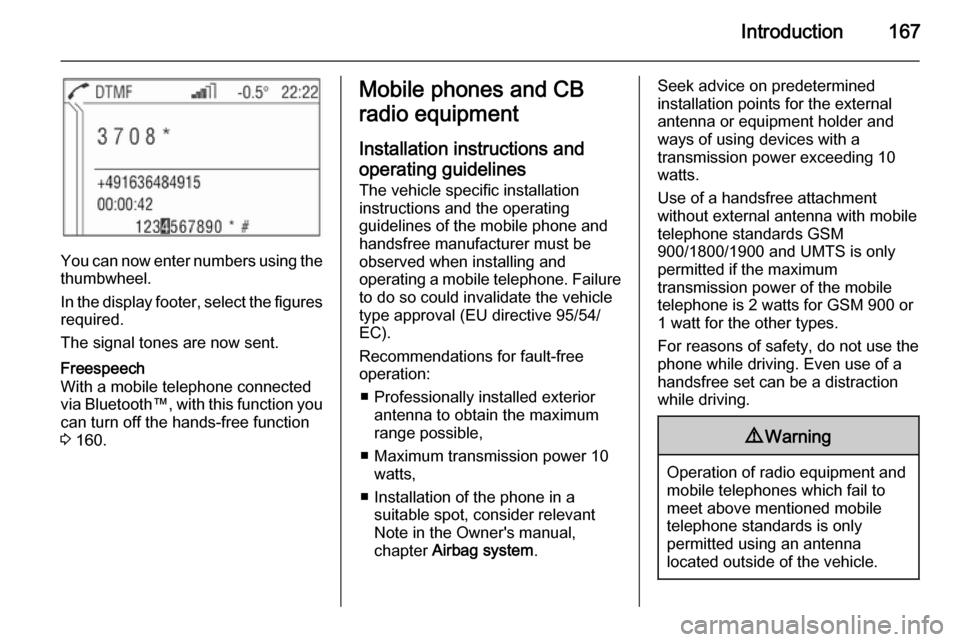
You can now enter numbers using thethumbwheel.
In the display footer, select the figures required.
The signal tones are now sent.
Freespeech
With a mobile telephone connected
via Bluetooth™, with this function you
can turn off the hands-free function
3 160.Mobile phones and CB
radio equipment
Installation instructions and operating guidelines The vehicle specific installation
instructions and the operating
guidelines of the mobile phone and
handsfree manufacturer must be observed when installing and
operating a mobile telephone. Failure to do so could invalidate the vehicle
type approval (EU directive 95/54/
EC).
Recommendations for fault-free
operation:
■ Professionally installed exterior antenna to obtain the maximum
range possible,
■ Maximum transmission power 10 watts,
■ Installation of the phone in a suitable spot, consider relevant
Note in the Owner's manual,
chapter Airbag system .Seek advice on predetermined
installation points for the external
antenna or equipment holder and
ways of using devices with a
transmission power exceeding 10
watts.
Use of a handsfree attachment
without external antenna with mobile
telephone standards GSM
900/1800/1900 and UMTS is only
permitted if the maximum
transmission power of the mobile
telephone is 2 watts for GSM 900 or
1 watt for the other types.
For reasons of safety, do not use the
phone while driving. Even use of a handsfree set can be a distraction
while driving.9 Warning
Operation of radio equipment and
mobile telephones which fail to
meet above mentioned mobile
telephone standards is only
permitted using an antenna
located outside of the vehicle.