ESP VAUXHALL INSIGNIA 2014 Infotainment system
[x] Cancel search | Manufacturer: VAUXHALL, Model Year: 2014, Model line: INSIGNIA, Model: VAUXHALL INSIGNIA 2014Pages: 143, PDF Size: 2.53 MB
Page 50 of 143
![VAUXHALL INSIGNIA 2014 Infotainment system 50Radio
played is not a radio traffic service
station, [ ] is displayed and a search
is started automatically for the next
radio traffic service station available.
As soon as a radio traffic service](/img/38/19473/w960_19473-49.png "VAUXHALL INSIGNIA 2014 Infotainment system 50Radio
played is not a radio traffic service
station, [ ] is displayed and a search
is started automatically for the next
radio traffic service station available.
As soon as a radio traffic service")
50Radio
played is not a radio traffic service
station, [ ] is displayed and a search
is started automatically for the next
radio traffic service station available.
As soon as a radio traffic service
station is found, [TP] is highlighted. If
no radio traffic service station is
found, [ ] remains on the screen.
If a traffic announcement is
broadcasted on the respective radio
traffic service station, a message is
displayed.
To interrupt the announcement and
return to the function previously
activated, dismiss the alert.
Region
Sometimes RDS stations broadcast
regionally different programmes on
different frequencies.
Set Region - On or Region - Off .
If regionalisation is switched on,
alternative frequencies with the same
regional programmes are selected if
necessary. If regionalisation is
switched off, alternative frequencies
of the stations are selected without
regard to regional programmes.Digital audio broadcasting
Digital audio broadcasting (DAB) is
an innovative and universal
broadcasting system.
Advantages of DAB ■ DAB stations are indicated by the programme name instead of the
broadcasting frequency.
■ With DAB, several radio programmes (services) can be
broadcasted on a single frequency (ensemble).
■ Besides high-quality digital audio services, DAB is also able to
transmit programme-associated
data and a multitude of other data
services including travel and traffic
information.
■ As long as a given DAB receiver can pick up the signal sent out by abroadcasting station (even if thesignal is very weak), sound
reproduction is ensured.
■ There is no fading (weakening of the sound that is typical of AM orFM reception). The DAB signal is
reproduced at a constant volume.
If the DAB signal is too weak to be
picked up by the receiver, reception
is interrupted completely. This can
be avoided by activating DAB to
DAB Linking and/or DAB to FM
Linking in the DAB option menu
(see below).
■ Interference caused by stations that are on nearby frequencies (a
phenomenon that is typical of AM
and FM reception) does not occur
with DAB.
■ If the DAB signal is reflected by natural obstacles or buildings, the
reception quality of DAB is
improved, whereas AM or FM
reception is considerably impaired in such cases.
■ When DAB reception is enabled, the FM tuner of the Infotainment
system remains active in the
background and continually
searches for the best receivable FM stations. If TP 3 49 is activated,
traffic announcements of the FM
station which is currently best
Page 51 of 143
Radio51
receivable are issued. Deactivate
TP, if you do not wish DAB
reception to be interrupted by FM
traffic announcements.
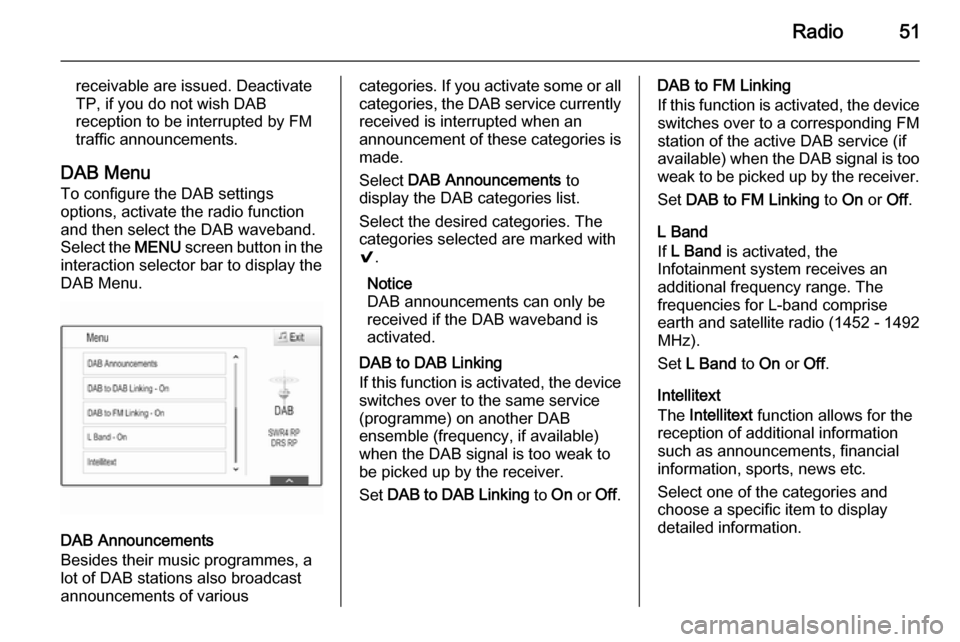
DAB Menu
To configure the DAB settings
options, activate the radio function
and then select the DAB waveband.
Select the MENU screen button in the
interaction selector bar to display the
DAB Menu.
DAB Announcements
Besides their music programmes, a
lot of DAB stations also broadcast announcements of various
categories. If you activate some or all categories, the DAB service currently
received is interrupted when an
announcement of these categories is
made.
Select DAB Announcements to
display the DAB categories list.
Select the desired categories. The
categories selected are marked with
9 .
Notice
DAB announcements can only be
received if the DAB waveband is
activated.
DAB to DAB Linking
If this function is activated, the device switches over to the same service
(programme) on another DAB
ensemble (frequency, if available) when the DAB signal is too weak to
be picked up by the receiver.
Set DAB to DAB Linking to On or Off.DAB to FM Linking
If this function is activated, the device switches over to a corresponding FM
station of the active DAB service (if
available) when the DAB signal is too
weak to be picked up by the receiver.
Set DAB to FM Linking to On or Off.
L Band
If L Band is activated, the
Infotainment system receives an additional frequency range. The
frequencies for L-band comprise
earth and satellite radio (1452 - 1492
MHz).
Set L Band to On or Off.
Intellitext
The Intellitext function allows for the
reception of additional information
such as announcements, financial
information, sports, news etc.
Select one of the categories and
choose a specific item to display
detailed information.
Page 52 of 143
52CD PlayerCD PlayerGeneral information.....................52
Usage .......................................... 53General information
The Infotainment system's CD player
can replay audio CDs and MP3/WMA CDs.Caution
Under no circumstances place
DVDs, single-CDs with a diameter
of 8 cm or shaped CDs in the audio
player.
You must not put any stickers on
CDs. These discs can get jammed
in the CD drive and ruin the drive.
An expensive replacement of the
device will then be necessary.
Important information about
audio CDs and MP3/WMA CDs ■ The following CD formats can be used:
CD, CD-R and CD-RW.
■ The following file formats can be used:
ISO9660 Level 1, Level 2, (Romeo,
Joliet).
MP3 and WMA files written in any
format other than listed above may
not play correctly, and their file names and folder names may not
be displayed correctly.
■ Audio CDs with copy protection, which are not in compliance with
the audio CD standard, may not
play correctly or not at all.
■ Self-recorded CD-Rs and CD-RWs
are more vulnerable to mishandling than prerecorded CDs. Correct
handling, especially in the case of
self-recorded CD-Rs and CD-RWs,
must be ensured.
■ Self-recorded CD-Rs and CD-RWs
may not play correctly or not at all.
■ On mixed mode CDs (combinations
of audio and data, e.g. MP3), only
the audio tracks will be detected and played.
■ Avoid leaving fingerprints when you
change CDs.
■ Put CDs back in their sleeves immediately after removing them
from the audio player in order to
protect them from damage and dirt.
Page 56 of 143

56External devices
When connected to the USB port, the
devices mentioned above can be
operated via the controls and menus
of the Infotainment system.
Notice
Not all MP3 player, USB drive, iPod
models or Smartphones are
supported by the Infotainment
system.
Connecting/disconnecting a device
Connect the USB device or iPod to
the USB port. For the iPod, use the
appropriate connection cable.
Notice
If a non-readable USB device or iPod is connected, a corresponding
error message will appear and the
Infotainment system will
automatically switch to the previous
function.
To disconnect the USB device or
iPod, select another function and then remove the USB storage device.Caution
Avoid disconnecting the device
during playback. This may
damage the device or the
Infotainment system.
USB audio function
The Infotainment system can play music files contained in USB storage
devices or iPod/iPhone products.
USB movie function
The Infotainment system can play
movies contained in USB storage
devices.
SD card
An SD card may be inserted in the SD
card slot.
When inserted, the SD card can be
operated via the controls and menus
of the Infotainment system.
Notice
Not all SD card types are supported
by the Infotainment system.
Inserting/removing an SD cardCaution
Never attempt to use an SD card
that has been cracked, deformed
or repaired using adhesive tape.
Doing so may damage the
equipment.
Insert the SD card in the SD card slot
as shown below. The music function
starts automatically.
Page 57 of 143

External devices57
Notice
If a non-readable SD card is connected, a corresponding error
message will appear and the
Infotainment system will
automatically switch to the previous
function.
To remove the SD card, first activate
another function. Then, gently push
the SD card deeper into the slot. The
SD card is pushed out of the slot and
may be removed.Caution
Avoid disconnecting the device
during playback. This may
damage the device or the
Infotainment system.
SD audio function
The Infotainment system can play music files stored on the SD card.
SD movie function
The Infotainment system can play movies stored on the SD card.
Bluetooth
Bluetooth enabled audio sources
(e.g. music mobile phones, MP3
players featuring Bluetooth, etc.),
which support the Bluetooth music profiles A2DP and AVRCP can be
connected wirelessly to the
Infotainment system.
Connecting a device
Find a detailed description on the
Bluetooth connection 3 87.
Bluetooth audio function
The Infotainment system can play
music files contained in Bluetooth
devices like iPod or Smartphone.
File formats Only devices formatted in the FAT32,
NTFS and HFS+ file systems are
supported.
Notice
Some files may not be played
properly. This might be due to a
different recording format or the
condition of the file.Files from online shops to which
Digital Rights Management (DRM)
has been applied cannot be played.
The Infotainment system can play the following audio and movie files stored on external devices.
Audio files
The playable audio file formats
are .mp3, .wma, .aac, .m4a and .aif.
When playing a file with ID3 tag
information, the Infotainment system
can display information, e.g. on the
track title and artist.
Movie files
The playable movie file formats
are .avi, .mpg, .mp4, .xvid and .wmv.
Common audio and video
combinations for mobile devices are
generally supported.
Playing audio
Starting playback If not connected, connect the device
3 55.
Page 58 of 143
58External devices
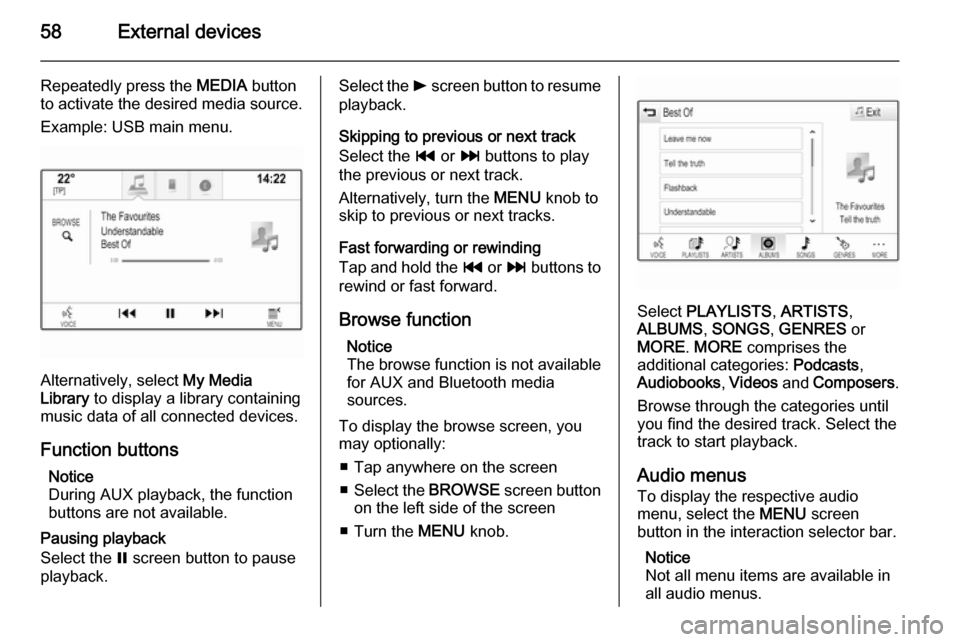
Repeatedly press the MEDIA button
to activate the desired media source.
Example: USB main menu.
Alternatively, select My Media
Library to display a library containing
music data of all connected devices.
Function buttons Notice
During AUX playback, the function
buttons are not available.
Pausing playback
Select the = screen button to pause
playback.
Select the l screen button to resume
playback.
Skipping to previous or next track
Select the t or v buttons to play
the previous or next track.
Alternatively, turn the MENU knob to
skip to previous or next tracks.
Fast forwarding or rewinding
Tap and hold the t or v buttons to
rewind or fast forward.
Browse function Notice
The browse function is not available
for AUX and Bluetooth media
sources.
To display the browse screen, you may optionally:
■ Tap anywhere on the screen
■ Select the BROWSE screen button
on the left side of the screen
■ Turn the MENU knob.
Select PLAYLISTS , ARTISTS ,
ALBUMS , SONGS , GENRES or
MORE . MORE comprises the
additional categories: Podcasts,
Audiobooks , Videos and Composers .
Browse through the categories until
you find the desired track. Select the
track to start playback.
Audio menus
To display the respective audio
menu, select the MENU screen
button in the interaction selector bar.
Notice
Not all menu items are available in
all audio menus.
Page 60 of 143

60External devices
Fast forwarding or rewinding
Tap and hold the t or v buttons to
rewind or fast forward.
Video menu To display the video menu, select the
MENU screen button in the
interaction selector bar.
Find a detailed description of the
menu 3 57.
Using apps The Infotainment system supports the
operation of apps via the controls on the Infotainment system.
Before an application can be
operated using the controls and
menus of the Infotainment system,
the respective application has to be
installed via a smartphone.
Activating the Tethering function on the smartphone
Activate the Tethering and the
Bluetooth functions on the
smartphone (see user guide of the
smartphone).Notice
Tethering has to be set up correctly
depending on the network provider.
Connect the smartphone to the
Infotainment system via Bluetooth
3 87.
Creating a new account Press the ; button and then select
the Apps icon to display a welcome
screen.
To setup a new account, select the
respective screen button at the
bottom of the screen. You are led through various setup screens.
First, a list of all phones paired to the
system is displayed. Select the phone
with which you want to establish an
Internet connection to the app store.
Then a keyboard for the entry of an
email address is displayed. Enter
your email address.
In the menu displayed afterwards, a
PIN code needs to be set. Select the
New PIN entry field. A keyboard is
displayed. Select the desired digits.
To confirm the PIN code, select theConfirm New PIN entry field. The
keyboard is redisplayed. Enter the
PIN code again. Confirm your input.
A menu for country selection is
displayed. Scroll through the list and
select the desired country.
Last, the privacy policy of the app
store is displayed. Select the Agree
screen button to create the account.
The apps main menu is displayed.
Installing new apps
Press the ; button and then select
the Apps icon to display the apps
main menu.
Select the Apps screen button at the
bottom of the screen to display the apps menu.
All
To display a list of all apps available,
select the All screen button at the
bottom of the screen.
Scroll through the list and select the
desired app. A submenu with detailed information on the respective app is
displayed.
Page 61 of 143

External devices61
To install the app on the Infotainment
system, select the Install screen
button at the bottom of the screen.
The app is installed.
When the installation process is
finished, the Install screen button
changes to Launch.
Notice
Apps installed on the Infotainment
system are displayed as icons on the home pages.
o
To search for a specific app, select the o screen button. A keyboard is
displayed.
Enter the search name. A list of all
apps found for the respective search
name is displayed.
Select the desired app. A submenu
with detailed information on the
respective app is displayed.
To install the app on the Infotainment
system, select the Install screen
button at the bottom of the screen.
The app is installed.When the installation process is
finished, the Install screen button
changes to Launch.
Notice
Apps installed on the Infotainment
system are displayed as icons on the
home pages.
My Apps
Press the ; button and then select
the Apps icon to display the apps
main menu.
Select the Apps screen button at the
bottom of the screen to display the
apps menu.
To display a list of all apps installed on the Infotainment system, select
the My Apps screen button at the
bottom of the screen.
Select the desired options for e.g.
starting or deleting an app.
Settings
The settings menu provides options
for the management of the accounts.
Press the ; button and then select
the Apps icon to display the apps
main menu.Select the Settings screen button at
the bottom of the screen to display the respective submenu.
Select the desired option.
Page 62 of 143
62NavigationNavigationGeneral information.....................62
Usage .......................................... 64
Destination input ..........................70
Guidance ..................................... 74General information
The navigation system will reliably guide you to your destination. There
will be no need to read maps, even if
you have no local knowledge
whatsoever.
The current traffic situation is taken
into account in the route calculation.
For this purpose the Infotainment
system receives traffic
announcements in the current
reception area via RDS-TMC.
The navigation system cannot,
however, take into account traffic
incidents, traffic regulations changed at short notice and hazards or
problems that arise suddenly (e.g.
road works).Caution
The usage of the navigation
system does not release the driver
from the responsibility for a
correct, vigilant attitude in road
traffic. The relevant traffic
regulations must always be
followed. If a navigation instruction contradicts traffic regulations, the
traffic regulations always apply.
Functioning of the navigation
system
The position and movement of the
vehicle are detected by the navigation
system using sensors. The travelled
distance is determined by the
vehicle's speedometer signal, turning movements on bends by a gyro
sensor. The position is determined by
the GPS satellites (Global Positioning System).
By comparing the sensor signals with the digital maps on the map SD card,
it is possible to determine the position with an accuracy of approx.
10 metres.
The system will also work with poor
GPS reception. However, the
accuracy of the determination of the
position will be reduced.
Page 65 of 143

Navigation65
■ The map view is displayed.
■ The active route is indicated by a coloured line.
■ The moving vehicle is marked by a circle.
■ The next turning manoeuvre is indicated by an arrow symbol on
the right side of the screen.
■ Lane guidance is provided on the left side of the screen.
■ The arrival time is shown above the
arrow symbol.
■ The distance to the next turning manoeuvre is shown below the
arrow symbol.
Driver Information Centre, Sport
theme:
■ The name of the route you are currently on is displayed.
■ The next turning manoeuvre is indicated by an arrow symbol.
■ The distance to the next turning manoeuvre is displayed.
Map manipulation
Scrolling
To scroll the map, you may optionally:
■ Place your finger anywhere on the screen and move it up, down, left orright depending on the direction in
which you want to scroll.
■ Place two fingers on the touch pad and move them up, down, left or
right depending on the direction in
which you want to scroll.
The map moves accordingly
displaying a new section.
To return to the current location,
select the RESET screen button in
the interaction selector bar.
Centring
Tap on a desired location on the
screen. The map centres around this
location.
A red v symbol is displayed at the
respective location and the
corresponding address is shown on a
label.