phone VAUXHALL INSIGNIA 2015.5 Infotainment system
[x] Cancel search | Manufacturer: VAUXHALL, Model Year: 2015.5, Model line: INSIGNIA, Model: VAUXHALL INSIGNIA 2015.5Pages: 141, PDF Size: 2.61 MB
Page 72 of 141

72Navigation
Navigation voice prompts
Navigation voice prompts announce,
which direction to follow, when
approaching an intersection at which you need to turn.
To activate the voice prompts
function and set the volume, see
"Navigation voice settings" below.
Starting and cancelling route
guidance
Starting route guidance
To start route guidance to a new
destination chosen, select Go in the
destination details view.
To directly start route guidance to the last destination chosen, select
MENU in the interaction selector bar
and then select Resume to.
Route guidance to the last destination selected is restarted.
Cancelling route guidance
To cancel route guidance, select
MENU in the interaction selector bar
and then select Cancel Route.Alternatively, tap on the arrow symbol
indicating your next turning
manoeuvre on the right side of the
screen to display the route guidance
menu (see "Route guidance menu"
below).
Select END in the interaction selector
bar of the route guidance menu.
Settings for route calculation and guidance
Navigation voice settings
Select MENU in the interaction
selector bar and then select
Navigation Voice Preferences to
display the respective submenu.
If Voice Prompts is activated,
navigation voice prompts are read out
by the system during active route guidance.
Set Voice Prompts to On or Off. If set
to Off , only a beep is sounded.
If Prompts During Phone Calls is
activated, navigation voice prompts
are also read out during phone calls.
Set Prompts During Phone Calls to
On or Off.To adjust the volume of the voice
prompts, select ─ or w.
Route settings
Select MENU in the interaction
selector bar and then select Routing
Preferences to display the respective
submenu.Route style
To define by what criteria a route may
be calculated, select Route Style.
Select Fast, Eco Friendly or Short
from the list.
If Eco Friendly has been selected, the
eco-friendly route style may be
adapted to the load of the vehicle.
Select Edit Eco Profile to display the
respective submenu.
Repeatedly select Roof Load and
Trailer to toggle between the
available load options. Set the
options as needed.Road selection
Select from the list which road types
may be included in the calculation of
the route.
Page 79 of 141

Speech recognition79
Confirm Less: If selected, the system
asks you less often to confirm your
voice inputs. Consequently, the
system might sometimes misinterpret your commands and not perform the
correct action.
Notice
When starting to use the speech
recognition, it may be advantageous
to use the Confirm More setting. As
you get more experienced, i.e., you
get to know how to pronounce your
commands in a way the speech
recognition understands you
correctly, it may be advantageous to
use the Confirm Less setting.Prompt Length
The length and the level of detail of
the questions and statements the
speech recognition gives out can be
adjusted in the corresponding
submenu.Audio Feedback Speed
The speed with which the speech
recognition asks questions or makes statements can be adjusted in the
corresponding submenu.If Medium is selected, the system's
speech rate corresponds to natural
speech.
Notice
When starting to use the speech
recognition, it may be advantageous
to use the Long setting. As you get
more experienced, it may be
advantageous to use the Short
setting.
Voice pass-thru application
The voice pass-thru application of the Infotainment system allows access tothe speech recognition commands on
your smartphone. See your
smartphone manufacturer's user
guide to find out whether your
smartphone supports this feature.
Usage
Embedded speech recognition Activating speech recognition Notice
Speech recognition is not available
during an active phone call.Activation via the w button on the
steering wheel
Press w on the left-hand side of the
steering wheel.
The audio system mutes, a voice
output message prompts you to say a command, and a help menu with the
most important commands currently
available is shown in the Driver
Information Centre.
As soon as the speech recognition is
ready for voice input, a beep is heard. The speech recognition symbol in the
upper left corner of the help menu changes from white to red.
Page 81 of 141

Speech recognition81
In the following situations, a dialogue
sequence is automatically cancelled:
■ If you do not say any command for a certain period of time (by default
you are prompted three times to
say a command).
■ If you say commands that are not recognised by the system (by
default you are prompted three times to say a correct command).
Operation via speech commands
The speech recognition can
understand commands that are either naturally stated in sentence form, or
direct commands stating the
application and the action.
For best results: ■ Listen for the voice prompt and wait
for the beep before saying a
command or replying.
■ Say " Help" or read the example
commands on the screen.■ The voice prompt can be interrupted by pressing w again.
■ Wait for the beep and then speak the command naturally, not too
fast, not too slow. Use short and
direct commands.
Usually phone and audio commands
can be spoken in a single command. For example, "Call David Smith at
work", "Play" followed by the artist or
song name, or "Tune to" followed by
the radio frequency and the
waveband.
Navigation destinations, however,
are too complex for a single
command. First, state a command that explains the type of destination
needed, such as "Directions to an
Address", "Navigate to an
intersection", "Find a Place of
Interest", or "Directions to a contact".
The system responds with requesting
more details.
When searching for a "Place of
Interest", only major chains may be
selected by name. Chains are
businesses with at least 20 locations.For other POIs, say the name of a
category like "Restaurants",
"Shopping centres", or "Hospitals".
Direct commands are easier
understood by the system, e.g. "Call
01234567". Examples of these direct commands are displayed on most of
the screens while a speech
recognition session is active.
If you say "Phone" or "Phone
commands", the system understands that a phone call is requested and
responds with respective questions
until enough details are gathered. If
the phone number has been saved
with a name and a place, the direct
command should include both, for
example "Call David Smith at work".Selecting list items
When a list is displayed, a voice
prompt asks to confirm or select an
item from that list. A list item may be
manually selected, or by speaking the
line number of the item.
The list on a speech recognition
screen functions the same as a list on
other screens. Manually scrolling the
Page 82 of 141
82Speech recognition
list on a screen during a speech
recognition session suspends the
current speech recognition event and
plays a prompt like "Make your
selection from the list using the
manual controls, press the back
button on the faceplate, or press the
back screen button to try again".
If no manual selection is made within
15 seconds, the speech recognition
session terminates, you are prompted
with a message, and the former
screen is redisplayed.The "Back" command
To return to the previous menu,
optionally: say " Back", press k
BACK on the instrument panel, or
press m.The "Help" command
After saying " Help", the help prompt
for the current screen is read aloud.
Additionally, the prompt is displayed
on the screen.
Depending on how speech
recognition was initiated, the help
prompt is either displayed in the
Driver Information Centre or on the
centre display.To interrupt the help prompt, press w.
A beep is heard. You may say a
command.
Voice pass-thru application
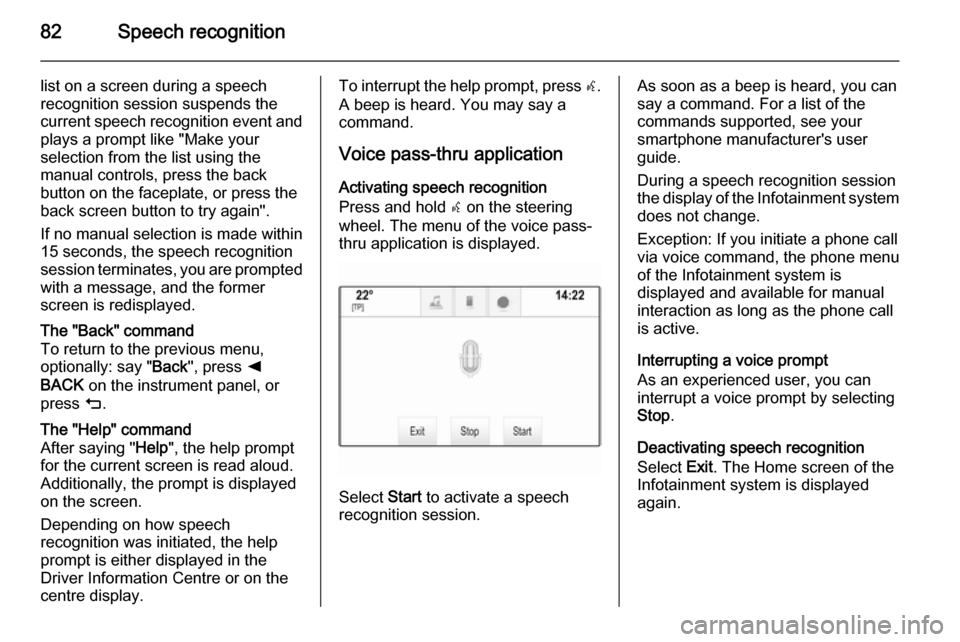
Activating speech recognition
Press and hold s on the steering
wheel. The menu of the voice pass- thru application is displayed.
Select Start to activate a speech
recognition session.
As soon as a beep is heard, you can
say a command. For a list of the
commands supported, see your
smartphone manufacturer's user
guide.
During a speech recognition session
the display of the Infotainment system does not change.
Exception: If you initiate a phone call
via voice command, the phone menu
of the Infotainment system is
displayed and available for manual
interaction as long as the phone call
is active.
Interrupting a voice prompt
As an experienced user, you can
interrupt a voice prompt by selecting
Stop .
Deactivating speech recognition
Select Exit. The Home screen of the
Infotainment system is displayed
again.
Page 83 of 141

Phone83PhoneGeneral information.....................83
Bluetooth connection ...................84
Emergency call ............................ 86
Operation ..................................... 86
Text messages ............................ 90
Mobile phones and CB radio equipment .................................... 93General information
The Phone portal provides you with
the possibility of having mobile phone conversations via a vehicle
microphone and the vehicle
loudspeakers as well as operating the
most important mobile phone
functions via the Infotainment system in the vehicle. To be able to use the
Phone portal, the mobile phone must
be connected to the Infotainment
system via Bluetooth.
Not all Phone functions are supported by every mobile phone. The usable
phone functions depend on the
relevant mobile phone and network provider. You will find further
information on this in the operating
instructions for your mobile phone, or you can enquire about them with yournetwork provider.Important information for
operation and traffic safety9 Warning
Mobile phones have effects on
your environment. For this reason, safety regulations and directions
have been prepared. You should
be familiar with the related
directions before you use the
telephone function.
9 Warning
Use of the hands-free facility while
driving can be dangerous because
your concentration is reduced
when telephoning. Park your
vehicle before you use the hands- free facility. Follow the stipulations
of the country in which you find
yourself at present.
Do not forget to follow the special
regulations that apply in specific areas and always switch off the
mobile phone if the use of mobile
Page 84 of 141

84Phonephones is prohibited, if
interference is caused by the
mobile phone or if dangerous
situations can occur.
Bluetooth
The Phone portal is certified by the
Bluetooth Special Interest Group
(SIG).
You will find further information about the specification on the Internet at
http://www.bluetooth.com
Bluetooth connection Bluetooth is a radio standard for the
wireless connection of e.g. mobile
phones, iPod/iPhone models, or other devices.
To be able to set up a Bluetooth
connection to the Infotainment
system, the Bluetooth function of the
Bluetooth device must be activated.
For further information, please
consult the user guide of the
Bluetooth device.
Via the Bluetooth settings menu,
pairing (PIN code exchange between
Bluetooth device and Infotainment
system) and connecting of the
Bluetooth devices to the Infotainment
system are carried out.
Bluetooth settings menu
Press ; and then select the
SETTINGS icon.
Select Bluetooth to display the
respective submenu.
Pairing a device Important information ■ Up to five devices can be paired to the system.
■ Only one paired device can be connected to the Infotainment
system at a time.
■ Pairing normally only needs to be carried out once, unless the deviceis deleted from the list of paired
devices. If the device has been
connected previously, the
Infotainment system automatically
establishes a connection.■ Some Bluetooth functions are only available after the second ignition
cycle.
■ Bluetooth operation considerably drains the device's battery.
Therefore, connect the device to
the power outlet for charging.
Pairing via the Settings application 1. Press ; and then select the
SETTINGS icon.
Select Bluetooth to display the
respective submenu.
2. Select Pair Device . Alternatively,
select Device Management to
display the device list and then
select Pair Device .
3. A message is displayed on the Infotainment system indicating
the name and PIN code of the
Infotainment system.
4. Start Bluetooth searching on the Bluetooth device to be paired.
5. Confirm the pairing procedure: ◆If SSP (secure simple pairing) is
supported:
Page 85 of 141

Phone85
Compare the PIN code (if
demanded) and confirm the
messages on the Infotainment
system and the Bluetooth
device.
◆ If SSP (secure simple pairing) is
not supported:
If desired, select Set PIN to
change the PIN code of the
Infotainment system. A keypad
is displayed. Enter the new PIN
code and confirm your input.
Enter the Infotainment PIN
code on the Bluetooth device
and confirm your input.
6. The Infotainment system and the device are paired and the device
list is displayed.
Notice
If the Bluetooth connection fails, a
failure message is displayed on the
screen of the Infotainment system.
7. If available on the Bluetooth device, phone book and calls listsare downloaded to the
Infotainment system. If required,confirm the respective message
on your smartphone.
Notice
For the contacts to be read by the
Infotainment system, they have to
be stored in the phone memory of
the mobile phone.
If this function is not supported bythe Bluetooth device, a
corresponding message is
displayed on the Infotainment
system.
Pairing via the Phone application 1. Press ; and then select the
PHONE icon.
2. Select Pair Device .
3. Proceed from step 3 of "Pairing via the Settings application" (see
above).
4. If the device has been successfully paired, the phone
menu is displayed.
Notice
If the Bluetooth connection fails, a
failure message is displayed on the
screen of the Infotainment system.Connecting a paired device
1. Press ; and then select the
SETTINGS icon.
Select Bluetooth to display the
respective submenu.
2. Select Device Management to
display the device list.
3. Select the Bluetooth device you wish to connect.
4. The device is connected and displayed within the Connected
field of the device list.
Disconnecting a device 1. Press ; and then select the
SETTINGS icon.
Select Bluetooth to display the
respective submenu.
2. Select Device Management to
display the device list.
3. Select ╳ beside the Bluetooth device currently connected. You
are prompted with a message.
4. Select Yes to disconnect the
device.
Page 86 of 141
86Phone
Deleting a device1. Press ; and then select the
SETTINGS icon.
Select Bluetooth to display the
respective submenu.
2. Select Device Management to
display the device list.
3. Select ─ beside the Bluetooth device to be deleted. You are
prompted with a message.
4. Select Yes to delete the device.
Emergency call9 Warning
Connection setup cannot be
guaranteed in all situations.For this reason you should not rely
exclusively on a mobile phone
when a vitally important
communication (e.g. a medical
emergency) is concerned.
In some networks it may be
necessary for a valid SIM card to
be properly inserted in the mobile
phone.9 Warning
Bear in mind that you can make
and receive calls with the mobile
phone, if it is in a service area with
a sufficiently strong signal. Under
certain circumstances emergency
calls cannot be made on all mobile phone networks; it is possible that
they cannot be made when certain network services and/or telephone
functions are active. You can
enquire about this with the local
network operators.
The emergency call number can
differ depending on the region and country. Please enquire
beforehand about the correct
emergency call number for the
relevant region.
Making an emergency call
Dial the emergency call number (e.g.
112 ).
The telephone connection to the
emergency call centre is set up.
Answer when the service personnel
questions you about the emergency.9 Warning
Do not end the call until you are
requested to do so by the
emergency call centre.
Operation
As soon as a connection via
Bluetooth has been set up between
your mobile phone and the
Infotainment system, you can operate many functions of your mobile phone
via the Infotainment system.
Notice
Not every mobile phone supports all
functions of the Phone portal.
Therefore, deviations from the range
of functions described below are
possible.
Page 87 of 141

Phone87
Phone applicationPress ; and then select the
PHONE icon (with phone symbol) to
display the respective menu.
The Phone portal comprises different
views accessible via tabs. Select the
desired tab.
Notice
The PHONE main menu is only
available, if a mobile phone is
connected to the Infotainment
system via Bluetooth. For a detailed
description 3 84.
Initiating a phone call
Keypad
Press ; and then select the
PHONE icon to display the respective
menu.
If necessary, select KEYPAD in the
interaction selector bar. The keypad
is displayed.
Enter the desired number and select
Call . The number is dialled.
To dial a speed dial number, enter the
number and tap and hold the last digit. The number is dialled.
Contacts
Press ; and then select the
PHONE icon to display the respective
menu.
If necessary, select CONTACTS in
the interaction selector bar. The
contacts list is displayed.For a detailed description of the
contacts lists 3 31.
Scroll to the desired contacts entry.
Quick function icon
If there is only one number stored for
a contact, a quick dial icon is
displayed next to the respective entry
in the contacts list.
Select z to directly initiate the call.Contact details view
If more than one number is stored for a contact, select the respective
contact.
The contact details view is displayed.
Page 88 of 141

88Phone
Select one of the phone numbers
stored for the contact. The number is
dialled.
Calls lists
Press ; and then select the
PHONE icon to display the respective
menu.
If necessary, select RECENT in the
interaction selector bar. The recent calls list is displayed.
Notice
Missed calls are highlighted in red in the recent calls list and indicated by
a 9 next to the phone icon in the
application tray.
Select one of the phone numbers
stored in the recent calls list. The
number is dialled.
Favourites
Reveal the favourites page.
If necessary, scroll through the
pages.
Select the desired favourite screen
button.
For a detailed description 3 27.
Incoming phone call Taking a phone call
If a radio or media source is active
when a call comes in, the audio
source is muted and remains muted
until the call is ended.
A message with the caller's name or
number is displayed at the bottom of
the screen.
To answer the call, select Answer in
the message.
Rejecting a phone call
To reject the call, select Ignore in the
message.
Changing the ringtone
Press ; and then select the
SETTINGS icon.
Select Bluetooth to display the
respective submenu and then select Ringtones . A list of all phones paired
to the Infotainment system is
displayed.