instrument panel VAUXHALL INSIGNIA 2015 Infotainment system
[x] Cancel search | Manufacturer: VAUXHALL, Model Year: 2015, Model line: INSIGNIA, Model: VAUXHALL INSIGNIA 2015Pages: 143, PDF Size: 2.56 MB
Page 98 of 143

98IndexAActivating an application ...............21
Activating a screen button ............15
Activating AUX.............................. 57
Activating Bluetooth music ...........57
Activating CD player .....................53
Activating radio ............................. 47
Activating SD card ........................57
Activating the Infotainment system 12
Activating the navigation system ..63
Activating the phone portal ...........90
Activating USB........................ 57, 59
Address book.......................... 32, 69
Application tray ............................. 21
Audible Touch Feedback ..............42
Audio Cue Volume........................ 42 Audio files ..................................... 55
Automatic volume adjustment Auto volume .............................. 42
Auto Set ........................................ 42
Auto volume.................................. 42
AUX .............................................. 55
B BACK button ................................. 15
Balance......................................... 41
Basic operation Application tray.......................... 21
Character recognition pane .......24Contacts .................................... 32
Controls ..................................... 15
Displays..................................... 14
Favourites ........................... 28, 37
Five-way-controller ....................15
Home screen ............................. 21
Instrument panel .......................15
Interaction selector bar .............21
Keyboard ................................... 24
Keypad ...................................... 24
Menus ....................................... 37
Steering wheel controls .............15
Touch pad ................................. 15
Touch screen ............................ 15
Bass.............................................. 41 Bluetooth connection ....................87
Bluetooth music ............................ 55
C
Category list.................................. 47
CD player...................................... 52
Character modifiers ......................24
Character recognition pane ..........24
Clock display ................................ 42
Contacts ....................................... 32
Modifying ................................... 32
Retrieving .................................. 32
Storing ....................................... 32
Page 111 of 143

Basic operation111Basic operationBasic operation.......................... 111
Tone settings ............................. 112
Volume settings .........................113
System settings ......................... 114Basic operation
Instrument panel
MENU knob
The MENU knob is one of the central
control elements for menu operation.Turn: ■ To select a screen button or menu item.
■ To scroll through a list of menu items.
■ To change a settings value.
Notice
The selected item is highlighted.
Press: ■ To activate a selected screen button or menu item.
■ To confirm a changed settings value.
■ To switch to a different settings option.
■ To display the application-specific submenu.
Notice
In subsequent chapters the
operating steps for selecting and
activating a screen button or menu
item will be described as "...select
the...screen button..." or "...select
the...menu item...".
Home button
Press the ; button on the instrument
panel to access the Home screen.
BACK button
When operating the menus, press the BACK button to return to the next
higher menu level.
Page 115 of 143
Basic operation115
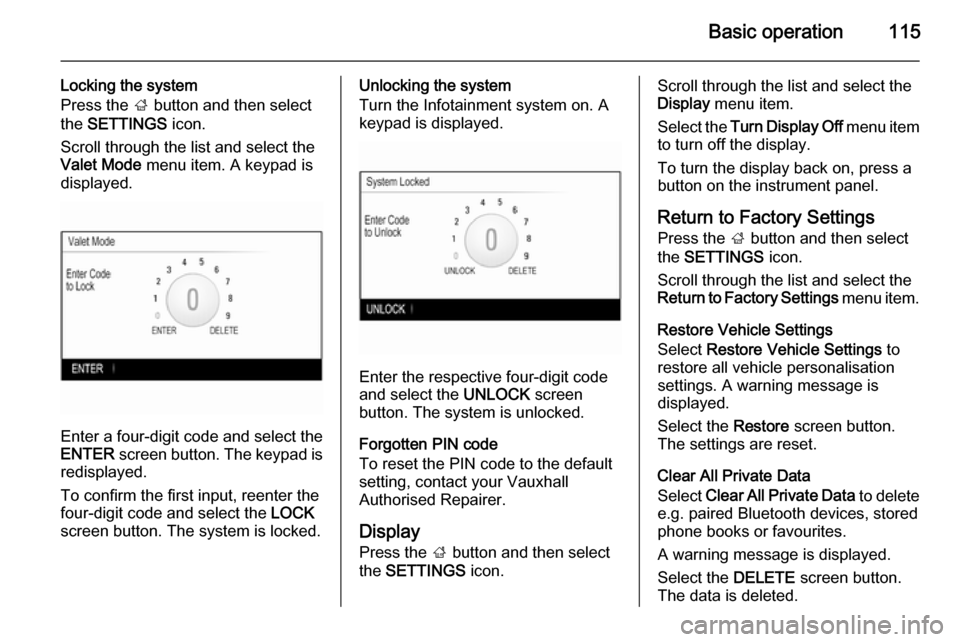
Locking the system
Press the ; button and then select
the SETTINGS icon.
Scroll through the list and select the
Valet Mode menu item. A keypad is
displayed.
Enter a four-digit code and select the
ENTER screen button. The keypad is
redisplayed.
To confirm the first input, reenter the
four-digit code and select the LOCK
screen button. The system is locked.
Unlocking the system
Turn the Infotainment system on. A
keypad is displayed.
Enter the respective four-digit code
and select the UNLOCK screen
button. The system is unlocked.
Forgotten PIN code
To reset the PIN code to the default
setting, contact your Vauxhall
Authorised Repairer.
Display Press the ; button and then select
the SETTINGS icon.
Scroll through the list and select the
Display menu item.
Select the Turn Display Off menu item
to turn off the display.
To turn the display back on, press a
button on the instrument panel.
Return to Factory Settings
Press the ; button and then select
the SETTINGS icon.
Scroll through the list and select the
Return to Factory Settings menu item.
Restore Vehicle Settings
Select Restore Vehicle Settings to
restore all vehicle personalisation
settings. A warning message is
displayed.
Select the Restore screen button.
The settings are reset.
Clear All Private Data
Select Clear All Private Data to delete
e.g. paired Bluetooth devices, stored
phone books or favourites.
A warning message is displayed.
Select the DELETE screen button.
The data is deleted.
Page 117 of 143

Radio117RadioUsage........................................ 117
Station search ............................ 117
Favourite lists ............................. 118
Radio data system (RDS) ..........120
Digital audio broadcasting .........121Usage
The radio function is part of the
AUDIO application.
Activating the radio function
Press the RADIO button.
Selecting the waveband
Repeatedly press the RADIO button
on the instrument panel to toggle between the different wavebands.
Station search
Automatic station search
Press the t or v buttons to play the
previous or next station.
Manual station search Press and hold the t or v buttons.
Release the respective button when
the required frequency has almost
been reached.
Manual tuning
FM and DAB waveband
Press the MENU knob to open the
waveband menu and then select the Manual Tuning list item.
Depending on the waveband
selected, a list of all FM or DAB
frequencies is displayed.
Select the desired frequency.
AM waveband
Turn the MENU knob and set the
optimal reception frequency.
Page 140 of 143

140IndexAActivating AUX............................ 128
Activating Bluetooth music .........128
Activating CD player ...................124
Activating radio ........................... 117
Activating SD card ......................128
Activating the Infotainment system ..................................... 109
Activating the phone portal .........134
Activating USB............................ 128
Audio files ................................... 126
Auto Set ...................................... 114
Auto volume control ....................113
AUX ............................................ 126
B BACK button ............................... 111
Balance....................................... 112
Basic operation ........................... 111
Five-way-controller ..................111
Instrument panel .....................111
Bass............................................ 112
Bluetooth connection ..................131
Bluetooth music .......................... 126
C Category list................................ 117
CD player.................................... 123
Clock display .............................. 114Control elements
Infotainment system ................106
Steering wheel ........................ 106
Control elements overview .........106
D DAB ............................................ 121
DAB linking ................................. 121
Digital audio broadcasting ..........121
E Emergency call ........................... 133
EQ .............................................. 112
Equaliser..................................... 112
F
Fader .......................................... 112
Favourite lists ............................. 118
Retrieving stations................... 118
Storing stations .......................118
File formats Audio files................................ 126
Five-way-controller .....................111
Forgotten PIN ............................. 114
Frequency list ............................. 117
G General information ....123, 126, 130
AUX ......................................... 126
Bluetooth music....................... 126