set VAUXHALL INSIGNIA 2020 Infotainment system
[x] Cancel search | Manufacturer: VAUXHALL, Model Year: 2020, Model line: INSIGNIA, Model: VAUXHALL INSIGNIA 2020Pages: 85, PDF Size: 1.89 MB
Page 42 of 85

42Basic operationNotice
The balance and fader settings are
valid for all audio sources. They cannot be adjusted individually for
each audio source.
Volume settings
Adjusting the maximum startup
volume
Press ! and then select Settings.
Select Radio, scroll through the list
and then select Max Startup Volume .
Touch + or - to adjust the setting or move the slider on the volume bar.
Adjusting the speed
compensated volume
Press ! and then select Settings.
Select Radio, scroll through the list
and then select Auto Volume.
To adjust the degree of volume
adaptation, select one of the options
in the list.
Off : no enhancement of volume with
increasing vehicle speed.High : maximum enhancement of
volume with increasing vehicle
speed.
Activating or deactivating the
audible touch feedback function
If the audible touch feedback function is activated, each touch of a screen
button or menu item is indicated by a
beeping sound.
Press ! and then select Settings.
Select Radio and then scroll through
the list to Audible Touch Feedback .
Touch the screen button next to
Audible Touch Feedback to activate
or deactivate the function.
Volume of traffic announcements
To adjust the volume of traffic
announcements, set the desired volume while a traffic announcement
is given out by the system. The
respective setting is then stored by
the system.
System settings The following settings concern the
whole system. All other settings are
described in the respective chapters of this manual.
Time and date settings
Press ! and then select Settings.
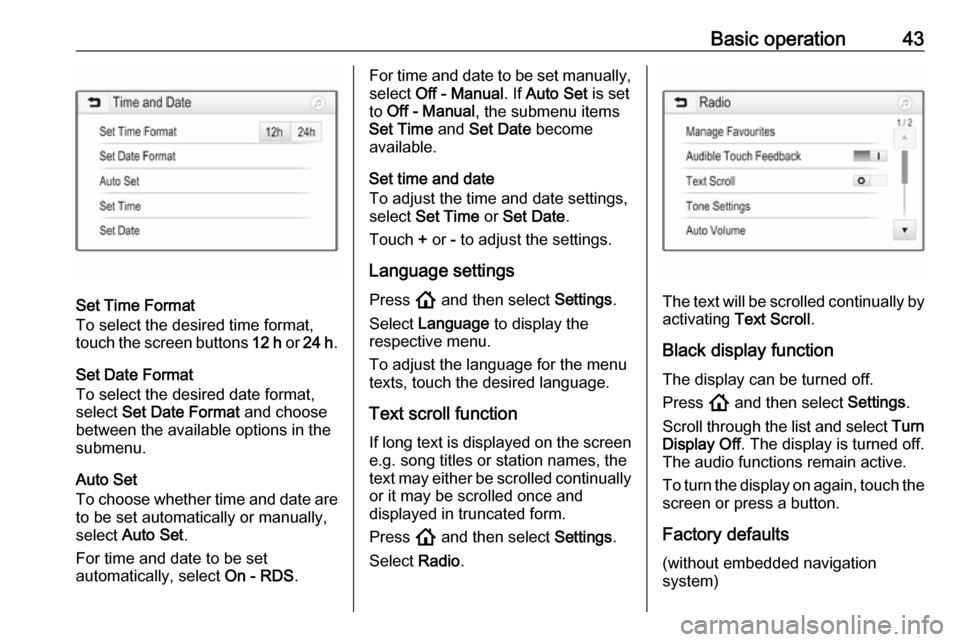
Select Time and Date to display the
respective submenu.
Page 43 of 85
Basic operation43
Set Time Format
To select the desired time format,
touch the screen buttons 12 h or 24 h .
Set Date Format
To select the desired date format,
select Set Date Format and choose
between the available options in the
submenu.
Auto Set
To choose whether time and date are
to be set automatically or manually,
select Auto Set .
For time and date to be set
automatically, select On - RDS.
For time and date to be set manually,
select Off - Manual . If Auto Set is set
to Off - Manual , the submenu items
Set Time and Set Date become
available.
Set time and date
To adjust the time and date settings, select Set Time or Set Date .
Touch + or - to adjust the settings.
Language settings
Press ! and then select Settings.
Select Language to display the
respective menu.
To adjust the language for the menu
texts, touch the desired language.
Text scroll function If long text is displayed on the screen
e.g. song titles or station names, the
text may either be scrolled continually or it may be scrolled once and
displayed in truncated form.
Press ! and then select Settings.
Select Radio.
The text will be scrolled continually by
activating Text Scroll .
Black display function The display can be turned off.
Press ! and then select Settings.
Scroll through the list and select Turn
Display Off . The display is turned off.
The audio functions remain active.
To turn the display on again, touch the
screen or press a button.
Factory defaults (without embedded navigation
system)
Page 44 of 85

44Basic operationPress ! and then select Settings.
Scroll through the list and select
Return to Factory Settings .
To restore all vehicle personalisation
settings, select Restore Vehicle
Settings .
To delete the paired Bluetooth
devices, the contacts list and the
voice mail numbers stored, select
Clear All Private Data .
To reset tone and volume settings, delete all favourites, and erase the
ringtone selection, select Restore
Radio Settings .
In each case, a warning message is
displayed. Select Continue to reset
the settings.
Factory defaults
(with embedded navigation system)
Press ! and then select Settings.
Scroll through the list and select
Restore Factory Settings .
Vehicle settings
To restore all vehicle personalisation
settings, select Reset Vehicle
Settings .A pop-up is displayed. Confirm the
pop-up message.
Phone information
To delete the paired Bluetooth
devices, the contacts list and the
voice mail numbers stored, select Clear all phone information .
A pop-up is displayed. Confirm the
pop-up message.
Radio settings
To reset tone and volume settings
and delete all favourites, select
Restore Radio Settings .
A pop-up is displayed. Confirm the
pop-up message.
Navigation settings
To reset all navigation parameters
and navigation system settings,
select Restore Navigation Settings . A
submenu is displayed.
To reset a specific set of parameters, select Clear navigation history (recent
destinations), Clear navigation
favourites (favourites) or Reset
navigation options and settings (e.g.
settings concerning map display,
voice output or route options).A pop-up is displayed. Confirm the
pop-up message.
System version Press ! and then select Settings.
Scroll through the list and select Software Information .
If a USB device is connected, the
vehicle information can be saved to
this USB device.
Select System Update and then Save
Vehicle Info to USB .
For a system update, contact a
workshop.
Vehicle settingsVehicle settings are described in the
Owner's Manual.
Page 47 of 85

Radio47Notice
If a waveband-specific station list is
updated, the corresponding
category list is also updated.
A station search is started and a
corresponding message is displayed.
Once the search is finished, the
respective station list is displayed.
Notice
The currently received radio station
is indicated by the l symbol next to
the station name.
Favourite lists
Stations of all wavebands can be
stored manually in the favourite lists.Five favourite lists with five favourites each are available.
Notice
The currently received station is
highlighted.
Storing a station
If required, touch P or Q to scroll to
the desired favourite list.
To store the currently active radio
station as a favourite, touch and hold
the desired favourite button for a few
seconds. The favourite button will be
titled as the corresponding frequency
or station name.
Retrieving a station
If required, touch P or Q to scroll to
the desired favourite list.
Select the desired favourite.
Defining the number of available
favourite lists
To define the number of favourite lists
displayed for selection, press ! and
then select Settings on the screen.Select Radio and then Manage
Favourites to display the respective
submenu.
Activate or deactivate the favourite
lists to be displayed.
Radio data system
Radio data system (RDS) is a service of FM stations that considerably
facilitates the finding of the desired
station and its fault-free reception.
Advantages of RDS ● On the display, the programme name of the station appears
instead of its frequency.
● During a station search, the Infotainment system tunes in to
RDS stations only.
Page 48 of 85

48Radio● The Infotainment system alwaystunes into the best receivable
broadcasting frequency of the set station by means of AF
(alternative frequency).
● Depending on the station that is received, the Infotainment
system displays radio text that
can contain e.g. information on the current programme.
RDS configuration Touch Menu in the FM radio main
menu to open the corresponding
waveband-specific submenu.
Scroll to RDS.
Activate or deactivate RDS.
Traffic Programme Radio traffic service stations are RDS
stations that broadcast traffic news. If the traffic service is switched on, the
currently playing audio source is
interrupted for the duration of the
traffic announcement.Activating the traffic programme
function
Select Menu in the FM radio main
menu to open the corresponding waveband-specific submenu.
Touch the screen button next to
Traffic Programme to activate or
deactivate the function.
Notice
In the station list, TP is displayed
next to the stations providing a traffic
programme.
If the radio traffic service is activated, [TP] is shown in the top line of all main
menus. If the current station is not a
radio traffic service station, TP is
greyed-out and a search is started
automatically for the next radio traffic
service station. As soon as a radio
traffic service station is found, TP is
highlighted. If no radio traffic service station is found, TP remains greyed-
out.
If a traffic announcement is broadcast on the respective station, a message
is displayed.To interrupt the announcement and return to the function previously
activated, touch the screen or press
m .
Regionalisation Sometimes RDS stations broadcast
regionally different programmes on
different frequencies.
Select Menu in the FM radio main
menu to open the corresponding
waveband-specific submenu and
scroll to Region
Activate or deactivate Region.
If regionalisation is activated,
alternative frequencies with the same regional programmes are selected
where necessary. If regionalisation is
switched off, alternative frequencies
of the stations are selected without
regard to regional programmes.
Digital audio broadcasting
Digital audio broadcasting (DAB)
broadcasts radio stations digitally.
DAB stations are indicated by the
programme name instead of the
broadcasting frequency.
Page 52 of 85

52External devicesCaution
Avoid disconnecting the device
during playback. This may
damage the device or the
Infotainment system.
USB Auto Launch
By default, the USB audio menu is displayed automatically as soon as a
USB device is connected.
If desired, this function can be
deactivated.
Press ! and then select Settings to
open the settings menu.
Select Radio, scroll to USB Auto
Launch and touch the screen button
next to the function.
To reactivate the function, touch the
screen button again.
Bluetooth Devices which support the Bluetooth
music profiles A2DP and AVRCP can
be connected wirelessly to the
Infotainment system. The
Infotainment system can play music
files contained in these devices.
Connecting a device
For a detailed description on how to
establish a Bluetooth connection
3 74.
File formats and folders
The maximum capacity of a device
supported by the Infotainment system amounts to 5000 music files,
5000 picture files, 500 movie files,
5000 folders and 15 stages of folder
structure. Only devices formatted in
the FAT16 / FAT32 file system are
supported.
If there are images included in the audio metadata, these images are
displayed on the screen.
Notice
Some files may not be played
properly. This may be due to a
different recording format or the
condition of the file.
Files from online shops to which
Digital Rights Management (DRM)
has been applied cannot be played.
The Infotainment system can play the following audio, picture and movie
files stored on external devices.Audio files
The playable audio file formats are
MP3 (MPEG-1 Layer 3, MPEG-2
Layer 3), WMA, AAC, AAC+, ALAC
OGG WAF (PCM), AIFF, 3GPP
(audio only), Audio Books and LPCM.
iPod ®
and iPhone ®
devices play
ALAC, AIFF, Audio Books and LPCM.
When playing a file with ID3 tag
information, the Infotainment system
can display information, e.g. on the
track title and artist.
Picture files
The displayable picture file formats
are JPG, JPEG, BMP, PNG and GIF.
JPG files must be 64 to 5000 pixels in
width and 64 to 5000 pixels in height.
BMP, PNG and GIF files must be 64
to 1024 pixels in width and 64 to
1024 pixels in height.
The pictures should not exceed a file
size of 1MB.
Movie files
The playable movie file formats are
AVI and MP4.
Page 55 of 85
External devices55Rotating a picture
Select h to rotate the picture.
Zoom in on a picture
Touch * once or several times to
zoom in on a picture or to return to its
original size.
Viewing a slide show
Select t to view the pictures stored
on the USB device in a slide show.
Touch the screen to end the slide
show.
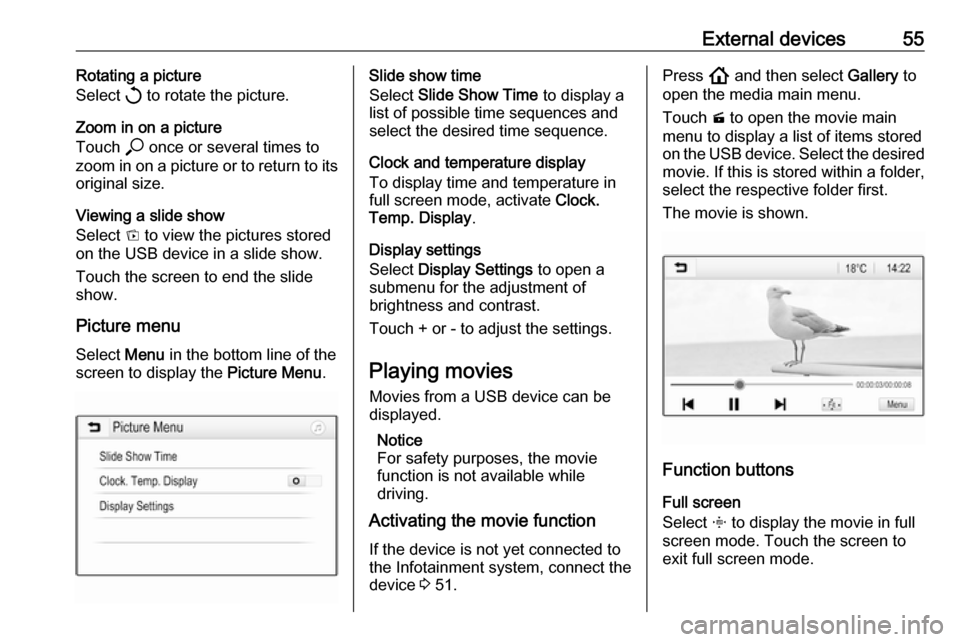
Picture menu Select Menu in the bottom line of the
screen to display the Picture Menu.Slide show time
Select Slide Show Time to display a
list of possible time sequences and select the desired time sequence.
Clock and temperature display
To display time and temperature in
full screen mode, activate Clock.
Temp. Display .
Display settings
Select Display Settings to open a
submenu for the adjustment of
brightness and contrast.
Touch + or - to adjust the settings.
Playing movies
Movies from a USB device can be
displayed.
Notice
For safety purposes, the movie function is not available while
driving.
Activating the movie function
If the device is not yet connected to
the Infotainment system, connect the
device 3 51.Press ! and then select Gallery to
open the media main menu.
Touch m to open the movie main
menu to display a list of items stored
on the USB device. Select the desired movie. If this is stored within a folder,
select the respective folder first.
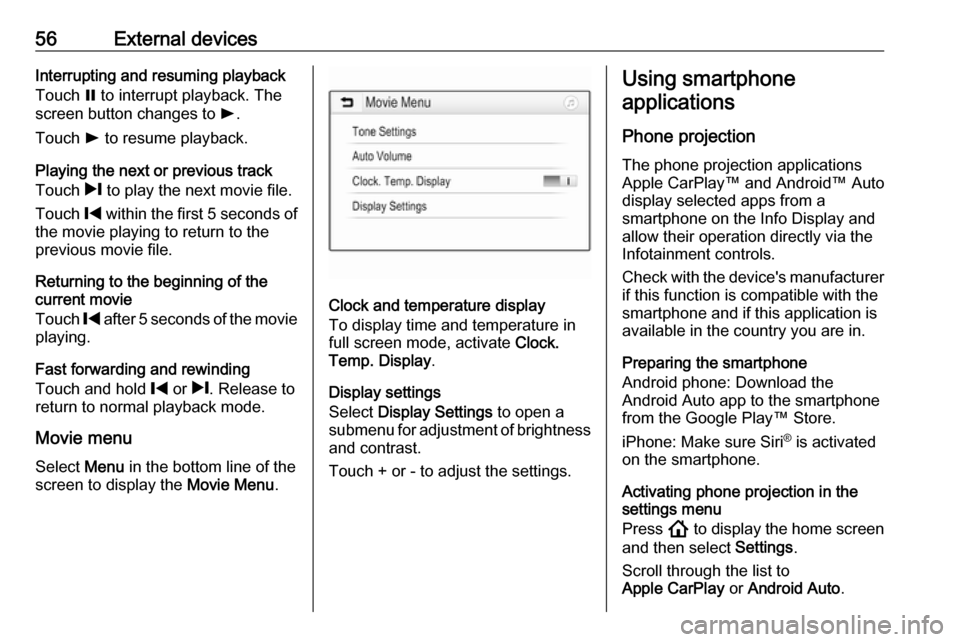
The movie is shown.
Function buttons
Full screen
Select x to display the movie in full
screen mode. Touch the screen to
exit full screen mode.
Page 56 of 85
56External devicesInterrupting and resuming playback
Touch = to interrupt playback. The
screen button changes to l.
Touch l to resume playback.
Playing the next or previous track
Touch / to play the next movie file.
Touch % within the first 5 seconds of
the movie playing to return to the
previous movie file.
Returning to the beginning of the
current movie
Touch % after 5 seconds of the movie
playing.
Fast forwarding and rewinding
Touch and hold % or /. Release to
return to normal playback mode.
Movie menu Select Menu in the bottom line of the
screen to display the Movie Menu.
Clock and temperature display
To display time and temperature in
full screen mode, activate Clock.
Temp. Display .
Display settings
Select Display Settings to open a
submenu for adjustment of brightness
and contrast.
Touch + or - to adjust the settings.
Using smartphone
applications
Phone projection
The phone projection applications
Apple CarPlay™ and Android™ Auto
display selected apps from a
smartphone on the Info Display and allow their operation directly via the
Infotainment controls.
Check with the device's manufacturer if this function is compatible with the
smartphone and if this application is
available in the country you are in.
Preparing the smartphone
Android phone: Download the
Android Auto app to the smartphone from the Google Play™ Store.
iPhone: Make sure Siri ®
is activated
on the smartphone.
Activating phone projection in the settings menu
Press ! to display the home screen
and then select Settings.
Scroll through the list to
Apple CarPlay or Android Auto .
Page 57 of 85

External devices57Make sure the respective application
is activated.
Connecting the mobile phone
Connect the smartphone to the USB
port 3 51.
Starting phone projection
To start the phone projection function,
press ! and then select Projection.
Notice
If the application is recognised by the Infotainment system, the
application icon may change to Apple CarPlay or Android Auto .
Alternatively, the function can be
started by pressing ! for a few
seconds.
The phone projection screen
displayed depends on the
smartphone and software version.
Returning to the home screen
Press !.
BringGo
BringGo is a navigation app providing location search, map display and
route guidance.Notice
Before downloading the app, check
whether BringGo is available in this
vehicle.
Downloading the app
Before BringGo can be operated
using the controls and menus of the
Infotainment system, the respective
application must be installed on the
smartphone.
Download the app from App Store ®
or
Google Play Store.
Activating BringGo in the settings
menu
Press ! to display the home screen
and then select Settings.
Scroll through the list to BringGo.
Make sure the application is
activated.
Connecting the mobile phone
Connect the smartphone to the USB
port 3 51.
Starting BringGo
To start the app, press ! and then
select the Nav icon.The main menu of the application is
shown on the Info Display.
For further information on how to
operate the app, see the instructions
on the manufacturer's website.
Page 59 of 85
Navigation59Important informationTMC traffic information system and
dynamic route guidance
The TMC traffic information system
receives all current traffic information from TMC radio stations. This
information is included in the
calculation of the overall route. During
this process, the route is planned so that traffic problems related to pre-
selected criteria are avoided.
If there is a traffic problem during
active route guidance, depending on
the pre-settings, a message appears
as to whether the route should be
changed.
TMC traffic information is displayed in
the map display as symbols or as
detailed text on the TMC messages
menu.
To be able to use TMC traffic
information, the system must receive
TMC stations in the relevant region.
The TMC traffic stations can be
selected in the navigation menu
3 59.Map data
All required map data is stored within
the Infotainment system.
To update the navigation map data,
purchase new data at the Opel Dealer or on our home page
http://opel.navigation.com/. The
update will be provided on a USB
device.
Connect the USB device to the USB
port and follow the instructions on the screen. The vehicle must be turned
on during the update process.
If the vehicle is equipped with more
than one USB port, the other USB
ports must not be used.
Notice
The vehicle remains operational
during the update process. If the vehicle is turned off, the update can
be paused. The navigation
application, Bluetooth and other
external devices are unavailable
until the update process is finished.
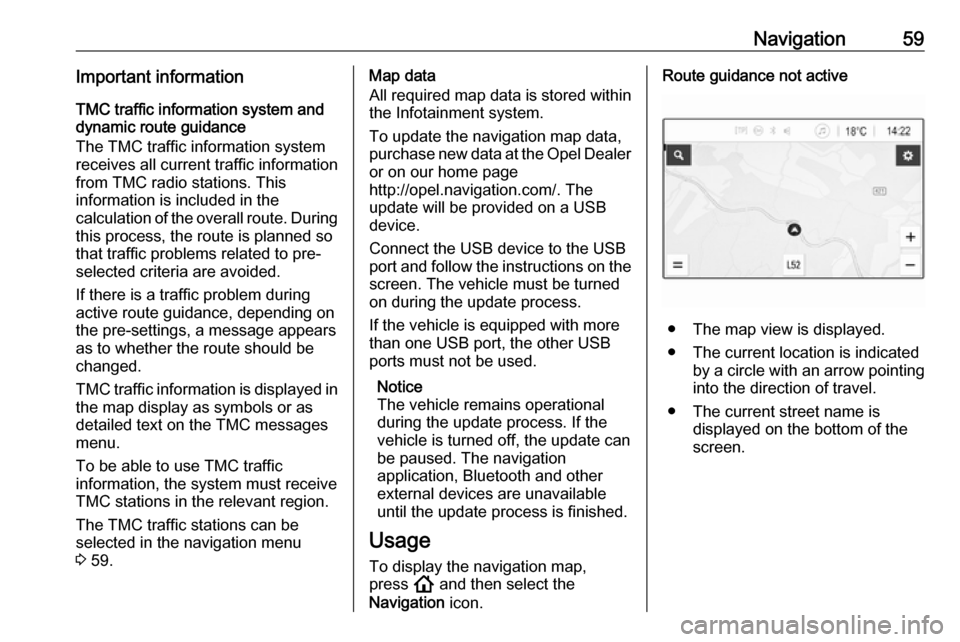
Usage To display the navigation map,
press ! and then select the
Navigation icon.Route guidance not active
● The map view is displayed.
● The current location is indicated by a circle with an arrow pointing
into the direction of travel.
● The current street name is displayed on the bottom of the
screen.