phone VAUXHALL MOKKA 2014 Infotainment system
[x] Cancel search | Manufacturer: VAUXHALL, Model Year: 2014, Model line: MOKKA, Model: VAUXHALL MOKKA 2014Pages: 221, PDF Size: 4.66 MB
Page 81 of 221

Introduction81UsageControl elements
The Infotainment system is operated
via function buttons, multifunctional
knobs and menus that are shown on
the display.
Inputs are made optionally via: ■ the central control unit in the instrument panel 3 78
■ controls on the steering wheel 3 78
■ the speech recognition system (if available) 3 143
Switching the Infotainment
system on or off
Press the X VOL knob briefly. After
switching on, the last selected
Infotainment source is active.
Automatic switch-off
If the Infotainment system has been
switched on using the X VOL knob
when the ignition was switched off, it
will switch off again automatically
after 30 minutes.Setting the volume
Turn the X VOL knob. The current
setting is shown on the display.
When the Infotainment system is
switched on, the last selected volume is set, provided that volume is lower
than the maximum start-up volume.
The following can be set separately: ■ the maximum start-up volume 3 86
■ the volume of the traffic announcements 3 86
■ the volume of the navigation messages 3 106
Speed compensated volume When speed compensated volume is
activated 3 86 the volume is
adapted automatically to compensate
for the road and wind noise as you
drive.
Mute
Press the O button (if Phone portal
available: press for a few seconds) to
mute the audio sources.To cancel mute again: turn the X
VOL knob or press the O button
again (if Phone portal available: press for a few seconds).
Volume limitation at high
temperatures
At very high temperatures inside the vehicle the Infotainment system limits
the maximum adjustable volume. If
necessary the volume is decreased
automatically.
Modes of operation Radio
Press the RADIO button to open the
radio main menu or to change
between the different wavebands.
Press the multifunction knob to open
a submenu with options for station
selection.
Detailed description of the radio
functions 3 87.
Page 82 of 221

82Introduction
Audio players
Press the CD/AUX button to open the
CD, USB, iPod or AUX menus (if
available) or to swap between these
menus.
Press the multifunction knob to open
a submenu with options for track
selection.
Detailed description of: ■ CD player functions 3 97
■ AUX input functions 3 99
■ USB port functions 3 100
Navigation
Press the NAV button and then the
multifunction knob to open the
Navigation menu.
Detailed description of the navigation
system functions 3 106.
Phone
(if Phone portal is available)
Press the O button to open the
telephone menu.
Press the multifunction knob to open
a submenu with options for the input
or selection of numbers.Detailed description of the mobile
phone portal functions 3 148.
Basic operation Multifunction knobThe multifunction knob is the central
control element for the menus.
Turn the multifunction knob: ■ to mark a menu option
■ to set a numeric value
Press the outer ring of the
multifunction knob:
■ to select or activate the marked option
■ to confirm a set value
■ to switch a system function on/off
BACK button
Press the BACK button briefly to:
■ exit a menu
■ return from a submenu to the next higher menu level
■ delete the last character in a character sequencePress and hold the BACK button for a
few seconds to delete the entire entry.
Examples of menu operation Selecting an option
Turn the multifunction knob to move
the cursor (= coloured background) to the desired option.
Press the multifunction knob to select
the marked option.
Page 84 of 221
84Introduction
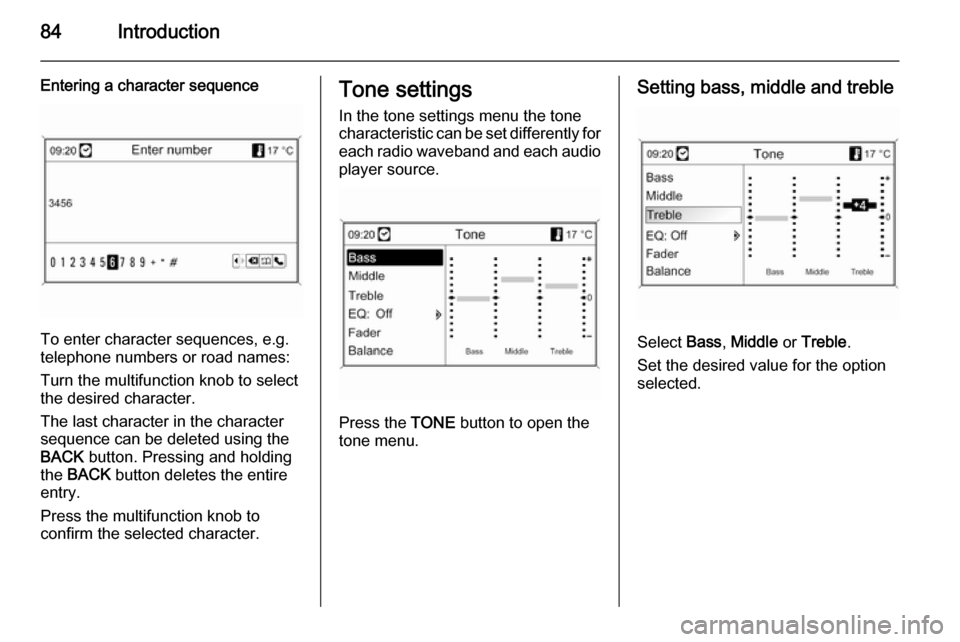
Entering a character sequence
To enter character sequences, e.g.
telephone numbers or road names:
Turn the multifunction knob to select
the desired character.
The last character in the character
sequence can be deleted using the
BACK button. Pressing and holding
the BACK button deletes the entire
entry.
Press the multifunction knob to
confirm the selected character.
Tone settings
In the tone settings menu the tone
characteristic can be set differently for each radio waveband and each audio
player source.
Press the TONE button to open the
tone menu.
Setting bass, middle and treble
Select Bass, Middle or Treble .
Set the desired value for the option
selected.
Page 114 of 221
114Navigation
Nightlife, (17) Communication , (18)
News & broking , (19) Government
office , (20) General .Entering POI data into the text files
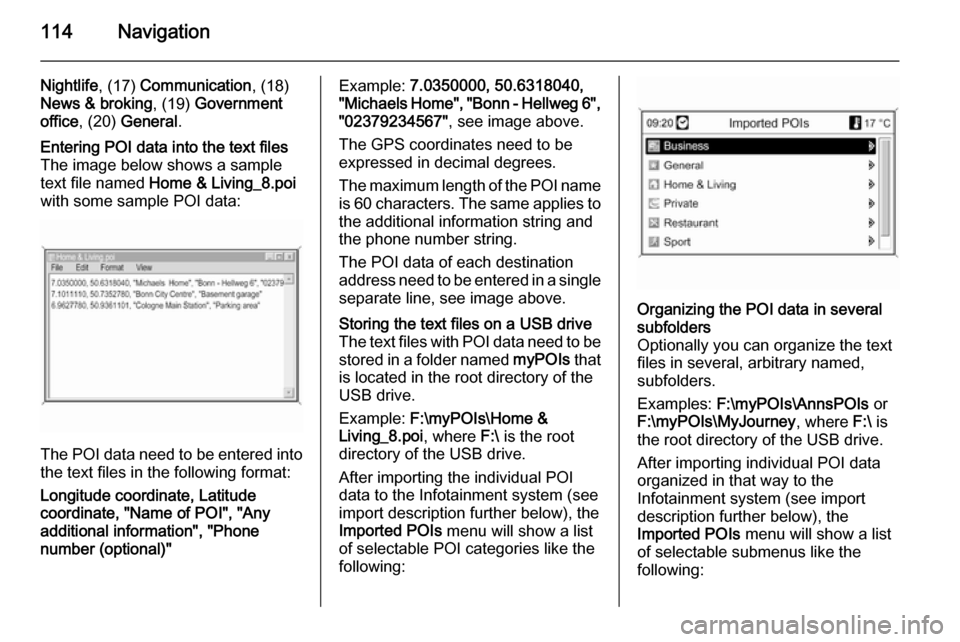
The image below shows a sample
text file named Home & Living_8.poi
with some sample POI data:
The POI data need to be entered into the text files in the following format:
Longitude coordinate, Latitude
coordinate, "Name of POI", "Any additional information", "Phone
number (optional)"
Example: 7.0350000, 50.6318040,
"Michaels Home", "Bonn - Hellweg 6", "02379234567" , see image above.
The GPS coordinates need to be
expressed in decimal degrees.
The maximum length of the POI name
is 60 characters. The same applies to the additional information string and
the phone number string.
The POI data of each destination
address need to be entered in a single
separate line, see image above.Storing the text files on a USB drive
The text files with POI data need to be
stored in a folder named myPOIs that
is located in the root directory of the
USB drive.
Example: F:\myPOIs\Home &
Living_8.poi , where F:\ is the root
directory of the USB drive.
After importing the individual POI
data to the Infotainment system (see
import description further below), the
Imported POIs menu will show a list
of selectable POI categories like the
following:Organizing the POI data in several
subfolders
Optionally you can organize the text
files in several, arbitrary named,
subfolders.
Examples: F:\myPOIs\AnnsPOIs or
F:\myPOIs\MyJourney , where F:\ is
the root directory of the USB drive.
After importing individual POI data
organized in that way to the
Infotainment system (see import
description further below), the
Imported POIs menu will show a list
of selectable submenus like the
following:
Page 123 of 221

Navigation123
Search by name
Selection of points of interest by
entering a name.
After selecting the option, a country
list is displayed.
Select the desired country. A menu for name input is displayed.
Enter the name of the desired point of
interest using the speller function, see "Entering an address using the
speller function" above.
Once the entry is specific enough, a
list with possible points of interest is
displayed. Sometimes it may be
necessary to select j to display the
list.
Select the desired point of interest.
The Navigation menu is displayed.Starting route guidance
Select Start navigation to start route
guidance to the displayed address.
Description on route guidance, see
chapter "Guidance" 3 129.Storing the address
Select Store if you want to store the
displayed address in the address
book or myPOIs memory.
The Store menu is displayed, see
"Storing an address in the address book or myPOIs memory" below.
Search by phone number
Selection of points of interest by
entering a telephone number.
After selecting the option, a country
list is displayed.
Select the desired country. A menu
for number input is displayed.
Enter the desired telephone number
using the speller function, see
"Entering an address using the
speller function" above.
Once the entry is specific enough a
list with possible telephone numbers
(each number representing a point of
interest) is displayed. Sometimes it
may be necessary to select j to
display the list.
Select the desired point of interest.
The Navigation menu is displayed.
Starting route guidance
Select Start navigation to start route
guidance to the displayed address.
Page 126 of 221
126Navigation
destinations), see regarding
descriptions on address input or
selection above.
After entering or selecting the desired destination address, the Navigation
menu is displayed.
Select Store.
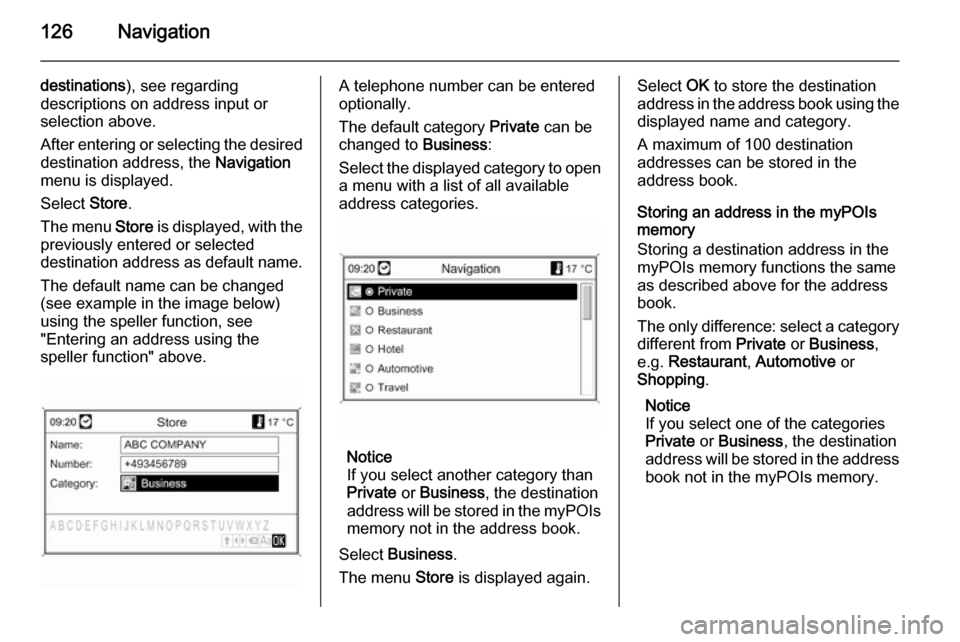
The menu Store is displayed, with the
previously entered or selected
destination address as default name.
The default name can be changed
(see example in the image below)
using the speller function, see
"Entering an address using the
speller function" above.A telephone number can be entered
optionally.
The default category Private can be
changed to Business:
Select the displayed category to open a menu with a list of all available
address categories.
Notice
If you select another category than
Private or Business , the destination
address will be stored in the myPOIs
memory not in the address book.
Select Business .
The menu Store is displayed again.
Select OK to store the destination
address in the address book using the displayed name and category.
A maximum of 100 destination
addresses can be stored in the
address book.
Storing an address in the myPOIs
memory
Storing a destination address in the
myPOIs memory functions the same
as described above for the address
book.
The only difference: select a category
different from Private or Business ,
e.g. Restaurant , Automotive or
Shopping .
Notice
If you select one of the categories
Private or Business , the destination
address will be stored in the address
book not in the myPOIs memory.
Page 127 of 221
Navigation127
Editing or deleting a stored
address Address data (including the categoryand telephone number) stored in the
address book or myPOIs memory can
be edited or entirely deleted at any time.
Editing or deleting an address book
entry
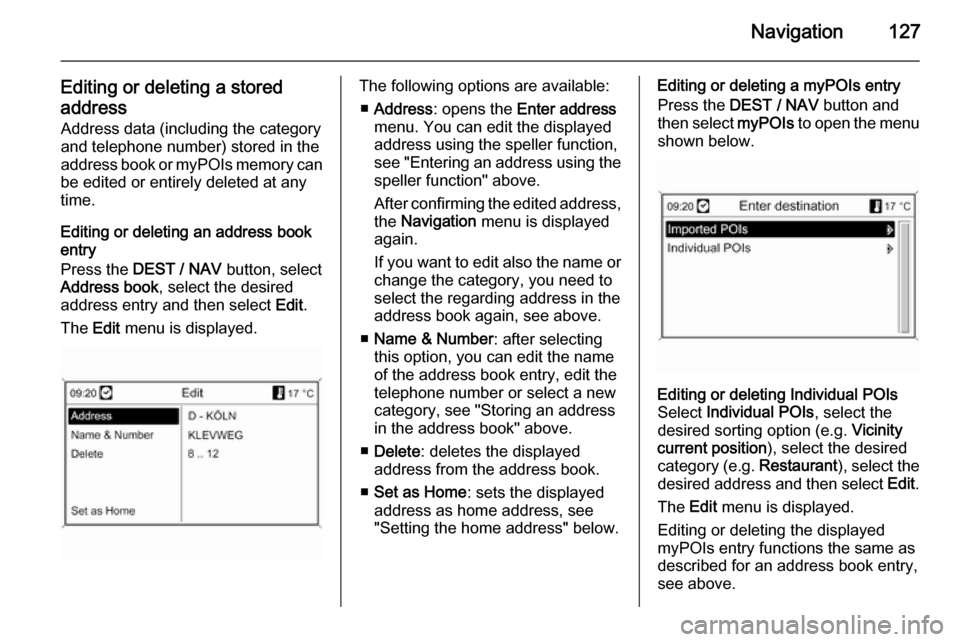
Press the DEST / NAV button, select
Address book , select the desired
address entry and then select Edit.
The Edit menu is displayed.The following options are available:
■ Address : opens the Enter address
menu. You can edit the displayed address using the speller function,
see "Entering an address using the speller function" above.
After confirming the edited address,
the Navigation menu is displayed
again.
If you want to edit also the name or
change the category, you need to
select the regarding address in the
address book again, see above.
■ Name & Number : after selecting
this option, you can edit the name
of the address book entry, edit the
telephone number or select a new
category, see "Storing an address
in the address book" above.
■ Delete : deletes the displayed
address from the address book.
■ Set as Home : sets the displayed
address as home address, see
"Setting the home address" below.Editing or deleting a myPOIs entry
Press the DEST / NAV button and
then select myPOIs to open the menu
shown below.Editing or deleting Individual POIs
Select Individual POIs , select the
desired sorting option (e.g. Vicinity
current position ), select the desired
category (e.g. Restaurant), select the
desired address and then select Edit.
The Edit menu is displayed.
Editing or deleting the displayed
myPOIs entry functions the same as
described for an address book entry,
see above.
Page 143 of 221

Speech recognition143Speech recognitionGeneral information...................143
Phone control ............................ 144General information
The speech recognition of the
Infotainment system enables you to
operate various functions of the
phone portal via voice input. It
recognises commands and numeric
sequences independently of the
relevant speaker. The commands
and numeric sequences can be
spoken without a voice pause
between the individual words.
You can also save telephone
numbers assigning a name of your
choice (voice tag). Using these
names, you can later set up a
telephone connection.
In the event of incorrect operation or
commands the speech recognition
gives you acoustic feedback and
requests you to re-enter the desired
command. Apart from this, the
speech recognition acknowledges
important commands and will enquire if necessary.
To ensure that conversations inside
the vehicle do not lead to
unintentional triggering of systemfunctions, the speech recognition
does not start until it has been
activated.
Important notes on language
support ■ Not all languages available for the display of the Infotainment system
are also available for the speech
recognition.
■ If the currently selected language for the display is not supported by
the speech recognition, you need to enter the voice commands in
English.
To be able to enter voice
commands in English, you first
need to activate the phone main
menu by pressing the PHONE
button on the Infotainment system,
and then activate the speech
recognition of the phone portal by
pressing the button w on the
steering wheel.
Page 144 of 221

144Speech recognitionPhone controlActivating speech recognition
To activate the speech recognition of
the Phone portal, press the button w
on the steering wheel. For the
duration of the dialogue any active
audio source is muted and any traffic
news fade-in is cancelled.
Adjusting the volume for voice
output
Turn the volume knob on the
Infotainment system, or press the
+ or ― button on the steering wheel.
Cancelling a dialogueThere are various possibilities of
deactivating the speech recognition
and cancelling the dialogue:
■ Press the button x on the steering
wheel.
■ Say " Cancel".
■ Do not enter (say) any commands for some time.
■ After the third unrecognised command.Operation
With the aid of the speech recognition
the mobile phone can be operated
very conveniently via voice input. It is
sufficient to activate the speech
recognition and to enter (say) the
desired command. After input of the
command the Infotainment system
guides you through the dialogue with
appropriate questions and feedback
to achieve the desired action.
Main commands After activation of the speech
recognition a short tone signals that
the speech recognition is expecting
input.
Main commands available: ■ " Dial "
■ " Call "
■ " Redialing "
■ " Save "
■ " Delete "
■ " Directory "
■ " Pair "■ "Select device "
■ " Voice feedback "
Commands that are frequently
available
■ " Help ": the dialogue is terminated
and all commands available within
the actual function are enumerated.
■ " Cancel ": the speech recognition is
deactivated.
■ " Yes ": a suitable action is triggered
depending on the context.
■ " No ": a suitable action is triggered
depending on the context.
Entering a telephone number
After the command " Dial" the speech
recognition requests input of a
number.
The telephone number must be
spoken in your normal voice without
any artificial pauses between the
individual numbers.
Recognition works best, if a pause of
at least half a second is made after
every three to five digits. The
Infotainment system then repeats the
numbers recognised.
Page 145 of 221

Speech recognition145
You can then enter further numbers
or the following commands:
■ " Dial ": the inputs are accepted.
■ " Delete ": the number last entered or
the block of numbers last entered is
deleted.
■ " Plus ": a preceding "+" is entered
for a call abroad.
■ " Verify ": the inputs are repeated by
the voice output.
■ " Asterisk ": An asterisk "*" is
entered.
■ " Hash ": A hash "#" is entered.
■ " Help "
■ " Cancel "
The maximum length of the telephone number entered is 25 digits.
To be able to make a call abroad you can say the word "Plus" (+) at the
beginning of your number. The plus allows you to call from any country
without knowing the prefix for calls
made abroad in that country. Then say the required country code.Example of a dialogue
User: " Dial"Voice output: " Please, say the
number to dial "
User: " Plus Four Nine "
Voice output: " Plus Four Nine "
User: " Seven Three One "
Voice output: " Seven Three One "
User: " One One Nine Nine "
Voice output: " One One Nine Nine "
User: " Dial"
Voice output: " The number is being
dialled "
Entering a name
Using the " Call" command a
telephone number is entered that has been stored in the telephone book
under a name (voice tag).
Commands available: ■ " Yes "
■ " No "
■ " Help "
■ " Cancel "Example of a dialogue
User: " Call"Voice output: " Please, say the
nametag to call "
User:
Voice output: " Do you want to call
User: " Yes"
Voice output: " The number is being
dialled "
Starting a second call
A second call can be started during an active telephone call. To do so, press
the button w.
Commands available: ■ " Send ": activate manual DTMF
(touch-tone dialling), e.g. for voice mail or telephone banking.
■ " Send nametag ": activate DTMF
(touch-tone dialling) by entering a
name (voice tag).
■ " Dial "
■ " Call "
■ " Redialing "
■ " Help "
■ " Cancel "