phone VAUXHALL MOKKA 2014 Infotainment system
[x] Cancel search | Manufacturer: VAUXHALL, Model Year: 2014, Model line: MOKKA, Model: VAUXHALL MOKKA 2014Pages: 221, PDF Size: 4.66 MB
Page 202 of 221
202Audio players
iPod player
Main buttons and controls
The following main buttons and
controls are used to play iPod music
files.
(5) AUX button
Press the button repeatedly when the
iPod is connected to select the iPod
play mode.
(10) Multifunction knob ■ Turn the control knob to move and display the track list that is playing.
■ Press the button to display the menu screen provided by the
current item or current mode.
(17) 1 / 8 buttons
■ Press these buttons to play the previous or next track.
■ Hold down these buttons to rewind or fast forward, and then release toplay at normal speed.
(12) INFO button
Displays the information of the track
being played.
(6) O buttonHold down the button to turn the
pause function on or off.
(9) P BACK button
Cancel the previous item or return to the previous menu.
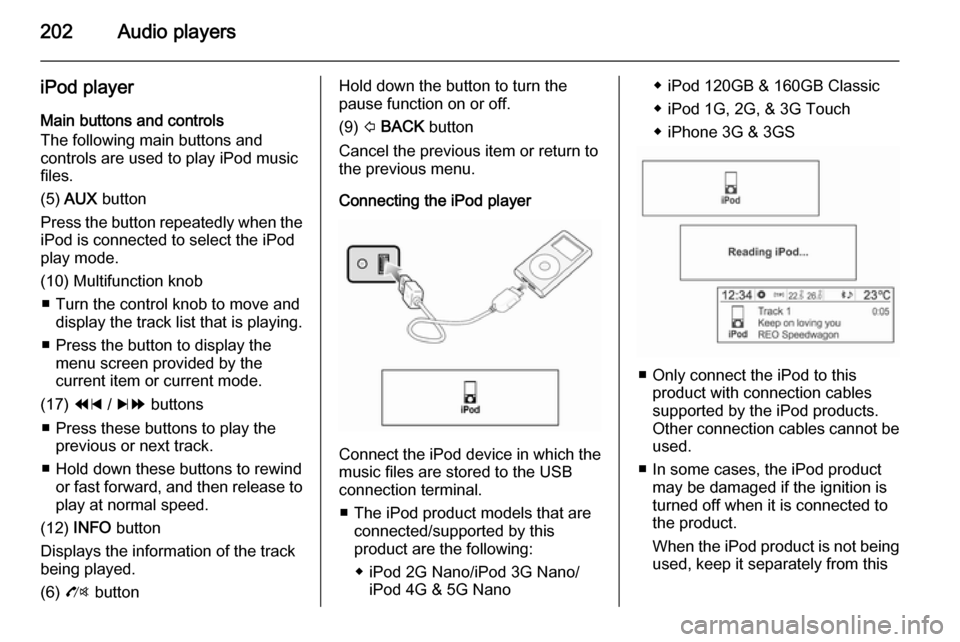
Connecting the iPod player
Connect the iPod device in which the
music files are stored to the USB
connection terminal.
■ The iPod product models that are connected/supported by this
product are the following:
◆ iPod 2G Nano/iPod 3G Nano/ iPod 4G & 5G Nano
◆ iPod 120GB & 160GB Classic
◆ iPod 1G, 2G, & 3G Touch
◆ iPhone 3G & 3GS
■ Only connect the iPod to this product with connection cablessupported by the iPod products.
Other connection cables cannot be
used.
■ In some cases, the iPod product may be damaged if the ignition is
turned off when it is connected to
the product.
When the iPod product is not being used, keep it separately from this
Page 205 of 221

Phone205PhoneBluetooth®................................. 205
Hands free phone ......................210Bluetooth®
Main buttons and controls
The following main buttons and
controls are used to play music files
or use the call functions via a
Bluetooth device.
(6) O button
Press this button to activate the
Bluetooth mode.
(5) AUX button
When a Bluetooth device with a music player function is connected, press
this button repeatedly to select
Bluetooth audio play mode.
(10) Multifunction knob ■ Press the button in Bluetooth phone mode to display the menuscreen.
■ Turn the control knob to move to the
menu or setup value.(17) 1 / 8 buttons
■ Press these buttons in Bluetooth audio play mode to play the
previous or next track.
■ Hold down these buttons to rewind or fast forward, and release to play
at normal speed.
Connecting Bluetooth Registering the Bluetooth device
Register the Bluetooth device to be
connected to the Infotainment system with the vehicle ignition turned off.
Firstly, set up the Bluetooth device to
be connected from Bluetooth
settings to enable other devices to
search for the Bluetooth device.
Page 206 of 221

206Phone
Press the CONFIG button, and use
the multifunction knob to move to
Settings → Bluetooth settings →
Bluetooth → Add device (Handsfree) ,
and then press the multifunction knob.
■ Bluetooth devices can be registered not only by using the
CONFIG button, but also by using
Phone Menu → Bluetooth settings →
Bluetooth → Add device
(Handsfree) .
■ If there already is a Bluetooth
device connected to the
Infotainment system, the Bluetooth
is busy message will appear.
■ Connection standby will be displayed with a message and a
security code. (The initial value is
0000, and can be changed from
Settings → Bluetooth settings →
Bluetooth → Change Bluetooth
code .)
The Infotainment system can be
found by searching the to-be-
connected Bluetooth device.
Enter the security code for the
Infotainment system through the
Bluetooth device.
If the registration of the device to be
connected to the Infotainment system is successful, then the screen will
display the information of the
Bluetooth device.
The Infotainment system can register
up to five Bluetooth devices.
Connecting/deleting/separating the
Bluetooth devices
Firstly, set up the Bluetooth device to be connected from Bluetooth
settings to enable other devices to
search for the Bluetooth device.
Page 207 of 221

Phone207
Press the CONFIG button, and use
the multifunction knob to move to
Settings → Bluetooth settings →
Bluetooth → Device list and then
press the multifunction knob.Use the multifunction knob to move
from the registered Bluetooth device
to the device to be connected, and
then press the multifunction knob.
Use the multifunction knob to move
from the registered Bluetooth device
to the device to be deleted, and then press the multifunction knob.
To disconnect the currently
connected Bluetooth device from the
device list screen, select the
connected device, which will display
Disconnect , and then press the
multifunction knob.
Cautions for registering/connecting
Bluetooth
■ When it is not possible to connect to Bluetooth, delete the entire
device list from the Bluetooth
Page 208 of 221

208Phone
device to be connected, and try
again. If deleting the entire device
list does not work, then reinstall the battery and reconnect.
■ If there is a problem after the Bluetooth device has been
connected, use the multifunction
knob to carry out Settings →
Bluetooth settings → Restore
factory settings .
Initialise the device with the
problem caused by an error that occurred with the connection of the
Bluetooth device and the
Infotainment system.
■ Sometimes, Bluetooth can only be connected through handsfree or
the Bluetooth audio play functions
despite a stereo headset being
connected. In this case, try and
reconnect the Infotainment system
using the Bluetooth device.
■ For Bluetooth devices that do not support stereo headsets, the
Bluetooth audio play function
cannot be used.Bluetooth audio
How to play Bluetooth audio ■ A mobile phone or Bluetooth device
that supports A2DP (Advanced
Audio Distribution Profile) versions
over 1.2 must be registered and
connected to the product.
■ From the mobile phone or Bluetooth device, find the Bluetoothdevice type to set/connect the item
as a stereo headset.
A musical note icon n will appear at
the bottom right of the screen, if the stereo headset is successfully
connected.
■ Do not connect the mobile phone to
the Bluetooth connection terminal.
An error may occur if it is connected
during the CD/MP3 and Bluetooth
audio play mode.Playing Bluetooth audio
Press the AUX button repeatedly to
select the connected Bluetooth audio play mode.
If the Bluetooth device is not
connected, then this function cannot
be selected.
Activating the mobile phone or
Bluetooth device will play the music
files.
Page 209 of 221

Phone209
■The sound played by the Bluetooth
device is delivered through the
Infotainment system.
■ For Bluetooth audio to play, the music must at least be played oncefrom the music player mode of the
mobile phone or Bluetooth device
after connecting as a stereo
headset. After being played at least
once, the music player will
automatically play upon entering
play mode, and it will automatically
stop when the music player mode
ends. If the mobile phone or
Bluetooth device is not in the
waiting screen mode, some
devices may not automatically play
in Bluetooth audio play mode.
Press the 1 / 8 buttons to switch
to the previous or next track, or hold
down these buttons to fast forward or rewind.
■ This function only operates with Bluetooth devices that support
AVRCP (Audio Video Remote
Control Profile) version 1.0 or
above. (Depending on the
Bluetooth device options, somedevices may display AVRCP being
connected for the initial
connection.)
■ The information about the playing track and the track position will not
be displayed on the Infotainment
system screen.
Cautions for playing Bluetooth audio ■ Do not change the track too quickly
when playing Bluetooth audio.
It takes some time to transmit data
from the mobile phone to the
Infotainment system.
■ The Infotainment system transmits the order to play from the mobile
phone in the Bluetooth audio play mode. If this is done in a differentmode, then the device transmits the order to stop.
Depending on the mobile phone's
options, this order to play/stop may take some time to activate.
■ If the mobile phone or Bluetooth device is not in the waiting screen
mode, it may not automatically play
despite being carried out from the
Bluetooth audio play mode.If Bluetooth audio playback is not
functioning, then check to see if the
mobile phone is in the waiting
screen mode.
■ Sometimes, sounds may be cut off during the Bluetooth audio
playback. The Infotainment system outputs the sound from the mobile
phone or Bluetooth device as it is
transmitted.
Bluetooth error messages and
measures
■ Bluetooth deactivated
Check if Bluetooth is activated. The Bluetooth function can be used
upon activating Bluetooth.
■ Bluetooth is busy
Check if there are any Bluetooth
devices connected. To connect
another device, disconnect any
other connected devices first, and
then reconnect.
■ Device list is full
Check if there are less than
5 registered devices. No more than
5 devices can be registered.
Page 210 of 221
210Phone
■No phone book available
This message will be displayed if
the mobile phone does not support
contacts transmission. If this
message appears after several
attempts, then the device does not
support contacts transmission.Caution
The message will be displayed
when the transmission of contacts
is supported while information with
a device error is also transmitted.
Update the device again if this
occurs.
■ The phone book is empty
This message is displayed if no
phone numbers are stored in the
mobile phone. This will also be displayed if the phone log
transmission is supported, but in a way that is not supported by the
Infotainment system.
Hands free phone
Taking calls
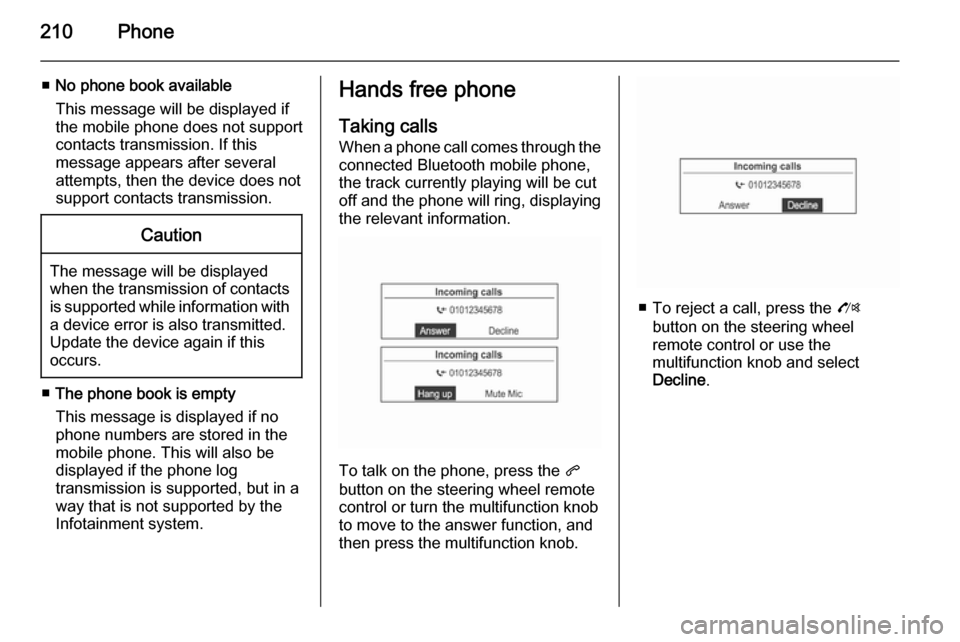
When a phone call comes through the connected Bluetooth mobile phone,
the track currently playing will be cut
off and the phone will ring, displaying
the relevant information.
To talk on the phone, press the q
button on the steering wheel remote
control or turn the multifunction knob
to move to the answer function, and
then press the multifunction knob.
■ To reject a call, press the O
button on the steering wheel
remote control or use the
multifunction knob and select
Decline .
Page 211 of 221
Phone211
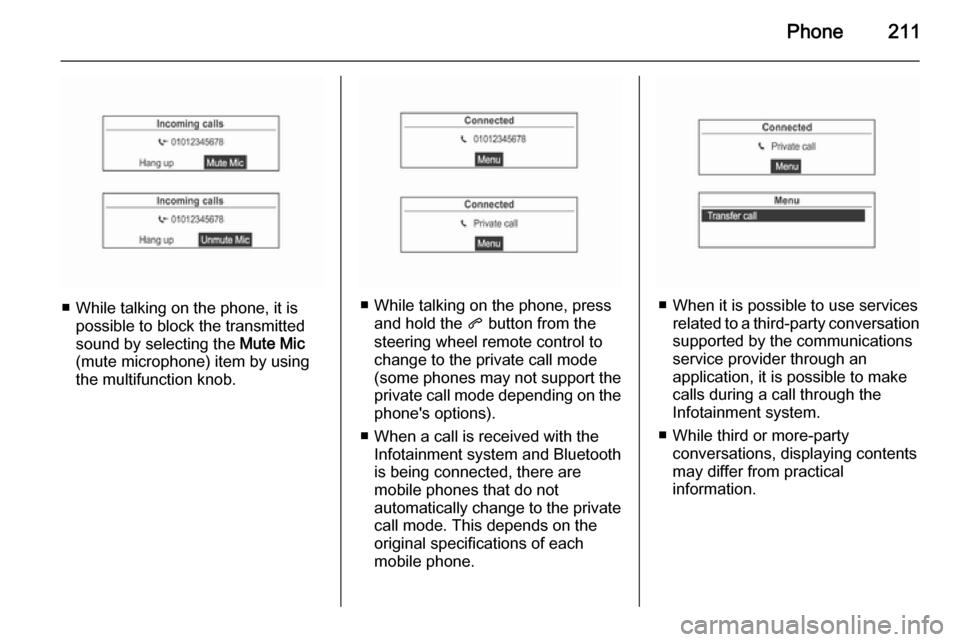
■ While talking on the phone, it ispossible to block the transmitted
sound by selecting the Mute Mic
(mute microphone) item by using
the multifunction knob.■ While talking on the phone, press and hold the q button from the
steering wheel remote control to
change to the private call mode
(some phones may not support the
private call mode depending on the
phone's options).
■ When a call is received with the Infotainment system and Bluetooth
is being connected, there are
mobile phones that do not
automatically change to the private call mode. This depends on the
original specifications of each
mobile phone.■ When it is possible to use services related to a third-party conversation
supported by the communications
service provider through an
application, it is possible to make
calls during a call through the
Infotainment system.
■ While third or more-party conversations, displaying contents
may differ from practical
information.
Page 212 of 221

212Phone
Calling by redial
From the steering wheel remote
control, press the q button to display
the redial guidance screen, or press
and hold the button to display the
caller log screen.
Turn the multifunction knob to select
Yes , and then press the multifunction
knob to make a call.
■ If the mobile phone is not in waiting
mode, your phone might not
support the redial function. This
depends on the mobile phone's
options.
■ When redialling a number, the connected phone number will not
be displayed.
■ Depending on the mobile phone, there are cases in which the call is
made through the call history of the
received or missed calls instead of
the redial mode. This depends on
the mobile phone's options.
Press the multifunction knob while the phone is connected to display the
connecting functions as shown
below.
Use the multifunction knob to use the
functions in the menu that appears.
Calling by outgoing call log
To make a call by the outgoing call
log, press and hold the q button on
the steering wheel remote control and
turn the multifunction knob to select the desired call list, then press the
multifunction knob.
Page 213 of 221
Phone213
Calling by entering numbers
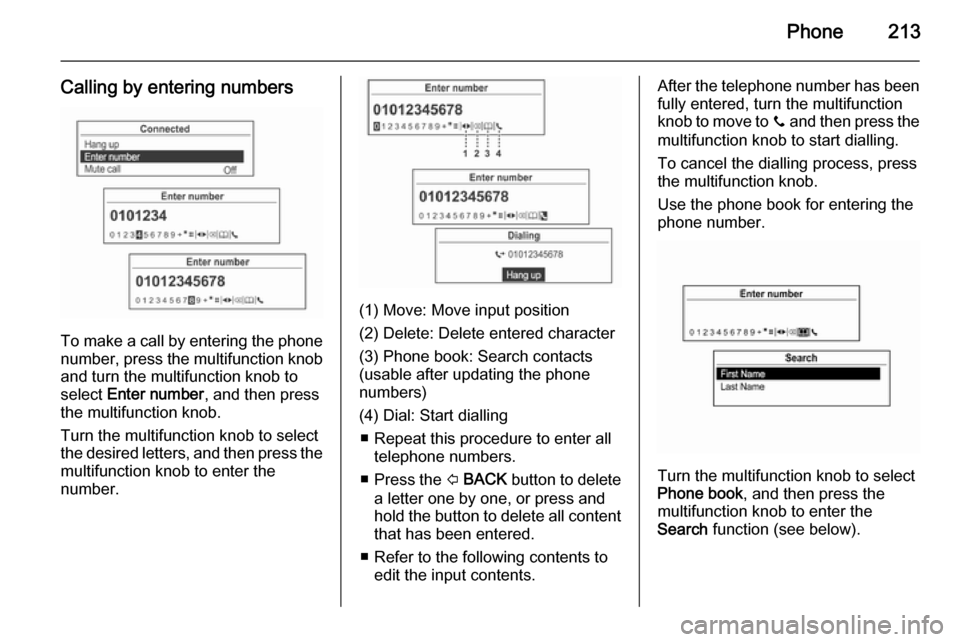
To make a call by entering the phonenumber, press the multifunction knob
and turn the multifunction knob to
select Enter number , and then press
the multifunction knob.
Turn the multifunction knob to select
the desired letters, and then press the
multifunction knob to enter the
number.
(1) Move: Move input position
(2) Delete: Delete entered character
(3) Phone book: Search contacts
(usable after updating the phone
numbers)
(4) Dial: Start dialling ■ Repeat this procedure to enter all telephone numbers.
■ Press the P BACK button to delete
a letter one by one, or press and
hold the button to delete all content
that has been entered.
■ Refer to the following contents to edit the input contents.
After the telephone number has beenfully entered, turn the multifunction
knob to move to y and then press the
multifunction knob to start dialling.
To cancel the dialling process, press
the multifunction knob.
Use the phone book for entering the
phone number.
Turn the multifunction knob to select
Phone book , and then press the
multifunction knob to enter the
Search function (see below).