audio VAUXHALL MOVANO_B 2014.5 Infotainment system
[x] Cancel search | Manufacturer: VAUXHALL, Model Year: 2014.5, Model line: MOVANO_B, Model: VAUXHALL MOVANO_B 2014.5Pages: 93, PDF Size: 1.45 MB
Page 36 of 93
36CD PlayerCD PlayerGeneral information.....................36
Usage .......................................... 37General information
The Infotainment system's CD player
can playback audio CDs, MP3 CDs
and also WMA CDs.
CD15 BT, CD16 BT, CD 18BT and CD 30 BT only: AAC and WAV
formats can also be played.
Important information about
audio CDs and MP3/WMA CDsCaution
Under no circumstances place
DVDs, single-CDs with a diameter
of 8 cm or shaped CDs in the audio
player.
You must not put any stickers on
CDs. These discs can get jammed
in the CD drive and ruin the drive.
An expensive replacement of the
device will then be necessary.
■ Audio CDs with copy protection, which are not in compliance with
the audio CD standard, may not
play correctly or not at all.
■ Self-recorded CD-Rs and CD-RWs
and WMA files with Digital Rights
Management (DRM) from online
music shops may not play correctly
or not at all.
■ On mixed mode CDs (combinations
of audio and data, e.g. MP3), only
the audio tracks will be detected
and played.
■ Self-recorded CD-Rs and CD-RWs
are more vulnerable to mishandling than prerecorded CDs. Correct
handling, especially in the case of
self-recorded CD-Rs and CD-RWs,
must be ensured; see below.
■ Avoid leaving fingerprints when you
change CDs.
■ Put CDs back in their sleeves immediately after removing them
from the CD player, in order to
protect them from dirt and damage.
■ Dirt and liquids on CDs can smear the lens of the audio player inside
the device and cause faults.
■ Protect CDs from heat and direct sunlight.
Page 37 of 93

CD Player37
■ The following restrictions apply forMP3/WMA CDs:
Only MP3 files and WMA files can
be read.
Maximum folder structure depth:
11 levels
Maximum number of MP3 and/or
WMA files that can be saved:
1000 files
Applicable playlist
extensions: .m3u, .pls
Playlist entries must be in the form
of relative paths.
■ The operation of MP3 and WMA files is identical. When a CD with
WMA files is loaded, MP3-related
menus are displayed.Usage
CD15 BT / CD 16 BT / CD 18 BT
- CD player usage
Starting CD playback
Switch on the Infotainment system
(by pressing the m knob) and push the
CD with the printed side up into the
CD slot until it is pulled in: CD
playback starts automatically.
If there is already a CD in the unit,
press the MEDIA button repeatedly to
select the desired audio source: CD
playback is started.
Notice
Depending on the data stored on the audio CD or MP3 CD, differing
information about the CD and the
current music track will be shown on
the display.
Selecting an album or track
Turn the OK rotary knob to select an
album or track from the list.Skipping to the next track or previous
track
Briefly press button 2 or 3 once or
several times.
Fast forward or rewind
Press and hold button 2 or 3 to
fast forward or rewind the current
track.
Random playback
During CD playback, press and hold the numbered button 2 or 4 (from the
Station buttons 1...6) to activate
random playback.
MIX appears on the display when
random playback is active.
Notice
On an MP3 CD, the random
playback function applies only to the
current album.
Press and hold the numbered button 2 or 4 again to deactivate.
MIX disappears from the display.
Random playback can also be
deactivated by ejecting the CD.
Page 38 of 93

38CD Player
Notice
Random playback is not deactivated
when the audio system is switched
off or the source changed.
Pause
Briefly press the m rotary knob, @ or
both ! and # buttons simultaneously
to interrupt CD/MP3 CD playback.
Press again to resume playback.
The pause function is deactivated
automatically when the volume is
adjusted, the audio source is
changed or automatic information
messages are issued.
Displaying additional text information
(CD-Text or ID3 tag)
After selecting a track or album,
briefly press TEXT or numbered
button 5 (from the
Station buttons 1...6) to access the
text information available on the CD
(e.g. artist name, album name or song
name).
To display all text information at once,
press and hold numbered button 5 or
TEXT .To exit the display, press the /
button.
Removing a CD
Press the d button: The CD is
pushed out of the CD slot.
If the CD is not removed after
ejection, it will be drawn back in again
automatically after a few seconds.
CD30 BT - CD player usage
Starting CD playback
Switch on the Infotainment system
(by pressing the m knob) and push the
CD with the printed side up into the
CD slot until it is pulled in: CD
playback starts automatically.
If there is already a CD in the unit,
press the RADIO/CD button: CD
playback is started.
Notice
Depending on the data stored on the audio CD or MP3 CD, differing
information about the CD and the
current music track will be shown on
the display.Selecting an album or track
Turn the rotary knob to select an
album or track from the list.
Skipping to the next track or previous
track
Briefly press button 2 or 3 once or
several times.
Fast forward or rewind
Press and hold button 2 or 3 to
fast forward or rewind the current
track.
Random playback
Access the Other audio settings
menu.
Select Random and press the rotary
knob to activate.
Notice
On a CD MP3/WMA, the random
playback function applies to the
current album, then moves on to the next album.
Pause
Press the @ button or both ! and #
buttons simultaneously to interrupt
CD/MP3 CD playback.
Page 39 of 93

CD Player39
This function is deactivated
automatically when the volume is
adjusted, the source is changed or
automatic information messages are
issued.
Selecting tracks using the audio CD
or MP3 menuDuring audio CD playback
To select a track on the audio CD:
Turn the rotary knob to select the
desired track.During MP3 playback
Press the ⊳ button to access the subfolder or track.
Press the ⊲ button to return to the
parent folder.
Press and hold the ⊲ button to return to the root folder.
Press and hold the ⊳ button to display
the name of the track being played.
Once an album is selected: ■ Press rotary knob to display the track list.
■ Turn rotary knob to select the desired track.Displaying additional text information
(CD-Text or ID3 tag)
After selecting a track or album, press the A button to access the text
information available on the CD (e.g.
artist name, album name or song
name). To exit the corresponding
display, press A again.
Press the j button to display the full
name of the album or track playing.
To exit the display, press j again.
Removing a CD
Press the d button: The CD is
pushed out of the CD slot.
If the CD is not removed after
ejection, it will be drawn back in again
automatically after a few seconds.
CD35 BT - CD player usage
Starting CD playback
Switch on the Infotainment system
(by pressing the m knob) and push the
CD with the printed side up into the
CD slot until it is pulled in: CD
playback starts automatically.If there is already a CD in the unit,
press the MEDIA button repeatedly to
select the desired audio source: CD
playback is started.
Notice
Depending on the data stored on the audio CD or MP3 CD, differing
information about the CD and the
current music track will be shown on
the display.
Selecting an album or track
Turn the central rotary knob to select
an album or track from the list.
Skipping to the next track or previous
track
Briefly press button 2 or 3 once or
several times.
Fast forward or rewind
Press and hold button 2 or 3 to
fast forward or rewind the current
track.
Random playback
Press the SETUP / TEXT button to
access the settings menu.
Page 40 of 93

40CD Player
Turn the central rotary knob to select
Audio settings and press knob to
confirm.
Select Random and press the knob to
activate.
Notice
On a CD MP3/WMA, the random
playback function applies to the
current album, then moves on to the next album.
Pause
Briefly press the volume rotary knob,
@ or both ! and # buttons
simultaneously to interrupt CD/MP3 CD playback. Press again to resume
playback.
The pause function is deactivated
automatically when the volume is
adjusted, the audio source is
changed or automatic information
messages are issued.Displaying additional text information
(CD-Text or ID3 tag)
After selecting a track or album, press and hold the central rotary knob to
access the text information available
on the CD (e.g. artist name, album
name or song name).
To exit the display, press the /
button.
Removing a CD
Press the d button: The CD is
pushed out of the CD slot.
If the CD is not removed after
ejection, it will be drawn back in again
automatically after a few seconds.
Page 41 of 93
AUX input41AUX inputGeneral information.....................41
Usage .......................................... 41General information
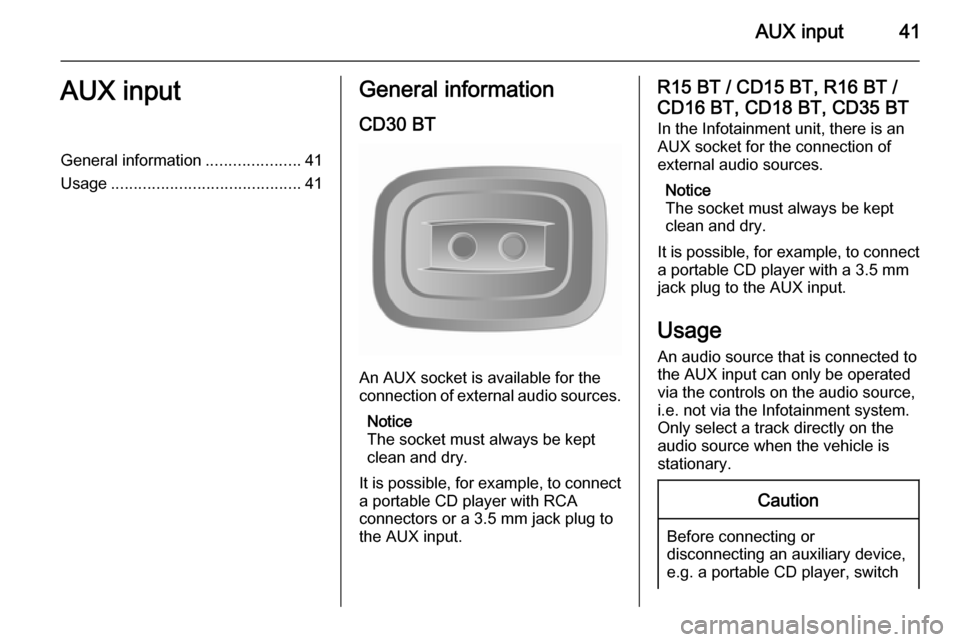
CD30 BT
An AUX socket is available for the
connection of external audio sources.
Notice
The socket must always be kept
clean and dry.
It is possible, for example, to connect a portable CD player with RCA
connectors or a 3.5 mm jack plug to
the AUX input.
R15 BT / CD15 BT, R16 BT /
CD16 BT, CD18 BT, CD35 BT In the Infotainment unit, there is an
AUX socket for the connection of
external audio sources.
Notice
The socket must always be kept
clean and dry.
It is possible, for example, to connect
a portable CD player with a 3.5 mm
jack plug to the AUX input.
Usage
An audio source that is connected to
the AUX input can only be operated
via the controls on the audio source,
i.e. not via the Infotainment system.
Only select a track directly on the
audio source when the vehicle is
stationary.Caution
Before connecting or
disconnecting an auxiliary device,
e.g. a portable CD player, switch
Page 42 of 93

42AUX inputoff the player and the Infotainmentsystem, to avoid sound quality
issues and possible damage to the equipment.
Upon connection via the jack plug, thesystem detects the audio source
automatically. Depending on the
recording volume, there may be a
delay before the audio source is
heard.
The artist or track name are not
shown on the display screen.
R15 BT / CD15 BT, R16 BT /
CD16 BT, CD18 BT- AUX input
usage
Press the MEDIA or
AUDIO/SOURCE button to change
the audio source to AUX mode, then
switch on the auxiliary device. AUX
appears on the display screen.
AUX settings
Press the SETUP button to access
the settings menu.
Select AUX IN and turn the OK rotary
knob until the desired setting is
selected from:
■ HI (300 mV)
■ MID (600 mV)
■ LO (1200 mV)
CD30 BT - AUX input usage Press the RADIO/CD button to
activate the AUX mode, then switch
on the auxiliary device.
CD35 BT - AUX input usage Press the MEDIA button to activate
the AUX mode, then switch on the
auxiliary device. Jack appears on the
display screen.
Page 43 of 93
USB port43USB portGeneral information.....................43
Playing saved audio files .............44General information
R15 BT / CD15 BT, R16 BT /
CD16 BT, CD18 BT, CD35 BT In the Infotainment unit, there is a
USB socket for the connection of
external audio sources.
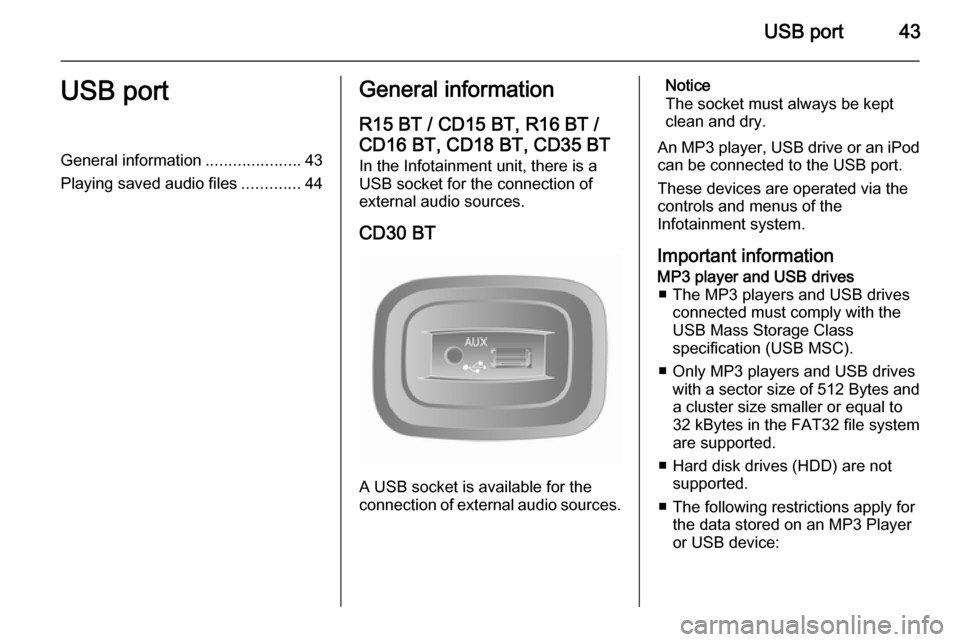
CD30 BT
A USB socket is available for the
connection of external audio sources.
Notice
The socket must always be kept
clean and dry.
An MP3 player, USB drive or an iPod
can be connected to the USB port.
These devices are operated via the
controls and menus of the
Infotainment system.
Important informationMP3 player and USB drives ■ The MP3 players and USB drives connected must comply with the
USB Mass Storage Class
specification (USB MSC).
■ Only MP3 players and USB drives with a sector size of 512 Bytes and
a cluster size smaller or equal to
32 kBytes in the FAT32 file system
are supported.
■ Hard disk drives (HDD) are not supported.
■ The following restrictions apply for the data stored on an MP3 Player
or USB device:
Page 44 of 93

44USB port
Only MP3 files, WMA, ACC1)
and
OGG 2)
files can be read. WAV files
and all other compressed files
cannot be played
Maximum folder structure depth:
11 levels
Maximum number of files that can
be saved: 1000 files
WMA files with Digital Rights
Management (DRM) from online
music shops may not play correctly
or not at all
Applicable playlist
extensions: .m3u, .pls
Playlist entries must be in the form
of relative paths
Playing saved audio files Depending on the auxiliary deviceconnected, select a folder (MP3
player, USB drive) or a playlist
(portable digital music player).Once connected, it is only possible to
use the controls and menus of the
Infotainment system to operate the
auxiliary device.
The operation of data sources
connected via USB is generally the
same as for an audio/MP3/WMA CD
3 37.
R15 BT / CD15 BT, R16 BT /
CD16 BT, CD18 BT - Playing
music via USB
MP3 player / iPod / USB drives
The system detects the auxiliary
device when a USB device is
connected and the current track is
displayed automatically.
When a new auxiliary device is
connected, the first track in the first folder is played automatically. When
reconnecting the device, the
previously played track is resumed.Selecting a track
To select tracks directly (and change
folders), first access the auxiliary
device menu structure by pressing
the OK rotary knob during playback.
Select tracks and change folders by
turning and pressing the knob.
CD30 BT - Playing music viaUSB
MP3 player / iPod / USB drives
The system detects the auxiliary
device when a USB device is
connected and the AUX-USB menu is
displayed automatically.
Selecting a track
Select tracks directly by turning and
pressing the central rotary knob.
By default, albums are listed in
alphabetical order.
If a USB drive is connected, all the
folders will be at the same level on the
tree structure.1) Not with CD30 BT.
2) CD30 BT only.
Page 46 of 93

46Bluetooth musicBluetooth musicGeneral information.....................46
Operation ..................................... 46General information
Bluetooth-enabled auxiliary audio sources (e.g. music mobile phones,
MP3 players etc.), which support
Bluetooth music protocol A2DP, can
be connected wirelessly to the
Infotainment system.
Important information ■ The Infotainment system only connects to Bluetooth devices that
support A2DP (Advanced Audio
Distribution Profile). Connection
issues may arise with early
versions.
■ The Bluetooth device must support
AVRCP (Audio Video Remote
Control Profile) version 1.0 or
higher. If the device does not
support AVRCP, only the volume
can be controlled via the
Infotainment system.
■ Before connecting the Bluetooth device to the Infotainment system,
become acquainted with its
operating instructions for Bluetooth functions.Operation
Prerequisites
The following prerequisites must be
met, in order to control a Bluetooth-
enabled audio device via the
Infotainment system:
■ The Bluetooth function of the Infotainment system must be
activated 3 75.
■ The Bluetooth function of the Bluetooth-enabled auxiliary audio
source must be activated (see
audio device operating
instructions).
■ Dependent upon the audio source, it may be required to set that deviceto "visible" (see audio device
operating instructions).
■ The audio source must be paired and connected to the Infotainment
system.