audio VAUXHALL MOVANO_B 2014.5 Infotainment system
[x] Cancel search | Manufacturer: VAUXHALL, Model Year: 2014.5, Model line: MOVANO_B, Model: VAUXHALL MOVANO_B 2014.5Pages: 93, PDF Size: 1.45 MB
Page 47 of 93

Bluetooth music47
R15 BT / CD15 BT, R16 BT /
CD16 BT, CD18 BT - Playing music via Bluetooth
Bluetooth connection
A connection must be set up between the audio device and the Infotainment
system via Bluetooth, i.e. the device
must be paired to the vehicle before
using it.
■ A maximum of 5 audio devices can
be paired and saved in the device
list, but only one can be connected
at a time.
■ If the device has both audio player and telephone functions, both
functions will be paired. Pairing a
mobile phone 3 75.
■ Phone functions will remain active while the audio player is in use, and
audio playback will be suspended
during phone use.Pairing an auxiliary audio device to
the Infotainment system
To pair the audio device, press the
TEL button and select Pair device by
turning and pressing the OK rotary
knob. The Ready to Pair screen is
displayed.
Then, on the audio device, search for
Bluetooth equipment in the vicinity of
the device.
Select My Radio (i.e. the name of the
system) from the list on the audio
device, then, if applicable, on the
audio device keypad enter the pairing code shown on the Infotainment
system display screen.
Notice
If the audio device does not have a
screen, enter the default pairing
code on the device, then on the
Infotainment system. Refer to the
operating instructions for this default
audio device pairing code, usually
0000 . Depending on the device, the
pairing code may need to be entered
in reverse order, i.e. on the
Infotainment system first.If pairing fails, the system returns to
the previous menu and a
corresponding message is displayed. Repeat procedure if necessary.
When pairing is completed, a
confirmation message followed by the
name of the paired audio device is
shown on the Infotainment system
display screen.
Notice
When a Bluetooth connection is
active, controlling the audio device
via the Infotainment system will
discharge the audio device battery more rapidly.
Connecting an audio device
Audio devices are automatically
connected to the Infotainment system after the pairing procedure is
completed.
To connect any audio device that has
been paired, or to connect to a
different paired audio device than the current one, press the TEL button and
select the Select Device menu. The
device list shows the audio devices
already paired.
Page 48 of 93

48Bluetooth music
Select the desired device from the list
and confirm by pressing the OK rotary
knob. A display message confirms
connection.
Disconnecting an audio device
To disconnect an audio device from
the Infotainment system, press the
TEL button (or the SETUP button)
and select Bluetooth connection .
Select the desired device from the
device list then select Disconnect the
device by turning and pressing the
OK rotary knob. A display message
confirms disconnection.
Switching off the audio device or
deactivating the Bluetooth function on the audio device also disconnects the
device from the Infotainment system.
Unpairing an auxiliary audio device
from the Infotainment system
If the list of paired audio devices is full, a new device can only be paired if an
existing device is unpaired.
To unpair, i.e. to delete an audio
device from the system memory,
press the TEL button and select
Delete device . Select the desiredaudio device from the list and press
the OK rotary knob to confirm deletion
when prompted.
Operation via Infotainment system
When paired and connected
wirelessly, audio playback begins
automatically.
The audio device can then be
operated via the Infotainment system
function buttons, rotary knobs and
display menus.
The range of accessible functions
that can be operated via the
Infotainment system depends on the
type of audio player.
The operation of the audio device
when connected wirelessly is similar
to the operations for the CD player
3 37.CD30 BT - Playing music via
Bluetooth
Bluetooth connection
A connection must be set up between the audio device and the Infotainment
system via Bluetooth, i.e. the device
must be paired to the vehicle before
using it.
■ A maximum of 5 audio devices can
be paired and saved in the device
list, but only one can be connected
at a time.
■ If the device has both audio player and telephone functions, both
functions will be paired. Pairing a
mobile phone 3 75.
■ Phone functions will remain active while the audio player is in use, and
audio playback will be suspended
during phone use.
Pairing an auxiliary audio device to the Infotainment system
To pair the audio device, press the
0 button and select Bluetooth
connection . Select an empty slot by
Page 49 of 93

Bluetooth music49
turning the rotary knob and press
rotary knob or button ⊲ or ⊳ to display
the next menu.
Select Pair audio device by turning
and pressing the rotary knob, then, on the audio device, search for Bluetooth
equipment in the vicinity of the device.
Select My Radiosat (i.e. the name of
the system) from the list on the audio
device, then, if applicable, on the audio device keypad enter the pairing code shown on the Infotainment
system display screen.
Notice
If the audio device does not have a
screen, enter the default pairing
code on the device, then on the
Infotainment system. Refer to the
operating instructions for this default
audio device pairing code, usually
0000 . Depending on the device, the
pairing code may need to be entered in reverse order, i.e. on the
Infotainment system first.
If pairing fails, the message
Connection has failed. is displayed
and a tone sounds. Repeat procedure
if necessary.When pairing is completed, a
confirmation message followed by the
name of the paired audio device is
shown on the Infotainment system
display screen.
Notice
When a Bluetooth connection is
active, controlling the audio device
via the Infotainment system will
discharge the audio device battery more rapidly.
Connecting an audio device
To connect an audio device after it
has been paired, or to connect to a
different paired audio device than the
current one, press the 0 button and
select Bluetooth connection .
The device list shows the audio
devices already paired. Select the
desired device from the list. Select
Connect the device and confirm by
pressing the rotary knob. A display
message confirms connection.
Disconnecting an audio device
To disconnect an audio device from
the Infotainment system, select the
desired device from the Bluetoothconnection menu then select
Disconnect the device by turning and
pressing the rotary knob. A display
message confirms disconnection.
Switching off the audio device or
deactivating the Bluetooth function on
the audio device also disconnects the device from the Infotainment system.
Unpairing an auxiliary audio device
from the Infotainment system
If the list of paired audio devices is full,
a new device can only be paired if an
existing device is unpaired.
To unpair, i.e. to delete an audio
device from the system memory,
press the 0 button and select
Bluetooth connection . Select the
desired audio device from the list,
press the rotary knob or button ⊲ or ⊳ and select Delete this device .
Operation via Infotainment system When paired and connected
wirelessly, audio playback begins
automatically.
Page 50 of 93

50Bluetooth music
The audio device can then be
operated via the Infotainment system
function buttons, rotary knobs and
display menus.
The range of accessible functions
that can be operated via the
Infotainment system depends on the
type of audio player.
The operation of the audio device
when connected wirelessly is similar
to the operations for the CD player
3 37.
CD35 BT - Playing music via
Bluetooth
Bluetooth connection
A connection must be set up between
the audio device and the Infotainment system via Bluetooth, i.e. the device
must be paired to the vehicle before
using it.
■ A maximum of 5 audio devices can
be paired and saved in the device
list, but only one can be connected
at a time.■ If the device has both audio player and telephone functions, one or
both functions can be paired.
Pairing a mobile phone 3 75.
■ Phone functions will remain active while the audio player is in use, and
audio playback will be suspended
during phone use.
Pairing an auxiliary audio device to the Infotainment system
To pair the audio device, press the
SETUP / TEXT button and select
Bluetooth connection . Select an
empty slot by turning the central
rotary knob and press the knob to
display the next menu.
Select Pair device by turning and
pressing the rotary knob, then, on the
audio device, search for Bluetooth
equipment in the vicinity of the device.
Select My_Radio (i.e. the name of the
system) from the list on the audio
device, then, if applicable, on the
audio device keypad enter the pairing
code shown on the Infotainment
system display screen.Notice
If the audio device does not have a
screen, enter the default pairing
code on the device, then on the
Infotainment system. Refer to the
operating instructions for this default audio device pairing code, usually
0000 . Depending on the device, the
pairing code may need to be entered
in reverse order, i.e. on the
Infotainment system first.
If pairing fails, the message Pairing
failed is displayed. Repeat procedure
if necessary.
When pairing is completed, a
confirmation message followed by the
name of the paired audio device is
shown on the Infotainment system
display screen.
Notice
When a Bluetooth connection is active, controlling the audio device
via the Infotainment system will
discharge the audio device battery more rapidly.
Page 51 of 93

Bluetooth music51
Connecting an audio device
Audio devices are automatically
connected to the Infotainment system after the pairing procedure is
completed.
To connect any audio device that has
been paired, or to connect to a
different paired audio device than the
current one, press the
SETUP / TEXT button and select
Bluetooth connection (or press the
TEL button when no device is
connected). The device list shows the
audio devices already paired.
Select the desired device from the list
and confirm by pressing the central
rotary knob. A display message
confirms connection.
Disconnecting an audio device
To disconnect an audio device from
the Infotainment system, select the
desired device from the Bluetooth
connection menu then select
Disconnect the device by turning and
pressing the central rotary knob. A
display message confirms
disconnection.Switching off the audio device or
deactivating the Bluetooth function on the audio device also disconnects the
device from the Infotainment system.
Unpairing an auxiliary audio device
from the Infotainment system
If the list of paired audio devices is full,
a new device can only be paired if an
existing device is unpaired.
To unpair, i.e. to delete an audio
device from the system memory,
press the SETUP / TEXT button and
select Bluetooth connection . Select
the desired audio device from the list, press the central rotary knob and
select Delete.
Operation via Infotainment system
When paired and connected
wirelessly, audio playback begins
automatically.
The audio device can then be
operated via the Infotainment system
function buttons, rotary knobs and
display menus.The range of accessible functions
that can be operated via the
Infotainment system depends on the
type of audio player.
The operation of the audio device
when connected wirelessly is similar
to the operations for the CD player
3 37.
Page 56 of 93
56Navigation
Insert new batteries (Type: AAA /LR03 / UM4 1.5V) ensuring they are
installed correctly, then replace the
battery cover.
Activating the Navigation
system
Switching on
The Navigation system switches on
automatically when the ignition is
switched on. In other cases, press the
X knob.
With the ignition off, the Navigation
system can be used for approx.
20 minutes. Press the X knob to
switch on the Navigation system. The
system will automatically switch off
approx. 20 minutes after the last user
input.
Switching off
With the ignition off, the Navigation
system switches off automatically
when the driver's door is opened.
With the ignition on, press the X knob
to switch off the Navigation system.Switching between Navigation
system and Infotainment system
menus
With the Infotainment and Navigation
systems on, press the NAVI button
(on the steering column controls) to
switch between the Navigation
system and Infotainment system
screens.
When the Infotainment controls are
used to change, for example, the audio source, the Infotainment
system screen pops-up temporarily
over the Navigation system screen.
The display switches back after a
delay.
Clock The clock is displayed when switched
to the Infotainment system screen.
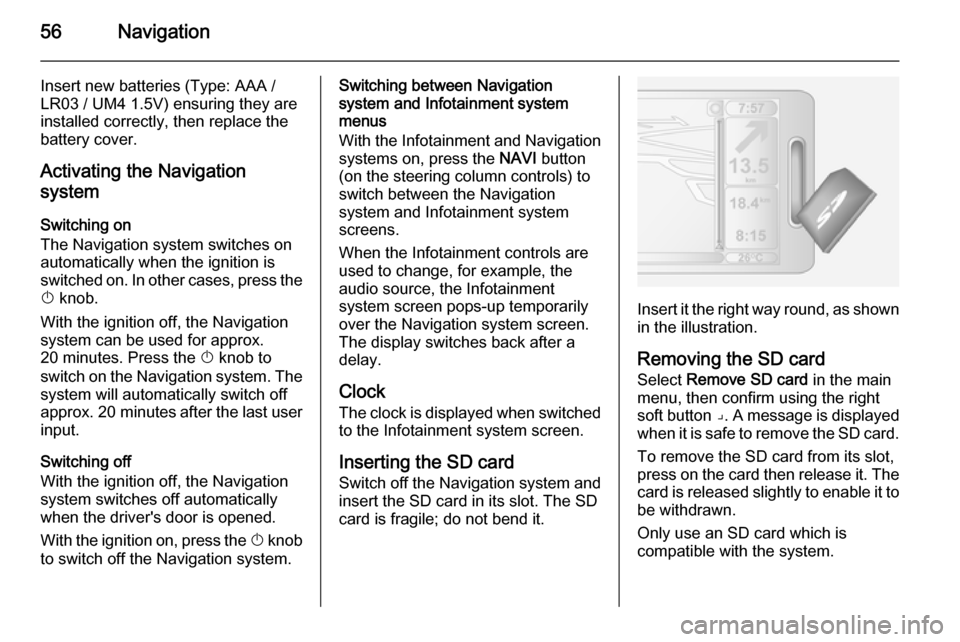
Inserting the SD card
Switch off the Navigation system and
insert the SD card in its slot. The SD
card is fragile; do not bend it.
Insert it the right way round, as shown in the illustration.
Removing the SD card
Select Remove SD card in the main
menu, then confirm using the right
soft button ⌟. A message is displayed
when it is safe to remove the SD card.
To remove the SD card from its slot,
press on the card then release it. The
card is released slightly to enable it to be withdrawn.
Only use an SD card which is
compatible with the system.
Page 57 of 93
Navigation57
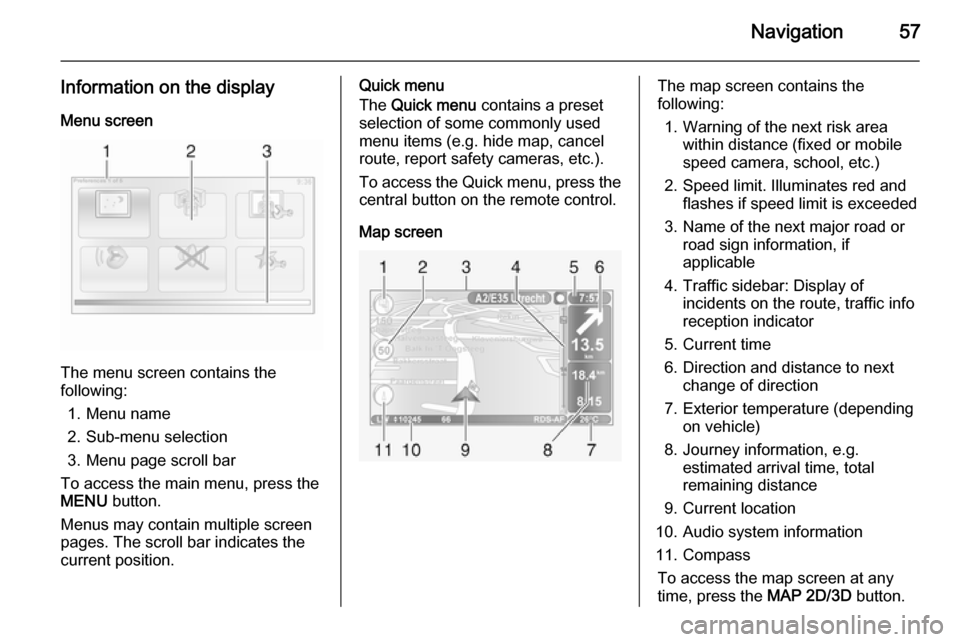
Information on the displayMenu screen
The menu screen contains the
following:
1. Menu name
2. Sub-menu selection
3. Menu page scroll bar
To access the main menu, press the
MENU button.
Menus may contain multiple screen
pages. The scroll bar indicates the
current position.
Quick menu
The Quick menu contains a preset
selection of some commonly used
menu items (e.g. hide map, cancel
route, report safety cameras, etc.).
To access the Quick menu, press the
central button on the remote control.
Map screenThe map screen contains the
following:
1. Warning of the next risk area within distance (fixed or mobile
speed camera, school, etc.)
2. Speed limit. Illuminates red and flashes if speed limit is exceeded
3. Name of the next major road or road sign information, if
applicable
4. Traffic sidebar: Display of incidents on the route, traffic info
reception indicator
5. Current time
6. Direction and distance to next change of direction
7. Exterior temperature (depending on vehicle)
8. Journey information, e.g. estimated arrival time, total
remaining distance
9. Current location
10. Audio system information
11. Compass To access the map screen at any
time, press the MAP 2D/3D button.
Page 90 of 93

90IndexAAAC files ....................................... 36
ACC files....................................... 43
Adaptation volume km/h ...............27
AF (Alternative Frequency)........... 33
AGC Activated .............................. 24
AST............................................... 32
Audio CDs .................................... 36
Audio settings ......................... 24, 37
Automatic call waiting ...................79
Automatic Gain Control (AGC) .....24
Automatic station search ..............29
Automatic station storing ..............32
Automatic switch-off .....................20
Autostore lists ............................... 32
AUX input ..................................... 41
B Balance......................................... 24
Bass.............................................. 24
Battery replacement .....................55
Bluetooth ...................................... 71
Bluetooth connection ..............46, 75
Bluetooth music ............................ 46
C Call lists ........................................ 79
CD display .................................... 37
CD player................................ 36, 37
CD-Text ........................................ 37Change system language.............20
Clock....................................... 20, 55
Connecting an audio device .........46
Connection ................................... 73
Control elements overview .............6
Creating a TOMTOM HOME™ account...................................... 52
D DAB radio ..................................... 32
Defining the priority phone ...........73
Destination input ..........................61
Dialling a telephone number .........79
Display .......................................... 20
Display information .......................37
Display screen operation ........20, 71
E Emergency call ............................. 78
F
Fader ............................................ 24
FM station list ............................... 32
FMT .............................................. 32
G
General information ...................
.......... 4, 36, 41, 43, 46, 52, 69, 71
GPS (Global Positioning System). 52
Page 91 of 93

91
Guidance ..................................... 64
Guided tours ................................. 55
H
Handsfree phone system .............79
I
ID3 tags ........................................ 37
I News service .............................. 33
Infotainment system Switching on/off ......................... 20
Instrument panel controls ...............6
iPod .............................................. 43
I Traffic service ............................. 33
J Jack plug ...................................... 41
K Keyboards in the display ..............71
L
Language ..................................... 20
Live services ................................. 55
Loudness ...................................... 24
Low volume sound enhancement. 24
M
Mailbox ......................................... 79
Manual station search ..................29
Manual station storing ..................32Maps............................................. 52
Map screen ................................... 55
MIX ............................................... 37
Mobile phonebook ........................79
Mobile phones and CB radio equipment ................................ 88
MP3 CDs ...................................... 36
MP3 files ....................................... 43
MP3 players.................................. 43
Musical atmosphere .....................24
Mute........................................ 20, 37
N Navigation system ........................52
O OGG files ...................................... 43
Operation ................................ 46, 79
P Pairing a mobile phone .................75
Pairing an audio device ................46
Pause ........................................... 37
Phone ........................................... 71
Phone connection .........................73
Phone control ............................... 69
Phone installation instructions ......88
Phone operating guidelines ..........88
Phone settings .............................. 79
Playing saved audio files ..............44Portable CD players .....................41
PTY (Program type)...................... 33
Q
Quick menu .................................. 55
R Radio ............................................ 28
Radio data system (RDS) ............33
Radio functions .......................32, 33
Radio reception ............................ 28
Radio station name search ...........29
Radio text ..................................... 33
Random playback .........................37
RDS .............................................. 33
Rear OFF...................................... 24
Receiving calls.............................. 79
Remote control ............................. 55
Restore default settings ................20
Retrieving a station .......................32
S SD card................................... 52, 55
Security code ................................ 20
Selecting the waveband ...............28
Setting the time............................. 20
Setting the volume ........................20
Sound optimisation .......................24
Speed dependent volume ............27
Station search............................... 29