AUX VAUXHALL MOVANO_B 2014.5 Infotainment system
[x] Cancel search | Manufacturer: VAUXHALL, Model Year: 2014.5, Model line: MOVANO_B, Model: VAUXHALL MOVANO_B 2014.5Pages: 93, PDF Size: 1.45 MB
Page 1 of 93
Vauxhall Movano / VivaroInfotainment System
Page 3 of 93

Introduction.................................... 4
Radio ........................................... 28
CD Player .................................... 36
AUX input ..................................... 41
USB port ...................................... 43
Bluetooth music ........................... 46
Navigation .................................... 52
Voice recognition .........................69
Phone .......................................... 71
Index ............................................ 90Contents
Page 7 of 93

Introduction7
1m - Press: Switch on/off ........20
Press: Mute/unmute ..............20
Turn: Adjust volume ..............20
2 SETUP - Short press:
Settings menu ....................... 20
Display radio text
information ............................ 33
Long press: Automatic
station storing ........................ 32
3 d - CD ejection (CD 15 BT) .. 37
Mute/unmute (R15 BT) .........20
4 3 - Radio, Short press:
Search for next radio
frequency .............................. 29
Long press: Automatic
station search ........................ 29
Audio/MP3/WMA CD,
Short press: Skip track
forwards (CD 15 BT) .............37
Long press: Fast forward
(CD 15 BT) ............................ 37
5 RADIO - Change audio
source, waveband .................286/ - Return to previous
menu, cancel an action .........20
7 MEDIA - Change audio
source ................................... 37
8 OK rotary knob ...................... 20
Press: Confirm an action ....... 20
Turn: Access display
menu options ........................ 20
Turn: Change radio
frequency .............................. 29
Turn: Change CD/MP3
track (CD 15 BT) ...................37
9 TEL - Telephone menu .........71
10 USB port ............................... 43
11 AUX input .............................. 41
12 Station buttons 1...6 ..............29
Short press: Select station ....29
Long press: Save station ......29Display CD text
information (CD 15 BT) .........37
Audio/MP3/WMA CD tracks: Activate random
playback (CD 15 BT) ............. 37
13 2 - Radio, Short press:
Search for previous radio
frequency .............................. 29
Long press: Automatic
station search ........................ 29
Audio/MP3/WMA CD,
Short press: Skip track
backwards (CD 15 BT) .......... 37
Long press: Fast rewind
(CD 15 BT) ............................ 37
Page 9 of 93

Introduction9
1m - Press: Switch on/off ........20
Turn: Adjust volume ..............20
2 Station buttons 1...6 ..............29
Short press: Select station ....29
Long press: Save station ......29
3 RADIO - Change audio
source, waveband .................28
4 MEDIA - Change audio
source ................................... 37
5 Rotary knob ........................... 20
Short press: Confirm an
action .................................... 20
Turn: Access display
menu options ........................ 20
6 / - Return to previous
menu, cancel an action .........20
7 3 - Radio, Short press:
Search for next radio
frequency .............................. 29
Long press: Automatic
station search ........................ 29Audio/MP3/WMA CD,
Short press: Skip track
forwards ................................ 37
Long press: Fast forward ......37
8 USB port ............................... 43
9 SETUP - Short press:
Settings menu ....................... 20
10 TEL - Telephone menu .........71
11 2 - Radio, Short press:
Search for previous radio
frequency .............................. 29
Long press: Automatic
station search ........................ 29
12 TEXT - Display radio text
information ............................ 33
13 AUX input .............................. 41
Page 11 of 93

Introduction11
1m - Press: Switch on/off ........20
Turn: Adjust volume ..............20
2 SETUP - Short press:
Settings menu ....................... 20
3 3 - Radio, Short press:
Search for next radio
frequency .............................. 29
Long press: Automatic
station search ........................ 29
Audio/MP3/WMA CD,
Short press: Skip track
forwards ................................ 37
Long press: Fast forward ......37
4 RADIO - Change audio
source, waveband .................28
5 MEDIA - Change audio
source ................................... 37
6 Rotary knob ........................... 20
Short press: Confirm an
action .................................... 20
Turn: Access display
menu options ........................ 20
7 TEL - Telephone menu .........718Station buttons 1...6 ..............29
Short press: Select station ....29
Long press: Save station ......29
9 USB port ............................... 43
10 / - Return to previous
menu, cancel an action .........20
11 d - CD ejection .....................37
12 AUX input .............................. 41
13 2 - Radio, Short press:
Search for previous radio
frequency .............................. 29
Long press: Automatic
station search ........................ 29
Audio/MP3/WMA CD,
Short press: Skip track
backwards ............................. 37
Long press: Fast rewind .......37
Page 13 of 93

Introduction13
1m - Press: Switch on/off ........20
Turn: Adjust volume ..............20
2 OK rotary knob ...................... 20
Rotary knob ........................... 20
Short press: Confirm an
action .................................... 20
Turn: Access display
menu options ........................ 20
3 RADIO - Change audio
source, waveband .................28
4 SETUP - Short press:
Settings menu ....................... 20
5 TEXT - Display radio text
information ............................ 33
6 USB port ............................... 43
7 Station buttons 1...6 ..............29
Short press: Select station ....29
Long press: Save station ......29
8 3 - Radio, Short press:
Search for next radio
frequency .............................. 29
Long press: Automatic
station search ........................ 29Audio/MP3/WMA CD,
Short press: Skip track
forwards ................................ 37
Long press: Fast forward ......37
9 / - Return to previous
menu, cancel an action .........20
10 2 - Radio, Short press:
Search for previous radio
frequency .............................. 29
Long press: Automatic
station search ........................ 29
Audio/MP3/WMA CD,
Short press: Skip track
backwards ............................. 37
Long press: Fast rewind .......37
11 AUX input .............................. 41
12 d - CD ejection .....................37
13 TEL - Telephone menu .........71
14 MEDIA - Change audio
source ................................... 37
Page 17 of 93

Introduction17
1m - Press: Switch on/off ........20
2 Volume rotary knob -
Press: Mute/unmute ..............20
Turn: Adjust volume ..............20
3 RADIO - Change audio
source, waveband .................28
4 Central rotary knob ...............20
Press: Confirm an action ....... 20
Turn: Access display
menu options ........................ 20
Turn: Access the stored
radio station list .....................28
Turn: Select next/previous
station ................................... 29
Turn: Change CD/MP3
track ...................................... 37
5 MEDIA - Change audio
source ................................... 37
6 EJECT - CD ejection .............3772 - Radio, Short press:
Search for previous radio
frequency .............................. 29
Long press: Automatic
station search ........................ 29
Audio/MP3/WMA CD,
Short press: Skip track
backwards ............................. 37
Long press: Fast rewind .......37
8 3 - Radio, Short press:
Search for next radio
frequency .............................. 29
Long press: Automatic
station search ........................ 29
Audio/MP3 CD, Short
press: Skip track forwards ..... 37
Long press: Fast forward ......37
9 USB port ............................... 43
10 AUX input .............................. 41
11 Station buttons 1...6 ..............29
Short press: Select station ....29
Long press: Save station ......29
12 TEL - Telephone menu .........7113 SETUP / TEXT - Short
press: Settings menu ............20
Long press: Display radio
text information .....................33
Long press: Display CD
text information .....................37
14 / - Return to previous
menu, cancel an action .........20
Page 23 of 93

Introduction23
Set the clock
To set the time, access the Clock
menu. Turn the central rotary knob to adjust the Hours setting, then press
the knob to confirm. Turn the knob to
adjust the Minutes setting and press
to confirm.
Change system language
Change the display language by accessing the Language menu. Turn
the central rotary knob to select one
of the 9 languages from the list, then
press the knob to confirm.
Restore default system settings
To restore system settings to their
default values, select Default
settings by turning and pressing the
central rotary knob. Confirm
modification when prompted by
pressing the knob again.
Modes of operation Radio
To change the audio source to radio:
Press the RADIO, RADIO/CD or
AUDIO/SOURCE button.Detailed description of the radio
functions 3 28.
Audio players
To change the audio source to CD,
USB , AUX , Bluetooth or iPod (where
applicable): Press the MEDIA,
RADIO/CD or AUDIO/SOURCE
button.R15 BT / R16 BT
Detailed descriptions of:
■ AUX input functions 3 41
■ USB port functions 3 43
■ Bluetooth music operation 3 46CD15 BT / CD 16 BT / CD18 BT
Detailed descriptions of:
■ CD player functions 3 37
■ AUX input functions 3 41
■ USB port functions 3 43
■ Bluetooth music operation 3 46CD30 BT
Detailed descriptions of:
■ CD player functions 3 37
■ AUX input functions 3 41■ USB port functions 3 43
■ Bluetooth music operation 3 46CD35 BT
Detailed descriptions of:
■ CD player functions 3 37
■ AUX input functions 3 41
■ USB port functions 3 43
■ Bluetooth music operation 3 46
Navigation system
CD30 BT, CD35 BT
Detailed description of the Navigation system 3 52.
Phone
R15 BT / CD15 BT / R16 BT /
CD16 BT / CD18 BT - Phone
To access the Phone menu: Press
the 6 or TEL button.
To access the phone settings menu: Press the TEL button and select
Phone settings .CD30 BT - Phone
To access the Phone menu: Press
the 6 or TEL button.
Page 41 of 93
AUX input41AUX inputGeneral information.....................41
Usage .......................................... 41General information
CD30 BT
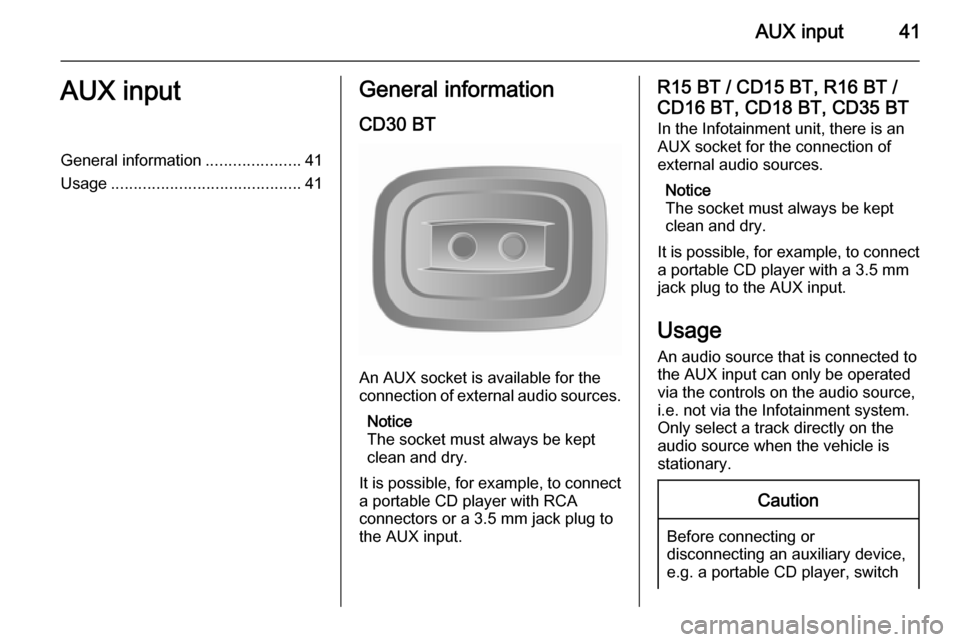
An AUX socket is available for the
connection of external audio sources.
Notice
The socket must always be kept
clean and dry.
It is possible, for example, to connect a portable CD player with RCA
connectors or a 3.5 mm jack plug to
the AUX input.
R15 BT / CD15 BT, R16 BT /
CD16 BT, CD18 BT, CD35 BT In the Infotainment unit, there is an
AUX socket for the connection of
external audio sources.
Notice
The socket must always be kept
clean and dry.
It is possible, for example, to connect
a portable CD player with a 3.5 mm
jack plug to the AUX input.
Usage
An audio source that is connected to
the AUX input can only be operated
via the controls on the audio source,
i.e. not via the Infotainment system.
Only select a track directly on the
audio source when the vehicle is
stationary.Caution
Before connecting or
disconnecting an auxiliary device,
e.g. a portable CD player, switch
Page 42 of 93

42AUX inputoff the player and the Infotainmentsystem, to avoid sound quality
issues and possible damage to the equipment.
Upon connection via the jack plug, thesystem detects the audio source
automatically. Depending on the
recording volume, there may be a
delay before the audio source is
heard.
The artist or track name are not
shown on the display screen.
R15 BT / CD15 BT, R16 BT /
CD16 BT, CD18 BT- AUX input
usage
Press the MEDIA or
AUDIO/SOURCE button to change
the audio source to AUX mode, then
switch on the auxiliary device. AUX
appears on the display screen.
AUX settings
Press the SETUP button to access
the settings menu.
Select AUX IN and turn the OK rotary
knob until the desired setting is
selected from:
■ HI (300 mV)
■ MID (600 mV)
■ LO (1200 mV)
CD30 BT - AUX input usage Press the RADIO/CD button to
activate the AUX mode, then switch
on the auxiliary device.
CD35 BT - AUX input usage Press the MEDIA button to activate
the AUX mode, then switch on the
auxiliary device. Jack appears on the
display screen.