USB port VAUXHALL MOVANO_B 2015.5 Infotainment system
[x] Cancel search | Manufacturer: VAUXHALL, Model Year: 2015.5, Model line: MOVANO_B, Model: VAUXHALL MOVANO_B 2015.5Pages: 139, PDF Size: 1.84 MB
Page 39 of 139

Radio39RadioUsage.......................................... 39
Station search .............................. 41
Autostore lists .............................. 44
Radio data system (RDS) ............45
Digital audio broadcasting ...........48Usage
Radio reception
Radio reception may be disrupted by static, noise, distortion or loss of
reception due to:
■ changes in distance from the transmitter,
■ multi-path reception due to reflection,
■ shadowing.
R15 BT USB, R16 BT USB, CD16 BT USB, CD18 BT USB -
Controls
The most important buttons for
control of the radio are:
■ RADIO : Activate radio, change
waveband
■ 2 3 : Station search
■ OK rotary knob: Change frequency
■ Station buttons 1...6: Preset station
buttons■ SETUP : System settings,
automatic station storing
■ TEXT : Display radio text
information
Activating the radio
Press the RADIO button to switch the
audio source to radio.
The station previously selected will be received.
Selecting the waveband
Press the RADIO button repeatedly to
switch between the available
wavebands (e.g. FM1, FM2, AM).
The station previously selected in that waveband will be received.
CD35 BT USB - Controls
The most important buttons for
control of the radio are:
■ RADIO : Activate radio, change
waveband
■ 2 3 : Change frequency, station
search
■ Central rotary knob: Access stored radio station list
Page 55 of 139

AUX input55
by objects being thrown around in
the event of hard braking, a sudden
change in direction or an accident.
R15 BT USB, R16 BT USB, CD16 BT USB, CD18 BT USB-AUX input usage Press the MEDIA or
AUDIO/SOURCE button to change
the audio source to AUX mode, then switch on the auxiliary device. AUX
appears on the display screen.
AUX settings
Press the SETUP button to access
the settings menu.
Select AUX IN and turn the OK rotary
knob until the desired setting is
selected from:
■ HI (300 mV)
■ MID (600 mV)
■ LO (1200 mV)CD35 BT USB - AUX input
usage Press the MEDIA button to activate
the AUX mode, then switch on the
auxiliary device. Jack appears on the
display screen.
NAVI 50 - AUX input usage
To access the media menu at any
time, press the Home button ;
followed by MEDIA on the display
screen.
To switch between auxiliary sources,
press S in top left corner. The
following options are available:
■ USB : Refer to (NAVI 50) "USB port"
3 56.
■ iPod : Refer to (NAVI 50) "USB port"
3 56.
■ BT : Refer to (NAVI 50) "Bluetooth
music" 3 60.
■ AUX : Select to change the audio
source to AUX mode, then switch
on the auxiliary device.NAVI 80 - AUX input usage
Change the audio source to AUX
mode to playback content from a
connected auxiliary device.
To access the media menu from the
Home page, press MENU then
Multimedia , followed by Media on the
display screen.
Press < to open a pop-up menu. The
following options are available:
■ Auxiliary socket : Change the audio
source to AUX mode, then switch
on the auxiliary device.
■ USB : Refer to (NAVI 80) "USB port"
3 56
■ Bluetooth connection : Refer to
(NAVI 80) "Bluetooth music"
3 60
■ SD card
■ CD player
Page 56 of 139
56USB portUSB portGeneral information.....................56
Playing saved audio files .............57General information
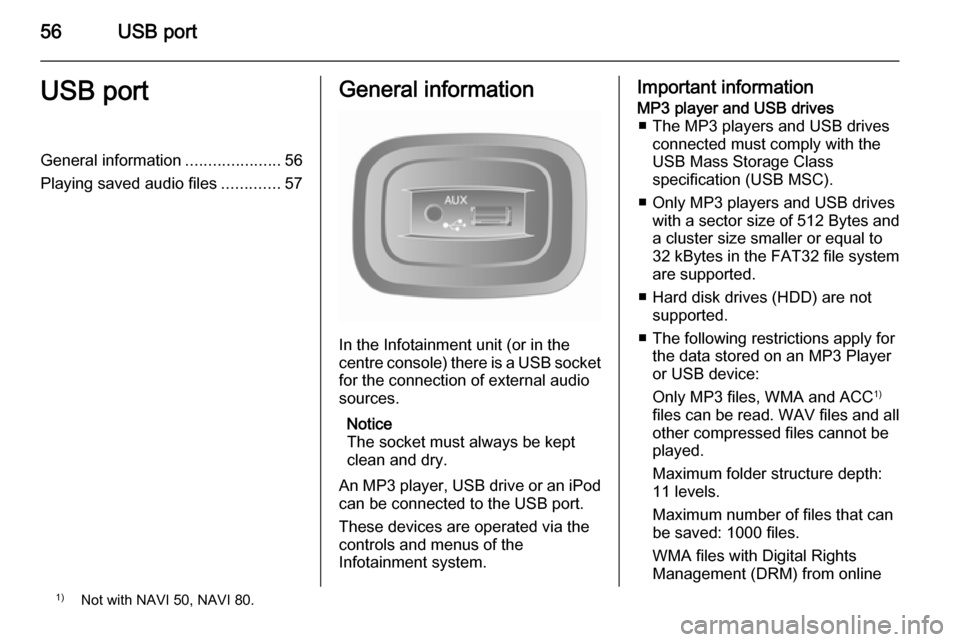
In the Infotainment unit (or in the
centre console) there is a USB socket
for the connection of external audio
sources.
Notice
The socket must always be kept
clean and dry.
An MP3 player, USB drive or an iPod
can be connected to the USB port.
These devices are operated via the
controls and menus of the
Infotainment system.
Important informationMP3 player and USB drives ■ The MP3 players and USB drives connected must comply with the
USB Mass Storage Class
specification (USB MSC).
■ Only MP3 players and USB drives with a sector size of 512 Bytes and
a cluster size smaller or equal to 32 kBytes in the FAT32 file system
are supported.
■ Hard disk drives (HDD) are not supported.
■ The following restrictions apply for the data stored on an MP3 Player
or USB device:
Only MP3 files, WMA and ACC 1)
files can be read. WAV files and all other compressed files cannot be
played.
Maximum folder structure depth:
11 levels.
Maximum number of files that can
be saved: 1000 files.
WMA files with Digital Rights
Management (DRM) from online1) Not with NAVI 50, NAVI 80.
Page 57 of 139

USB port57
music shops may not play correctly
or not at all.
Applicable playlist
extensions: .m3u, .pls.
Playlist entries must be in the form
of relative paths.
Playing saved audio files
Once connected, it is only possible to use the controls and menus of the
Infotainment system to operate the
audio device.
R15 BT USB, R16 BT USB,
CD16 BT USB, CD18 BT USB -
Playing music via USB socket
MP3 player / iPod / USB drives
The system detects the audio device
when a USB device is connected and
the current track is displayed
automatically.
When a new audio device is
connected, the first track in the first
folder is played automatically. When
reconnecting the device, the
previously played track is resumed.Depending on the audio device
connected, select a folder (MP3
player, USB drive) or a playlist
(portable digital music player).
The operation of data sources
connected via USB is generally the
same as for an audio/MP3/WMA CD
3 51.
Selecting a track
To select tracks directly (and change
folders), first access the audio device
menu structure by pressing the OK rotary knob during playback. Select
tracks and change folders by turning
and pressing the knob.
CD35 BT USB - Playing music
via USB socket
MP3 player / iPod / USB drives
The system detects the audio device when a USB device is connected and
the first track in the first folder is
played automatically. When
reconnecting the device, the
previously played track is resumed.Depending on the audio device
connected, select a folder (MP3
player, USB drive) or a playlist
(portable digital music player).
The operation of data sources
connected via USB is generally the
same as for an audio/MP3/WMA CD
3 51.
Selecting a track
To select tracks directly (and change
folders), first access the audio device menu structure by pressing the
central rotary knob during playback
(with iPod, turn the knob to access
menu). Select tracks and change
folders by turning and pressing the
knob.
NAVI 50 - Playing music via USB socket
MP3 player / iPod / USB drives
The system detects the audio device when a USB device is connected and
the current track is displayed
automatically.
Page 58 of 139

58USB port
When the MEDIA menu is active, the
following submenus are available:
■ Player
■ List
■ Options
To switch between audio sources,
press S in top left corner. The
following options are available:
■ USB : Select to change the audio
source to USB mode.
■ iPod : Select to change the audio
source to USB mode.
■ BT : Refer to NAVI 50 "Bluetooth
music" 3 60.
■ AUX : Refer to NAVI 50 "Aux input"
3 54.Player
Press to display the current track. In this display screen, the following
options are available:
■ l (press to skip to previous track,
press and hold to fast rewind)
■ =/l (press to pause/play)
■ m (press to skip to next track,
press and hold to fast forward)List
Displays a list of the tracks in the
current album/folder. Press a
particular track to play it directly.
Notice
By default, albums are listed in
alphabetical order.
If a USB drive is connected, all the
folders will be at the same level on
the tree structure.
To return to the previous level on the
folder tree structure, press ò.Options
Press to display the following options:
■ Repeat (Off/Track/Folder/All)
■ Shuffle (On/Off)
NAVI 80 - Playing music via
USB socket
MP3 player / USB drives
Change the audio source to USB
mode to playback files from a
connected USB device.
To access the media menu from the
Home page, press MENU then
Multimedia , followed by Media on the
display screen.
Press < to open a pop-up menu. The
following options are available:
■ USB : Change the audio source to
USB mode.
■ Auxiliary socket : Refer to NAVI 80
"AUX input" 3 54.
■ Bluetooth connection : Refer to
NAVI 80 "Bluetooth music" 3 60.
■ SD card
■ CD player : Refer to NAVI 80 "AUX
input" 3 54.
When USB mode is selected, the display includes the following options:
■ t or v: Move to previous/next
track
■ =: Pause track
■ Scroll bar for time elapsed: Scroll through tracks
■ New selection : Choose another
track from the connected audio
source
Page 59 of 139

USB port59
■Current playlist : Access the current
playback list
■ r : Return to previous screen
■ <: Open pop-up menu; To change
the audio source or access the
track settings (e.g. switch on/off
shuffle or repeat, show current
track details, and access sound
settings).
Disconnecting from USB socket
Playback is stopped immediately
when the audio device is withdrawn
from the USB socket.
Page 65 of 139

Bluetooth music65
audio device pairing code, usually
0000 . Depending on the device, the
pairing code may need to be entered
in reverse order, i.e. on the
Infotainment system first.
If pairing fails, repeat procedure if
necessary.
Notice
When a Bluetooth connection is
active, controlling the audio device
via the Infotainment system will
discharge the audio device battery more rapidly.
Connecting an audio device
Audio devices are automatically
connected to the Infotainment system after the pairing procedure is
completed.
To change the audio device
connected, press the Home
button ; followed by SETTINGS on
the display screen.
Then select Bluetooth followed by
View Bluetooth device list . The device
list shows the audio devices already
paired.Select the desired audio device from
the list and confirm by pressing OK.
Disconnecting an audio device
Switching off the audio device or
deactivating the Bluetooth function on
the audio device disconnects the
device from the Infotainment system.
Unpairing an auxiliary audio device
from the Infotainment system
If the list of paired audio devices is full, a new device can only be paired if an
existing device is unpaired.
To unpair, i.e. to delete an audio
device from the system memory,
press the Home button ; followed by
SETTINGS on the display screen.
Select Bluetooth then View Bluetooth
device list .
Select the desired audio device from
the list, the press ë to delete the
device. If required, delete all devices
in the list by pressing Options
followed by Delete all. Confirm with
the OK button.Operation via Infotainment system
When paired and connected
wirelessly, audio playback begins
automatically.
The audio device can then be
operated via the Infotainment system
display options.
The range of accessible functions
that can be operated via the
Infotainment system depends on the
type of audio player.
For operation of the audio device
when connected wirelessly, refer to
(NAVI 50) "Playing saved audio files"
in the "USB port" section 3 57.
NAVI 80 - Playing music via
Bluetooth
Bluetooth connection
A connection must be set up between the audio device and the Infotainment
system via Bluetooth, i.e. the device
must be paired to the vehicle before
using it.
Page 66 of 139

66Bluetooth music
■ There is a maximum number ofaudio devices that can be paired
and saved in the device list, but only
one can be connected at a time.
■ If the device has both audio player and telephone functions, both
functions will be paired. Pairing a
mobile phone 3 115.
■ Phone functions will remain active while the audio player is in use, andaudio playback will be suspended
during phone use.
Pairing an auxiliary audio device to
the Infotainment system
From the Home page, press MENU
then Multimedia , followed by
Settings on the display screen.
Select Media to access the media
settings menu, then select the
"Configure Bluetooth connection"
option.
The pairing procedure is similar to
pairing a mobile phone. Refer to (NAVI 80) "Bluetooth connection" in
the "Phone" section 3 118.Connecting an audio device
Audio devices are automatically
connected to the Infotainment system
after the pairing procedure is
completed.
At any time, change the audio source to Bluetooth mode to playback filesfrom a connected Bluetooth device.
From the Home page, press MENU
then Multimedia , followed by Media
on the display screen.
Press < (to open a pop-up menu) and
select Bluetooth connection to
change the audio source to
Bluetooth.
Disconnecting an audio device
Switching off the audio device or
deactivating the Bluetooth function on the audio device disconnects the
device from the Infotainment system.
Unpairing an auxiliary audio device
from the Infotainment system
To unpair, i.e. to delete a device from
the system memory:From the Home page, press MENU
then Multimedia , followed by
Settings on the display screen.
Select Media to access the media
settings menu, then select the
"Configure Bluetooth connection"
option.
The unpairing procedure is similar to
pairing a mobile phone. Refer to
(NAVI 80) "Bluetooth connection" in
the "Phone" section 3 118.
Operation via Infotainment system
When paired and connected
wirelessly, audio playback may begin automatically.
The audio device can then be
operated via the Infotainment system
display options.
The range of accessible functions
that can be operated via the
Infotainment system depends on the
type of audio player.
For operation of the audio device
when connected wirelessly, refer to
(NAVI 80) "Playing saved audio files"
in the "USB port" section 3 57.
Page 76 of 139

76Navigation
NAVI 80
With the Navigation system active,
press r on the display screen (one
or more times) to return to the
Infotainment system Home page.
INFORMATION ON THE
DISPLAY
CD35 BT USB NAVI - Information on
the displayMenu screenThe menu screen contains the
following:
1. Menu name
2. Sub-menu selection
3. Menu page scroll bar
To access the main menu, press the
MENU button.
Menus may contain multiple screen
pages. The scroll bar indicates the
current position.Quick menu
The Quick menu contains a preset
selection of some commonly used
menu items (e.g. hide map, cancel
route, report safety cameras, etc.).
To access the Quick menu, press the
central button on the remote control.Map screen
The map screen contains the
following:
1. Warning of the next risk area within distance (fixed or mobile
speed camera, school, etc.)
2. Speed limit. Illuminates red and flashes if speed limit is exceeded
3. Name of the next major road or road sign information, if
applicable
4. Traffic sidebar: Display of incidents on the route, traffic info
reception indicator
5. Current time
Page 83 of 139

Navigation83
Weather
The weather forecast service
provides up to 5 days of weather
reports for your current location and
your chosen destination.
NAVI 80 - Live services
In addition to the free navigation
services ( e.g. traffic information, fixed
speed cameras), extra features can
be added by subscribing to paid LIVE services.
LIVE services include up-to-date
traffic information with "HD Traffic™ ",
updates and locations of fixed and
mobile speed cameras, local search,
weather forecast and the "My
TomTom LIVE" subscription status.
Notice
LIVE services are not available in
some countries or regions.
The following menus are displayed: ■ Traffic /HD Traffic
Select to receive up-to-date, real-
time traffic information.Notice
The HD Traffic service is named
Traffic if a subscription has not been
activated.
■ Speed cameras
Displays alerts and location of
mobile speed cameras in real-time, fixed speed cameras and accident
blackspots.
Notice
Speed camera information is
updated online by the entire
community of system users.
Switch function off via the "Speed
Cameras" menu in "LIVE services", if required.
Notice
In certain countries it is illegal to
download and activate the camera warning option and this could lead to
prosecution.
■ Local search
This service allows you to use a keyword to quickly find any Point of
Interest (POI) and set it as a
destination.■ My TomTom LIVE
Displays expiry date of subscribed services. Renew subscriptions via
the Store.
Notice
A valid email address must be
entered to use this service.
Notice
Invoices are sent to the entered
email address, with (if necessary) the install instructions and user
information for the applications,
services or other downloaded
content.
■ Weather
The weather forecast service
provides up to 5 days of weather
reports for your current location and your chosen destination.
IMAGE VIEWER
CD35 BT USB NAVI - IMAGE
VIEWER
The system can be used to view
images. Select Image viewer in the
main menu; the image gallery opens
and an image can be selected.