display VAUXHALL MOVANO_B 2015.5 Infotainment system
[x] Cancel search | Manufacturer: VAUXHALL, Model Year: 2015.5, Model line: MOVANO_B, Model: VAUXHALL MOVANO_B 2015.5Pages: 139, PDF Size: 1.84 MB
Page 66 of 139

66Bluetooth music
■ There is a maximum number ofaudio devices that can be paired
and saved in the device list, but only
one can be connected at a time.
■ If the device has both audio player and telephone functions, both
functions will be paired. Pairing a
mobile phone 3 115.
■ Phone functions will remain active while the audio player is in use, andaudio playback will be suspended
during phone use.
Pairing an auxiliary audio device to
the Infotainment system
From the Home page, press MENU
then Multimedia , followed by
Settings on the display screen.
Select Media to access the media
settings menu, then select the
"Configure Bluetooth connection"
option.
The pairing procedure is similar to
pairing a mobile phone. Refer to (NAVI 80) "Bluetooth connection" in
the "Phone" section 3 118.Connecting an audio device
Audio devices are automatically
connected to the Infotainment system
after the pairing procedure is
completed.
At any time, change the audio source to Bluetooth mode to playback filesfrom a connected Bluetooth device.
From the Home page, press MENU
then Multimedia , followed by Media
on the display screen.
Press < (to open a pop-up menu) and
select Bluetooth connection to
change the audio source to
Bluetooth.
Disconnecting an audio device
Switching off the audio device or
deactivating the Bluetooth function on the audio device disconnects the
device from the Infotainment system.
Unpairing an auxiliary audio device
from the Infotainment system
To unpair, i.e. to delete a device from
the system memory:From the Home page, press MENU
then Multimedia , followed by
Settings on the display screen.
Select Media to access the media
settings menu, then select the
"Configure Bluetooth connection"
option.
The unpairing procedure is similar to
pairing a mobile phone. Refer to
(NAVI 80) "Bluetooth connection" in
the "Phone" section 3 118.
Operation via Infotainment system
When paired and connected
wirelessly, audio playback may begin automatically.
The audio device can then be
operated via the Infotainment system
display options.
The range of accessible functions
that can be operated via the
Infotainment system depends on the
type of audio player.
For operation of the audio device
when connected wirelessly, refer to
(NAVI 80) "Playing saved audio files"
in the "USB port" section 3 57.
Page 67 of 139

External devices67External devicesDisplaying pictures ....................... 67
Playing movies ............................. 67Displaying pictures
NAVI 80 - Displaying pictures
To access the "Pictures" menu from
the Home page, press MENU then
Multimedia , followed by Pictures on
the display screen.
Select the connected source device
(e.g. SD card, USB) to access
individual photos or present a
slideshow of all compatible photos on the device.
The display includes the following
options:
■ N or O: Move to previous/next photo
■ Thumbnails : Switch between full
screen and minimised view
■ New selection : Choose another
photo from the connected source
device
■ <: Open pop-up menu; To change
the source device or access the
photo settings.
When viewing a photo/slideshow,
the pop-up menu also allows you to set zoom level and display all
photos in thumbnail form.Photo settings - refer to (NAVI 80)
"System settings" 3 34.
Playing movies NAVI 80 - Playing movies
To access the "Videos" menu from
the Home page, press MENU then
Multimedia , followed by Videos on the
display screen.
Select the connected source device
(e.g. SD card, USB) to access
individual or all compatible videos on
the device.
The display includes the following
options:
■ t or v: Move to previous/next
video
■ =: Pause video
■ Scroll bar for time elapsed: Scroll through videos
■ New selection : Choose another
photo from the connected source
device
■ Full screen : Switch to full screen
display
Page 70 of 139
70Navigation
After the entry of the destination
address or point of interest (nearest
petrol station, hotel, etc.) the route is
calculated from the current location to the selected destination.
Route guidance is provided by voice
output and the display screen.9 Warning
Areas such as one-way streets
and pedestrian zones are not
marked on the navigation system map. In such areas, the system
may issue a warning that must be
accepted. Therefore, pay
particular attention to one-way
streets and other roads and
entrances that must not be driven
into.
SD card (CD35 BT USB NAVI,
NAVI 80) An SD card is supplied with the
Navigation system and contains,
among other things, a digital map of
the towns and roads in your country.
After delivery of a new vehicle, there
is a maximum of 60 days in which to
update the digital map for free. After
this time has elapsed, a fee is
charged for map updates.
Notice
To avoid possible technical issues,
only use a compatible SD card for
operating and updating the
Navigation system. Do not insert SD
card in any other device (e.g. digital
camera, mobile phone, etc.), or in
another vehicle.
TomTom HOME™ software
installation
To update the digital maps and to
benefit from exclusive downloadable
services, including real-time safety
and traffic alerts, an account must be created on the TomTom™ website
and the free TomTom HOME™
software must be installed.Creating an account
Create your TomTom™ internet
account via the TomTom™ website.
Select e.g., the Create account option
on the web page and enter the
appropriate details.Installing the software
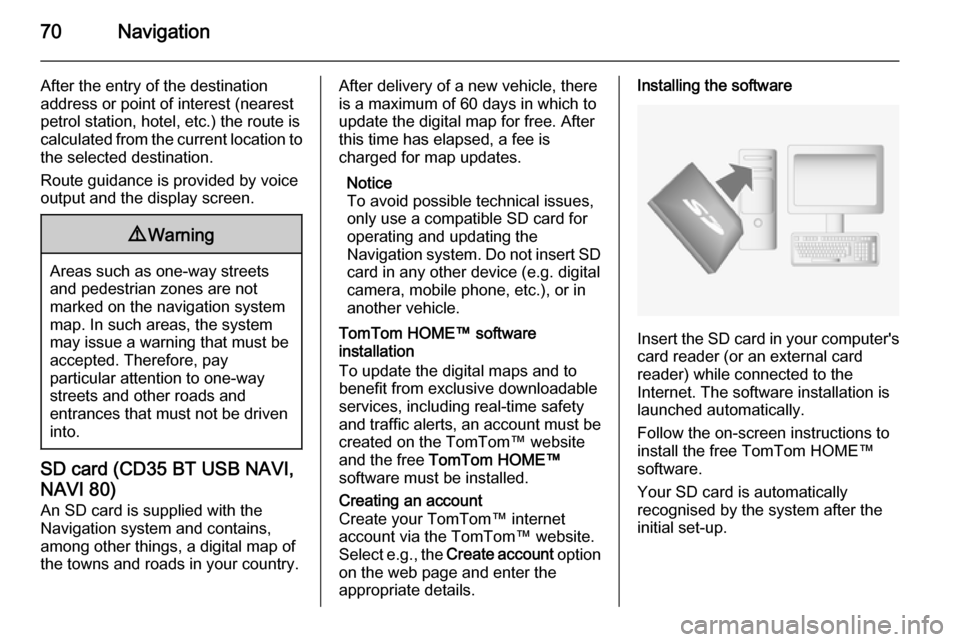
Insert the SD card in your computer's card reader (or an external card
reader) while connected to the
Internet. The software installation is
launched automatically.
Follow the on-screen instructions to
install the free TomTom HOME™
software.
Your SD card is automatically
recognised by the system after the
initial set-up.
Page 72 of 139

72Navigation
After delivery of a new vehicle, there
is a maximum of 90 days in which to
update the digital map for free. After
this time has elapsed, a fee is
charged for map updates.
Notice
To avoid possible technical issues,
only use a compatible USB memory stick for operating and updating the
Navigation system. Do not insert
USB memory stick in any other
device (e.g. digital camera, mobile
phone, etc.), or in another vehicle.
Software installation
To update the digital maps and to
benefit from exclusive downloadable
services, an account must be created
on the Naviextras.com website and
the free software must be installed.Creating an account
Create your internet account via the
Naviextras.com website. Select e.g.,
the "Register" option on the web page and enter the appropriate details.Installing the software
Install the software on your computer
by downloading from https://
dacia.naviextras.com/toolbox.Follow the on-screen instructions to
install the software and launch the
online application.Registering the Navigation system
The Navigation system must be
registered with your new internet
account.
Insert an empty USB memory stick in
the Navigation system's USB slot. On the display screen, select NAVI,
followed by Options then Map update .
To ensure all content is saved in the Navigation system's memory, select Options then Update . Wait for the
update to complete before ejecting
the USB memory stick.
Insert the USB memory stick in your
computer's USB slot while connected to the Internet. When the online
application is launched and the USB memory stick is recognised, the
system (or software) name appears in
the application window. The
Navigation system is registered into
your user profile.After the initial set-up, the USB
memory stick is automatically
recognised by the Navigation system
and by the online application.
Updating the USB memory stick and
Navigation system
Updates are issued regularly, e.g. for
map and safety camera revisions.
Notice
In certain countries it is illegal to
download and activate the camera warning option and this could lead to prosecution.
These updates are only available via the online application catalogue,
which is accessed via the USB
memory stick.
Using the online application, it is
possible to:
■ Update the Navigation system (maps, safety cameras etc.),
■ Upgrade to premium POI content,
■ Add or delete data,
■ Customise the system.
The online application menus guide
you through these operations.
Page 73 of 139
Navigation73
System update
To get the best from the Navigation
system, update it as often as
possible.
Insert the USB memory stick in the
Navigation system's USB slot.
Available updates on the USB
memory stick are recognised by the
Navigation system and the Update
screen is displayed automatically.
Select Update on the display screen
to begin installing the updates to the
Navigation system. The Navigation
system may restart automatically during the update process.
Notice
Select r on the display screen to go
back to the previous screen.
Alternatively, press the Home
button ; followed by NAVI, Options
then Map update . Select Options then
Update .
Wait for the update to complete
before performing any other
operation or ejecting the USB
memory stick.Usage
SD CARD
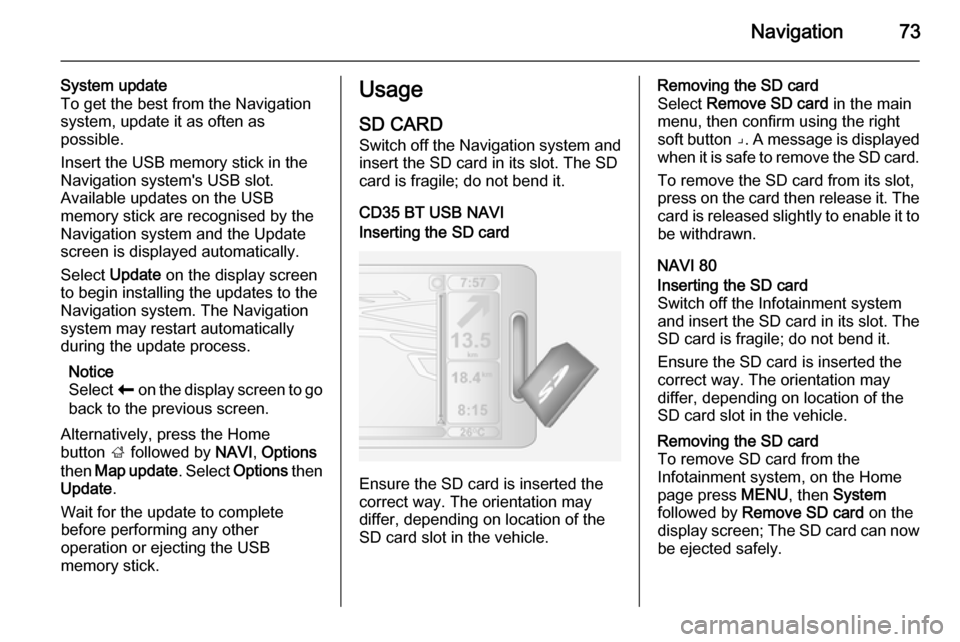
Switch off the Navigation system and
insert the SD card in its slot. The SD
card is fragile; do not bend it.
CD35 BT USB NAVIInserting the SD card
Ensure the SD card is inserted the
correct way. The orientation may
differ, depending on location of the
SD card slot in the vehicle.
Removing the SD card
Select Remove SD card in the main
menu, then confirm using the right
soft button ⌟. A message is displayed
when it is safe to remove the SD card.
To remove the SD card from its slot,
press on the card then release it. The
card is released slightly to enable it to be withdrawn.
NAVI 80Inserting the SD card
Switch off the Infotainment system
and insert the SD card in its slot. The SD card is fragile; do not bend it.
Ensure the SD card is inserted the correct way. The orientation may
differ, depending on location of the
SD card slot in the vehicle.Removing the SD card
To remove SD card from the
Infotainment system, on the Home
page press MENU, then System
followed by Remove SD card on the
display screen; The SD card can now
be ejected safely.
Page 74 of 139
74Navigation
To remove the SD card from its slot,
press on the card then release it. The
card is released slightly to enable it to be withdrawn.
Notice
To avoid possible technical issues,
only use a compatible SD card for
operating and updating the
Navigation system. Do not insert SD
card in any other device (e.g. digital
camera, mobile phone, etc.), or in
another vehicle.
USB MEMORY STICK NAVI 50Inserting the USB memory stickSwitch off the Navigation system and
insert the USB memory stick in the
USB slot on the Infotainment system
fascia. The USB memory stick is
fragile; treat it with care.Removing the USB memory stick
Switch off the Navigation system and
remove the USB memory stick from
the USB slot on the Infotainment
system fascia.REMOTE CONTROL
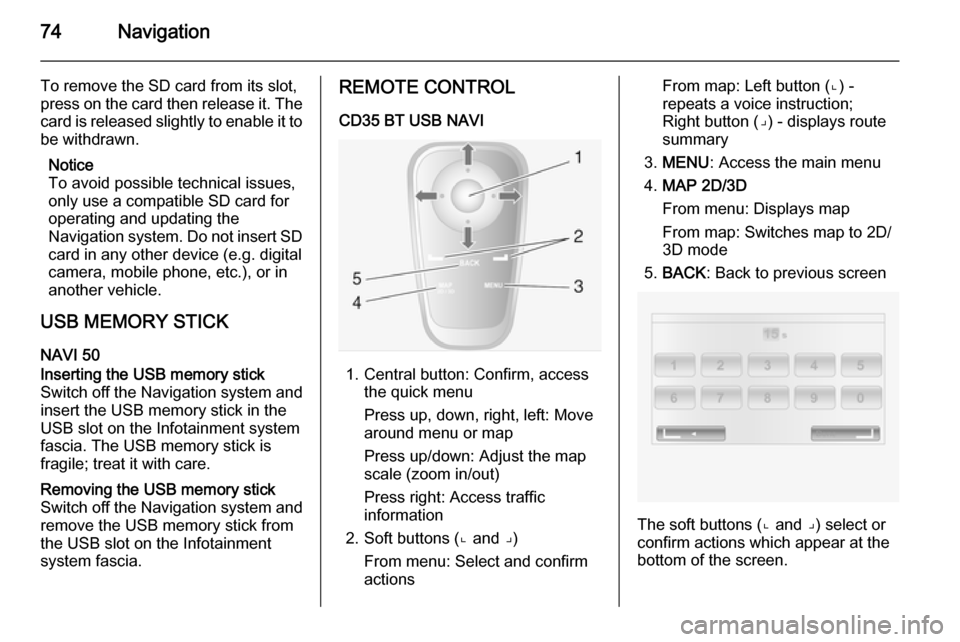
CD35 BT USB NAVI
1. Central button: Confirm, access the quick menu
Press up, down, right, left: Move
around menu or map
Press up/down: Adjust the map
scale (zoom in/out)
Press right: Access traffic
information
2. Soft buttons (⌞ and ⌟) From menu: Select and confirm
actions
From map: Left button (⌞) - repeats a voice instruction;
Right button (⌟) - displays route
summary
3. MENU : Access the main menu
4. MAP 2D/3D
From menu: Displays map
From map: Switches map to 2D/
3D mode
5. BACK : Back to previous screen
The soft buttons (⌞ and ⌟) select or
confirm actions which appear at the
bottom of the screen.
Page 75 of 139
Navigation75
The LED on the remote control
flashes once when the remote control is connected to the Navigation
system. To connect it more quickly, press one of the remote control
buttons when the system starts,
before the legal notices appear.
If the LED flashes and a message appears on the screen, the batteries
require replacing.
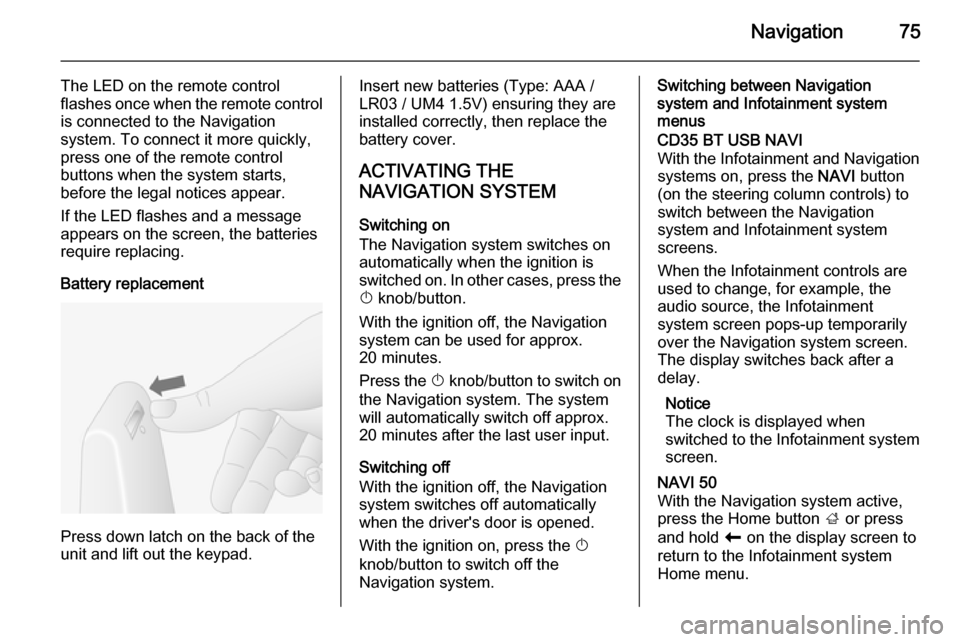
Battery replacement
Press down latch on the back of the
unit and lift out the keypad.
Insert new batteries (Type: AAA / LR03 / UM4 1.5V) ensuring they are
installed correctly, then replace the
battery cover.
ACTIVATING THE
NAVIGATION SYSTEM
Switching on
The Navigation system switches on
automatically when the ignition is
switched on. In other cases, press the X knob/button.
With the ignition off, the Navigation
system can be used for approx.
20 minutes.
Press the X knob/button to switch on
the Navigation system. The system
will automatically switch off approx.
20 minutes after the last user input.
Switching off
With the ignition off, the Navigation
system switches off automatically
when the driver's door is opened.
With the ignition on, press the X
knob/button to switch off the
Navigation system.Switching between Navigation
system and Infotainment system
menusCD35 BT USB NAVI
With the Infotainment and Navigation
systems on, press the NAVI button
(on the steering column controls) to switch between the Navigation
system and Infotainment system
screens.
When the Infotainment controls are
used to change, for example, the
audio source, the Infotainment
system screen pops-up temporarily
over the Navigation system screen.
The display switches back after a
delay.
Notice
The clock is displayed when
switched to the Infotainment system screen.NAVI 50
With the Navigation system active,
press the Home button ; or press
and hold r on the display screen to
return to the Infotainment system
Home menu.
Page 76 of 139

76Navigation
NAVI 80
With the Navigation system active,
press r on the display screen (one
or more times) to return to the
Infotainment system Home page.
INFORMATION ON THE
DISPLAY
CD35 BT USB NAVI - Information on
the displayMenu screenThe menu screen contains the
following:
1. Menu name
2. Sub-menu selection
3. Menu page scroll bar
To access the main menu, press the
MENU button.
Menus may contain multiple screen
pages. The scroll bar indicates the
current position.Quick menu
The Quick menu contains a preset
selection of some commonly used
menu items (e.g. hide map, cancel
route, report safety cameras, etc.).
To access the Quick menu, press the
central button on the remote control.Map screen
The map screen contains the
following:
1. Warning of the next risk area within distance (fixed or mobile
speed camera, school, etc.)
2. Speed limit. Illuminates red and flashes if speed limit is exceeded
3. Name of the next major road or road sign information, if
applicable
4. Traffic sidebar: Display of incidents on the route, traffic info
reception indicator
5. Current time
Page 77 of 139
Navigation77
6. Direction and distance to nextchange of direction
7. Exterior temperature (depending on vehicle)
8. Journey information, e.g. estimated arrival time, total
remaining distance
9. Current location
10. Audio system information
11. Compass To access the map screen at any
time, press the MAP 2D/3D button.
Ensure any changes made are
confirmed with the
soft buttons ( ⌞ and ⌟) before switching
to the map screen, otherwise the
changes will be lost.
In the map screen, press the
MAP 2D/3D button again to switch
between 2D/3D map modes.
NAVI 50 - Information on the displayMenu screen
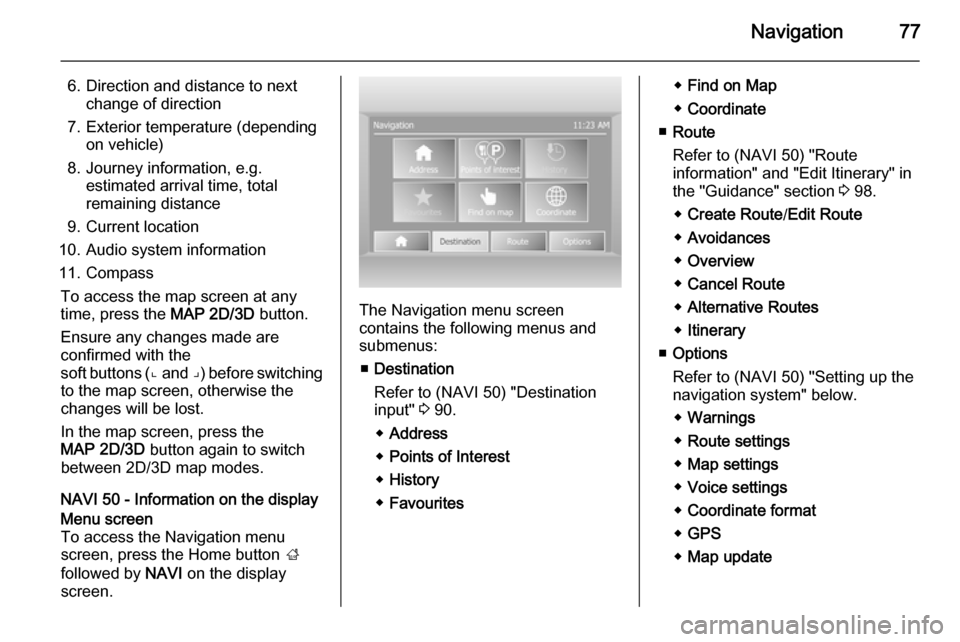
To access the Navigation menu
screen, press the Home button ;
followed by NAVI on the display
screen.
The Navigation menu screen
contains the following menus and
submenus:
■ Destination
Refer to (NAVI 50) "Destination
input" 3 90.
◆ Address
◆ Points of Interest
◆ History
◆ Favourites
◆Find on Map
◆ Coordinate
■ Route
Refer to (NAVI 50) "Route
information" and "Edit Itinerary" in
the "Guidance" section 3 98.
◆ Create Route /Edit Route
◆ Avoidances
◆ Overview
◆ Cancel Route
◆ Alternative Routes
◆ Itinerary
■ Options
Refer to (NAVI 50) "Setting up the
navigation system" below.
◆ Warnings
◆ Route settings
◆ Map settings
◆ Voice settings
◆ Coordinate format
◆ GPS
◆ Map update
Page 78 of 139
78Navigation
Map screen
To access the map screen without navigation, press the Home
button ; followed by MAP on the
display screen. Refer to (NAVI 50)
"Browse map" in the "Guidance"
section 3 98.
Press anywhere on the map. The
cursor indicates the current selected
position. To scroll within the map,
drag the cursor in the required
direction.
To access the map screen with
navigation, press the Home
button ; followed by NAVI on the
display screen and enter a
destination. Refer to (NAVI 50)
"Destination input" 3 90.
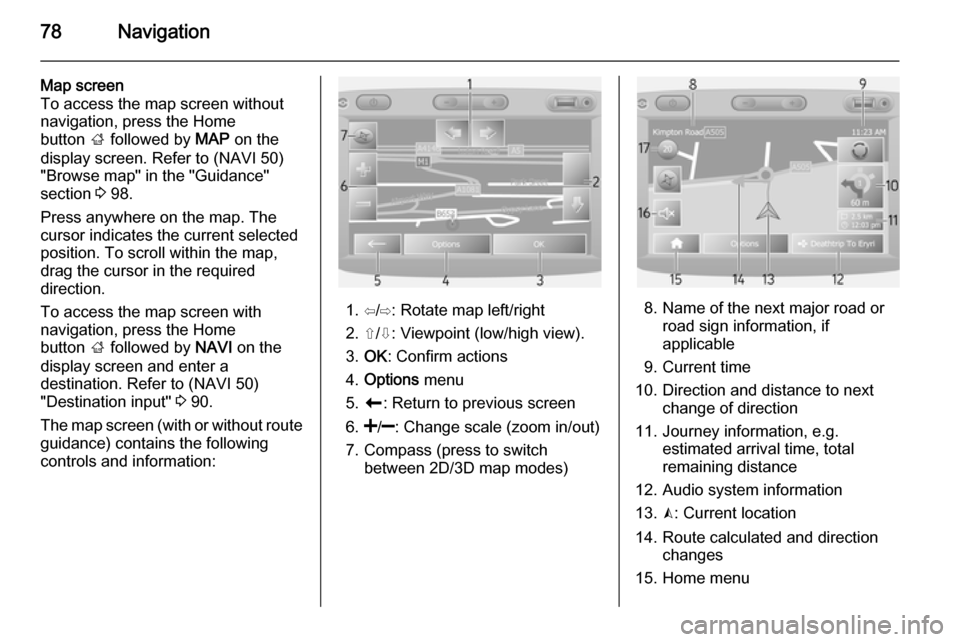
The map screen (with or without route
guidance) contains the following
controls and information:
1. ⇦/⇨: Rotate map left/right
2. ⇧/⇩: Viewpoint (low/high view).
3. OK : Confirm actions
4. Options menu
5. r : Return to previous screen
6.
7. Compass (press to switch between 2D/3D map modes)8. Name of the next major road orroad sign information, if
applicable
9. Current time
10. Direction and distance to next change of direction
11. Journey information, e.g. estimated arrival time, total
remaining distance
12. Audio system information
13. K: Current location
14. Route calculated and direction changes
15. Home menu