audio VAUXHALL MOVANO_B 2016.5 Infotainment system
[x] Cancel search | Manufacturer: VAUXHALL, Model Year: 2016.5, Model line: MOVANO_B, Model: VAUXHALL MOVANO_B 2016.5Pages: 129, PDF Size: 1.74 MB
Page 25 of 129

Introduction251Audio information, e.g.
Radio ..................................... 48
Auxiliary devices ...................61
M USB devices ...................... 63
Bluetooth music ....................67
2 H: System notifications ..........30
3 y: Telephone status ...........108
Call log ................................ 116
4 Outside temperature .............30
5 Clock ..................................... 30
6 Traffic information .................96
7 Navigation: Direction and
distance to next change of
direction ................................ 75
8 <: Pop-up menu ...................30
9 Navigation display .................75
Map ....................................... 96
10 f: Favourites, e.g. for
Navigation ............................ 75
Media (e.g. Radio) ................48
Phone .................................. 108
Services ................................ 7811Driving economy ...................30
12 Menu : Access Main menu ..... 30
Page 27 of 129
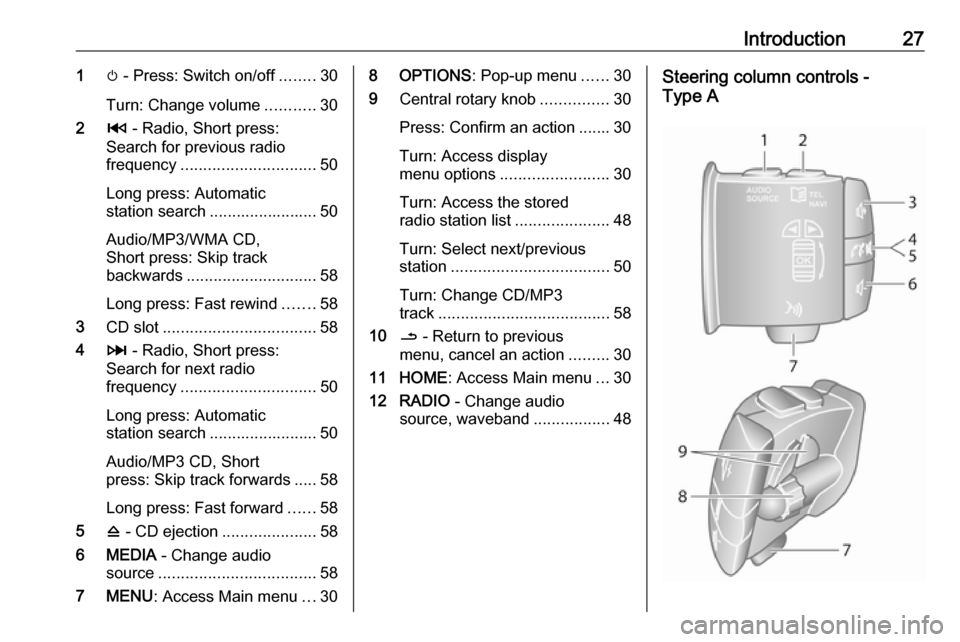
Introduction271m - Press: Switch on/off ........30
Turn: Change volume ...........30
2 2 - Radio, Short press:
Search for previous radio
frequency .............................. 50
Long press: Automatic
station search ........................ 50
Audio/MP3/WMA CD,
Short press: Skip track
backwards ............................. 58
Long press: Fast rewind .......58
3 CD slot .................................. 58
4 3 - Radio, Short press:
Search for next radio
frequency .............................. 50
Long press: Automatic
station search ........................ 50
Audio/MP3 CD, Short
press: Skip track forwards ..... 58
Long press: Fast forward ......58
5 d - CD ejection .....................58
6 MEDIA - Change audio
source ................................... 58
7 MENU : Access Main menu ...308 OPTIONS : Pop-up menu ......30
9 Central rotary knob ...............30
Press: Confirm an action ....... 30
Turn: Access display
menu options ........................ 30
Turn: Access the stored
radio station list .....................48
Turn: Select next/previous
station ................................... 50
Turn: Change CD/MP3
track ...................................... 58
10 / - Return to previous
menu, cancel an action .........30
11 HOME : Access Main menu ...30
12 RADIO - Change audio
source, waveband .................48Steering column controls -
Type A
Page 28 of 129
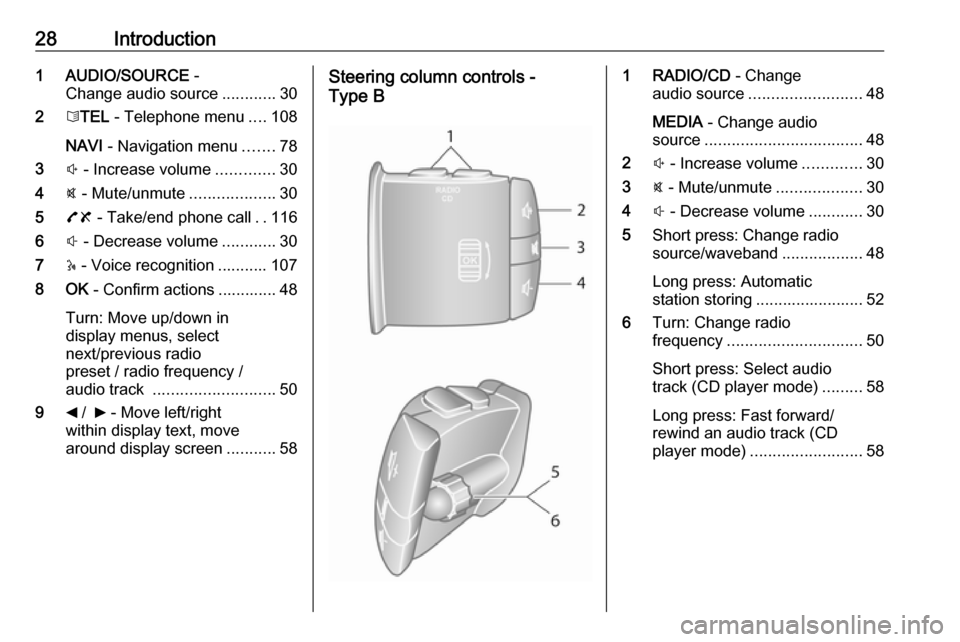
28Introduction1 AUDIO/SOURCE -
Change audio source ............30
2 6TEL - Telephone menu ....108
NAVI - Navigation menu .......78
3 ! - Increase volume .............30
4 @ - Mute/unmute ...................30
5 78 - Take/end phone call ..116
6 # - Decrease volume ............30
7 5 - Voice recognition ........... 107
8 OK - Confirm actions ............. 48
Turn: Move up/down in
display menus, select
next/previous radio
preset / radio frequency /
audio track ........................... 50
9 _ / 6 - Move left/right
within display text, move
around display screen ...........58Steering column controls -
Type B1 RADIO/CD - Change
audio source ......................... 48
MEDIA - Change audio
source ................................... 48
2 ! - Increase volume .............30
3 @ - Mute/unmute ...................30
4 # - Decrease volume ............30
5 Short press: Change radio
source/waveband ..................48
Long press: Automatic
station storing ........................ 52
6 Turn: Change radio
frequency .............................. 50
Short press: Select audio
track (CD player mode) .........58
Long press: Fast forward/
rewind an audio track (CD
player mode) ......................... 58
Page 29 of 129
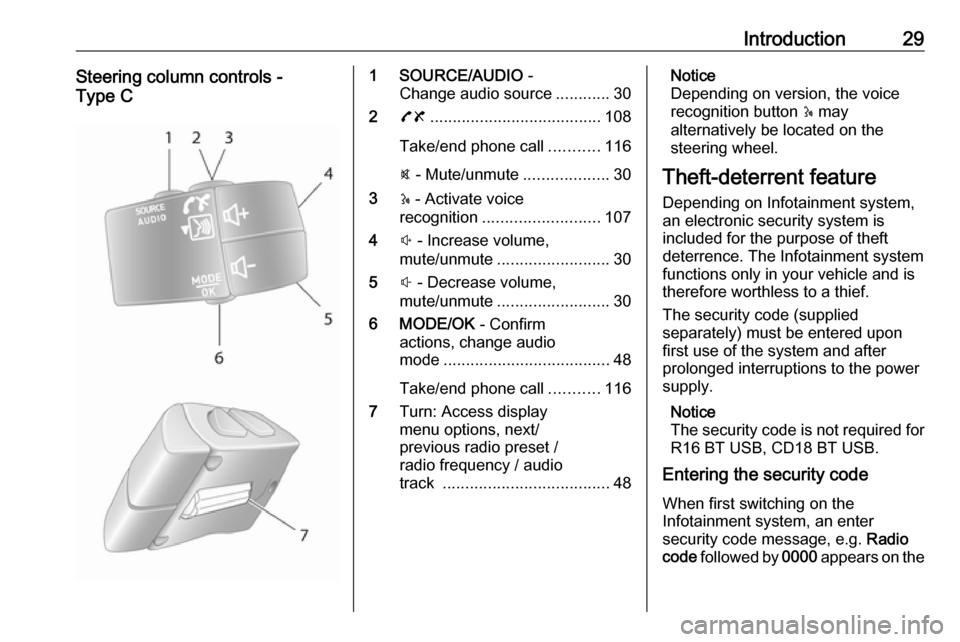
Introduction29Steering column controls -
Type C1 SOURCE/AUDIO -
Change audio source ............30
2 78 ...................................... 108
Take/end phone call ...........116
@ - Mute/unmute ...................30
3 5 - Activate voice
recognition .......................... 107
4 ! - Increase volume,
mute/unmute ......................... 30
5 # - Decrease volume,
mute/unmute ......................... 30
6 MODE/OK - Confirm
actions, change audio
mode ..................................... 48
Take/end phone call ...........116
7 Turn: Access display
menu options, next/
previous radio preset /
radio frequency / audio
track ..................................... 48Notice
Depending on version, the voice recognition button 5 may
alternatively be located on the steering wheel.
Theft-deterrent feature
Depending on Infotainment system, an electronic security system is
included for the purpose of theft
deterrence. The Infotainment system
functions only in your vehicle and is therefore worthless to a thief.
The security code (supplied
separately) must be entered upon
first use of the system and after
prolonged interruptions to the power supply.
Notice
The security code is not required for
R16 BT USB, CD18 BT USB.
Entering the security code
When first switching on the
Infotainment system, an enter
security code message, e.g. Radio
code followed by 0000 appears on the
Page 30 of 129

30Introductiondisplay screen. Depending on
Infotainment system, the message may only appear after a brief delay.
To enter first digit of security code,
press numbered button 1 on the unit
repeatedly until desired number is
displayed. Enter second, third and
fourth digits using buttons 2, 3 and 4
in the same way.
When the full code is displayed, press and hold button 6 until an audible
signal sounds. The system is
unlocked when the correct code has
been entered.
NAVI 50 IntelliLink,
NAVI 80 IntelliLink : Enter the security
code using numbered buttons 0 to 9
on the touchscreen display. The
system is unlocked when the correct
code has been entered.
Incorrect code entered
Depending on Infotainment system,
when the security code has been
entered incorrectly, an incorrect code message, e.g. Error code followed by
a countdown value, e.g. Wait 100 is
displayed.Wait until the countdown has expired,
then enter the correct code. Each
time the code is entered incorrectly,
the countdown time may be doubled,
depending on Infotainment system.
Changing the geographical area
When the security code is entered,
depending on Infotainment system
you may be prompted to choose a
geographical area, for example:
● Europe
● Asia
● Arabia
● America
Switch off the Infotainment system, then simultaneously press button 1
and 5 and m. Then press _ or 6 until
desired area is highlighted on the display screen and set with button 6.
Usage
Infotainment controls
The Infotainment system is operated
via buttons, rotary knobs and/or
display menus.Inputs are made via:
● the central control unit in the instrument panel 3 6, or
● the controls on the steering column 3 6
● the voice recognition system (if available) 3 105
● the touch screen (NAVI 50 IntelliLink,
NAVI 80 IntelliLink) 3 6
Notice
Only the most direct ways for menu
operation are described in the
subsequent chapters. In some
cases, there may be other options.
Switching the Infotainment
system on or off
Press X to switch the Infotainment
system on.
The previously used audio source is active.
Press X (or, depending on
Infotainment system, press and hold)
to switch the Infotainment system off.
Page 31 of 129

Introduction31Notice
The clock and/or outside
temperature may be displayed when
the Infotainment system is switched
off (depending on version).NAVI 50 IntelliLink:
The Infotainment system
automatically switches on/off when
the ignition is switched on/off. Press
X instead, if required.NAVI 80 IntelliLink:
The Infotainment system
automatically switches on when the ignition is switched on. Press X
instead, if required.
The following options may be
displayed (depending on version):
● Change settings (to authorise or
reject data sharing)
Notice
When data sharing is switched off, certain features may not operate
correctly.
● Language (to change the system
language)
● Done (to continue to the Home
page)The Infotainment system
automatically switches off when the
ignition is switched off and the driver's door is opened. Press X instead, if
required.
Automatic switch-off
With the ignition off, if the
Infotainment system is switched on
with X, it will switch-off automatically
a short period after the last user input.
Depending on Infotainment system,
automatic switch-off occurs after approx. 5 to 20 minutes.
Pressing X again will allow the
Infotainment system to remain on for
a further 5 to 20 minutes.
Setting the volumeTurn X/volume rotary knob, or press
< or ].
Alternatively (with the steering
column controls), press ! or #.NAVI 50 IntelliLink:
Depending on version, it is possible to
set various volume levels individually
(including audio players, trafficannouncements, navigation
instructions, phone calls and
ringtone).
From the Home page, press
ÿ Settings then Audio followed by
Sound on the display screen.
Refer to (NAVI 50 IntelliLink) "Volume
settings" 3 41.NAVI 80 IntelliLink:
To set various volume levels
individually (e.g. navigation
instructions, traffic announcements,
phone calls) from the Home page,
press MENU then System followed by
Sound on the display screen.
Refer to (NAVI 80 IntelliLink) "System
settings" 3 42.
Stored volume
When the Infotainment system is
switched off, the current volume is
stored.
Speed dependent volume
When speed dependent volume
( 3 41) is activated, the volume is
adapted automatically to compensate
for road and wind noise.
Page 32 of 129

32IntroductionMute
To mute the current audio source (depending on Infotainment system),press X briefly or turn knob fully
anticlockwise.
Alternatively (with the steering
column controls), press @ or 8 or
press ! and # simultaneously.
Unmute
To unmute (depending on
Infotainment system), briefly press
X again or turn clockwise.
Alternatively (with the steering
column controls): Press @ again or
press ! and # simultaneously again.
Notice
When a traffic announcement is
broadcast, the system is
automatically unmuted.
For further information, refer to
"Radio data system" 3 53.Display screen operation
R15 BT USB, R16 BT USB,
CD16 BT USB, CD18 BT USB -
Display screen operation
● To move up/down in the display: Turn OK.
● To confirm actions: Press OK.
● To cancel actions (and return to previous menu): Press /.
NAVI 50 IntelliLink - Display screen operation
Use the touchscreen for the following displayed menus as described in
each section:
● è/ñ RADIO
Refer to "Radio" section 3 48.
● t/ü MEDIA
Refer to "USB port" section
3 63.
● yPHONE
Refer to "Phone" section 3 108.
● sMAP
Refer to "Navigation" section
3 75.● yNAVI / ýNav
Refer to "Navigation" section
3 75.
● ðDriving eco2
Refer to "Additional features
(NAVI 50 IntelliLink)" in the
"Modes of operation" section
below.
● ÿSETTINGS
Refer to (NAVI 50 IntelliLink)
"Tone settings" 3 40, "Volume
settings" 3 41 and "System
settings" 3 42.
When the Home page 7 is displayed,
it is possible to hide these menus from
the display (only clock and audio
system information may be shown) by
pressing æDark . Press anywhere on
the screen to display these menus
again.
NAVI 80 IntelliLink - Display screen operation
Use the touchscreen for the following displayed menus as described in
each section.
Page 34 of 129

34Introduction●i/←: Move to previous page
● j/→: Move to next page
● ↑: Display lists; Scroll up
● ↓: Display lists; Scroll down
● <: Open pop-up menu
● r: Return to previous menu
The display screen can also be
operated using the controls on the
Infotainment system fascia.
Notice
Depending on version, some
controls available on the
Infotainment system fascia do not
operate the features on the display
screen.
Notice
Depending on vehicle, operation of
the touchscreen may be restricted
during driving.
Modes of operation
Radio
To change the audio source to radio:
Depending on Infotainment system, press RADIO , RADIO/CD or
AUDIO/SOURCE .NAVI 50 IntelliLink
To access the radio menu at any time,
press 7 followed by è/ñ Radio on
the display screen.NAVI 80 IntelliLink
To access the radio menu from the Home page, press MENU then
Multimedia followed by Radio on the
display screen.
Detailed description of the radio
functions 3 48.
Audio players
To change the audio source to CD,
USB , AUX , Bluetooth or iPod (where
applicable): Depending on
Infotainment system, press MEDIA,
RADIO/CD or AUDIO/SOURCE .
NAVI 50 IntelliLink : To access the
menu for connected auxiliary devices ( USB , iPod , BT (Bluetooth) or AUX) at
any time, press 7 followed by t/
ü Media on the display screen. Press
S in top left corner and select
auxiliary source.
For Aha Ⓡ application (available
depending on version), refer to
"Additional features
(NAVI 50 IntelliLink)" below.
NAVI 80 IntelliLink : To access the
menu for auxiliary devices (e.g. Audio CD, USB, SD card, AUX input,
Bluetooth) from the Home page,
press MENU then Multimedia
followed by Media on the display
screen. Select auxiliary source from the display list.R15 BT USB, R16 BT USB
Detailed descriptions of:
● AUX input functions 3 61
● USB port functions 3 63
● Bluetooth music operation 3 67CD16 BT USB, CD18 BT USB
Detailed descriptions of:
● CD player functions 3 58
● AUX input functions 3 61
● USB port functions 3 63
● Bluetooth music operation 3 67
Page 39 of 129
![VAUXHALL MOVANO_B 2016.5 Infotainment system Introduction39The following settings can be
updated:
● Switch the rear camera view display Off/On .
● Colours
Press ]/< to adjust level.
● Brightness
Press ]/< to adjust level.
● Contrast](/img/38/19558/w960_19558-38.png "VAUXHALL MOVANO_B 2016.5 Infotainment system Introduction39The following settings can be
updated:
● Switch the rear camera view display Off/On .
● Colours
Press ]/< to adjust level.
● Brightness
Press ]/< to adjust level.
● Contrast")
Introduction39The following settings can be
updated:
● Switch the rear camera view display Off/On .
● Colours
Press ]/< to adjust level.
● Brightness
Press ]/< to adjust level.
● Contrast
Press ]/< to adjust level.
For further information, refer to "Rear
view camera" section in the vehicle
Owner's Manual.Driving eco2 function (driving
economy)
Driving eco2 provides statistical
information and advice regarding
driving economy.
From the Home page, press Vehicle
then select ðDriving eco2 on the
display screen.
Notice
Depending on version,
Driving eco2 may appear instead on
the Home page.The following menus are displayed:
● Trip report
● Eco scoring
● Eco coaching
Trip report displays data from the last
journey, including "Average
consumption", "Total consumption",
"Average Speed" and "Dist. without
consumption". Data can be reset by
pressing Û.
Eco scoring provides an overall score
out of 100 for driving economy.
Higher figures indicate better driving
economy. Star ratings are also given
for average environmental driving
performance (Acceleration),
gearchanging efficiency (Gearbox)
and brake control (Anticipation).
Eco coaching provides an
assessment of your driving style and
displays advice for optimising fuel
consumption.Aha Ⓡ application
The AhaⓇ app enables you to
organise favourite smartphone
internet content (e.g. podcasts, audio books, internet radio, social network
sites etc.) and access favouritesinstantly. AhaⓇ can also be used
during navigation, to suggest e.g.
hotels and restaurants in the vicinity,
and provide weather information and
current GPS position.
AhaⓇ must first be downloaded onto
your smartphone. Launch the app on
your smartphone and create a user
account to enable use via the
Infotainment system.
To connect to AhaⓇ via the
Infotainment system, a bluetooth
connection must be set up between
the smartphone and the Infotainment
system, i.e. the device must be paired
to the vehicle before using it. Refer to
"Bluetooth connection" in the "Phone" section 3 112 for further information.
Notice
Data sharing and location services
must be enabled on the smartphone to use the AhaⓇ app. During use,
data transfer may incur additional
costs not included in the contract
with your network provider.
When a bluetooth connection is
active, AhaⓇ can be accessed via
the Infotainment system. From the Home page, press üMedia on the
Page 40 of 129

40Introductiondisplay screen. Press S in top left
corner to display the list of auxiliary
sources, then select aha.
The following menus are displayed: ● Player
● List
● Presets
● Nearby
To access your AhaⓇ favourites,
select Presets .
While using the navigation system
3 75, to find a nearby point of
interest (POI) with AhaⓇ press
Nearby and select a group (e.g. hotel,
restaurant). A range of POIs in the
vicinity are displayed; press on the
required POI. The POI can be set as
either a destination or a waypoint by
pressing y.
Depending on POI type, contact
details and further information may be displayed. When phone numbers are
provided for POIs, they can also be
dialled using the handsfree phone
system by pressing y.For further information, refer to
"Operation" in the "Phone" section 3 116.
Tone settings R15 BT USB - Tone settings
In the audio settings menu, the tone characteristics can be set.
Press SETUP to access the settings
menu.
Select Audio settings and turn OK
until the desired setting is selected from:
● BASS (bass)
● TREBLE (treble)
● FADER (front/rear balance)
● BALANCE (left/right balance)
The display indicates the type of
setting followed by the adjustment
value.
Set the desired value by turning OK
and press the knob to confirm
selections.
To exit the audio settings menu,
press /.Notice
If there is no activity, the system will
exit the audio settings menu
automatically.
Setting bass and treble
Select Bass or Treble .
Set the desired value by turning OK
and press the knob to confirm setting.
Setting the volume distribution
between right - left
Select Balance .
Set the desired value by turning OK
and press the knob to confirm setting.
Setting the volume distribution
between front - rear
Select Fader.
Set the desired value by turning OK
and press the knob to confirm setting.
NAVI 50 IntelliLink - Tone settings
To access the settings menu at any
time, press 7 followed by ÿSettings
on the display screen.