infotainment VAUXHALL MOVANO_B 2016.5 Infotainment system
[x] Cancel search | Manufacturer: VAUXHALL, Model Year: 2016.5, Model line: MOVANO_B, Model: VAUXHALL MOVANO_B 2016.5Pages: 129, PDF Size: 1.74 MB
Page 44 of 129

44Introduction●Clock/units
The following settings can be
changed:
● Time Format (12h/24h)
● Units (km/mls)
● Time Setting
Press l to open the Time
set submenu containing the
following options:
Auto /Manual
If Auto time setting is
selected, the time is set automatically by GPS.
If Manual time setting is
selected, adjust as
appropriate.
Notice
Navigation maps for the current
country must be installed on the
system to ensure the local time is
correct.
● Factory settings
The following settings can be
reset to the factory default:
● All
● Phone●Navigation
● Audio-Media-Radio-System
● Navigation (On/Off)
● System version (displays
Infotainment system software
version number)
When system setting adjustments
have been made, press 7 (and select
another menu on the display) to exit
the settings menu and save changes.
The system also saves and exits
automatically after a delay.
NAVI 80 IntelliLink - System
settings
To access the system settings menu from the Home page, press MENU
followed by System on the display
screen.
The following settings submenus are
displayed:
● Language
● Display
● Sound
● Clock
● Safety warnings●Home screen
● Keyboards
● Set units
● Status & Information
● Remove SD-card
● Restore factory settings
After system settings are changed,
press Done to confirm.Language
To change Infotainment system
language then voice type (depending on version).Display
The following settings are displayed:
● Daytime brightness : Change
screen brightness to suit external
light levels (daylight).
During low external light levels,
the display screen is easier to
view when the display is not too
bright.
● Nighttime brightness /Night
brightness : Change screen
brightness to suit external light
levels (night light).
Page 45 of 129

Introduction45During low external light levels,
the display screen is easier to
view when the display is not too
bright.
● Automatic day/night mode /
Switch to night mode at night : To
activate automatic switching
between daytime/night
brightness.
Night mode is activated during
low external light levels and when
the headlights are switched on.
● Force night mode /Use night
mode : To activate night mode.Sound
The following settings submenus are displayed:
● Sound levels : To change volume
and sounds for traffic information, handsfree phone system, phoneringtone, system/computer
voice, navigation instructions and park assist (depending on
version).
● Alerts : To adjust alert volume,
and switch on/off alerts when
display screen is switched off.● Speed sensitivity : To set volume
adjustment based on vehicle
speed.
● Computer voice : Adjust types of
information to be given by the
Infotainment system voice (e.g.
"Read aloud motorway lane
instructions").
● Voice : Change the voice used by
the Infotainment system (if
available).Clock
To set the system clock and the time
display format.
Keeping the automatic time
adjustment setting switched on is recommended.Safety warnings
To switch on/off various alerts
provided by the Infotainment system
(e.g. "Warn when driving faster than
allowed"). Check appropriate boxes
to switch on.Home screen
To change the home page
configuration.
Select from list of options to see a
preview of each home page layout.Keyboards
To change first the alphabet type (e.g. Latin, Greek) then the keyboard type
(e.g. Qwerty, ABCD).Set units
To change the units of measurement,
for e.g. distance (km/miles), co-
ordinates (degrees, minutes,
seconds), temperature (℃, ℉) and
barometric units (if available).Status & Information
To display system information, e.g.
version, GPS status, network status,
licences and copyright information.Remove SD-card
To eject the SD card safely.Restore factory settings
To delete all Infotainment system information. Follow the instructions
on the display.
Notice
Afterwards, the Infotainment system
will restart in English by default. If
necessary, select Language in the
System menu to change language.
Page 53 of 129

Radio53Depending on Infotainment system,
the sound may be muted during a
manual update.
NAVI 50 IntelliLink - Updating stations
list manually
Press Options , scroll down to
Update List then select Start;
Updating ... appears on the display
until the update is complete.
Notice
If DAB is available, it is
recommended to update the DAB
stations list manually when the
system is switched on.
NAVI 80 IntelliLink - Updating stations list manually
From the Home page, press MENU
then Multimedia , followed by
Settings on the display screen. Select
Radio and scroll down to Update
radio list .
Alternatively (depending on version), select Multimedia followed by Radio,
and choose any the following modes:
● Preset
● List
● FrequencyThen press < to open a pop-up menu,
and select Update radio list .
Radio data system (RDS)
RDS is an FM station service that helps you find the desired station and ensures its fault-free reception.
Advantages of RDS ● The programme name of the chosen station appears on the
display screen instead of its
frequency.
● During an automatic station search, the Infotainment system
tunes into RDS stations only.
● The Infotainment system always tunes into the best receivable
broadcasting frequency of the
chosen station, by means of AF
(Alternative Frequency).R15 BT USB, R16 BT USB,
CD16 BT USB, CD18 BT USB -
RDS functions
Configuring RDS
Press SETUP and turn OK to access
the RDS menu. Press knob to select.
Turn the rotary knob to select RDS
SETUP .
Switching RDS on and off
Press Options on the display screen.
The following settings can be
changed:
Switch on/off RDS-AF by pressing
OK . AF is shown on the display
screen when RDS is active.
Text information (Radio text)
Certain FM radio stations issue text
information relating to the broadcast
program (e.g. song name).
Press SETUP and turn OK to access
the Radio texts menu.
Turn the rotary knob to select Radio
and press the knob to see this
information.
Page 56 of 129

56Radio●There is no fading (weakening of
the sound) that is typical of AM or
FM reception. The DAB signal is reproduced at a constant volume.
● Interference caused by stations that are on nearby frequencies (aphenomenon that is typical of AMand FM reception) does not
occur with DAB.
If the DAB signal is too weak to
be picked up by the receiver, the
system switches over to the
same programme on another
DAB or FM station.
● If the DAB signal is reflected by natural obstacles or buildings,
the reception quality of DAB is
improved, whereas AM or FM
reception is considerably
impaired in such cases.
● When DAB reception is enabled, the FM tuner of the Infotainmentsystem remains active in the
background and continually
searches for the best receivable
FM stations.
Page 57 of 129
CD Player57CD PlayerGeneral information.....................57
Usage .......................................... 58General information
The Infotainment system's CD player
can playback audio CDs, MP3 CDs
and also WMA CDs (depending on
version).
CD16 BT, CD18 BT: AAC and WAV
formats can also be played.
Important information about audio CDs and MP3/WMA CDsCaution
Under no circumstances place
DVDs, single-CDs with a diameter
of 8 cm or shaped CDs in the audio
player.
You must not put any stickers on
CDs. These discs can get jammed
in the CD drive and ruin the drive.
An expensive replacement of the
device will then be necessary.
● Audio CDs with copy protection, which are not in compliance with
the audio CD standard, may not
play correctly or not at all.
● Self-recorded CD-Rs and CD- RWs and WMA files with Digital
Rights Management (DRM) from
online music shops may not play
correctly or not at all.
● On mixed mode CDs (combinations of audio and data,
e.g. MP3), only the audio tracks
will be detected and played.
● Self-recorded CD-Rs and CD- RWs are more vulnerable to
mishandling than prerecorded
CDs. Correct handling,
especially in the case of self-
recorded CD-Rs and CD-RWs,
must be ensured; see below.
● Avoid leaving fingerprints when you change CDs.
● Put CDs back in their sleeves immediately after removing themfrom the CD player, in order to
protect them from dirt and
damage.
● Dirt and liquids on CDs can smear the lens of the audio
player inside the device and
cause faults.
Page 58 of 129

58CD Player●Protect CDs from heat and direct
sunlight.
● The following restrictions apply for MP3/WMA CDs:
Only MP3 files and WMA files
can be read.
Maximum folder structure depth:
11 levels
Maximum number of MP3 and/or WMA files that can be saved:
1000 files
Applicable playlist
extensions: .m3u, .pls
Playlist entries must be in the
form of relative paths.
● The operation of MP3 and WMA files is identical. When a CD with
WMA files is loaded, MP3-related
menus are displayed.Usage
CD16 BT USB, CD18 BT USB -
CD player usage
Starting CD playback
Switch on the Infotainment system (by pressing m) and push the CD with
the printed side up into the CD slot
until it is pulled in: CD playback starts
automatically.
If there is already a CD in the unit,
press MEDIA repeatedly to select the
desired audio source: CD playback is started.
Notice
Depending on the data stored on the audio CD or MP3 CD, differing
information about the CD and the
current music track will be shown on the display.
Selecting an album or track
Turn BROWSE to select an album or
track from the list.
Press the knob to select.Skipping to the next track or previous
track
Briefly press 2 or 3 once or
several times.
Fast forward or rewind
Press and hold 2 or 3 to fast
forward or rewind the current track.
Repeat
During CD playback, press and hold
the numbered button 1 (from the
Station buttons 1...6) to repeat the
current track.
RPT appears on the display when
repeat is active.
Press and hold the numbered button 1 again to deactivate.
RPT disappears from the display.
Random playback
During CD playback, press and hold
the numbered button 2 (from the
Station buttons 1...6) to activate
random playback.
MIX appears on the display when
random playback is active.
Page 59 of 129

CD Player59Notice
On an MP3 CD, the random
playback function applies only to the
current album.
Press and hold the numbered button
2 again to deactivate.
MIX disappears from the display.
Random playback can also be
deactivated by ejecting the CD.
Notice
Random playback is not deactivated
when the audio system is switched
off or the source changed.
Pause
Briefly press m, @ or both ! and #
simultaneously to interrupt CD/MP3
CD playback. Press again to resume
playback.
The pause function is deactivated
automatically when the volume is
adjusted, the audio source is
changed or automatic information
messages are issued.Displaying additional text information
(CD-Text or ID3 tag)
After selecting a track or album,
briefly press TEXT to access the text
information available on the CD (e.g.
artist name, album name or song
name).
To display all text information at once,
press and hold numbered button
TEXT .
To exit the display, press /.
Removing a CD
Press d: The CD is pushed out of the
CD slot.
If the CD is not removed after
ejection, it will be drawn back in again automatically after a few seconds.
NAVI 80 IntelliLink (Type B and C)
- CD player usage
Starting CD playback
Switch on the Infotainment system (by pressing m) and push the CD with
the printed side up into the CD slot
until it is pulled in: CD playback starts
automatically.If there is already a CD in the unit,
press MEDIA or AUDIO repeatedly to
select the desired audio source: CD
playback is started.
Notice
Depending on the data stored on the audio CD or MP3 CD, differing
information about the CD and the
current music track will be shown on
the display.
Selecting an album or track
Press New selection or
Current playlist on the display screen,
or turn the central rotary knob to
select an album or track from the list.
Skipping to the next track or previous track
Briefly press 2 or 3 once or
several times.
Fast forward or rewind
Press and hold 2 or 3 to fast
forward or rewind the current track.
Page 61 of 129
AUX input61AUX inputGeneral information.....................61
Usage .......................................... 61General information
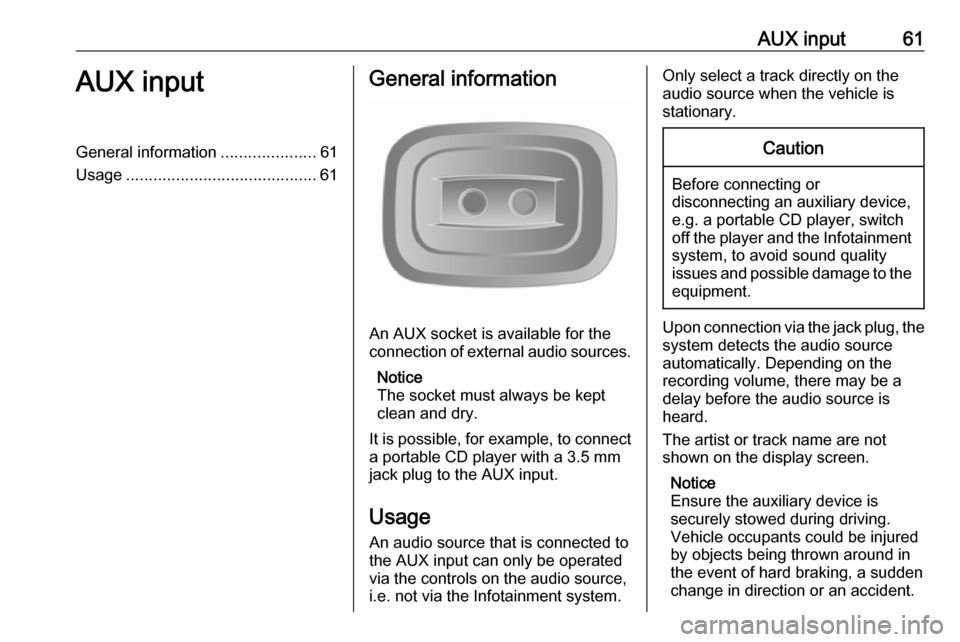
An AUX socket is available for the
connection of external audio sources.
Notice
The socket must always be kept
clean and dry.
It is possible, for example, to connect a portable CD player with a 3.5 mm
jack plug to the AUX input.
Usage
An audio source that is connected to
the AUX input can only be operated
via the controls on the audio source, i.e. not via the Infotainment system.
Only select a track directly on the
audio source when the vehicle is
stationary.Caution
Before connecting or
disconnecting an auxiliary device,
e.g. a portable CD player, switch off the player and the Infotainment system, to avoid sound quality
issues and possible damage to the
equipment.
Upon connection via the jack plug, thesystem detects the audio source
automatically. Depending on the
recording volume, there may be a
delay before the audio source is
heard.
The artist or track name are not
shown on the display screen.
Notice
Ensure the auxiliary device is
securely stowed during driving.
Vehicle occupants could be injured
by objects being thrown around in
the event of hard braking, a sudden
change in direction or an accident.
Page 63 of 129
USB port63USB portGeneral information.....................63
Playing saved audio files .............64General information
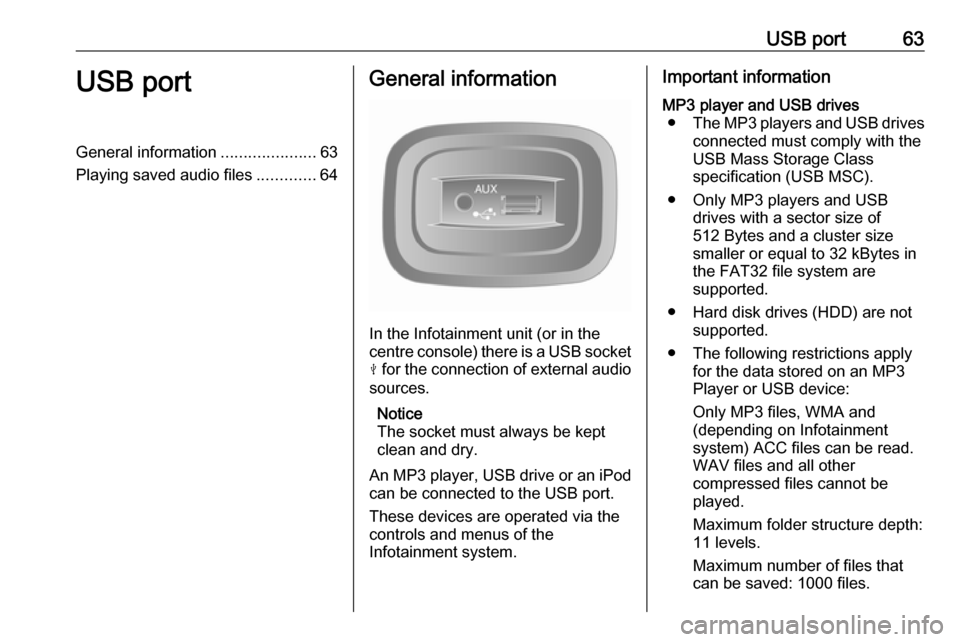
In the Infotainment unit (or in the
centre console) there is a USB socket
M for the connection of external audio
sources.
Notice
The socket must always be kept
clean and dry.
An MP3 player, USB drive or an iPod can be connected to the USB port.
These devices are operated via the
controls and menus of the
Infotainment system.
Important informationMP3 player and USB drives ● The MP3 players and USB drives
connected must comply with the
USB Mass Storage Class
specification (USB MSC).
● Only MP3 players and USB drives with a sector size of
512 Bytes and a cluster size smaller or equal to 32 kBytes in
the FAT32 file system are
supported.
● Hard disk drives (HDD) are not supported.
● The following restrictions apply for the data stored on an MP3
Player or USB device:
Only MP3 files, WMA and
(depending on Infotainment
system) ACC files can be read.
WAV files and all other
compressed files cannot be
played.
Maximum folder structure depth: 11 levels.
Maximum number of files that
can be saved: 1000 files.
Page 64 of 129

64USB portNAVI 50 IntelliLink: Minimum
recommended storage capacity
of USB drive is 4 GB.
Recommended maximum
storage capacity is 32 GB.
WMA files with Digital Rights
Management (DRM) from online
music shops may not play
correctly or not at all.
Applicable playlist
extensions: .m3u, .pls.
Playlist entries must be in the
form of relative paths.
Playing saved audio files
Once connected, it is only possible to
use the controls and menus of the
Infotainment system to operate the
audio device.
R15 BT USB, R16 BT USB,
CD16 BT USB, CD18 BT USB -
Playing music via USB socket
MP3 player / iPod / USB drives
The system detects the audio device
when a USB device is connected and
the current track is displayed
automatically.When a new audio device is
connected, the first track in the first folder is played automatically. When
reconnecting the device, the
previously played track is resumed.
Depending on the audio device
connected, select a folder (MP3
player, USB drive) or a playlist
(portable digital music player).
The operation of data sources
connected via USB is generally the
same as for an audio/MP3/WMA CD
3 58.
Selecting a track
To select tracks directly (and change
folders), first access the audio device
menu structure by pressing OK
during playback. Select tracks and
change folders by turning and
pressing the knob.
NAVI 50 IntelliLink - Playing
music via USB socket
MP3 player / USB drives / iPod
The system detects the audio device
when a USB device is connected and
the current track is displayed
automatically. The device type (MP3player/USB drive or iPod) is also
recognised and the relevant audio
source mode (USB or iPod) is
selected automatically.
When the t/ü MEDIA menu is
active, the following submenus are
available:
● Main /Player
● List
● Options
To switch between audio sources,
press S in top left corner. The
following options are available:
● USB : Select to change the audio
source to USB mode.
Notice
During use, the battery of a
connected USB device is charged or maintained.
● iPod : Select to change the audio
source to iPod mode.
● BT: Refer to
(NAVI 50 IntelliLink) "Playing music via Bluetooth" - 3 67.
● Aha : AhaⓇ application for
smartphones (available
depending on version).