change time VAUXHALL MOVANO_B 2016.5 Infotainment system
[x] Cancel search | Manufacturer: VAUXHALL, Model Year: 2016.5, Model line: MOVANO_B, Model: VAUXHALL MOVANO_B 2016.5Pages: 129, PDF Size: 1.74 MB
Page 80 of 129
80NavigationPress anywhere on the map. Thecursor indicates the current selected
position. To scroll within the map,
drag the cursor in the required
direction.
To access the map screen with route
guidance, press 7 followed by
y NAVI on the display screen and
enter a destination. Refer to
(NAVI 50 IntelliLink) "Destination
input" 3 90.
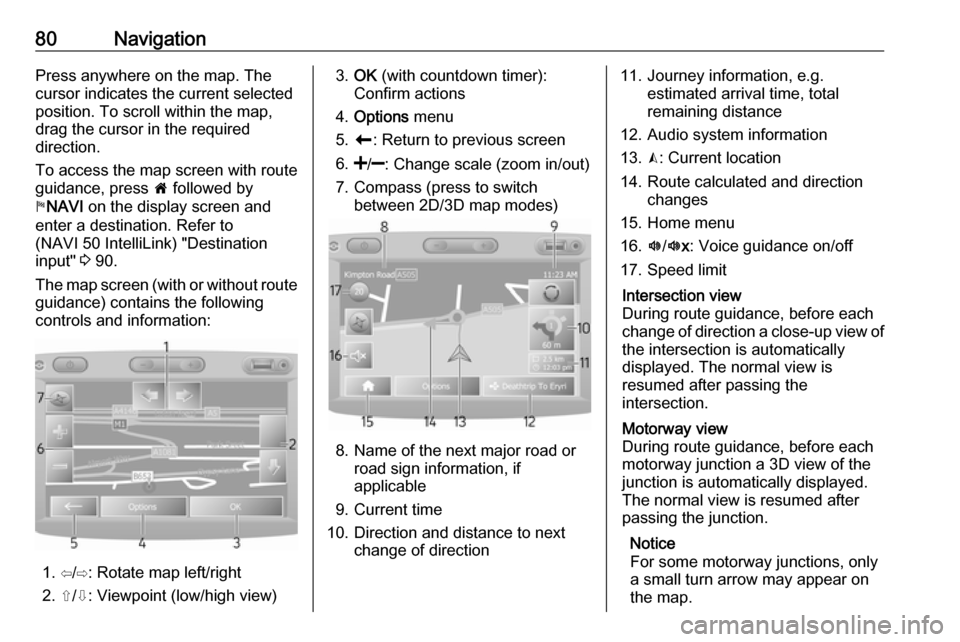
The map screen (with or without route
guidance) contains the following
controls and information:
1. ⇦/⇨: Rotate map left/right
2. ⇧/⇩: Viewpoint (low/high view)
3. OK (with countdown timer):
Confirm actions
4. Options menu
5. r : Return to previous screen
6.
7. Compass (press to switch between 2D/3D map modes)
8. Name of the next major road orroad sign information, if
applicable
9. Current time
10. Direction and distance to next change of direction
11. Journey information, e.g. estimated arrival time, total
remaining distance
12. Audio system information
13. K: Current location
14. Route calculated and direction changes
15. Home menu
16. l/l x: Voice guidance on/off
17. Speed limitIntersection view
During route guidance, before each
change of direction a close-up view of
the intersection is automatically
displayed. The normal view is
resumed after passing the
intersection.Motorway view
During route guidance, before each
motorway junction a 3D view of the
junction is automatically displayed.
The normal view is resumed after
passing the junction.
Notice
For some motorway junctions, only
a small turn arrow may appear on
the map.
Page 82 of 129
82Navigation
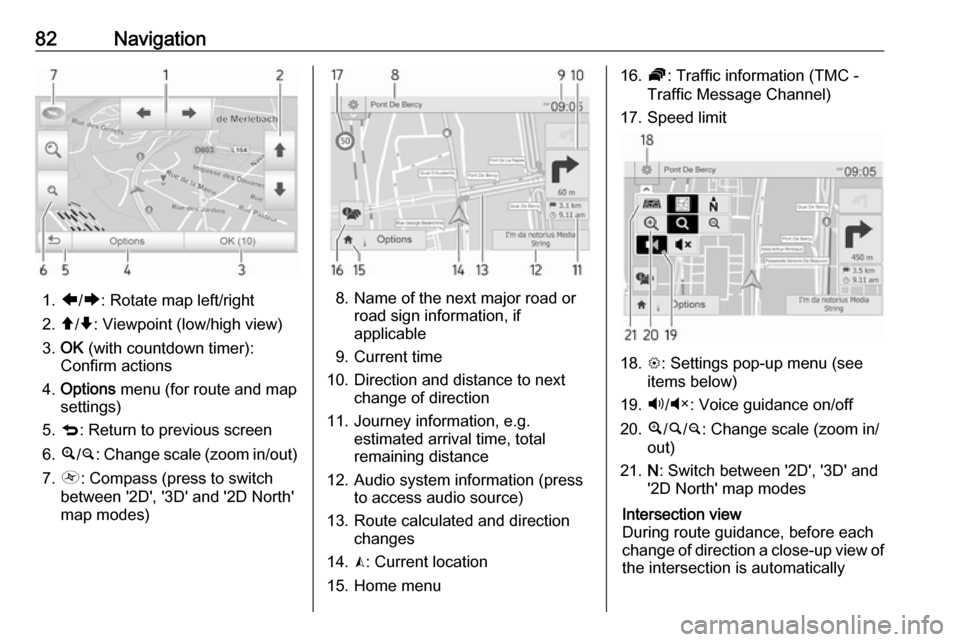
1.ä/å : Rotate map left/right
2. â/ã : Viewpoint (low/high view)
3. OK (with countdown timer):
Confirm actions
4. Options menu (for route and map
settings)
5. q : Return to previous screen
6. ¼/¾ : Change scale (zoom in/out)
7. Ô : Compass (press to switch
between '2D', '3D' and '2D North' map modes)8. Name of the next major road or road sign information, if
applicable
9. Current time
10. Direction and distance to next change of direction
11. Journey information, e.g. estimated arrival time, total
remaining distance
12. Audio system information (press to access audio source)
13. Route calculated and direction changes
14. K: Current location
15. Home menu
16. Ö: Traffic information (TMC -
Traffic Message Channel)
17. Speed limit
18. L: Settings pop-up menu (see
items below)
19. Ù/Ú : Voice guidance on/off
20. ¼/½ /¾ : Change scale (zoom in/
out)
21. N: Switch between '2D', '3D' and
'2D North' map modes
Intersection view
During route guidance, before each
change of direction a close-up view of
the intersection is automatically
Page 84 of 129
84Navigation●Switch map
● Change map colours
● Car symbol
● Advanced
6. NAVIGATION SERVICES
Refer to (NAVI 80 IntelliLink)
"LIVE services" below.
● Traffic
● Speed Cameras
● Local search /TomTom
places
● My TomTom live
● Weather
7. ITINERARIES
Refer to (NAVI 80 IntelliLink) "Edit Itinerary" in the "Guidance"
section 3 96.
8. r : Return to previous screenMap screen
To access the map screen without
navigation, on the Home page press
MENU , then Navigation followed by
View Map on the display screen.Press anywhere on the map. The
cursor indicates the current selected
position. To scroll within the map,
drag the cursor in the required
direction.
To access the map screen with
navigation, on the Home page press
MENU followed by Navigation on the
display screen and enter a
destination. Refer to
(NAVI 80 IntelliLink) "Destination
input" 3 90.
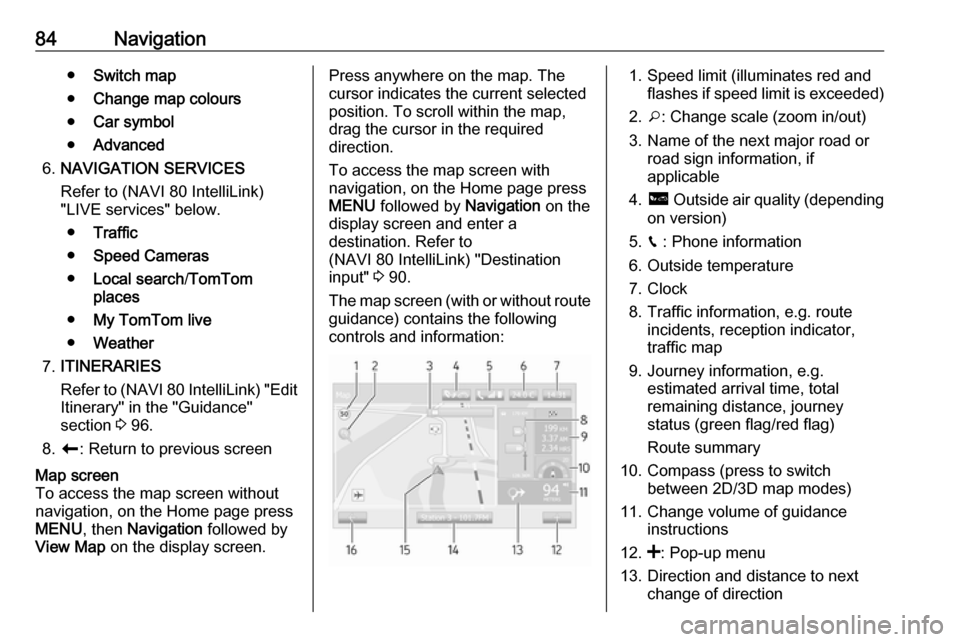
The map screen (with or without route
guidance) contains the following
controls and information:1. Speed limit (illuminates red and flashes if speed limit is exceeded)
2. o: Change scale (zoom in/out)
3. Name of the next major road or road sign information, if
applicable
4. ô Outside air quality (depending
on version)
5. g : Phone information
6. Outside temperature
7. Clock
8. Traffic information, e.g. route incidents, reception indicator,
traffic map
9. Journey information, e.g. estimated arrival time, total
remaining distance, journey
status (green flag/red flag)
Route summary
10. Compass (press to switch between 2D/3D map modes)
11. Change volume of guidance instructions
12. <: Pop-up menu
13. Direction and distance to next change of direction
Page 89 of 129

Navigation89Map update
Select Map update to display the
following digital map content and latest update information:
● Alert Points
● Junction View
● Maps
● Places
● Preprocessed Road Network
Specific content or all map content
can be updated. Select one of the
options first or press Options then
Update . Wait for the update to
complete.
Refer to "USB memory stick"
(NAVI 50 IntelliLink), "Updating the
USB memory stick and Navigation
system" in the "General information"
section 3 75.Traffic
Select Traffic to change the following
traffic information settings:
● Traffic info (On/Off)
● Detour
● Event typesTraffic info : Warnings are given for
incidents that occur along the route.
Detour : Save time by using an
alternative route when a traffic jam or
an incident occurs along the current
route. Select 'On'/'Off' alongside
"Confirm offered route?" as required.
If necessary, update the time value
for the option "Offer detour if the
calculated route saves more than:"
(e.g. 5 minutes) by pressing k/l .
Event types : Select the type of events
to be displayed during route
guidance, e.g. all events, traffic flow
events, closures and blockages,
accidents.
NAVI 80 IntelliLink - Setting up the navigation system
To access the Navigation settings
menu from the Home page, press
MENU then Navigation , followed by
Settings on the display screen. The
following settings submenus are
displayed:
● Turn off voice guidance :
Switch on/off voice guidance
during navigation.● Route planning :
Select a planning preference type; "Fastest route" is
recommended. The eco-route is designed to save the most fuel.
Then switch on/off "iQ routes™" as required. iQ routes™ enables
routes to be calculated according to average traffic levels during a
particular day and time, and also
the best route according to actual traffic speeds.
● Show POI on map :
Show or hide categories of POI
markers on the map.
● Manage POIs :
Add, change or delete POIs or
POI categories.
● Voice (depending on version):
Select synthesised voice or a
male or female human voice (for the voice instructions) from the
available list.
Human voices provide more
simplified voice guidance
instructions and are not available
Page 97 of 129

Navigation97When the Overview screen is
displayed, press Options to access
the following submenus:
● Alternative routes
Refer to (NAVI 50 IntelliLink)
"Edit Itinerary" below.
● Itinerary
Refer to (NAVI 50 IntelliLink)
"Edit Itinerary" below.
● Route settings
Refer to (NAVI 50 IntelliLink)
"Setting up the Navigation
system" 3 78.
● Simulate navigation
See below.
Notice
These options can also be accessed
during route guidance by pressing
on the 'Journey information' (e.g.
estimated arrival time, total
remaining distance) area of the
display screen.
Refer to (NAVI 50 IntelliLink)
"Information on the display" in the
"Usage" section 3 78.Simulate navigation
This function enables you to see a
rapid view of the suggested route.
The following options are available:r:Start or pause the route simulationf:Move to previous
manoeuvree:Move to next
manoeuvre1x / 4x / 8x:Increase the speed of
the route simulationr /q:Return to previous
screen
NAVI 80 IntelliLink - Route
information
To view the route before guidance
begins, press < (to open a pop-up
menu), then select Route details after
a destination has been entered.
The following options are available: ● Display instructions :
Displays the route plan. The following details are shown: ● direction change arrows
● road types
● road names
● distance before a fork in the road (km/miles)
● Display route map :
View a map of the route.
● Display route demo :
View a demonstration of the
route.
● Route summary :
Return to the previous screen.
The details of the journey time, distance and the type of journey
are displayed. Refer to
(NAVI 80 IntelliLink)
"IQ routes™" in the "Destination input" section 3 90.
● Display destination :
View changes in direction as images.
● Display traffic on route :
Displays an overview of all traffic
incidents affecting the current
journey, with a detailed incident
by incident view.
With a subscription to LIVE
services, the "Live" tab provides
Page 98 of 129

98Navigationa more detailed overview of the
journey (e.g. traffic delays, fixed
and mobile speed cameras).
For further information, refer to (NAVI 80 IntelliLink) "LIVE
services" in the "Usage" section
3 78.
Edit itinerary
NAVI 50 IntelliLink - Edit Itinerary This function makes it possible to
view and change the route plan to the destination entered.
To access at any time, press 7
followed by yNAVI / ýNav then
Route . Select Itinerary /Route .
The following information will appear: ● direction change arrows
● road number
● distance before a direction change
Press Options to change and sort the
details of the route.The following options are available:
● Summary
Shows each waypoint and the
destination, including the
waypoint distance, time left to
next waypoint and arrival time.
● Normal
Shows each manoeuvre, with street or place names, distance,
and route section numbers.
This option also shows signpost
information, access and
manoeuvre restrictions,
warnings and system preference
information.
● Road list
Shows only the main sections of
the route using road names/
numbers.
This option also shows the length of each section, time left to next
section, arrival time and average
direction.
Alternatively, these itinerary/route
options can be changed by pressing
the "Direction and distance to next change of direction" tab on the displayduring route guidance. Press
Options to change and sort the details
of the route.
Refer to (NAVI 50 IntelliLink)
"Information on the display", "Map
screen" in the Usage section 3 78.Edit route
To edit the route by modifying the list
of waypoints, press 7 followed by
y NAVI / ýNav , Route then Edit
Route on the display screen.
The following options are available:Top <:Add waypointBottom <:Add new destinationë:Delete destinationy:Change the route
departure address
(available depending on
version)
To change the order of the waypoints in the list, press Options followed by
Re-order then move the waypoints
up/down.
For the various methods of entering a
destination, refer to
(NAVI 50 IntelliLink) "Destination
input" 3 90.
Page 99 of 129

Navigation99Avoidances
To edit the route by avoiding
particular sections, press 7 followed
by yNAVI / ýNav , Route then
Avoidances /To avoid on the display
screen.
Select a section from the list on the
display screen to be avoided. The
avoided section is highlighted in red.
Confirm the new route by pressing
OK .Alternative routes
To change the route planning
method, press 7 followed by yNAVI /
ý Nav , Route then Alternative routes
on the display screen.
The following options are available,
each with a distance and estimated
time:
● fast
● short
● eco
Select one of the options and confirm
the new route by pressing r.For further information, refer to
(NAVI 50 IntelliLink) "Setting up the
navigation system" in the "Usage"
section 3 78.
NAVI 80 IntelliLink - Edit Itinerary
Journeys can be planned in advance
by selecting both the starting point
and the destination.
From the Home page, press MENU
then Navigation , followed by
Itineraries on the display screen.
Select a point of departure in the
same way as entering a destination.
Refer to (NAVI 80 IntelliLink)
"Destination input" 3 90. Then select
a destination, choose the type of
route and confirm.
The system plans the route and
allows you to view the details.Change route
To change the route during active
route guidance, from the Home page, press MENU then Navigation ,
followed by Change route on the
display screen.The following options are available:
● Calculate alternative
● Cancel route
● Travel via
● Avoid roadblock
● Avoid part of route
● Minimise delaysCalculate alternative
Select to calculate an alternative
route to the destination.Cancel route
Select to stop the current route
guidance.
To restart guidance, press Drive to..,
followed by Recent destinations on
the display screen and select the
route again.Travel via (waypoints)
Select to change the calculated route to your destination so that it includes
a particular location (waypoint).
The location to be included is entered
the same way as entering a
destination.
Page 101 of 129

Navigation101When the map screen is displayed,
press < to open a pop-up menu
containing the following options:
● Use this location to...
● Find
● Change the map details
● Add to saved locationsUse this location to...
Select this option to perform any of
the following actions:
● centre the map on the vehicle's location
● navigate to a point on the map
● search for a point on the map
● add a point on the map to the favourites
● add a point on the map to the POI
list
● correct the position of your vehicleFind
Select this option to centre the map
on:
● your home
● a saved address● an address
● a recent destination
● a local search
● a point of interest
● current vehicle position
● a co-ordinate (latitude/longitude)Change the map details
Select this option to switch on/off the
following map settings:
● traffic
● names
● points of interest (POI)
● satellite image map background
● GPS co-ordinatesAdd to saved locations
Select this option to add the current
position on the map as a saved
destination. Use the keyboard to
enter a name or confirm the
suggested name.
For keyboard operation, refer to
(NAVI 80 IntelliLink) " Operating
keyboards in the display " in the
" Usage " section 3 78.Help!
NAVI 50 IntelliLink - Help!
When the map screen is displayed,
press Options followed by Where am
I? to check helpful information about
the current location and to search for Points of Interest (POI) nearby.
To access the map screen at any
time, press 7 followed by sMAP .Where am I?
This menu option contains the
following information:
● current location (address)
● latitude
● longitude
● altitude
● GPS status
Press Options to display the following
options:
● Add to favourites
Refer to (NAVI 50 IntelliLink)
"Destination input", "Add and
save a favourite" for further
information 3 90.
● Country information : Refer to
"Country information" below.
Page 102 of 129

102NavigationCountry information
This function allows you to check
country information and legislation for
the current location.
When the Where am I? screen is
displayed, press Options followed by
Country information on the display
screen.
This menu option contains the
following information:
● speed limits
● phone country code (International dialling code, e.g.
+49)
● emergency number (e.g. 112)
● legal restrictions, e.g.: ● vehicle equipment requirements, e.g. warning
triangle, first aid kit, fire
extinguisher, spare bulbs,
high-visibility jacket etc.
● headlights legislation
● maximum blood alcohol level
● snow chains legislation
● winter tyres legislationHelp Nearby
This function allows you to search for
assistance near your current location.
When the Where am I? screen is
displayed, press Help Nearby on the
display screen.
This menu option contains the
following information:
● Car repair around here (Vehicle
repair services)
● Health around here (Medical and
emergency services)
● Police around here (Police
stations)
● Petrol/Service station around
here (Fuel stations)
Select the appropriate option to
access a list of local Points of Interest (POI).
For information on Points of Interest
(POI), refer to (NAVI 50 IntelliLink)
"Destination input" 3 90.Traffic information
NAVI 50 IntelliLink - Traffic
information
Available depending on version, up-
to-date traffic information from local
sources can be received. Information
is provided for the current route or for the current vehicle location.
During route guidance, press
Options then select Current traffic , or
press the traffic icon Ö on the map
screen. Traffic incidents along the route and estimated delay times are
displayed.
The following options are available: ● Event list : Select to change event
display settings.
● Offer detour : Create an
alternative route to the selected
destination.
● Options : Access traffic options.
To access these traffic options at any
time, press 7 followed by yNAVI /
ý Nav then Options . Then select
Ö Traffic .
Press q to return to route guidance.
Page 114 of 129

114PhonePairing enables the handsfree phone
system to recognise and store a
mobile phone in the device list. A
maximum of 5 mobile phones can be
paired and stored in the device list,
but only one can be connected at a
time.
Notice
Depending on version of
NAVI 50 IntelliLink, a maximum of 8
mobile phones can be paired.
When pairing is completed, a
message with the name of the paired
phone is shown on the Infotainment
system display screen and the phone is automatically connected to the
handsfree phone system. The mobile phone can then be operated via the
Infotainment system controls.
Notice
When a Bluetooth connection is active, using the handsfree phone
system will discharge the mobile
phone battery more rapidly.R15 BT USB, R16 BT USB,
CD16 BT USB, CD18 BT USB -
Pairing a mobile phone
To pair a phone to the handsfree
phone system, press TEL and select
Pair device by turning and pressing
OK . The Ready to Pair screen is
displayed.
On the mobile phone, search for
Bluetooth equipment in the vicinity of
the device.
Select My Radio (i.e. the name of the
handsfree phone system) from the list on the mobile phone, then, on the
mobile phone keypad, enter the
pairing code shown on the
Infotainment system display screen.
If pairing fails, the system returns to
the previous menu and a
corresponding message is displayed.
Repeat procedure if necessary.
NAVI 50 IntelliLink - Pairing a mobile
phone
Press 7 followed by ÿSETTINGS on
the display screen.
Select Bluetooth then either Search
for Bluetooth device or External
device authorisation .Alternatively, when in the Phone
menu screen, press y on the display.
On the mobile phone, search for Bluetooth equipment in the vicinity ofthe device.
Select the name of the handsfree
phone system (e.g. MEDIA-NAV)
from the list on the mobile phone, then (if required), on the mobile phone
keypad, enter the pairing code shown
on the Infotainment system display
screen.
Notice
The pairing code may only be shown
on the Infotainment system display
for a limited time.
The default pairing code is 0000. To
change this pairing code before the pairing procedure is started, select
Change passkey to update.
If pairing fails, repeat procedure if
necessary.