navigation system VAUXHALL MOVANO_B 2016.5 Infotainment system
[x] Cancel search | Manufacturer: VAUXHALL, Model Year: 2016.5, Model line: MOVANO_B, Model: VAUXHALL MOVANO_B 2016.5Pages: 129, PDF Size: 1.74 MB
Page 79 of 129
Navigation79Switching between Navigation
system and Infotainment system
menusNAVI 50 IntelliLink
With the Navigation system active,
press 7 or press and hold q/r on
the display screen to return to the
Infotainment system Home menu.NAVI 80 IntelliLink
With the Navigation system active,
press r on the display screen (one
or more times) to return to the
Infotainment system Home page.
Information on the display
NAVI 50 IntelliLink (Type A) -
Information on the display
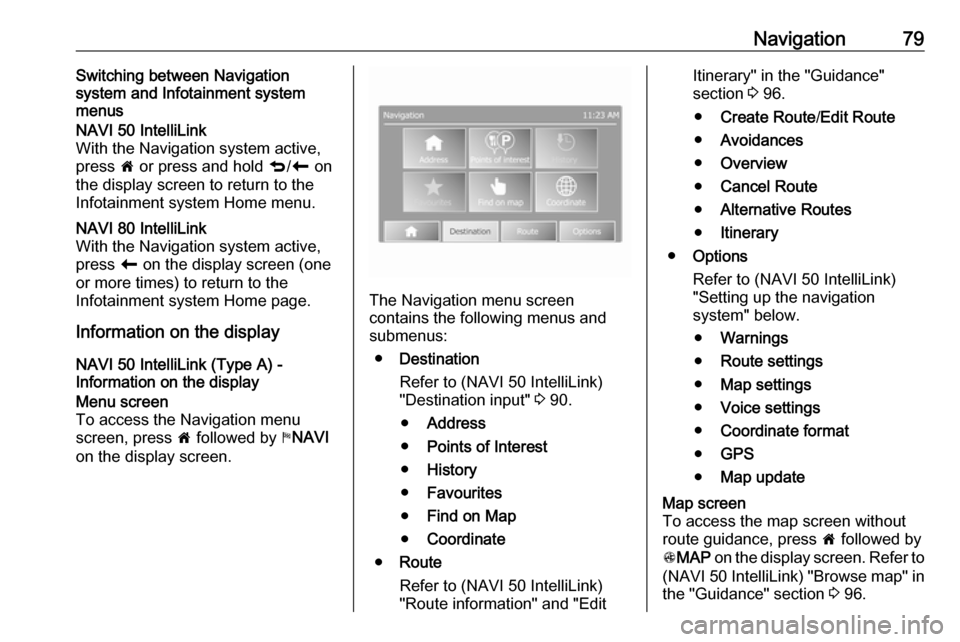
Menu screen
To access the Navigation menu
screen, press 7 followed by yNAVI
on the display screen.
The Navigation menu screen
contains the following menus and
submenus:
● Destination
Refer to (NAVI 50 IntelliLink)
"Destination input" 3 90.
● Address
● Points of Interest
● History
● Favourites
● Find on Map
● Coordinate
● Route
Refer to (NAVI 50 IntelliLink)
"Route information" and "Edit
Itinerary" in the "Guidance"
section 3 96.
● Create Route /Edit Route
● Avoidances
● Overview
● Cancel Route
● Alternative Routes
● Itinerary
● Options
Refer to (NAVI 50 IntelliLink)
"Setting up the navigation
system" below.
● Warnings
● Route settings
● Map settings
● Voice settings
● Coordinate format
● GPS
● Map updateMap screen
To access the map screen without
route guidance, press 7 followed by
s MAP on the display screen. Refer to
(NAVI 50 IntelliLink) "Browse map" in
the "Guidance" section 3 96.
Page 80 of 129
80NavigationPress anywhere on the map. Thecursor indicates the current selected
position. To scroll within the map,
drag the cursor in the required
direction.
To access the map screen with route
guidance, press 7 followed by
y NAVI on the display screen and
enter a destination. Refer to
(NAVI 50 IntelliLink) "Destination
input" 3 90.
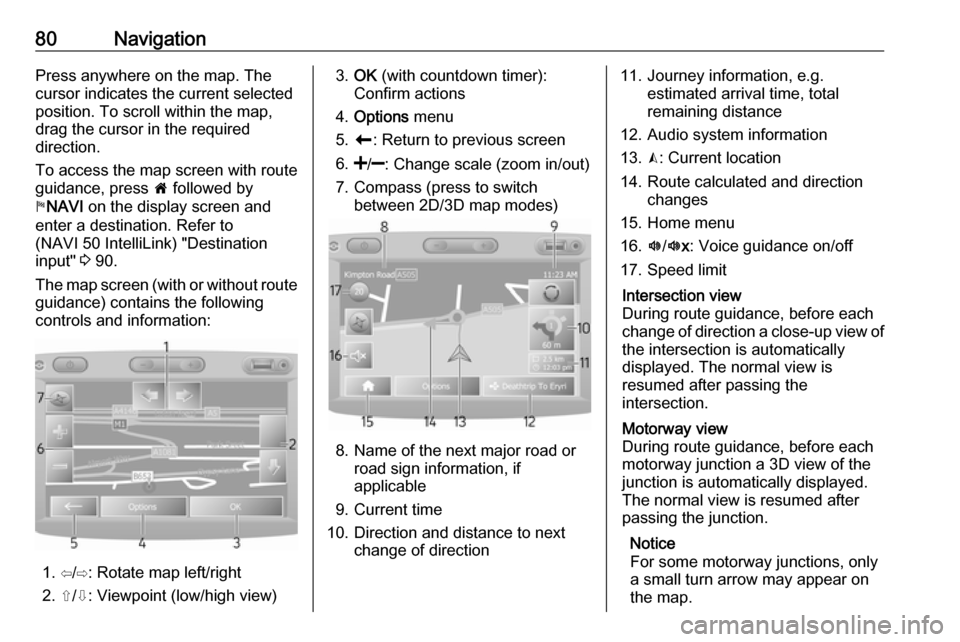
The map screen (with or without route
guidance) contains the following
controls and information:
1. ⇦/⇨: Rotate map left/right
2. ⇧/⇩: Viewpoint (low/high view)
3. OK (with countdown timer):
Confirm actions
4. Options menu
5. r : Return to previous screen
6.
7. Compass (press to switch between 2D/3D map modes)
8. Name of the next major road orroad sign information, if
applicable
9. Current time
10. Direction and distance to next change of direction
11. Journey information, e.g. estimated arrival time, total
remaining distance
12. Audio system information
13. K: Current location
14. Route calculated and direction changes
15. Home menu
16. l/l x: Voice guidance on/off
17. Speed limitIntersection view
During route guidance, before each
change of direction a close-up view of
the intersection is automatically
displayed. The normal view is
resumed after passing the
intersection.Motorway view
During route guidance, before each
motorway junction a 3D view of the
junction is automatically displayed.
The normal view is resumed after
passing the junction.
Notice
For some motorway junctions, only
a small turn arrow may appear on
the map.
Page 81 of 129
Navigation81NAVI 50 IntelliLink (Type B) -
Information on the displayMenu screen
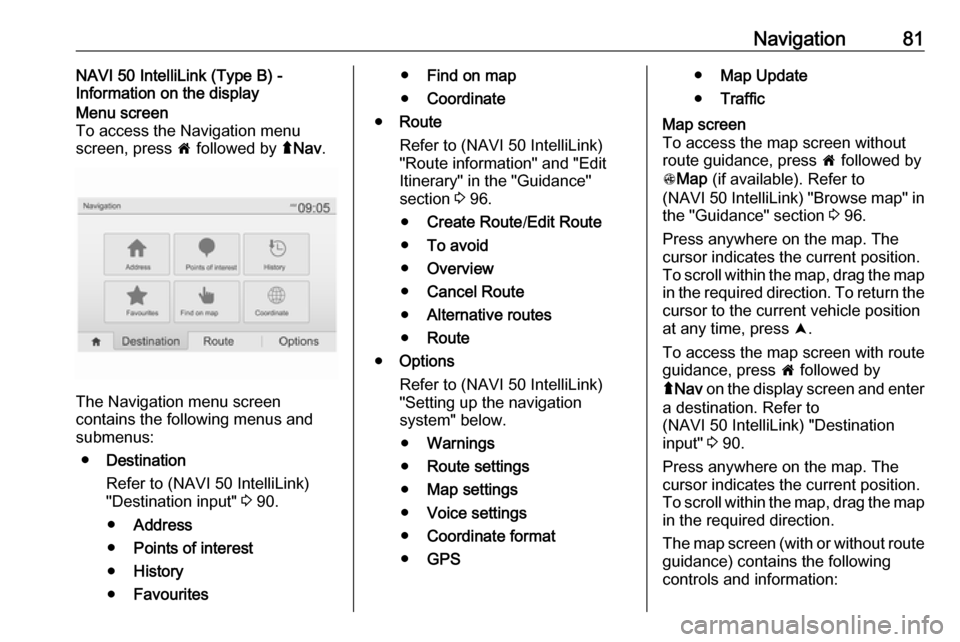
To access the Navigation menu
screen, press 7 followed by ýNav .
The Navigation menu screen
contains the following menus and
submenus:
● Destination
Refer to (NAVI 50 IntelliLink)
"Destination input" 3 90.
● Address
● Points of interest
● History
● Favourites
●Find on map
● Coordinate
● Route
Refer to (NAVI 50 IntelliLink)
"Route information" and "Edit
Itinerary" in the "Guidance"
section 3 96.
● Create Route /Edit Route
● To avoid
● Overview
● Cancel Route
● Alternative routes
● Route
● Options
Refer to (NAVI 50 IntelliLink)
"Setting up the navigation
system" below.
● Warnings
● Route settings
● Map settings
● Voice settings
● Coordinate format
● GPS●Map Update
● TrafficMap screen
To access the map screen without route guidance, press 7 followed by
s Map (if available). Refer to
(NAVI 50 IntelliLink) "Browse map" in the "Guidance" section 3 96.
Press anywhere on the map. The
cursor indicates the current position.
To scroll within the map, drag the map
in the required direction. To return the
cursor to the current vehicle position
at any time, press =.
To access the map screen with route
guidance, press 7 followed by
ý Nav on the display screen and enter
a destination. Refer to
(NAVI 50 IntelliLink) "Destination
input" 3 90.
Press anywhere on the map. The
cursor indicates the current position.
To scroll within the map, drag the map
in the required direction.
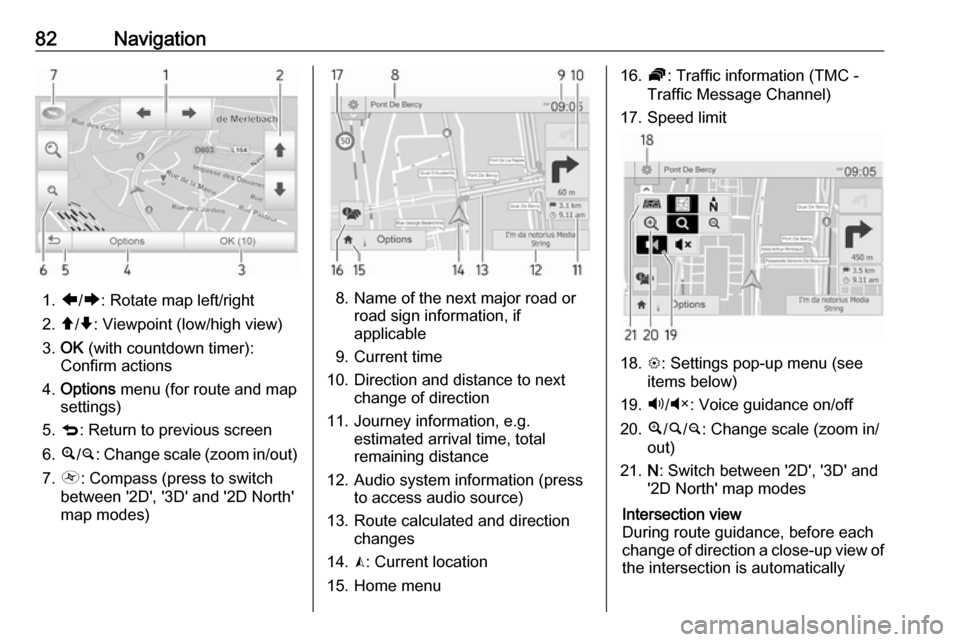
The map screen (with or without route guidance) contains the following
controls and information:
Page 82 of 129
82Navigation
1.ä/å : Rotate map left/right
2. â/ã : Viewpoint (low/high view)
3. OK (with countdown timer):
Confirm actions
4. Options menu (for route and map
settings)
5. q : Return to previous screen
6. ¼/¾ : Change scale (zoom in/out)
7. Ô : Compass (press to switch
between '2D', '3D' and '2D North' map modes)8. Name of the next major road or road sign information, if
applicable
9. Current time
10. Direction and distance to next change of direction
11. Journey information, e.g. estimated arrival time, total
remaining distance
12. Audio system information (press to access audio source)
13. Route calculated and direction changes
14. K: Current location
15. Home menu
16. Ö: Traffic information (TMC -
Traffic Message Channel)
17. Speed limit
18. L: Settings pop-up menu (see
items below)
19. Ù/Ú : Voice guidance on/off
20. ¼/½ /¾ : Change scale (zoom in/
out)
21. N: Switch between '2D', '3D' and
'2D North' map modes
Intersection view
During route guidance, before each
change of direction a close-up view of
the intersection is automatically
Page 83 of 129
Navigation83displayed. The normal view is
resumed after passing the
intersection.Motorway view
During route guidance, before each
motorway junction a 3D view of the
junction is automatically displayed.
The normal view is resumed after
passing the junction.
Notice
For some motorway junctions, only
a small turn arrow may appear on
the map.
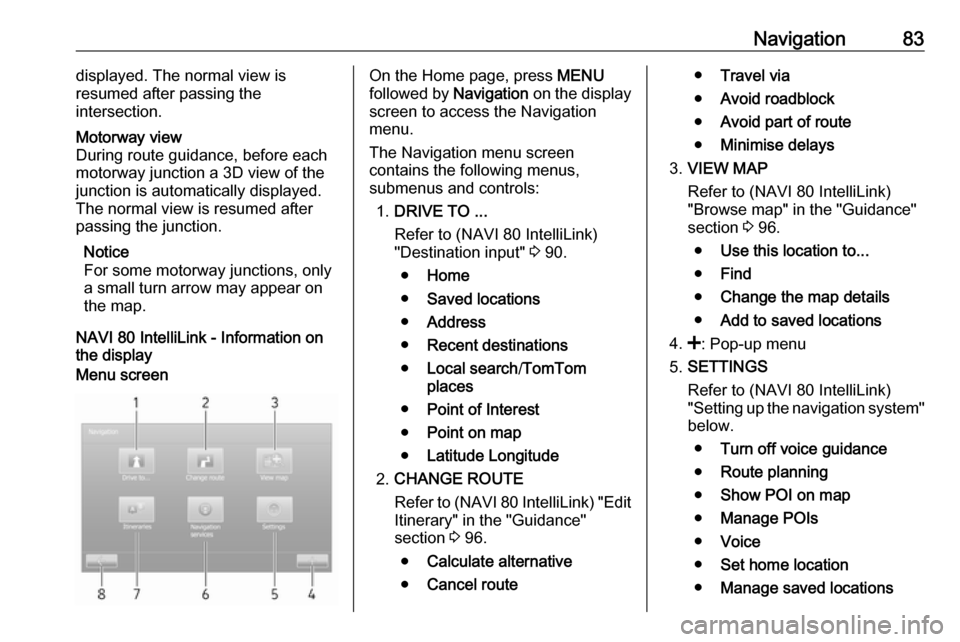
NAVI 80 IntelliLink - Information on the display
Menu screenOn the Home page, press MENU
followed by Navigation on the display
screen to access the Navigation
menu.
The Navigation menu screen
contains the following menus,
submenus and controls:
1. DRIVE TO ...
Refer to (NAVI 80 IntelliLink)
"Destination input" 3 90.
● Home
● Saved locations
● Address
● Recent destinations
● Local search /TomTom
places
● Point of Interest
● Point on map
● Latitude Longitude
2. CHANGE ROUTE
Refer to (NAVI 80 IntelliLink) "Edit Itinerary" in the "Guidance"
section 3 96.
● Calculate alternative
● Cancel route●Travel via
● Avoid roadblock
● Avoid part of route
● Minimise delays
3. VIEW MAP
Refer to (NAVI 80 IntelliLink)
"Browse map" in the "Guidance"
section 3 96.
● Use this location to...
● Find
● Change the map details
● Add to saved locations
4. <: Pop-up menu
5. SETTINGS
Refer to (NAVI 80 IntelliLink)
"Setting up the navigation system" below.
● Turn off voice guidance
● Route planning
● Show POI on map
● Manage POIs
● Voice
● Set home location
● Manage saved locations
Page 85 of 129

Navigation8514. Audio system information
15. K: Current location (cursor)
Route calculated and direction
changes
16. r: Return to previous screenLane images
During route guidance, before each
major road change, a 3D view of the
junction (with a turn arrow and road signs) is automatically displayed. The
normal view is resumed after passing the junction.
To switch off the lane images view,
refer to (NAVI 80 IntelliLink)
"Advanced Settings" in "Setting up
the navigation system" below.Automatic zoom
During route guidance, before each
change of direction a close-up view of
the junction is automatically
displayed. The normal view is
resumed after passing the junction.
To switch off the automatic zoom
feature, refer to (NAVI 80 IntelliLink)
"Advanced Settings" in "Setting up
the navigation system" below.Operating keyboards in the
display
NAVI 50 IntelliLink - Operating keyboards in the display
To move within and to enter
characters in both the alphabetical
and numerical keyboards, make the
appropriate selection by touching the
display screen.
● Select Options to change the
keyboard type (e.g. Qwerty,
ABC).
● Select 1^& to switch to numbers
and symbols.
● Select the drop down menu icon ó to display a list of results for the
current operation (e.g.
destination input).
● Entries can be corrected during input with the k keyboard
character.
● Press r to stop using the
keyboard and return to the
previous screen.Notice
When making an entry, certain
letters and numbers are unavailable
for selection (greyed-out) based on
the information stored in the
Navigation system.
NAVI 80 IntelliLink - Operating
keyboards in the display
To move within and to enter
characters in both the alphabetical and numerical keyboards, make the
appropriate selection by touching the
display screen.
● Entries can be corrected during input with the k keyboard
character.
● Press r to stop using the
keyboard and return to the
previous screen.
Live services
NAVI 80 IntelliLink - Live services
In addition to the free navigation
services (e.g. traffic information, fixed
speed cameras), extra features can be added by subscribing to paid LIVE services.
Page 86 of 129

86NavigationLIVE services include up-to-date
traffic information with "HD Traffic™ ",
updates and locations of fixed and
mobile speed cameras, local search,
weather forecast and the "My
TomTom LIVE" subscription status.
Notice
LIVE services are not available in
some countries or regions.
From the Home page, press MENU
then Navigation , followed by
Navigation Services on the display
screen.
The following menus are displayed: ● Traffic /HD Traffic
Select to receive up-to-date, real-
time traffic information.
Notice
The HD Traffic service is named
Traffic if a subscription has not been
activated.
● Speed cameras
Displays alerts and location of
mobile speed cameras in real-
time, fixed speed cameras and
accident blackspots.Switch function off via the "Speed Cameras" menu in "LIVE
services", if required.
Notice
In certain countries it is illegal to
download and activate the camera warning option and this could lead to prosecution.
● Local search /TomTom places
This service allows you to use a
keyword to quickly find any Point of Interest (POI) and set it as a
destination.
● My TomTom LIVE
Displays expiry date of
subscribed services.
● Weather
The weather forecast service
provides up to 5 days of weather
reports for your current location
and your chosen destination.Setting up the navigation system
NAVI 50 IntelliLink - Setting up the
navigation system
Press 7 followed by yNAVI / ýNav
then Options . This menu screen
allows you to check and update the
following map and navigation
settings:
● Warnings
● Route settings
● Map settings
● Voice settings
● Coordinate format
● GPS
● Map update
● Traffic (depending on version)Warnings
Select Warnings to access the
following settings (switch off if not
required):
● Warn when speeding (On/Off)
● Speed limit always visible (On/
Off)
Page 89 of 129

Navigation89Map update
Select Map update to display the
following digital map content and latest update information:
● Alert Points
● Junction View
● Maps
● Places
● Preprocessed Road Network
Specific content or all map content
can be updated. Select one of the
options first or press Options then
Update . Wait for the update to
complete.
Refer to "USB memory stick"
(NAVI 50 IntelliLink), "Updating the
USB memory stick and Navigation
system" in the "General information"
section 3 75.Traffic
Select Traffic to change the following
traffic information settings:
● Traffic info (On/Off)
● Detour
● Event typesTraffic info : Warnings are given for
incidents that occur along the route.
Detour : Save time by using an
alternative route when a traffic jam or
an incident occurs along the current
route. Select 'On'/'Off' alongside
"Confirm offered route?" as required.
If necessary, update the time value
for the option "Offer detour if the
calculated route saves more than:"
(e.g. 5 minutes) by pressing k/l .
Event types : Select the type of events
to be displayed during route
guidance, e.g. all events, traffic flow
events, closures and blockages,
accidents.
NAVI 80 IntelliLink - Setting up the navigation system
To access the Navigation settings
menu from the Home page, press
MENU then Navigation , followed by
Settings on the display screen. The
following settings submenus are
displayed:
● Turn off voice guidance :
Switch on/off voice guidance
during navigation.● Route planning :
Select a planning preference type; "Fastest route" is
recommended. The eco-route is designed to save the most fuel.
Then switch on/off "iQ routes™" as required. iQ routes™ enables
routes to be calculated according to average traffic levels during a
particular day and time, and also
the best route according to actual traffic speeds.
● Show POI on map :
Show or hide categories of POI
markers on the map.
● Manage POIs :
Add, change or delete POIs or
POI categories.
● Voice (depending on version):
Select synthesised voice or a
male or female human voice (for the voice instructions) from the
available list.
Human voices provide more
simplified voice guidance
instructions and are not available
Page 91 of 129

Navigation91●Favourites
Select from a saved list of
favourite destinations.
● Find on map
Select a destination by using the
digital map.
● Coordinate
Enter the co-ordinates of the
destination.
After a destination has been entered,
wait for the 10 second countdown to
expire or press OK to begin route
guidance immediately.Enter an address
Select Address and enter part or all of
an address, e.g.:
● Country
● Town or Postcode
● Street
● Number
● Intersecting street
Notice
Full addresses can only be entered
if they are recognised by the
Navigation system.When entering an address for the first
time, press Country, then use the
keyboard to enter the name of the
country required. Alternatively, use
the drop down menu icon ó and select
from a list of suggested countries.
Notice
When entering an address, certain
letters and numbers are unavailable for selection (greyed-out) based onthe addresses recognised by the
Navigation system.
Proceed in the same way to enter
details for Town or Postcode , Street ,
Number and Intersecting street .
Notice
When entering a Postcode, insert a
space after the first part of the
postcode.
The address is automatically stored in the memory, available for future
selection.
For keyboard operation, refer to
(NAVI 50 IntelliLink) "Operating
keyboards in the display" in the
"Usage" section 3 78.Notice
Number and Intersecting Street are
only available after a Street has
been entered.
When entering a Street, it is not
necessary to specify the type of road
(street, avenue, boulevard etc.).Select Points of Interest (POI)
POIs can be selected as a destination using the following search options:
● Preset POI list
● POI categories
● Quick search for POIs via the mapPreset POI list
Select Points of Interest to choose
from the frequently-used preset
categories list (e.g. petrol station,
parking, restaurant).POI categories
Select Points of Interest followed by
Custom Search to select from the list
of categories and subcategories.
Page 94 of 129

94NavigationFor keyboard operation, refer to
(NAVI 50 IntelliLink) "Operating
keyboards in the display" in the
"Usage" section 3 78.
Delete a favourite
When a favourite has been selected,
press Options before starting route
guidance followed by Delete
Favourite and confirm deletion.
To delete all favourite destinations,
select the menu Destination then
Favourites followed by Options then
Delete all and confirm deletion.
NAVI 80 IntelliLink - Destination
input
Select a destination
From the Home page, press MENU
then Navigation followed by Drive
to... on the display screen.
Select a destination from the
following options on the display:
● Home
● Saved locations
● Address
● Recent destinations●Local search /TomTom places
● Point of Interest
● Point on Map
● Latitude LongitudeHome
Guides you to your home address.
To store the address of your home
location, from the Home page, press
MENU then Navigation , followed by
Settings on the display screen.
Select Set home location and enter
an address.
Refer to (NAVI 80 IntelliLink) "Setting up the navigation system" in the
"Usage" section 3 78.Saved locations
Select from a list of previously saved
destinations.
To delete or rename saved
destinations, from the Home page,
press MENU then Navigation ,
followed by Settings on the display
screen.
Then select Manage saved locations
and update the selected destination
as required.Refer to (NAVI 80 IntelliLink) "Setting
up the navigation system" in the
"Usage" section 3 78.Address
Enter part or all of an address using
the keyboard, e.g.:
● Country
● Postcode
● Town/City
● Street
● House number
Notice
Full addresses can only be entered if they are recognised by the
Navigation system.
When entering an address for the first
time, the country of the destination
will be requested. Use the keyboard
to enter the name of the country
required.
Suggestions may be shown on the
display during input. Press to select a destination shown in the display, or
press List to access the full list for the
current part of the address.