radio VAUXHALL MOVANO_B 2016 Infotainment system
[x] Cancel search | Manufacturer: VAUXHALL, Model Year: 2016, Model line: MOVANO_B, Model: VAUXHALL MOVANO_B 2016Pages: 147
Page 21 of 147
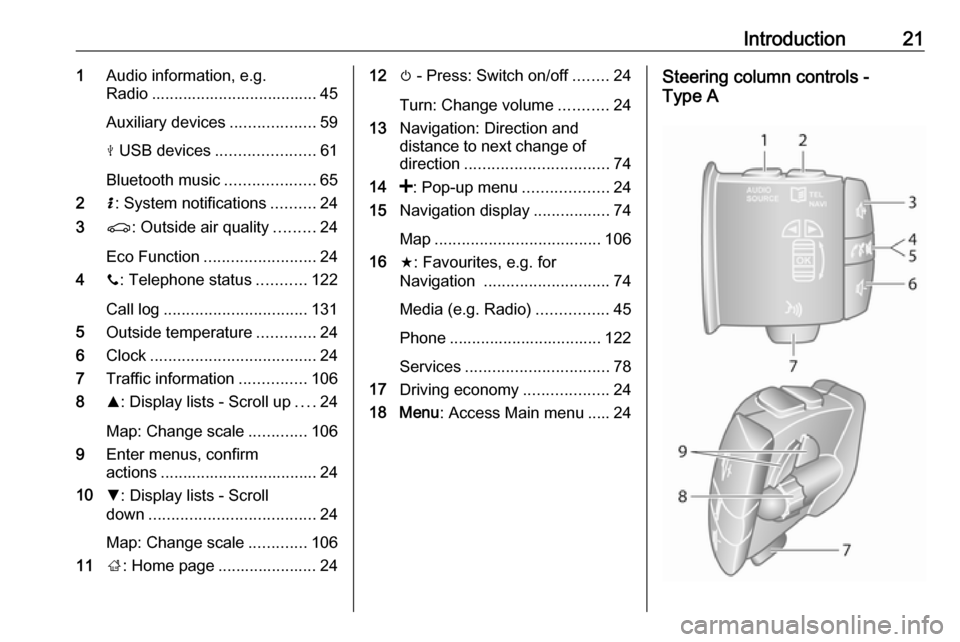
Introduction211Audio information, e.g.
Radio ..................................... 45
Auxiliary devices ...................59
M USB devices ...................... 61
Bluetooth music ....................65
2 H: System notifications ..........24
3 r: Outside air quality .........24
Eco Function ......................... 24
4 y: Telephone status ...........122
Call log ................................ 131
5 Outside temperature .............24
6 Clock ..................................... 24
7 Traffic information ...............106
8 R: Display lists - Scroll up ....24
Map: Change scale .............106
9 Enter menus, confirm
actions ................................... 24
10 S: Display lists - Scroll
down ..................................... 24
Map: Change scale .............106
11 ;: Home page ...................... 2412 m - Press: Switch on/off ........24
Turn: Change volume ...........24
13 Navigation: Direction and
distance to next change of
direction ................................ 74
14 <: Pop-up menu ...................24
15 Navigation display .................74
Map ..................................... 106
16 f: Favourites, e.g. for
Navigation ............................ 74
Media (e.g. Radio) ................45
Phone .................................. 122
Services ................................ 78
17 Driving economy ...................24
18 Menu : Access Main menu ..... 24Steering column controls -
Type A
Page 22 of 147
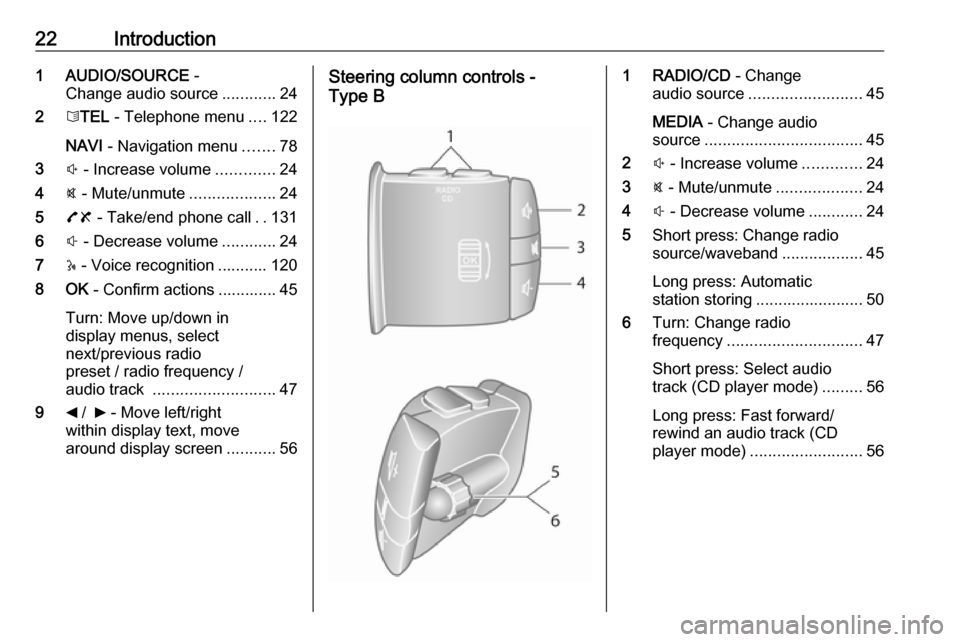
22Introduction1 AUDIO/SOURCE -
Change audio source ............24
2 6TEL - Telephone menu ....122
NAVI - Navigation menu .......78
3 ! - Increase volume .............24
4 @ - Mute/unmute ...................24
5 78 - Take/end phone call ..131
6 # - Decrease volume ............24
7 5 - Voice recognition ........... 120
8 OK - Confirm actions ............. 45
Turn: Move up/down in
display menus, select
next/previous radio
preset / radio frequency /
audio track ........................... 47
9 _ / 6 - Move left/right
within display text, move
around display screen ...........56Steering column controls -
Type B1 RADIO/CD - Change
audio source ......................... 45
MEDIA - Change audio
source ................................... 45
2 ! - Increase volume .............24
3 @ - Mute/unmute ...................24
4 # - Decrease volume ............24
5 Short press: Change radio
source/waveband ..................45
Long press: Automatic
station storing ........................ 50
6 Turn: Change radio
frequency .............................. 47
Short press: Select audio
track (CD player mode) .........56
Long press: Fast forward/
rewind an audio track (CD
player mode) ......................... 56
Page 23 of 147
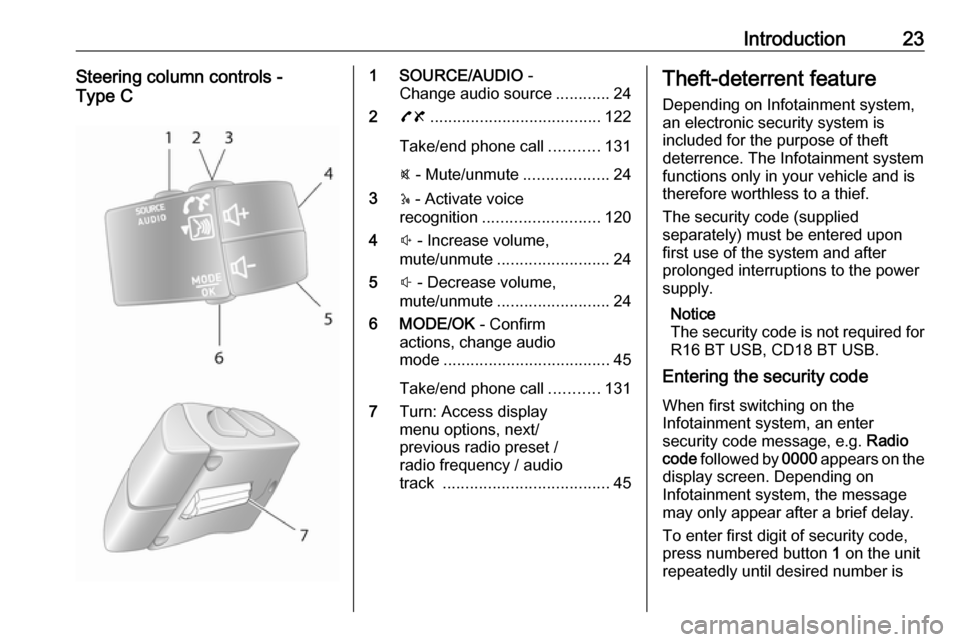
Introduction23Steering column controls -
Type C1 SOURCE/AUDIO -
Change audio source ............24
2 78 ...................................... 122
Take/end phone call ...........131
@ - Mute/unmute ...................24
3 5 - Activate voice
recognition .......................... 120
4 ! - Increase volume,
mute/unmute ......................... 24
5 # - Decrease volume,
mute/unmute ......................... 24
6 MODE/OK - Confirm
actions, change audio
mode ..................................... 45
Take/end phone call ...........131
7 Turn: Access display
menu options, next/
previous radio preset /
radio frequency / audio
track ..................................... 45Theft-deterrent feature
Depending on Infotainment system,
an electronic security system is
included for the purpose of theft
deterrence. The Infotainment system functions only in your vehicle and istherefore worthless to a thief.
The security code (supplied
separately) must be entered upon
first use of the system and after
prolonged interruptions to the power
supply.
Notice
The security code is not required for
R16 BT USB, CD18 BT USB.
Entering the security code
When first switching on the
Infotainment system, an enter
security code message, e.g. Radio
code followed by 0000 appears on the
display screen. Depending on
Infotainment system, the message
may only appear after a brief delay.
To enter first digit of security code,
press numbered button 1 on the unit
repeatedly until desired number is
Page 26 of 147

26IntroductionAlternatively (with the steering
column controls), press @ or 8 or
press ! and # simultaneously.
Unmute
To unmute (depending on
Infotainment system), briefly press
X again or turn clockwise.
Alternatively (with the steering
column controls): Press @ again or
press ! and # simultaneously again.
Notice
When a traffic announcement is
broadcast, the system is
automatically unmuted.
For further information, refer to
"Radio data system" 3 51.
Display screen operation
R15 BT USB, R16 BT USB,
CD16 BT USB, CD18 BT USB -
Display screen operation
● To move up/down in the display: Turn OK.
● To confirm actions: Press OK.
● To cancel actions (and return to previous menu): Press /.CD35 BT USB - Display screen
operation
● To move up/down in the display: Turn the central rotary knob.
● To confirm actions: Press the central rotary knob.
● To cancel actions (and return to previous menu): Press /.
NAVI 50 - Display screen operation Use the touchscreen for the following displayed menus as described in
each section:
● è/ñ RADIO
Refer to "Radio" section 3 45.
● t/ü MEDIA
Refer to "USB port" section
3 61.
● yPHONE
Refer to "Phone" section 3 122.
● sMAP
Refer to "Navigation" section
3 74.
● yNAVI / ýNav
Refer to "Navigation" section
3 74.● ðDriving eco2
Refer to "Additional features
(NAVI 50)" in the "Modes of
operation" section below.
● ÿSETTINGS
Refer to (NAVI 50) "Tone
settings" 3 36, "Volume
settings" 3 39 and "System
settings" 3 40.
When the Home page 7 is displayed,
it is possible to hide these menus from
the display (only clock and audio
system information may be shown) by
pressing æDark . Press anywhere on
the screen to display these menus
again.
NAVI 80 - Display screen operation
Use the touchscreen for the following displayed menus as described in
each section.
Page 27 of 147
Introduction27
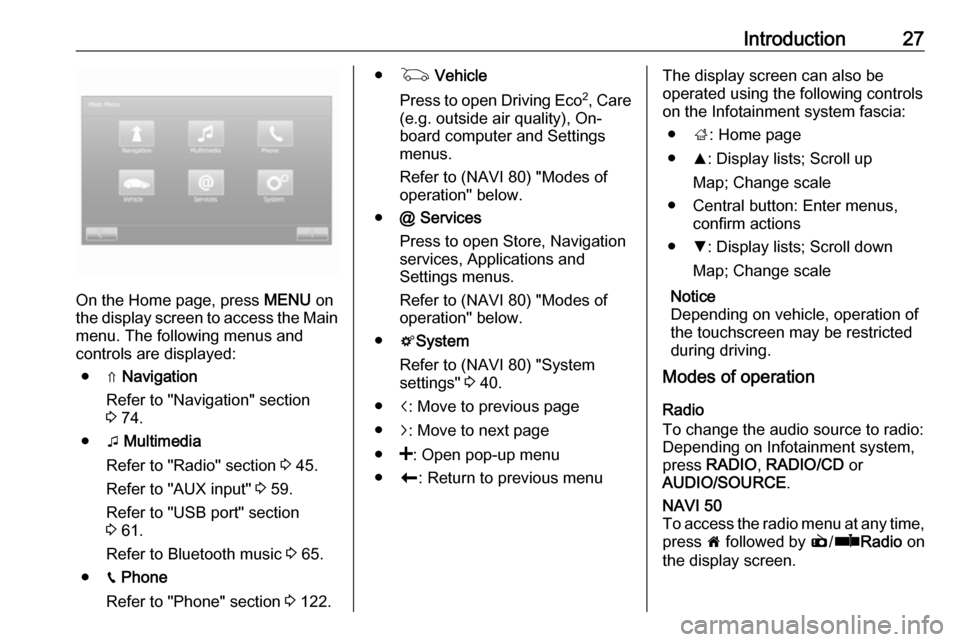
On the Home page, press MENU on
the display screen to access the Main
menu. The following menus and
controls are displayed:
● ⇑ Navigation
Refer to "Navigation" section
3 74.
● t Multimedia
Refer to "Radio" section 3 45.
Refer to "AUX input" 3 59.
Refer to "USB port" section
3 61.
Refer to Bluetooth music 3 65.
● g Phone
Refer to "Phone" section 3 122.
● G Vehicle
Press to open Driving Eco 2
, Care
(e.g. outside air quality), On- board computer and Settings
menus.
Refer to (NAVI 80) "Modes of operation" below.
● @ Services
Press to open Store, Navigation
services, Applications and
Settings menus.
Refer to (NAVI 80) "Modes of
operation" below.
● tSystem
Refer to (NAVI 80) "System
settings" 3 40.
● i: Move to previous page
● j: Move to next page
● <: Open pop-up menu
● r: Return to previous menuThe display screen can also be
operated using the following controls on the Infotainment system fascia:
● ;: Home page
● R: Display lists; Scroll up
Map; Change scale
● Central button: Enter menus, confirm actions
● S: Display lists; Scroll down
Map; Change scale
Notice
Depending on vehicle, operation of
the touchscreen may be restricted
during driving.
Modes of operation
Radio
To change the audio source to radio:
Depending on Infotainment system, press RADIO , RADIO/CD or
AUDIO/SOURCE .NAVI 50
To access the radio menu at any time, press 7 followed by è/ñ Radio on
the display screen.
Page 28 of 147

28IntroductionNAVI 80
To access the radio menu from the Home page, press MENU then
Multimedia followed by Radio on the
display screen
Detailed description of the radio
functions 3 45.
Audio players
To change the audio source to CD,
USB , AUX , Bluetooth or iPod (where
applicable): Depending on
Infotainment system, press MEDIA,
RADIO/CD or AUDIO/SOURCE .
NAVI 50 : To access the menu for
connected auxiliary devices ( USB,
iPod , BT (Bluetooth) or AUX) at any
time, press 7 followed by t/
ü Media on the display screen. Press
S in top left corner and select
auxiliary source.
For Aha Ⓡ application (available
depending on version), refer to
"Additional features (NAVI 50)"
below.
NAVI 80 : To access the menu for
auxiliary devices (USB, SD card, AUX
input, Audio CD, Bluetooth) from the
Home page, press MENU thenMultimedia followed by Media on the
display screen. Select auxiliary
source from the display list.R15 BT USB, R16 BT USB
Detailed descriptions of:
● AUX input functions 3 59
● USB port functions 3 61
● Bluetooth music operation 3 65CD16 BT USB, CD18 BT USB
Detailed descriptions of:
● CD player functions 3 56
● AUX input functions 3 59
● USB port functions 3 61
● Bluetooth music operation 3 65CD35 BT USB
Detailed descriptions of:
● CD player functions 3 56
● AUX input functions 3 59
● USB port functions 3 61
● Bluetooth music operation 3 65NAVI 50
Detailed descriptions of:
● AUX input functions 3 59
● USB port (including iPod) functions 3 61
● Bluetooth music operation 3 65NAVI 80
Detailed descriptions of:
● AUX input functions 3 59
● USB port functions 3 61
● Bluetooth music operation 3 65
Navigation, Map
(CD35 BT USB NAVI, NAVI 50,
NAVI 80)
Detailed description of the Navigation system 3 74, Browse map 3 106.
Phone
Use the display options in the
following menus to connect mobile
phones, make telephone calls, create
contacts lists and adjust various
settings.
Detailed description of the handsfree
phone system functions 3 122.
Page 32 of 147

32Introductiona list of email addresses and press
ë alongside the required email
address.Navigation services
In addition to the free navigation
services (e.g. traffic information, fixed
speed cameras), extra features can be added by subscribing to paid LIVE services.
Refer to (NAVI 80) "LIVE services" in
the "Navigation" section 3 78.Settings
The following menus are displayed:
● Applications manager
Select to delete application data,
uninstall applications and view
the "about", "system usage" and
"confidentiality" information.
To delete content, select the
application then press < followed
by Delete application or Delete
application data .
● Connectivity manager
Select to manage Bluetooth
auxiliary devices.● Navigation services
Select to access navigation
related features, e.g. traffic,
speed cameras, local search,
My TomTom LIVE, weather.
Refer to (NAVI 80) "LIVE
services" in the "Navigation" section 3 78.
● Update applications
Select to search for updates to
downloaded applications.
● Data sharing settings
Select to switch data sharing on/
off.
Notice
When data sharing is switched off, certain applications may not operate
correctly.
● Activate/deactivate Bluetooth
Select to switch Bluetooth on/off.
A confirmation message is
displayed.Applications
Icons for various applications,
services and other content
downloaded to the Infotainmentsystem are displayed. Select the
appropriate icon to start the
application.
Some applications are free to use
during the initial trial period. Renew
subscriptions via the Store.
Favourites (NAVI 80)
When the Home page is displayed, press f to view, add or delete
favourites for the following features:
● ⇑ Navigation 3 74.
● t Multimedia - refer to "Radio"
3 45.
● g Phone 3 122.
● @ Services 3 78.Navigation favourites
Select an empty slot in the display or
press < (to open a pop-up menu),
then select Add Favourite .
Choose from the displayed list to add a saved destination to the favourites.
For further information, refer to
(NAVI 80) "Destination input" in the
"Navigation" section 3 97.
Page 33 of 147
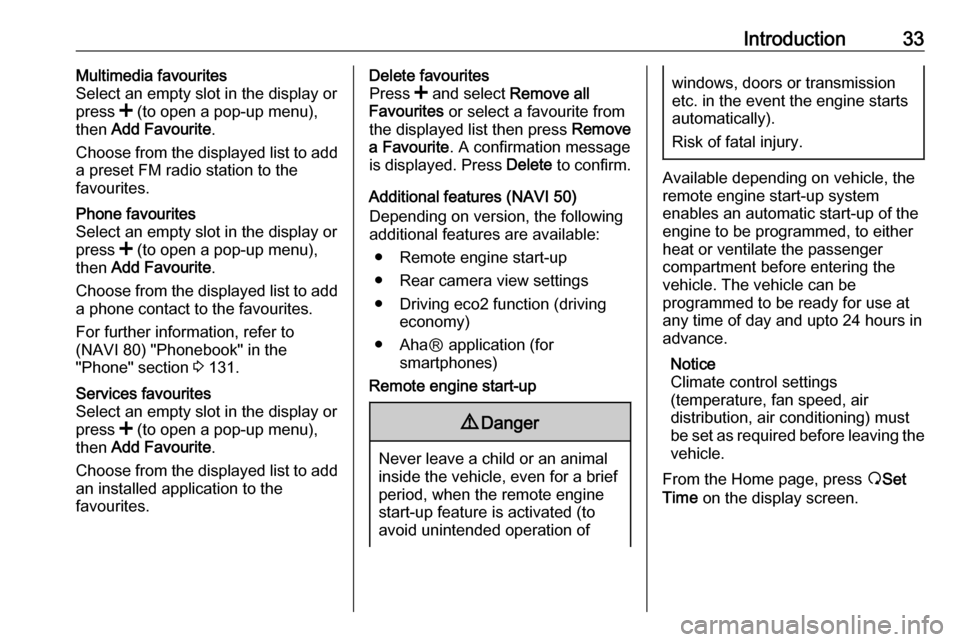
Introduction33Multimedia favourites
Select an empty slot in the display or
press < (to open a pop-up menu),
then Add Favourite .
Choose from the displayed list to add
a preset FM radio station to the
favourites.Phone favourites
Select an empty slot in the display or
press < (to open a pop-up menu),
then Add Favourite .
Choose from the displayed list to add a phone contact to the favourites.
For further information, refer to
(NAVI 80) "Phonebook" in the
"Phone" section 3 131.Services favourites
Select an empty slot in the display or
press < (to open a pop-up menu),
then Add Favourite .
Choose from the displayed list to add an installed application to the
favourites.Delete favourites
Press < and select Remove all
Favourites or select a favourite from
the displayed list then press Remove
a Favourite . A confirmation message
is displayed. Press Delete to confirm.
Additional features (NAVI 50)
Depending on version, the following
additional features are available:
● Remote engine start-up
● Rear camera view settings
● Driving eco2 function (driving economy)
● AhaⓇ application (for smartphones)Remote engine start-up9Danger
Never leave a child or an animal
inside the vehicle, even for a brief
period, when the remote engine
start-up feature is activated (to
avoid unintended operation of
windows, doors or transmission
etc. in the event the engine starts
automatically).
Risk of fatal injury.
Available depending on vehicle, the
remote engine start-up system
enables an automatic start-up of the
engine to be programmed, to either
heat or ventilate the passenger
compartment before entering the
vehicle. The vehicle can be
programmed to be ready for use at
any time of day and upto 24 hours in
advance.
Notice
Climate control settings
(temperature, fan speed, air
distribution, air conditioning) must be set as required before leaving the vehicle.
From the Home page, press ßSet
Time on the display screen.
Page 35 of 147
![VAUXHALL MOVANO_B 2016 Infotainment system Introduction35The following settings can be
updated:
● Switch the rear camera view display Off/On .
● Colours
Press ]/< to adjust level.
● Brightness
Press ]/< to adjust level.
● Contrast](/img/38/19556/w960_19556-34.png "VAUXHALL MOVANO_B 2016 Infotainment system Introduction35The following settings can be
updated:
● Switch the rear camera view display Off/On .
● Colours
Press ]/< to adjust level.
● Brightness
Press ]/< to adjust level.
● Contrast")
Introduction35The following settings can be
updated:
● Switch the rear camera view display Off/On .
● Colours
Press ]/< to adjust level.
● Brightness
Press ]/< to adjust level.
● Contrast
Press ]/< to adjust level.
For further information, refer to "Rear
view camera" section in the vehicle
Owner's Manual.Driving eco2 function (driving
economy)
Driving eco2 provides statistical
information and advice regarding
driving economy.
From the Home page, press Vehicle
then select ðDriving eco2 on the
display screen.
Notice
Depending on version,
Driving eco2 may appear instead on
the Home page.The following menus are displayed:
● Trip report
● Eco scoring
● Eco coaching
Trip report displays data from the last
journey, including "Average
consumption", "Total consumption",
"Average Speed" and "Dist. without
consumption". Data can be reset by
pressing Û.
Eco scoring provides an overall score
out of 100 for driving economy.
Higher figures indicate better driving
economy. Star ratings are also given
for average environmental driving
performance (Acceleration),
gearchanging efficiency (Gearbox)
and brake control (Anticipation).
Eco coaching provides an
assessment of your driving style and
displays advice for optimising fuel
consumption.Aha Ⓡ application
The AhaⓇ app enables you to
organise favourite smartphone
internet content (e.g. podcasts, audio books, internet radio, social network
sites etc.) and access favouritesinstantly. AhaⓇ can also be used
during navigation, to suggest e.g.
hotels and restaurants in the vicinity,
and provide weather information and
current GPS position.
AhaⓇ must first be downloaded onto
your smartphone. Launch the app on
your smartphone and create a user
account to enable use via the
Infotainment system.
To connect to AhaⓇ via the
Infotainment system, a bluetooth
connection must be set up between
the smartphone and the Infotainment
system, i.e. the device must be paired
to the vehicle before using it. Refer to
"Bluetooth connection" in the "Phone" section 3 127 for further information.
Notice
Data sharing and location services
must be enabled on the smartphone to use the AhaⓇ app. During use,
data transfer may incur additional
costs not included in the contract
with your network provider.
When a bluetooth connection is
active, AhaⓇ can be accessed via
the Infotainment system. From the Home page, press üMedia on the
Page 41 of 147

Introduction41●AC Info (On/Off)
Available depending on version. Switch on/off the display of air
conditioning information during
adjustment of settings (available
depending on vehicle).
● Background (Dark/Light)
Available depending on version.
Switch between a dark or light
display mode (available
depending on vehicle).Bluetooth
Select Bluetooth to display the
following options:
● View Bluetooth device list
● Search for Bluetooth device
● External device authorisation
● Change passkey (for pairing of
Bluetooth devices with the
Infotainment system)
● Smartphone
Available depending on version. For help with activating and
operating voice controls - refer to
"Voice recognition" 3 118.For further information on Bluetooth
settings, refer to (NAVI 50) "Bluetooth
music" 3 65 and "Bluetooth
connection" in the "Phone" section 3 127.System
Select System to display the following
options:
● Language
Change display language and
voice instruction language for
Navigation system. Press OK to
confirm selection.
● Clock/units
The following settings can be
changed:
● Time Format (12h/24h)
● Units (km/mls)
● Time Setting
Press l to open the Time
set submenu containing the
following options:
Auto /Manual
If Auto time setting is
selected, the time is set
automatically by GPS.If Manual time setting is
selected, adjust as appropriate.
Notice
Navigation maps for the current country must be installed on the
system to ensure the local time is
correct.
● Factory settings
The following settings can be
reset to the factory default:
● All
● Phone
● Navigation
● Audio-Media-Radio-System
● Navigation (On/Off)
● System version (displays
Infotainment system software
version number)
When system setting adjustments
have been made, press 7 (and select
another menu on the display) to exit
the settings menu and save changes. The system also saves and exits
automatically after a delay.