key VOLKSWAGEN GOLF 2012 Owners Manual
[x] Cancel search | Manufacturer: VOLKSWAGEN, Model Year: 2012, Model line: GOLF, Model: VOLKSWAGEN GOLF 2012Pages: 516, PDF Size: 105.12 MB
Page 29 of 516
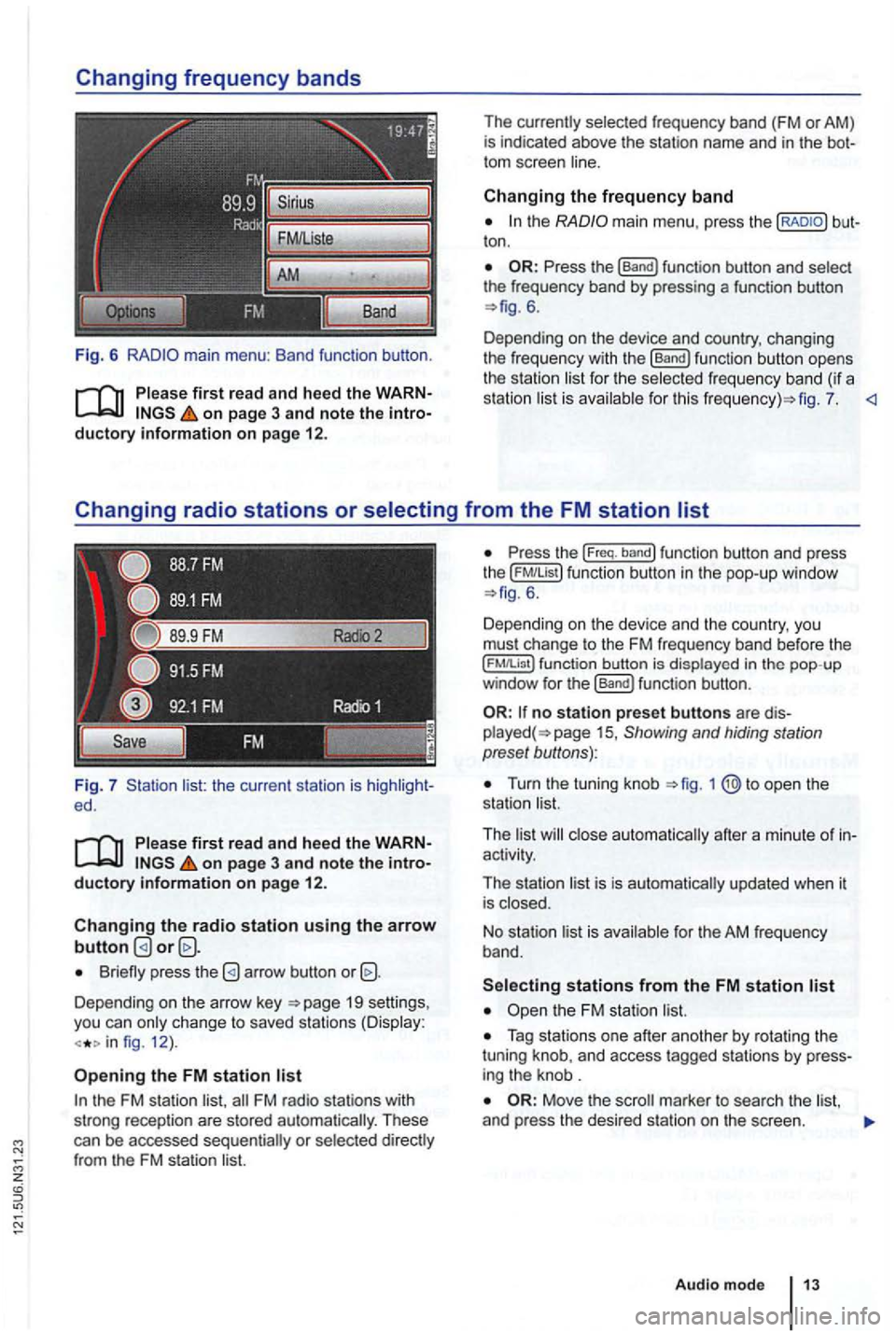
Fig. 6
Please first re ad and heed the WARNon p age 3 and note the introductory information o n p age 12.
Fig. 7 list: the current station is ed.
Please first read and hee d the WARNon pag e 3 and note the introductory information o n p ag e 12.
Changing the radio station u sing the arrow button
Briefly press the
Depending on the arrow key 19 settings,
you can only c hange to saved stations (Display:
fig. 12 ).
Opening the FM station list
the FM station list,
ton .
6.
Depending on the device and country, changing
the freque ncy with the
[Band) function button opens
the station li st for the selected fr eque ncy band (if a
station list is ava ilab le for th is fig . 7.
the ( FM!List ) function button in the pop- up window 6 .
Depending on th e device and the country, you
must change to the FM frequency band before the
function button is displayed in the pop-up
window for the (Band) funct ion button .
no station preset butto ns are 15 , Showing and hiding station
preset buttons):
Turn the tuning knob
activity.
The station list is is automatically updated when it
is closed.
No stat ion list is available for the AM frequen
cy band.
Tag stations one after another by rotating the
tuning knob, and access tagged stations by
Move the
Audio m ode
Page 35 of 516
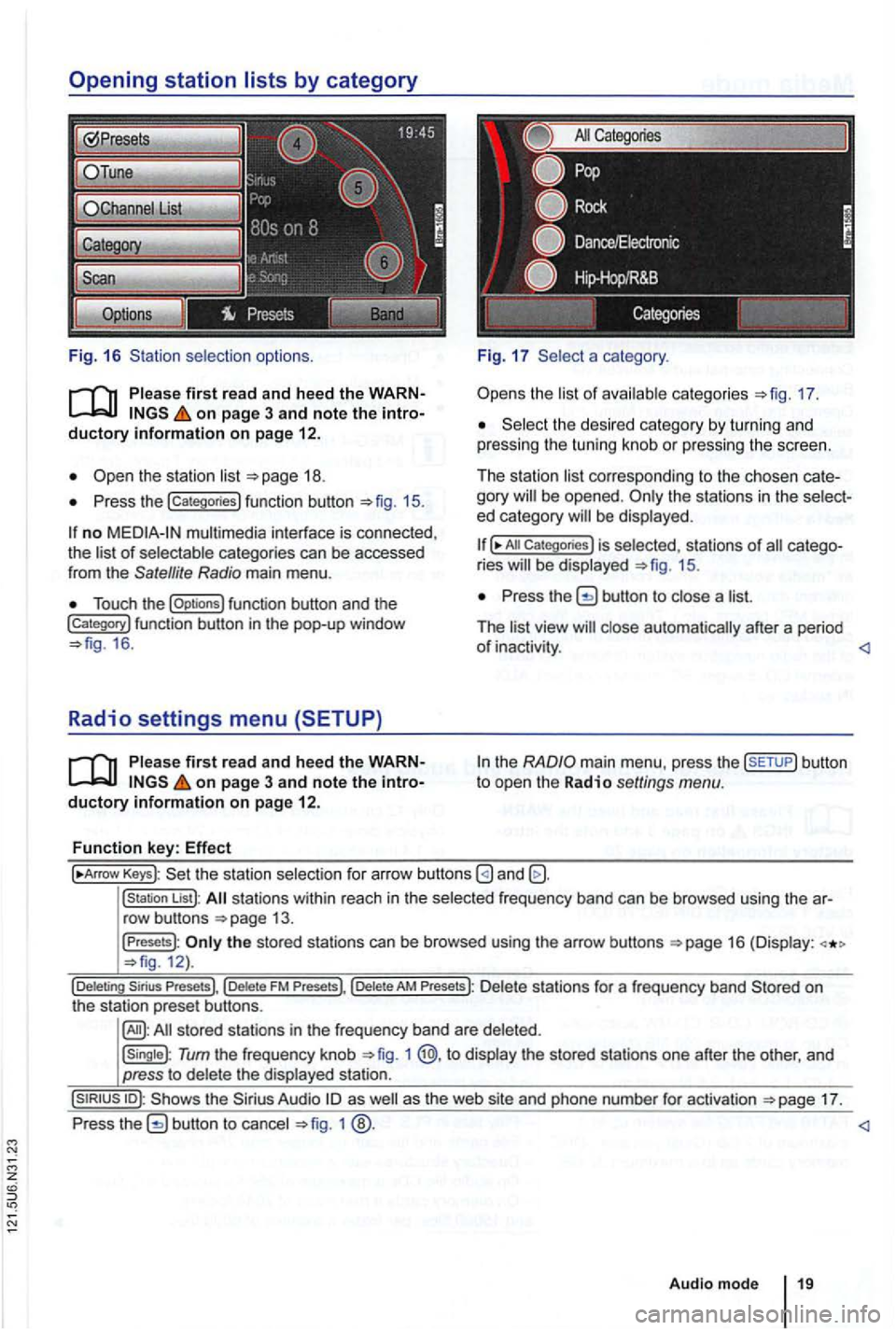
Fig. 16 selection options.
on page 3 and note the
Press the !categories) function button 15.
no multimedia interface is connected,
the of categories can be accessed
from the Satellite Radio main menu .
Touch the !Options) function button and the !Category) function button in th e pop-up window 16 .
Radio settings menu (SETUP)
on page 3 and note the
a category .
the 17.
the desi red category by turn in g and
pressing the tuning knob or pressing the screen.
The station
corre sponding to the chosen be opened . ed category
All Categories) is selected, stat ions of ries 15.
Press the button to a
The
the
Keys): the statio n selectio n for arrow buttons
!station List): stations within reach in the frequ ency band can be browsed using the
the stored stations can be browsed using the arrow buttons 12).
Tum the frequency knob 1 @,to the stored stations one after the other, and
press to
17.
Press
1
Audio mode
Page 36 of 516
Media mode
. . . . . . . . . . . . . . . . . . . . . . . . . . . . . . . . . . .
sequence of and directo ries . . 21
. . . . . . . . . . . . . . . . . 22
input . . . . 24
Connecting
. . . . . . . . . . . . . . . . . . . . . . . . . . . . . 24 th e Media Menu and a media source . . . . . . . . . . . . . . . . . 26
mode ([Extras) funct ion key) . . . . . . . . . . . . . . . . . . . . . . . . . . . . 28
Media settings . . . . . . . . . . . . . 28
the text, au dio sources are referred to as "media sources" which contain audio on
d ifferent data media memory cards, MP 3 etc.). These audio
memory card socket, etc .) .
the the A co ntaining
such audio is referred to as an "aud io data
More information:
instruc tions
D evice overview
Operation basics 8
changer 34
MPEG-4 and patents are
This product is protected by specific rights and copy rights of Microsoft outside
o f these products without a from Microsoft or an autho rized Microsoft subsidiary is prohibited.
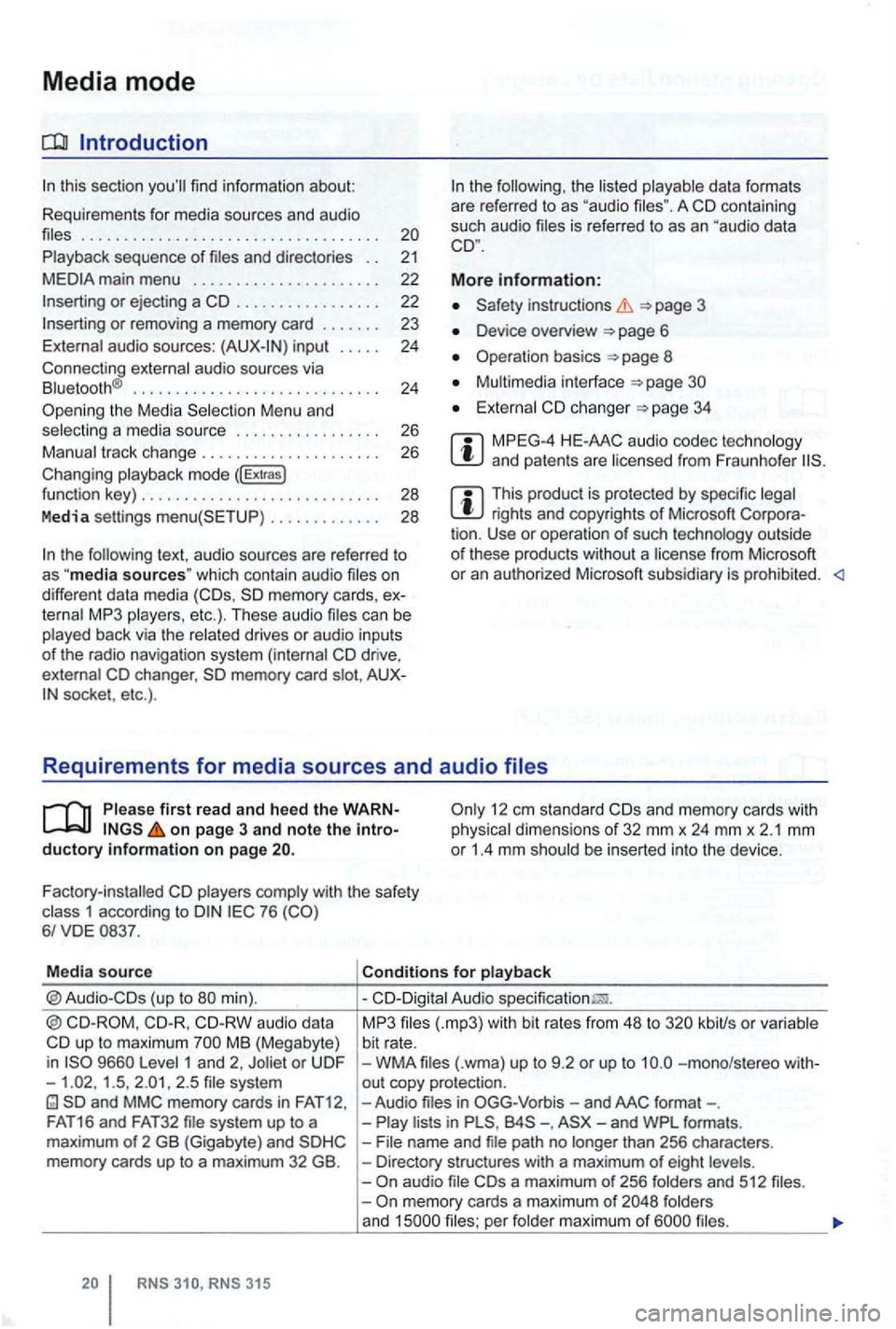
first r ead and heed the on page 3 and note the 12 em stan dard and memory cards with dimensions of 32 mm x 24 mm x 2.1 mm or 1.4 mm be inserted into the device .
Factory-installed
with the safety 1 according to 76
Media source
aud io data up to maximum MB (Megabyte)
i n 1 and 2, 1.5 , 2 .5
MP3 kbiUs or bit rate. WMA -mono/s tereo out copy protecti on. -Audio -. than 256 charac ters. Directory stru ctures with a maximum of eight and 512 memory cards a maximum of and per
Page 38 of 516
on page 3 and note the introductory information on page
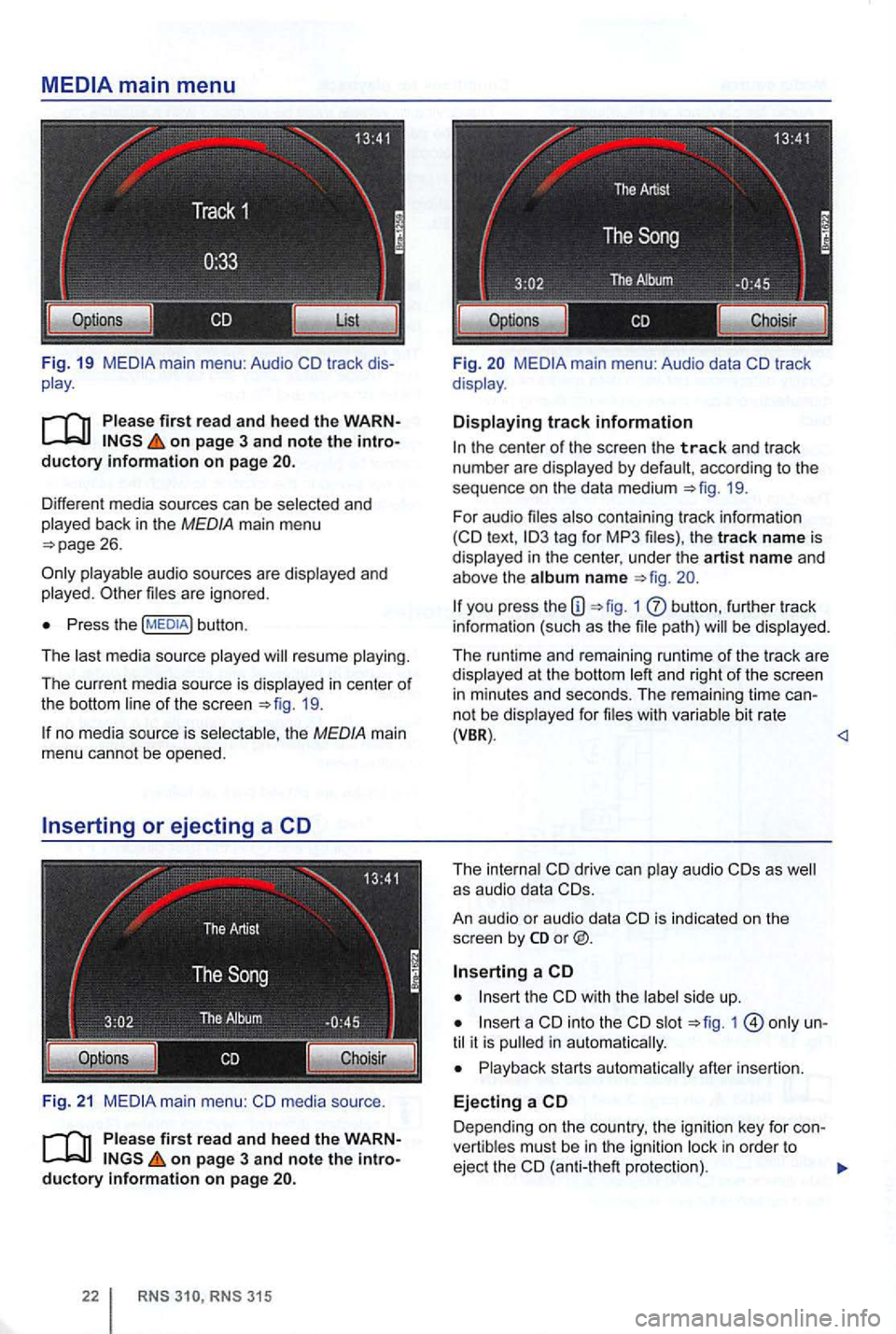
Different media sources can be selected and
played back in the MEDIA main menu
playable audio sources are d isplayed and
played . files are igno red.
Press the button .
The last med ia source played will resume playing .
The current med ia source is displayed
in center of
the bottom line of the screen 19.
no med ia sou rce is selec table, the MEDIA main
menu cannot be opened.
F
ig. 21 media source .
on page 3 and note the introductory information on page
315
Fi g. main menu: Audio data
the center of the screen the track and trac k
numbe r are d isplayed by defau lt , acc ording to the
sequence on
the da ta medium 19.
For audio files also conta in ing tr ack information text ,
you press the 1 butt on , furth er track
info rma tion (such as the file path) will be dis played .
The runtime and rema ining runtime of the track a
re displayed at t he bottom left and right of the screen in m inutes and seco nds. The rema ining tim e ca nnot be disp layed fo r file s w it h va riabl e bit rate (VBR) .
An au dio
or audio data
the
int o the slot 1 until it is pull ed in a utomatica lly.
Playback starts automatica lly after insertion.
Ejecting a
Depend ing on the country , the ign ition key for con
vert ib les mus t be in the igniti on l ock in order to
ejec t the (anti-the ft protectio n).
Page 41 of 516
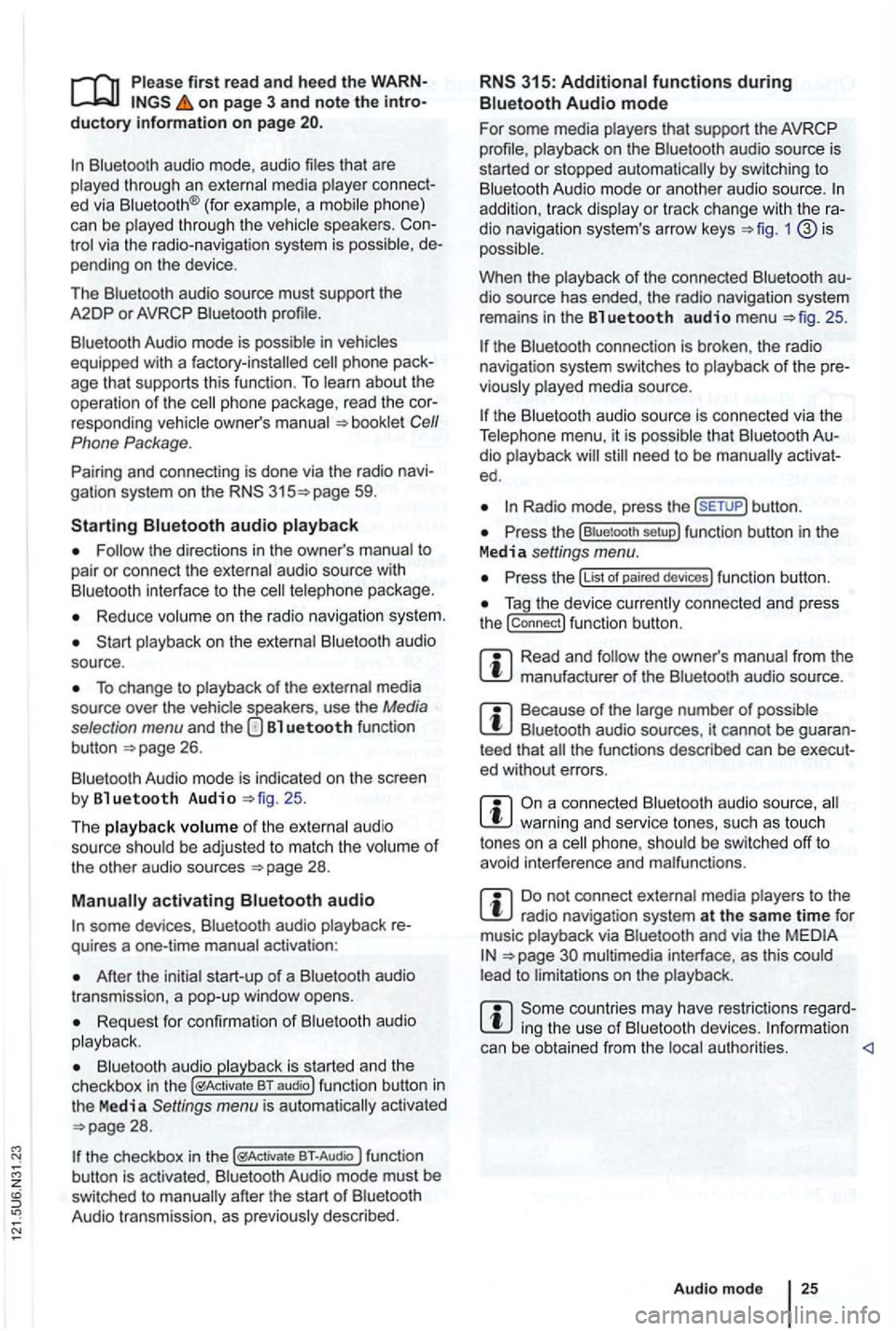
first read and heed the on page 3 and note the ductory information on page
through an ed via (for a phone)
can be through the speakers. via the radio-navigation system is
audio source must support the
A2DP or AVRCP
in equipped with a factory -installed phone age that supports this function . To
responding owner's Cell
Phone Package.
Pairing and connec ting is done via the radio
audio
the directions in the owner 's
Redu ce
To change to
Bl uetooth function
button 26.
Aud io mode is indicated on the screen
by Bl uetooth Audio 25 .
The
o f t he be adjusted to match the of the other audio sources
activating audio
some devices ,
After the audio
transmission , a pop-up window opens.
Request fo r confir mation of aud io
BT-Audio Audio mode must be
swi tched to
Audio transmission, as
audio source is
started or s topped automatically by switc hing to
addition , track dio navigation system 's arrow keys 1
25.
the connection is broken . the radio
navigation system switches to
media source.
th e that dio ed .
Radio mode, press the sETUP) button .
Press the
Press the
Tag the device connected and press
the connect) funct ion butt on.
Read and manufacturer of the
Because of the number of audio sources , it canno t be teed that
audio source, warning and service tones, suc h as touch
tones on a
Do not connect radio nav igation system at the same time for
music
interface , as this to on the
ing the use of can be obtained from the
Page 50 of 516
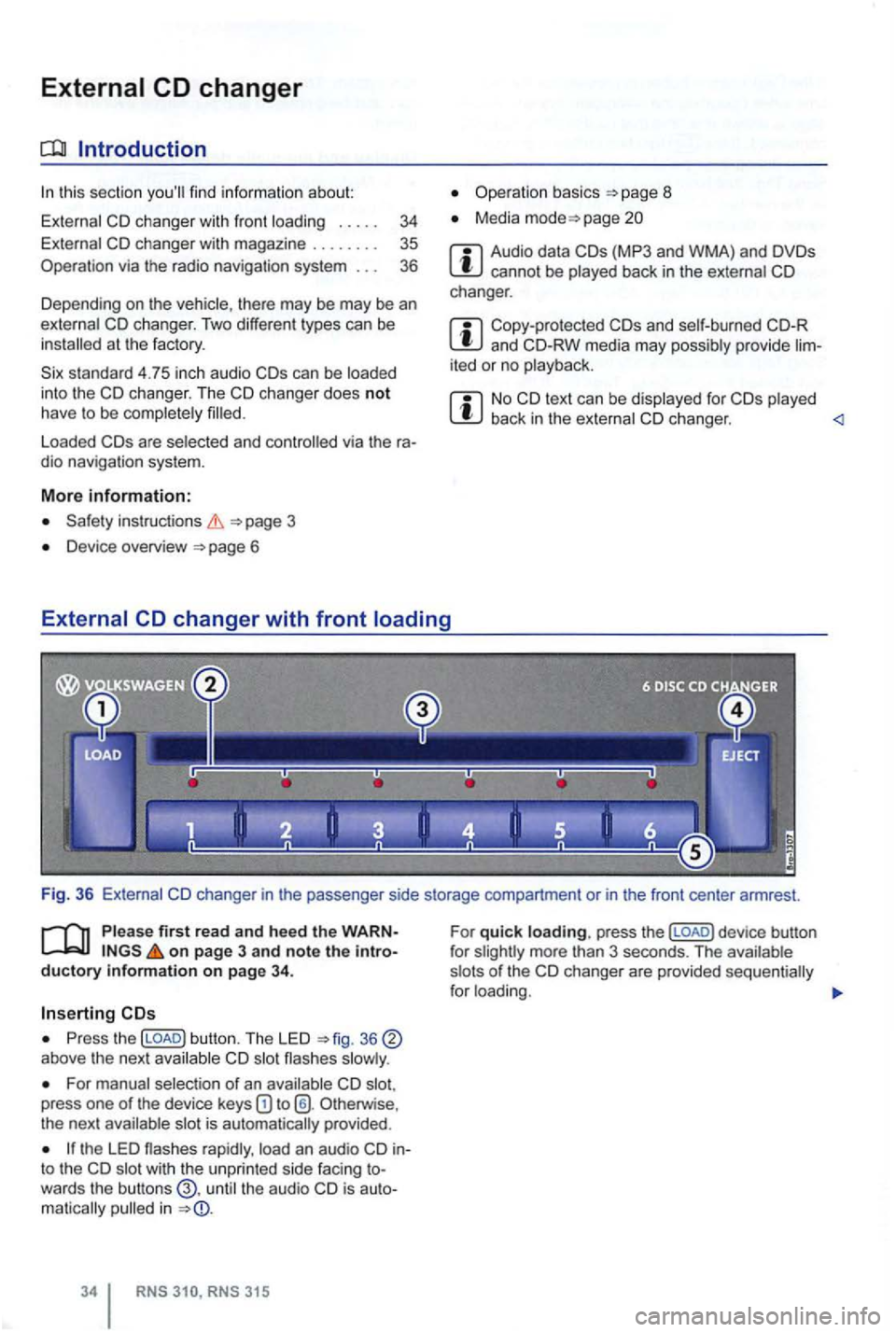
External
this section find inform ation about:
External
at the factory .
standard 4.75 in ch audio
Loaded via the ra
dio naviga tion system.
More information:
page 3
Device overview 6
Operation basics
Media page
Audio data cannot be played back in the external changer.
Copy-protected and CD-RW media may possibly provide lim
ited or no playback.
No back in the external changer .
Please firs t read and hee d the WARNon page 3 and note the introductory infonmation on pag e 34 .
Press the (LOAD) button. The LED above the next
For manual selection of an press one of the device keys Otherw ise ,
the next
the LED rapidly , into the wit h t he un pr inted side facing towards the butt ons the audio in
315
For quick loading. press the (LOAD) d evice button
f or
Page 53 of 516
Navigation
Introduction to navigation
Introduction
find infor ma tion about:
Navigation limitations . . . . . . . . . . . . . . . . . . . .
37
315: Using or
screens with on-screen keyboard
Gener a l information
The current driving posit ion is determined via the Positioning measu re d istances driven. men t gation data media maps and in accordance with
stored traffic routing. Based on this data , the
gation system
can be entered as a destinat ion.
Acoustic navigation messages and graphic
on the navigation system and in the instrument gu ide to t h e des tination 5 1.
Depending upon the country, some functions
of the
radio naviga tion system may not be
regulations.
Navigation limitations
first r ea d and heed the o n pa ge 3 and note th e ductory informatio n on page 37.
P
ossi b le navigation erro rs
the navigation system cannot receive data from
tized on lhe data medium (e.g. one-way streets
and street type not sufficiently cap tured) , the gation syst em route guidance.
Navigation da ta
different device generations are used in
contact a
necessary navigation data comes this data needs to be
updated , a memory card with the navigat ion
Device overview
Operation basics
Destination input
Destination memory 4 7
Destination guidance 51
the case of missing or incompl ete navigation ta, the posi tion may not be determined curalely. This may in naviga tion that is not as
accurate as
Navigatio n r egion and navigatio n d ata
r efresh r ate
The refore, route guidance can be inaccurate or
Page 55 of 516
Function key: Effect
the navigation
area and the version number of the navigation data stored in the device .
the navigation
a rea and the version number of the navigation data stored in the device.
so Datal:
Prepares the memory card for re
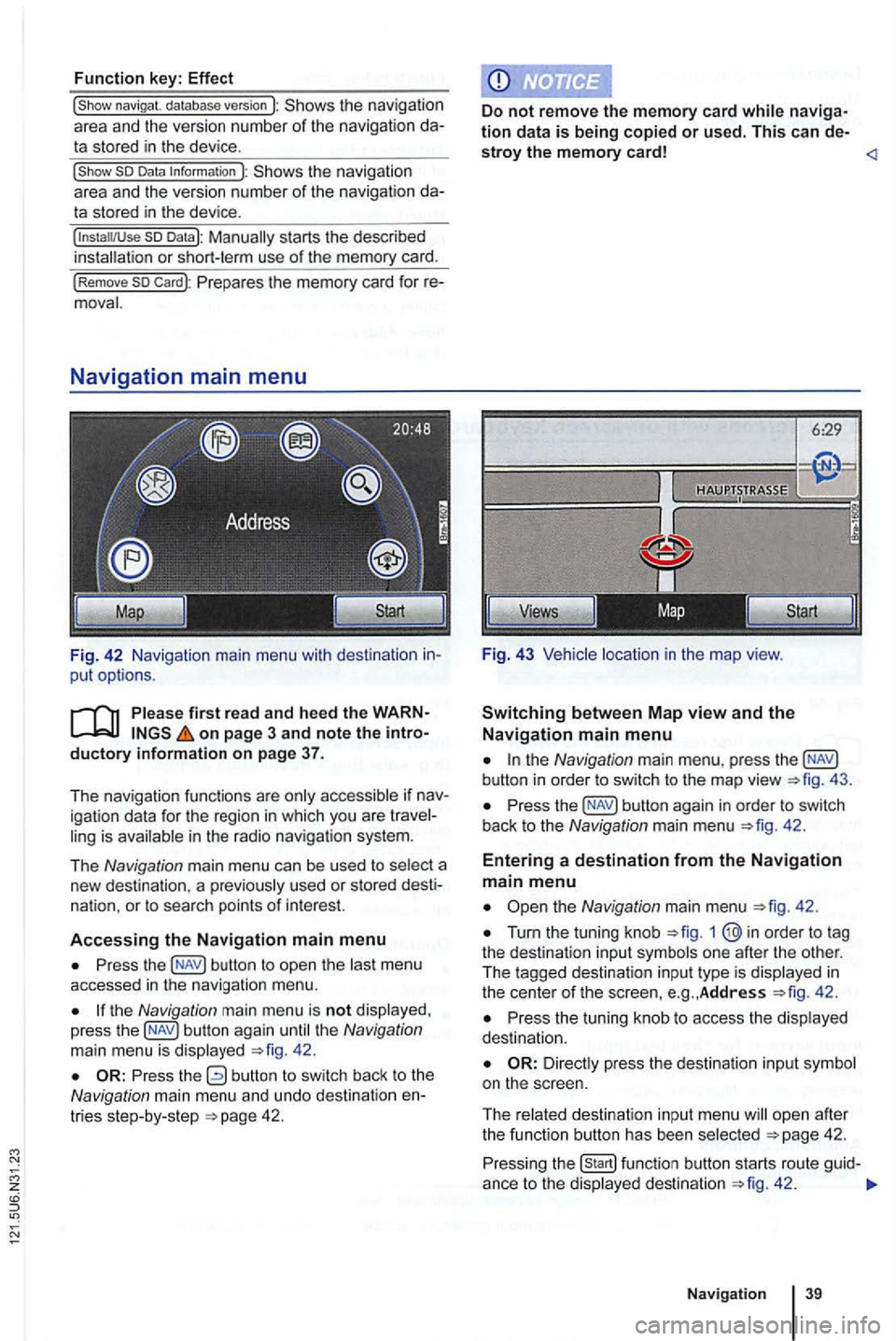
F ig. 42 Navigation main menu with destination in
put options.
on page 3 and note the introductory i nformation on page 37.
T he nav igation functions are only accessible if nav
igation data for the region in which you are travel
ling is available in the radio navigation system.
The
N avig ation main menu can be used to select a
new destina tion . a pr eviously used or stored desti
nat ion.
or to sea rch points of interest.
A
ccessing the Navigation main menu
Press the button to op en the las t menu
accessed in the navigation menu.
the Navigation main menu is not disp layed ,
press the 42.
the Navigation main menu , press the
Press the 42.
Entering a destination from the Navigation main menu
Turn the tuning knob 1
42 .
Press the tuning knob to access the disp layed
dest inatio n.
ope n afte r
t h e function butt on has been select ed 42.
Press ing the 42 .
Naviga tion
Page 56 of 516
Destination input options
Meaning of the symbo ls in the Navigation main
menu (left to right):
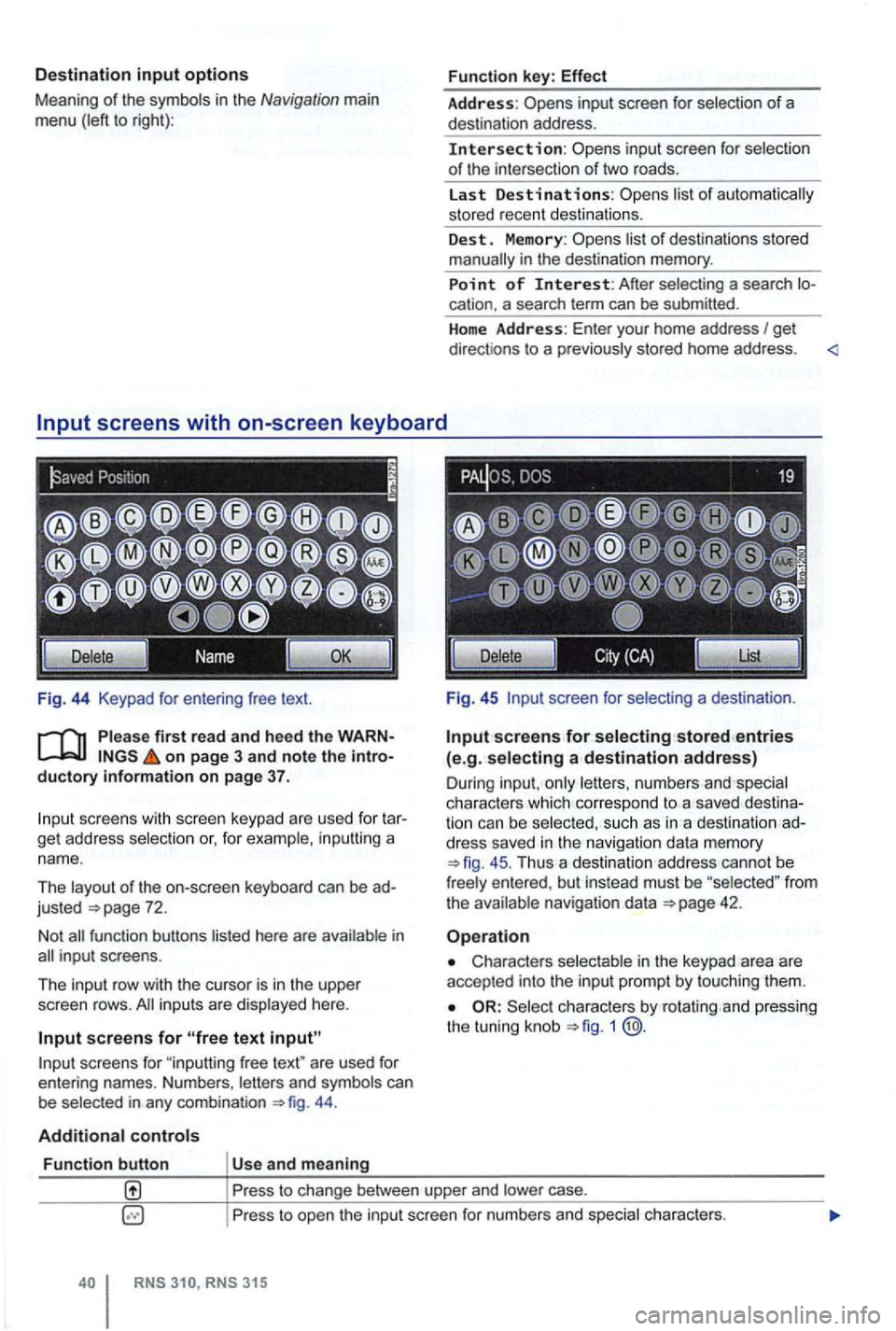
Fig . 44 Keypad
on page 3 and note the introductory information on page 37.
scree ns with scree n keypad are use d fo r t ar
get address selection or, for example , in puttin g a
nam e.
Th e layout of the on-screen keyboard
can be ad
justed
44 .
Additional controls
Function button Us e and meaning Function
key:
Effect
Address: inp ut screen for selection of a
des tination address .
Intersection: selectio n
o f the inte rsection of tw o road s.
La st
Destinations:
list o f destinations sto red
manually in the destination memory.
Point of Interest: A fter sele cting a sea rch location. a search term can be submitted .
H
ome Address: Enter your home address I get
direct ions to a p rev ious ly stored home address . <
Fig . 45 screen for selecting a dest inatio n.
Input screens for selecting stored entries (e.g. selecting a destination address)
Dur ing inpu t, on ly lett ers , n umbers and spec ia l
c h arac ters which co rre spond to a sav ed dest ination can b e selec ted, s uch as in a des tinati on ad
dress saved in the navigation data mem ory
45 . Thu s a de stination address cannot be
fr ee ly e ntered , bu t in stead must be "selected " fro m the ava ilable navigat ion data
Characters selectable in the keypad area are
accepted into the inpu t pro mpt by to uching them .
Select ch arac ters by rota ting and pressing
the tunin g knob 1 @.
Pr ess to change between upper and lower case.
P ress to ope n the input screen for numbers a
nd special ch arac ters.
RNS
Page 60 of 516
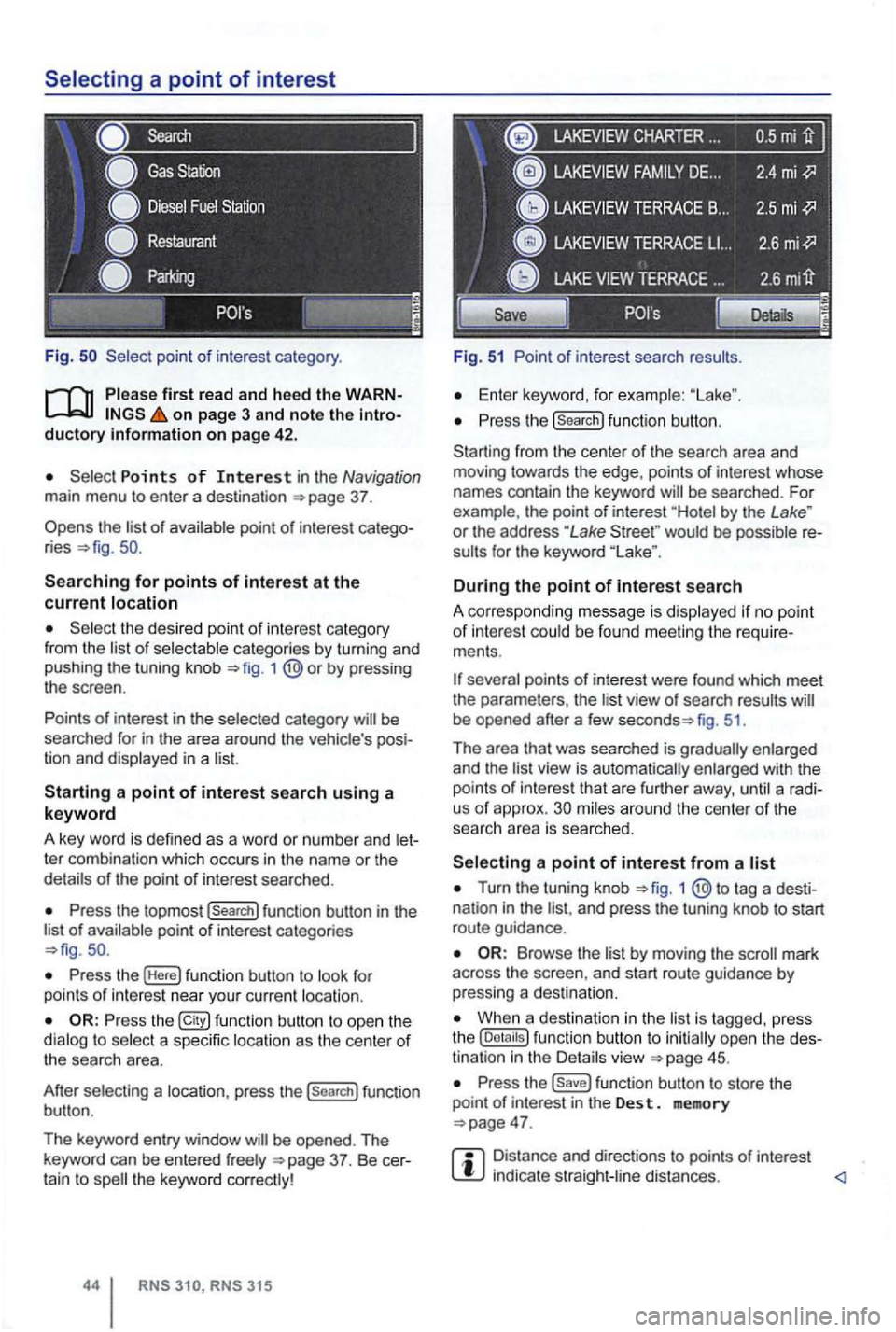
Fig .
on page 3 and note the introductory on pag e 42 .
Points of Interest in the Navigation main menu to enter a destination
Searching for points of interest at the current location
the desired point of interest category
from the list of selectable categories by turning and
pushing the tuning knob 1
Press the topmost (Search] function button in the
list of availab le point of interest categories
Press the (Here] function button to look for
points of int erest near your current location.
Press the function button to ope n the
dialog to select a specific location as the center of the searc h area.
After selecting a location, press the
(search] function
button .
The keyword entry window
CHARTER ...
Fig. 51 Point of interest search results.
Enter keyword, for examp le:
Press the (search] function button.
Starting from the center
of the search area and
moving towards the edge , points of interest whose
names contain the keyword
by the Lake " or the address "Lake would be possible re
sults for the keyword
During the point of interest search
A correspo nding message is disp layed if no point of interest could be found meeting the require
ments .
fig. 51.
Th e area that was searched is gradually enlarged
and the
view is automatically enlarged with the
points of int erest that are further away, until a radi
us of approx. mi les around the center of the
searc h area is searched.
Turn the tuning knob 1 tag a desti
nation in the and press the tuning knob to start
route guidance .
by moving the mark
across the screen , and start route guidance by pressing a destina tion.
When a destination in the is tagg ed , press
the
Press the function button to store the
point of in terest in the Des t. memory
Distance and directions to points of interest indica te straight -line distances.