starting VOLKSWAGEN GOLF 2012 Owners Manual
[x] Cancel search | Manufacturer: VOLKSWAGEN, Model Year: 2012, Model line: GOLF, Model: VOLKSWAGEN GOLF 2012Pages: 516, PDF Size: 105.12 MB
Page 34 of 516
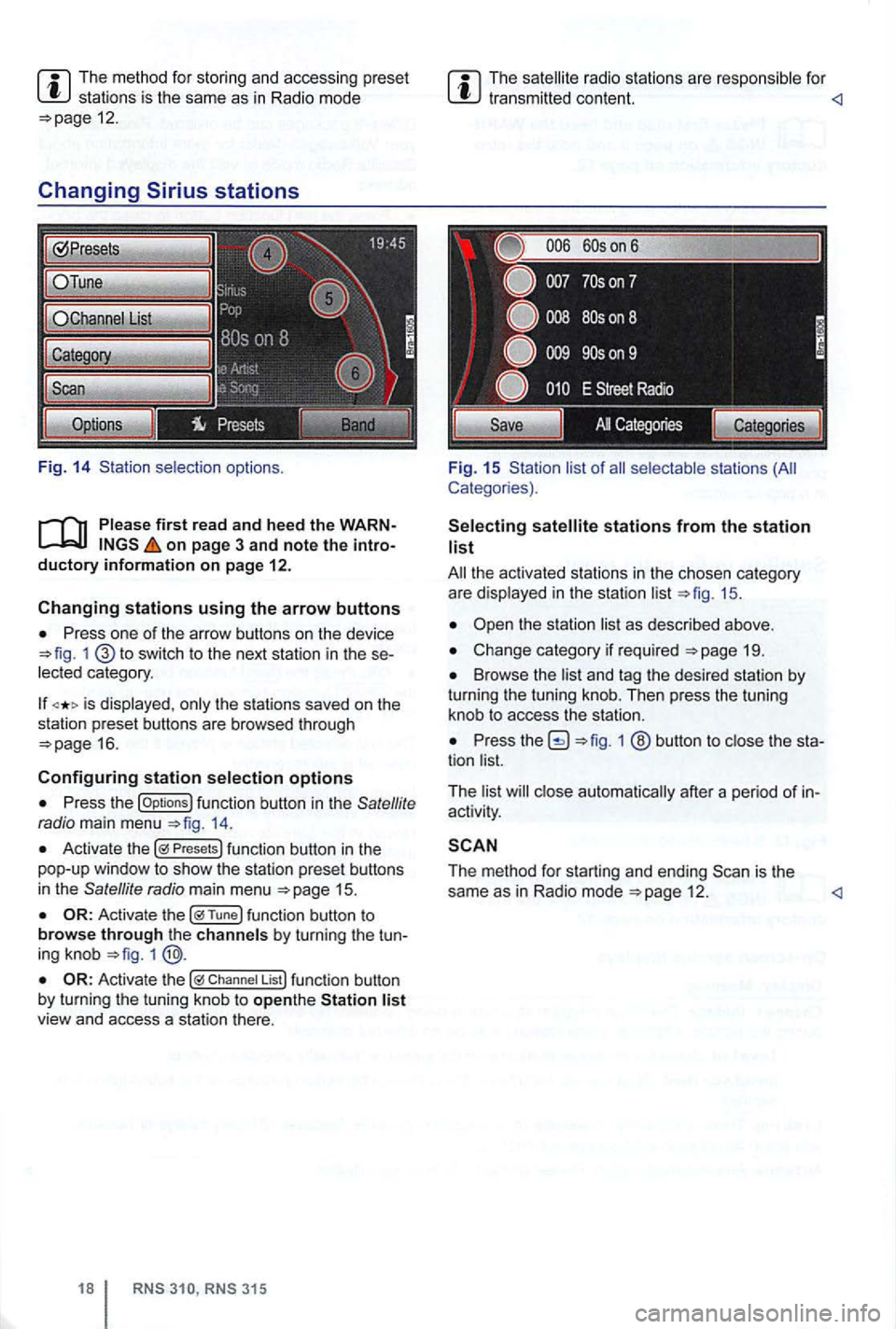
The method for stor ing and accessing preset stations is the same as in Radi o mode 12.
Changing
on page 3 and note the introductory information on page 12.
Changing stations using the arrow buttons
Press one of the arrow buttons on the device 1 switch to the next station in the se
lected category .
is displayed , only the stations saved on the
station preset buttons are browsed through
16.
Configuring station selection options
Press the options 14.
Activate the Presets
1
Chan nel List
315
The radio stations are respo nsible for
Fig. 15 Sta tion list of
stations from the station list
19.
Browse the list and tag the desired station by turning the tuning knob. Then press the tuning
knob to access the station.
Press 1 ® button to close the sta
tion list.
T he list
close automat ically after a pe riod of in
activity .
The method for starting and ending 12 .
Page 59 of 516
Press view of the destination 45.
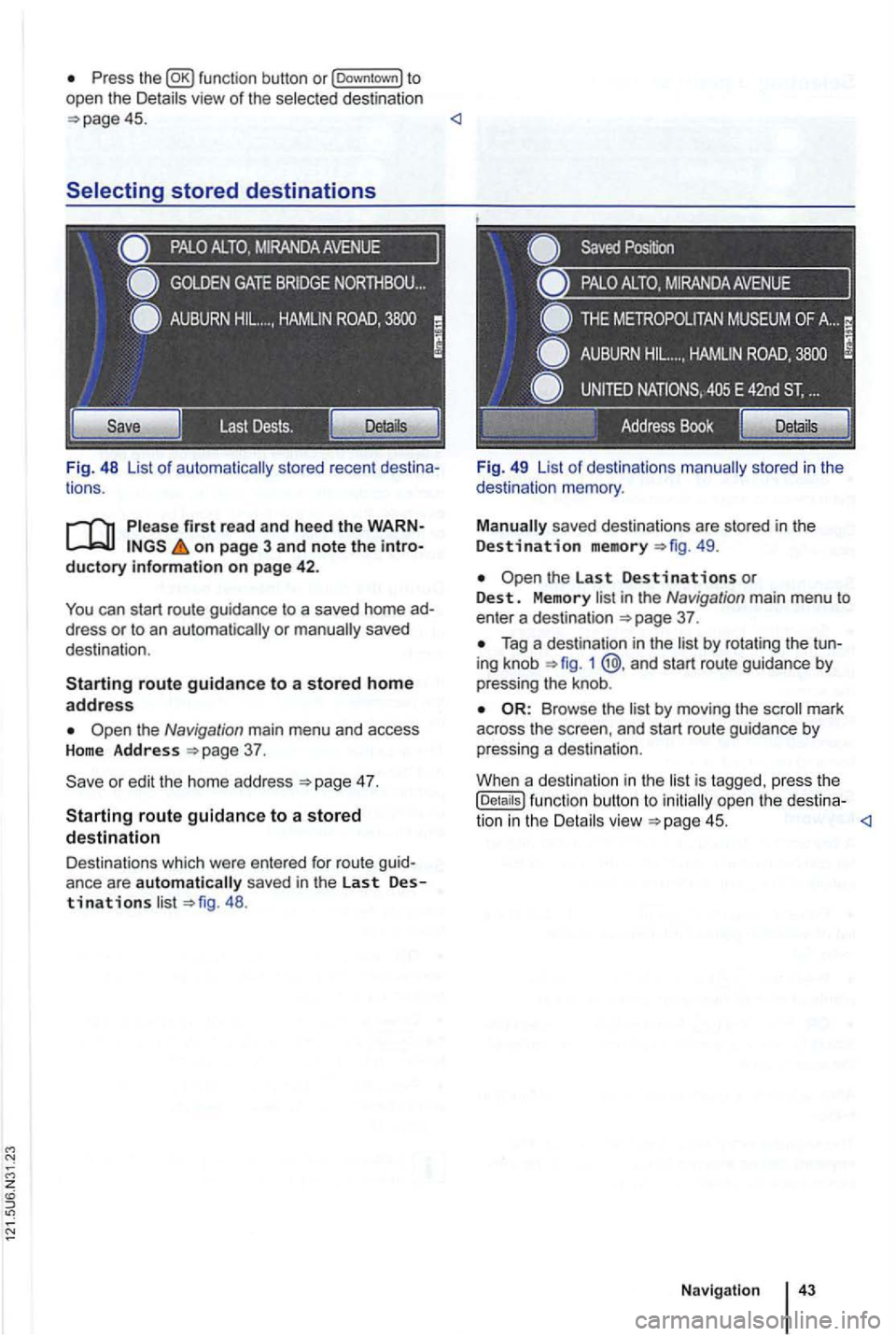
tions .
on page 3 and note the introductory information on page 42.
You can start route guidance to a saved home ad
dress or to an
the Navigation main menu and access Home Address
4 7.
Starting route guidance to a stored destination
Destinations which were ente red for route guid
ance are automatically saved in the last Destinations 48 . Fi
g. 49 List
of destinations
49.
in the Navigation main menu to enter a destination 37 .
Tag a destination in the 1 @ .and start route guidance by
pressing the knob .
by moving the mark
across the and start route guidance by
pressing a destination .
Whe n a destination in the
is tagged. press the (Details ) function button to open the destina-
tion in the
Page 60 of 516
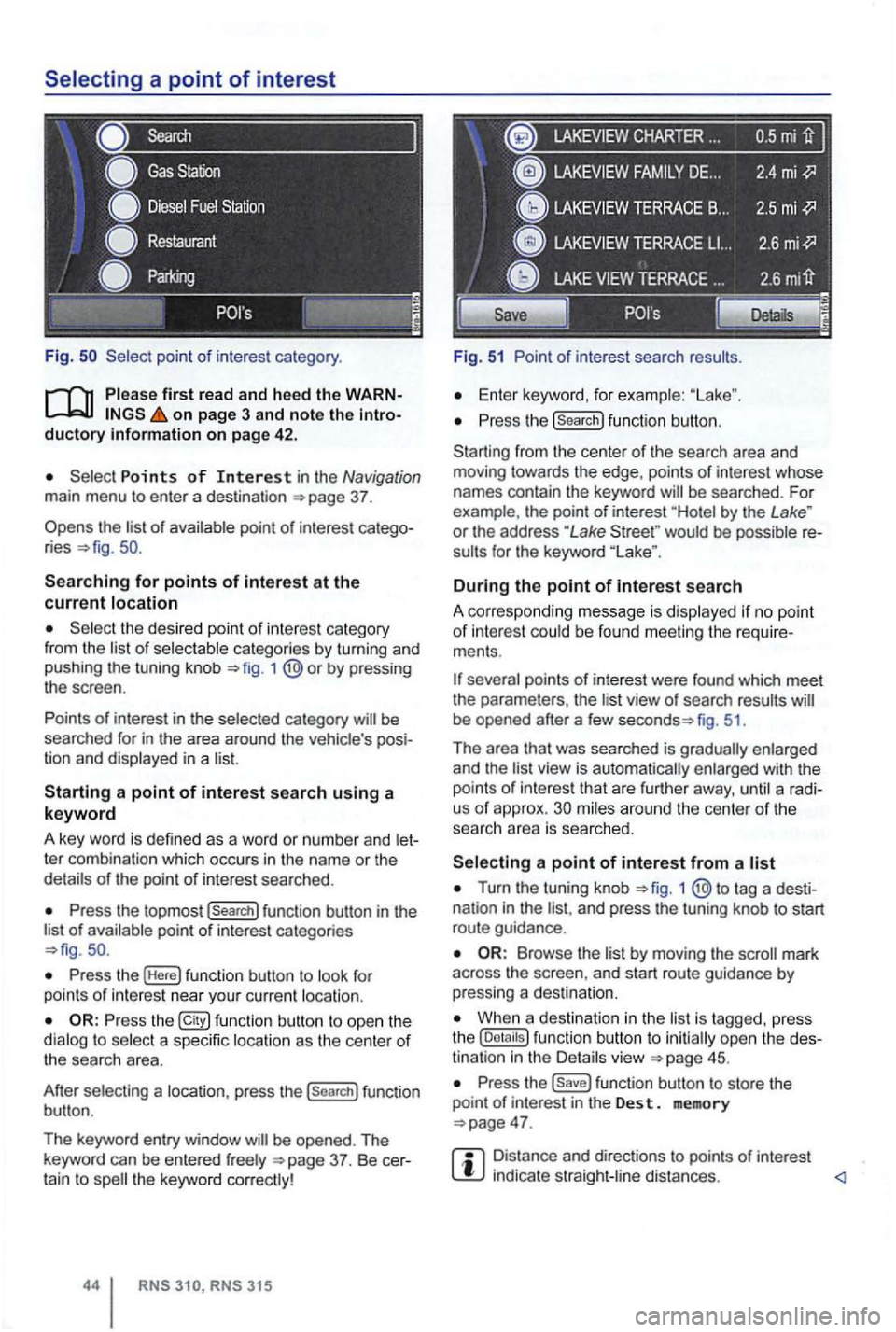
Fig .
on page 3 and note the introductory on pag e 42 .
Points of Interest in the Navigation main menu to enter a destination
Searching for points of interest at the current location
the desired point of interest category
from the list of selectable categories by turning and
pushing the tuning knob 1
Press the topmost (Search] function button in the
list of availab le point of interest categories
Press the (Here] function button to look for
points of int erest near your current location.
Press the function button to ope n the
dialog to select a specific location as the center of the searc h area.
After selecting a location, press the
(search] function
button .
The keyword entry window
CHARTER ...
Fig. 51 Point of interest search results.
Enter keyword, for examp le:
Press the (search] function button.
Starting from the center
of the search area and
moving towards the edge , points of interest whose
names contain the keyword
by the Lake " or the address "Lake would be possible re
sults for the keyword
During the point of interest search
A correspo nding message is disp layed if no point of interest could be found meeting the require
ments .
fig. 51.
Th e area that was searched is gradually enlarged
and the
view is automatically enlarged with the
points of int erest that are further away, until a radi
us of approx. mi les around the center of the
searc h area is searched.
Turn the tuning knob 1 tag a desti
nation in the and press the tuning knob to start
route guidance .
by moving the mark
across the screen , and start route guidance by pressing a destina tion.
When a destination in the is tagg ed , press
the
Press the function button to store the
point of in terest in the Des t. memory
Distance and directions to points of interest indica te straight -line distances.
Page 67 of 516
Route guidance
Introduction
this sec tion
315: Displaying the ............................. .
blocking sections in the
R oute ...... ......... ..... ......... .
315: Blocking upcoming route sections
51
52
53
54
55
55
56
(congestion ahead) . . . . . . . . . . . . . . . . . . . . . 57
Rou te guidance
in Demo mode ........... .
Navigation settings menu ............. . . 57 58
After
starting route guidance , the rou te is
on page 3, note the introductory information and heed the on
page 51.
Sections of the route may be
More information:
Safety instructions
Dev ice overview
Operat ion basics page 8
Destinat ion input
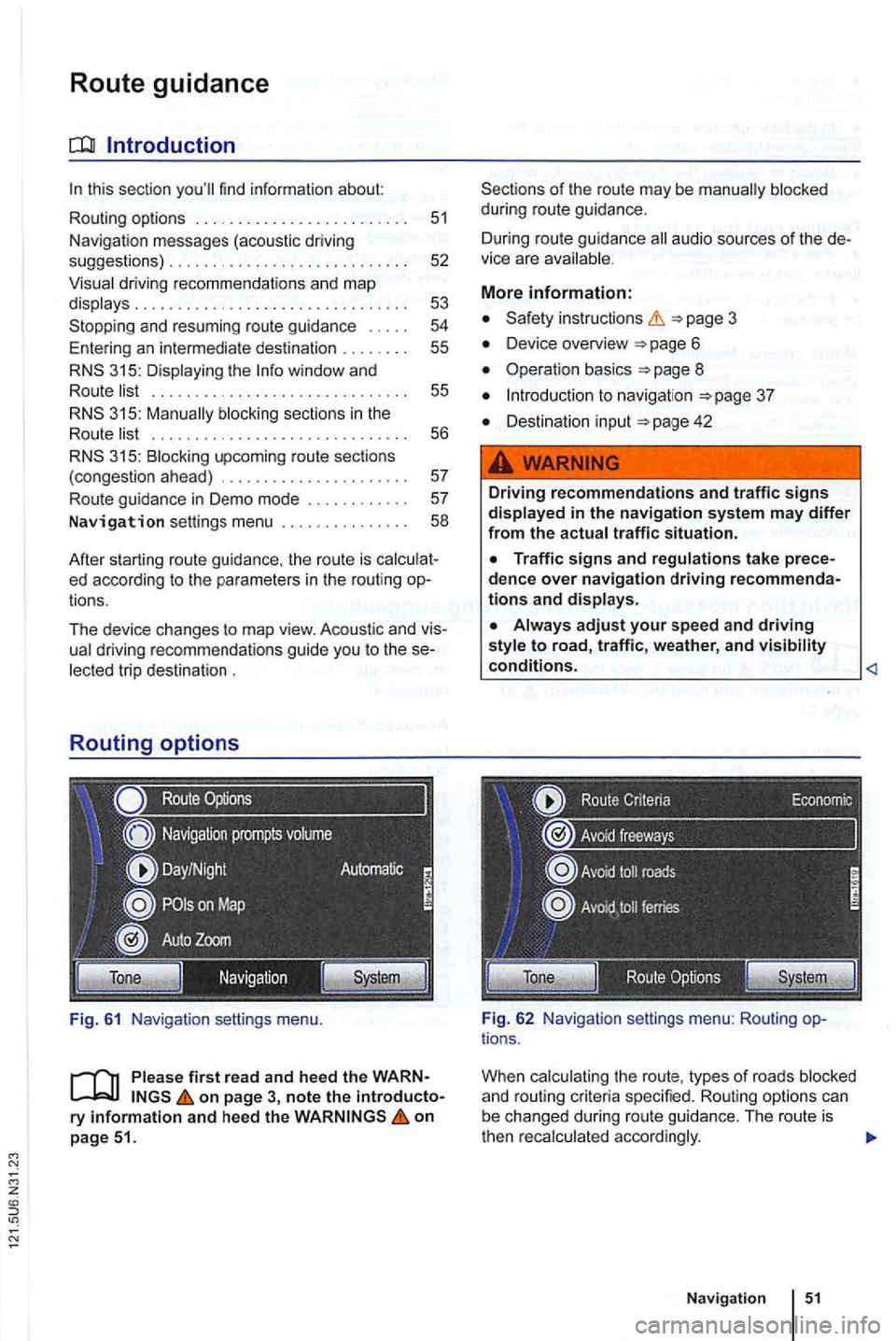
Fig . 62 Navig ation settings menu: Rou ting options .
When
Navigation
Page 69 of 516
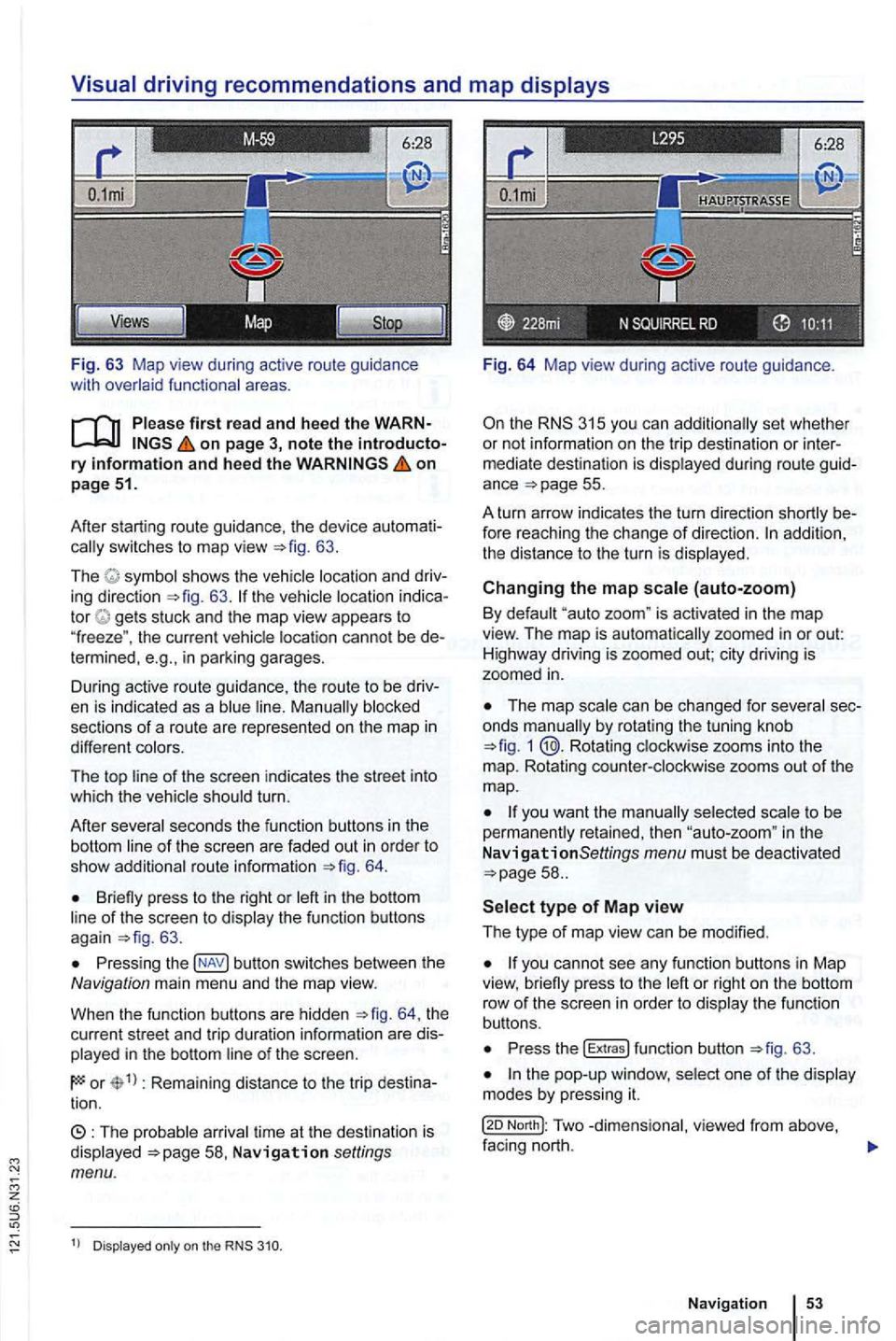
Fig. 63 Map view during active route guidance
with
on page 3, note the introductory information and heed the on page 51.
After starting route guidance. the device
switches to map view 63.
The sh ows the ing direction 63. tor gets stuck and the map view appears to
" freeze ". the current cannot be in parking garages.
During active route guidance , the route to
be
sections of a ro ute are represented on the map in
different
of the screen indicates the street into
which the turn.
After
seco nds the function buttons in th e
bottom
route informa tion 64.
Briefly press to the right or of the screen to 63 .
Press ing button switches between the Navigation main men u and the map view.
When the func tion buttons are hidden
th e
current street and trip duratio n info rmation are
in the bottom
or Rema ining distance to the trip tion.
time at th e destinat ion is Navigation settings menu.
Dis played on the
Fig. 64 Map view during active route guidance .
the RNS 315 you can additio nally set whethe r
or not inform ation on the trip dest ina tion or
ance =>page 55.
A turn arrow indicates the turn direction
fore reaching the change of direction. addition,
th e distance to the turn is
Changing the map (auto-zoom)
By "auto zoom " is activated in the map
view. The map is automatically zoomed in or out:
H ighwa y driving is zoomed out; city driving is
zoomed
in.
The map by rotat ing the tuning knob 1 @.Rotating zooms into the
m ap. Rotating
to be
perma nen tly retained, then in the
N avigationSettings menu must be deactivated
or right on the bottom
row of th e sc ree n in orde r to th e fu n ct io n
buttons.
Press the !Extras ! function button =>fig. 63 .
North!: Two facing nort h.
N avi gation
Page 72 of 516
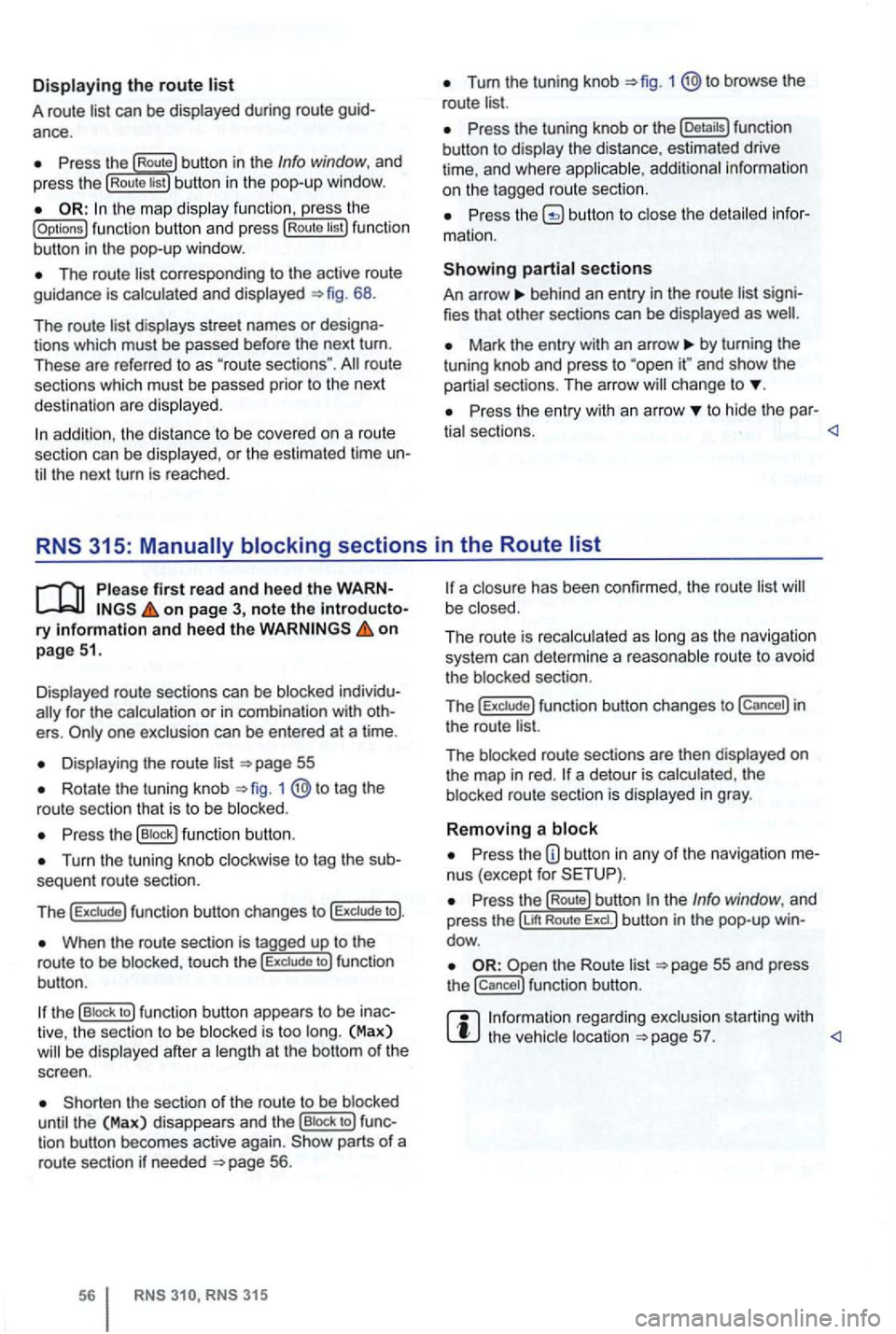
Displaying the route list
A route list can be displayed during ro ut e
Press the Route button in the Info window, and
press the Rou te list bu tton in the pop-up window.
the map display function , ress the (Options ) function butt on and press Route tist function
button in th e pop-up window .
The route corresponding to the active route
guidance is calcula ted and displayed 68.
The route
d ispl ays street names or
route
sections which must be passed prior to the next
dest ination are displayed .
Tum the tuning knob 1 @to browse the
route list.
Press the tuning knob or th e (Deta ils) function
button to disp lay the distance, estimated drive
time , and where
Press butto n to close the
behind an entry in the route list
Mark the entry with an arrow by turning the
t uning knob and press to and sh ow the
partia l sect ions. The arro w ch ange to
Pr ess the entry wit h an arrow to hide the par-
tia l sectio ns.
Displayed route sections can be blocked
for the calculation or in com binat ion with
Displa ying the route list
Rotate the tuning knob 1 to tag the
route sectio n that is to be blo cked .
Press the (B lock ) function button .
Turn the tuning knob clockwise to tag the
When the route section is tagged up to the
r o ute to be blo cke d, touc h the to ) fun ction
bu tton .
the (B lock to ) function button appears to be
the sect ion of the route to be blocked
until the (Max) disappea rs and th e (Bloc k to ) tion button becomes active again. parts of a
route section if neede d 56.
315
a closu re has been confirmed , the route list be close d.
The ro ut e is reca lc ulated as long
as th e naviga tio n
system can determi ne a reasonabl e route to avoid
t he blocked section.
T
he f un ction button changes to in
the route list.
The blocked route sectio ns are then displayed
on the map in red . a detour is calcula ted , th e
b locked route section is displayed in gray .
Removing a block
Press the nus (except for
re ga rding exclusion starting with the vehic le location
Page 73 of 516
on page 3, note the ry and heed the on pag e 51.
An upcoming section of road can be blocked
while route guidance is in process.
Pre ss the nus (exce pt for
Press the (Route) function button in the Info dow .
Press the ahead ) function button in the
pop-up window.
the length of the section which is to be
blocked by turning the tuning knob 1 @.
The length of the section being blocked is played at the bottom of the screen . (Max) pears at the bottom , thi s signifies the max imum distance.
Route guidance in Demo mode
on page 3, note the introductory on page 51.
Demo mode is activated in the Navigation tings menu ,
Touch ing the (D emo ) function button starts route guidance " to the entered trip destinatio n.
ance are compa rable to route guidance .
route guidance is repeated after reaching
the fictional trip destinat ion, and always restarts
from
in t he Navigation settings menu, the n
virtual route guidance starts from this position.
A
entered starting point is overwr itten by
the current vehicle location when the is
moved and the current location of the vehicle can
be determined via
Press the tun ing knob or press the function
button to confirm the block.
Blocked sections are displayed on the map in gray.
The route is recalculated
as as the navigation
system can determi ne a reasonable route to avoid
the blocked section.
R e
moving a
Pre ss the button in any of the navigation
Pre ss the (Rout e) function button in the Info dow .
Press the Rem ove Ex.) function button in the pop-up window .
regarding manually blocking ditional upcoming route sections 56.
afte r virtua l route guidance in Demo mode, rea l
route guidance is started , then the device must be
re -orien ted . Depending on the number of being received at the time, this may take a wh ile. movement can reduce the re-o rientation
t ime
Ending D emo mode
The demo mode should be deactivated after being
used , as you are
tween a virtua l or a normal route guidance at the
beg inning of any naviga tion .
Demo mode is
automatically ended when
the route guidance is fini shed or a new final
also Demo mode.
You end Demo mode in the
N av ig a tion settings menu.
Press the button in any of the naviga
tion menus.
Deactivate the checkbox in Demo mode) functio n button .
Navigation
Page 74 of 516
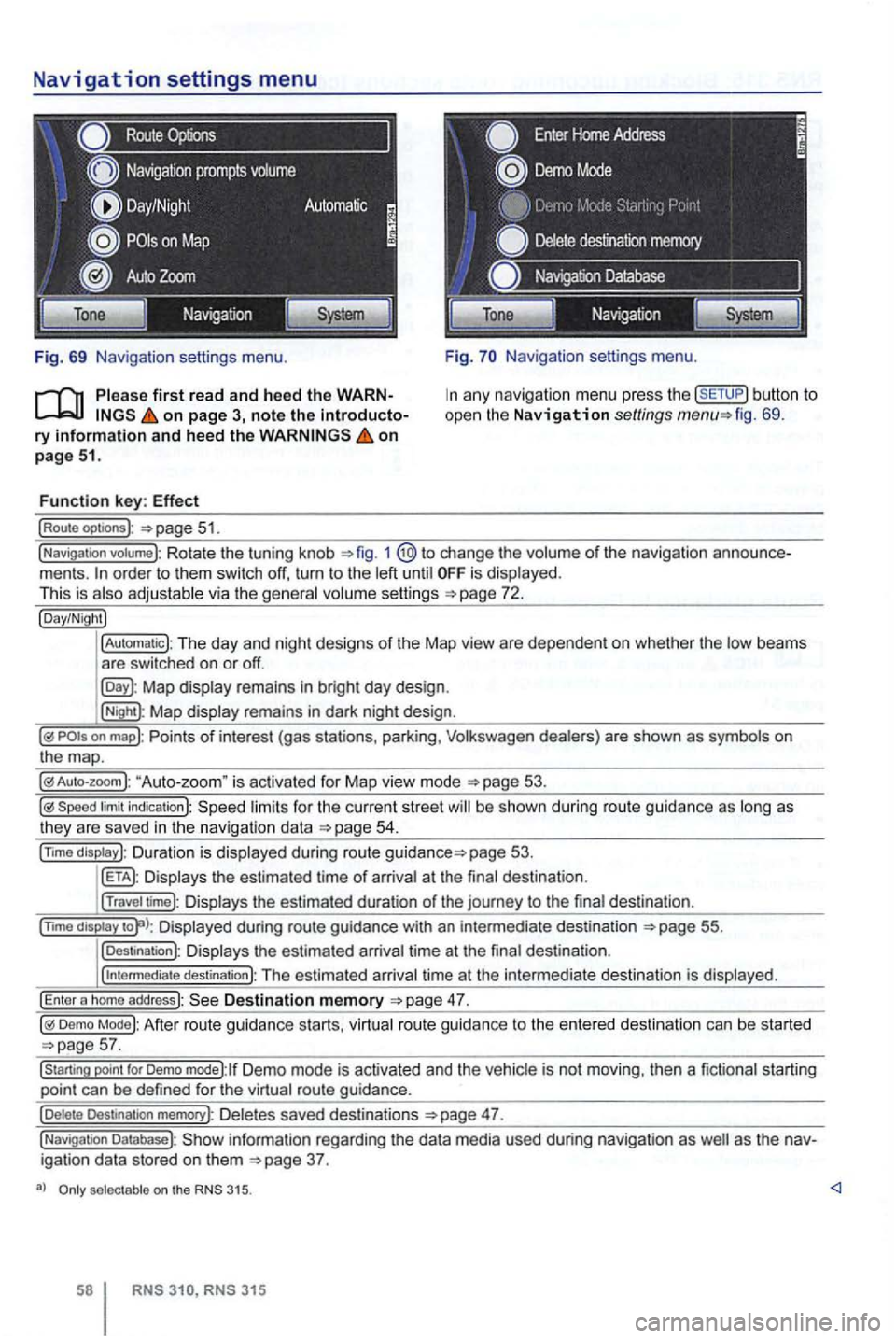
Navigation settings menu
Route
Fig. 69 Navigation settings menu.
on page 3, note the introductory information and heed the on page 51.
Function key: Effect
(Route optoons ):
Navigation settings menu.
any navigation menu press the (SETUP) button to
open the Navigation settings fig. 69.
(Navigation votume): Rotate the tuning knob 1 change the volume of the navigation order to them switch off, turn to the until is displayed.
This is
Map display remains in bright day design .
(Night): Map display remains in dark night design .
"Auto-zoom " is activated for Map vie w mode
Speed limit indication): limits for the current street be s hown duri ng route guidance as
page 53.
Displays the estimated time of arrival at the final des tination .
(Travel time): Displays the estimated duration of the journey to the final destina tion .
(nm o
display Displayed during route guidance with an intermedi ate destination 55.
(Destination): Displays the estimated arrival time at the final destination .
(
intermediate destination): The estimated arriva l time at the intermediate destination is displayed.
(Enter a homo address): Destination memory
Demo Mode): After route guidance starts, virtual route guidance to the entered destination can be started
Demo mode):lf Demo mode is activated and the vehicle is not moving , then a fictional starting
point can be defined for the virtual route guidance.
(Delete Destination memory): De letes saved destinations 47.
(Navigation Database): information regarding the data media used during navigation as igation data stored on them
selectable on the 315.
315
Page 102 of 516
4
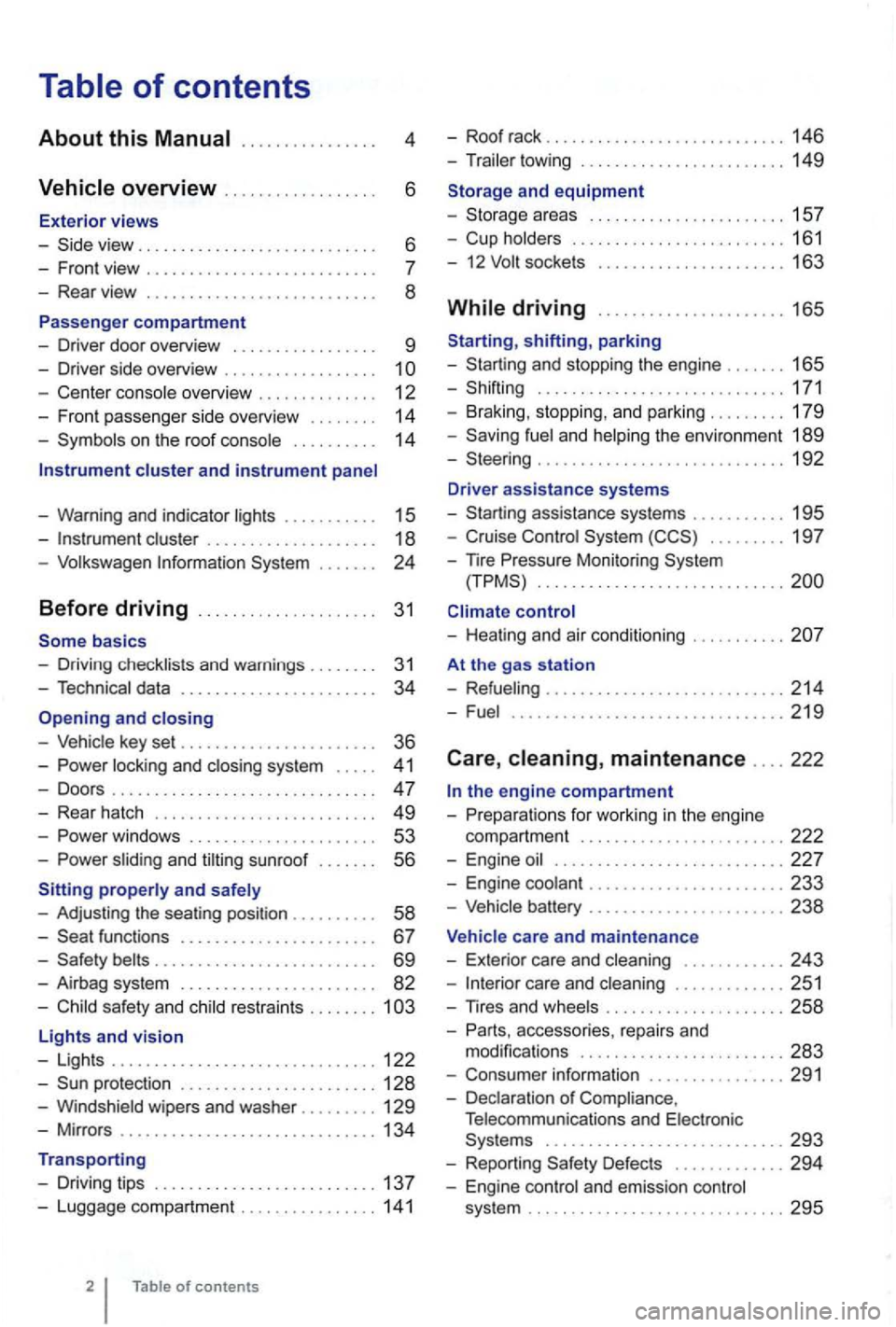
. . . . . . 6
- Front view . . . . . . . . . . . . . . . . . . . .
- Center console overview . . . . . . . . . . . . . . 12
- Fron t pa sse nger side overvi ew . . . . . . . .
14
- Symbo ls o n the roo f console . . . . . . . . . . 14
Instrument cluster and instrument panel
- Warning and indica tor
lights . . . . . . . . . . 15
-cluster . . . . . . . . . . . . . . . . . . . 18
-Volk swage n Information System . . .
basics
- Driv ing check lists and warnings .
....... 31
- Techn ical data . . . . . . . . . . . . . . . . . . . . . . . 34
and closing
- Vehic le key set . . . . . . . . . . . . . . . . . . . . . . . 36
-locking and closing system . . . . . 4 1
- Doo rs . . . . . . . . . . . . . . . . . . . . . . . . . . . . . . . 47
- Rear hatch . . . . . . . . . . . . . . . . . . . . . . . . . 49
-. . . 53
-s lidin g and sunroof . . . . . . . 56
properly and safely
- Adjusting the sea ting position . . . . . . .
. . 58
-functions . . . . . . . . . . . . . . . . . . . . . . 67
- Safety . . . . . . . . . . . . . . . . . . . . . . . . . . 69
- Airbag system . . . . . . . . . . . . . . . . . . . . . . . 82
-Child sa fety and child restraints ........ 1
Lights and vision
- Lights ............................... 122
-protectio n ....................... 128
-Windshield wipers and washer ......... 129
-Mir ro rs .............................. 134
Transporting
- Driving tips
.......................... 137
-Luggage compa rtment ................ 141
of contents
- Roof rack . . . . . . . . . . . . . . . . . . . . . . . . . 146
- Trailer towing ...... ............•. .... 149
1 5 7
- Cup holders
......................... 161
- 12
sockets . . . . . . . . . . . . . . . . . . . . . 163
shifting, park ing
- Sta rting and stoppin g
the engin e ....... 165
- Shifting ................... .......... 171
- Brak ing , stop ping , and park ing
......... 179
- Sav ing
fuel a nd helping the environm ent 189
-Steering ............................. 192
Driver assistance systems
- Starting assistance systems
........... 195
-Cruise Control System ......... 19 7
-
nre Mo nitori ng System .............................
control
- Healing and air cond itioning
At the gas station
- Refueling
........................ .... 214
-Fuel ...........................•.... 2 19
Care , maintenance .... 222
fo r work ing in the engin e
compartment
................... ..... 222
- Engine oil ........................... 227
- Engine coolant ....................... 233
-Vehicle battery ....................... 238
Vehicle care and maintenance
- Exteri or
care and cleaning ............ 243
-care and cleaning ............. 251
-
accesso ries, repa irs and
modi fications ........................ 283
- Consumer information ................ 291
- Declaration
of Complia nce,
T elecomm unicat ions and Electro nic
Systems
............................ 293
- Report ing Safe ty Defects ............. 294
- Engin e con trol and emission control
system .............................. 295
Page 110 of 516
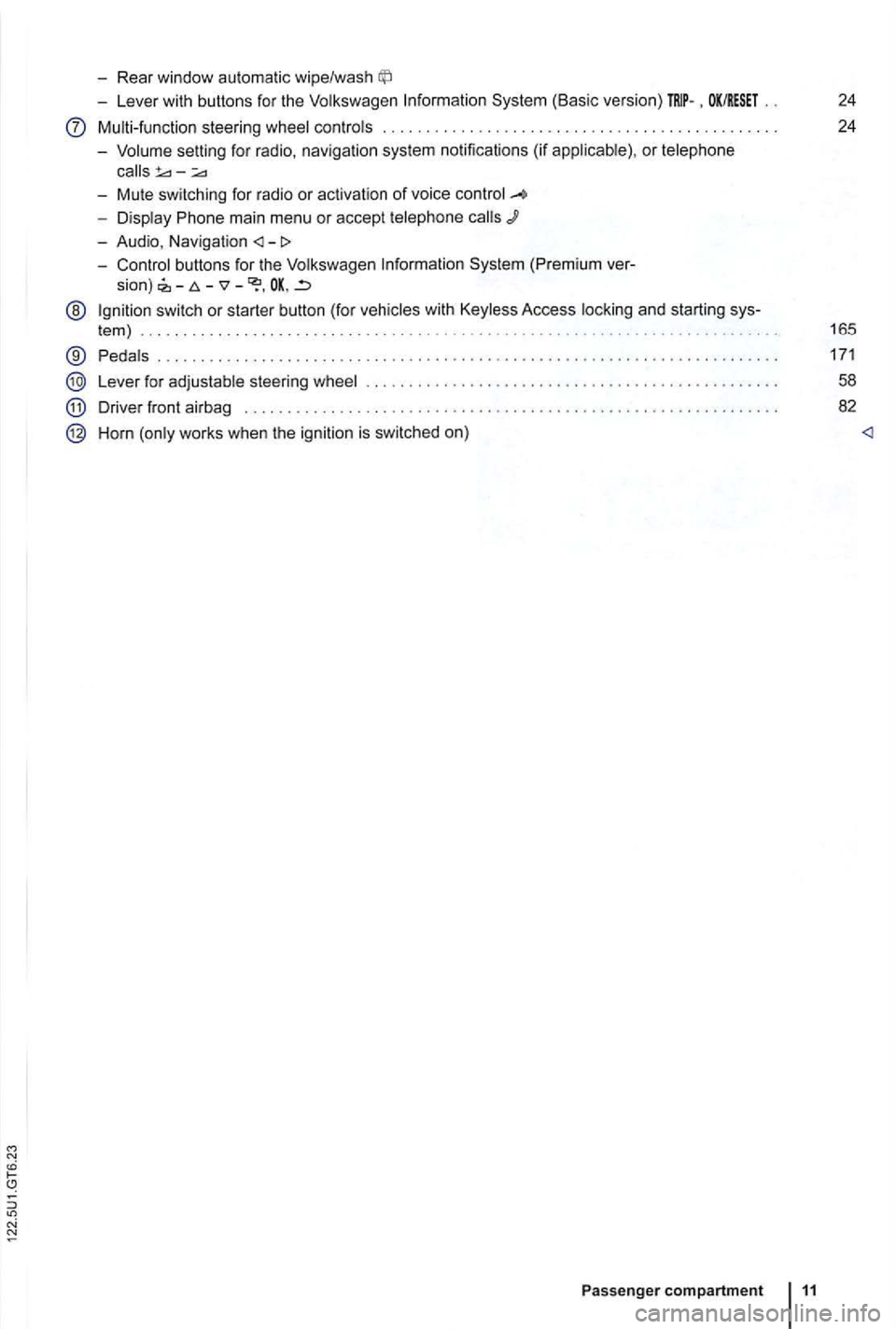
-Rear window automatic wipe/wash
-Lever with buttons for the Volkswagen Information System (Basic version) . OK/RESET 24
Multi-function steering wheel controls . . . . . . . . . . . . . . . . . . . . . . . . . 24
- Volume setting for radio , naviga
tion system notifications (if applicab le) , or telephone
- Display Phone main menu or accept telephone
- Audio, Navigation
sion) -
@ Ign ition switch or starter button (for vehicles with Keyless Access locking and starting sys-
tem ) . . . . . . . . . . . . . . . . . . . . . . . . . . . . . . . . . . . . . . . . . . . . . 165
® Pedals ............ .................................... ....................... .
Lever for adjustable steering wheel
Driver front airbag . . . . . . . . . .
.............................................. .
Horn (only works when the ignition is switched on)
Passenger compartment 11
171
58
82