Page 55 VOLKSWAGEN ID.4 2020 Owner´s Manual
[x] Cancel search | Manufacturer: VOLKSWAGEN, Model Year: 2020, Model line: ID.4, Model: VOLKSWAGEN ID.4 2020Pages: 417, PDF Size: 6.31 MB
Page 240 of 417
The selection options in the selection list de-
pend on the data attached to the media file.
If no genre is specified f
or music files, for ex-
ample, the genre cannot be saved as a fa-
vourite.
If a video file is currently being played, only
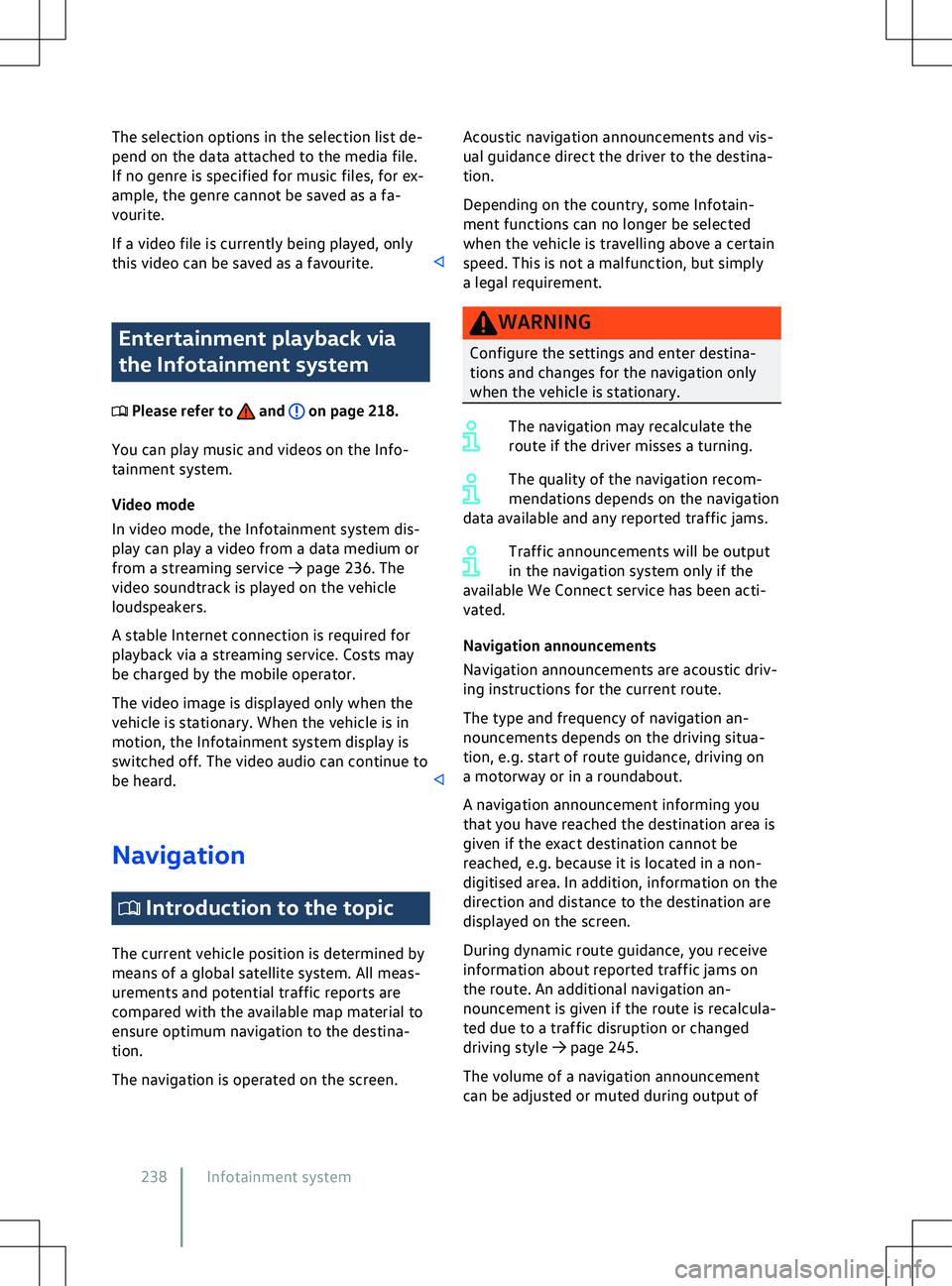
this video can be saved as a favourite. Entertainment playback via
the Inf
otainment system Please refer to and on page 218.
You can play music and videos on the Inf
o-
tainment system.
Video mode
In video mode, the Infotainment system dis-
play can play a video from a data medium or
from a streaming service
Page 242 of 417
formation, to enable you to enter destina-
tions quickly and to optimise route guidance.
Deleting stored data
1. Touch Basic functions Delete usage pattern.
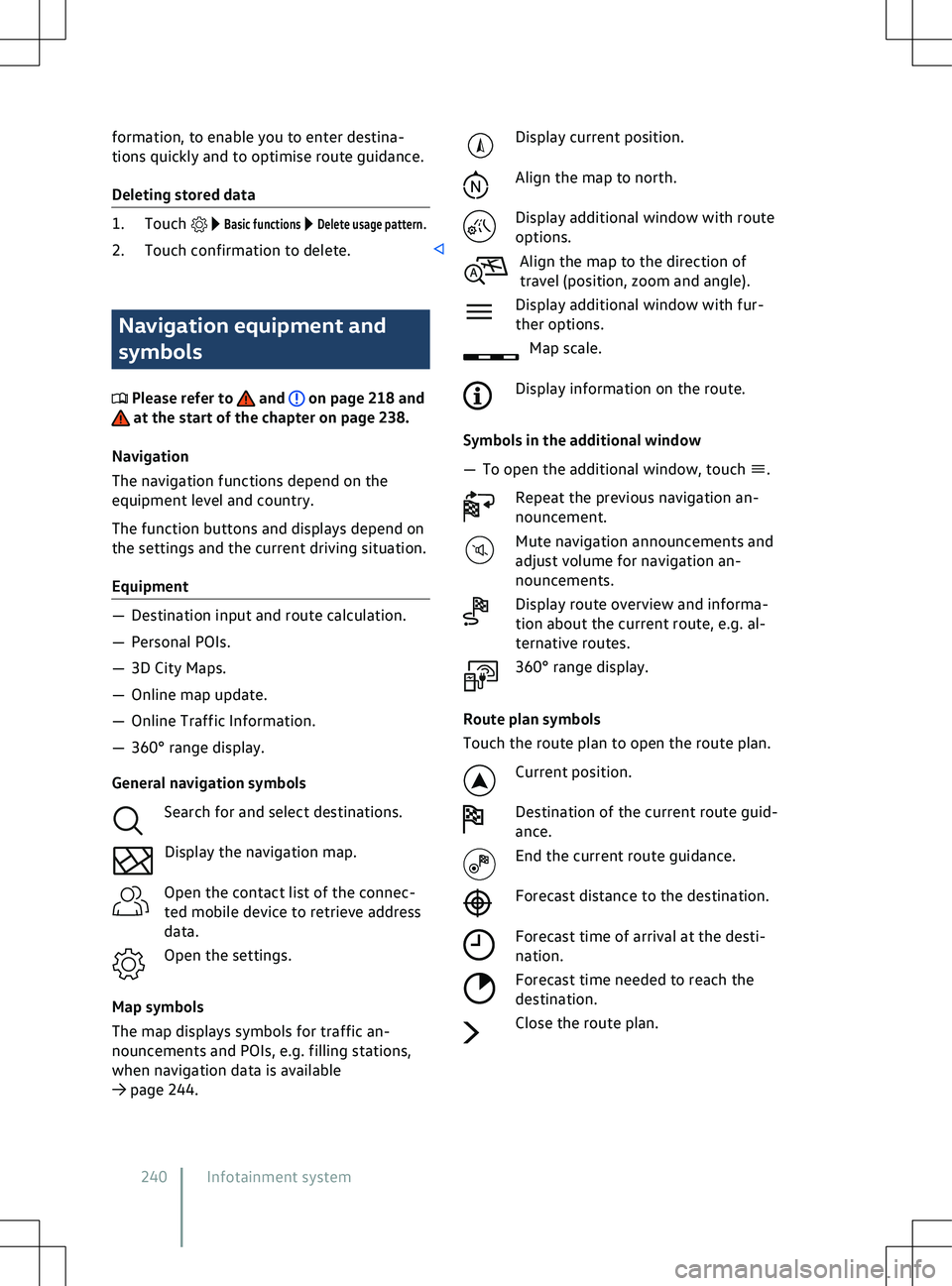
2. Touch confirmation to delete. Navigation equipment and
symbols
Please refer to and on page 218 and
at the start of the chapter on page 238.
Na
vigation
The navigation functions depend on the
equipment level and country.
The function buttons and displays depend on
the settings and the current driving situation.
Equipment
Page 246 of 417
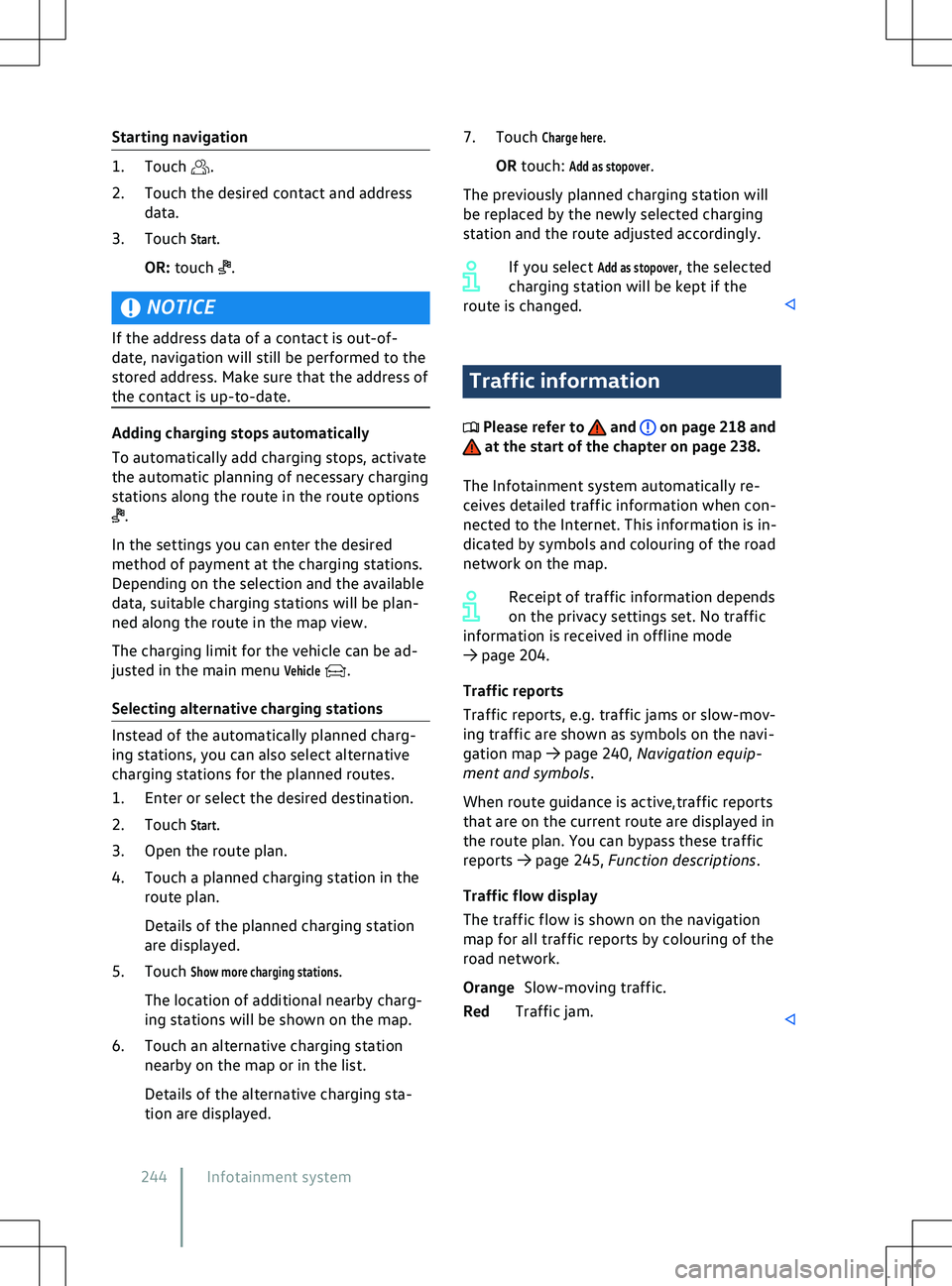
Starting navigation
1. Touch .
2.
Touch the desired contact and address
data.
3. Touch
Start.
OR: touch .
NOTICE
If the address data of a contact is out-of-
date, na
vigation will still be performed to the
stored address. Make sure that the address of
the contact is up-to-date. Adding charging stops automatically
To automatically add charging stops, activ
ate
the automatic planning of necessary charging
stations along the route in the route options .
In the settings you can enter the desired
method of payment at the charging stations.
Depending on the selection and the a
vailable
data, suitable charging stations will be plan-
ned along the route in the map view.
The charging limit for the vehicle can be ad-
justed in the main menu
Vehicle .
Selecting alternativ
e charging stations Instead of the automatically planned charg-
ing stations, you can also select alternativ
e
charging stations for the planned routes.
1. Enter or select the desired destination.
2. Touch
Start.
3. Open the route plan.
4. Touch a planned charging station in the route plan.
Details of the planned charging station
are displayed.
5. Touch
Show more charging stations.
The location of additional nearby charg-
ing stations will be shown on the map.
6. Touch an alternative charging station nearby on the map or in the list.
Details of the alternative charging sta-
tion are displayed. 7. Touch
Charge here.
OR touch:
Add as stopover.
The previously planned charging station will
be replaced by the newly selected charging
station and the route adjusted accordingly.
If you select
Add as stopover, the selected
charging station will be kept if the
route is changed. Traffic information
Please refer to and on page 218 and
at the start of the chapter on page 238.
The Inf
otainment system automatically re-
ceives detailed traffic information when con-
nected to the Internet. This information is in-
dicated by symbols and colouring of the road
network on the map.
Receipt of traffic information depends
on the privacy settings set. No traffic
information is received in offline mode
Page 247 of 417
Function descriptions
Please refer to and on page 218 and
at the start of the chapter on page 238.
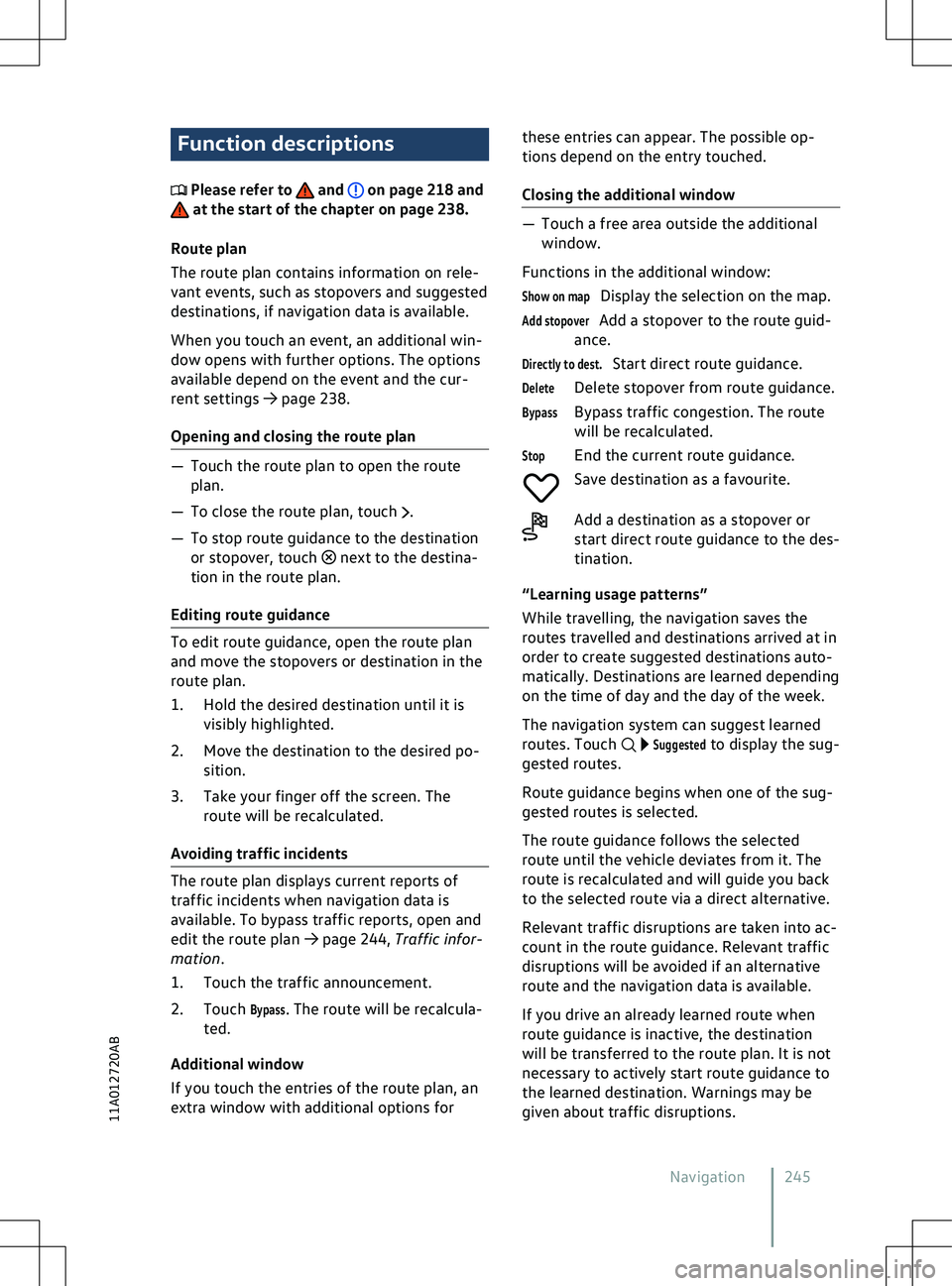
Route plan
The route plan contains inf
ormation on rele-
vant events, such as stopovers and suggested
destinations, if navigation data is available.
When you touch an event, an additional win-
dow opens with further options. The options
available depend on the event and the cur-
rent settings
Page 252 of 417
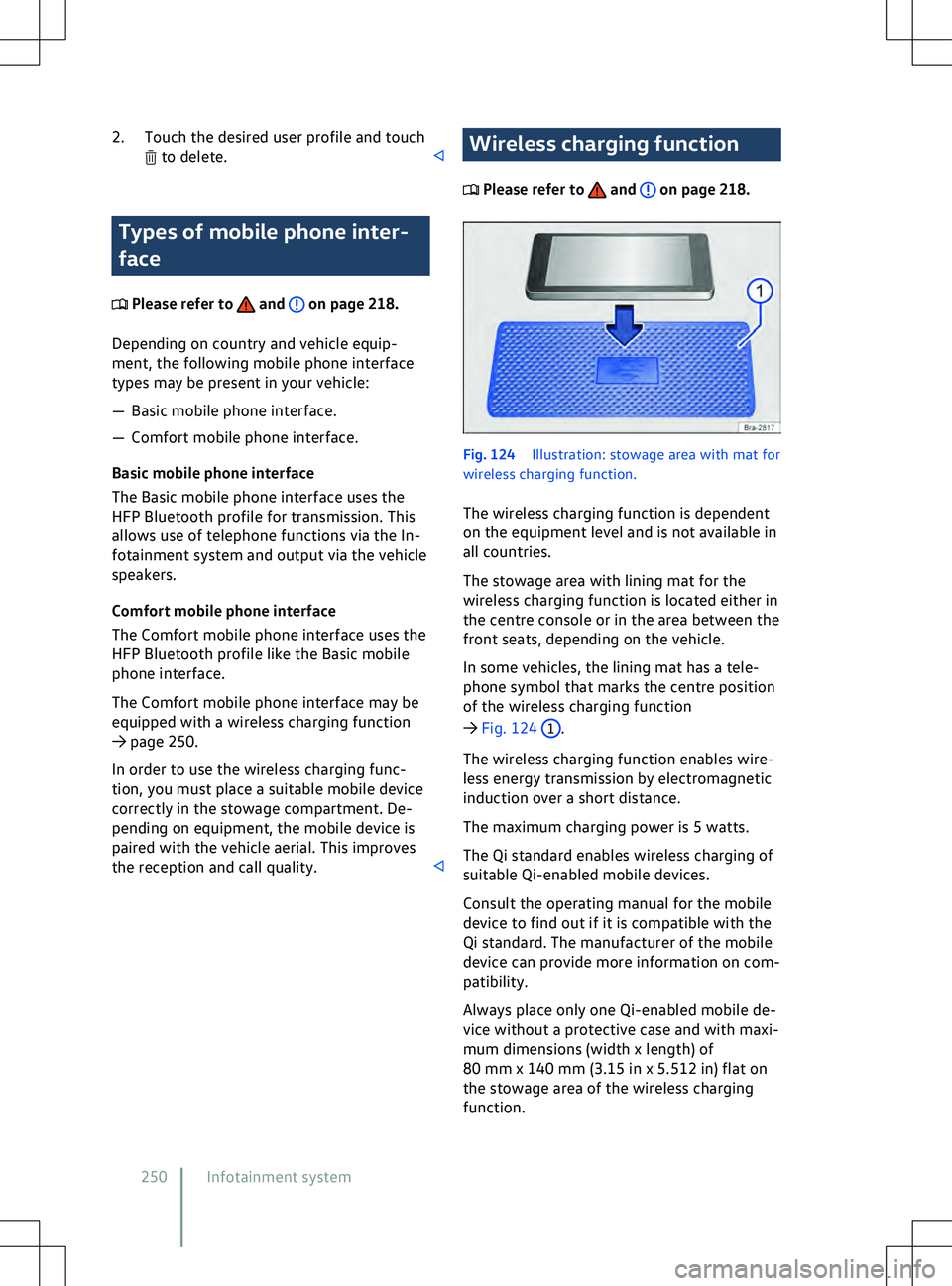
2. Touch the desired user profile and touch
to delete.
Types of mobile phone inter-
f
ace Please refer to and on page 218.
Depending on country and v
ehicle equip-
ment, the following mobile phone interface
types may be present in your vehicle:
Page 265 of 417
x
A void abrupt and sudden driving and
braking manoeuvres.
x Always adapt your speed and driving
style to suit visibility, weather, road and
traffic conditions. WARNING
A roof carrier that has not been appro
ved
for the vehicle or a roof carrier that is fitted
to a vehicle that is not approved for use
with a roof carrier may cause accidents or
injuries.
x Use only roof carriers that have been ap-
proved by Volkswagen for your vehicle.
x Never use a roof carrier on a vehicle that
has not been approved for use with
a roof carrier.
x A roof carrier that is fitted nevertheless
may become loose whilst the vehicle is
in motion and fall from the vehicle roof. NOTICE
Securing a roof carrier of any kind to a vehicle
that is not appro
ved for use with a roof carri-
er may lead to severe damage to the vehicle. Driving with a fitted roof carrier in-
creases the air resistance of the v
ehi-
cle and thus also the energy consumption of
the electric drive. This reduces the possible
range of the vehicle considerably. This ap-
plies to all roof carriers and the objects trans-
ported on them, e.g. bicycles and skis. Securing roof carriers
Please refer to and at the start of
the chapter on page 262.
Special roof carriers must be used to trans-
port luggage, bicycles, skis, surfboards or
boats saf
ely
Page 274 of 417
vehicle is equipped with the trailer stabi-
lisation system.
x Trailers with a high centre of gra
vity
might tip over before snaking starts.
x Sudden braking procedures could occur
automatically in extreme driving situa-
tions if the trailer socket is being used
without a trailer (e.g. for a bicycle carrier
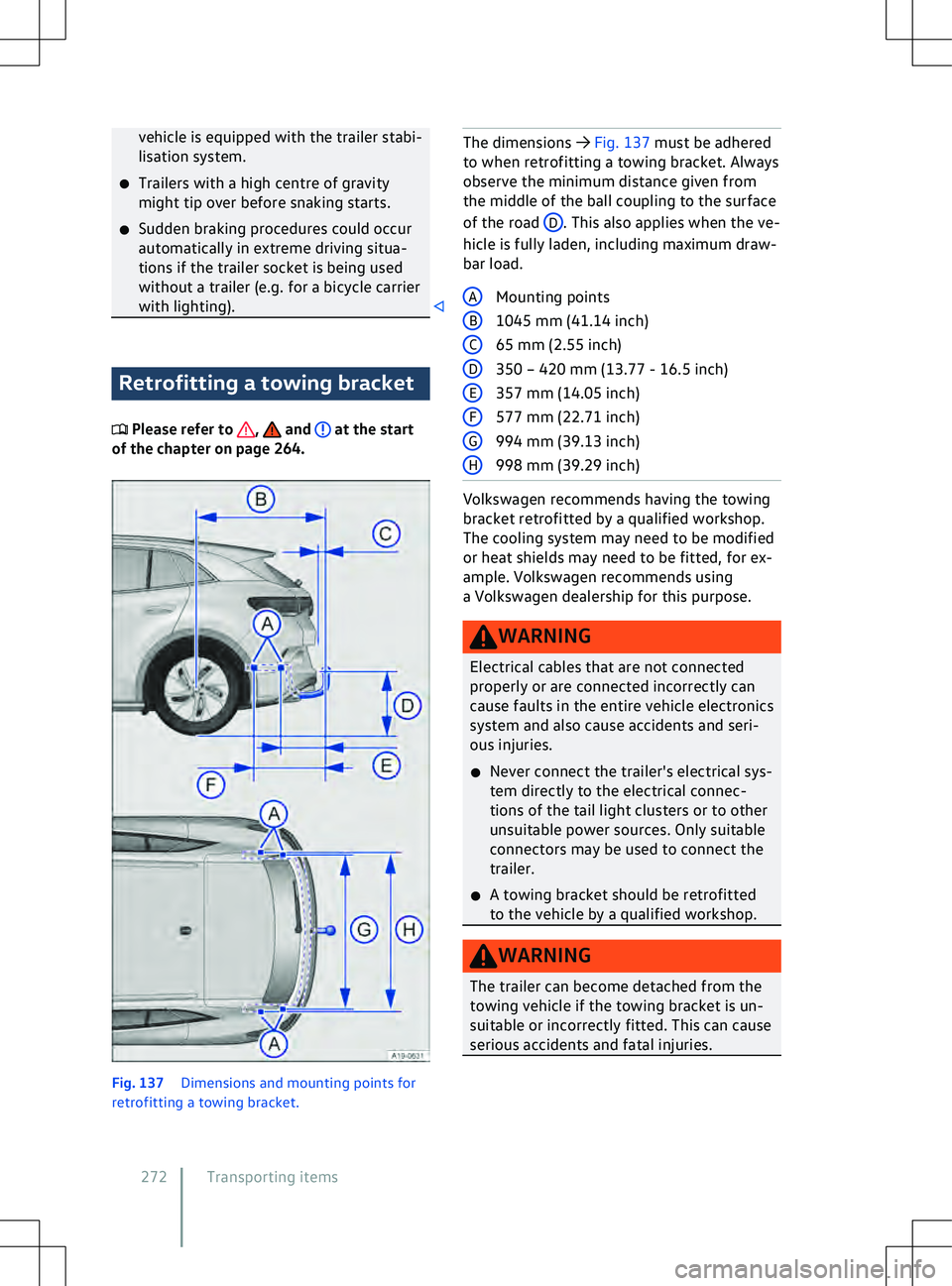
with lighting). Retrofitting a towing bracket
Please refer to , and at the start
of the chapter on page 264. Fig. 137
Dimensions and mounting points f
or
retrofitting a towing bracket. The dimensions
Page 275 of 417
Only use towing brackets which have
been appro
ved by Volkswagen for your
vehicle type. Troubleshooting
Please refer to , and at the start
of the chapter on page 264. Ball head of the towing bracket is not
locked
The indicator lamp lights up yellow.
Page 276 of 417
x
Damage to the v ehicle or to the high-
voltage battery could lead to a leak of
toxic gases or fluids, either immediately
or at a later time. These emitted gases
could also potentially cause a fire. Do
not inhale these gases.
x Never touch the fluids that leak from the
high-voltage battery.
x In the event of a fire, move away from
the hazard area and call the fire service.
x Always inform any attending fire and
emergency services that the vehicle is
fitted with a high-voltage battery. WARNING
Unqualified work on the high-voltage sys-
tem and on high-
voltage components can
lead to malfunctions, accidents and inju-
ries.
x Any work on the high-voltage system
must be carried out only by authorised
qualified workshops with corresponding
approval for this work. NOTICE
After an accident, or after the underside of
the v
ehicle has struck an obstacle, the high-
voltage battery must be checked by appropri-
ately qualified and trained experts. Warning signs for the high-
v
oltage system Please refer to , and at the start
of the chapter on page 273.
Where can warning signs be located?
The f
ollowing components may be marked
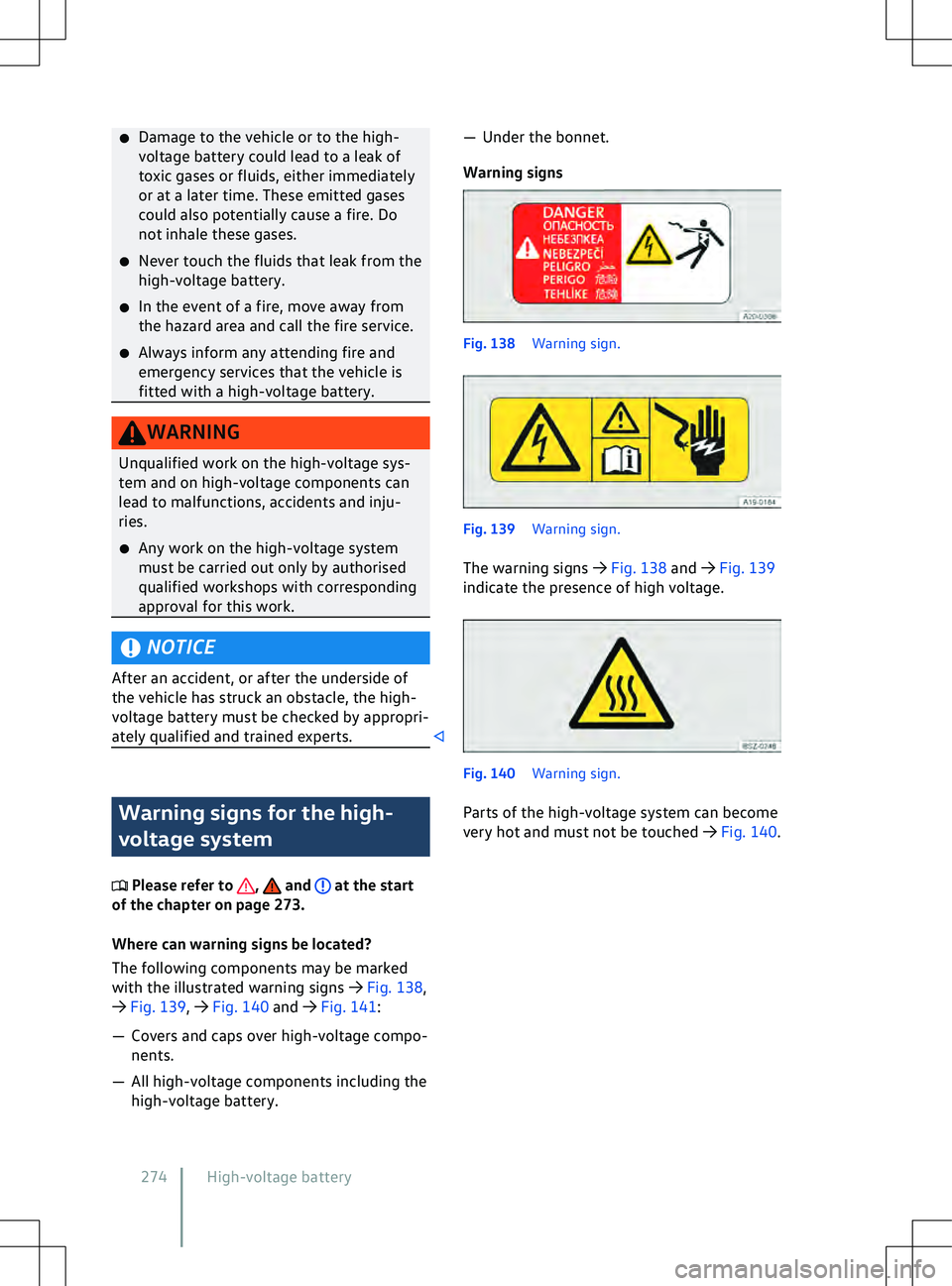
with the illustrated warning signs
Page 294 of 417
If and when
V ehicle toolkit Introduction to the topic
Observ
e any country-specific legislation
when securing your vehicle in the event of
a breakdown. WARNING
In the event of a sudden driving or braking
manoeuvre or accident, a loose v
ehicle
toolkit, breakdown set and spare wheel or
temporary spare wheel could be flung
though the vehicle and cause severe inju-
ries.
x Ensure that the vehicle toolkit, break-
down set and spare wheel or temporary
spare wheel are always properly secured
in the luggage compartment. WARNING
Unsuitable or damaged tools in the vehicle
toolkit can lead to accidents and injuries.
x Ne
ver work with unsuitable or damaged
tools from the vehicle toolkit. Stowage
Please refer to at the start of the chap-
ter on page 292.
The v
ehicle toolkit may be located in various
positions in the luggage compartment: