INFOTAINMENT VOLKSWAGEN T-ROC 2021 Owner´s Manual
[x] Cancel search | Manufacturer: VOLKSWAGEN, Model Year: 2021, Model line: T-ROC, Model: VOLKSWAGEN T-ROC 2021Pages: 502, PDF Size: 9.42 MB
Page 24 of 502
Within around five seconds, set the speed with the rocker switch on the wiper lever or the
or buttons on the multifunction steering wheel. Then press the or button or
wait a few seconds. The speed is now saved and the warning is activated.
To deactivate, press the or button again. The stored speed will be deleted.
The speed warning can be adjusted within a range of 30 km/h (18 mph) to 250 km/h (155 mph).
Some settings can be saved in the user accounts for personalisation and therefore change
automatically when the user account is changed ⇒ Personalisation .
1) Varies depending on the instrument cluster version.
2) Not available in all countries.
Warning and information messages
First read and observe the introductoryinformation and safety warnings⇒Introduction
The system runs a check on certain components and functions in the vehicle when the ignition is
switched on or while the vehicle is in motion. Malfunctions are indicated by red and yellow warning
symbols with information messages on the instrument cluster display ⇒ Symbols in instrument
cluster . An acoustic warning is also given in certain cases. The appearance of the information
messages and symbols can vary depending on the version of the instrument cluster.
In addition, a list of current malfunctions can be opened manually. To open the list, select the
Vehicle status or Vehicle menu ⇒ Instrument cluster menus .
Priority 1 warning (red)The symbol flashes or lights up (sometimes together with a signal tone).
Do not drive on! Danger. Check the fault and correct the cause. Seek expert assistance if
necessary.Priority 2 warning (yellow)The symbol flashes or lights up (sometimes together with a
signal tone). Malfunctions and insufficient service fluids can damage the vehicle and cause it to
break down. Check the fault as soon as possible. Seek expert assistance if necessary.Information
messageInformation about various vehicle procedures and conditions.
With some equipment levels, some settings and displays may also appear in the Infotainment
system.
If several warnings are present, the symbols will appear for several seconds, one after another. The
symbols will continue to appear until the faults are rectified.
If warning messages about malfunctions are displayed when the ignition is switched on, it may not
be possible to adjust some settings as described, or the information display may appear differently.
If this is the case, take the vehicle to a qualified workshop to have the malfunctions rectified.
Page 25 of 502
Driver Alert System (recommendation for rest breaks)
First read and observe the introductoryinformation and safety warnings⇒Introduction
The Driver Alert System informs the driver if their driving shows signs of tiredness.
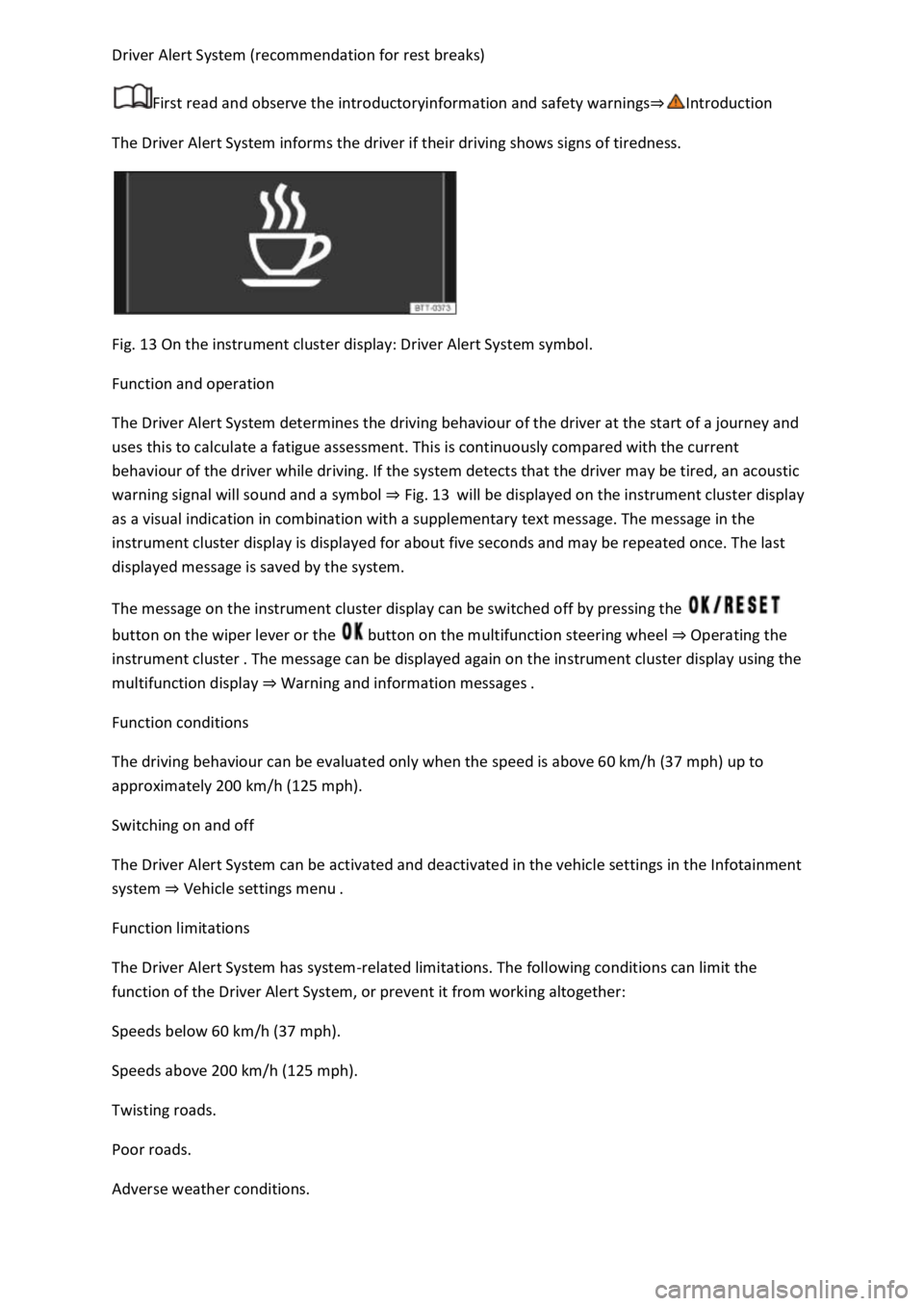
Fig. 13 On the instrument cluster display: Driver Alert System symbol.
Function and operation
The Driver Alert System determines the driving behaviour of the driver at the start of a journey and
uses this to calculate a fatigue assessment. This is continuously compared with the current
behaviour of the driver while driving. If the system detects that the driver may be tired, an acoustic
warning signal will sound and a symbol ⇒ Fig. 13 will be displayed on the instrument cluster display
as a visual indication in combination with a supplementary text message. The message in the
instrument cluster display is displayed for about five seconds and may be repeated once. The last
displayed message is saved by the system.
The message on the instrument cluster display can be switched off by pressing the
button on the wiper lever or the button on the multifunction steering wheel ⇒ Operating the
instrument cluster . The message can be displayed again on the instrument cluster display using the
multifunction display ⇒ Warning and information messages .
Function conditions
The driving behaviour can be evaluated only when the speed is above 60 km/h (37 mph) up to
approximately 200 km/h (125 mph).
Switching on and off
The Driver Alert System can be activated and deactivated in the vehicle settings in the Infotainment
system ⇒ Vehicle settings menu .
Function limitations
The Driver Alert System has system-related limitations. The following conditions can limit the
function of the Driver Alert System, or prevent it from working altogether:
Speeds below 60 km/h (37 mph).
Speeds above 200 km/h (125 mph).
Twisting roads.
Poor roads.
Adverse weather conditions.
Page 27 of 502
Dynamic Road Sign Display (Sign Assist)
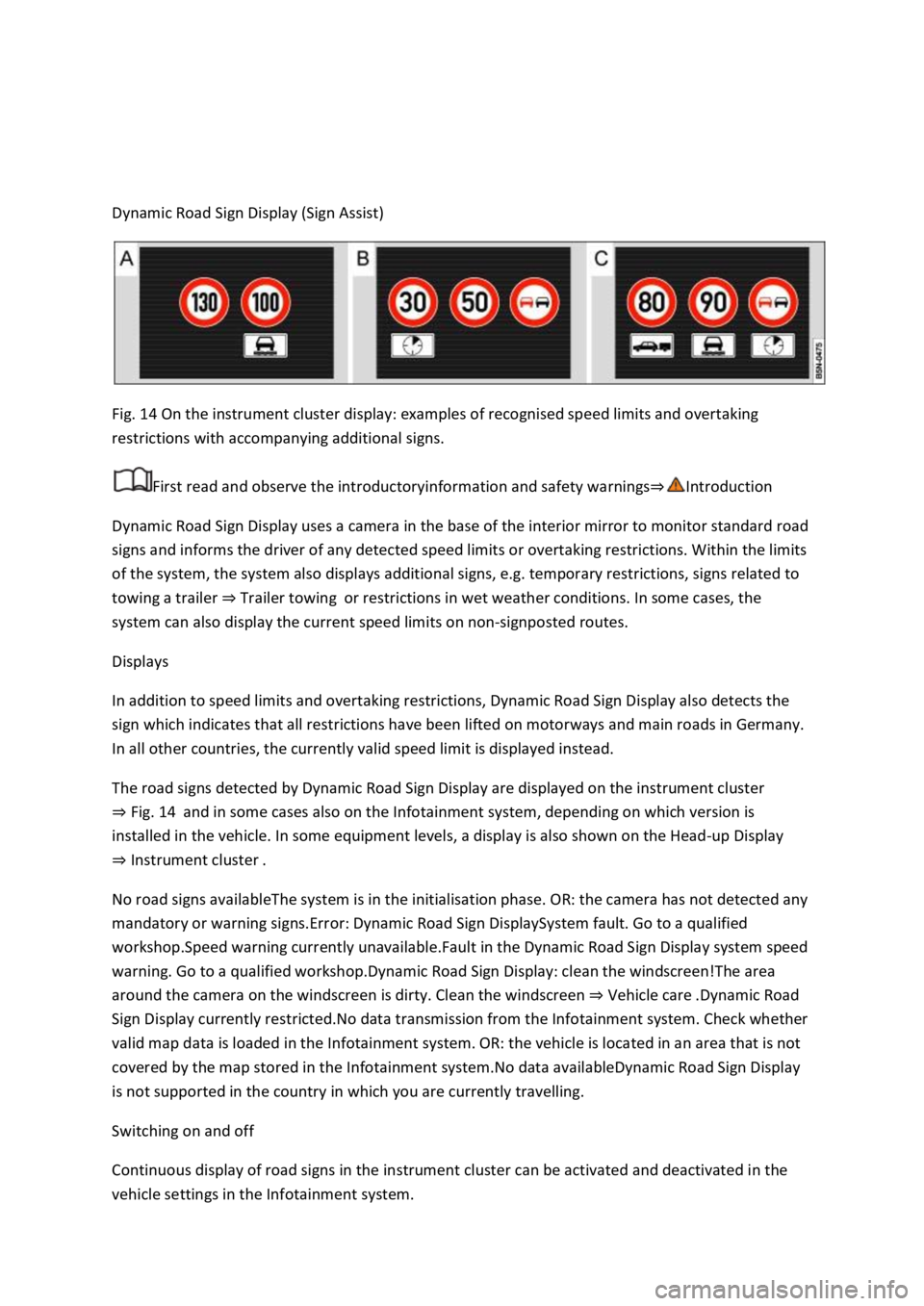
Fig. 14 On the instrument cluster display: examples of recognised speed limits and overtaking
restrictions with accompanying additional signs.
First read and observe the introductoryinformation and safety warnings⇒Introduction
Dynamic Road Sign Display uses a camera in the base of the interior mirror to monitor standard road
signs and informs the driver of any detected speed limits or overtaking restrictions. Within the limits
of the system, the system also displays additional signs, e.g. temporary restrictions, signs related to
towing a trailer ⇒ Trailer towing or restrictions in wet weather conditions. In some cases, the
system can also display the current speed limits on non-signposted routes.
Displays
In addition to speed limits and overtaking restrictions, Dynamic Road Sign Display also detects the
sign which indicates that all restrictions have been lifted on motorways and main roads in Germany.
In all other countries, the currently valid speed limit is displayed instead.
The road signs detected by Dynamic Road Sign Display are displayed on the instrument cluster
⇒ Fig. 14 and in some cases also on the Infotainment system, depending on which version is
installed in the vehicle. In some equipment levels, a display is also shown on the Head-up Display
⇒ Instrument cluster .
No road signs availableThe system is in the initialisation phase. OR: the camera has not detected any
mandatory or warning signs.Error: Dynamic Road Sign DisplaySystem fault. Go to a qualified
workshop.Speed warning currently unavailable.Fault in the Dynamic Road Sign Display system speed
warning. Go to a qualified workshop.Dynamic Road Sign Display: clean the windscreen!The area
around the camera on the windscreen is dirty. Clean the windscreen ⇒ Vehicle care .Dynamic Road
Sign Display currently restricted.No data transmission from the Infotainment system. Check whether
valid map data is loaded in the Infotainment system. OR: the vehicle is located in an area that is not
covered by the map stored in the Infotainment system.No data availableDynamic Road Sign Display
is not supported in the country in which you are currently travelling.
Switching on and off
Continuous display of road signs in the instrument cluster can be activated and deactivated in the
vehicle settings in the Infotainment system.
Page 28 of 502

Display of road signs
After validation and evaluation of the information from the camera, the Infotainment system and
the current vehicle data, the activated Dynamic Road Sign Display shows up to three valid road signs
⇒ Fig. 14 with the accompanying additional signs:
1st position:The road sign that currently applies for the driver is shown on the left-hand side of the
display, e.g. a speed limit of 130 km/h (80 mph) ⇒ Fig. 14 .2nd position:Road signs that do not
always apply (e.g. 100 km/h (60 mph) in wet) are shown in second place.Additional sign:if the
windscreen wiper is active while the vehicle is in motion, the now valid road sign with the additional
In wet sign, for example, will be moved left to the first position.3rd position:Further road signs that
do not always apply will be displayed in the third position, e.g. overtaking not permitted at certain
times ⇒ Fig. 14 .
Speed warning
If the Dynamic Road Sign Display detects that an applicable speed limit has been exceeded, it can
issue an acoustic warning signal and display a message on the instrument cluster display.
The speed warning can be set or completely deactivated in the vehicle settings in the Infotainment
system ⇒ Vehicle settings menu . The settings can be adjusted in increments of 5 km/h (3 mph)
within a range between 0 km/h (mph) and 15 km/h (9 mph) above the permitted maximum speed.
Trailer mode
In vehicles with a factory-fitted towing bracket and a trailer with an electrical connection to the
vehicle, the display of road signs that may apply to the vehicle when towing a trailer, e.g. applicable
speed limits and no-overtaking signs, can be activated or deactivated in the vehicle settings in the
Infotainment system ⇒ Vehicle settings menu .
In trailer mode, the speed warning function display can be adjusted to the type of trailer or to legal
requirements. The settings can be adjusted in increments of 10 km/h (5 mph) within a range
between 60 km/h (40 mph) and 130 km/h (80 mph). If a higher speed is set than is permitted for
driving with a trailer in the country in which you are currently travelling, Dynamic Road Sign Display
automatically issues a warning at the usual speed limit, e.g. at 80 km/h (50 mph) in Germany.
If the speed warning for the trailer is deactivated, Dynamic Road Sign Display issues warnings as if
the vehicle was being driven without a trailer.
Function limitations
Dynamic Road Sign Display is subject to system-related limitations. The following conditions can
restrict the function of Dynamic Road Sign Display, or prevent it from working altogether:
Poor visibility, e.g. snow, rain, fog or heavy spray.
Glare, e.g. due to oncoming traffic or sunlight.
High speeds.
Covered or dirty camera.
Road signs that are located outside of the camera's field of view.
Page 29 of 502

Partially or fully hidden traffic signs, e.g. by trees, snow, dirt or other vehicles.
Road signs that do not correspond to the standard design.
Damaged or bent traffic signs.
Variable road signs on gantries (changeable road sign display using LEDs or other light sources).
Out-of-date map material in the Infotainment system.
Stickers on vehicles that show road signs, e.g. speed restrictions on trucks.
WARNING
The intelligent technology used by the Dynamic Road Sign Display cannot overcome the laws of
physics, and functions only within the limits of the system. Do not let the extra convenience afforded
by the Dynamic Road Sign Display system tempt you into taking any risks when driving. The system is
not a substitute for the full concentration of the driver.
Always adapt your speed and driving style to suit visibility, weather, road and traffic conditions.
Poor visibility, darkness, snow, rain and fog can cause road signs not to be displayed or to be
incorrectly displayed by the system.
If the camera's field of view is dirty, covered or damaged, the function of the Dynamic Road Sign
Display system may be impaired.
WARNING
Driving recommendations and traffic symbols displayed by the Dynamic Road Sign Display system
may differ from the current traffic situation.
Not all road signs can be recognised by the system and displayed correctly.
Road signs on the road and traffic regulations have priority over the recommendations and displays
provided by the Dynamic Road Sign Display system.
NOTICE
Availability of the Dynamic Road Sign Display function is limited in waypoint mode (waypoint
navigation) of the Infotainment system.
Some settings can be saved in the user accounts of the personalisation function and can therefore
change automatically when the user account is changed ⇒ Personalisation .
Page 34 of 502
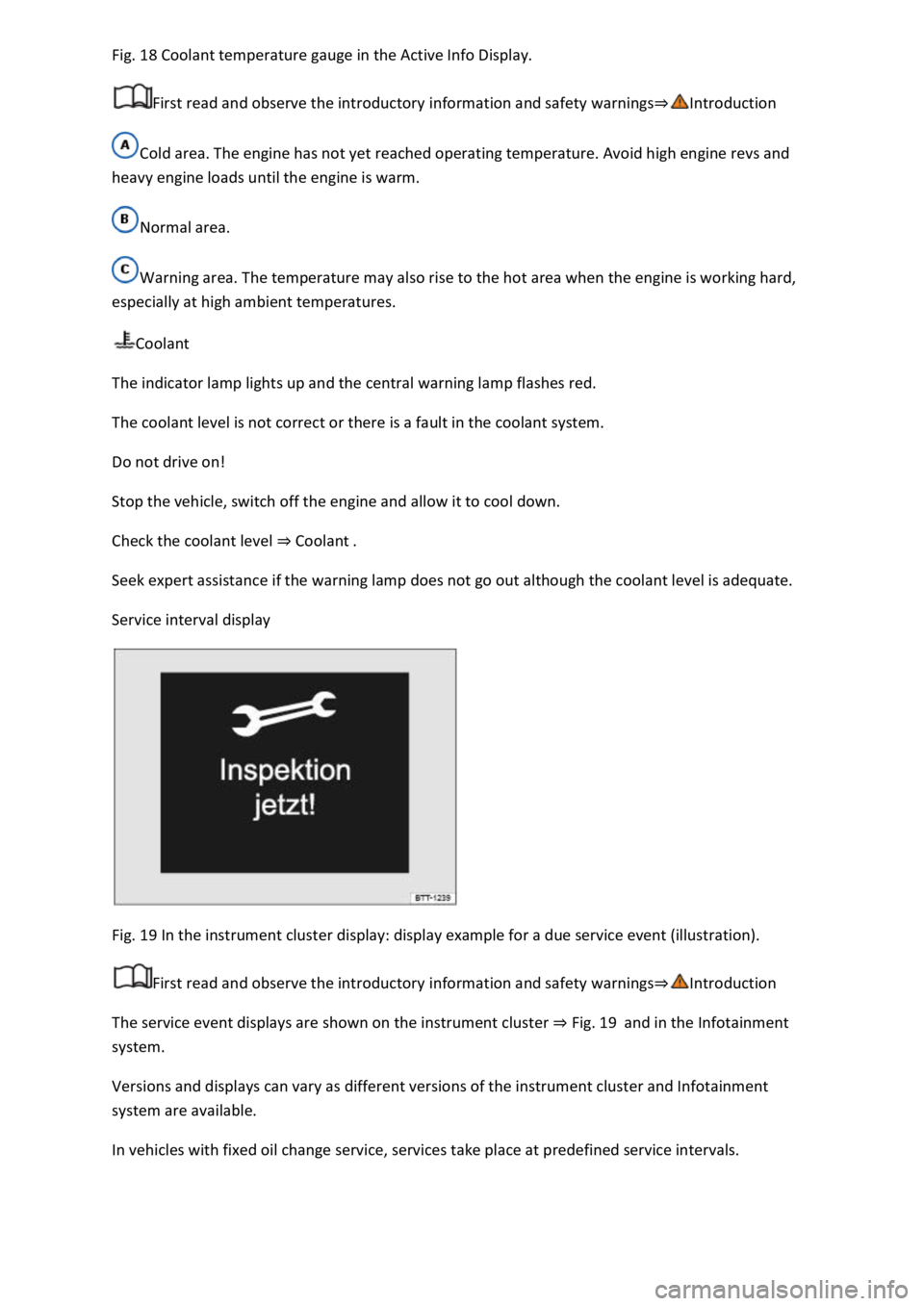
Fig. 18 Coolant temperature gauge in the Active Info Display.
First read and observe the introductory information and safety warnings⇒Introduction
Cold area. The engine has not yet reached operating temperature. Avoid high engine revs and
heavy engine loads until the engine is warm.
Normal area.
Warning area. The temperature may also rise to the hot area when the engine is working hard,
especially at high ambient temperatures.
Coolant
The indicator lamp lights up and the central warning lamp flashes red.
The coolant level is not correct or there is a fault in the coolant system.
Do not drive on!
Stop the vehicle, switch off the engine and allow it to cool down.
Check the coolant level ⇒ Coolant .
Seek expert assistance if the warning lamp does not go out although the coolant level is adequate.
Service interval display
Fig. 19 In the instrument cluster display: display example for a due service event (illustration).
First read and observe the introductory information and safety warnings⇒Introduction
The service event displays are shown on the instrument cluster ⇒ Fig. 19 and in the Infotainment
system.
Versions and displays can vary as different versions of the instrument cluster and Infotainment
system are available.
In vehicles with fixed oil change service, services take place at predefined service intervals.
Page 35 of 502

In vehicles with flexible oil change service, the service intervals are calculated on an individual basis.
Technical progress has made it possible to considerably reduce servicing requirements. An oil change
service must only be carried out when required by the vehicle. The individual conditions in which the
vehicle is used and the driver's personal driving style are taken into account. The service reminder is
displayed 30 days before the service is due. The distance is rounded to the nearest 100 km and the
remaining time is rounded to full days.
Service alert
If a service or inspection is due soon, a service alert will appear the next time the ignition is switched
on.
The number of kilometres or amount of time shown correspond to the maximum number of
kilometres or maximum time that can still be driven before the next service.
Service event
In the event of a due service or a due inspection, a signal tone will be given when the ignition is
switched on and the spanner symbol will be displayed for several seconds on the instrument
cluster display. One of the following displays will also appear ⇒ Fig. 19 :
Inspection now!
Oil service now!
Oil service and inspection now!
Checking service schedules
You can access the current scheduled service information when the ignition is switched on, the
engine is not running, and the vehicle is stationary:
Accessing the service schedule in the Infotainment system.
Press the button or function button.
Press the Vehicle and function buttons ⇒ Infotainment system controls and displays .
Select the Service menu option to display the service information.
Vehicles with analogue instrument cluster.
Press and hold the button in the instrument cluster ⇒ Instrument cluster until the text Service
appears in the display.
Release the button. The current scheduled service will be shown in the display.
Vehicles with digital instrument cluster.
Information on the scheduled service can be accessed only via the Service menu ⇒ Service menu .
Resetting the service interval display
Page 39 of 502
In the displayed menu, press the arrow keys or ⇒ Fig. 21 until the desired menu option is
marked. A frame appears around the selected option.
Press the button ⇒ Fig. 21 to make the required changes. A tick indicates that the particular
system or function is active.
Returning to menu selection
Press the or button ⇒ Fig. 21 .
If warning messages about malfunctions are displayed when the ignition is switched on, it may not
be possible to adjust some settings as described, or the information display may appear differently.
If this is the case, take the vehicle to a qualified workshop to have the malfunction rectified.
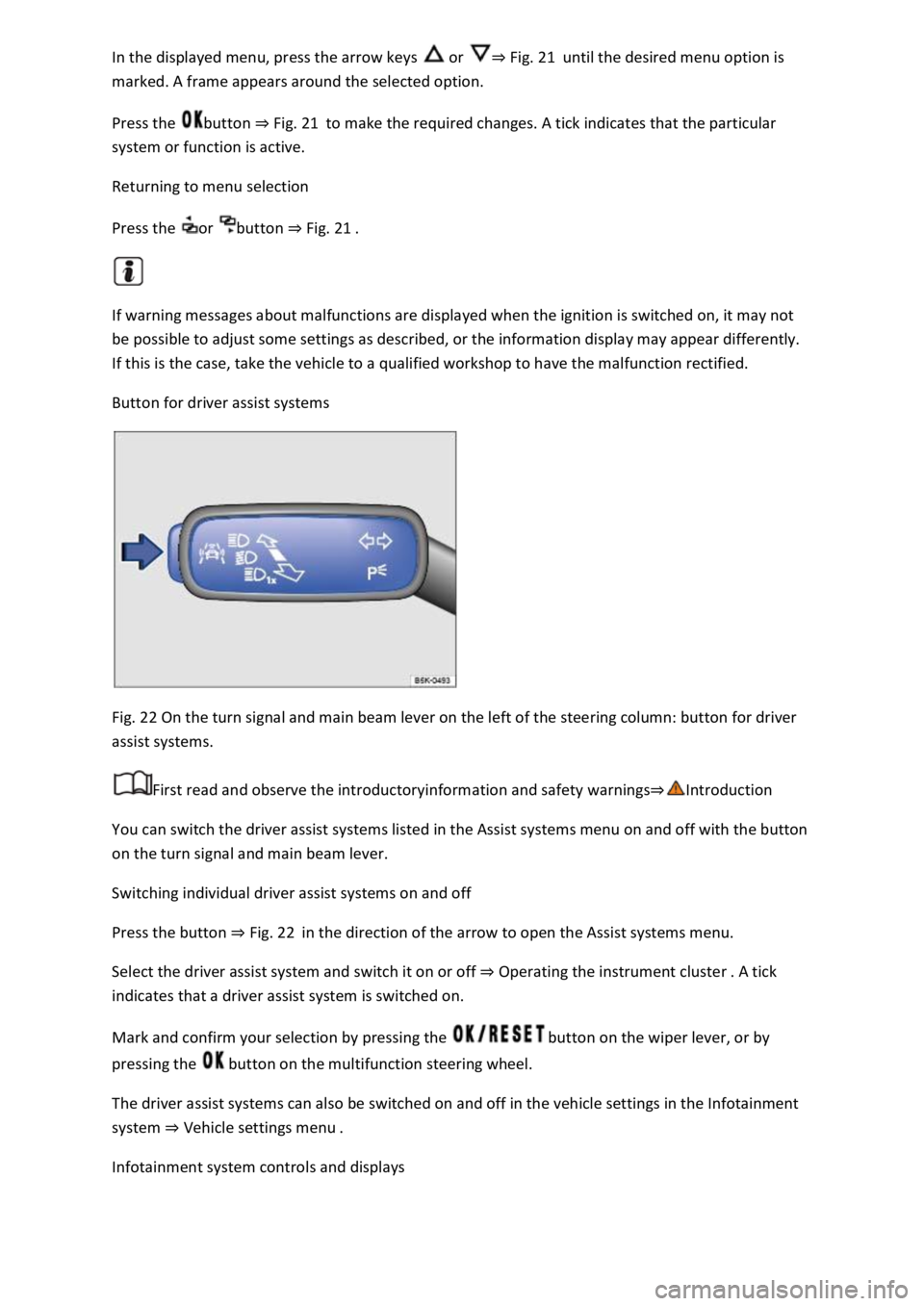
Button for driver assist systems
Fig. 22 On the turn signal and main beam lever on the left of the steering column: button for driver
assist systems.
First read and observe the introductoryinformation and safety warnings⇒Introduction
You can switch the driver assist systems listed in the Assist systems menu on and off with the button
on the turn signal and main beam lever.
Switching individual driver assist systems on and off
Press the button ⇒ Fig. 22 in the direction of the arrow to open the Assist systems menu.
Select the driver assist system and switch it on or off ⇒ Operating the instrument cluster . A tick
indicates that a driver assist system is switched on.
Mark and confirm your selection by pressing the button on the wiper lever, or by
pressing the button on the multifunction steering wheel.
The driver assist systems can also be switched on and off in the vehicle settings in the Infotainment
system ⇒ Vehicle settings menu .
Infotainment system controls and displays
Page 40 of 502
Introduction
This chapter contains information on the followingsubjects:
⇒ Vehicle settings menu
⇒ Performance monitor
⇒ Lap timer
⇒ Personalisation
The Infotainment system combines key vehicle systems in a central operating unit, e.g. menu
settings, radio or navigation system.
General information on operation
The following section contains relevant information on the settings that can be adjusted in the
Vehicle settings menu. Basic information on operating the Infotainment system and on warning and
safety instructions is contained in a separate manual ⇒BookletInfotainment system,.
Systems settings and vehicle information display
After pressing the button or touching the function button followed by the Vehicle function
button, touch the corresponding function buttons to display information or make settings. The
current status of systems can be checked or system faults displayed by touching the function
button in the Vehicle status menu.
Vehicle settings (setup) ⇒ Vehicle settings menu .
Think Blue. Trainer. ⇒ Think Blue. Trainer.
Performance monitor ⇒ Performance monitor .
Lap timer ⇒ Lap timer .
Offroad display ⇒ Offroad driving situations .
Auxiliary heater settings ⇒ Auxiliary heater and ventilation .
Active media.
Driving data.
Vehicle status.
Convenience consumers.
Radio station selection.
WARNING
Accidents and injuries can occur if the driver is distracted. Operating the Infotainment system can
distract you from the road.
Page 41 of 502
Always drive carefully and responsibly.
When you start the engine after the 12-volt vehicle battery has been totally discharged or changed,
you may find that system settings (time, date, personal convenience settings and programming) and
user accounts have been changed or deleted. Check and correct the settings as necessary once the
12-volt vehicle battery has been sufficiently charged.
Vehicle settings menu
First read and observe the introductoryinformation and safety warnings⇒Introduction
You can switch individual functions and systems on and off and make settings in the vehicle settings
of the Infotainment system.
Opening the Vehicle settings menu
Switch on the ignition.
Switch on Infotainment system if necessary.
Press the button or function button.
Touch the Vehicle and function buttons to open the Vehicle settings menu.
Touch the corresponding function buttons to open additional menus in the Vehicle settings menu or
to make settings in the menu options.
If the checkbox in the function button is ticked , the respective function is switched on.
Touch the function button to return to the previous menu.
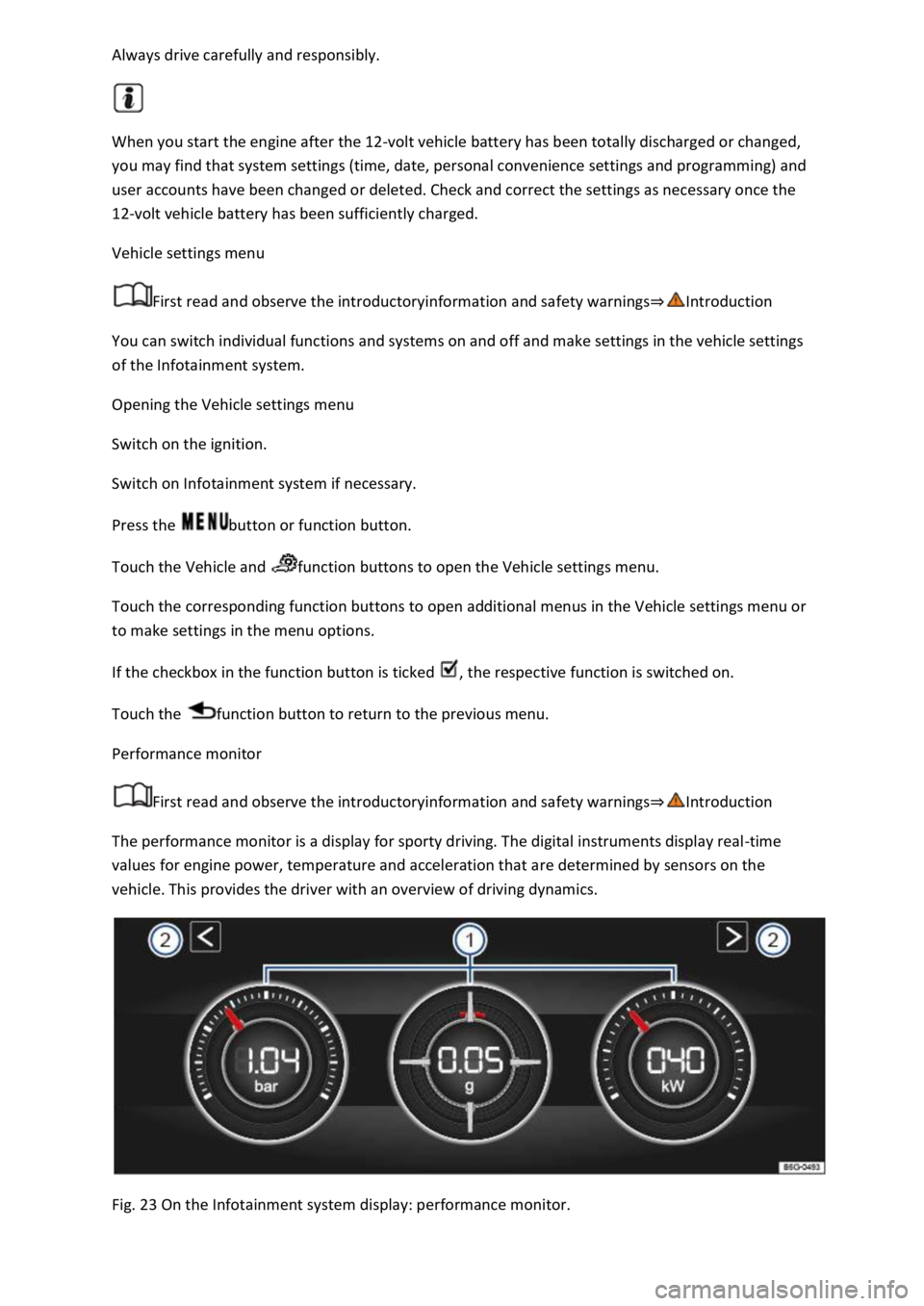
Performance monitor
First read and observe the introductoryinformation and safety warnings⇒Introduction
The performance monitor is a display for sporty driving. The digital instruments display real-time
values for engine power, temperature and acceleration that are determined by sensors on the
vehicle. This provides the driver with an overview of driving dynamics.
Fig. 23 On the Infotainment system display: performance monitor.