multi function steering wheel VOLKSWAGEN T-ROC 2022 User Guide
[x] Cancel search | Manufacturer: VOLKSWAGEN, Model Year: 2022, Model line: T-ROC, Model: VOLKSWAGEN T-ROC 2022Pages: 502, PDF Size: 8.58 MB
Page 36 of 502

reset as follows:
Vehicles with analogue instrument cluster.
Switch off the ignition.
Press and hold the button in the instrument cluster Instrument cluster
Switch on the ignition again.
Release the button when one of the following messages appears on the instrument cluster
display: Reset oil service? or Reset inspection?.
Press the button on the instrument cluster Instrument clusterto confirm.
Vehicles with digital instrument cluster.
The service interval display can be reset only via the Service menu Service menu
Do not reset the service interval display between service intervals otherwise incorrect data will be
shown.
If the oil change service was manually reset, the service interval display then also changes to a fixed
service interval in vehicles with flexible oil change service.
The service message will disappear after a few seconds when the engine is running, or when the
button on the wiper lever or the button on the multifunction steering wheel is pressed
Operating the instrum
If the 12-volt vehicle battery was disconnected for long periods in vehicles with flexible service, the
system cannot calculate the time at which the next service is due. The information shown in the
service interval display may therefore be incorrect. In this case, please observe the maximum
permissible service intervals Service
Operating the instrument cluster
Introduction
This chapter contains information on the followingsubjects:
Operating using the wiper lever
Operating using the multifunction steering wheel
Button for driver assist systems
Some menu options can be accessed only when the vehicle is stationary.
Page 38 of 502
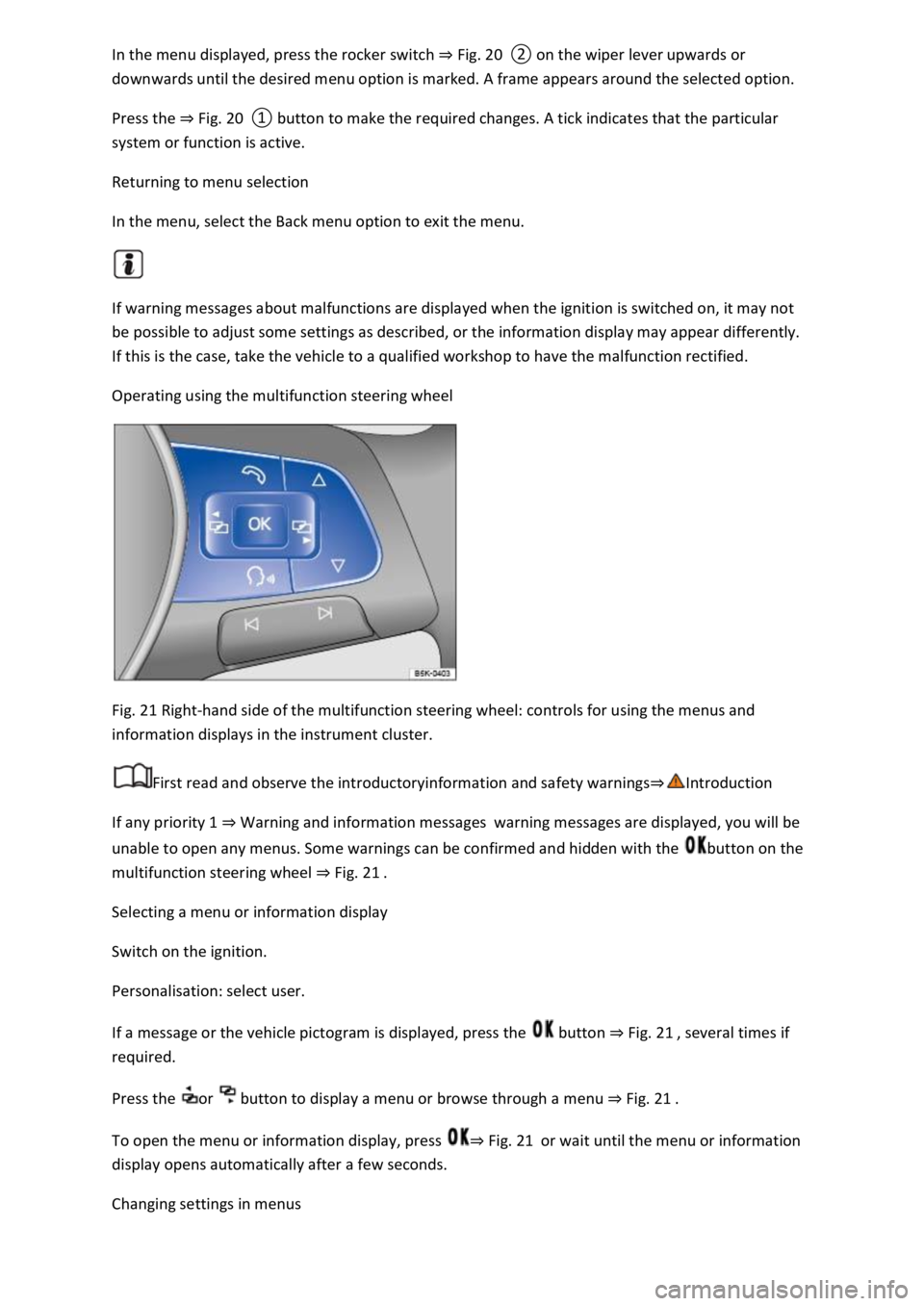
Fig. 20
Press the Fig. 20
system or function is active.
Returning to menu selection
In the menu, select the Back menu option to exit the menu.
If warning messages about malfunctions are displayed when the ignition is switched on, it may not
be possible to adjust some settings as described, or the information display may appear differently.
If this is the case, take the vehicle to a qualified workshop to have the malfunction rectified.
Operating using the multifunction steering wheel
Fig. 21 Right-hand side of the multifunction steering wheel: controls for using the menus and
information displays in the instrument cluster.
First read and observe the introductoryinformation and safety warnings
If any priority 1 Warning and information messageswarning messages are displayed, you will be
unable to open any menus. Some warnings can be confirmed and hidden with the button on the
multifunction steering wheel Fig. 21
Selecting a menu or information display
Switch on the ignition.
Personalisation: select user.
If a message or the vehicle pictogram is displayed, press the button Fig. 21
required.
Press the or button to display a menu or browse through a menu Fig. 21
To open the menu or information display, press Fig. 21or wait until the menu or information
display opens automatically after a few seconds.
Changing settings in menus
Page 39 of 502
or Fig. 21until the desired menu option is
marked. A frame appears around the selected option.
Press the button Fig. 21to make the required changes. A tick indicates that the particular
system or function is active.
Returning to menu selection
Press the or button Fig. 21
If warning messages about malfunctions are displayed when the ignition is switched on, it may not
be possible to adjust some settings as described, or the information display may appear differently.
If this is the case, take the vehicle to a qualified workshop to have the malfunction rectified.
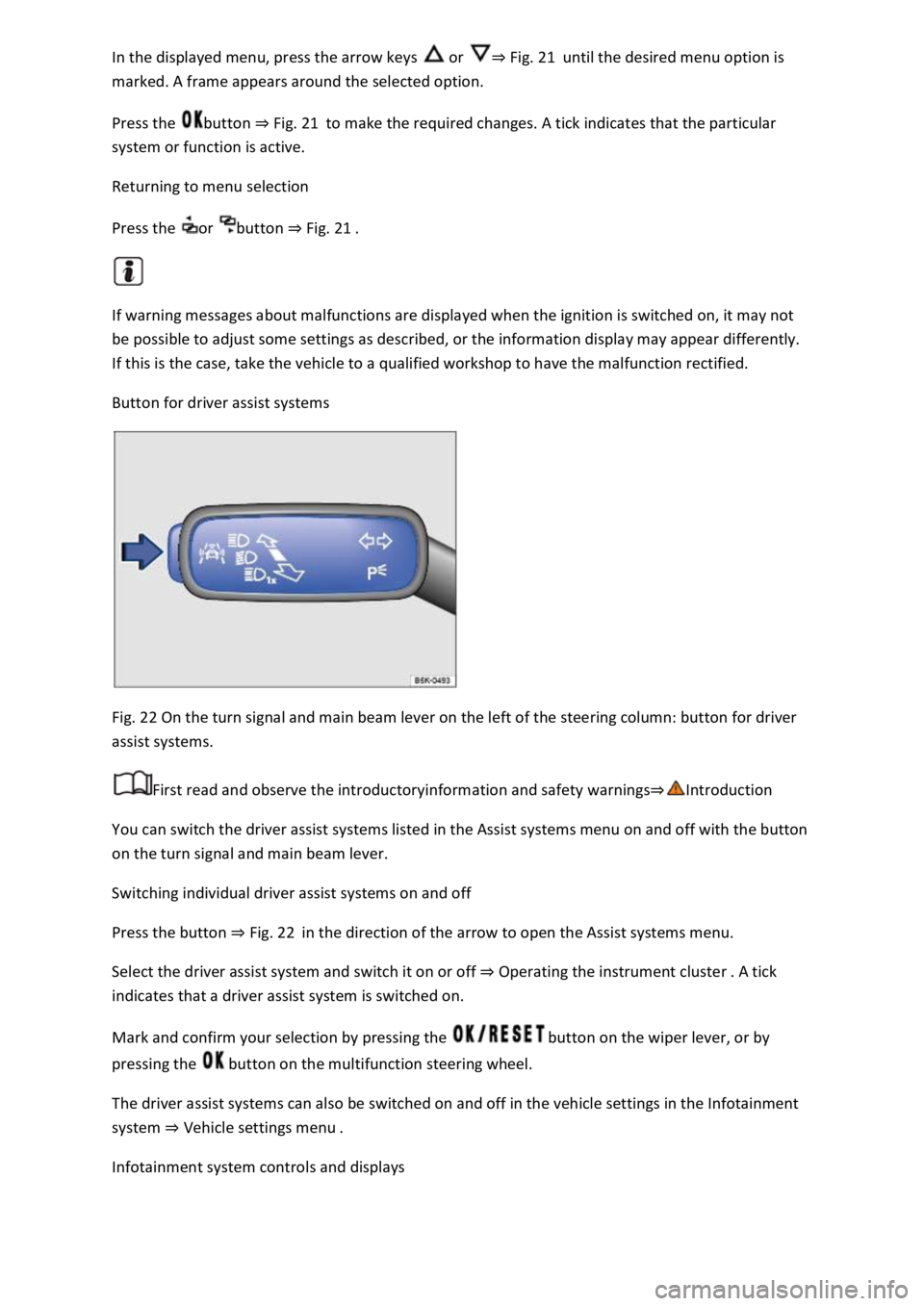
Button for driver assist systems
Fig. 22 On the turn signal and main beam lever on the left of the steering column: button for driver
assist systems.
First read and observe the introductoryinformation and safety warnings
You can switch the driver assist systems listed in the Assist systems menu on and off with the button
on the turn signal and main beam lever.
Switching individual driver assist systems on and off
Press the button Fig. 22in the direction of the arrow to open the Assist systems menu.
Select the driver assist system and switch it on or off Operating the instrument cluster
indicates that a driver assist system is switched on.
Mark and confirm your selection by pressing the button on the wiper lever, or by
pressing the button on the multifunction steering wheel.
The driver assist systems can also be switched on and off in the vehicle settings in the Infotainment
system Vehicle settings menu
Infotainment system controls and displays
Page 45 of 502

Press the MENU button or function button, depending on the version of the Infotainment system.
Touch the Vehicle function button.
Touch the Selection function button.
Touch the Sport function button. The performance monitor is displayed.
Touch one of the arrow buttons Fig. 23
You can change between the lap timer and performance monitor at any time using the arrow
buttons Fig. 23Fig. 24
Measuring lap times
The stopwatch measures the lap time in two areas:
The red needle and the numerical value in the centre show the running time in seconds. The smaller
display in the inner area shows minutes and hours.
The display on the right side shows the current lap time with an accuracy of 1/100 seconds. There is
no difference between the stopwatch and lap times if there are not yet any laps with split times
stored in the lap timer.
WARNING
Avoid operating the lap timer when the vehicle is in motion if possible.
Make lap timer settings and access statistics only when the vehicle is stationary.
When the vehicle is in motion, use the lap timer only in driving situations which are easy to control.
Personalisation
First read and observe the introductoryinformation and safety warnings
The personalisation function allows personalised vehicle settings, such as air conditioning system,
instrument cluster or lighting settings, to be saved in a user account. Four user accounts are
available. Users are identified by the vehicle keys upon unlocking the vehicle. A user account is
assigned to each vehicle key.
Changes to the settings will be assigned to the active user account and saved upon locking the
vehicle or changing the user account.
Welcome and user account selection
When personalisation is activated, the name of the current user account appears on the instrument
cluster display for approximately ten seconds after you switch on the ignition.
During this time, you can select a user account using the buttons on the wiper lever or multifunction
steering wheel Infotainment system controls and displays
Page 232 of 502

Operating the speed limiter with the multifunction steering wheel
Troubleshooting
The speed limiter helps you to stop exceeding a stored speed.
Speed range
The speed limiter is available when driving forwards at speeds from approx. 30 km/h (20 mph).
Driving with the speed limiter
You can interrupt the speed limiter at any time by depressing the accelerator all the way down past
the point of resistance. As soon as the stored speed is exceeded, the green indicator lamp will
flash and an acoustic warning may sound. The speed remains stored in the memory.
The speed limiter function switches back on automatically as soon as the speed drops back below
the stored speed.
Displays
When the speed limiter is switched on, the instrument cluster display shows the stored speed and
the status of the speed limiter:
Shown small or grey: speed limiter not active.Shown large or white: speed limiter active.
Driving downhill
Driving downhill may cause the set speed to be exceeded.
Apply the foot brake to slow the vehicle down, and change down a gear as required.
WARNING
Always switch off the speed limiter after use to avoid unintentional speed control.
The speed limiter does not relieve the driver of their responsibility for the speed of the vehicle. Do
not drive at full throttle if this is not required.
Use of the speed limiter in adverse weather conditions is dangerous and can cause serious injury,
e.g. through aquaplaning, snow, ice, or leaves. Use the speed limiter only when the road and
weather conditions allow it to be used safely.
The speed limiter cannot limit the vehicle speed when travelling downhill. The vehicle speed can
increase under its own weight. Select a lower gear or use the foot brake to slow the vehicle down.
Operating the speed limiter with the multifunction steering wheel
Page 233 of 502
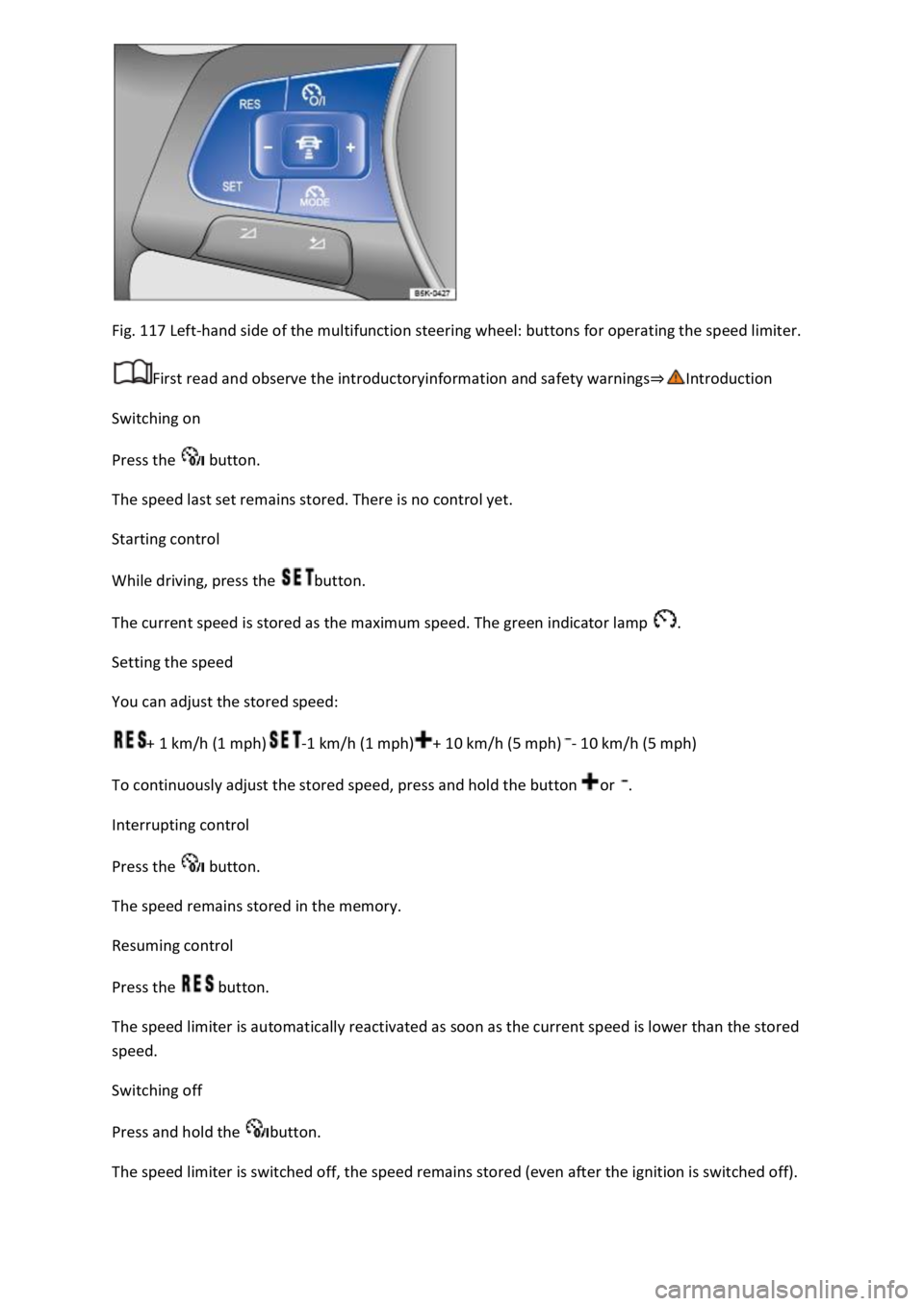
Fig. 117 Left-hand side of the multifunction steering wheel: buttons for operating the speed limiter.
First read and observe the introductoryinformation and safety warnings
Switching on
Press the button.
The speed last set remains stored. There is no control yet.
Starting control
While driving, press the button.
The current speed is stored as the maximum speed. The green indicator lamp .
Setting the speed
You can adjust the stored speed:
+ 1 km/h (1 mph)-1 km/h (1 mph)+ 10 km/h (5 mph)- 10 km/h (5 mph)
To continuously adjust the stored speed, press and hold the button or .
Interrupting control
Press the button.
The speed remains stored in the memory.
Resuming control
Press the button.
The speed limiter is automatically reactivated as soon as the current speed is lower than the stored
speed.
Switching off
Press and hold the button.
The speed limiter is switched off, the speed remains stored (even after the ignition is switched off).
Page 239 of 502

121 Left-hand side of the multifunction steering wheel: buttons for operating ACC.
First read and observe the introductoryinformation and safety warnings
Switching on ACC
Press the button.
The indicator lamp lights up grey, ACC does not regulate.
Starting control
Press the button while driving forwards.
ACC stores the current speed and maintains the set distance. If the current speed is outside the
defined speed range, ACC will set the minimum speed (when driving more slowly than the limit) or
maximum speed (when driving faster than the limit).
The following indicator lamps light up, depending on the driving situation:
ACC regulating.No vehicle has been detected ahead.Vehicle detected ahead (white).
Interrupting control
Briefly press the button or press the brake pedal.
The indicator lights up grey, the speed and distance remain stored.
Control is automatically interrupted if the traction control system (TCS) is deactivated.
Resuming control
Press the button.
ACC adopts the last set speed and last set distance. The instrument cluster display shows the set
speed and the indicator lamp lights up green.
Switching off ACC
Press and hold the button.
The set speed is deleted.
Changing to the speed limiter
Press the button.
ACC is switched off.
Setting ACC
Page 240 of 502
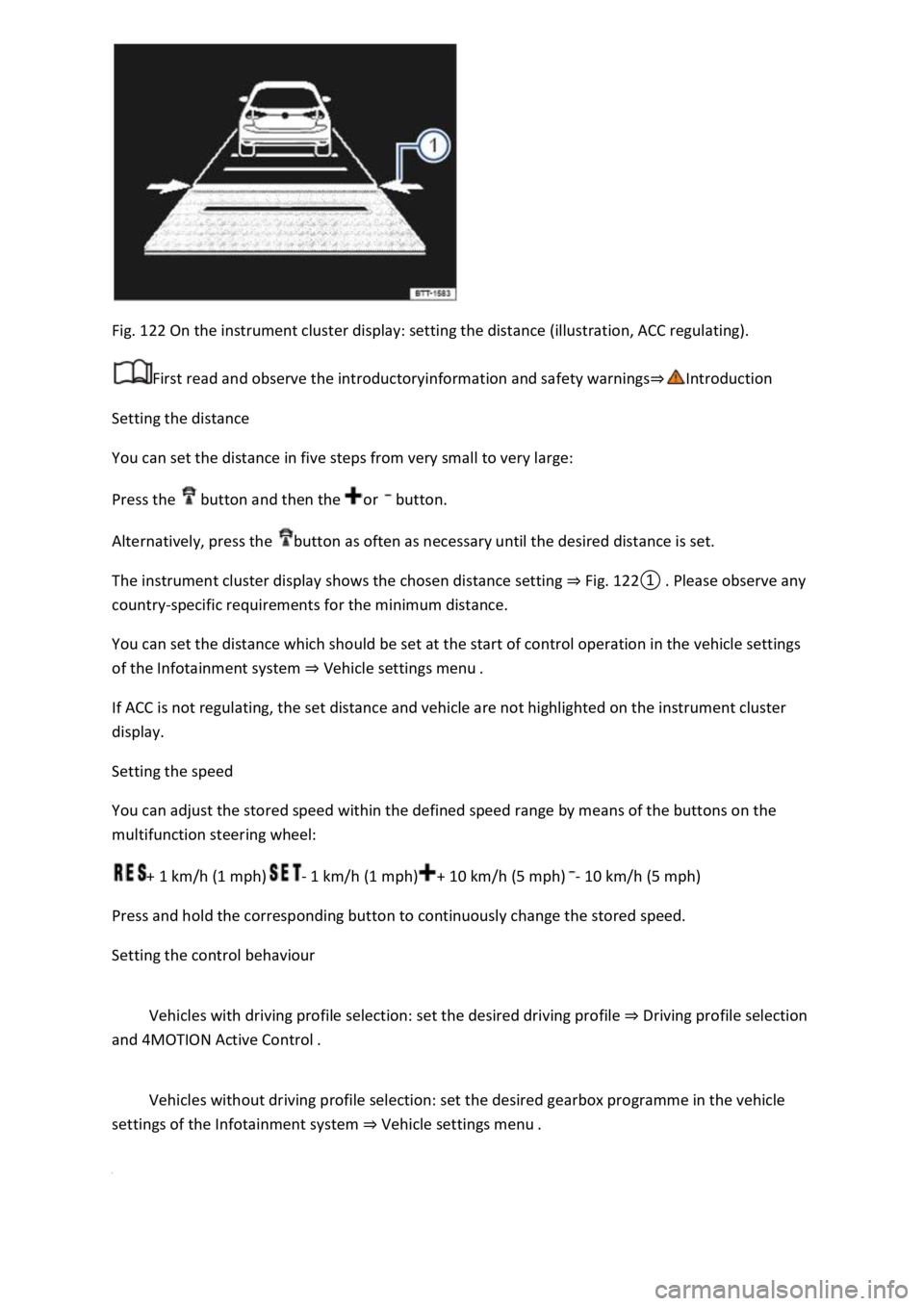
Fig. 122 On the instrument cluster display: setting the distance (illustration, ACC regulating).
First read and observe the introductoryinformation and safety warnings
Setting the distance
You can set the distance in five steps from very small to very large:
Press the button and then the or button.
Alternatively, press the button as often as necessary until the desired distance is set.
The instrument cluster display shows the chosen distance setting Fig.
0lease observe any
country-specific requirements for the minimum distance.
You can set the distance which should be set at the start of control operation in the vehicle settings
of the Infotainment system Vehicle settings menu
If ACC is not regulating, the set distance and vehicle are not highlighted on the instrument cluster
display.
Setting the speed
You can adjust the stored speed within the defined speed range by means of the buttons on the
multifunction steering wheel:
+ 1 km/h (1 mph)- 1 km/h (1 mph)+ 10 km/h (5 mph)- 10 km/h (5 mph)
Press and hold the corresponding button to continuously change the stored speed.
Setting the control behaviour
Vehicles with driving profile selection: set the desired driving profile Driving profile selection
and 4MOTION Active Control
Vehicles without driving profile selection: set the desired gearbox programme in the vehicle
settings of the Infotainment system Vehicle settings menu