display VOLKSWAGEN TIGUAN 2017 Owner´s Manual
[x] Cancel search | Manufacturer: VOLKSWAGEN, Model Year: 2017, Model line: TIGUAN, Model: VOLKSWAGEN TIGUAN 2017Pages: 341, PDF Size: 9.14 MB
Page 170 of 341
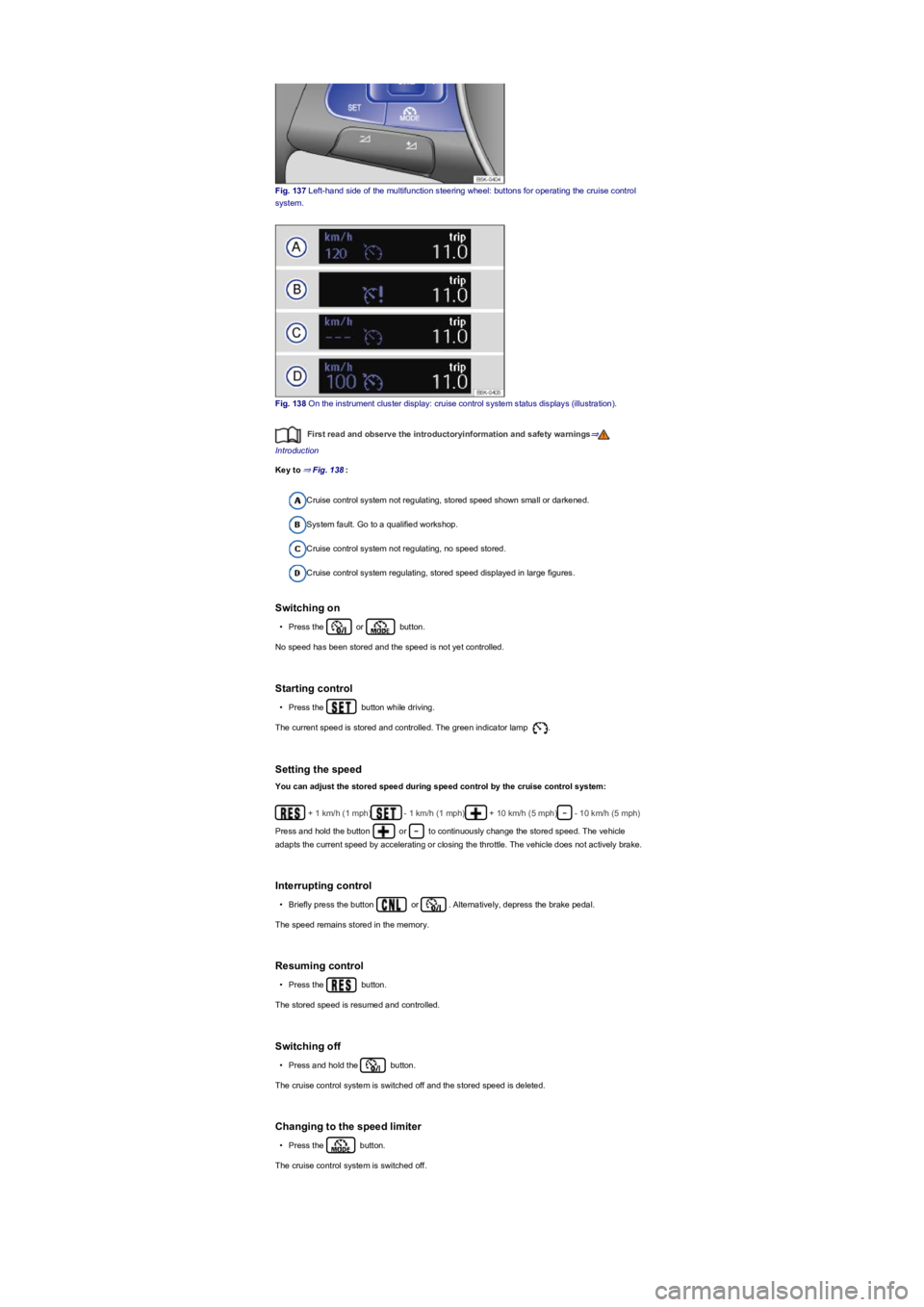
Fig. 137 Left-hand side of the multifunction steering wheel: buttons for operating the cruise control
system.
Fig. 138 On the instrument cluster display: cruise control system status displays (illustration).
First read and observe the introductoryinformation and safety warnings⇒
Introduction
Key to ⇒ Fig. 138:
Cruise control system not regulating, stored speed shown small or darkened.
System fault. Go to a qualified workshop.
Cruise control system not regulating, no speed stored.
Cruise control system regulating, stored speed displayed in large figures.
Switching on
•Press the or button.
No speed has been stored and the speed is not yet controlled.
Starting control
•Press the button while driving.
The current speed is stored and controlled. The green indicator lamp .
Setting the speed
You can adjust the stored speed during speed control by the cruise control system:
+ 1 km/h (1 mph)- 1 km/h (1 mph)+ 10 km/h (5 mph)- 10 km/h (5 mph)
Press and hold the button or to continuously change the stored speed. The vehicle
adapts the current speed by accelerating or closing the throttle. The vehicle does not actively brake.
Interrupting control
•Briefly press the button or . Alternatively, depress the brake pedal.
The speed remains stored in the memory.
Resuming control
•Press the button.
The stored speed is resumed and controlled.
Switching off
•Press and hold the button.
The cruise control system is switched off and the stored speed is deleted.
Changing to the speed limiter
•Press the button.
The cruise control system is switched off.
Page 171 of 341
Troubleshooting
First read and observe the introductoryinformation and safety warnings⇒
Introduction
Regulation is automatically interrupted.
•You have depressed the brake pedal.
•The selector lever of the DSG dual clutch gearbox is not in the selector lever position D.
•The vehicle has exceeded the stored speed for an extended period.
•If regulation related to driving dynamics is taking place, e.g. by TCS and ESC.
•Malfunction. Switch off the cruise control system and have it checked by a qualified workshop.
Volkswagen recommends using a Volkswagen dealership for this purpose.
Speed limiter
Introduction
This chapter contains information on the followingsubjects:
⇒ Operating the speed limiter with the turn signal and main beam lever
⇒ Operating the speed limiter via the multifunction steering wheel
⇒ Troubleshooting
The speed limiter helps to prevent the
vehicle from exceeding a speed that
you have stored.
Speed range
The speed limiter is available when driving forwards at speeds from around 30 km/h (20 mph).
Driving with speed limiter
You can interrupt the speed limiter function at any time by fully depressing the accelerator beyond
the point of resistance. The green warning and indicator lamp flashes as soon as the stored
speed is exceeded. The speed remains stored in the memory.
The speed limiter function is activated again automatically as soon as the speed drops below the
stored speed.
Driving downhill
Driving downhill may cause the set speed to be exceeded. The green warning and indicator lamp
flashes in this case. An acoustic warning may also be given.
Apply the foot brake to slow the vehicle down, and change down a gear as required.
How do I operate the speed limiter?
Depending on the vehicle equipment, you can operate the speed limiter either by means of the turn
signal and main beam lever ⇒ Operating the speed limiter with the turn signal and main beam lever
or via the multifunction steering wheel ⇒ Operating the speed limiter via the multifunction steering
wheel.
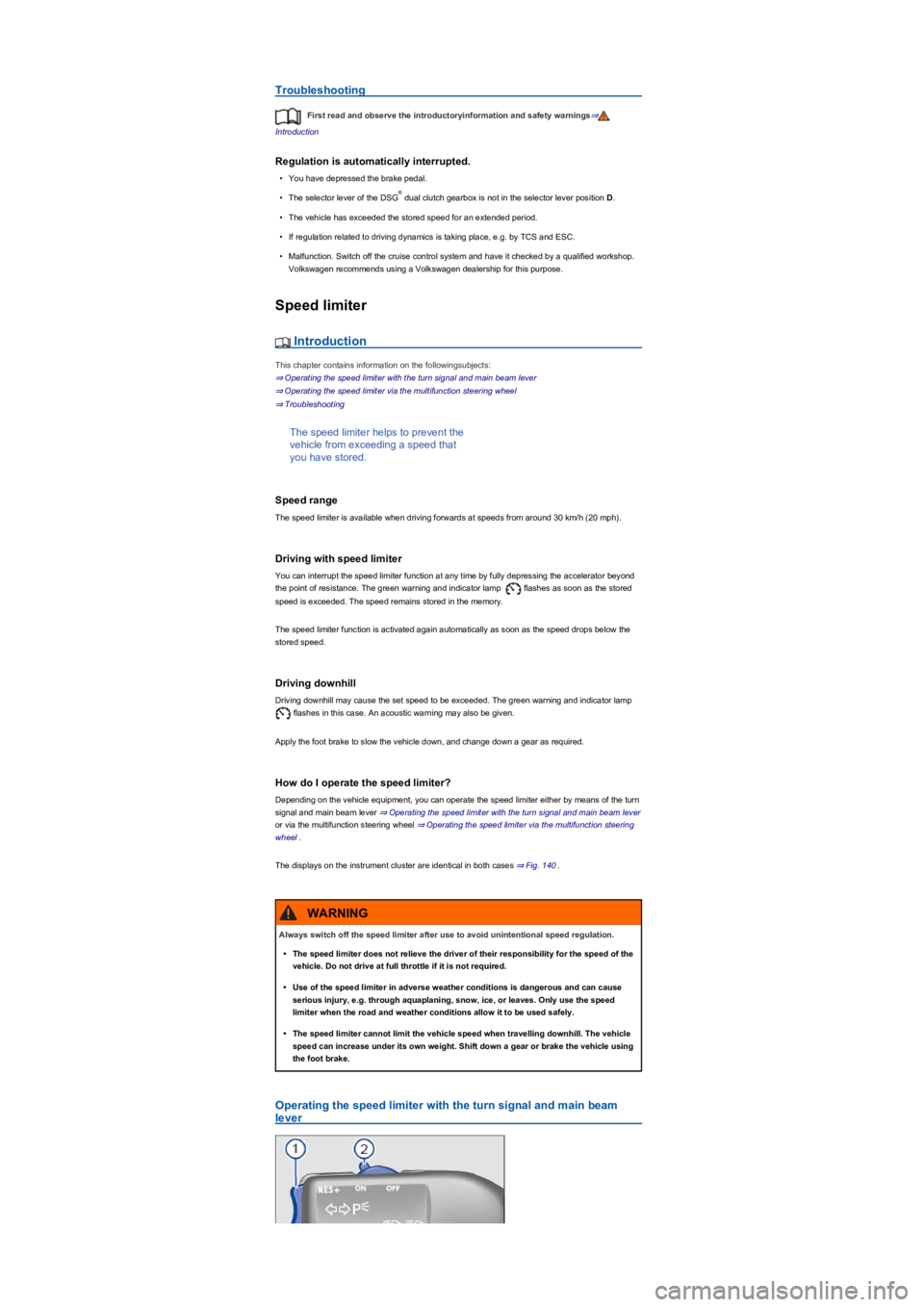
The displays on the instrument cluster are identical in both cases ⇒ Fig. 140.
Operating the speed limiter with the turn signal and main beam
lever
®
Always switch off the speed limiter after use to avoid unintentional speed regulation.
•The speed limiter does not relieve the driver of their responsibility for the speed of the
vehicle. Do not drive at full throttle if it is not required.
•Use of the speed limiter in adverse weather conditions is dangerous and can cause
serious injury, e.g. through aquaplaning, snow, ice, or leaves. Only use the speed
limiter when the road and weather conditions allow it to be used safely.
•The speed limiter cannot limit the vehicle speed when travelling downhill. The vehicle
speed can increase under its own weight. Shift down a gear or brake the vehicle using
the foot brake.
WARNING
Page 172 of 341
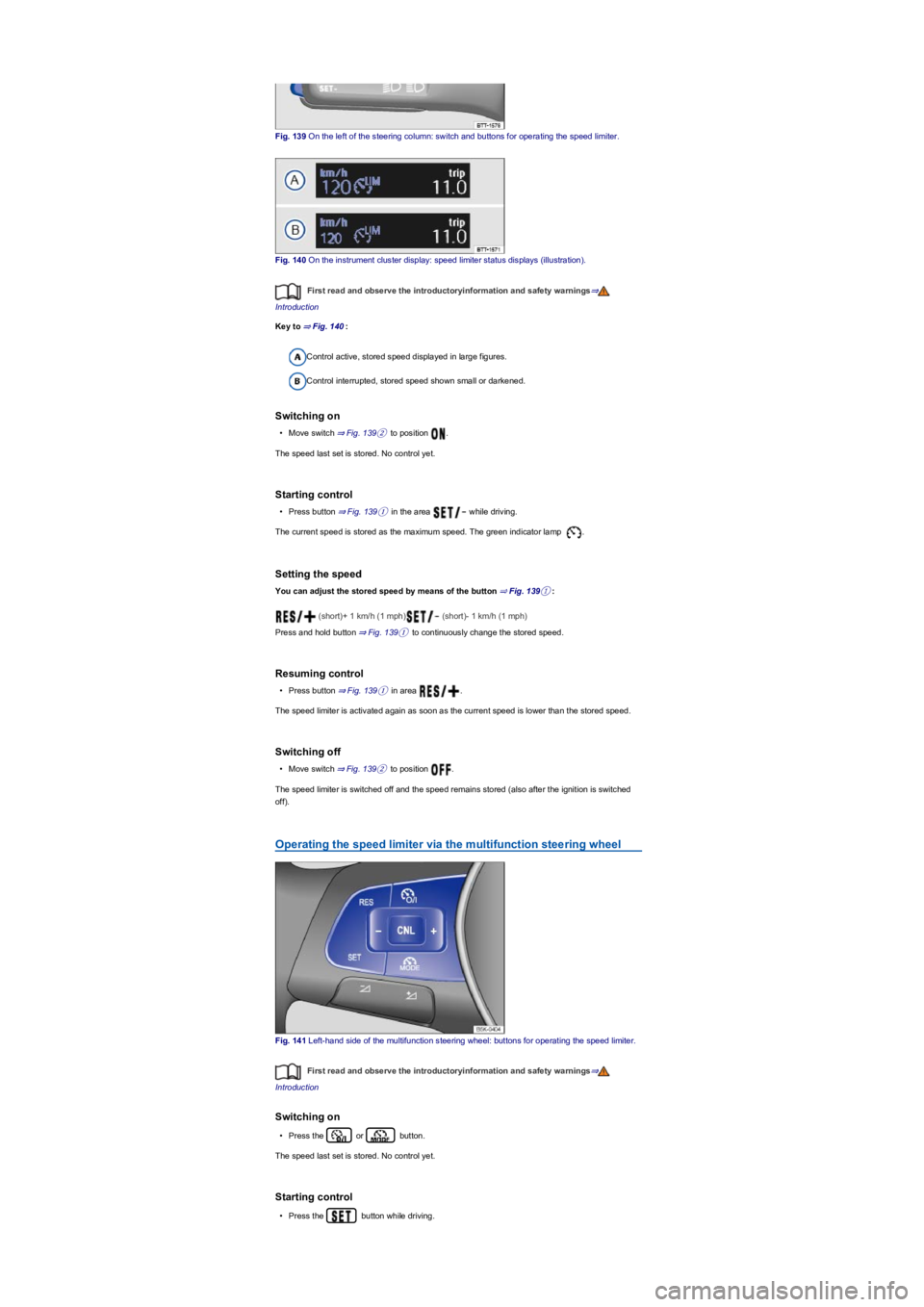
Fig. 139 On the left of the steering column: switch and buttons for operating the speed limiter.
Fig. 140 On the instrument cluster display: speed limiter status displays (illustration).
First read and observe the introductoryinformation and safety warnings⇒
Introduction
Key to ⇒ Fig. 140:
Control active, stored speed displayed in large figures.
Control interrupted, stored speed shown small or darkened.
Switching on
•Move switch ⇒ Fig. 139② to position .
The speed last set is stored. No control yet.
Starting control
•Press button ⇒ Fig. 139① in the area while driving.
The current speed is stored as the maximum speed. The green indicator lamp .
Setting the speed
You can adjust the stored speed by means of the button ⇒ Fig. 139①:
(short)+ 1 km/h (1 mph) (short)- 1 km/h (1 mph)
Press and hold button ⇒ Fig. 139① to continuously change the stored speed.
Resuming control
•Press button ⇒ Fig. 139① in area .
The speed limiter is activated again as soon as the current speed is lower than the stored speed.
Switching off
•Move switch ⇒ Fig. 139② to position .
The speed limiter is switched off and the speed remains stored (also after the ignition is switched
off).
Operating the speed limiter via the multifunction steering wheel
Fig. 141 Left-hand side of the multifunction steering wheel: buttons for operating the speed limiter.
First read and observe the introductoryinformation and safety warnings⇒
Introduction
Switching on
•Press the or button.
The speed last set is stored. No control yet.
Starting control
•Press the button while driving.
Page 174 of 341
Speed range
ACC controls the vehicle in the speed range between 30 km/h (20 mph) and 160 km/h (100 mph)
or 210 km/h (130 mph). This speed range may differ in certain markets.
Radar sensor
ACC detects driving situations by means of the radar sensor at the front of the vehicle ⇒ Front
view. The range of the radar sensor is up to approximately 120 m.
Does the vehicle have ACC?
The vehicle is equipped with ACC if you can make settings for ACC in the vehicle settings of the
Infotainment system ⇒ Vehicle settings menu.
If the vehicle has ACC, the cruise control system is not available as an independent system.
Special driving situations
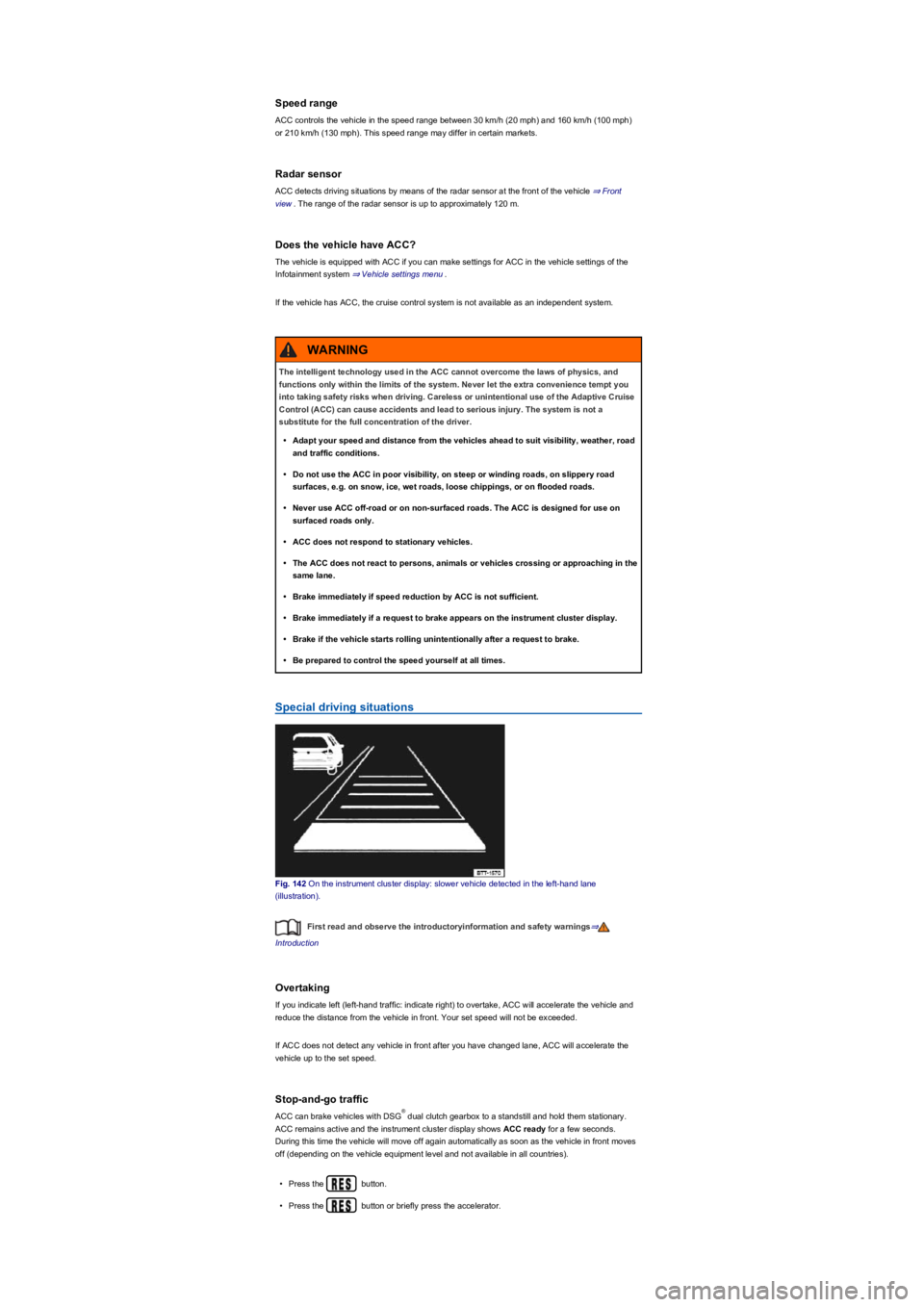
Fig. 142 On the instrument cluster display: slower vehicle detected in the left-hand lane
(illustration).
First read and observe the introductoryinformation and safety warnings⇒
Introduction
Overtaking
If you indicate left (left-hand traffic: indicate right) to overtake, ACC will accelerate the vehicle and
reduce the distance from the vehicle in front. Your set speed will not be exceeded.
If ACC does not detect any vehicle in front after you have changed lane, ACC will accelerate the
vehicle up to the set speed.
Stop-and-go traffic
ACC can brake vehicles with DSG dual clutch gearbox to a standstill and hold them stationary.
ACC remains active and the instrument cluster display shows ACC ready for a few seconds.
During this time the vehicle will move off again automatically as soon as the vehicle in front moves
off (depending on the vehicle equipment level and not available in all countries).
•Press the button.
•Press the button or briefly press the accelerator.
The intelligent technology used in the ACC cannot overcome the laws of physics, and
functions only within the limits of the system. Never let the extra convenience tempt you
into taking safety risks when driving. Careless or unintentional use of the Adaptive Cruise
Control (ACC) can cause accidents and lead to serious injury. The system is not a
substitute for the full concentration of the driver.
•Adapt your speed and distance from the vehicles ahead to suit visibility, weather, road
and traffic conditions.
•Do not use the ACC in poor visibility, on steep or winding roads, on slippery road
surfaces, e.g. on snow, ice, wet roads, loose chippings, or on flooded roads.
•Never use ACC off-road or on non-surfaced roads. The ACC is designed for use on
surfaced roads only.
•ACC does not respond to stationary vehicles.
•The ACC does not react to persons, animals or vehicles crossing or approaching in the
same lane.
•Brake immediately if speed reduction by ACC is not sufficient.
•Brake immediately if a request to brake appears on the instrument cluster display.
•Brake if the vehicle starts rolling unintentionally after a request to brake.
•Be prepared to control the speed yourself at all times.
WARNING
®
Page 175 of 341
•The vehicle is stationary for longer than approximately three minutes.
•A vehicle door is opened.
•The ignition is switched off.
Avoiding overtaking on the right (left-hand traffic: overtaking on the left)
If ACC detects a slower vehicle in the left-hand lane (left-hand traffic: in the right-hand lane), ACC
will brake the vehicle gently within the system limits and therefore prevent a prohibited overtaking
manoeuvre ⇒ Fig. 142. The function is active from speeds of around 80 km/h (50 mph), but is not
available in all countries.
System limits
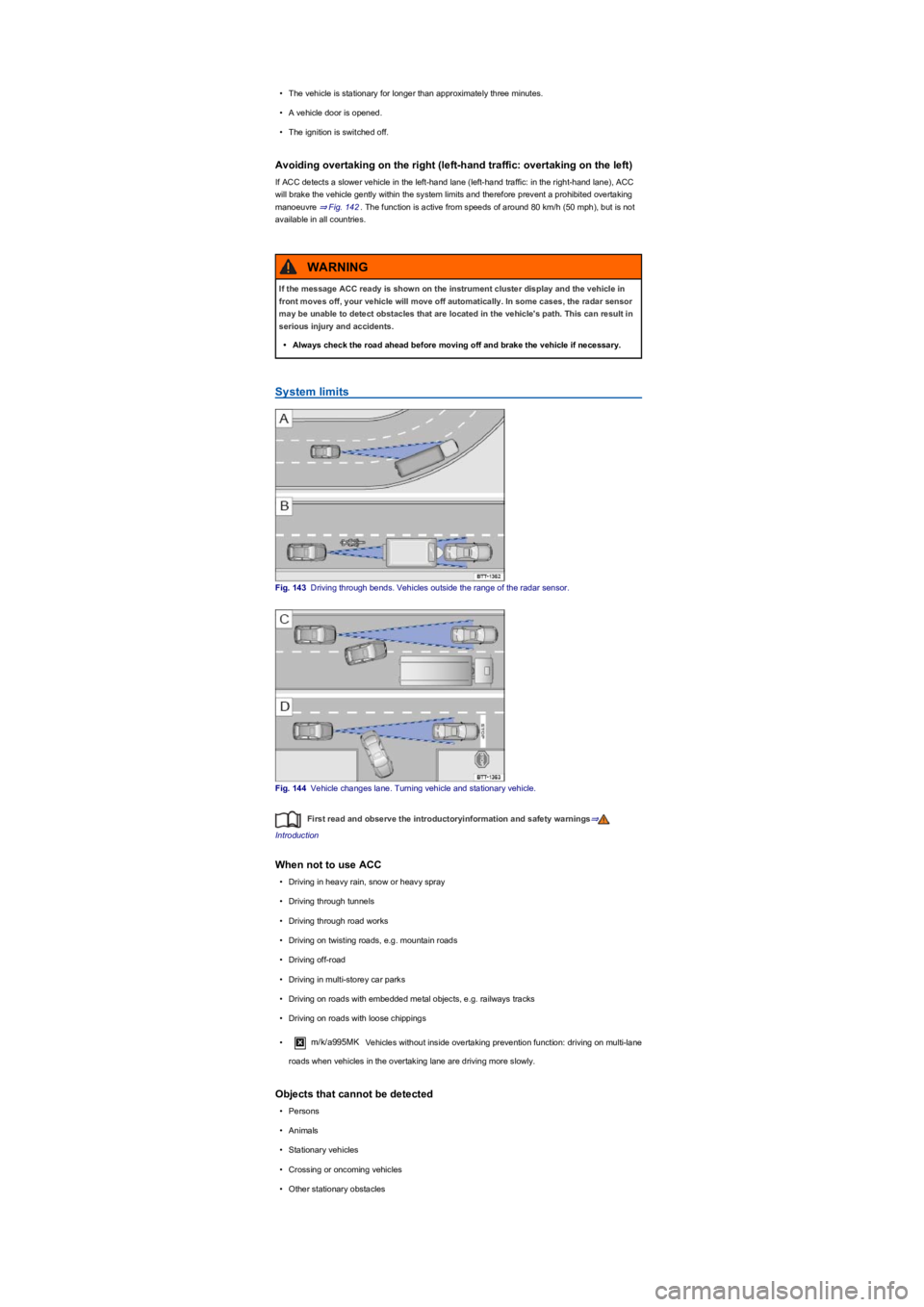
Fig. 143 Driving through bends. Vehicles outside the range of the radar sensor.
Fig. 144 Vehicle changes lane. Turning vehicle and stationary vehicle.
First read and observe the introductoryinformation and safety warnings⇒
Introduction
When not to use ACC
•Driving in heavy rain, snow or heavy spray
•Driving through tunnels
•Driving through road works
•Driving on twisting roads, e.g. mountain roads
•Driving off-road
•Driving in multi-storey car parks
•Driving on roads with embedded metal objects, e.g. railways tracks
•Driving on roads with loose chippings
•m/k/a995MK Vehicles without inside overtaking prevention function: driving on multi-lane
roads when vehicles in the overtaking lane are driving more slowly.
Objects that cannot be detected
•Persons
•Animals
•Stationary vehicles
•Crossing or oncoming vehicles
•Other stationary obstacles
If the message ACC ready is shown on the instrument cluster display and the vehicle in
front moves off, your vehicle will move off automatically. In some cases, the radar sensor
may be unable to detect obstacles that are located in the vehicle's path. This can result in
serious injury and accidents.
•Always check the road ahead before moving off and brake the vehicle if necessary.
WARNING
Page 176 of 341
If a stationary vehicle is hidden behind a vehicle that has been detected by the adaptive cruise
control and this vehicle turns off the road or changes lane, the ACC will not react to the stationary
vehicle ⇒ Fig. 144.
Bends
The radar sensor always measures straight ahead. For this reason, vehicles may be incorrectly
detected or vehicles driving ahead not detected in tight bends ⇒ Fig. 143.
Vehicles outside the sensor range
•Vehicles that are driving outside the sensor range in close proximity to your vehicle, e.g.
motorbikes ⇒ Fig. 143.
•Vehicles that change into your lane directly in front of your vehicle ⇒ Fig. 144.
•Vehicles with bodies or attachments that project beyond the vehicle.
Switching ACC on and off
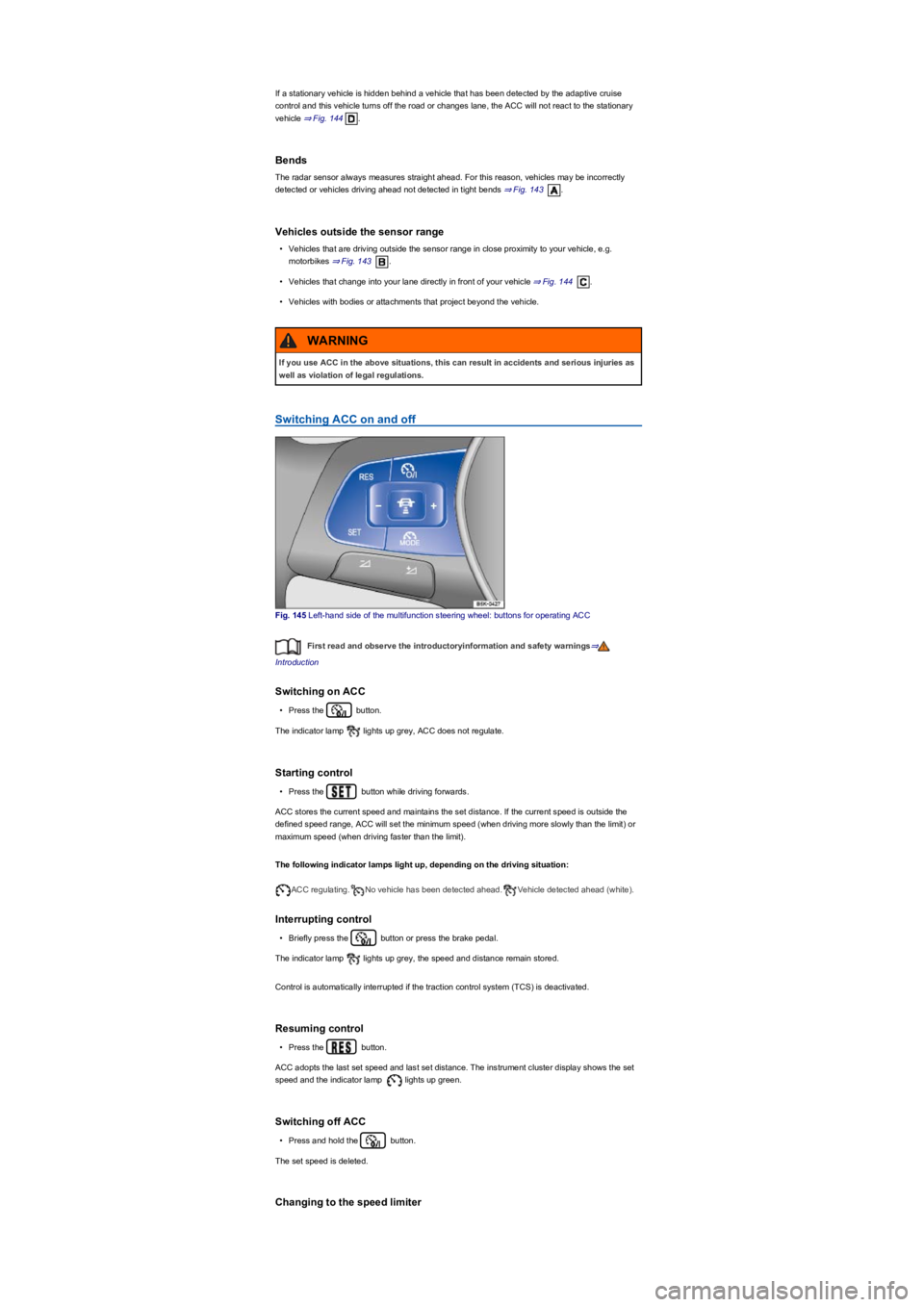
Fig. 145 Left-hand side of the multifunction steering wheel: buttons for operating ACC
First read and observe the introductoryinformation and safety warnings⇒
Introduction
Switching on ACC
•Press the button.
The indicator lamp lights up grey, ACC does not regulate.
Starting control
•Press the button while driving forwards.
ACC stores the current speed and maintains the set distance. If the current speed is outside the
defined speed range, ACC will set the minimum speed (when driving more slowly than the limit) or
maximum speed (when driving faster than the limit).
The following indicator lamps light up, depending on the driving situation:
ACC regulating.No vehicle has been detected ahead.Vehicle detected ahead (white).
Interrupting control
•Briefly press the button or press the brake pedal.
The indicator lamp lights up grey, the speed and distance remain stored.
Control is automatically interrupted if the traction control system (TCS) is deactivated.
Resuming control
•Press the button.
ACC adopts the last set speed and last set distance. The instrument cluster display shows the set
speed and the indicator lamp lights up green.
Switching off ACC
•Press and hold the button.
The set speed is deleted.
Changing to the speed limiter
If you use ACC in the above situations, this can result in accidents and serious injuries as
well as violation of legal regulations.
WARNING
Page 177 of 341
•Press the button.
ACC is switched off.
Setting ACC
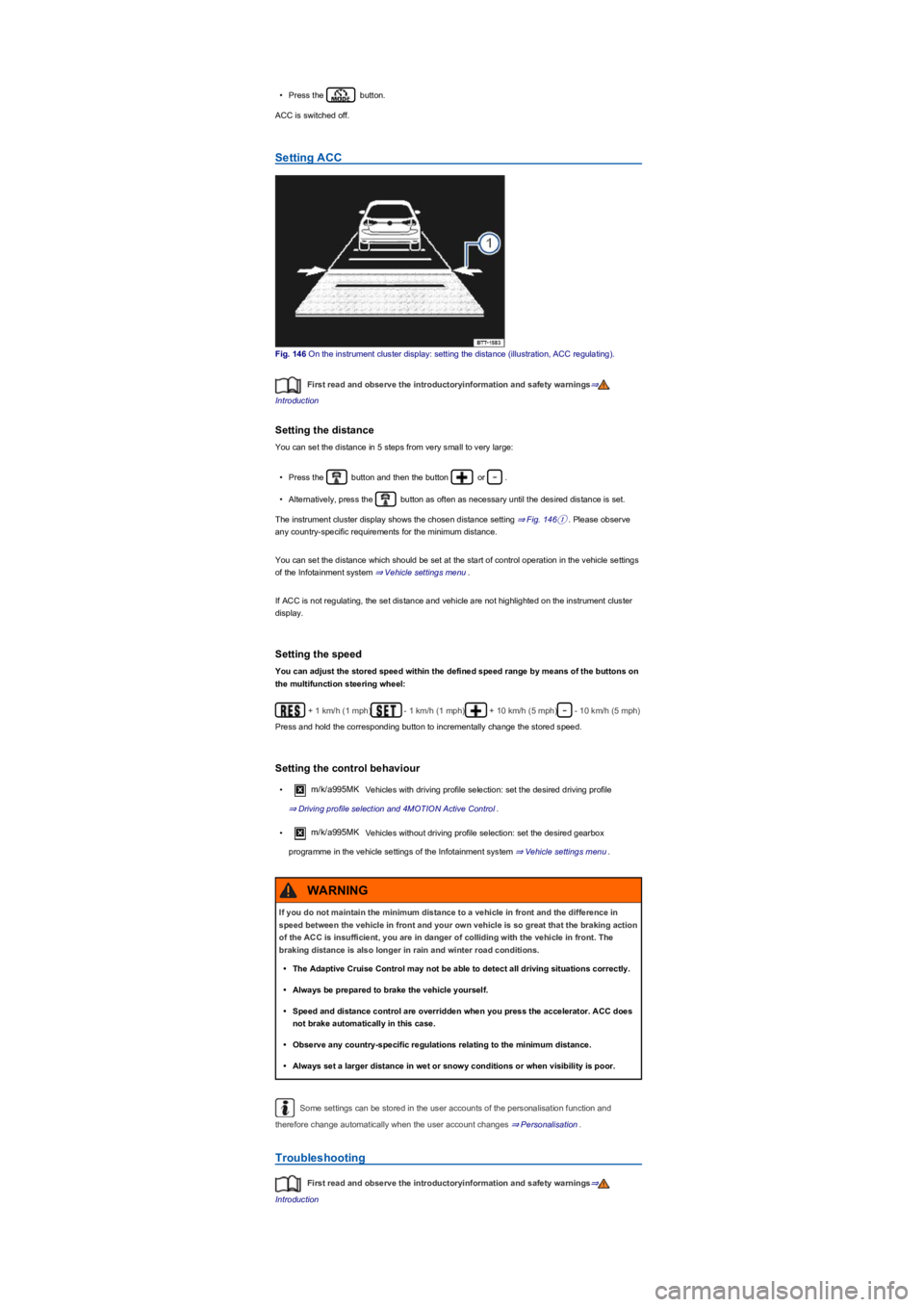
Fig. 146 On the instrument cluster display: setting the distance (illustration, ACC regulating).
First read and observe the introductoryinformation and safety warnings⇒
Introduction
Setting the distance
You can set the distance in 5 steps from very small to very large:
•Press the button and then the button or .
•Alternatively, press the button as often as necessary until the desired distance is set.
The instrument cluster display shows the chosen distance setting ⇒ Fig. 146①. Please observe
any country-specific requirements for the minimum distance.
You can set the distance which should be set at the start of control operation in the vehicle settings
of the Infotainment system ⇒ Vehicle settings menu.
If ACC is not regulating, the set distance and vehicle are not highlighted on the instrument cluster
display.
Setting the speed
You can adjust the stored speed within the defined speed range by means of the buttons on
the multifunction steering wheel:
+ 1 km/h (1 mph)- 1 km/h (1 mph)+ 10 km/h (5 mph)- 10 km/h (5 mph)
Press and hold the corresponding button to incrementally change the stored speed.
Setting the control behaviour
•m/k/a995MK Vehicles with driving profile selection: set the desired driving profile
⇒ Driving profile selection and 4MOTION Active Control.
•m/k/a995MK Vehicles without driving profile selection: set the desired gearbox
programme in the vehicle settings of the Infotainment system ⇒ Vehicle settings menu.
Some settings can be stored in the user accounts of the personalisation function and
therefore change automatically when the user account changes ⇒ Personalisation.
Troubleshooting
First read and observe the introductoryinformation and safety warnings⇒
Introduction
If you do not maintain the minimum distance to a vehicle in front and the difference in
speed between the vehicle in front and your own vehicle is so great that the braking action
of the ACC is insufficient, you are in danger of colliding with the vehicle in front. The
braking distance is also longer in rain and winter road conditions.
•The Adaptive Cruise Control may not be able to detect all driving situations correctly.
•Always be prepared to brake the vehicle yourself.
•Speed and distance control are overridden when you press the accelerator. ACC does
not brake automatically in this case.
•Observe any country-specific regulations relating to the minimum distance.
•Always set a larger distance in wet or snowy conditions or when visibility is poor.
WARNING
Page 178 of 341
The warning lamp and a message are displayed on the instrument cluster display in the event
of malfunctions.
If the malfunction cannot be rectified by one of the listed measures, switch off ACC and go to a
qualified workshop. Volkswagen recommends using a Volkswagen dealership for this purpose.
ACC is not available, the radar sensor does not have sufficient visibility
•The radar sensor is dirty. Clean the radar sensor ⇒ Vehicle care.
•The visibility of the radar sensor is impaired by add-on parts, the trim frames of number plate
holders or stickers. Keep the area around the radar sensor free.
•The radar sensor has been displaced or damaged, e.g. due to damage to the front of the
vehicle. Check whether damage is visible ⇒ Repairs and technical modifications.
•Fault or malfunction. Switch off and restart the engine.
•Structural modifications have been made to the front of the vehicle.
•The genuine Volkswagen badge is not used.
ACC does not function as expected
•The radar sensor is dirty. Clean the radar sensor ⇒ Vehicle care.
•The visibility of the radar sensor is impaired due to the weather conditions, e.g. snow, or due to
detergent deposits or coatings. Clean the radar sensor ⇒ Vehicle care.
•The system limits are not met ⇒ System limits.
•The brakes have overheated, control was interrupted automatically. Allow the brakes to cool
down and check functioning again.
Control cannot be started
•A forward gear other than first gear is selected (manual gearbox) or the selector lever is in
selector lever position D or the Tiptronic gate.
•The speed is at least 25 km/h (16 mph) in the case of vehicles with manual gearbox.
•The brake lights on the vehicle and trailer ⇒ are working.
•ESC is not regulating.
•The brake pedal is not depressed.
Unusual noises during the automatic braking operation are normal and not a sign that there
is a fault.
Area monitoring system (Front Assist)
Introduction
This chapter contains information on the followingsubjects:
⇒ Warning levels and braking intervention
⇒ Operating the area monitoring system (Front Assist)
⇒ Pedestrian Monitoring
⇒ System limits
⇒ Troubleshooting
The area monitoring system (Front
Assist) with City Emergency Braking
System can help to avoid accidents.
Within the limits of the system, Front Assist can warn the driver about imminent collisions, prepare
the vehicle for emergency braking, assist with braking, and initiate automatic braking. The warning
time varies depending on the traffic situation and driver behaviour.
Front Assist is not a substitute for the full concentration of the driver.
Driving with Front Assist
You can cancel the automatic braking interventions of Front Assist by steering or pressing the
accelerator.
Automatic braking
Front Assist can decelerate the vehicle to a standstill. The vehicle will then not be held
permanently. Depress the brake pedal.
The brake pedal will feel harder during an automatic braking operation.
Radar sensor
Front Assist detects driving situations by means of the radar sensor at the front of the vehicle
⇒ Front view. The range of the radar sensor is up to approximately 120 m.
Page 182 of 341
Troubleshooting
First read and observe the introductoryinformation and safety warnings⇒
Introduction
A message is displayed on the instrument cluster display in the event of malfunctions.
If the malfunction cannot be rectified by one of the listed measures, switch off Front Assist and go
to a qualified workshop. Volkswagen recommends using a Volkswagen dealership for this purpose.
Front Assist is not available, the radar sensor does not have sufficient
visibility
•The radar sensor is dirty. Clean the radar sensor ⇒ Vehicle care.
•The visibility of the radar sensor is impaired by add-on parts, the trim frames of number plate
holders or stickers. Keep the area around the radar sensor free.
•The radar sensor has been displaced or damaged, e.g. due to damage to the front of the
vehicle. Check whether damage is visible ⇒ Repairs and technical modifications.
•Structural modifications have been made to the front of the vehicle.
•The genuine Volkswagen badge is not used.
Front Assist does not function as expected or is triggered unnecessarily
several times
•The radar sensor is dirty. Clean the radar sensor ⇒ Vehicle care.
•The visibility of the radar sensor is impaired due to the weather conditions, e.g. snow, or due to
detergent deposits or coatings. Clean the radar sensor ⇒ Vehicle care.
•The system limits are not met ⇒ System limits.
Lane keeping system (Lane Assist)
Introduction
This chapter contains information on the followingsubjects:
⇒ Driving with the lane keeping system
⇒ Troubleshooting
The lane keeping system (Lane Assist)
helps the driver stay in lane.
Using a camera in the windscreen ⇒ Vehicle overviews, the lane keeping system detects lane
markings on the road. If your vehicle moves too close to a recognised lane marking, the system will
warn the driver with a corrective steering intervention. The corrective steering intervention can be
overridden by the driver at any time.
Adaptive lane guidance (depending on vehicle equipment)
The adaptive lane guidance system detects the preferred position in a lane and keeps the vehicle in
this position.
Adaptive lane guidance is switched on and off in the Driver assistance menu in the Infotainment
system ⇒ Operation and display in the Infotainment system.
System limits
Use the lane keeping system only on motorways and good main roads.
The system is not active under the following conditions:
•Vehicle speed is less than 60 km/h (37 mph).
•Lane keeping system has not detected any lane markings or lane boundaries.
Page 183 of 341
Driving with the lane keeping system
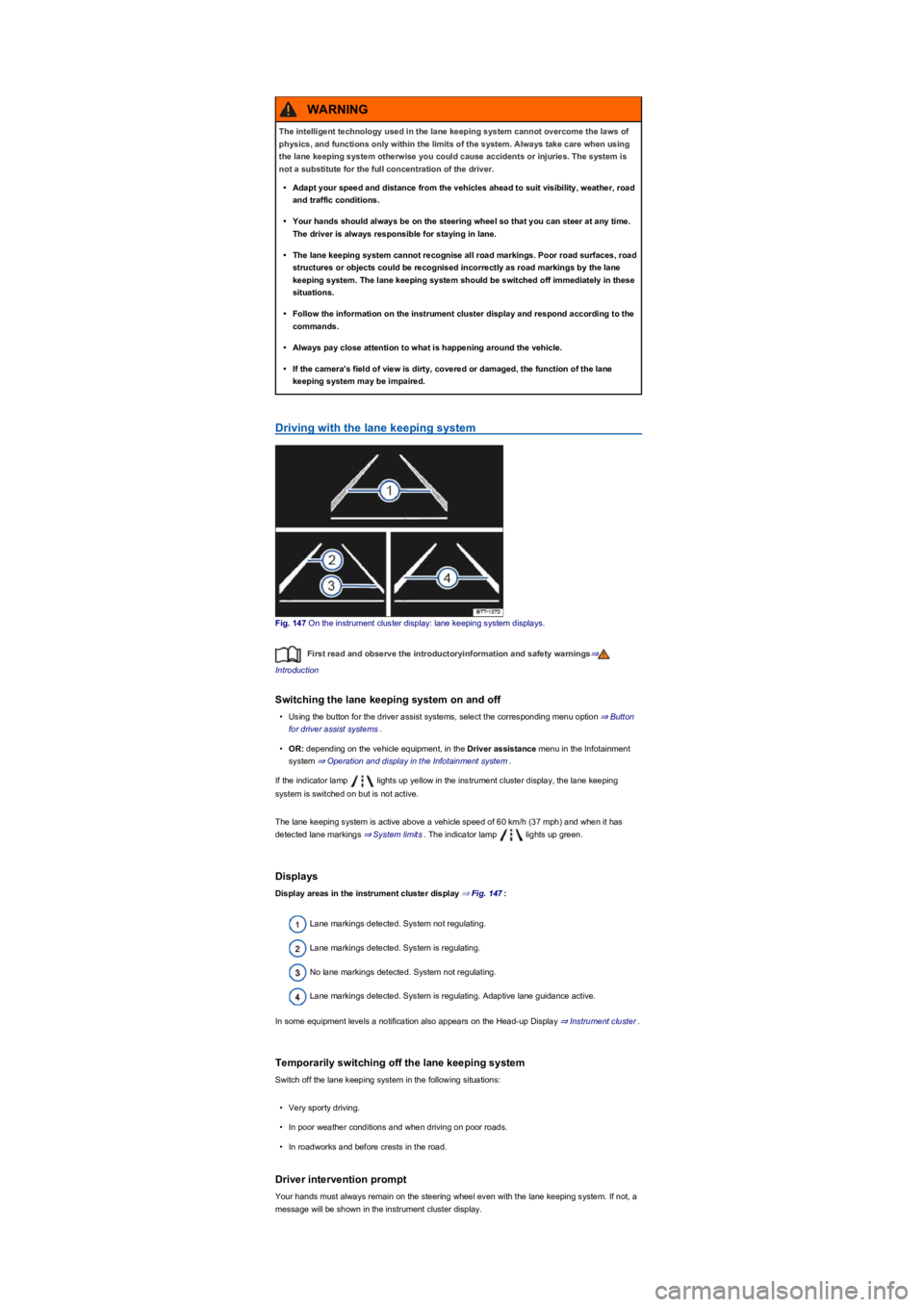
Fig. 147 On the instrument cluster display: lane keeping system displays.
First read and observe the introductoryinformation and safety warnings⇒
Introduction
Switching the lane keeping system on and off
•Using the button for the driver assist systems, select the corresponding menu option ⇒ Button
for driver assist systems.
•OR: depending on the vehicle equipment, in the Driver assistance menu in the Infotainment
system ⇒ Operation and display in the Infotainment system.
If the indicator lamp lights up yellow in the instrument cluster display, the lane keeping
system is switched on but is not active.
The lane keeping system is active above a vehicle speed of 60 km/h (37 mph) and when it has
detected lane markings ⇒ System limits. The indicator lamp lights up green.
Displays
Display areas in the instrument cluster display ⇒ Fig. 147:
Lane markings detected. System not regulating.
Lane markings detected. System is regulating.
No lane markings detected. System not regulating.
Lane markings detected. System is regulating. Adaptive lane guidance active.
In some equipment levels a notification also appears on the Head-up Display ⇒ Instrument cluster.
Temporarily switching off the lane keeping system
Switch off the lane keeping system in the following situations:
•Very sporty driving.
•In poor weather conditions and when driving on poor roads.
•In roadworks and before crests in the road.
Driver intervention prompt
Your hands must always remain on the steering wheel even with the lane keeping system. If not, a
message will be shown in the instrument cluster display.
The intelligent technology used in the lane keeping system cannot overcome the laws of
physics, and functions only within the limits of the system. Always take care when using
the lane keeping system otherwise you could cause accidents or injuries. The system is
not a substitute for the full concentration of the driver.
•Adapt your speed and distance from the vehicles ahead to suit visibility, weather, road
and traffic conditions.
•Your hands should always be on the steering wheel so that you can steer at any time.
The driver is always responsible for staying in lane.
•The lane keeping system cannot recognise all road markings. Poor road surfaces, road
structures or objects could be recognised incorrectly as road markings by the lane
keeping system. The lane keeping system should be switched off immediately in these
situations.
•Follow the information on the instrument cluster display and respond according to the
commands.
•Always pay close attention to what is happening around the vehicle.
•If the camera's field of view is dirty, covered or damaged, the function of the lane
keeping system may be impaired.
WARNING