change wheel VOLKSWAGEN TIGUAN 2017 Owner´s Manual
[x] Cancel search | Manufacturer: VOLKSWAGEN, Model Year: 2017, Model line: TIGUAN, Model: VOLKSWAGEN TIGUAN 2017Pages: 341, PDF Size: 9.14 MB
Page 4 of 341
Headlight washer system ⇒ Wiper functions
Behind a cover: mounting for towing eye ⇒ Tow-starting or towing
Sensors for assist systems ⇒ Caring for and cleaning the vehicle exterior
Lights in the bumper ⇒ Lights⇒ Changing bulbs
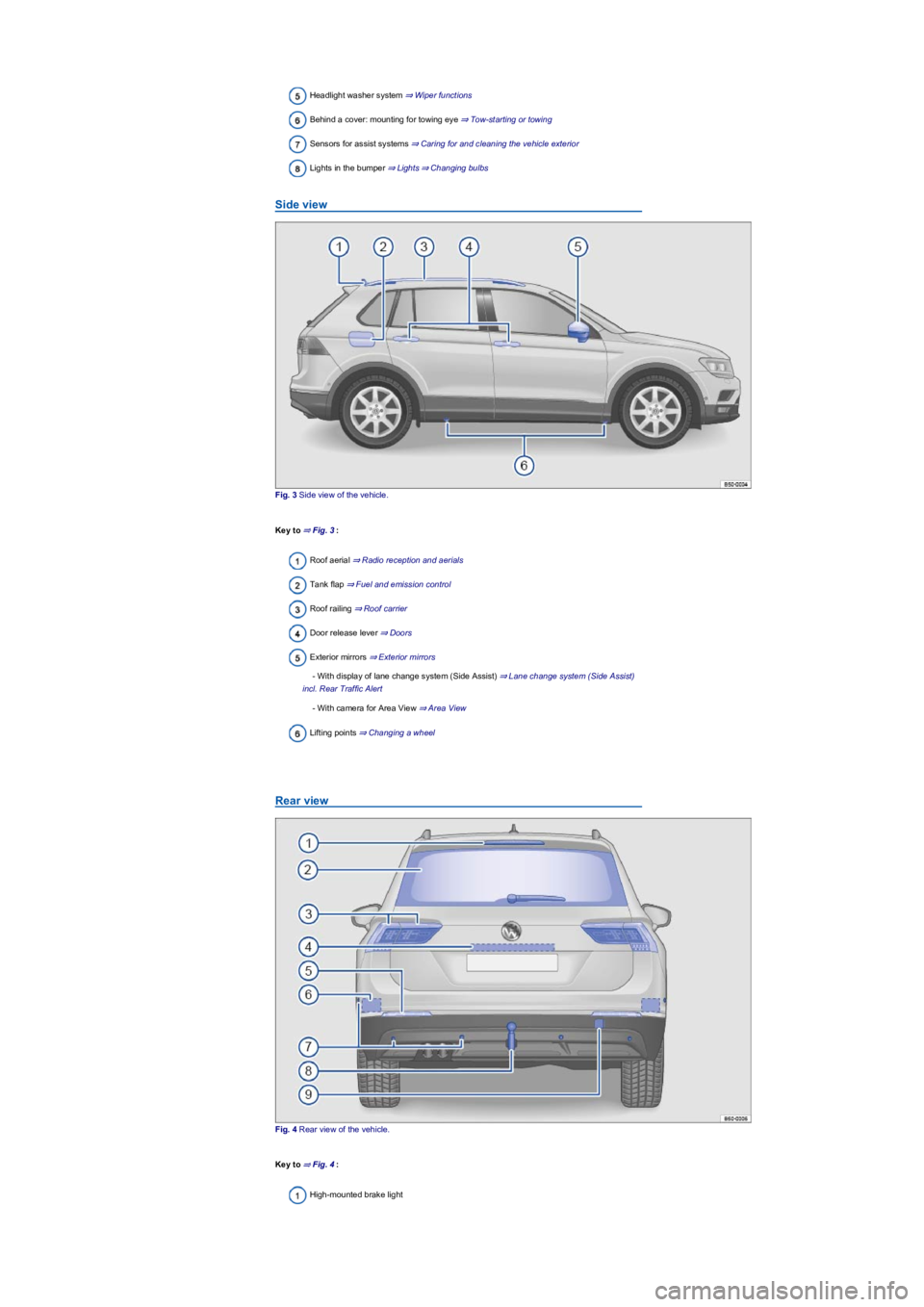
Side view
Fig. 3 Side view of the vehicle.
Key to ⇒ Fig. 3:
Roof aerial ⇒ Radio reception and aerials
Tank flap ⇒ Fuel and emission control
Roof railing ⇒ Roof carrier
Door release lever ⇒ Doors
Exterior mirrors ⇒ Exterior mirrors
- With display of lane change system (Side Assist) ⇒ Lane change system (Side Assist)
incl. Rear Traffic Alert
- With camera for Area View ⇒ Area View
Lifting points ⇒ Changing a wheel
Rear view
Fig. 4 Rear view of the vehicle.
Key to ⇒ Fig. 4:
High-mounted brake light
Page 15 of 341
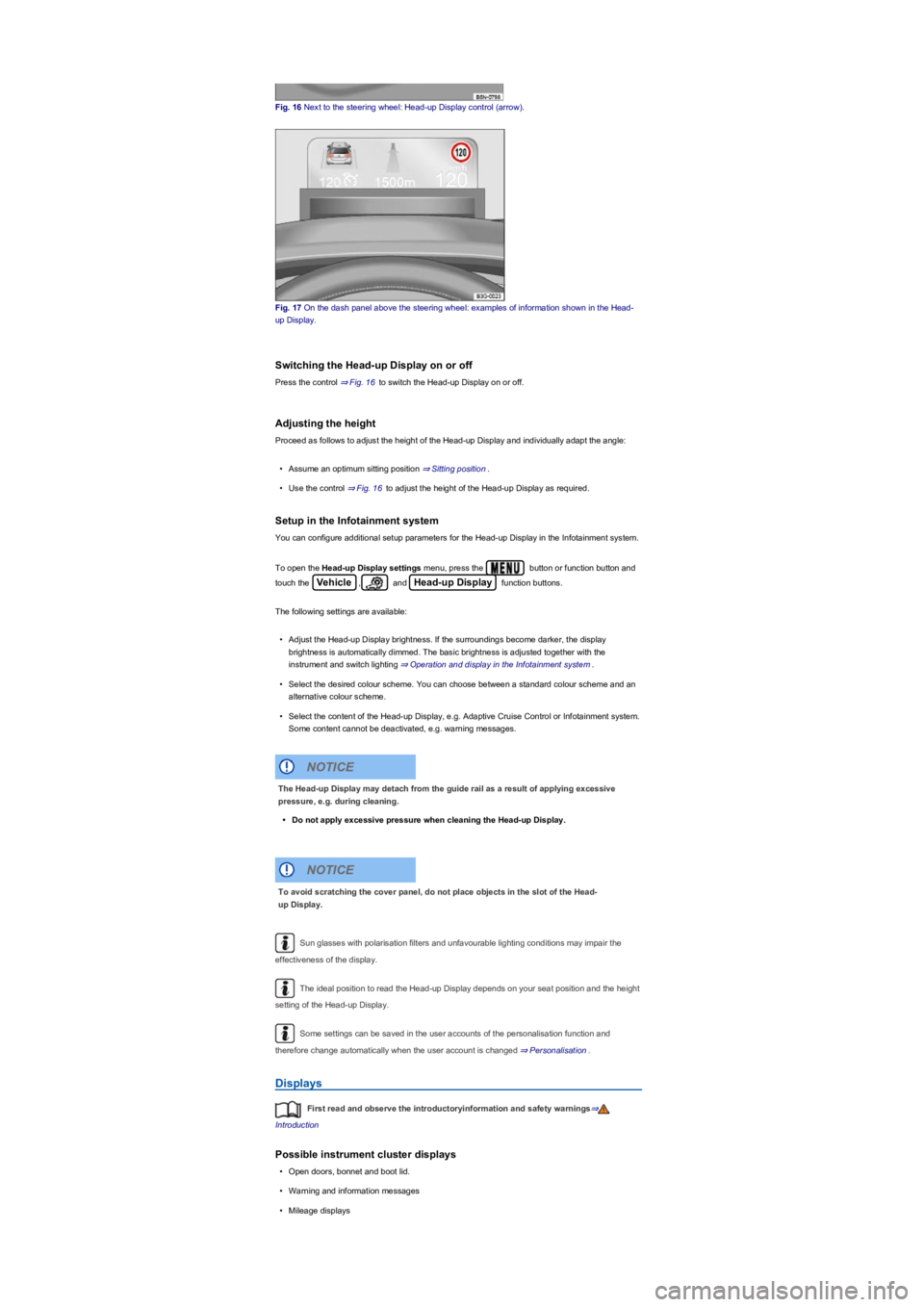
Fig. 16 Next to the steering wheel: Head-up Display control (arrow).
Fig. 17 On the dash panel above the steering wheel: examples of information shown in the Head-
up Display.
Switching the Head-up Display on or off
Press the control ⇒ Fig. 16 to switch the Head-up Display on or off.
Adjusting the height
Proceed as follows to adjust the height of the Head-up Display and individually adapt the angle:
•Assume an optimum sitting position ⇒ Sitting position.
•Use the control ⇒ Fig. 16 to adjust the height of the Head-up Display as required.
Setup in the Infotainment system
You can configure additional setup parameters for the Head-up Display in the Infotainment system.
To open the Head-up Display settings menu, press the button or function button and
touch the Vehicle, and Head-up Display function buttons.
The following settings are available:
•Adjust the Head-up Display brightness. If the surroundings become darker, the display
brightness is automatically dimmed. The basic brightness is adjusted together with the
instrument and switch lighting ⇒ Operation and display in the Infotainment system.
•Select the desired colour scheme. You can choose between a standard colour scheme and an
alternative colour scheme.
•Select the content of the Head-up Display, e.g. Adaptive Cruise Control or Infotainment system.
Some content cannot be deactivated, e.g. warning messages.
Sun glasses with polarisation filters and unfavourable lighting conditions may impair the
effectiveness of the display.
The ideal position to read the Head-up Display depends on your seat position and the height
setting of the Head-up Display.
Some settings can be saved in the user accounts of the personalisation function and
therefore change automatically when the user account is changed ⇒ Personalisation.
Displays
First read and observe the introductoryinformation and safety warnings⇒
Introduction
Possible instrument cluster displays
•Open doors, bonnet and boot lid.
•Warning and information messages
•Mileage displays
The Head-up Display may detach from the guide rail as a result of applying excessive
pressure, e.g. during cleaning.
•Do not apply excessive pressure when cleaning the Head-up Display.
NOTICE
To avoid scratching the cover panel, do not place objects in the slot of the Head-
up Display.
NOTICE
Page 19 of 341
•To deactivate, press the or button again. The stored speed will be
deleted.
The warning can be set for speeds from 30 km/h (18 mph) to 250 km/h (155 mph).
Some settings can be saved in the user accounts of the personalisation function and can
therefore change automatically when the user account is changed ⇒ Personalisation.
Changes depending on the instrument cluster version.
Not available in all countries.
Warning and information messages
First read and observe the introductoryinformation and safety warnings⇒
Introduction
The system runs a check on certain components and functions in the vehicle when the ignition is
switched on or while the vehicle is in motion. Malfunctions are indicated by red and yellow warning
symbols with information messages on the instrument cluster display ⇒ Warning and indicator lamp
overview. An acoustic warning is also given in certain cases. The appearance of the information
messages and symbols can vary depending on the version of the instrument cluster.
In addition, a list of current malfunctions can be opened manually. To do so, open the Vehicle
status or Vehicle menu ⇒ Instrument cluster menus.
Priority 1 warning (red)The symbol flashes or lights up (sometimes together with a signal tone).
Do not drive on! Danger. Check the fault and correct the cause. Seek expert assistance if
necessary.Priority 2 warning (yellow)The symbol flashes or lights up (sometimes together with a
signal tone). Malfunctions and insufficient service fluids can damage the vehicle and cause it to
break down. Check the fault as soon as possible. Seek expert assistance if necessary.Information
messageInformation about various procedures within the vehicle.
Depending on the vehicle equipment level, some settings and displays may also appear in
the Infotainment system.
If several warning reports are detected, the symbols will appear for several seconds, one
after another. The symbols will continue to appear until the faults are rectified.
If warning messages about malfunctions are displayed when the ignition is switched on, it
may not be possible to adjust some settings as described, or the information display may appear
differently. If this is the case, take the vehicle to a qualified workshop to have the malfunction
rectified.
Driver Alert System (recommendation for rest breaks)
First read and observe the introductoryinformation and safety warnings⇒
Introduction
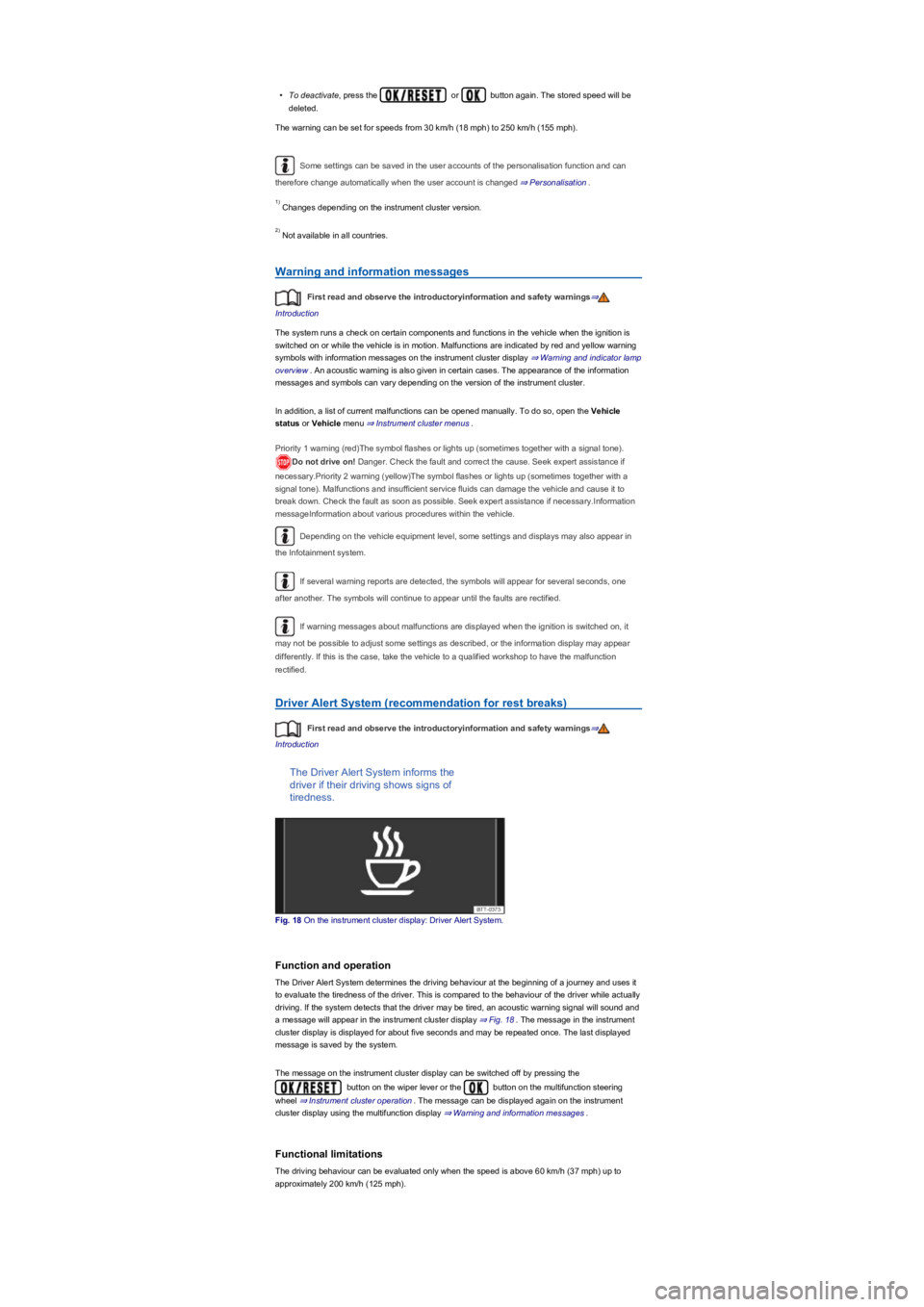
The Driver Alert System informs the
driver if their driving shows signs of
tiredness.
Fig. 18 On the instrument cluster display: Driver Alert System.
Function and operation
The Driver Alert System determines the driving behaviour at the beginning of a journey and uses it
to evaluate the tiredness of the driver. This is compared to the behaviour of the driver while actually
driving. If the system detects that the driver may be tired, an acoustic warning signal will sound and
a message will appear in the instrument cluster display ⇒ Fig. 18. The message in the instrument
cluster display is displayed for about five seconds and may be repeated once. The last displayed
message is saved by the system.
The message on the instrument cluster display can be switched off by pressing the
button on the wiper lever or the button on the multifunction steering
wheel ⇒ Instrument cluster operation. The message can be displayed again on the instrument
cluster display using the multifunction display ⇒ Warning and information messages.
Functional limitations
The driving behaviour can be evaluated only when the speed is above 60 km/h (37 mph) up to
approximately 200 km/h (125 mph).
1)
2)
Page 25 of 341
taken into account. The service reminder is displayed 30 days before the service is due. The
distance is rounded to the nearest 100 km; the remaining time is rounded to full days.
Service alert
If a service or inspection is due soon, a service alert will appear when the ignition is switched on.
The number of kilometres or amount of time shown correspond to the maximum number of
kilometres or maximum time that can still be driven before the next service.
Service event
For a scheduled service or a scheduled inspection, a signal tone will be given when the ignition
is switched on and the spanner symbol will be displayed for several seconds on the
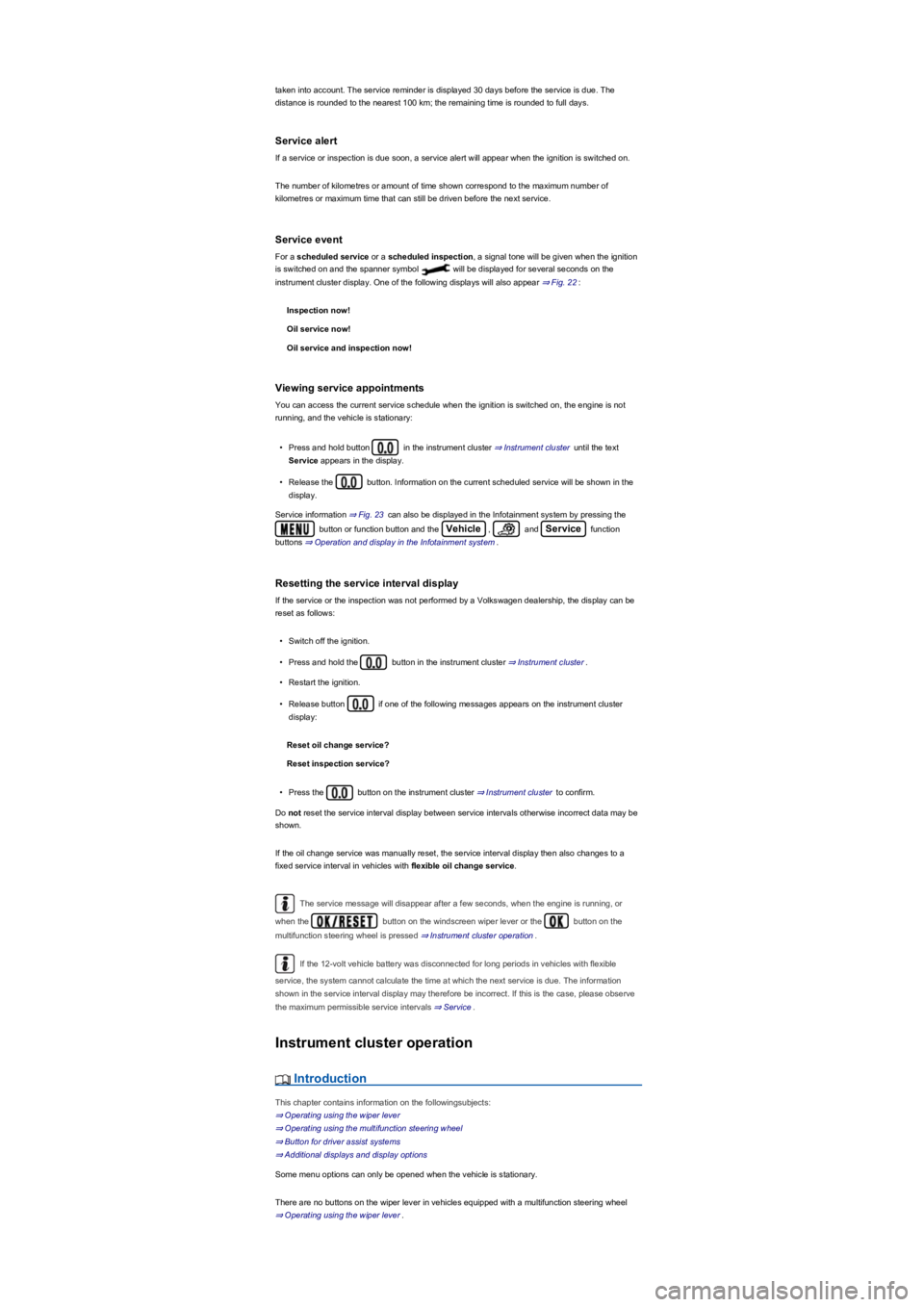
instrument cluster display. One of the following displays will also appear ⇒ Fig. 22:
Inspection now!
Oil service now!
Oil service and inspection now!
Viewing service appointments
You can access the current service schedule when the ignition is switched on, the engine is not
running, and the vehicle is stationary:
•Press and hold button in the instrument cluster ⇒ Instrument cluster until the text
Service appears in the display.
•Release the button. Information on the current scheduled service will be shown in the
display.
Service information ⇒ Fig. 23 can also be displayed in the Infotainment system by pressing the
button or function button and the Vehicle, and Service function
buttons ⇒ Operation and display in the Infotainment system.
Resetting the service interval display
If the service or the inspection was not performed by a Volkswagen dealership, the display can be
reset as follows:
•Switch off the ignition.
•Press and hold the button in the instrument cluster ⇒ Instrument cluster.
•Restart the ignition.
•Release button if one of the following messages appears on the instrument cluster
display:
Reset oil change service?
Reset inspection service?
•Press the button on the instrument cluster ⇒ Instrument cluster to confirm.
Do not reset the service interval display between service intervals otherwise incorrect data may be
shown.
If the oil change service was manually reset, the service interval display then also changes to a
fixed service interval in vehicles with flexible oil change service.
The service message will disappear after a few seconds, when the engine is running, or
when the button on the windscreen wiper lever or the button on the
multifunction steering wheel is pressed ⇒ Instrument cluster operation.
If the 12-volt vehicle battery was disconnected for long periods in vehicles with flexible
service, the system cannot calculate the time at which the next service is due. The information
shown in the service interval display may therefore be incorrect. If this is the case, please observe
the maximum permissible service intervals ⇒ Service.
Instrument cluster operation
Introduction
This chapter contains information on the followingsubjects:
⇒ Operating using the wiper lever
⇒ Operating using the multifunction steering wheel
⇒ Button for driver assist systems
⇒ Additional displays and display options
Some menu options can only be opened when the vehicle is stationary.
There are no buttons on the wiper lever in vehicles equipped with a multifunction steering wheel
⇒ Operating using the wiper lever.
Page 26 of 341
Check the system settings after charging or replacing the 12-volt vehicle battery. System
settings may be adjusted or deleted if the power supply is interrupted.
Operating using the wiper lever
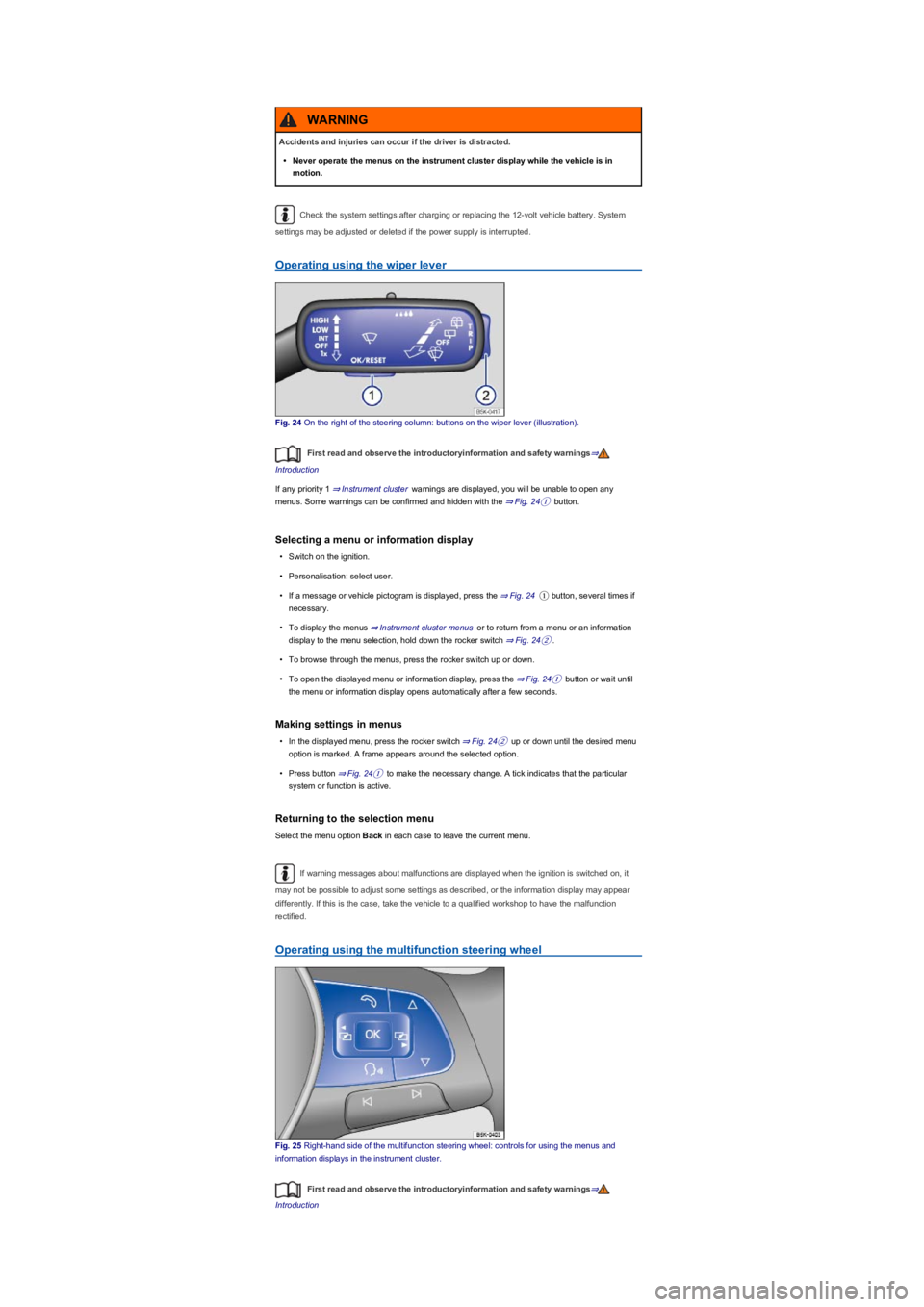
Fig. 24 On the right of the steering column: buttons on the wiper lever (illustration).
First read and observe the introductoryinformation and safety warnings⇒
Introduction
If any priority 1 ⇒ Instrument cluster warnings are displayed, you will be unable to open any
menus. Some warnings can be confirmed and hidden with the ⇒ Fig. 24① button.
Selecting a menu or information display
•Switch on the ignition.
•Personalisation: select user.
•If a message or vehicle pictogram is displayed, press the ⇒ Fig. 24① button, several times if
necessary.
•To display the menus ⇒ Instrument cluster menus or to return from a menu or an information
display to the menu selection, hold down the rocker switch ⇒ Fig. 24②.
•To browse through the menus, press the rocker switch up or down.
•To open the displayed menu or information display, press the ⇒ Fig. 24① button or wait until
the menu or information display opens automatically after a few seconds.
Making settings in menus
•In the displayed menu, press the rocker switch ⇒ Fig. 24② up or down until the desired menu
option is marked. A frame appears around the selected option.
•Press button ⇒ Fig. 24① to make the necessary change. A tick indicates that the particular
system or function is active.
Returning to the selection menu
Select the menu option Back in each case to leave the current menu.
If warning messages about malfunctions are displayed when the ignition is switched on, it
may not be possible to adjust some settings as described, or the information display may appear
differently. If this is the case, take the vehicle to a qualified workshop to have the malfunction
rectified.
Operating using the multifunction steering wheel
Fig. 25 Right-hand side of the multifunction steering wheel: controls for using the menus and
information displays in the instrument cluster.
First read and observe the introductoryinformation and safety warnings⇒
Introduction
Accidents and injuries can occur if the driver is distracted.
•Never operate the menus on the instrument cluster display while the vehicle is in
motion.
WARNING
Page 27 of 341
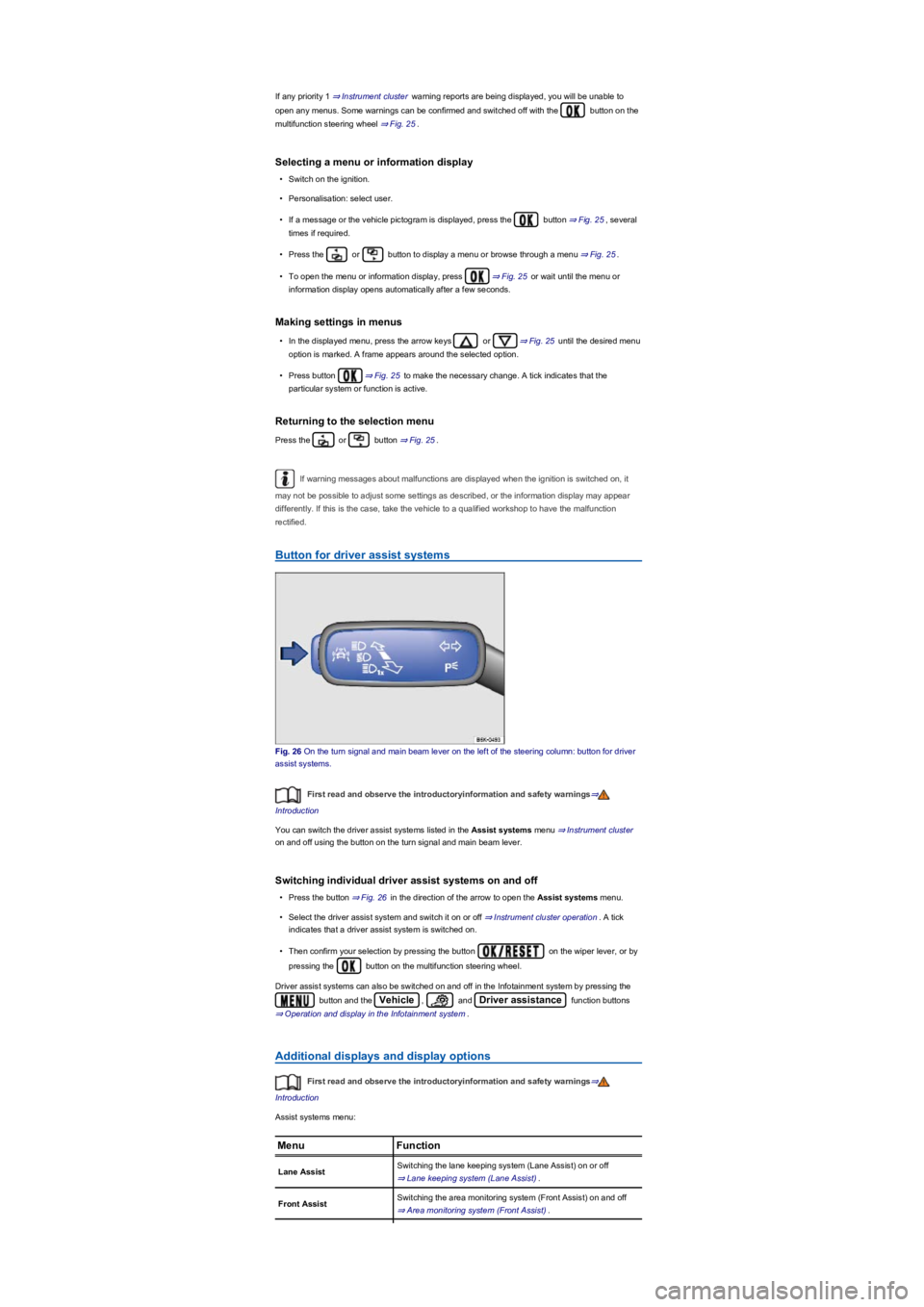
If any priority 1 ⇒ Instrument cluster warning reports are being displayed, you will be unable to
open any menus. Some warnings can be confirmed and switched off with the button on the
multifunction steering wheel ⇒ Fig. 25.
Selecting a menu or information display
•Switch on the ignition.
•Personalisation: select user.
•If a message or the vehicle pictogram is displayed, press the button ⇒ Fig. 25, several
times if required.
•Press the or button to display a menu or browse through a menu ⇒ Fig. 25.
•To open the menu or information display, press ⇒ Fig. 25 or wait until the menu or
information display opens automatically after a few seconds.
Making settings in menus
•In the displayed menu, press the arrow keys or ⇒ Fig. 25 until the desired menu
option is marked. A frame appears around the selected option.
•Press button ⇒ Fig. 25 to make the necessary change. A tick indicates that the
particular system or function is active.
Returning to the selection menu
Press the or button ⇒ Fig. 25.
If warning messages about malfunctions are displayed when the ignition is switched on, it
may not be possible to adjust some settings as described, or the information display may appear
differently. If this is the case, take the vehicle to a qualified workshop to have the malfunction
rectified.
Button for driver assist systems
Fig. 26 On the turn signal and main beam lever on the left of the steering column: button for driver
assist systems.
First read and observe the introductoryinformation and safety warnings⇒
Introduction
You can switch the driver assist systems listed in the Assist systems menu ⇒ Instrument cluster
on and off using the button on the turn signal and main beam lever.
Switching individual driver assist systems on and off
•Press the button ⇒ Fig. 26 in the direction of the arrow to open the Assist systems menu.
•Select the driver assist system and switch it on or off ⇒ Instrument cluster operation. A tick
indicates that a driver assist system is switched on.
•Then confirm your selection by pressing the button on the wiper lever, or by
pressing the button on the multifunction steering wheel.
Driver assist systems can also be switched on and off in the Infotainment system by pressing the
button and the Vehicle, and Driver assistance function buttons
⇒ Operation and display in the Infotainment system.
Additional displays and display options
First read and observe the introductoryinformation and safety warnings⇒
Introduction
Assist systems menu:
MenuFunction
Lane AssistSwitching the lane keeping system (Lane Assist) on or off
⇒ Lane keeping system (Lane Assist).
Front AssistSwitching the area monitoring system (Front Assist) on and off
⇒ Area monitoring system (Front Assist).
Page 29 of 341
If the checkbox in the function button is ticked , the respective function is switched on.
Press the function button to return to the previous menu.
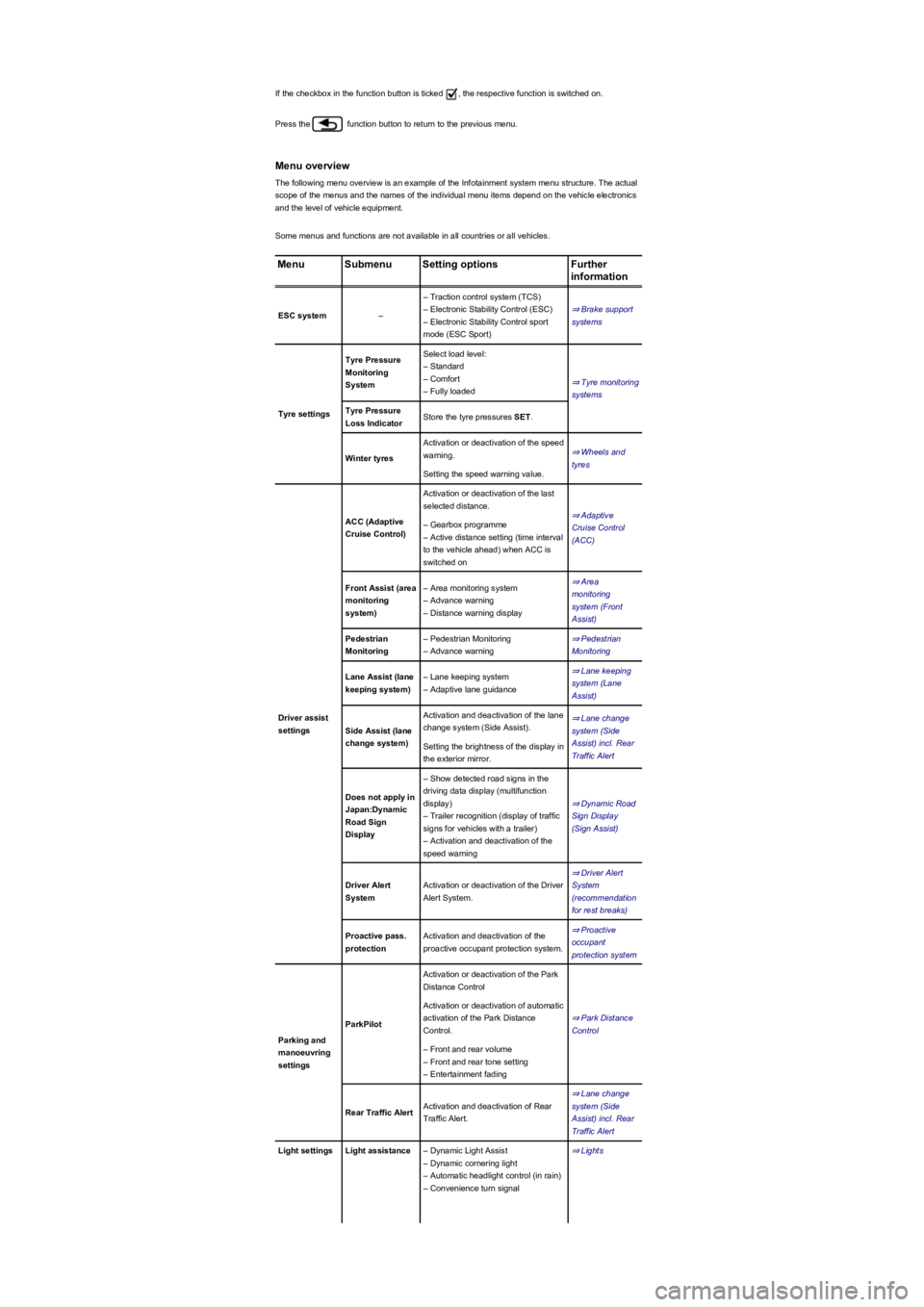
Menu overview
The following menu overview is an example of the Infotainment system menu structure. The actual
scope of the menus and the names of the individual menu items depend on the vehicle electronics
and the level of vehicle equipment.
Some menus and functions are not available in all countries or all vehicles.
MenuSubmenuSetting optionsFurther
information
ESC system–
– Traction control system (TCS)
– Electronic Stability Control (ESC)
– Electronic Stability Control sport
mode (ESC Sport)
⇒ Brake support
systems
Tyre settings
Tyre Pressure
Monitoring
System
Select load level:
– Standard
– Comfort
– Fully loaded
⇒ Tyre monitoring
systems
Tyre Pressure
Loss IndicatorStore the tyre pressures SET.
Winter tyres
Activation or deactivation of the speed
warning.⇒ Wheels and
tyres
Setting the speed warning value.
Driver assist
settings
ACC (Adaptive
Cruise Control)
Activation or deactivation of the last
selected distance.
⇒ Adaptive
Cruise Control
(ACC)
– Gearbox programme
– Active distance setting (time interval
to the vehicle ahead) when ACC is
switched on
Front Assist (area
monitoring
system)
– Area monitoring system
– Advance warning
– Distance warning display
⇒ Area
monitoring
system (Front
Assist)
Pedestrian
Monitoring
– Pedestrian Monitoring
– Advance warning
⇒ Pedestrian
Monitoring
Lane Assist (lane
keeping system)
– Lane keeping system
– Adaptive lane guidance
⇒ Lane keeping
system (Lane
Assist)
Side Assist (lane
change system)
Activation and deactivation of the lane
change system (Side Assist).
⇒ Lane change
system (Side
Assist) incl. Rear
Traffic Alert
Setting the brightness of the display in
the exterior mirror.
Does not apply in
Japan:Dynamic
Road Sign
Display
– Show detected road signs in the
driving data display (multifunction
display)
– Trailer recognition (display of traffic
signs for vehicles with a trailer)
– Activation and deactivation of the
speed warning
⇒ Dynamic Road
Sign Display
(Sign Assist)
Driver Alert
System
Activation or deactivation of the Driver
Alert System.
⇒ Driver Alert
System
(recommendation
for rest breaks)
Proactive pass.
protection
Activation and deactivation of the
proactive occupant protection system.
⇒ Proactive
occupant
protection system
Parking and
manoeuvring
settings
ParkPilot
Activation or deactivation of the Park
Distance Control
⇒ Park Distance
Control
Activation or deactivation of automatic
activation of the Park Distance
Control.
– Front and rear volume
– Front and rear tone setting
– Entertainment fading
Rear Traffic AlertActivation and deactivation of Rear
Traffic Alert.
⇒ Lane change
system (Side
Assist) incl. Rear
Traffic Alert
Light settingsLight assistance– Dynamic Light Assist
– Dynamic cornering light
– Automatic headlight control (in rain)
– Convenience turn signal
⇒ Lights
Page 34 of 341
Personalisation
First read and observe the introductoryinformation and safety warnings⇒
Introduction
The personalisation function allows personalised vehicle settings, such as air conditioning system,
instrument cluster or lighting settings, to be saved in a user account. You have four user accounts
available. Users are identified using the vehicle key upon unlocking the vehicle. One user account
is assigned to each vehicle key.
Changes to the setup will be assigned to the active user account and saved upon locking the
vehicle or changing the user account.
Welcome and user account selection
When personalisation is activated, the name of the current user account appears on the instrument
cluster display for approximately ten seconds after you switch on the ignition.
During this time, you can select a user account using the buttons on the wiper lever or multifunction
steering wheel ⇒ Operation and display in the Infotainment system.
When you select a user account, the saved vehicle settings are activated.
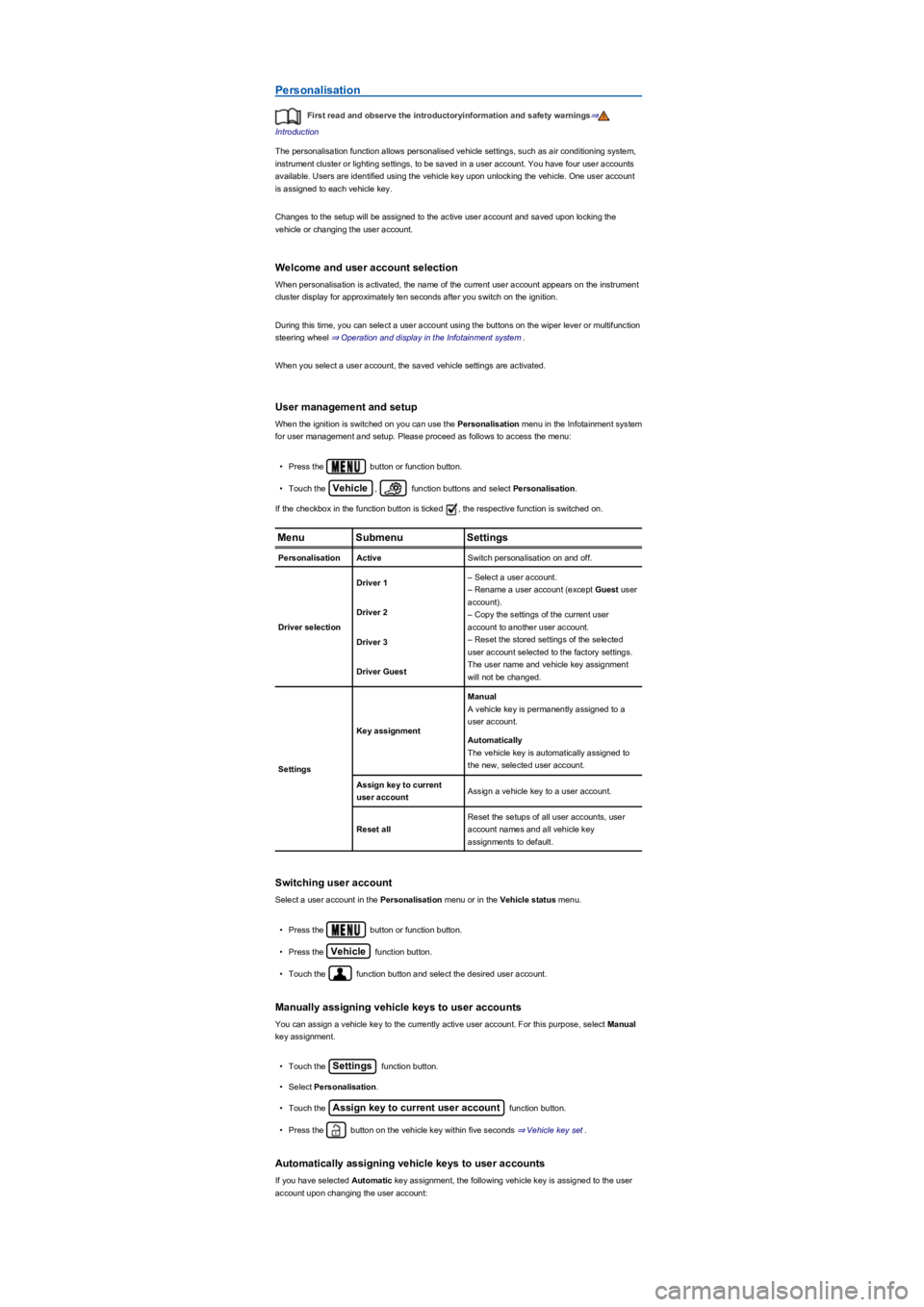
User management and setup
When the ignition is switched on you can use the Personalisation menu in the Infotainment system
for user management and setup. Please proceed as follows to access the menu:
•Press the button or function button.
•Touch the Vehicle, function buttons and select Personalisation.
If the checkbox in the function button is ticked , the respective function is switched on.
MenuSubmenuSettings
PersonalisationActiveSwitch personalisation on and off.
Driver selection
Driver 1– Select a user account.
– Rename a user account (except Guest user
account).
– Copy the settings of the current user
account to another user account.
– Reset the stored settings of the selected
user account selected to the factory settings.
The user name and vehicle key assignment
will not be changed.
Driver 2
Driver 3
Driver Guest
Settings
Key assignment
Manual
A vehicle key is permanently assigned to a
user account.
Automatically
The vehicle key is automatically assigned to
the new, selected user account.
Assign key to current
user accountAssign a vehicle key to a user account.
Reset all
Reset the setups of all user accounts, user
account names and all vehicle key
assignments to default.
Switching user account
Select a user account in the Personalisation menu or in the Vehicle status menu.
•Press the button or function button.
•Press the Vehicle function button.
•Touch the function button and select the desired user account.
Manually assigning vehicle keys to user accounts
You can assign a vehicle key to the currently active user account. For this purpose, select Manual
key assignment.
•Touch the Settings function button.
•Select Personalisation.
•Touch the Assign key to current user account function button.
•Press the button on the vehicle key within five seconds ⇒ Vehicle key set.
Automatically assigning vehicle keys to user accounts
If you have selected Automatic key assignment, the following vehicle key is assigned to the user
account upon changing the user account:
Page 47 of 341
Troubleshooting
If there is a malfunction in the proactive occupant protection system, the message Proactive
occupant protection unavailable or Proactive occupant protection: function restricted is
shown permanently on the instrument cluster display.
Go to a qualified workshop and have the system checked.
Airbag system
Introduction
This chapter contains information on the followingsubjects:
⇒ Types of front passenger front airbag system
⇒ Indicator lamp
⇒ Description and function of the airbags
⇒ Front airbags
⇒ Switching the front passenger front airbag on and off
⇒ Side airbags
⇒ Curtain airbags
⇒ Knee airbags
The vehicle is equipped with a front airbag for the driver and front passenger. The front airbags can
provide front seat occupants with additional chest and head protection if the seat, seat belts, head
restraints and, in the case of the driver, steering wheel are adjusted and used correctly. Airbags are
meant only for additional protection. The airbags are not a substitute for seat belts. Seat belts must
always be worn, even when the front seats are equipped with front airbags.
The intelligent technology of the proactive occupant protection system cannot overcome
the laws of physics, and functions only within the limits of the system. Never let the extra
convenience afforded by the proactive occupant protection system tempt you into taking
any risks when driving. The system cannot prevent a collision. The system is not a
substitute for the full concentration of the driver.
•Adapt your speed and distance from the vehicles ahead to suit visibility, weather, road
and traffic conditions.
•The system cannot detect objects in all situations.
•The proactive occupant protection system does not react to people, animals, objects
crossing in front of the vehicle, or objects which are hard to make out.
•Reflective objects such as safety barriers, tunnel entrances, heavy rain and ice can
impair the function of the proactive occupant protection system and thus prevent it
from detecting a collision risk.
•Incorrect system activation can occur.
WARNING
Accidents and injuries can occur if the driver is distracted.
•Never change settings in the Infotainment system when the vehicle is in motion.
WARNING
Failure to observe illuminated warning lamps and text messages can lead to your vehicle
breaking down in traffic, and can cause accidents and serious injuries.
•Never ignore any illuminated warning lamps or text messages.
•Stop the vehicle as soon as it is possible and safe to do so.
WARNING
Failure to observe illuminated indicator lamps and text messages can lead to your vehicle
being damaged.
NOTICE
Page 89 of 341
Mechanically adjusting the front seat
Always adjust the front seats to their correct position before any journey and ensure that
any passenger has fastened their seat belt.
•Push the front passenger seat as far back as possible.
•Adjust the driver seat so that there is at least 25 cm between your breastbone and the
hub of the steering wheel. Adjust the driver seat by moving it forwards or backwards
so that you are able to press the pedals to the floor with your knees still slightly bent
and so that the distance from the dash panel to your knees is at least 10 cm. If your
build makes it impossible to fulfil this requirement then you must contact a qualified
workshop so they can make any necessary modifications.
•Never travel with the backrest tilted far back. The further back the backrest is tilted, the
greater the risk of injury caused by incorrect seat belt routing or an incorrect sitting
position.
•Never travel with the backrest tilted far forwards. When a front airbag is triggered it
could force the seat backrest backwards and injure vehicle occupants on the back
seats.
•Adopt and maintain the greatest possible distance from the steering wheel and dash
panel.
•You should always sit upright with your back against the seat backrest with the front
seats properly adjusted. Do not position any body part too close where the airbags are
fitted.
•The risk of serious injury is increased for passengers on the rear seat if they are not
sitting upright because the seat belts are incorrectly positioned.
WARNING
Incorrect adjustment of the seats can cause accidents and serious injuries.
•Only adjust the seats when the vehicle is stationary. The seats could change position
unexpectedly if you attempt to reposition them while the vehicle is in motion, leading
to a loss of control of the vehicle. Furthermore, an incorrect seating position is
adopted while adjusting the seat.
•Only adjust the height and tilt of the seat or move it forwards and backwards when the
area around the seat is clear.
•To be able to make adjustments to the seats, the area around them must not be
restricted by any items.
•Only adjust the height of the rear seat or move it forwards and backwards when the
area around the seat is clear.
•The areas for adjusting and locking the seats must not be soiled.
WARNING
Improper use of seat covers or protective covers may lead to the electrical seat controls
being operated accidentally and the front seats moving unexpectedly while the vehicle is
moving. You could lose control over the vehicle. This could result in serious injury and
accidents. Furthermore, this may result in damage to the electrical components in the
front seats.
•Never attach or secure seat covers or protective covers to the electrical controls.
•Do not fit seat covers or protective covers over the seats unless they have been
expressly approved for use in the vehicle.
WARNING
Cigarette lighters in the vehicle could be damaged or accidentally lit. This could lead to
serious burns and other injuries.
•Before adjusting the seats always ensure that there is no lighter on or near the
moveable parts of the seat.
•Before closing stowage areas or compartments always ensure that there is no lighter
in the way.
•Never stow lighters in stowage areas, compartments or on other surfaces in the
vehicle. High surface temperatures, especially in summer, may cause cigarette lighters
to self-ignite.
WARNING