lock VOLVO S40 2008 Manual Online
[x] Cancel search | Manufacturer: VOLVO, Model Year: 2008, Model line: S40, Model: VOLVO S40 2008Pages: 239, PDF Size: 5.94 MB
Page 198 of 239
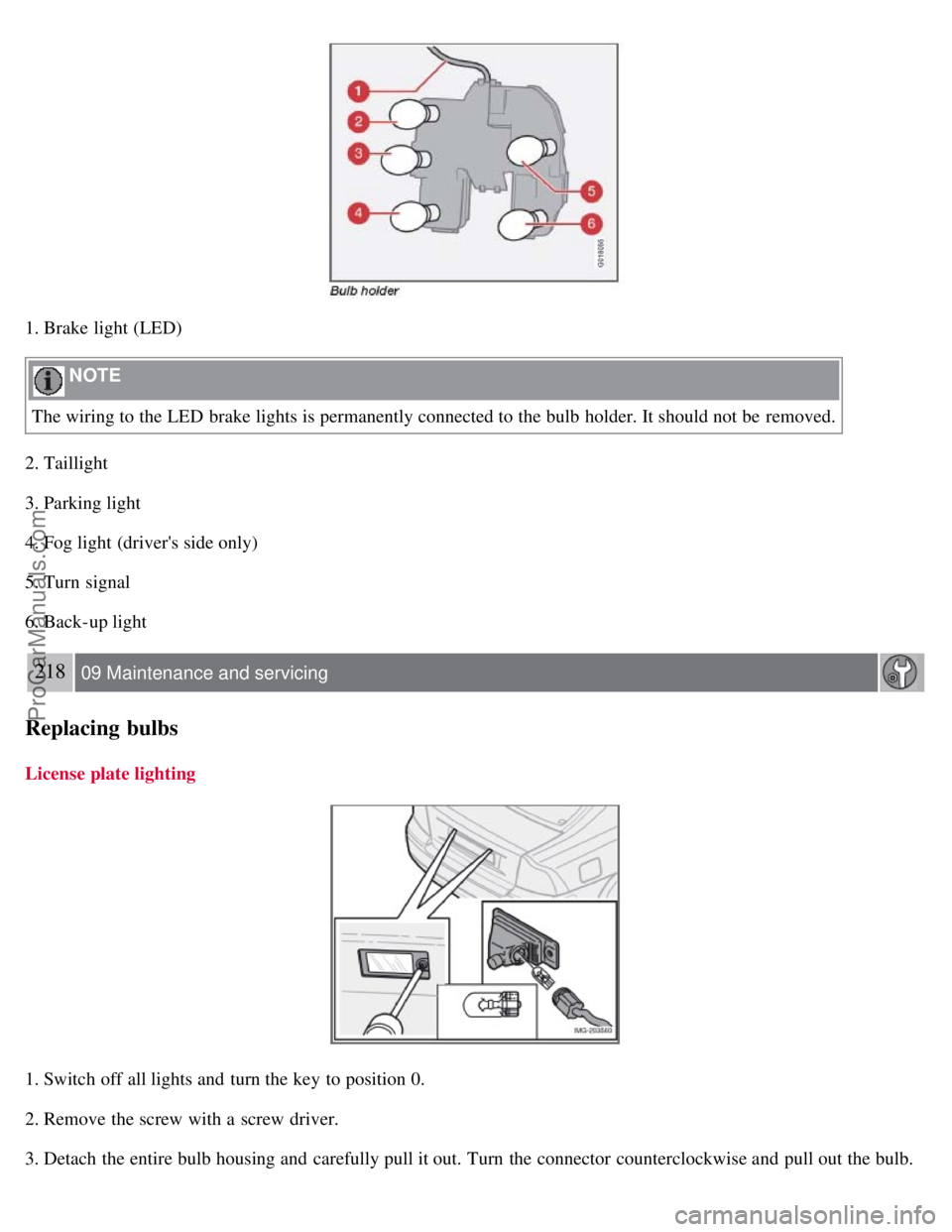
1. Brake light (LED)
NOTE
The wiring to the LED brake lights is permanently connected to the bulb holder. It should not be removed.
2. Taillight
3. Parking light
4. Fog light (driver's side only)
5. Turn signal
6. Back-up light
218 09 Maintenance and servicing
Replacing bulbs
License plate lighting
1. Switch off all lights and turn the key to position 0.
2. Remove the screw with a screw driver.
3. Detach the entire bulb housing and carefully pull it out. Turn the connector counterclockwise and pull out the bulb.
ProCarManuals.com
Page 199 of 239
4. Replace the bulb.
5. Reinstall the connector and turn it clockwise.
6. Reinstall the entire bulb housing and screw it into place.
Footwell lighting
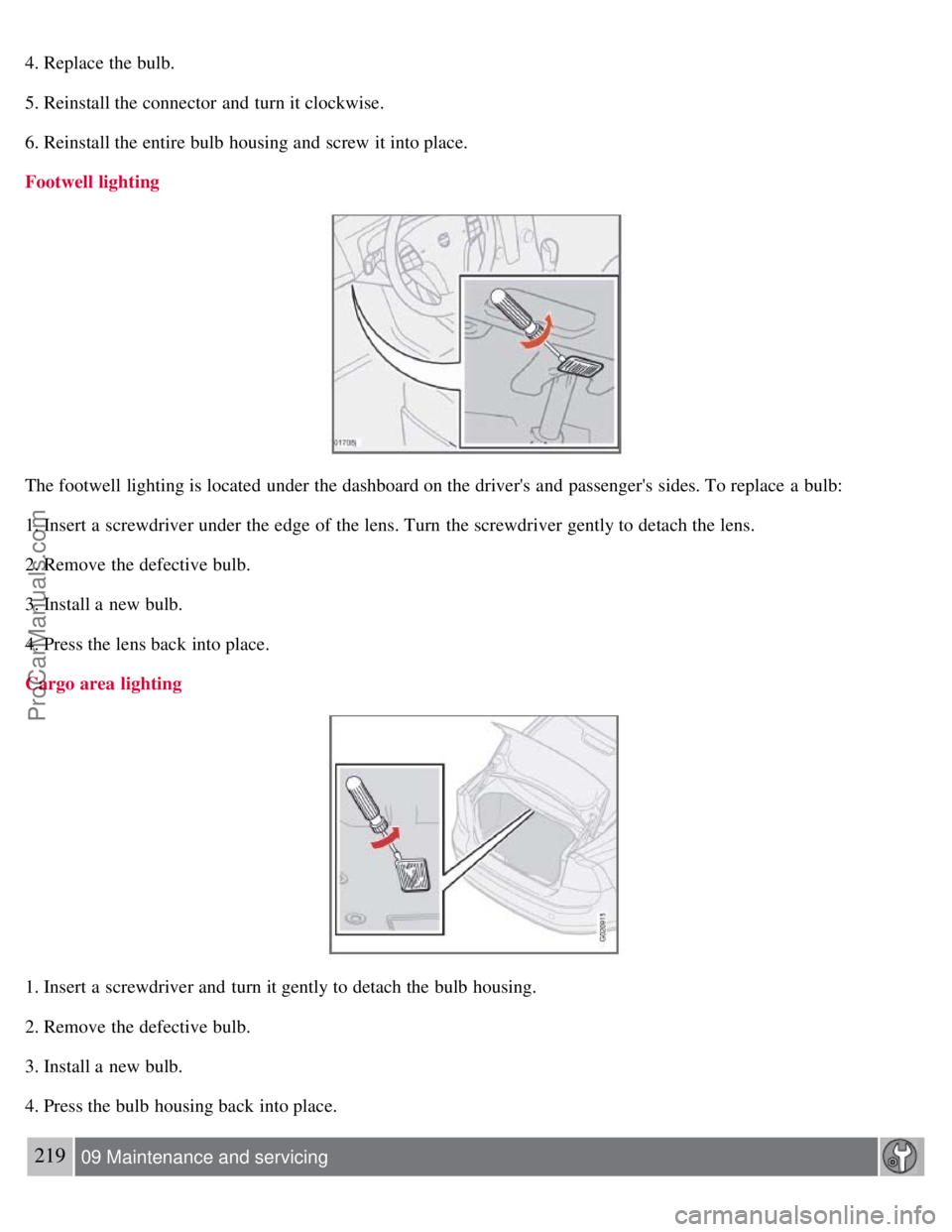
The footwell lighting is located under the dashboard on the driver's and passenger's sides. To replace a bulb:
1. Insert a screwdriver under the edge of the lens. Turn the screwdriver gently to detach the lens.
2. Remove the defective bulb.
3. Install a new bulb.
4. Press the lens back into place.
Cargo area lighting
1. Insert a screwdriver and turn it gently to detach the bulb housing.
2. Remove the defective bulb.
3. Install a new bulb.
4. Press the bulb housing back into place.
219 09 Maintenance and servicing
ProCarManuals.com
Page 202 of 239
The fuse box in the passenger compartment is located under the glove compartment.
To access the fuses:
1. Remove the upholstery covering the fuse box by first pressing in the center pins in the mounting clips approximately
0.5 in (1cm) with a small screwdriver and then pulling the pins out.
2. Turn both retaining screws (2) counterclockwise until they release.
3. Fold down the fuse box (3) half way. Pull it toward the seat until it stops. Fold it down completely. The fuse box can
be unhooked completely.
4. Replace the blown fuse.
5. Close the fuse box in reverse order.
6. Pull the center pins fully out of the mounting clips, secure the upholstery with the mounting clips and press the pins
into the mounting clips again. The mounting clips then expand, holding the upholstery in position.
223 09 Maintenance and servicing
Fuses
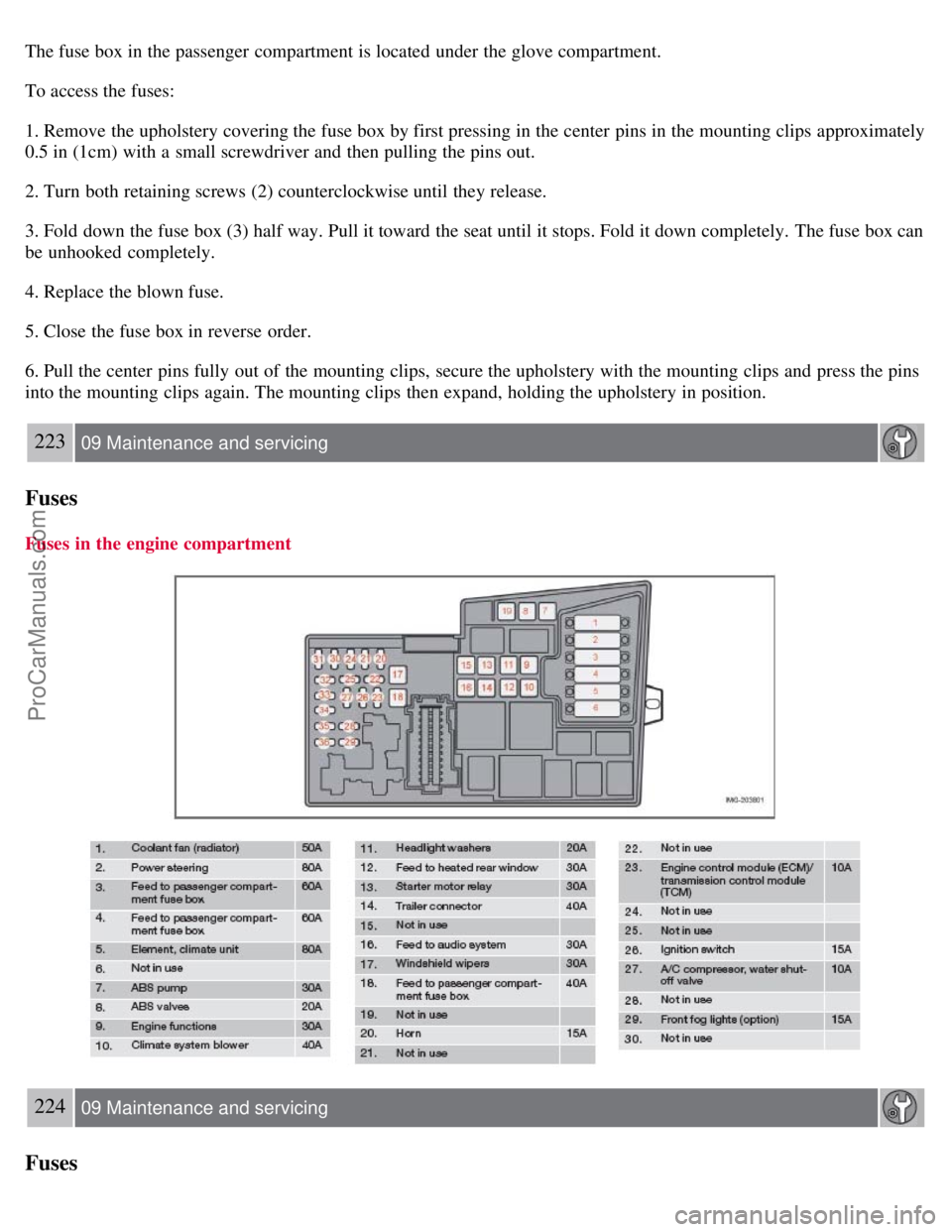
Fuses in the engine compartment
224 09 Maintenance and servicing
Fuses
ProCarManuals.com
Page 208 of 239
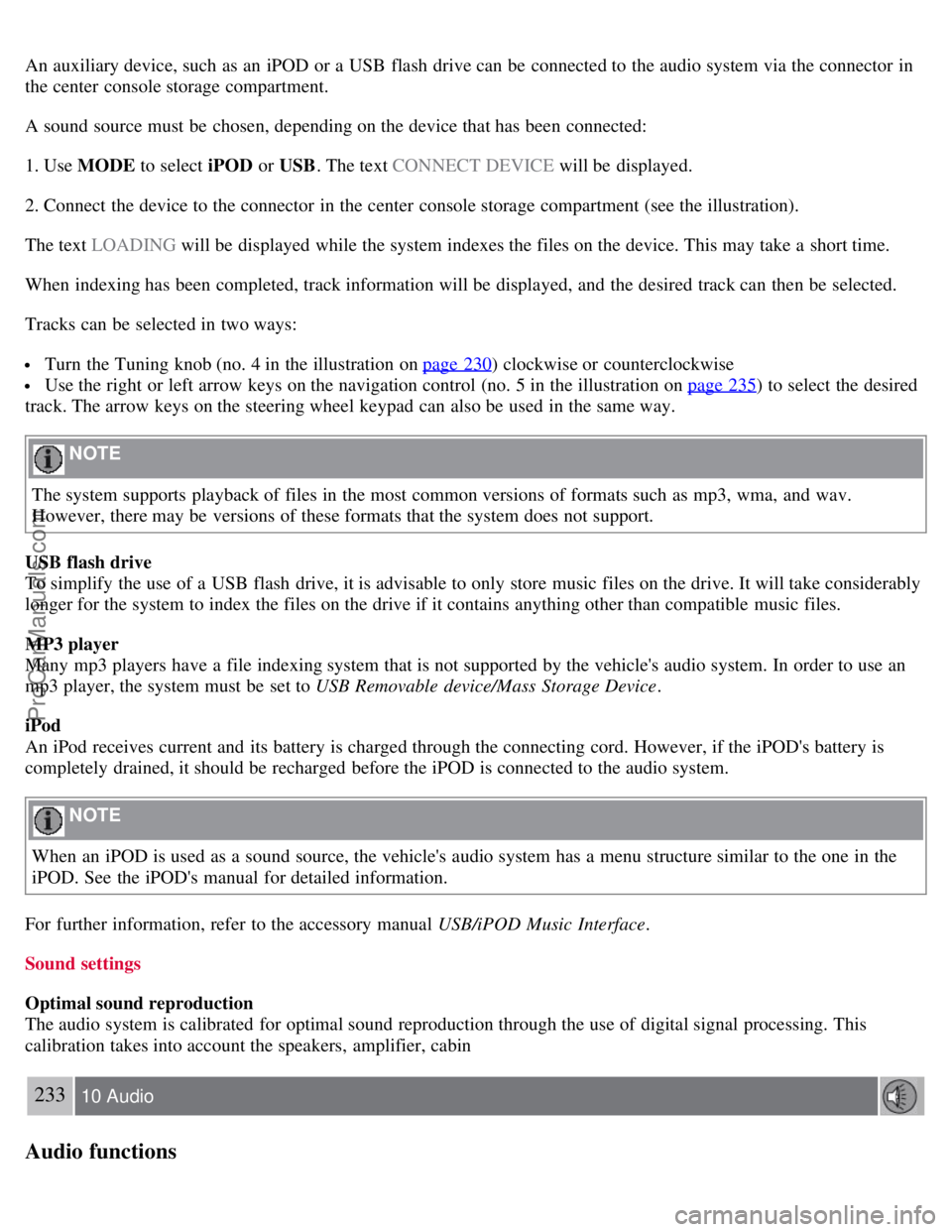
An auxiliary device, such as an iPOD or a USB flash drive can be connected to the audio system via the connector in
the center console storage compartment.
A sound source must be chosen, depending on the device that has been connected:
1. Use MODE to select iPOD or USB. The text CONNECT DEVICE will be displayed.
2. Connect the device to the connector in the center console storage compartment (see the illustration).
The text LOADING will be displayed while the system indexes the files on the device. This may take a short time.
When indexing has been completed, track information will be displayed, and the desired track can then be selected.
Tracks can be selected in two ways:
Turn the Tuning knob (no. 4 in the illustration on page 230) clockwise or counterclockwise
Use the right or left arrow keys on the navigation control (no. 5 in the illustration on page 235) to select the desired
track. The arrow keys on the steering wheel keypad can also be used in the same way.
NOTE
The system supports playback of files in the most common versions of formats such as mp3, wma, and wav.
However, there may be versions of these formats that the system does not support.
USB flash drive
To simplify the use of a USB flash drive, it is advisable to only store music files on the drive. It will take considerably
longer for the system to index the files on the drive if it contains anything other than compatible music files.
MP3 player
Many mp3 players have a file indexing system that is not supported by the vehicle's audio system. In order to use an
mp3 player, the system must be set to USB Removable device/Mass Storage Device .
iPod
An iPod receives current and its battery is charged through the connecting cord. However, if the iPOD's battery is
completely drained, it should be recharged before the iPOD is connected to the audio system.
NOTE
When an iPOD is used as a sound source, the vehicle's audio system has a menu structure similar to the one in the
iPOD. See the iPOD's manual for detailed information.
For further information, refer to the accessory manual USB/iPOD Music Interface .
Sound settings
Optimal sound reproduction
The audio system is calibrated for optimal sound reproduction through the use of digital signal processing. This
calibration takes into account the speakers, amplifier, cabin
233 10 Audio
Audio functions
ProCarManuals.com
Page 214 of 239
SIRIUS ID
The SIRIUS ID is required when contacting the Sirius Call Center. It is used to activate your account and when making
any account transactions. The SIRIUS ID is sometimes referred to as the Electronic Serial Number (ESN).
Selecting a channel category
1. Select Sirius radio mode as described above.
2. Press ENTER.
3. Use the up/down arrow keys to scroll through the list of categories.
4. Press ENTER or the right arrow key to select a category.
5. Use the left or right arrow keys to select a channel in the currently chosen category.
6. Press ENTER to listen to a channel.
NOTE
The category "All" is default, which enables you to scroll through the entire list of available satellite channels.
The channel categories are automatically updated several times a year. This takes approximately two minutes and
will interrupt normal broadcasting. A message will be displayed while updating is in progress. Information on
channel or feature updates is available at www.sirius.com
.
Selecting a channel
There are three ways of tuning in a channel:
Using the left and right arrow keys
By turning the tuning control
Through direct channel entry
Direct channel entry
The Sirius satellite channels are numbered consecutively throughout all of the categories. To access a channel directly:
1. Press MENU and scroll to "Direct channel entry."
2. Use the numerical keypad to enter the channel's number.
3. Press ENTER . The radio will tune to this channel, even if it belongs to a category other than the currently selected
one.
238 10 Audio
Sirius satellite radio (option or retailer-installed accessory)
NOTE
The numbers of skipped or locked channels will not be displayed.
If a channel is locked, the access code must be entered before the channel can be selected. See "Unlocking a
channel" on page 239
.
Scanning
ProCarManuals.com
Page 216 of 239
239 10 Audio
Sirius satellite radio (option or retailer-installed accessory)
Advanced settings
This menu function enables you to make settings on certain Sirius satellite radio functions. To access this menu:
1. Press MENU.
2. Scroll to Sirius menu.
3. Select ADVANCED SIRIUS SETTINGS .
WARNING
Settings should be made when the vehicle is at a standstill.
The following settings can be made in the Sirius menu.
Songs can be added to the song list
Channel skip settings can be made
Channel lock settings can be made
The channel access code can be displayed or changed
Your Sirius ID can be displayed
Skip options
This function is used to remove a channel from the list of available channels.
Skip current
1. Select CHANNEL SKIP LIST and press ENTER.
2. Select a category in the list and press ENTER .
3. Skip channels in the list presented by pressing ENTER or right arrow key.
Unskip all channels
This permanently removes all channels from the skip list and makes them available for selection.
Temp. unskip all ch.
This function will temporarily unskip all channels and make them available for selection. The channels remain on the
skip list and will again be skipped the next time the ignition is switched on.
Channel lock
Access to specific channels can be restricted (locked). A locked channel will not provide audio, song titles, or artist
information.
NOTE
All channels are initially unlocked.
Locking a channel:
ProCarManuals.com
Page 217 of 239
1. Select "SIRIUS ID " in the menu and select LOCK OPTIONS and press ENTER.
2. Select CHANNEL LOCK LIST and press ENTER
3. Enter the channel access code and press ENTER .
4. Select a category in the list and press ENTER .
5. Lock channels in the list presented by pressing ENTER or right arrow.
The channel is now locked and a checked box will be displayed to indicate this. It will be necessary to enter the
channel access code1 in order to listen to a locked channel.
Unlocking a channel:
A channel's access code1 is required to unlock a channel.
Unlock all channels
This permanently removes all channels from the locked list and makes them available for selection.
Temp. unlock all ch.
This function will temporarily unlock all channels and make them available for selection. The channels remain on the
locked list and will again be locked the next time the ignition is switched on.
240 10 Audio
Sirius satellite radio (option or retailer-installed accessory)
CHANGE CODE
This function makes it possible to change the channel access code. The default code is 0000.
To change the code:
1. Select CHANGE CODE and press ENTER.
2. Enter the current code and press ENTER .
3. Enter the code and press ENTER .
4. Confirm the new code and press ENTER .
If an incorrect code is entered, the text WRONG CODE! is displayed.
If you have forgotten the access code:
1. Select " SIRIUS ID " in the Sirius settings menu and press ENTER .
2. Press and hold the ENTER button for 2 seconds.
3. The current code will be displayed.
Your Volvo retailer can also provide you with assistance.
SIRIUS ID
This function displays the 12-digit Sirius activation ID.
ProCarManuals.com
Page 220 of 239
Changing tracks
Briefly press the left or right arrow keys on the MENU NAVIGATION CONTROL to skip to the previous or next
track/file.
NOTE
The TUNING dial (6) (turn clockwise to go to the next track/file, or counterclockwise to go to the previous
track/file) or the optional steering wheel keypad can also be used for this purpose.
Fast forward/back
Press and hold down the left or right arrows keys in the MENU NAVIGATION CONTROL (or the corresponding
keys on the optional steering wheel keypad) to search within a track/file or the whole disc. The search continues for as
long as the buttons are held down.
Random play
This function plays the tracks/files on a CD (or on all of the CDs if the vehicle is equipped with the optional CD
changer) in random order (shuffle).
243 10 Audio
CD player/CD changer (option)
Activating/deactivating the random function-CD player
If a normal CD is being played:
1. Press MENU followed by ENTER .
2. Select Random and press ENTER .
If a CD with audio files is being played:
1. Press MENU followed by ENTER .
2. Select RANDOM and press ENTER.
3. Select DISC or FOLDER and press ENTER .
Activating/deactivating the random function-CD changer
If a normal CD is being played:
1. Press MENU followed by ENTER .
2. Select RANDOM and press ENTER.
3. Select SINGLE DISC or ALL DISCS and press ENTER .
If a CD with audio files is being played:
1. Press MENU followed by ENTER .
2. Select RANDOM and press ENTER.
3. Select SINGLE DISC or FOLDER and press ENTER .
NOTE
ProCarManuals.com
Page 229 of 239
engine power over that developed by the normally-aspirated engine. The charge air cooler (which resembles a radiator)
is located between the turbo-compressor and inlet manifold.
Fuel system
The engine is equipped with a multiport fuel injection system.
256 11 Specifications
Electrical system
General information
12-volt system with voltage controlled generator. Single wire system in which the chassis and engine block are used as
conductors, grounded on the chassis.
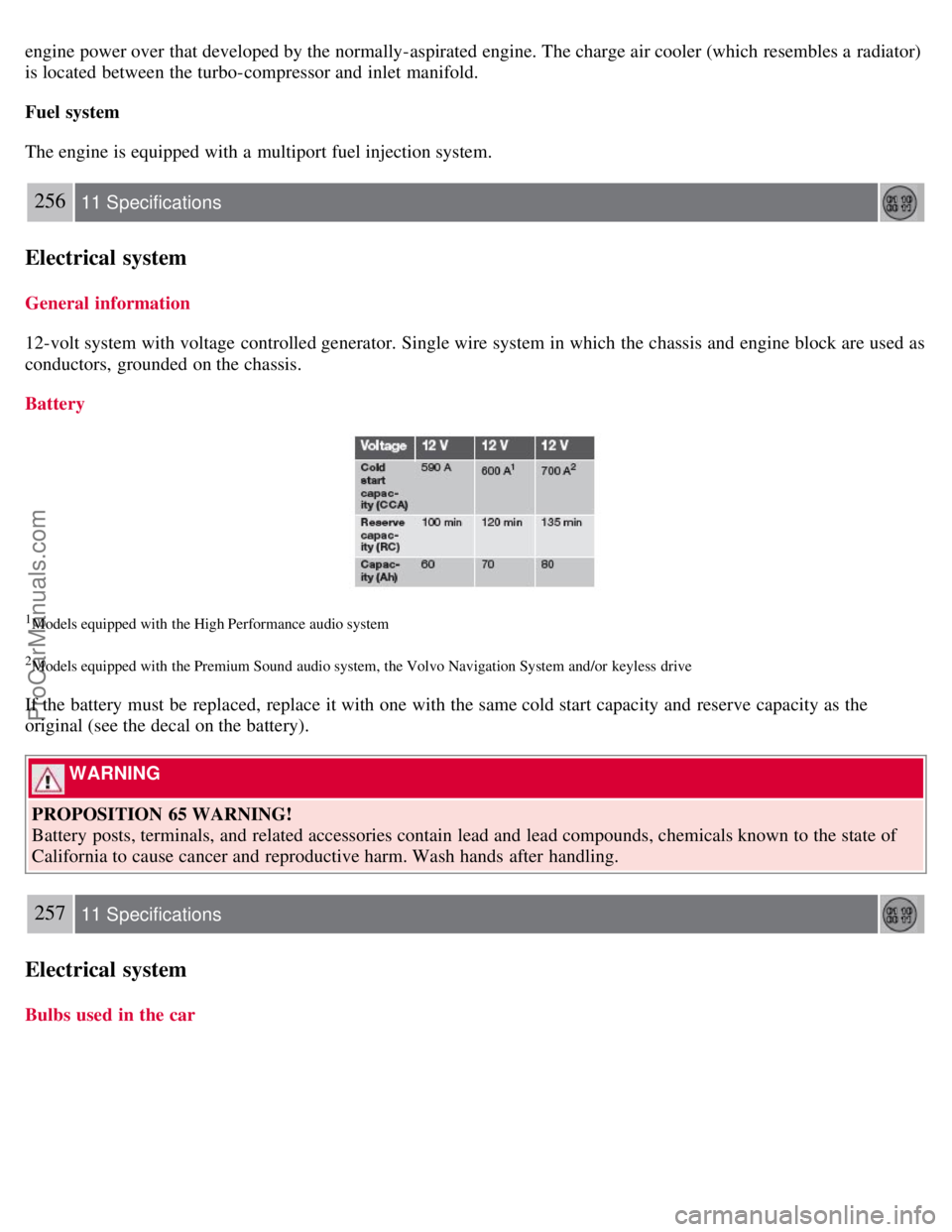
Battery
1Models equipped with the High Performance audio system
2Models equipped with the Premium Sound audio system, the Volvo Navigation System and/or keyless drive
If the battery must be replaced, replace it with one with the same cold start capacity and reserve capacity as the
original (see the decal on the battery).
WARNING
PROPOSITION 65 WARNING!
Battery posts, terminals, and related accessories contain lead and lead compounds, chemicals known to the state of
California to cause cancer and reproductive harm. Wash hands after handling.
257 11 Specifications
Electrical system
Bulbs used in the car
ProCarManuals.com
Page 232 of 239
2 0 0 8
VOLVO S40
260-265 12 Index
12-volt socket 58
A
ABS6
, 147
malfunction of the ABS system53
Accessory Installation- Important Warning8
Active Bi -Xenon® headlights59
Active yaw control - AYC149
Air conditioning86
Air distribution95, 251
Air vents88
Airbag system17
Alarm124
All Wheel Drive146
Antifreeze206
Anti-lock Brake System (ABS)6
Approach lighting78, 113
Audio system
CD player242
menu settings245
radio functions235
Sirius satellite radio237
system introduction230
USB/iPOD connector232
Autolock78
Automatic sound control234
Automatic transmission - Geartronic141
Autostart136
AUX (audio system)230
AUX menu245
Auxiliary equipment58
AWD146
B
Backrests, rear seat108
Battery
avoiding drain130
ProCarManuals.com