warning VOLVO S60 2014 Owner´s Manual
[x] Cancel search | Manufacturer: VOLVO, Model Year: 2014, Model line: S60, Model: VOLVO S60 2014Pages: 386, PDF Size: 11.24 MB
Page 183 of 386
04 Driver support
Park assist*
04
* Option/accessory, for more information, see Introduction.181
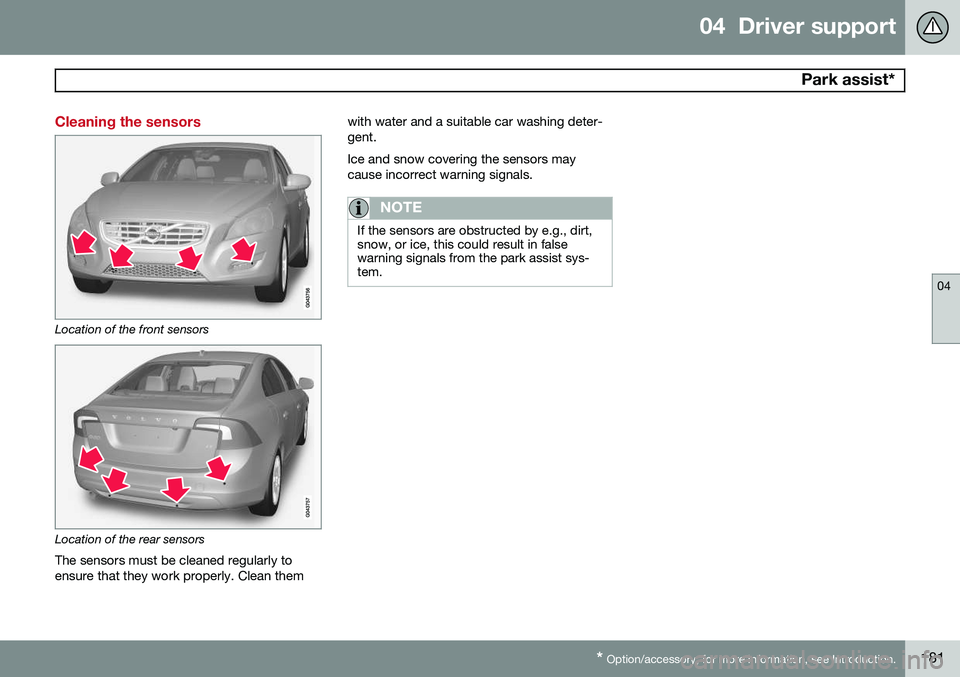
Cleaning the sensors
Location of the front sensors
Location of the rear sensors
The sensors must be cleaned regularly to ensure that they work properly. Clean them with water and a suitable car washing deter-gent. Ice and snow covering the sensors may cause incorrect warning signals.
NOTE
If the sensors are obstructed by e.g., dirt, snow, or ice, this could result in falsewarning signals from the park assist sys-tem.
Page 184 of 386
04 Driver support
Rear Park Assist Camera (PAC)*
04
182* Option/accessory, for more information, see Introduction.
Introduction
The Park Assist Camera uses the display in the center console to show the area behindthe car while you are backing up. PAC also shows guiding lines in the on- screen image to indicate the direction that thevehicle will take as it moves rearward, whichhelps simplify parallel parking, backing into atight space or when attaching a trailer to thevehicle.
NOTE
A trailer hitch whose wiring is integrated with the vehicle's electrical system will beincluded in the measurement of the availa-ble space behind the vehicle.
WARNING
• PAC is designed to be a supplemen- tary aid when parking the vehicle. It isnot, however, intended to replace thedriver’s attention and judgment.
• The camera has blind spots where itcannot detect objects or peoplebehind the vehicle.
• Pay particular attention to people oranimals that are close to the vehicle.
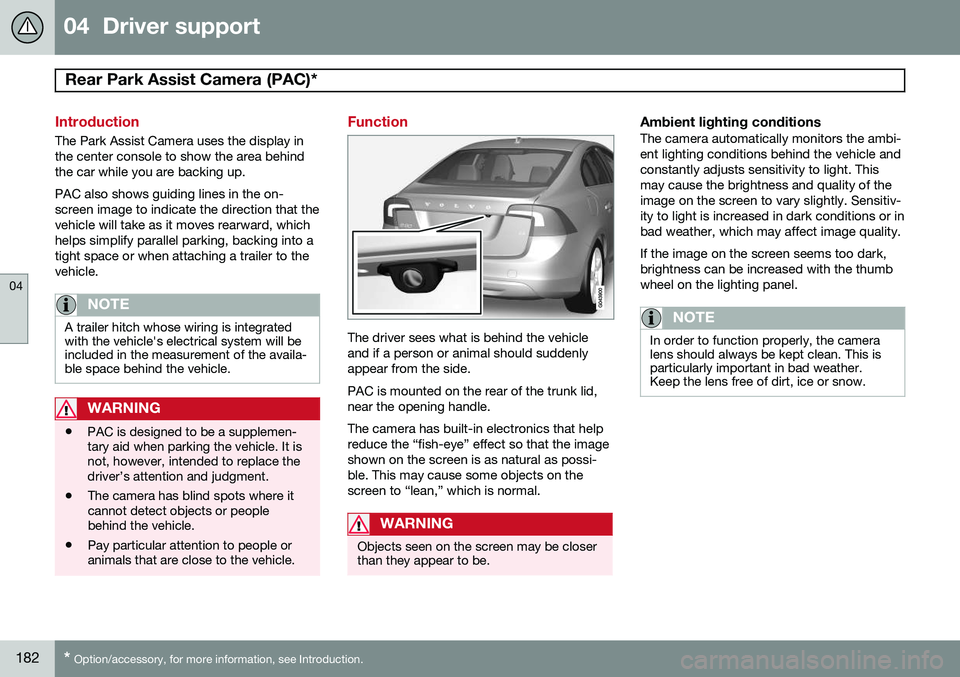
Function
The driver sees what is behind the vehicle and if a person or animal should suddenlyappear from the side. PAC is mounted on the rear of the trunk lid, near the opening handle. The camera has built-in electronics that help reduce the “fish-eye” effect so that the imageshown on the screen is as natural as possi-ble. This may cause some objects on thescreen to “lean,” which is normal.
WARNING
Objects seen on the screen may be closer than they appear to be.
Ambient lighting conditionsThe camera automatically monitors the ambi- ent lighting conditions behind the vehicle andconstantly adjusts sensitivity to light. Thismay cause the brightness and quality of theimage on the screen to vary slightly. Sensitiv-ity to light is increased in dark conditions or inbad weather, which may affect image quality. If the image on the screen seems too dark, brightness can be increased with the thumbwheel on the lighting panel.
NOTE
In order to function properly, the camera lens should always be kept clean. This isparticularly important in bad weather.Keep the lens free of dirt, ice or snow.
Page 186 of 386

04 Driver support
Rear Park Assist Camera (PAC)*
04
184* Option/accessory, for more information, see Introduction.
WARNING
Keep in mind that the image on the screen only shows the area behind the vehicle.The driver must always watch for people,animals, other vehicles, etc., near the sidesof the vehicle when turning while backingup.
Marker lines
The PAC system's lines
Marker line for a 1-foot (30-centimeter) zone behind the vehicle
Marker line for the clear back-up zone
"Wheel tracks"
The solid line (1) indicates a zone within 1 ft (30 centimeters) of the rear bumper. The dashed line (2) indicates the clear zone ofapproximately 5 feet (1.5 m) behind thebumper. These lines also indicate the out-most limits that any object (door mirrors, cor-ners of the body, etc.) extends out from thevehicle, even when it turns. The "wheel tracks" (3) between the side marker lines show where the wheels will rolland can extend up to approximately 10.5 ft(3.2 m) behind the bumper if there are noobjects in the way.
Vehicles equipped with Park Assist
Colored fields (4-one per sensor) indicate dis- tance If the vehicle is equipped with the optional Park Assist system, the distance to an objectwill be indicated more exactly and colored
markers in the display indicate which of thesensor(s) has detected the object. The markers change color (from yellow to orange to red) as the vehicle comes closer tothe object.
Marker (color)Distance to object
Yellowmore than 5 ft (1.5 m)
Orange5–1 ft (0.3–1.5 m)
Red0–1 ft (0–0.3 m)
SettingsPress
OK/MENU when a normal camera view
is displayed and make the desired settings.
Parking camera settings
• Mark Guide lines to display the sidelines
while backing up.
• Mark
Distance bars to display the inter-
secting lines while backing up.
Activating the system
• Mark Automatic activation of rear
camera to activate PAC each time
reverse gear is selected.
• Mark
Off to turn off PAC completely.
Summary
•The camera is activated when the gear selector is moved to
R (this can be
Page 188 of 386
04 Driver support
Blind Spot Information System (BLIS)*
04
186* Option/accessory, for more information, see Introduction.
Introduction
BLIS is an information system that indicates the presence of another vehicle moving in thesame direction as your vehicle on roads withseveral lanes. The system helps provide infor-mation about:
• Other vehicles in your door mirrors' "blind area"
• Vehicles that are about to pass your vehi-cle in the left and/or right lanes
• Cross Traffic Alert (CTA) is a supple- mentary BLIS function
intended to
detect vehicles crossing behind your vehicle while you are backing up.WARNING
• BLIS and CTA are information sys- tems, NOT warning or safety systemsand do not function in all situations.
• BLIS and CTA do not eliminate theneed for you to visually confirm theconditions around you, and the needfor you to turn your head and should-ers to make sure that you can safelychange lanes or back up.
• As the driver, you have full responsibil-ity for changing lanes/backing up in asafe manner.
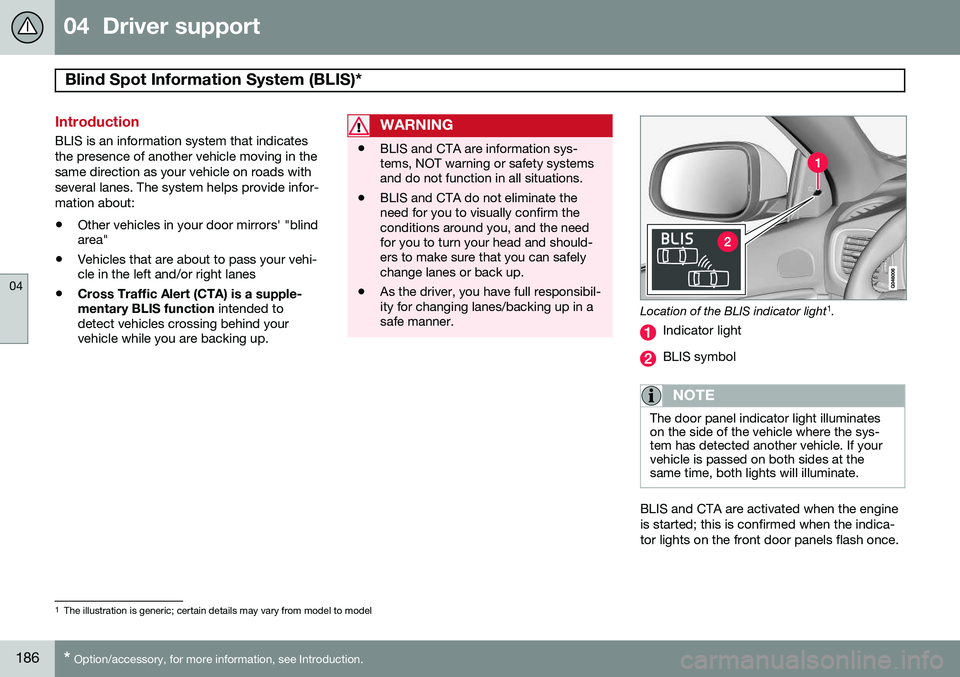
Location of the BLIS indicator light 1
.
Indicator light
BLIS symbol
NOTE
The door panel indicator light illuminates on the side of the vehicle where the sys-tem has detected another vehicle. If yourvehicle is passed on both sides at thesame time, both lights will illuminate.
BLIS and CTA are activated when the engine is started; this is confirmed when the indica-tor lights on the front door panels flash once.
1 The illustration is generic; certain details may vary from model to model
Page 189 of 386
04 Driver support
Blind Spot Information System (BLIS)*
04
* Option/accessory, for more information, see Introduction.187
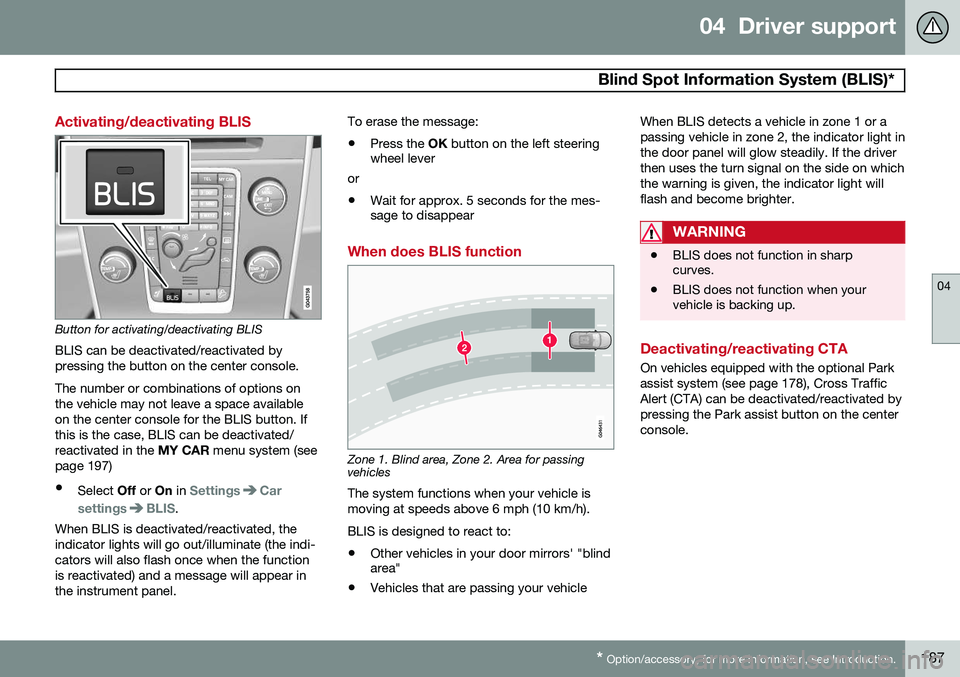
Activating/deactivating BLIS
Button for activating/deactivating BLIS BLIS can be deactivated/reactivated by pressing the button on the center console. The number or combinations of options on the vehicle may not leave a space availableon the center console for the BLIS button. Ifthis is the case, BLIS can be deactivated/reactivated in the MY CAR menu system (see
page 197)
• Select Off or On in
SettingsCar
settings
BLIS.
When BLIS is deactivated/reactivated, the indicator lights will go out/illuminate (the indi-cators will also flash once when the functionis reactivated) and a message will appear inthe instrument panel. To erase the message: •
Press the
OK button on the left steering
wheel lever
or
• Wait for approx. 5 seconds for the mes- sage to disappear
When does BLIS function
Zone 1. Blind area, Zone 2. Area for passing vehicles
The system functions when your vehicle is moving at speeds above 6 mph (10 km/h). BLIS is designed to react to:
• Other vehicles in your door mirrors' "blind area"
• Vehicles that are passing your vehicle When BLIS detects a vehicle in zone 1 or a passing vehicle in zone 2, the indicator light inthe door panel will glow steadily. If the driverthen uses the turn signal on the side on whichthe warning is given, the indicator light willflash and become brighter.
WARNING
•
BLIS does not function in sharp curves.
• BLIS does not function when yourvehicle is backing up.
Deactivating/reactivating CTA
On vehicles equipped with the optional Park assist system (see page 178), Cross TrafficAlert (CTA) can be deactivated/reactivated bypressing the Park assist button on the centerconsole.
Page 190 of 386

04 Driver support
Blind Spot Information System (BLIS)*
04
188* Option/accessory, for more information, see Introduction.
Park assist/CTA button CTA can be deactivated separately in the MY
CAR menu system (see page 197
• Go to
SettingsCar settingsBLIS
Cross Traffic Alert and deselect this
function to deactivate CTA. BLIS, how- ever, is still activated.
When does CTA function
How CTA works
CTA supplements BLIS by warning the driver of crossing traffic behind your vehicle, forexample, when backing out of a parkingspace. It is primarily designed to detect another vehi- cle but in certain cases may also detectpedestrians or smaller objects such as bicy-cles. CTA is only activated when the vehicle is backing up and is activated automaticallywhen the gear selector is put in reverse.
• An audible signal indicates that CTA has detected something that is approachingfrom the side. The signal will come fromeither the left or right audio systemspeakers, depending on which the side of your vehicle the approaching vehicle/object has been detected.
• CTA also provides a warning by illuminat-ing the BLIS indicator lights.
• An icon will also illuminate in the Parkassist graphic on the center console dis-play.
LimitationsCTA has limitations in certain situations, for example, the CTA sensors cannot "see"through other parked vehicles or obstruc-tions. The following are several examples where CTA's "field of vision" may initially be limitedand approaching vehicles cannot be detecteduntil they are too close:
Page 198 of 386

05 Comfort and driving pleasure
Menus and messages
05
196
Messages
When a warning, information or indicator symbol comes on, a corresponding messageappears in the information panel. An errormessage is stored in a memory list until thefault is rectified. Press OK to acknowledge and scroll among
the messages.
NOTE
If a warning message appears while you are using the trip computer, the messagemust be read and confirmed by pressingOK before the previous activity can be
resumed.
MessageDescription
Stop engineAStop and switch off the engine as soon as possi-ble. Serious risk of dam-age. Contact an author-ized Volvo workshop.
Stop safelyAStop and switch off the engine. Serious risk ofdamage. Contact anauthorized Volvo work-shop.
MessageDescription
Service urgentAHave the vehicle checked by an authorized Volvoworkshop immediately.
Service requiredAHave the vehicle checked by an authorized Volvoworkshop as soon as pos-sible.
See man- ualARead the owner's manual.
Book time for mainte-nanceTime to book service at an authorized Volvo retailer.
Time for regularmainte-nanceTime for regular service at an authorized Volvo work-shop. The timing is deter-mined by the number ofmiles driven, number ofmonths since the lastservice, engine runningtime.
MessageDescription
Mainte- nance over-dueIf the service intervals are not followed, the warrantydoes not cover any dam-aged parts. Contact anauthorized Volvo work-shop for service.
Temporarily OFFAA function has been tem- porarily switched off andis reset automatically whiledriving or after startingagain.
Low battery Power savemodeThe audio system is switched off to save cur-rent. Charge the battery.
A There will also be a system-specific part of this message
Page 202 of 386
05 Comfort and driving pleasure
The MY CAR menus
05
200
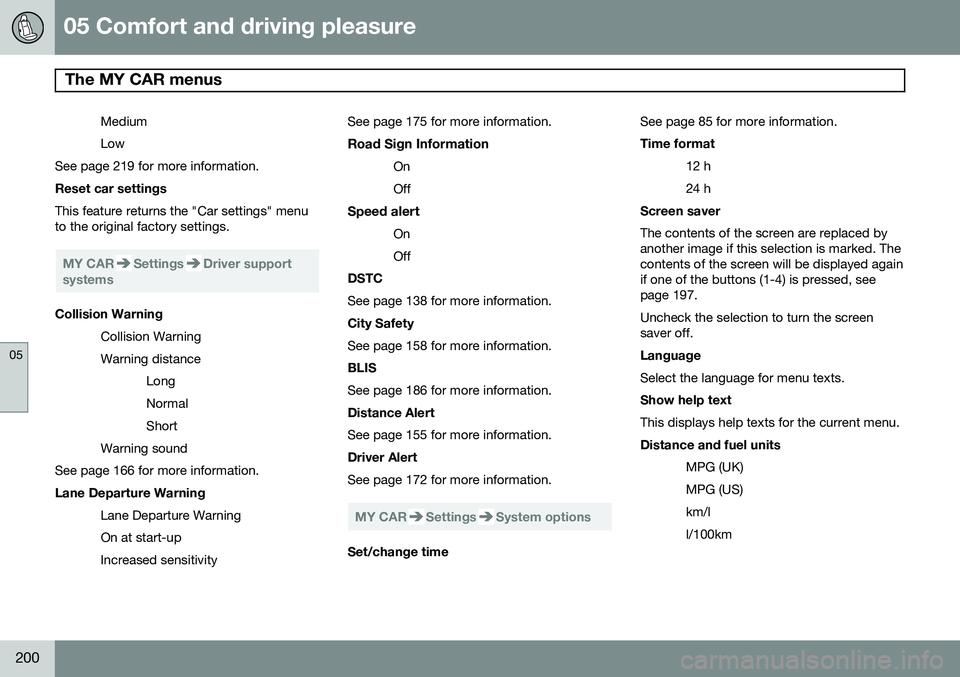
Medium Low
See page 219 for more information. Reset car settings This feature returns the "Car settings" menu to the original factory settings.
MY CARSettingsDriver support
systems
Collision Warning
Collision Warning Warning distanceLongNormalShort
Warning sound
See page 166 for more information. Lane Departure Warning
Lane Departure Warning On at start-upIncreased sensitivity See page 175 for more information.
Road Sign Information OnOff
Speed alert OnOff
DSTC See page 138 for more information. City Safety See page 158 for more information. BLIS See page 186 for more information. Distance Alert See page 155 for more information. Driver Alert See page 172 for more information.
MY CARSettingsSystem options
Set/change time See page 85 for more information. Time format
12 h 24 h
Screen saver The contents of the screen are replaced by another image if this selection is marked. Thecontents of the screen will be displayed againif one of the buttons (1-4) is pressed, seepage 197. Uncheck the selection to turn the screen saver off. Language Select the language for menu texts. Show help text This displays help texts for the current menu. Distance and fuel units
MPG (UK) MPG (US)km/ll/100km
Page 214 of 386
05 Comfort and driving pleasure
Trip computer
05
212
Introduction
The content and appearance of the trip com- puter varies depending on whether the vehi-cle is equipped with an analog or digital
instrument panel. The instrument panel illuminates as soon as the vehicle is unlocked and trip computer set-tings can be made. If none of the trip com-puter's controls are used within 30 secondsafter the driver's door has been opened, theinstrument panel lighting will go out and thetrip computer cannot be used again until: • the ignition is put in mode II1
• the engine is started
NOTE
If a warning message appears while you are using the trip computer, this messagemust be acknowledged in order to returnto the trip computer function. Acknowl-edge a message by pressing
OK.
Trip computer in models with an analog instrument panel
The trip computer has two different menu groups: •
Trip computer functions
• Trip computer information headings in the instrument panel
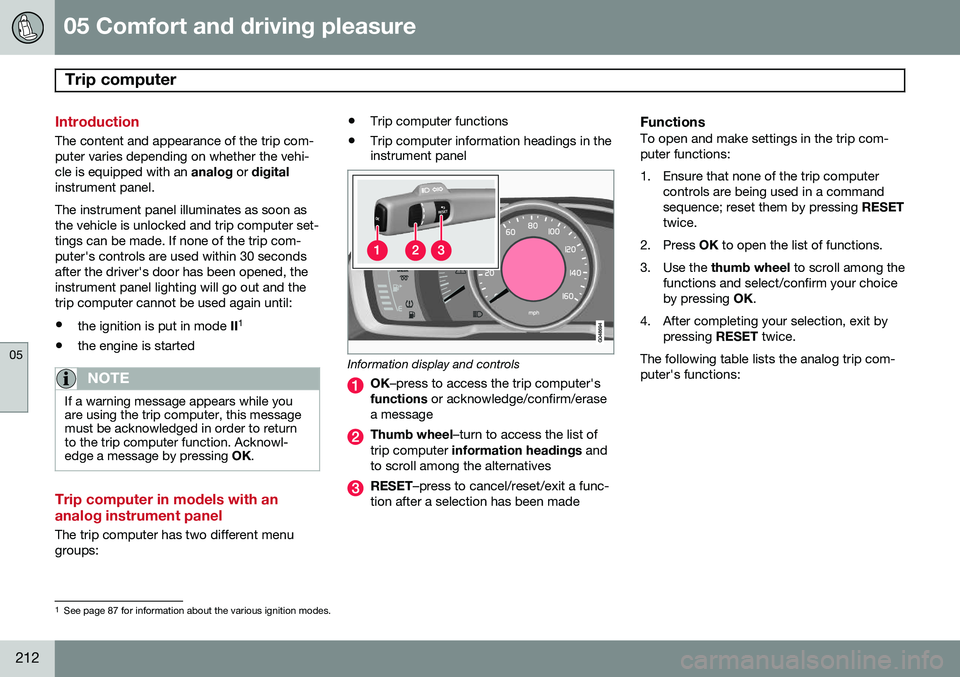
Information display and controls
OK
–press to access the trip computer's
functions or acknowledge/confirm/erase
a message
Thumb wheel –turn to access the list of
trip computer information headings and
to scroll among the alternatives
RESET –press to cancel/reset/exit a func-
tion after a selection has been made
FunctionsTo open and make settings in the trip com- puter functions:
1. Ensure that none of the trip computer controls are being used in a command sequence; reset them by pressing RESET
twice.
2. Press OK to open the list of functions.
3. Use the thumb wheel to scroll among the
functions and select/confirm your choiceby pressing OK.
4. After completing your selection, exit by pressing RESET twice.
The following table lists the analog trip com-puter's functions:
1 See page 87 for information about the various ignition modes.
Page 224 of 386
05 Comfort and driving pleasure
Passenger compartment convenience
05
222
Vanity mirror
G021438
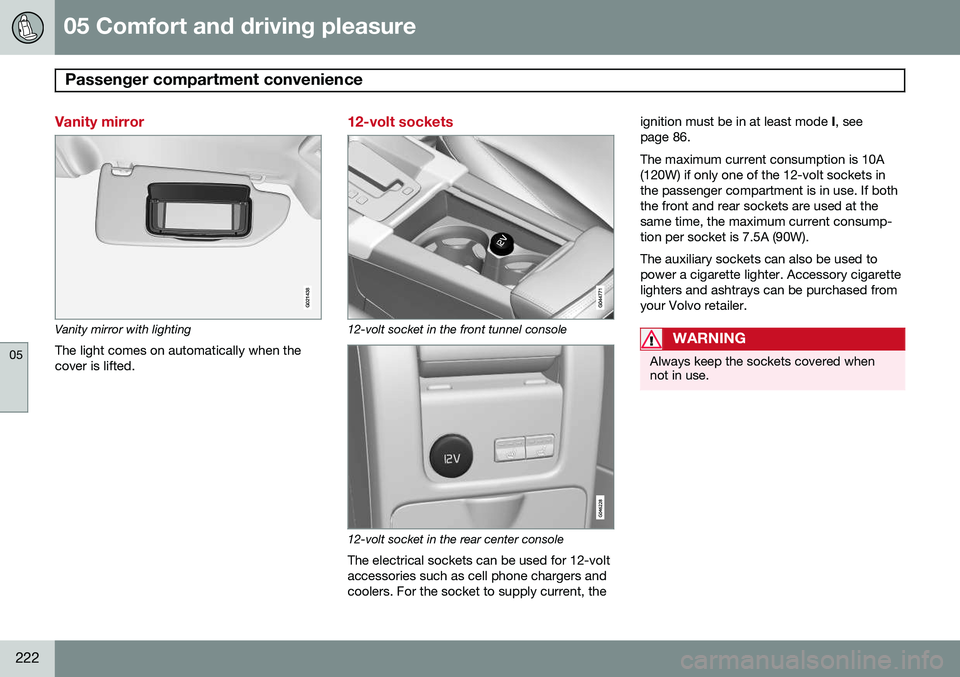
Vanity mirror with lightingThe light comes on automatically when the cover is lifted.
12-volt sockets
12-volt socket in the front tunnel console
12-volt socket in the rear center console
The electrical sockets can be used for 12-volt accessories such as cell phone chargers andcoolers. For the socket to supply current, the ignition must be in at least mode
I, see
page 86. The maximum current consumption is 10A (120W) if only one of the 12-volt sockets inthe passenger compartment is in use. If boththe front and rear sockets are used at thesame time, the maximum current consump-tion per socket is 7.5A (90W). The auxiliary sockets can also be used to power a cigarette lighter. Accessory cigarettelighters and ashtrays can be purchased fromyour Volvo retailer.
WARNING
Always keep the sockets covered when not in use.