change time VOLVO S60 2014 Owner´s Manual
[x] Cancel search | Manufacturer: VOLVO, Model Year: 2014, Model line: S60, Model: VOLVO S60 2014Pages: 386, PDF Size: 11.24 MB
Page 148 of 386

04 Driver support
Adaptive Cruise Control (ACC)*
04
146* Option/accessory, for more information, see Introduction.
WARNING
Adaptive Cruise Control only warns of vehicles detected by the radar sensor, seepage 151. In some cases there may be nowarning or the warning may be delayed.The driver should always apply the brakeswhen necessary.
Steep inclines and/or heavy loadsACC is primarily intended for use on fairly level roads. The system may have difficultymaintaining the correct distance to a vehicleahead on steep inclines, if the vehicle is car-rying a heavy load or is towing a trailer. Inthese situations, the driver should always beprepared to apply the brakes if necessary.
Operation
Controls and display
Resume previous settings.
Off/On/Standby mode
Decrease/increase time interval
Put in active mode and set a speed (each additional press increases/decreasesspeed by 1 mph (approximately 2 km/h))
Set speed (shown in green when active,
shown in white when in standby mode)
Time interval
ACC active ( green symbol) or in standby
mode ( white symbol)
Putting ACC in standby modeBefore ACC can be used to regulate speed and/or the distance to a vehicle ahead, itmust first be put in standby mode. To do so:
• Press
(2).
> The same symbol (7) appears (in white) in
the instrument panel to indicate that ACC is in standby mode.
NOTE
The driver's door must be closed and the driver's seat belt must be fastened beforeACC can be put in active mode. If the driv-er's seat belt is taken off or if the driver'sdoor is opened, ACC will return to standbymode.
Setting a speedOnce ACC has been put in standby mode: • Press
or (4).
> The set speed, for example 60 mph (5), will be magnified for several seconds and the frame around the speed will changecolors from white to green to indicate
that this speed has been stored (set).
Page 149 of 386
04 Driver support
Adaptive Cruise Control (ACC)*
04
* Option/accessory, for more information, see Introduction.147
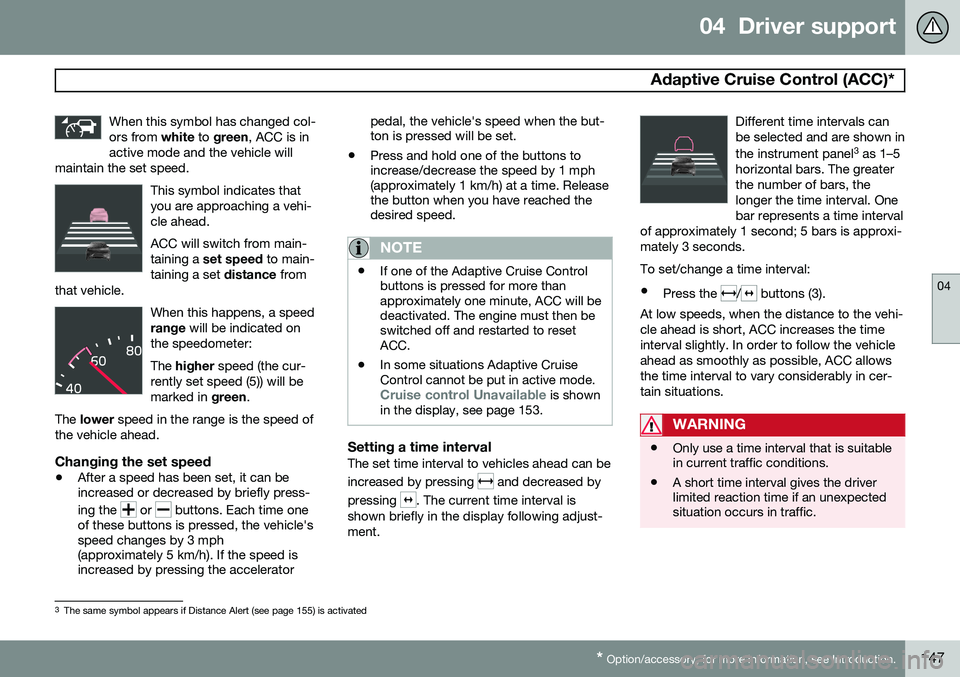
When this symbol has changed col- ors from
white to green , ACC is in
active mode and the vehicle will
maintain the set speed.
This symbol indicates that you are approaching a vehi-cle ahead. ACC will switch from main- taining a set speed to main-
taining a set distance from
that vehicle.
When this happens, a speed range will be indicated on
the speedometer: The higher speed (the cur-
rently set speed (5)) will be marked in green.
The lower speed in the range is the speed of
the vehicle ahead.
Changing the set speed
• After a speed has been set, it can be increased or decreased by briefly press- ing the
or buttons. Each time one
of these buttons is pressed, the vehicle's speed changes by 3 mph(approximately 5 km/h). If the speed isincreased by pressing the accelerator pedal, the vehicle's speed when the but-ton is pressed will be set.
• Press and hold one of the buttons toincrease/decrease the speed by 1 mph(approximately 1 km/h) at a time. Releasethe button when you have reached thedesired speed.
NOTE
•If one of the Adaptive Cruise Control buttons is pressed for more thanapproximately one minute, ACC will bedeactivated. The engine must then beswitched off and restarted to resetACC.
• In some situations Adaptive CruiseControl cannot be put in active mode.
Cruise control Unavailable is shown
in the display, see page 153.
Setting a time intervalThe set time interval to vehicles ahead can be increased by pressing
and decreased by
pressing
. The current time interval is
shown briefly in the display following adjust- ment. Different time intervals canbe selected and are shown in the instrument panel
3
as 1–5
horizontal bars. The greater the number of bars, thelonger the time interval. Onebar represents a time interval
of approximately 1 second; 5 bars is approxi-mately 3 seconds.
To set/change a time interval:
• Press the
/ buttons (3).
At low speeds, when the distance to the vehi- cle ahead is short, ACC increases the timeinterval slightly. In order to follow the vehicleahead as smoothly as possible, ACC allowsthe time interval to vary considerably in cer-tain situations.
WARNING
• Only use a time interval that is suitable in current traffic conditions.
• A short time interval gives the driverlimited reaction time if an unexpectedsituation occurs in traffic.
3
The same symbol appears if Distance Alert (see page 155) is activated
Page 150 of 386

04 Driver support
Adaptive Cruise Control (ACC)*
04
148* Option/accessory, for more information, see Introduction.
Standby mode (temporary deactivation)To temporarily deactivate ACC (put it in standby mode):
• Press
.
This symbol and the marking for the set speed with change colors from green to
white. The previously set speed and time interval are resumed by pressing
.
WARNING
The vehicle may accelerate quickly after
has been pressed if its current speed is
considerably lower than the set speed.
Standby mode due to action by the driver
ACC is temporarily deactivated and put in standby mode:
• if the brakes are applied
• if the gear selector is moved to
N
• if the driver drives faster than the set speed for more than
1 minute.
In this happens, the driver will have to regu- late the vehicle's speed.
NOTE
If the accelerator pedal is only depressed for a short time, such as when passinganother vehicle, ACC is deactivated tem-porarily and is reactivated when the pedalis released.
Automatic standby modeACC is linked to other systems such as the stability and traction control system (DSTC). Ifthis system is not functioning properly, ACCwill switch off automatically. In the event of automatic deactivation, an audible signal will sound and the message
Cruise control Cancelled is shown in the
instrument panel. The driver must then inter- vene and adapt the vehicle's speed to thesurrounding traffic and regulate the distanceto the vehicle ahead. An automatic switch to standby mode may be caused if:
• engine speed (rpm) is too high/low
• The driver's door is opened
• The driver unbuckles his/her seat belt
• the vehicle's speed goes below 18 mph (30 km/h) 4
• the wheels lose traction •
brake temperature is high
• the radar sensor is obstructed by, for example, wet snow or rain.
Resuming the set speedIf ACC is in standby mode, it can be reactiva- ted by pressing the
button on the steering
wheel keypad. The vehicle will return to the most recently set speed.
WARNING
The vehicle may accelerate quickly after
has been pressed if its current speed is
considerably lower than the set speed.
Passing another vehicleIf your vehicle’s speed is being regulated by ACC and the driver indicates that he/shewould like to pass the vehicle ahead by usingthe left turn signal, ACC can assist by accel-
erating briefly. This function is active at speeds above approximately 45 mph (70 km/h).
4 Does not apply to vehicles equipped with the optional Queue Assist
Page 151 of 386

04 Driver support
Adaptive Cruise Control (ACC)*
04
* Option/accessory, for more information, see Introduction.149
WARNING
Please be aware that this function will also cause the vehicle to accelerate briefly incertain situations other than passinganother vehicle, for example using the leftturn signal to indicate a lane change or aturn toward a highway exit at speedsabove approximately 45 mph (70 km/h).
Turning ACC off completely
•
From standby mode, press once.
• From active mode, press
twice.
The set speed and time interval are then cleared from the system's memory and can- not be resumed by pressing
.
Toggling between ACC and CC (standard Cruise Control)
Switching from ACC to CCThis may be useful if, for example, the radar sensor is obstructed in some way. See thesection "The radar sensor and its limitations"on page 151 for additional information.
• Press and hold the
button; the symbol
in the instrument panel will switch from
to .
> This activates the standard cruise control function (see page 142).
WARNING
Switching from ACC to CC means that:
• Your vehicle will
no longer automati-
cally maintain a set distance to a vehi- cle ahead.
• Only the set speed will be maintainedand the driver will have to apply thebrakes when needed.
Switching from CC to ACC
Switch off cruise control by pressing once
or twice as needed according to the instruc- tions in the previous section "Turning ACC offcompletely." The next time the system isswitched on, ACC will be reactivated.
Queue Assist
IntroductionQueue Assist is an added ACC feature that is linked to your vehicle's automatic transmis-sion. Queue Assist consists of the following func- tions: • Enhanced speed interval (including when the vehicle is at a complete stop or is moving at speed below 18 mph(30 km/h))
• Automatic standby mode when ACCchanges target vehicles
• No automatic braking when at a standstill
• The parking brake is applied automati-cally
Please note that the lowest speed that can be set is 18 mph (30 km/h), although ACC canmaintain a set speed/distance to a vehicleahead down to a standstill. Queue Assistconsists of the following features:
Enhanced speed interval
NOTE
The driver's door must be closed and the driver's seat belt must be fastened beforeACC can be put in active mode. If the driv-er's seat belt is taken off or if the driver'sdoor is opened, ACC will return to standbymode.
Your vehicle can maintain the set time interval to the vehicle ahead at any permissiblespeed, including a complete stop. In order to activate ACC at speeds below 18 mph (30 km/h):
Page 152 of 386

04 Driver support
Adaptive Cruise Control (ACC)*
04
150* Option/accessory, for more information, see Introduction.
• The vehicle ahead must be within a rea- sonable distance (not farther away thanapprox. 100 ft/30 meters)
• The lowest speed that can be selected is18 mph (30 km/h), although ACC will alsohelp maintain the set time interval to thevehicle ahead at lower speeds, includinga complete stop.
During short stops (less than approximately 3 seconds) in slow-moving traffic, your vehi-cle will begin moving again automatically assoon as the vehicle ahead begins to move. If it takes more than 3 seconds for the vehicle ahead to begin moving, ACC will be automat-ically go into standby mode. The driver will then have to reactivate ACC in one of the following ways:
• By pressing
• By accelerating up to at least 3 mph (4 km/h). ACC will then resume followingthe vehicle ahead.
Your vehicle will then resume following the vehicle ahead at the set time interval.
NOTE
ACC can remain active and keep your vehicle at a standstill for up to 4 minutes.After 4 minutes have elapsed, the parkingbrake will be engaged and ACC will go intostandby mode. To reactivate ACC, the driver must release the parking brake (see page 133).
Automatic standby mode when ACC changes target vehicles
If the vehicle ahead turns suddenly, there may be a stationary vehicle ahead
The following only applies at speeds below approximately 18 mph (30 km/h) :
If ACC changes target vehicles (the vehicle that the radar sensor has detected) from amoving vehicle to a stationary one, the sys-tem will apply the brakes in your vehicle.
WARNING
At speeds above 18 mph (30 km/h), ACC
will not react to a stationary vehicle and apply the brakes but will instead acceler-ate to the previously set speed. The drivermust actively apply the brakes to stop thevehicle.
ACC disengages and goes into standby mode if:
• Your vehicle's speed goes below 10 mph (15 km/h) and ACC cannot determine ifthe target object is a stationary vehicle orsome other type of object such as e.g., aspeed bump.
• Your vehicle's speed goes below 10 mph(15 km/h) and the vehicle ahead turns sothat ACC no longer has a target vehicle tofollow.
No automatic braking when at a standstill
In certain situations, ACC will no longer apply the brakes and go into standby mode whilethe vehicle is not moving. This means that thedriver will have to apply the brakes. This happens if:
• The driver presses the brake pedal
• The parking brake is activated
Page 166 of 386
04 Driver support
Collision warning with Full Auto-brake and Pedestrian Detection*
04
164* Option/accessory, for more information, see Introduction.
Introduction
Collision Warning with Full Auto-brake and Pedestrian Detection is designed to assist thedriver if there is a risk of a collision with apedestrian, a vehicle ahead that is at a stand-still or one that is moving in the same direc-tion as your vehicle. Collision Warning consists of the following three functions:
• Collision Warning
warns the driver of a
potential collision situation.
• Brake Support
helps the driver brake
efficiently in a critical situation.
• Auto-brake
brakes the vehicle automati-
cally if a collision with a pedestrian or another vehicle cannot be avoided andthe driver does not apply the brakes intime or steer around the person/vehicle.Auto-brake can help prevent a collision orreduce the speed at which a collisionoccurs.
Since Collision Warning with Full Auto-brake and Pedestrian Detection is activated in cir-cumstances where the driver should havebegun braking much sooner, the system willnot be able to assist the driver in all situa-tions. This system is designed to activate as late as possible to help avoid unnecessary interven-tion. The system should not be used in such a waythat the driver changes his/her way of operat-ing the vehicle. If the driver relies entirely onthe system, the chances of an accident even-tually occurring increase considerably. The Collision Warning and City Safety™ sys- tems supplement each other. See page 158for detailed information about City Safety™.
WARNING
No automatic system can be guaranteed to function 100% correctly in all situations.For that reason, never test the Auto-brakesystem by driving toward a person orobject. This could result in serious injury ordeath.
WARNING
•
Collision Warning does not work in all driving, traffic, weather and road con-ditions. It does not react to vehiclesnot traveling in the same direction asyour vehicle.
• Collision Warning does not react toanimals.
• Warnings are only provided when therisk of collision is high. The "Function"section provides information aboutlimitations that the driver must beaware of before using Collision Warn-ing.
• Collision Warning will not provide awarning or brake the vehicle forpedestrians at speeds above 50 mph(80 km/h).
Page 178 of 386
04 Driver support
Driver Alert System*
04
176* Option/accessory, for more information, see Introduction.
WARNING
The driver will only be warned once for each time the wheels cross a marker line.No alarm will be given if a marker line isbetween the wheels.
Limitations
The camera used by LDW has the same limi- tations as the human eye. See page168 for
more information about the camera's limita-tions.
NOTE
No warning signal will be given in the cer-
tain situations, such as:
• If the turn signal is being used
• The driver’s foot is on the brake pedal 1
• The accelerator pedal is pressed quickly 1
• If the steering wheel is moved quickly 1
• In sharp turns that cause the vehicle’s body to sway
Settings
Settings for Lane Departure Warning can be made in the menu system by pressing
My
Car . Go to
SettingsCar settings
Driver support systemsLane Departure
Warning.
There are two alternatives:
On at start-up: This selection switches LDW
on each time the engine is started. Otherwise, the system will be in the mode that it was inwhen the engine was switched off.
Increased sensitivity: This selection increa-
ses the function’s sensitivity. Warnings will be given at an earlier stage and fewer limitationsapply. When this setting is being used, thesystem only needs to monitor lane markerlines on one side of the vehicle to change sta- tus to
Lane Depart Warn Available.
1 When Increased sensitivity has been selected, a warning will be issued if a side marker line is crossed in this situation.
Page 186 of 386

04 Driver support
Rear Park Assist Camera (PAC)*
04
184* Option/accessory, for more information, see Introduction.
WARNING
Keep in mind that the image on the screen only shows the area behind the vehicle.The driver must always watch for people,animals, other vehicles, etc., near the sidesof the vehicle when turning while backingup.
Marker lines
The PAC system's lines
Marker line for a 1-foot (30-centimeter) zone behind the vehicle
Marker line for the clear back-up zone
"Wheel tracks"
The solid line (1) indicates a zone within 1 ft (30 centimeters) of the rear bumper. The dashed line (2) indicates the clear zone ofapproximately 5 feet (1.5 m) behind thebumper. These lines also indicate the out-most limits that any object (door mirrors, cor-ners of the body, etc.) extends out from thevehicle, even when it turns. The "wheel tracks" (3) between the side marker lines show where the wheels will rolland can extend up to approximately 10.5 ft(3.2 m) behind the bumper if there are noobjects in the way.
Vehicles equipped with Park Assist
Colored fields (4-one per sensor) indicate dis- tance If the vehicle is equipped with the optional Park Assist system, the distance to an objectwill be indicated more exactly and colored
markers in the display indicate which of thesensor(s) has detected the object. The markers change color (from yellow to orange to red) as the vehicle comes closer tothe object.
Marker (color)Distance to object
Yellowmore than 5 ft (1.5 m)
Orange5–1 ft (0.3–1.5 m)
Red0–1 ft (0–0.3 m)
SettingsPress
OK/MENU when a normal camera view
is displayed and make the desired settings.
Parking camera settings
• Mark Guide lines to display the sidelines
while backing up.
• Mark
Distance bars to display the inter-
secting lines while backing up.
Activating the system
• Mark Automatic activation of rear
camera to activate PAC each time
reverse gear is selected.
• Mark
Off to turn off PAC completely.
Summary
•The camera is activated when the gear selector is moved to
R (this can be
Page 187 of 386

04 Driver support
Rear Park Assist Camera (PAC)*
04
* Option/accessory, for more information, see Introduction.185
changed in the
MY CAR menu) and the
image is shown on the center console display.
• When backing up, two solid lines are pro-jected on the screen to show the paththat the vehicle's rear wheels will take.These lines are affected by movements ofthe steering wheel. The vehicle's approxi-mate outer dimension are shown by twodashed lines.
• The graphic lines will not be displayedwhen backing up with a trailer that is con-nected to the vehicle's electrical system.
• Objects on the ground that are closerthan 1 ft (30 centimeters) cannot bedetected by the camera.
• The camera is active for approx.5 seconds after the gear selector ismoved to
R or until the vehicle's speed
exceeds 6 mph (10 km/h).
• The optional Park Assist sensors and theparking camera work together and infor-mation from the sensors is shown graphi-cally on the display.
• The graphic lines shown on the screenwhen the vehicle backs up can be disa-bled in the settings menu.
• Manual zoom can be selected in the
MY
CAR menu.
• The system can be switched off by press-ing
CAM . By default, the system is acti- vated when the gear selector is moved toR
. This setting can be changed in the MY
CAR menu.
• If there are two cameras installed on thevehicle*, to switch between cameras, turnTUNE
(at least one of the cameras has to
be active), press CAM repeatedly or use
the center console controls. If the frontcamera is on, it overrides the optionalpark assist system's visual indicator butthere will still be an audible signal.
Limitations
Even if a fairly small section of the screen image appears to be obstructed, this maymean that a relatively large area behind thevehicle is hidden and objects there may notbe detected until they are very near the vehi-cle.
NOTE
Bicycle carriers or other accessories mounted on the trunk may obstruct thecamera's field of view.
Keep in mind
• Keep the camera's lens free of dirt, ice and snow. Remove ice and snow care-fully to avoid scratching the lens.
• Clean the lens regularly with warm waterand a suitable car washing detergent.
Page 188 of 386
04 Driver support
Blind Spot Information System (BLIS)*
04
186* Option/accessory, for more information, see Introduction.
Introduction
BLIS is an information system that indicates the presence of another vehicle moving in thesame direction as your vehicle on roads withseveral lanes. The system helps provide infor-mation about:
• Other vehicles in your door mirrors' "blind area"
• Vehicles that are about to pass your vehi-cle in the left and/or right lanes
• Cross Traffic Alert (CTA) is a supple- mentary BLIS function
intended to
detect vehicles crossing behind your vehicle while you are backing up.WARNING
• BLIS and CTA are information sys- tems, NOT warning or safety systemsand do not function in all situations.
• BLIS and CTA do not eliminate theneed for you to visually confirm theconditions around you, and the needfor you to turn your head and should-ers to make sure that you can safelychange lanes or back up.
• As the driver, you have full responsibil-ity for changing lanes/backing up in asafe manner.
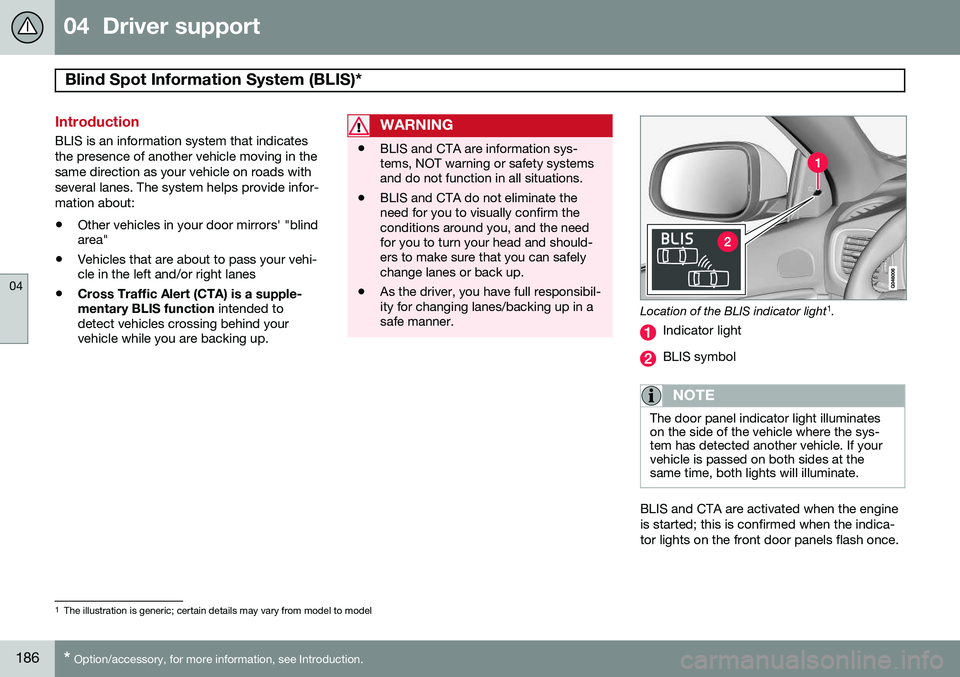
Location of the BLIS indicator light 1
.
Indicator light
BLIS symbol
NOTE
The door panel indicator light illuminates on the side of the vehicle where the sys-tem has detected another vehicle. If yourvehicle is passed on both sides at thesame time, both lights will illuminate.
BLIS and CTA are activated when the engine is started; this is confirmed when the indica-tor lights on the front door panels flash once.
1 The illustration is generic; certain details may vary from model to model