change time VOLVO S60 2014 Owner´s Manual
[x] Cancel search | Manufacturer: VOLVO, Model Year: 2014, Model line: S60, Model: VOLVO S60 2014Pages: 386, PDF Size: 11.24 MB
Page 202 of 386
05 Comfort and driving pleasure
The MY CAR menus
05
200
Medium Low
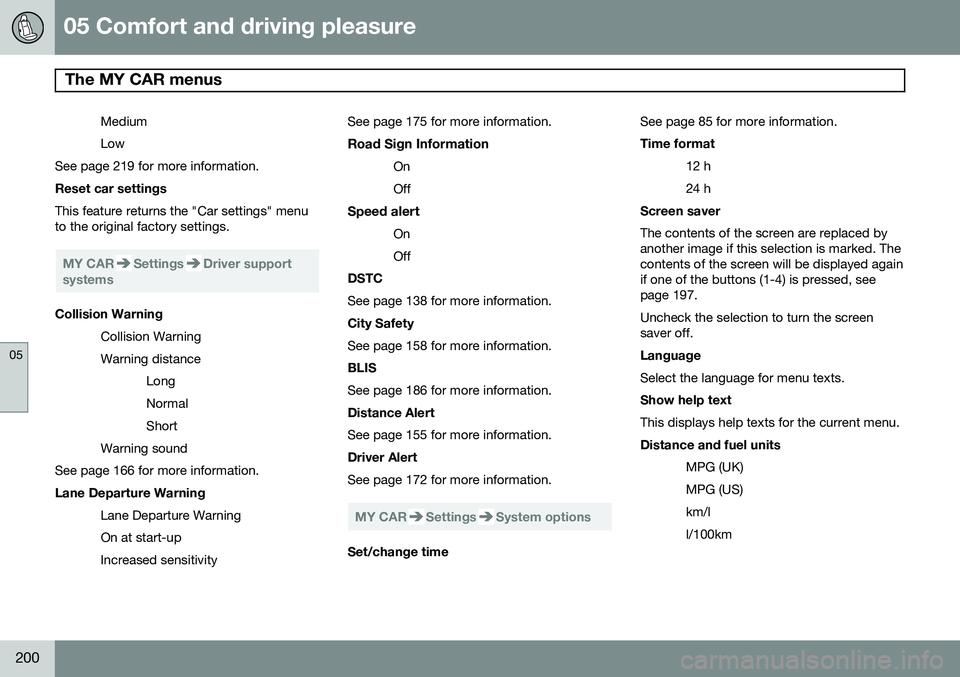
See page 219 for more information. Reset car settings This feature returns the "Car settings" menu to the original factory settings.
MY CARSettingsDriver support
systems
Collision Warning
Collision Warning Warning distanceLongNormalShort
Warning sound
See page 166 for more information. Lane Departure Warning
Lane Departure Warning On at start-upIncreased sensitivity See page 175 for more information.
Road Sign Information OnOff
Speed alert OnOff
DSTC See page 138 for more information. City Safety See page 158 for more information. BLIS See page 186 for more information. Distance Alert See page 155 for more information. Driver Alert See page 172 for more information.
MY CARSettingsSystem options
Set/change time See page 85 for more information. Time format
12 h 24 h
Screen saver The contents of the screen are replaced by another image if this selection is marked. Thecontents of the screen will be displayed againif one of the buttons (1-4) is pressed, seepage 197. Uncheck the selection to turn the screen saver off. Language Select the language for menu texts. Show help text This displays help texts for the current menu. Distance and fuel units
MPG (UK) MPG (US)km/ll/100km
Page 206 of 386

05 Comfort and driving pleasure
Climate system
05
204
ditioning system contains 1.76 lbs (800 g) of R134a. The systems uses PAG oil.
Passenger compartment filterReplace the cabin air filter with a new one atthe recommended intervals. Please refer toyour Warranty and Service Records Informa-tion booklet, or consult a trained and qualifiedVolvo service technician for these intervals.The filter should be replaced more often whendriving under dirty and dusty conditions. Thefilter cannot be cleaned and therefore shouldalways be replaced with a new one.
NOTE
There are different types of cabin air filters. Ensure that the correct type is installed.
Interior Air Quality System (IAQS)A multifilter helps reduce gases and particles in the incoming air, thereby reducing the lev-els of odors and contaminants entering thevehicle. The air quality sensor detectsincreased levels of contaminants in the out-side air. When the air quality sensor detectscontaminated outside air, the air intake closesand the air inside the passenger compart-ment is recirculated, i.e., no outside air entersthe vehicle. The filter also cleans recirculatedpassenger compartment air.
NOTE
Contact your Volvo retailer for IAQS air fil- ter replacement intervals.
Materials used in the cabinThe materials used in the cabin have been developed to help minimize the amount ofdust and make the cabin easier to keepclean. All floor mats can be easily removedfor cleaning. Use car cleaning products rec-ommended by Volvo. See also the informa-tion beginning on page 353.
Menu settingsThe default settings for four of the climatesystem's functions can be changed in themenu system.• Blower speed in automatic mode.
• Recirculation timer for passenger com- partment air.
• Automatic rear window defrosting.
• The optional Interior Air Quality System(IAQS).
The functions can also be returned to factory settings in the menu system. See page 197 for a description of the menu system.
Air distribution
The incoming air is distributed from a number of different vents in the passenger compart-ment. Air distribution is fully automatic in AUTO
mode.If desired, air distribution can be controlled manually, see page 211.
Page 218 of 386
05 Comfort and driving pleasure
Trip computer
05
216* Option/accessory, for more information, see Introduction.
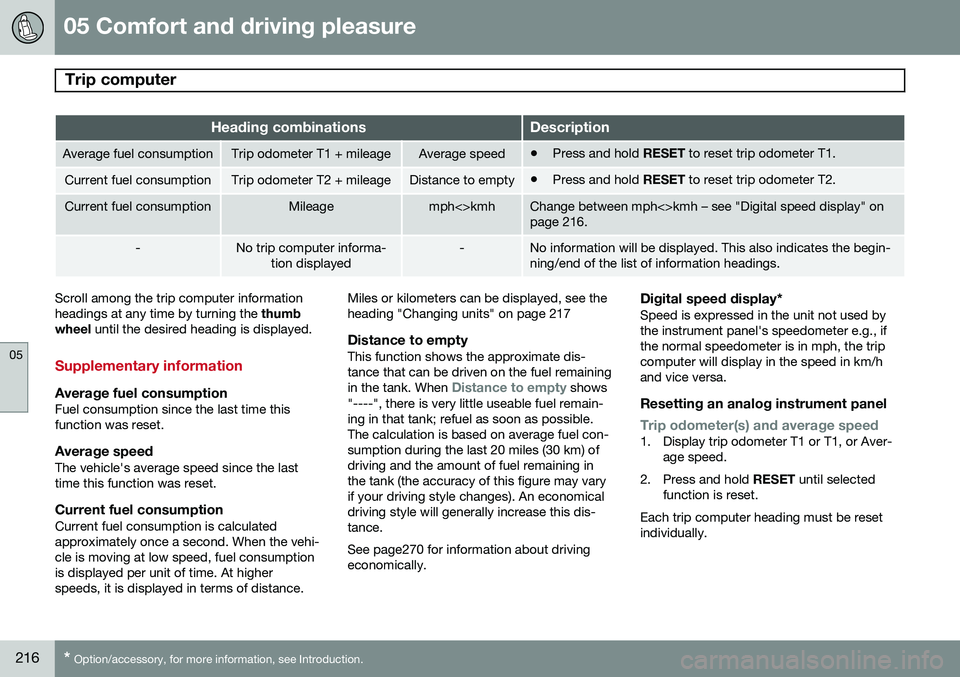
Heading combinationsDescription
Average fuel consumptionTrip odometer T1 + mileageAverage speed• Press and hold
RESET to reset trip odometer T1.
Current fuel consumptionTrip odometer T2 + mileageDistance to empty•Press and hold
RESET to reset trip odometer T2.
Current fuel consumptionMileagemph<>kmhChange between mph<>kmh – see "Digital speed display" on page 216.
-No trip computer informa-
tion displayed-No information will be displayed. This also indicates the begin- ning/end of the list of information headings.
Scroll among the trip computer information headings at any time by turning the thumb
wheel until the desired heading is displayed.
Supplementary information
Average fuel consumptionFuel consumption since the last time this function was reset.
Average speedThe vehicle's average speed since the lasttime this function was reset.
Current fuel consumptionCurrent fuel consumption is calculatedapproximately once a second. When the vehi-cle is moving at low speed, fuel consumptionis displayed per unit of time. At higherspeeds, it is displayed in terms of distance. Miles or kilometers can be displayed, see theheading "Changing units" on page 217
Distance to emptyThis function shows the approximate dis-tance that can be driven on the fuel remaining in the tank. When
Distance to empty shows
"----", there is very little useable fuel remain- ing in that tank; refuel as soon as possible.The calculation is based on average fuel con-sumption during the last 20 miles (30 km) ofdriving and the amount of fuel remaining inthe tank (the accuracy of this figure may varyif your driving style changes). An economicaldriving style will generally increase this dis-tance. See page270 for information about driving economically.
Digital speed display*Speed is expressed in the unit not used bythe instrument panel's speedometer e.g., ifthe normal speedometer is in mph, the tripcomputer will display in the speed in km/hand vice versa.
Resetting an analog instrument panel
Trip odometer(s) and average speed1. Display trip odometer T1 or T1, or Aver- age speed.
2. Press and hold RESET until selected
function is reset.
Each trip computer heading must be reset individually.
Page 221 of 386
05 Comfort and driving pleasure
Active chassis system–Four C*
05
* Option/accessory, for more information, see Introduction.219
Active chassis (Four C)
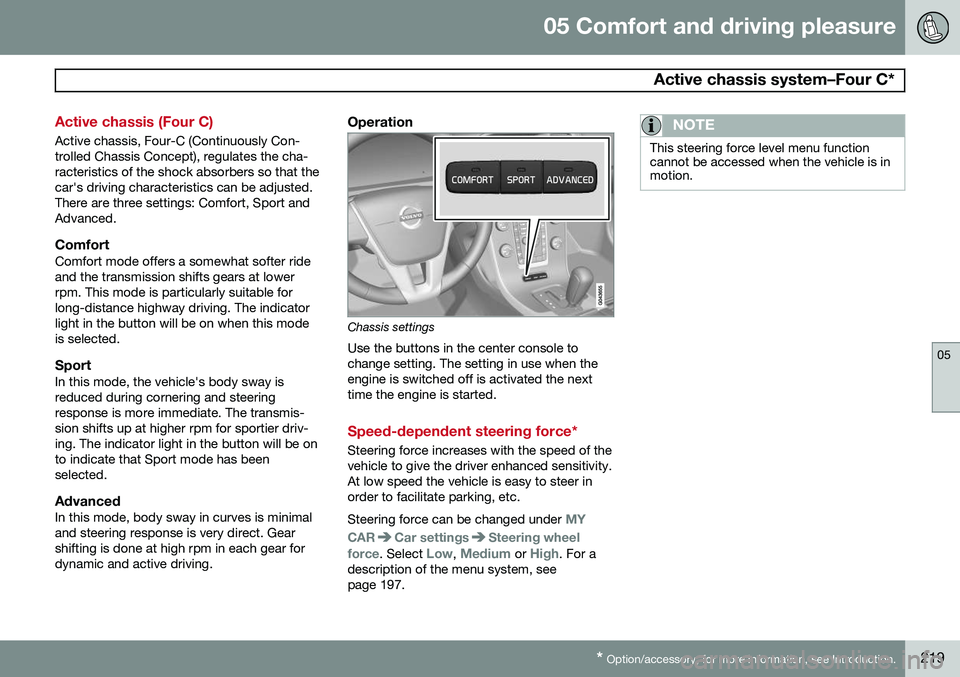
Active chassis, Four-C (Continuously Con- trolled Chassis Concept), regulates the cha-racteristics of the shock absorbers so that thecar's driving characteristics can be adjusted.There are three settings: Comfort, Sport andAdvanced.
ComfortComfort mode offers a somewhat softer rideand the transmission shifts gears at lowerrpm. This mode is particularly suitable forlong-distance highway driving. The indicatorlight in the button will be on when this modeis selected.
SportIn this mode, the vehicle's body sway isreduced during cornering and steeringresponse is more immediate. The transmis-sion shifts up at higher rpm for sportier driv-ing. The indicator light in the button will be onto indicate that Sport mode has beenselected.
AdvancedIn this mode, body sway in curves is minimaland steering response is very direct. Gearshifting is done at high rpm in each gear fordynamic and active driving.
Operation
Chassis settings
Use the buttons in the center console to change setting. The setting in use when theengine is switched off is activated the nexttime the engine is started.
Speed-dependent steering force*
Steering force increases with the speed of the vehicle to give the driver enhanced sensitivity.At low speed the vehicle is easy to steer inorder to facilitate parking, etc. Steering force can be changed under
MY
CAR
Car settingsSteering wheel
force
. Select Low, Medium or High. For a
description of the menu system, see page 197.
NOTE
This steering force level menu function cannot be accessed when the vehicle is inmotion.
Page 233 of 386
06 Infotainment
Introduction
06
231
audio will be provided using 3 channel stereo.
•
Bass: Bass level.
•
Treble: Treble level.
•
Fader: Balance between the front and
rear speakers.
•
Balance: Balance between the right and
left speakers.
•
DPL II centre level/3 channel centre
level2 : Volume for the center speaker.
•
DPL II surround level2 /3
: Surround level.
Advanced sound settings
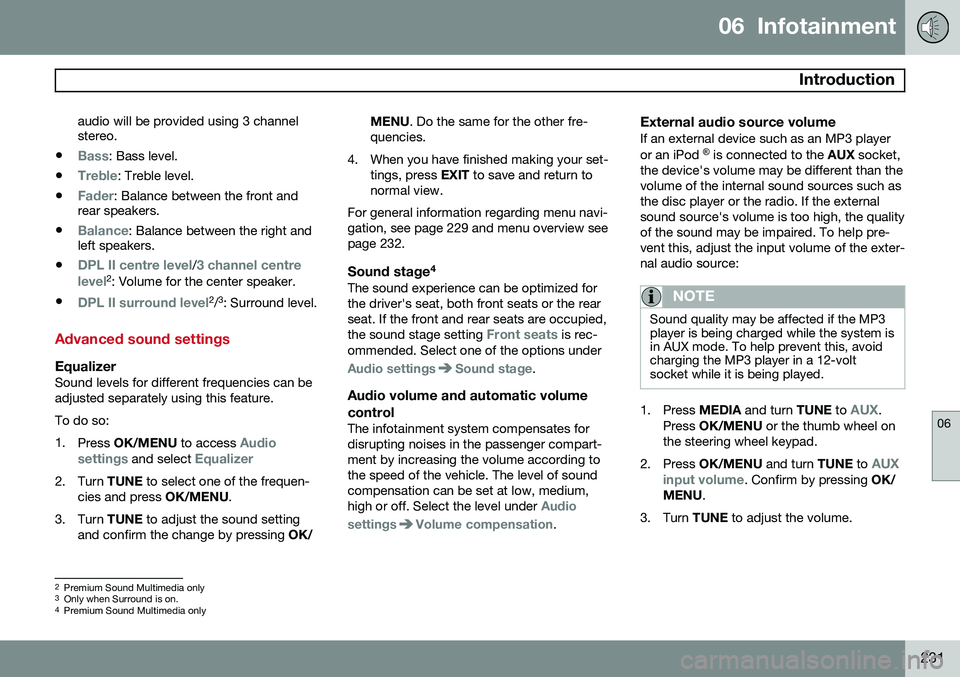
EqualizerSound levels for different frequencies can be adjusted separately using this feature. To do so:1. Press OK/MENU to access
Audio
settings and select Equalizer
2. Turn TUNE to select one of the frequen-
cies and press OK/MENU.
3. Turn TUNE to adjust the sound setting
and confirm the change by pressing OK/MENU
. Do the same for the other fre-
quencies.
4. When you have finished making your set- tings, press EXIT to save and return to
normal view.
For general information regarding menu navi- gation, see page 229 and menu overview seepage 232.
Sound stage 4The sound experience can be optimized forthe driver's seat, both front seats or the rearseat. If the front and rear seats are occupied, the sound stage setting
Front seats is rec-
ommended. Select one of the options under
Audio settingsSound stage.
Audio volume and automatic volume
control
The infotainment system compensates for disrupting noises in the passenger compart-ment by increasing the volume according tothe speed of the vehicle. The level of soundcompensation can be set at low, medium,high or off. Select the level under
Audio
settings
Volume compensation.
External audio source volumeIf an external device such as an MP3 player or an iPod ®
is connected to the AUX socket,
the device's volume may be different than the volume of the internal sound sources such asthe disc player or the radio. If the externalsound source's volume is too high, the qualityof the sound may be impaired. To help pre-vent this, adjust the input volume of the exter-nal audio source:
NOTE
Sound quality may be affected if the MP3 player is being charged while the system isin AUX mode. To help prevent this, avoidcharging the MP3 player in a 12-voltsocket while it is being played.
1. Press MEDIA and turn TUNE to AUX.
Press OK/MENU or the thumb wheel on
the steering wheel keypad.
2. Press OK/MENU and turn TUNE to
AUX
input volume. Confirm by pressing OK/
MENU .
3. Turn TUNE to adjust the volume.
2
Premium Sound Multimedia only
3 Only when Surround is on.
4
Premium Sound Multimedia only
Page 238 of 386
06 Infotainment
Radio
06
236
the keypad on the center console to switch to manual tuning (or to switch back from manualtuning to the "list of stations" function).
Manual tuningBy default, the list of stations of the strongest stations in the area will be displayed whenyou turn TUNE (see the preceding section,
"List of stations"). While the list of stations is displayed, press
on the center console
keypad to switch to manual tuning, which enables you to select a frequency from thecomplete list of all radio frequencies availa-
ble on the currently selected waveband. Inother words, in manual tuning mode, turningTUNE one step will change from e.g., 93.3 to
93.5, etc.). To manually tune a station:
1. Press RADIO. Turn TUNE to scroll to the
desired waveband (
AM, FM1, etc.) and
press OK/MENU or the thumb wheel on
the steering wheel keypad to confirm.
2. Turn TUNE or the thumb wheel to select
a frequency.
NOTE
The radio is initially set to automatically search for stations in the area in which youare driving (see the preceding section,"List of stations"). However, if you have switched to manual tuning (by pressing
on the keypad
on the center console while the list of sta- tions is displayed), the radio will remain inmanual tuning mode the next time it isswitched on. To switch back to "list of sta-tions" mode, turn TUNE one step (to dis-
play the full list of stations) and press
.
Please note that if you press
when
the list of stations is not displayed, this will activate the INFO function.
Storing preset stationsTen preset stations can be stored for each waveband (AM, FM1, etc.).
Stored preset stations are selected using the buttons on the keypad on the center console.
Manually storing preset stations1. Tune to a station (see "Selecting a sta- tion" on page 235).
2. Press and hold one of the number key buttons. > The sound will be muted for several
seconds and when it returns, the sta- tion has been stored on the numberkey button used.
A list of preset stations can be displayed. Thisfunction can be activated/deactivated in AM/FM mode in
FM menuShow presets
or in AM menuShow presets
ScanThe function automatically searches the cur- rent waveband for radio stations. When a sta-tion is found, it is played for several secondsbefore scanning is resumed. While the stationis playing it can be stored as a preset in theusual way (see "Manually storing preset sta-tions").
–To start scanning in AM/FM mode, go to
FM menuScan or in AM menuScan.
Stop station scanning by pressing EXIT.
NOTE
Storing a station interrupts the SCAN func- tion.
Page 240 of 386
06 Infotainment
Radio
06
238
strength), the receiver will determine which signal to receive.
Limitations
•Main channel vs. sub-channels (FM only)
: The main channel is the only chan-
nel that can receive in hybrid mode (both digital and analogue). If a frequency hassub-channels, they are broadcast in digi-tal mode only. The main FM channel willbe displayed as, for example, 93.9 WNYC(Volvo uses the symbol ">" to indicatethere are sub-channels available) Thesub-FM channels will be displayed as93.9 – 2 WNYC, 93.9 - 3 WNYC, etc.
• Reception coverage area
: Due to cur-
rent IBOC transmitter power limitations,the reception coverage area in digitalmode is somewhat more limited than thestation's analogue coverage area. Pleasebe aware that as with any radio broadcasttechnology, terrain, time of day, foliagelevel and building location can have posi-tive or negative effects on radio recep-tion.
• Analogue to digital/digital to analogue blending
: Analogue to digital blending
will occur as the signal strength reaches a preset threshold in the receiver. This willbe noticeable in fringe areas (areas withweak reception) and is normal.
NOTE
There may be a noticeable difference in sound quality when a change from ana-logue to digital or digital to analogueoccurs, such as:
• Volume increase or decrease
• Equalizer settings, i.e., Bass/ Mid- range/Treble cut or boost
• Time alignment (Digital program mate-rial in extreme cases can be as muchas 8 seconds behind the analogue).This will noticeable as a "stuttering"effect.
The above items are dependant on the broadcaster's equipment settings and do not indicate a fault in the vehicle's radio receiver or antenna systems .
Switching HD on or offThe factory setting for HD radio is off. If acti-
vated when driving through areas with weak HD signals (fringe areas), you may experiencethat the radio repeatedly switches betweenanalogue/digital and digital/analogue recep-tion. If this happens, it may be desirable toswitch HD off. To do so: 1. Be sure the infotainment system is
switched on and in one of the AM or FM modes.
2. Press OK/MENU in the center console
control panel.
3. Turn TUNE and move the marker to
HD
Radio.
4. Press OK/MENU to turn HD off (the X will
disappear from the box on the display screen).
This will disable the radio's capability to receive digital broadcasts but it will continueto function as a conventional (analogue)AM/FM receiver. Please note that when HD isswitched off, it will not be possible to tune tosub-channels (see the following section for amore detailed explanation of sub-channels). Repeat steps 2-4 above to reactivate HD (an X will appear in the box on the displayscreen). Please note that this will only switchHD on or off for the selected waveband (AM,FM1, etc.).
Page 244 of 386
06 Infotainment
Radio
06
242
WARNING
Settings should be made when the vehicle is at a standstill.
The following settings can be made in the satellite menus: •Channel skip settings can be made
• Channel lock settings can be made
• The channel access code can be dis- played or changed (see also "Locking achannel" on page 242)
• Your SiriusXM
™ ID can be displayed
• Reset SiriusXM
™ settings
Skip optionsThis function is used to remove a channel from the list of available channels.
Skipping a channel1. Press OK/MENU .
2. Scroll to the
Advanced settings menu.
3. Press OK/MENU to enter the
Skip
options menu.
4. Press OK/MENU to enter
Channel skip
list. 5.
Press OK/MENU to select
All categoriesor turn TUNE to scroll to a category and
press OK/MENU to select it.
6. Press OK/MENU to select
Skip all
channels in the category or turn TUNE
to scroll to a channel and press OK/
MENU to select or deselect it. Multiple
channels can be selected.
Unskip all channelsThis removes all channels from the skip list and makes them available for selection.
Temporary unskip all channelsThis function will temporarily unskip all chan- nels and make them available for selection.The channels remain on the skip list and willagain be skipped the next time the ignition isswitched on.
Channel lockAccess to specific channels can be restricted(locked). A locked channel will not provideaudio, song titles, or artist information.
NOTE
All channels are initially unlocked.
Locking a channel1. Press OK/MENU .
2. Scroll to the
Advanced settings menu.
3. Press OK/MENU and turn TUNE to scroll
to the
Lock options menu and press
OK/MENU .
4. Use the keypad in the central control panel to enter the channel access code 2
and press OK/MENU .
5. Press OK/MENU to enter the
Channel
lock list.
6. Press OK/MENU to select
All categoriesor turn TUNE to scroll to a category and
press OK/MENU to select it.
7. Press OK/MENU to select
Lock all
channels in the category or turn TUNE
to scroll to a channel and press OK/
MENU to select it. Multiple channels can
be selected.
The selected channel is now locked and a checked box will be displayed to indicatethis. It will be necessary to enter the channel access code 2
in order to listen to a locked
channel.
2 The default code is 0000. If you have changed the code and forgotten it, see the section "If you have forgotten the access code."
Page 245 of 386
06 Infotainment
Radio
06
243
Unlocking a channel
A channel's access code2
is required to
unlock a channel.
Unlock all channelsThis permanently removes all channels from the locked list and makes them available forselection.
Temporarily unlock all channelsThis function will temporarily unlock all chan- nels and make them available for selection.The channels remain on the locked list andwill again be locked the next time the ignitionis switched on.
CHANGE CODEThis function makes it possible to change the channel access code. The default code is0000. To change the code:1. Select
Change code in the Lock
options menu and press OK/MENU.
2. Enter the new code and press OK/
MENU .
3. Confirm the new code and press OK/
MENU .
If an incorrect code is entered, the text
Incorrect code is displayed. If you have forgotten the access code: 1.
Select
SIRIUS ID in the Advanced
settings menu and press OK/MENU.
2. Press and hold the OK/MENU button for
several seconds.
3. The current code will be displayed. Your Volvo retailer can also provide you with assistance.
SiriusXM™ ID
This function displays the 12-digit SiriusXM ™
activation ID.
2 The default code is 0000. If you have changed the code and forgotten it, see the section "If you have forgotten the access code."
Page 247 of 386
06 Infotainment
Media player
06
* Option/accessory, for more information, see Introduction.245
Navigating a disc and playing tracks
CD audio discsTurn TUNE to access the disc's playlist and
to navigate in this list. Press OK/MENU to
confirm a choice and begin listening. Press EXIT to cancel. Press and hold EXIT to return
to the playlist's root level. The
/ buttons on the center console
or steering wheel keypad can also be used to change tracks.
Home-burned CD/DVD audio/video filesTurn TUNE to access the disc's playlist and
to navigate in this list. Press OK/MENU to
confirm a choice and begin listening. Use EXIT to stop or to go back in the disc's folder
structure. Press and hold EXIT to return to
the playlist's root level. The
/ buttons on the center console
or steering wheel keypad* can also be used to change audio/video files. The following symbols are used in the dis- play: •
- audio files
•
- video files
•
- folders When a file has been played, the player will continue to play the rest of the files (of thesame type) in the current folder. When all ofthe files in the folder have been played, theplayer will automatically go to the next folder and play the files in it (unless
Repeat folderis activated). The system automatically detects and changes settings if a disc containing onlyaudio or only video files is inserted in theplayer and will play these files. However, thesystem will not change settings if a disc con-taining both audio and video files is insertedand the player will continue to play the cur-rent type of file.
NOTE
Video images will only be visible when the vehicle is not moving. When the vehicle istraveling faster than approximately 4 mph (6 km/h),
No visual media available
while driving will be displayed. Sound
from the film will still be audible and video images will be shown again when the vehi-cle stops.
NOTE
Some copy protected audio files or home- burned audio files may not be read by theplayer.
DVD videosFor information, see page 244.
Fast forward/reverse
Press and hold the / buttons to fast
forward/reverse. This is done at one speed for audio files but several speeds can be chosen for video files. Press the
/ but-
tons several times to increase the speed. Release the button to return to normal view-ing speed.
Scan 3This function plays the first ten seconds ofeach track/audio file. To start scanning:
1. Press
OK/MENU .
2. Scroll to
Scan.
> The first ten seconds of each track/ audio file will be played.
3. Stop scanning by pressing EXIT. The cur-
rent track/audio file will continue playing.
3 Not video DVDs