steering VOLVO S60 2014 Owner´s Manual
[x] Cancel search | Manufacturer: VOLVO, Model Year: 2014, Model line: S60, Model: VOLVO S60 2014Pages: 386, PDF Size: 11.24 MB
Page 185 of 386

04 Driver support
Rear Park Assist Camera (PAC)*
04
* Option/accessory, for more information, see Introduction.183
Using PAC
Activation
PAC is activated when the gear selector is moved to R if the system is selected in the
MY CAR menu system or by pressing the
CAM button in the center console. See page
197 for a description of the menu system. If the Volvo Navigation System (VNS) is in use, PAC will automatically override the navi-gation system to show the camera's imageon the screen instead of navigation informa-tion, for as long as reverse gear is selected.
ZoomThe camera can be useful when attaching atrailer. Press CAM to zoom in on the trailer
hitch (and press this button again to return tothe normal camera view). With the camera zoomed in on the trailerhitch, a guiding line showing the hitch's pathtoward the trailer will be projected. This fea-ture can be activated in the
MY CAR menu.
See page 197 for a description of the menusystem. The guiding lines for the wheels (seethe following section "Guiding lines") and forthe trailer hitch cannot be displayed at thesame time. If the camera shows an enlarged (zoomed) image, turn TUNE counterclockwise, or press
EXIT , CAM or OK to return to a normal view.
DeactivationMove the gear selector from R to another
position. There is a slight delay in the PACsystem, which means that the view frombehind the vehicle will remain on the screenfor approximately 15 seconds after the gearselector has been moved from the R position
or until the vehicle reaches a forward speedof 6 mph (10 km/h). The screen will thenrevert to the mode that it was in before R was
selected and will, for example, display navi-gation system information.
NOTE
If any button on the center console control panel is pressed, the camera image willdisappear from the display. Pressing CAM
will return the camera image to the display.
Guiding lines
The lines on the screen are projected as if they were a path on the ground behind thevehicle and are affected by the way in whichthe steering wheel is turned. This enables thedriver to see path the vehicle will take, even ifhe/she turns the steering wheel while backingup.
NOTE
When backing up with a trailer, the guiding lines show the path that the vehicle will
take, not the trailer.
Page 187 of 386

04 Driver support
Rear Park Assist Camera (PAC)*
04
* Option/accessory, for more information, see Introduction.185
changed in the
MY CAR menu) and the
image is shown on the center console display.
• When backing up, two solid lines are pro-jected on the screen to show the paththat the vehicle's rear wheels will take.These lines are affected by movements ofthe steering wheel. The vehicle's approxi-mate outer dimension are shown by twodashed lines.
• The graphic lines will not be displayedwhen backing up with a trailer that is con-nected to the vehicle's electrical system.
• Objects on the ground that are closerthan 1 ft (30 centimeters) cannot bedetected by the camera.
• The camera is active for approx.5 seconds after the gear selector ismoved to
R or until the vehicle's speed
exceeds 6 mph (10 km/h).
• The optional Park Assist sensors and theparking camera work together and infor-mation from the sensors is shown graphi-cally on the display.
• The graphic lines shown on the screenwhen the vehicle backs up can be disa-bled in the settings menu.
• Manual zoom can be selected in the
MY
CAR menu.
• The system can be switched off by press-ing
CAM . By default, the system is acti- vated when the gear selector is moved toR
. This setting can be changed in the MY
CAR menu.
• If there are two cameras installed on thevehicle*, to switch between cameras, turnTUNE
(at least one of the cameras has to
be active), press CAM repeatedly or use
the center console controls. If the frontcamera is on, it overrides the optionalpark assist system's visual indicator butthere will still be an audible signal.
Limitations
Even if a fairly small section of the screen image appears to be obstructed, this maymean that a relatively large area behind thevehicle is hidden and objects there may notbe detected until they are very near the vehi-cle.
NOTE
Bicycle carriers or other accessories mounted on the trunk may obstruct thecamera's field of view.
Keep in mind
• Keep the camera's lens free of dirt, ice and snow. Remove ice and snow care-fully to avoid scratching the lens.
• Clean the lens regularly with warm waterand a suitable car washing detergent.
Page 189 of 386
04 Driver support
Blind Spot Information System (BLIS)*
04
* Option/accessory, for more information, see Introduction.187
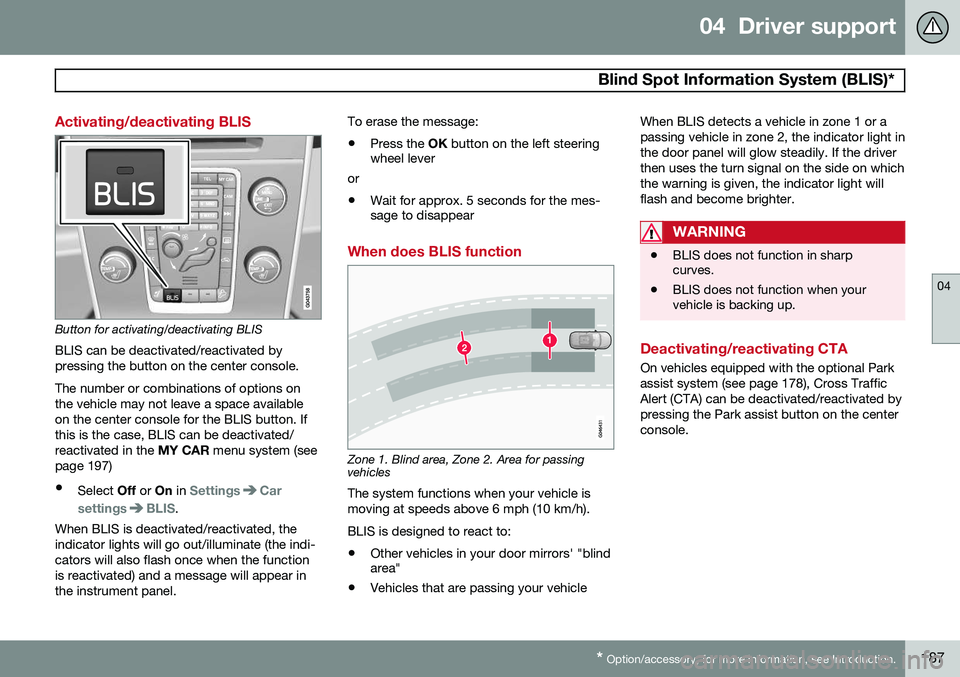
Activating/deactivating BLIS
Button for activating/deactivating BLIS BLIS can be deactivated/reactivated by pressing the button on the center console. The number or combinations of options on the vehicle may not leave a space availableon the center console for the BLIS button. Ifthis is the case, BLIS can be deactivated/reactivated in the MY CAR menu system (see
page 197)
• Select Off or On in
SettingsCar
settings
BLIS.
When BLIS is deactivated/reactivated, the indicator lights will go out/illuminate (the indi-cators will also flash once when the functionis reactivated) and a message will appear inthe instrument panel. To erase the message: •
Press the
OK button on the left steering
wheel lever
or
• Wait for approx. 5 seconds for the mes- sage to disappear
When does BLIS function
Zone 1. Blind area, Zone 2. Area for passing vehicles
The system functions when your vehicle is moving at speeds above 6 mph (10 km/h). BLIS is designed to react to:
• Other vehicles in your door mirrors' "blind area"
• Vehicles that are passing your vehicle When BLIS detects a vehicle in zone 1 or a passing vehicle in zone 2, the indicator light inthe door panel will glow steadily. If the driverthen uses the turn signal on the side on whichthe warning is given, the indicator light willflash and become brighter.
WARNING
•
BLIS does not function in sharp curves.
• BLIS does not function when yourvehicle is backing up.
Deactivating/reactivating CTA
On vehicles equipped with the optional Park assist system (see page 178), Cross TrafficAlert (CTA) can be deactivated/reactivated bypressing the Park assist button on the centerconsole.
Page 192 of 386
04 Driver support
Blind Spot Information System (BLIS)*
04
190* Option/accessory, for more information, see Introduction.
Messages
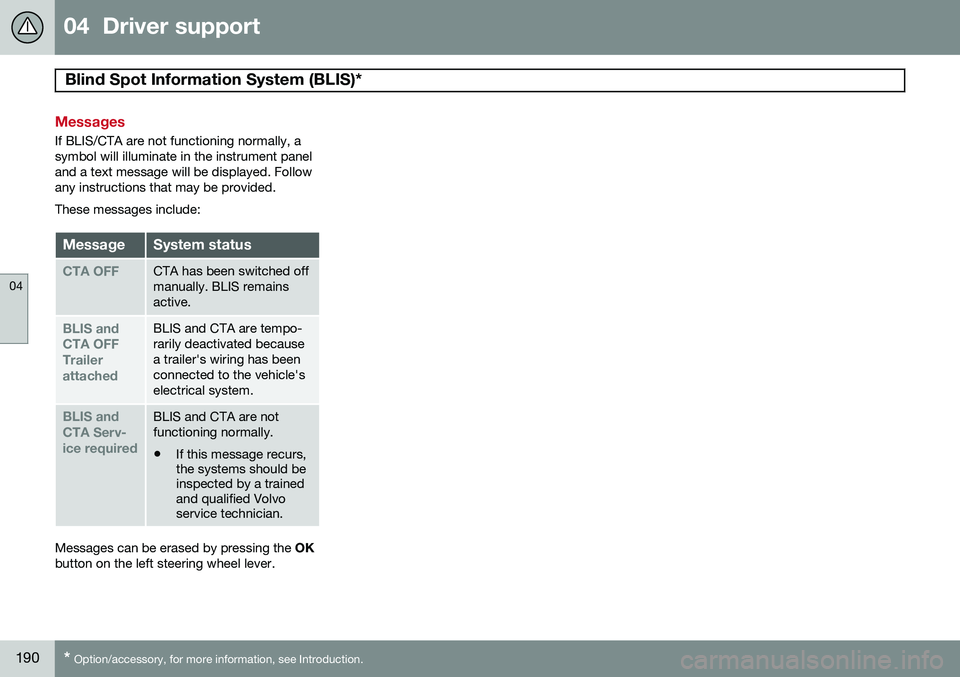
If BLIS/CTA are not functioning normally, a symbol will illuminate in the instrument paneland a text message will be displayed. Followany instructions that may be provided. These messages include:
MessageSystem status
CTA OFFCTA has been switched off manually. BLIS remainsactive.
BLIS and CTA OFFTrailerattachedBLIS and CTA are tempo- rarily deactivated becausea trailer's wiring has beenconnected to the vehicle'selectrical system.
BLIS and CTA Serv-ice requiredBLIS and CTA are not functioning normally.
• If this message recurs, the systems should beinspected by a trainedand qualified Volvoservice technician.
Messages can be erased by pressing the
OK
button on the left steering wheel lever.
Page 196 of 386

05 Comfort and driving pleasure
Volvo Sensus
05
194* Option/accessory, for more information, see Introduction.
Introduction
Center console control panel
Volvo Navigation System (VNS)* – NAV:
see the separate VNS manual for operat- ing instructions.
Infotainment ( RADIO, MEDIA , TEL ): see
page 226 .
Vehicle-related settings - MY CAR: see
page 197.
Park assist camera - CAM*: see
page 182.
Climate system: see page 203.
Volvo Sensus is the operating system in your vehicle providing a coordinated interface for anumber of functions such as the individual-ized settings that can be made in the MY
CAR menus, the climate and infotainment systems as well as other options such as thepark assist camera(s), etc. Volvo Sensus uses the screen in the center instrument panel to display information andselections are made using this panel’s con-trols and buttons. Certain features can alsobe controlled using the steering wheel key-pad. Press
MY CAR to present all of the available
settings related to driving and/or controlling the vehicle, such as City Safety, setting theclock, lock settings, etc. Press RADIO , MEDIA , TEL , NAV * and CAM*
to change a source and to activated systems or functions such as AM, FM1, CD, DVD,Bluetooth, navigation* and the park assistcamera *. See the respective sections in this manual for more detailed information about your vehi-cle's various features and functions.
Page 199 of 386
05 Comfort and driving pleasure
The MY CAR menus
05
}}
197
Introduction
The menu system provides access to menus for operating many of the vehi-cle's functions, such as setting the
clock, door mirrors, locks, etc.
Navigating in the menus is done using the buttons on the center console control panelor with the right-side steering wheel keypad. Some of the features mentioned in this sec- tion are optional.
Operation
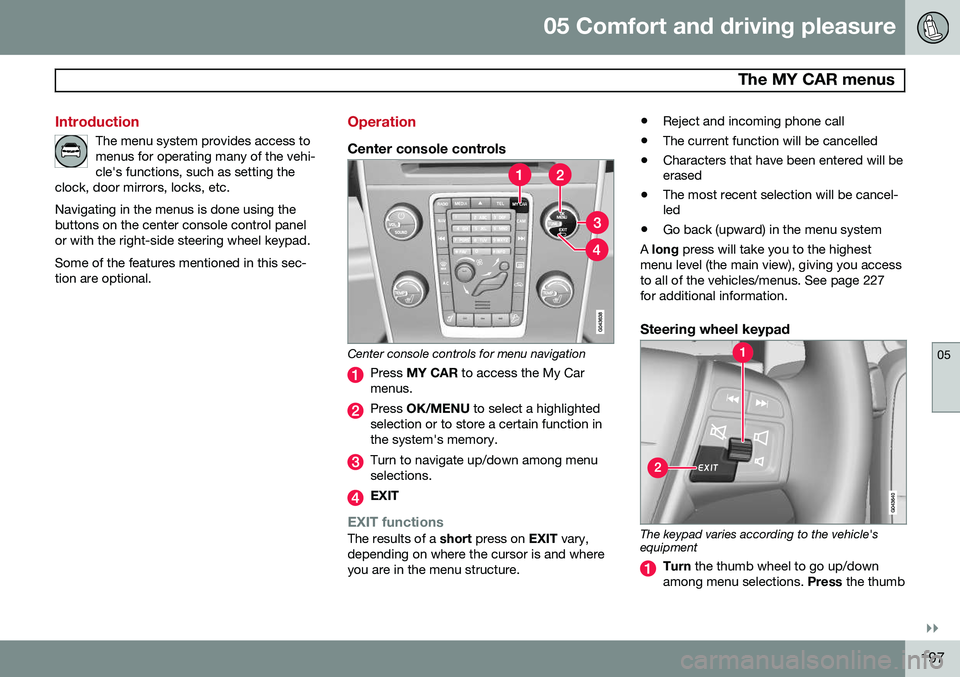
Center console controls
Center console controls for menu navigation
Press MY CAR to access the My Car
menus.
Press OK/MENU to select a highlighted
selection or to store a certain function in the system's memory.
Turn to navigate up/down among menu selections.
EXIT
EXIT functionsThe results of a short press on EXIT vary,
depending on where the cursor is and where you are in the menu structure. •
Reject and incoming phone call
• The current function will be cancelled
• Characters that have been entered will be erased
• The most recent selection will be cancel-led
• Go back (upward) in the menu system
A long press will take you to the highest
menu level (the main view), giving you access to all of the vehicles/menus. See page 227for additional information.
Steering wheel keypad
The keypad varies according to the vehicle's equipment
Turn the thumb wheel to go up/down
among menu selections. Press the thumb
Page 201 of 386
05 Comfort and driving pleasure
The MY CAR menus
05
}}
199
Driver support systems
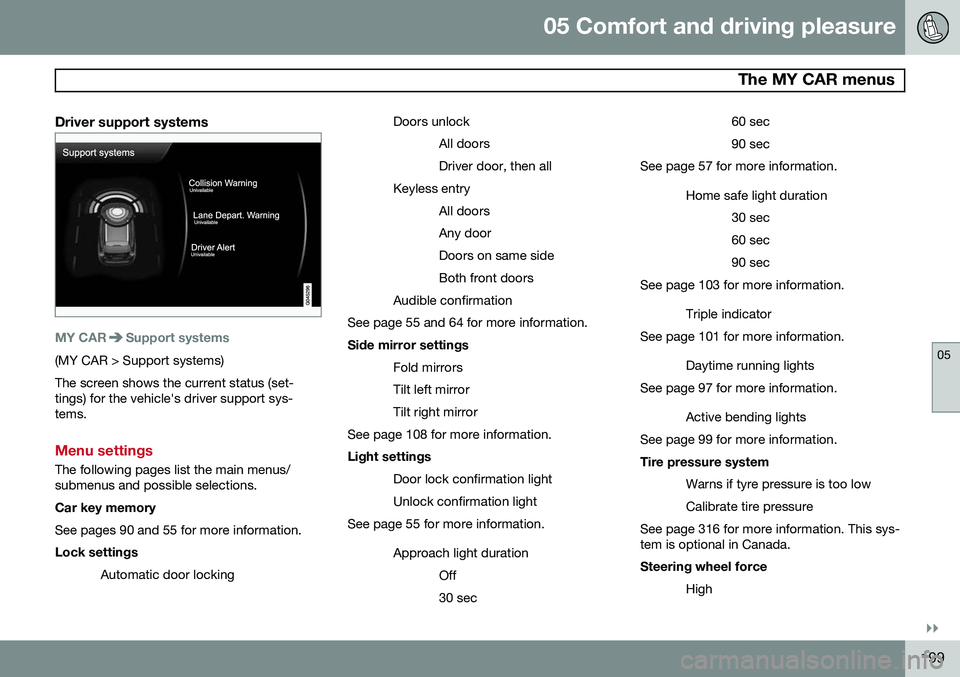
MY CARSupport systems
(MY CAR > Support systems) The screen shows the current status (set- tings) for the vehicle's driver support sys-tems.
Menu settings
The following pages list the main menus/ submenus and possible selections. Car key memory See pages 90 and 55 for more information. Lock settingsAutomatic door locking Doors unlock
All doors Driver door, then all
Keyless entry All doorsAny doorDoors on same sideBoth front doors
Audible confirmation
See page 55 and 64 for more information. Side mirror settings
Fold mirrors Tilt left mirrorTilt right mirror
See page 108 for more information. Light settings
Door lock confirmation light Unlock confirmation light
See page 55 for more information.
Approach light durationOff30 sec 60 sec90 sec
See page 57 for more information.
Home safe light duration30 sec60 sec90 sec
See page 103 for more information.
Triple indicator
See page 101 for more information.
Daytime running lights
See page 97 for more information.
Active bending lights
See page 99 for more information. Tire pressure system
Warns if tyre pressure is too low Calibrate tire pressure
See page 316 for more information. This sys- tem is optional in Canada. Steering wheel force
High
Page 221 of 386
05 Comfort and driving pleasure
Active chassis system–Four C*
05
* Option/accessory, for more information, see Introduction.219
Active chassis (Four C)
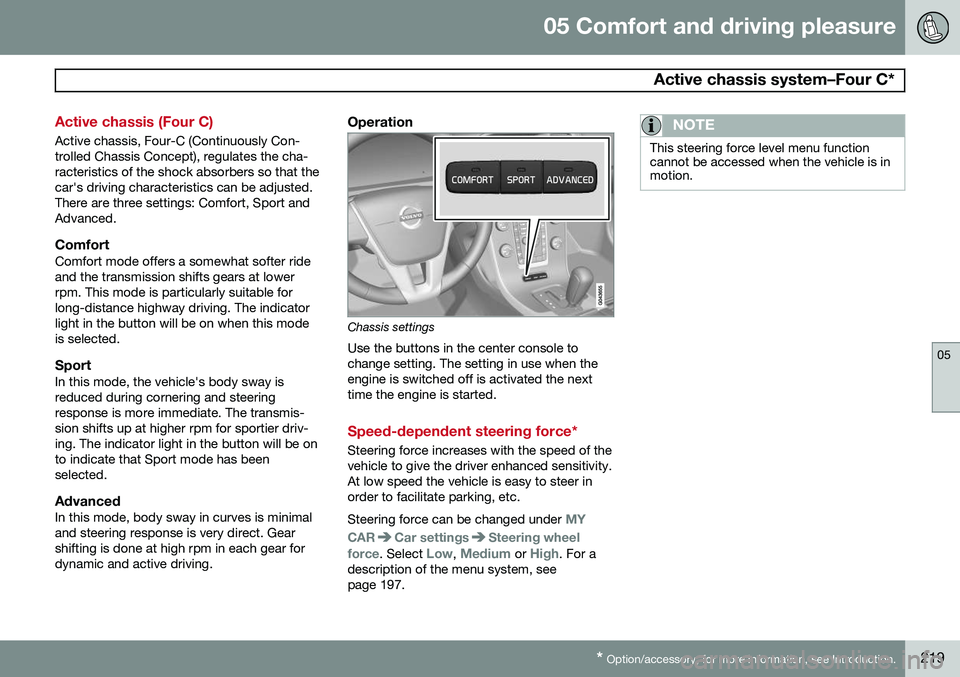
Active chassis, Four-C (Continuously Con- trolled Chassis Concept), regulates the cha-racteristics of the shock absorbers so that thecar's driving characteristics can be adjusted.There are three settings: Comfort, Sport andAdvanced.
ComfortComfort mode offers a somewhat softer rideand the transmission shifts gears at lowerrpm. This mode is particularly suitable forlong-distance highway driving. The indicatorlight in the button will be on when this modeis selected.
SportIn this mode, the vehicle's body sway isreduced during cornering and steeringresponse is more immediate. The transmis-sion shifts up at higher rpm for sportier driv-ing. The indicator light in the button will be onto indicate that Sport mode has beenselected.
AdvancedIn this mode, body sway in curves is minimaland steering response is very direct. Gearshifting is done at high rpm in each gear fordynamic and active driving.
Operation
Chassis settings
Use the buttons in the center console to change setting. The setting in use when theengine is switched off is activated the nexttime the engine is started.
Speed-dependent steering force*
Steering force increases with the speed of the vehicle to give the driver enhanced sensitivity.At low speed the vehicle is easy to steer inorder to facilitate parking, etc. Steering force can be changed under
MY
CAR
Car settingsSteering wheel
force
. Select Low, Medium or High. For a
description of the menu system, see page 197.
NOTE
This steering force level menu function cannot be accessed when the vehicle is inmotion.
Page 228 of 386

06 Infotainment
Introduction
06
226* Option/accessory, for more information, see Introduction.
General information
The infotainment system consists of radio and media player features and also makes itpossible to communicate via a cell phone.The information is displayed on a 7" screen inthe center console. Infotainment functionscan be controlled from the center console orvia the buttons on the steering wheel keypad.On models equipped with the navigation sys-tem*, voice commands can also be used toe.g., set destinations, make calls from a Bluetooth ®
-connected cell phone, etc.
If the infotainment system was on when the ignition was switched off, the most recently used source (
FM1, etc.) will restart the next
time the ignition is put in mode I or higher.
The driver's door must also be closed on vehicles with keyless drive*. The infotainment system can be operated for 15 minutes at a time while the engine isswitched off by pressing the On/Off button. While the engine is being started, the infotain- ment system will be temporarily interruptedand will resume when the engine has started.
NOTE
To help avoid excessive battery drain, remove the remote key from the ignitionslot if the infotainment system is usedwhile the engine is switched off.
Dolby Pro Logic
The system is manufactured under license from Dolby Laboratories LicensingCorporation. Dolby Pro Logic II and the
symbol are
trademarks of Dolby Laboratories Licensing Corporation.
Audyssey MultEQ 1
The Audyssey MultEQ system has been used to optimize sound quality to help ensure aworld-class listening experience.
1
Applies only to models with Premium Sound Multimedia.
Page 229 of 386

06 Infotainment
Introduction
06
}}
227
Infotainment system overview
Sockets for external audio sources (AUX and USB)
Steering wheel keypad
7" display
Center console control panel
Basic infotainment functions
Corresponding controls - steering wheel keypad and center console
Left/right arrow keys – short press
moves between preset radio stations, tracks on a disc or chapters on a DVD. Press and
hold to search within tracks or to tune to the
next/previous available radio station.
SOUND – press to access the menu for
adjusting bass, treble, etc., see page 230 for additional information.
VOL – turn to raise or lower the volume
level.
ON/OFF/MUTE – short press - switch
the system ON. Press and hold (until the
screen turns black) - switch the system
OFF . A short press when the infotainment
system is on will mute/unmute the sound.
The entire infotainment system, including the navigation* and telephone functions, isswitched on/off at the same time by usingthis button.
CD/DVD* slot.
Mode buttons – select a mode (e.g.,
RADIO , MEDIA , TEL , etc.) by pressing its
button on the center console. The most recent source in the selected mode (e.g.,FM1 in RADIO mode) will be displayed. In
TEL or NAV* modes, pressing the respective
source button will display a shortcut menu.