change time VOLVO S60 INSCRIPTION 2016 Owner´s Manual
[x] Cancel search | Manufacturer: VOLVO, Model Year: 2016, Model line: S60 INSCRIPTION, Model: VOLVO S60 INSCRIPTION 2016Pages: 344, PDF Size: 7.24 MB
Page 106 of 344
03 Instruments and controls
03
104* Option/accessory, for more information, see Introduction.
Trip computer – Supplementary information
General information for both Analog and Digi- tal trip computer functions.
Average fuel consumptionFuel consumption since the last time thisfunction was reset.
Average speedThe vehicle's average speed since the lasttime this function was reset.
Current fuel consumptionCurrent fuel consumption is calculatedapproximately once a second. When the vehi-cle is moving at low speed, fuel consumptionis displayed per unit of time. At higherspeeds, it is displayed in terms of distance. Miles or kilometers can be displayed, see the heading "Changing units".
Distance to emptyThis function shows the approximate dis-tance that can be driven on the fuel remaining in the tank. When
Distance to empty shows
"----", there is very little useable fuel remain- ing in that tank; refuel as soon as possible.The calculation is based on average fuel con-sumption during the last 20 miles (30 km) ofdriving and the amount of fuel remaining inthe tank (the accuracy of this figure may varyif your driving style changes). An economical driving style will generally increase this dis-tance.
Digital speed display*Speed is expressed in the unit not used bythe instrument panel's speedometer e.g., ifthe normal speedometer is in mph, the tripcomputer will display in the speed in km/hand vice versa.
Resetting an analog instrument panel
Trip odometer(s) and average speed1. Display trip odometer T1 or T1, or Aver-
age speed.
2. Press and hold RESET until selected
function is reset.
Each trip computer heading must be reset individually.
Resetting a digital instrument panel
Trip odometer1. Turn the thumb wheel to select the com-
bination of headings containing the trip odometer to be reset.
2. Press and hold RESET until selected trip
odometer is reset.
Average speed and fuel consumption1. Select Trip computer reset and press
OK . 2. Select one of the following alternatives
using the thumb wheel and press OK:
• mpg
• mph
• Reset both
3. Finish by pressing RESET.
Changing unitsTo change the unit (miles/km) used to meas- ure distance and speed, go to
MY CAR
SettingsSystem optionsDistance
and fuel units.
NOTE
In addition to changing units in the trip computer, this also changes the units usedin the Volvo Navigation System (VNS)*.
Related information
• Trip computer – introduction (p. 98)
• Trip computer – functions, analog instru- ment panel (p. 99)
• Trip computer – functions, digital instru-ment panel (p. 102)
• Trip computer – Trip statistics (p. 105)
Page 111 of 344
04 Climate
04
* Option/accessory, for more information, see Introduction.109
Related information
• Climate – general information (p. 107)
• Max. defroster and electrically heated windshield* (p. 112)
Climate – menu settings
The default settings for four of the climate system's (p. 107) functions can be changed inthe menu system. •Blower speed (p. 111) in automatic mode (p. 112).
• Recirculation timer (p. 114) for passengercompartment air.
• Automatic rear window defrosting (p. 89).
• The optional Interior Air Quality Sys-tem (p. 108) (IAQS).
The functions can also be returned to factory settings in the menu system. See My Car – introduction (p. 66) for a description of the menu system.
Related information
• Electronic climate control (ECC) (p. 110)
Air distribution – general
The incoming air is distributed through a number of different vents in the passengercompartment. Air distribution is fully automatic in
AUTO
mode (p. 112). If desired, air distribution can be controlled manually, see Air distribution – function(p. 114).
Air vents in the dashboardDirect the outer air vents toward the side win-dows to defrost.
Air vents in the door pillarsDirect the outer air vents toward the side win-dows to defrost. Direct the vents into the passenger compart- ment to help maintain the desired tempera-ture in the rear seat.
Related information
• Climate – general information (p. 107)
• Air distribution – table (p. 116)
• Air distribution – recirculation (p. 114)
• Max. defroster and electrically heated windshield* (p. 112)
Page 129 of 344
06 Locks and alarm
06
* Option/accessory, for more information, see Introduction.127
interference that may cause undesired opera- tion. Canada–IC: 3659A-WFS125VOOperation is subject to the following condi- tions: (1) this device may not cause interfer-ence, and (2) this device must accept anyinterference, including interference that maycause undesired operation of the device. For information on starting the vehicle, see Starting the engine (p. 211).
Remote key – functions
The remote key is used e.g., to unlock the doors and start the engine.
Buttons on the remote
Unlock – Press the Unlock button on the
remote once to unlock the driver's door. This function can be changed so that all doors unlock at the same time by pressing My Car and going to
SettingsCar
settings
Lock settingsChange doors
unlock setting. For a description of the menu
system, see My Car – introduction (p. 66).
Approach lighting – As you approach
the vehicle, press the button on the remote key to light the interior lighting, parking lights,license plate lighting and the lights in the doormirrors*. These lights will switch off automatically after 30, 60 or 90 seconds. For a description of themenu system, see My Car – introduction(p. 66).
Panic alarm – This button can be used
to attract attention during emergency situa- tions. To activate the panic alarm, press and hold this button for at least 3 seconds or press ittwice within 3 seconds. The turn signals andhorn will be activated. The panic alarm will stop automatically after 2 minutes and45 seconds. To deactivate, wait approximately 5 seconds and press the button again. The Panic alarm button will not unlock the vehicle.
Related information
•
Locking/unlocking – from inside (p. 135)
• Locking/unlocking – from the outside (p. 134)
• Locking/unlocking confirmation (p. 125)
Page 143 of 344
07 Driver support
07
}}
* Option/accessory, for more information, see Introduction.141
Active chassis* (Four C)
Active chassis, Four-C (Continuously Controlled Chassis Concept), regulates thecharacteristics of the shock absorbers so thatthe vehicle's driving characteristics can beadjusted. There are three settings: Comfort,Sport and Advanced.
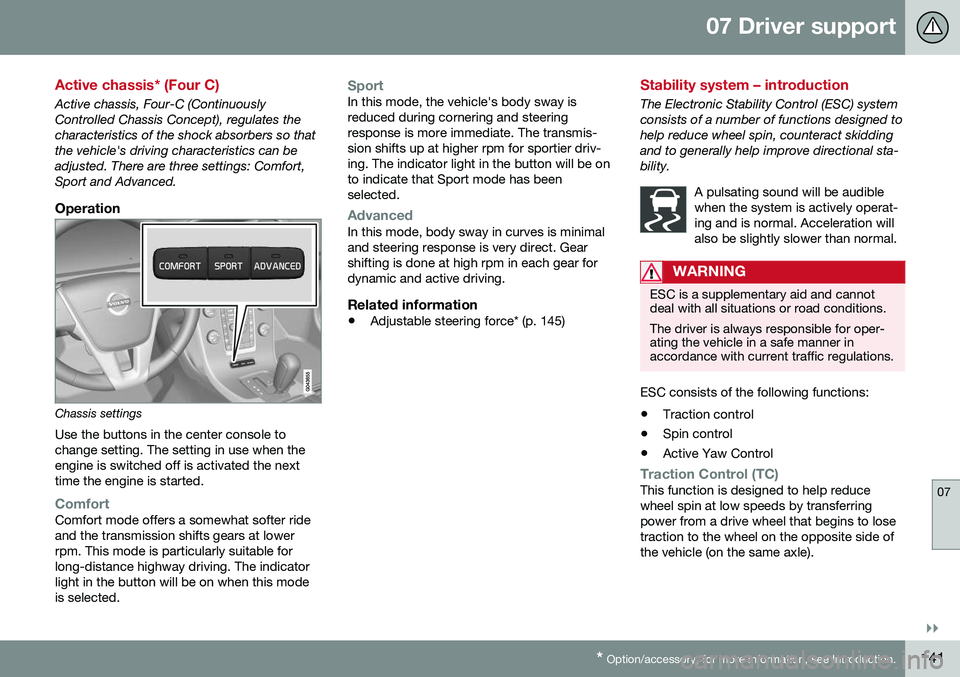
Operation
Chassis settings
Use the buttons in the center console to change setting. The setting in use when theengine is switched off is activated the nexttime the engine is started.
ComfortComfort mode offers a somewhat softer ride and the transmission shifts gears at lowerrpm. This mode is particularly suitable forlong-distance highway driving. The indicatorlight in the button will be on when this modeis selected.
SportIn this mode, the vehicle's body sway is reduced during cornering and steeringresponse is more immediate. The transmis-sion shifts up at higher rpm for sportier driv-ing. The indicator light in the button will be onto indicate that Sport mode has beenselected.
AdvancedIn this mode, body sway in curves is minimal and steering response is very direct. Gearshifting is done at high rpm in each gear fordynamic and active driving.
Related information
• Adjustable steering force* (p. 145)
Stability system – introduction
The Electronic Stability Control (ESC) system consists of a number of functions designed tohelp reduce wheel spin, counteract skiddingand to generally help improve directional sta-bility.
A pulsating sound will be audiblewhen the system is actively operat-ing and is normal. Acceleration willalso be slightly slower than normal.
WARNING
ESC is a supplementary aid and cannot deal with all situations or road conditions. The driver is always responsible for oper- ating the vehicle in a safe manner inaccordance with current traffic regulations.
ESC consists of the following functions:
• Traction control
• Spin control
• Active Yaw Control
Traction Control (TC)This function is designed to help reduce wheel spin at low speeds by transferringpower from a drive wheel that begins to losetraction to the wheel on the opposite side ofthe vehicle (on the same axle).
Page 156 of 344
07 Driver support
07
154
Adaptive Cruise Control – setting speed
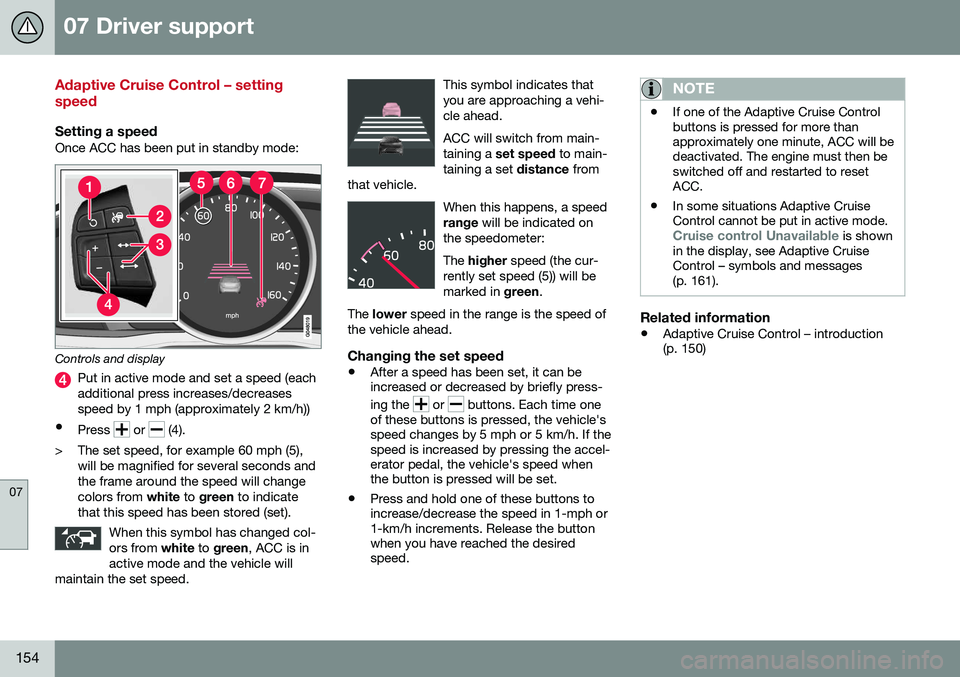
Setting a speedOnce ACC has been put in standby mode:
Controls and display
Put in active mode and set a speed (each additional press increases/decreasesspeed by 1 mph (approximately 2 km/h))
• Press
or (4).
> The set speed, for example 60 mph (5), will be magnified for several seconds and the frame around the speed will changecolors from white to green to indicate
that this speed has been stored (set).
When this symbol has changed col-ors from white to green , ACC is in
active mode and the vehicle will
maintain the set speed.
This symbol indicates that you are approaching a vehi-cle ahead. ACC will switch from main- taining a set speed to main-
taining a set distance from
that vehicle.
When this happens, a speed range will be indicated on
the speedometer: The higher speed (the cur-
rently set speed (5)) will be marked in green.
The lower speed in the range is the speed of
the vehicle ahead.
Changing the set speed
• After a speed has been set, it can be increased or decreased by briefly press- ing the
or buttons. Each time one
of these buttons is pressed, the vehicle's speed changes by 5 mph or 5 km/h. If thespeed is increased by pressing the accel-erator pedal, the vehicle's speed whenthe button is pressed will be set.
• Press and hold one of these buttons toincrease/decrease the speed in 1-mph or1-km/h increments. Release the buttonwhen you have reached the desiredspeed.
NOTE
•If one of the Adaptive Cruise Control buttons is pressed for more thanapproximately one minute, ACC will bedeactivated. The engine must then beswitched off and restarted to resetACC.
• In some situations Adaptive CruiseControl cannot be put in active mode.
Cruise control Unavailable is shown
in the display, see Adaptive Cruise Control – symbols and messages(p. 161).
Related information
• Adaptive Cruise Control – introduction (p. 150)
Page 157 of 344

07 Driver support
07
}}
155
Adaptive Cruise Control – setting time interval
Setting a time interval
Controls and display
Decrease/increase time interval
The set time interval to vehicles ahead can be increased by pressing
and decreased by
pressing
. The current time interval is
shown briefly in the display following adjust- ment. Different time intervals canbe selected and are shown in the instrument panel
2
as 1–5
horizontal bars. The greater the number of bars, thelonger the time interval. Onebar represents a time interval
of approximately 1 second; 5 bars is approxi-mately 3 seconds.
To set/change a time interval:
• Press the
/ buttons (3).
At low speeds, when the distance to the vehi- cle ahead is short, ACC increases the timeinterval slightly. In order to follow the vehicleahead as smoothly as possible, ACC allowsthe time interval to vary considerably in cer-tain situations.
WARNING
• Only use a time interval that is suitable in current traffic conditions.
• A short time interval gives the driverlimited reaction time if an unexpectedsituation occurs in traffic.
Related information
•
Adaptive Cruise Control – introduction (p. 150)
Adaptive Cruise Control – deactivating
Standby mode (temporary deactivation)To temporarily deactivate ACC (put it in standby mode):
Controls and display
Resume previous settings.
Off/On/Standby mode
• Press
(2).
This symbol and the marking for the set speed with change colors from green to
white. The previously set speed and time interval are resumed by pressing
(1).
2 The same symbol appears if Distance Alert (see Distance Alert – introduction (p. 164)) is activated
Page 159 of 344

07 Driver support
07
}}
157
Adaptive Cruise Control – passing another vehicle
Passing another vehicleIf your vehicle’s speed is being regulated by ACC and the driver indicates that he/shewould like to pass the vehicle ahead by usingthe left turn signal, ACC can assist by accel-
erating briefly. This function is active at speeds above approximately 45 mph (70 km/h).
WARNING
Please be aware that this function will also cause the vehicle to accelerate briefly incertain situations other than passinganother vehicle, for example using the leftturn signal to indicate a lane change or aturn toward a highway exit at speedsabove approximately 45 mph (70 km/h).
Related information
• Adaptive Cruise Control – introduction (p. 150)
Adaptive Cruise Control (ACC) – Queue Assist
Queue Assist is an added ACC feature that is linked to your vehicle's automatic transmis-sion.
IntroductionQueue Assist is an added ACC feature that islinked to your vehicle's automatic transmis-sion. Queue Assist consists of the following func- tions: •Enhanced speed interval (including when the vehicle is at a complete stop or ismoving at speed below 18 mph(30 km/h))
• Automatic standby mode when ACCchanges target vehicles
• No automatic braking when at a standstill
• The parking brake is applied automati-cally
Please note that the lowest speed that can be set is 18 mph (30 km/h), although ACC canmaintain a set speed/distance to a vehicleahead down to a standstill. Queue Assistconsists of the following features:
Enhanced speed interval
NOTE
The driver's door must be closed and the driver's seat belt must be fastened beforeACC can be put in active mode. If the driv-er's seat belt is taken off or if the driver'sdoor is opened, ACC will return to standbymode.
Your vehicle can maintain the set time interval to the vehicle ahead at any permissiblespeed, including a complete stop. In order to activate ACC at speeds below 18 mph (30 km/h):
• The vehicle ahead must be within a rea- sonable distance (not farther away thanapprox. 100 ft/30 meters)
• The lowest speed that can be selected is18 mph (30 km/h), although ACC will alsohelp maintain the set time interval to thevehicle ahead at lower speeds, includinga complete stop.
During short stops (less than approximately 3 seconds) in slow-moving traffic, your vehi-cle will begin moving again automatically assoon as the vehicle ahead begins to move. If it takes more than 3 seconds for the vehicle ahead to begin moving, ACC will be automat-ically go into standby mode.
Page 160 of 344
||
07 Driver support
07
158
The driver will then have to reactivate ACC in one of the following ways:• By pressing
•By accelerating up to at least 3 mph (4 km/h). ACC will then resume followingthe vehicle ahead.
Your vehicle will then resume following the vehicle ahead at the set time interval.
NOTE
ACC can remain active and keep your vehicle at a standstill for up to 4 minutes.After 4 minutes have elapsed, the parkingbrake will be engaged and ACC will go intostandby mode. To reactivate ACC, the driver must release the parking brake (see Parking brake –general information (p. 232)).
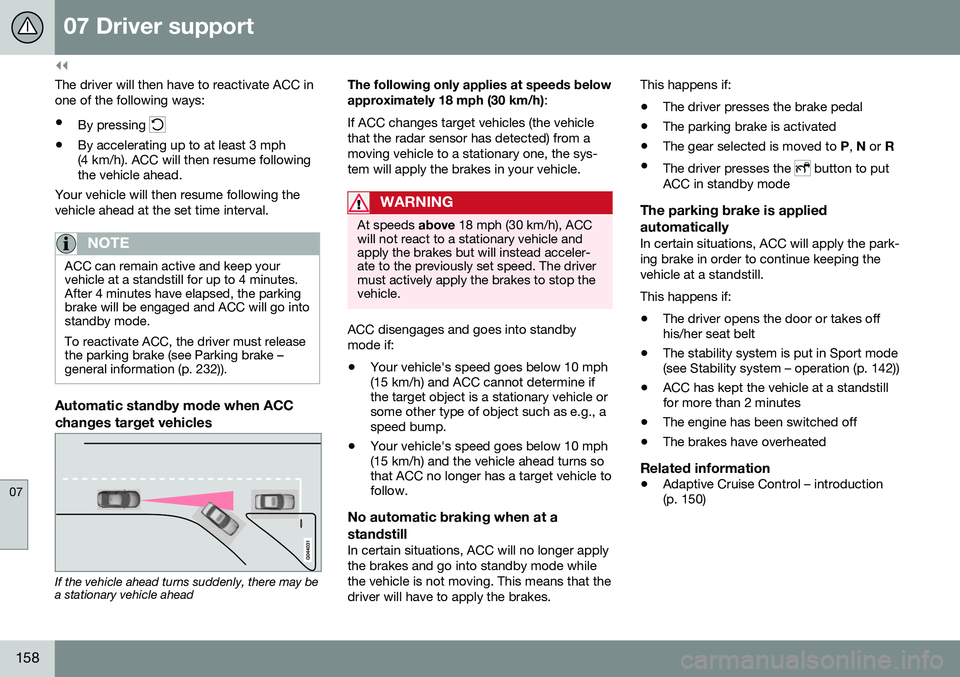
Automatic standby mode when ACC changes target vehicles
If the vehicle ahead turns suddenly, there may be a stationary vehicle ahead The following only applies at speeds below approximately 18 mph (30 km/h)
:
If ACC changes target vehicles (the vehicle that the radar sensor has detected) from amoving vehicle to a stationary one, the sys-tem will apply the brakes in your vehicle.
WARNING
At speeds above 18 mph (30 km/h), ACC
will not react to a stationary vehicle and apply the brakes but will instead acceler-ate to the previously set speed. The drivermust actively apply the brakes to stop thevehicle.
ACC disengages and goes into standby mode if:
• Your vehicle's speed goes below 10 mph (15 km/h) and ACC cannot determine ifthe target object is a stationary vehicle orsome other type of object such as e.g., aspeed bump.
• Your vehicle's speed goes below 10 mph(15 km/h) and the vehicle ahead turns sothat ACC no longer has a target vehicle tofollow.
No automatic braking when at a standstill
In certain situations, ACC will no longer apply the brakes and go into standby mode whilethe vehicle is not moving. This means that thedriver will have to apply the brakes. This happens if:
• The driver presses the brake pedal
• The parking brake is activated
• The gear selected is moved to
P, N or R
• The driver presses the
button to put
ACC in standby mode
The parking brake is applied automatically
In certain situations, ACC will apply the park- ing brake in order to continue keeping thevehicle at a standstill. This happens if:
• The driver opens the door or takes off his/her seat belt
• The stability system is put in Sport mode(see Stability system – operation (p. 142))
• ACC has kept the vehicle at a standstillfor more than 2 minutes
• The engine has been switched off
• The brakes have overheated
Related information
•
Adaptive Cruise Control – introduction(p. 150)
Page 177 of 344
07 Driver support
07
}}
175
•
City Safety – limitations (p. 170)
• City Safety – troubleshooting (p. 171)
• City Safety – symbols and messages (p. 173)
Collision warning – introduction
Pedestrian and Cyclist Detection with Full Auto Brake is designed to assist the driver ifthere is a risk of a collision with a pedestrian,a cyclist, a vehicle ahead that is at a standstillor one that is moving in the same direction asyour vehicle. This system consists of the following three functions: • Collision Warning
warns the driver of a
potential collision situation.
• Brake Support
helps the driver brake
efficiently in a critical situation.
• Auto-brake
brakes the vehicle automati-
cally if a collision with a pedestrian, a cyclist or another vehicle cannot be avoi-ded and the driver does not apply thebrakes in time or steer around the per-son/vehicle. Auto-brake can help preventa collision or reduce the speed at which acollision occurs.
Since Pedestrian and Cyclist Detection with Full Auto Brake is activated in circumstanceswhere the driver should have begun brakingmuch sooner, the system will not be able toassist the driver in all situations. This system is designed to activate as late as possible to help avoid unnecessary interven-tion. The system should not be used in such a way that the driver changes his/her way of operat- ing the vehicle. If the driver relies entirely onthe system, the chances of an accident even-tually occurring increase considerably. The Pedestrian and Cyclist Detection with Full Auto Brake and City Safety™ systems sup-plement each other. See City Safety – intro-duction (p. 168) for detailed information aboutCity Safety™.
WARNING
No automatic system can be guaranteed to function 100% correctly in all situations.For that reason, never test the Auto-brakesystem by driving toward a person orobject. This could result in serious injury ordeath.
Page 196 of 344
||
07 Driver support
07
194
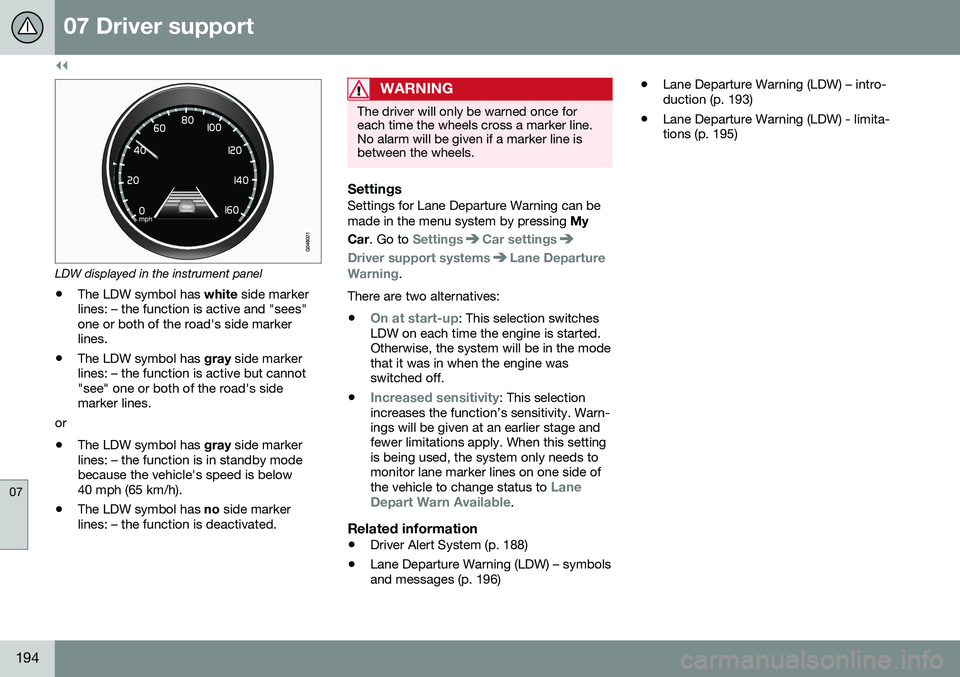
LDW displayed in the instrument panel
• The LDW symbol has
white side marker
lines: – the function is active and "sees" one or both of the road's side markerlines.
• The LDW symbol has
gray side marker
lines: – the function is active but cannot"see" one or both of the road's sidemarker lines.
or
• The LDW symbol has
gray side marker
lines: – the function is in standby modebecause the vehicle's speed is below40 mph (65 km/h).
• The LDW symbol has
no side marker
lines: – the function is deactivated.
WARNING
The driver will only be warned once for each time the wheels cross a marker line.No alarm will be given if a marker line isbetween the wheels.
SettingsSettings for Lane Departure Warning can be made in the menu system by pressing My
Car . Go to
SettingsCar settings
Driver support systemsLane Departure
Warning.
There are two alternatives:
•
On at start-up: This selection switches
LDW on each time the engine is started. Otherwise, the system will be in the modethat it was in when the engine wasswitched off.
•
Increased sensitivity: This selection
increases the function’s sensitivity. Warn- ings will be given at an earlier stage andfewer limitations apply. When this settingis being used, the system only needs tomonitor lane marker lines on one side of the vehicle to change status to
Lane
Depart Warn Available.
Related information
• Driver Alert System (p. 188)
• Lane Departure Warning (LDW) – symbols and messages (p. 196) •
Lane Departure Warning (LDW) – intro-duction (p. 193)
• Lane Departure Warning (LDW) - limita-tions (p. 195)