ECO mode VOLVO S60 INSCRIPTION 2016 Owner´s Manual
[x] Cancel search | Manufacturer: VOLVO, Model Year: 2016, Model line: S60 INSCRIPTION, Model: VOLVO S60 INSCRIPTION 2016Pages: 344, PDF Size: 7.24 MB
Page 93 of 344
03 Instruments and controls
03
}}
* Option/accessory, for more information, see Introduction.91
9.
Vehicles with an electrically heated windshield:
* if
C is displayed when the
heating function is activated, perform step 7 with the heating function on. Seealso Max. defroster and electricallyheated windshield* (p. 112) for additionalinformation about the heated windshield.
Repeat the calibration procedure if neces-sary.
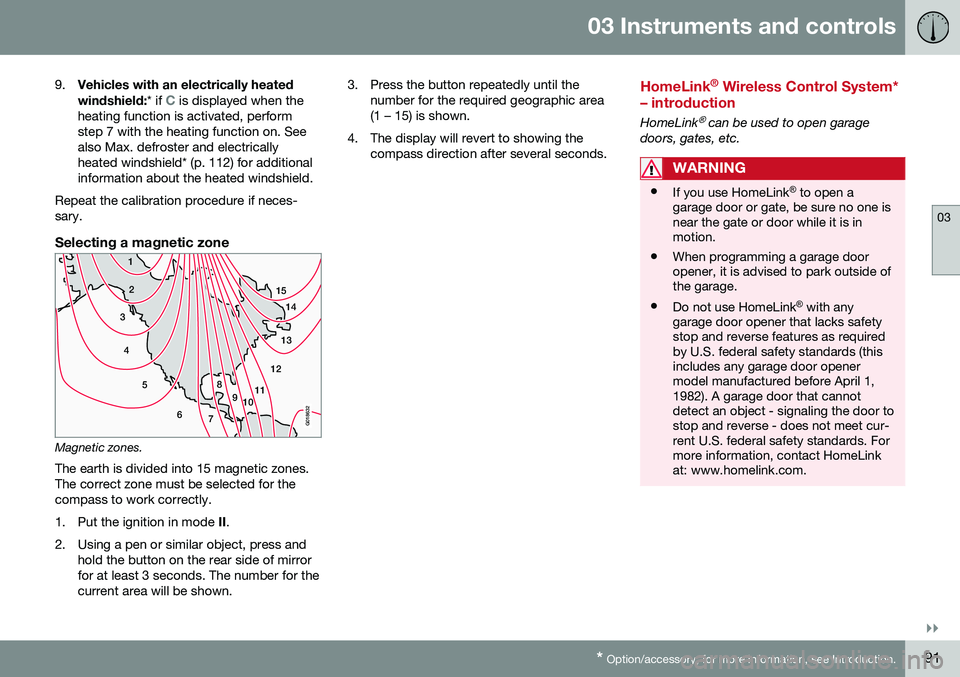
Selecting a magnetic zone
15 14
13
12
11
9
8
7
6
5
4
3
2
1
10
G018632
Magnetic zones.The earth is divided into 15 magnetic zones. The correct zone must be selected for thecompass to work correctly.
1. Put the ignition in mode II.
2. Using a pen or similar object, press and hold the button on the rear side of mirror for at least 3 seconds. The number for thecurrent area will be shown. 3. Press the button repeatedly until the
number for the required geographic area(1 – 15) is shown.
4. The display will revert to showing the compass direction after several seconds.
HomeLink ®
Wireless Control System*
– introduction
HomeLink® can be used to open garage
doors, gates, etc.
WARNING
• If you use HomeLink ®
to open a
garage door or gate, be sure no one is near the gate or door while it is inmotion.
• When programming a garage dooropener, it is advised to park outside ofthe garage.
• Do not use HomeLink ®
with any
garage door opener that lacks safetystop and reverse features as requiredby U.S. federal safety standards (thisincludes any garage door openermodel manufactured before April 1,1982). A garage door that cannotdetect an object - signaling the door tostop and reverse - does not meet cur-rent U.S. federal safety standards. Formore information, contact HomeLinkat: www.homelink.com.
Page 94 of 344
||
03 Instruments and controls
03
92* Option/accessory, for more information, see Introduction.
The HomeLink ®
19
Wireless Control System
provides a convenient way to replace up to three hand-held radio-frequency (RF) trans-mitters used to activate devices such as gateoperators, garage door openers, entry doorlocks, security systems, even home lighting.Additional information can be found on theInternet at, www.homelink.com/www.youtube.com/HomeLinkGentex or byphoning the hotline at 1–800–355–3515. Retain the original transmitter of the RF device you are programming for use in othervehicles as well as for future HomeLink pro-gramming. It is also suggested that upon thesale of the vehicle, the programmed Home-Link buttons be erased for security purposes.Refer to “Resetting HomeLink Buttons” in HomeLink ®
Wireless Control System* – pro-
gramming (p. 92).
Using HomeLinkTo operate, simply press and hold the pro- grammed HomeLink button until the traineddevice begins to operate (this may take sev-eral seconds). Activation will now occur forthe trained device (i.e., garage door opener,gate operator, security system, entry doorlock, home/office lighting, etc.). For conven-ience, the hand-held transmitter of the devicemay also be used at any time. In the eventthat there are still programming difficulties or questions, contact HomeLink at:www.homelink.com/www.youtube.com/HomeLinkGentex or by phoning the hotline at1–800–355–3515.
NOTE
If the ignition is switched off, HomeLink will function for 30 minutes after the driv-er's door has been opened.
HomeLink
®
Wireless Control System*
– programming
The HomeLink Wireless Control System pro- vides a convenient way to replace up to threehand-held radio-frequency (RF) transmittersused to activate devices such as gate opera-tors, garage door openers, entry door locks,security systems, even home lighting. Addi-tional information can be found on the Inter-net atwww.homelink.com/www.youtube.com/HomeLinkGentex or by phoning the hotline at1–800–355–3515.
NOTE
Some vehicles may require the ignition to be switched on or be in the “accessories”position for programming and/or operationof HomeLink. It is also recommended thata new battery be placed in the hand-heldtransmitter of the device being pro-grammed to HomeLink for quicker trainingand accurate transmission of the radio-fre-quency signal. The HomeLink buttonsmust be reset first. When this has beencompleted, Homelink is in learning modeso that you can perform programming.
1. Position the end of your hand-held trans- mitter 1–3 inches (5–14 cm) away from the HomeLink button you wish to pro-gram while keeping the indicator light inview.
19HomeLink and the HomeLink house are registered trademarks of Gentex Corporation.
Page 96 of 344
||
03 Instruments and controls
03
94
Gate Operator/Canadian ProgrammingCanadian radio-frequency laws require trans- mitter signals to “time-out” (or quit) after sev-eral seconds of transmission – which may notbe long enough for HomeLink to pick up thesignal during programming. Similar to thisCanadian law, some U.S. gate operators aredesigned to “time-out” in the same manner. If you live in Canada or you are having diffi- culties programming a gate operator orgarage door opener by using the “Program-ming” procedures, replace “Programming
HomeLink” step 2 with the following :
• Continue to press and hold the HomeLink button while you
press and release -
every two seconds (“cycle”) your hand-
held transmitter until the HomeLink indi-cator light changes from a slow to a rap-idly blinking light. Now you may releaseboth the HomeLink and hand-held trans-mitter buttons.
Proceed with “Programming” step 3 to com- plete.
Resetting HomeLink ButtonsUse the following procedure to reset (eraseprogramming) from the three HomeLink but-tons (individual buttons cannot be reset butcan be “reprogrammed” as outlined in the fol-lowing section): 1. Press and hold the two outer HomeLink
buttons until the indicator light begins toflash.
2. Release both buttons. > HomeLink is now in the training (orlearning) mode and can be pro-grammed at any time beginning with“Programming” - step 1.
Reprogramming a Single HomeLink Button
To program a device to HomeLink using a HomeLink button previously trained, followthese steps:
1. Press and hold the desired HomeLink button. DO NOT release the button.
2. The indicator light will begin to flash after 20 seconds. Without releasing the Home- Link button, proceed with “Programming”- step 1.
For questions or comments, contact Home-Link at: www.homelink.com/www.youtube.com/HomeLinkGentex or byphoning the hotline at 1–800–355–3515. This device complies with FCC rules part 15 and Industry Canada (IC) RSS-210. Operationis subject to the following two conditions: (1)This device may not cause harmful interfer-ence, and (2) This device must accept any interference that may be received includinginterference that may cause undesired opera-tion.
NOTE
The transmitter has been tested and com- plies with FCC and IC rules. Changes ormodifications not expressly approved bythe party responsible for compliance couldvoid the user’s authority to operate the device.
20
20
The term “IC:” before the certification/registration number only signifies that Industry Canada technical specifications were met.
Page 100 of 344
||
03 Instruments and controls
03
98
Related information
•Information displays – introduction (p. 58)
• Information display – menu overview (p. 96)
• Information display – menu controls(p. 96)
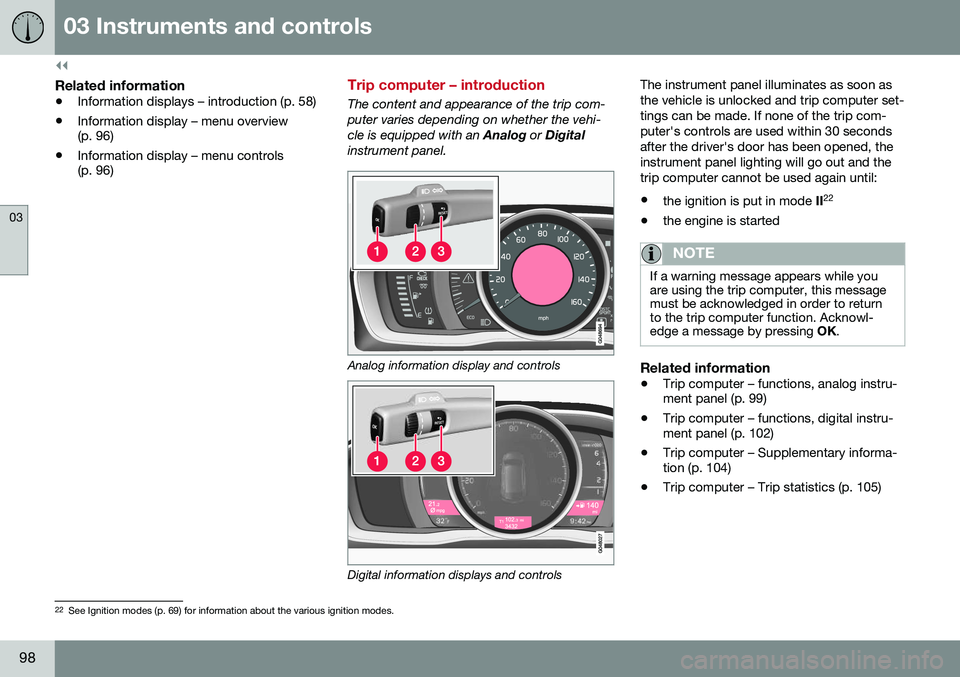
Trip computer – introduction
The content and appearance of the trip com- puter varies depending on whether the vehi-cle is equipped with an
Analog or Digital
instrument panel.
Analog information display and controls
Digital information displays and controls The instrument panel illuminates as soon as the vehicle is unlocked and trip computer set-tings can be made. If none of the trip com-puter's controls are used within 30 secondsafter the driver's door has been opened, theinstrument panel lighting will go out and thetrip computer cannot be used again until: •
the ignition is put in mode II22
• the engine is started
NOTE
If a warning message appears while you are using the trip computer, this messagemust be acknowledged in order to returnto the trip computer function. Acknowl-edge a message by pressing
OK.
Related information
• Trip computer – functions, analog instru- ment panel (p. 99)
• Trip computer – functions, digital instru-ment panel (p. 102)
• Trip computer – Supplementary informa-tion (p. 104)
• Trip computer – Trip statistics (p. 105)
22
See Ignition modes (p. 69) for information about the various ignition modes.
Page 107 of 344
03 Instruments and controls
03
* Option/accessory, for more information, see Introduction.105
Trip computer – Trip statistics
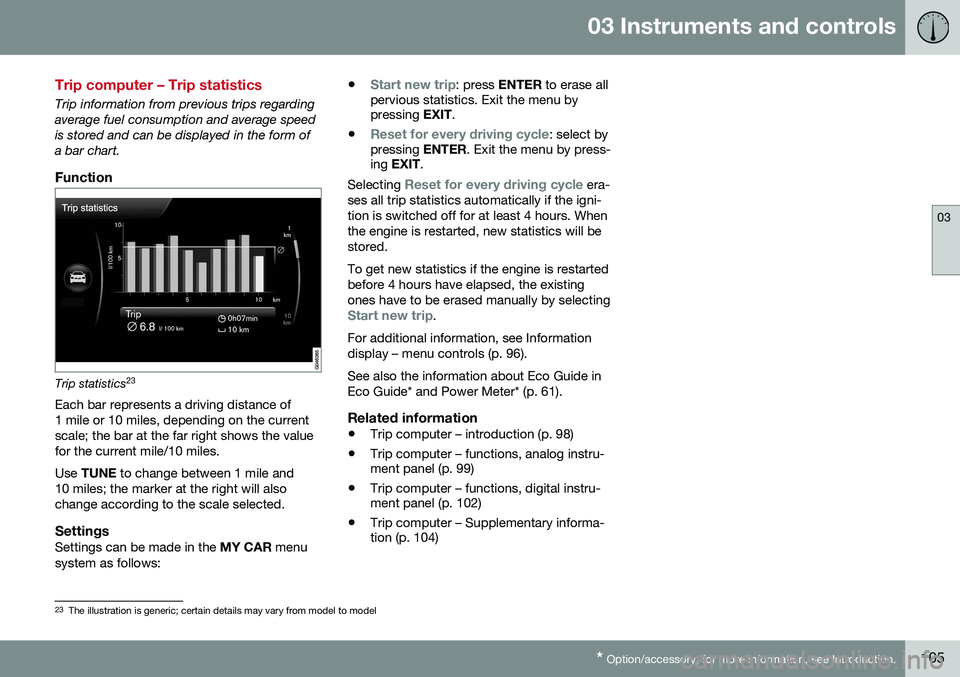
Trip information from previous trips regarding average fuel consumption and average speedis stored and can be displayed in the form ofa bar chart.
Function
Trip statistics 23
Each bar represents a driving distance of 1 mile or 10 miles, depending on the currentscale; the bar at the far right shows the valuefor the current mile/10 miles. Use TUNE to change between 1 mile and
10 miles; the marker at the right will also change according to the scale selected.
SettingsSettings can be made in the MY CAR menu
system as follows: •
Start new trip: press
ENTER to erase all
pervious statistics. Exit the menu by pressing EXIT.
•
Reset for every driving cycle: select by
pressing ENTER. Exit the menu by press-
ing EXIT .
Selecting
Reset for every driving cycle era-
ses all trip statistics automatically if the igni- tion is switched off for at least 4 hours. Whenthe engine is restarted, new statistics will bestored. To get new statistics if the engine is restarted before 4 hours have elapsed, the existingones have to be erased manually by selecting
Start new trip.
For additional information, see Information display – menu controls (p. 96). See also the information about Eco Guide in Eco Guide* and Power Meter* (p. 61).
Related information
• Trip computer – introduction (p. 98)
• Trip computer – functions, analog instru- ment panel (p. 99)
• Trip computer – functions, digital instru-ment panel (p. 102)
• Trip computer – Supplementary informa-tion (p. 104)
23
The illustration is generic; certain details may vary from model to model
Page 114 of 344
04 Climate
04
112* Option/accessory, for more information, see Introduction.
Automatic climate control
The Auto function automatically controls tem- perature (p. 111), air conditioning (p. 112),blower speed (p. 111), recirculation (p. 114)and air distribution (p. 109).
If you select one or moremanual functions, the otherfunctions continue to becontrolled automatically. Theair quality (p. 108) sensor isengaged and all manual set-tings are switched off when
AUTO is pressed. The display shows
AUTO
CLIMATE.
Blower speed in automatic mode can be set under
Climate settingsAutomatic blower
adjustment
. Choose between Low, Normalor High.
NOTE
Selecting the lowest blower speed may increases the risk of fog forming on thewindows.
Related information
• Climate – general information (p. 107)
Air conditioning
The air conditioning function cools and dehu- midifies the air in the passenger compart-ment.
When the indicator light inthe button is on, the air con-ditioning is controlled auto-matically. This cools/heatsand dehumidifies the incom-ing air. When the indicatorlight in the button is off, the
air conditioning is disengaged. Other func-tions are still controlled automatically. Whenmaximum defroster (p. 112) is selected, theair conditioning system is set for maximumblower speed and dehumidifies the cabin asquickly as possible.
Related information
• Climate – general information (p. 107)
• Automatic climate control (p. 112)
Max. defroster and electrically heated windshield*
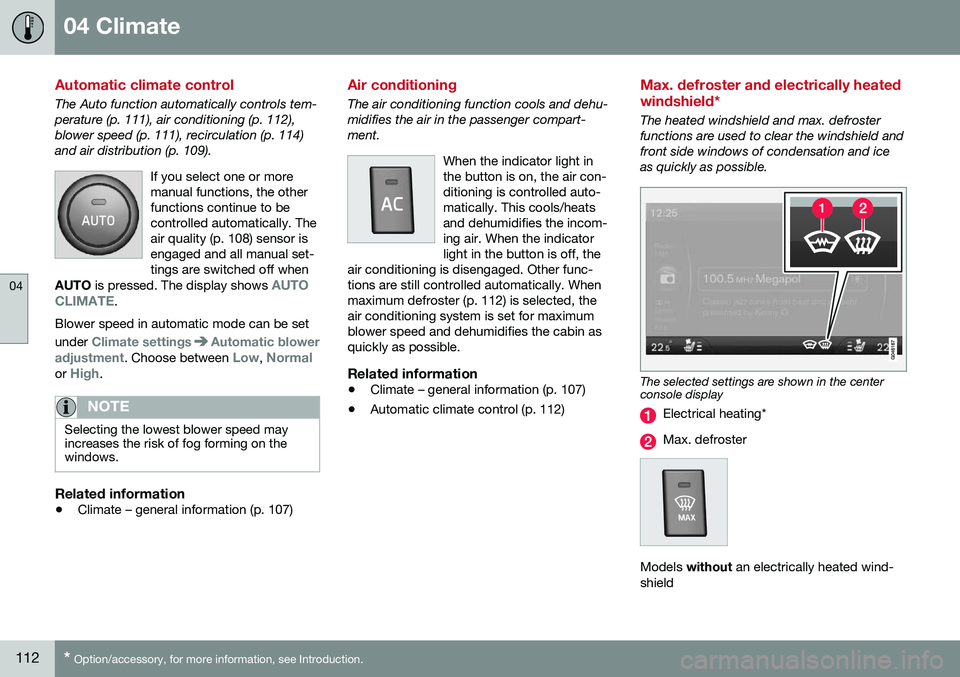
The heated windshield and max. defroster functions are used to clear the windshield andfront side windows of condensation and iceas quickly as possible.
The selected settings are shown in the center console display
Electrical heating*
Max. defroster
Models
without an electrically heated wind-
shield
Page 126 of 344
06 Locks and alarm
06
124
Remote key and key blade
WARNING
Never leave the remote key in the ignition slot if children are to remain in the vehicle.
For more information on the various ignition modes, see Ignition modes (p. 69).
Related information
•Remote key – functions (p. 127)
• Remote key – functions (p. 127)
• Remote key – range (p. 128)
Remote key – loss
If either of the remote keys (p. 124) is lost, the other should be taken with the vehicle to aVolvo retailer. As an anti-theft measure, thecode of the lost remote key must be erasedfrom the system.
NOTE
Additional or duplicate remote control keys can be obtained from any authorized Volvoretailer. You can also obtain additional or duplicate remote control keys from certain inde-pendent repair facilities and locksmithsthat are qualified to make remote controlkeys. Each key must be programmed towork with your vehicle. California Only: A list of independent repair facilities and/or locksmiths known to Volvo that can cutand code replacement keys can be found:
• on the Volvo website at http://www.volvocars.com/us/keys
• by calling Volvo Customer Care at1-800-458-1552
The number of registered keys for the vehicle can be found by pressing
MY CAR and going
into
SettingsInformationNumber of
keys. For a description of the menu system,
see My Car – introduction (p. 66). USA-5WK49264 FCC ID:KR55WK49264 + Siemens VDO 5WK49236 FCC ID:KR55WK49236, 5WK49266FCC ID:KR55WK49266 + Siemens VDO 5WK49233 FCC ID:KR55WK49233This device complies with part 15 of the FCC rules and RSS-210. Operation is subject tothe following conditions: (1) This device maynot cause harmful interference, and (2) thisdevice must accept any interferencereceived, including interference that maycause undesired operation. Canada-5WK49264IC:267T-5WK49264 + Siemens VDO 5WK49236 IC:267T-5WK49236, 5WK49266IC:267T-5WK49266 + Siemens VDO 5WK49233 IC:267T-5WK49233Operation is subject to the following condi- tions: (1) this device may not cause interfer-ence, and (2) this device must accept anyinterference, including interference that maycause undesired operation of the device.Related information
•
Remote key – functions (p. 127)
Page 139 of 344
06 Locks and alarm
06
137
Alarm indicator
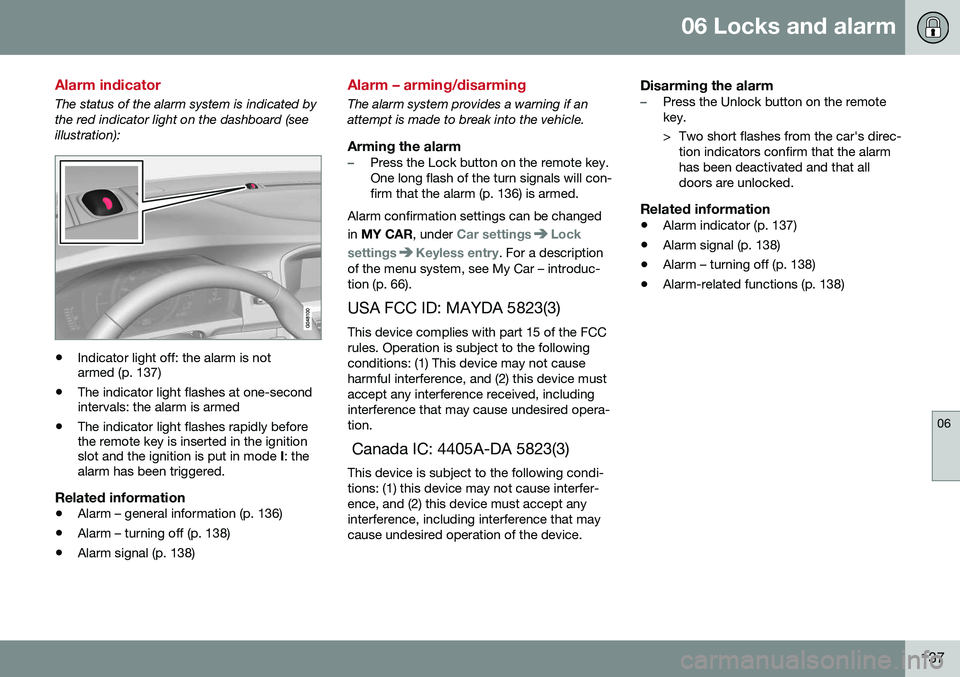
The status of the alarm system is indicated by the red indicator light on the dashboard (seeillustration):
•Indicator light off: the alarm is not armed (p. 137)
• The indicator light flashes at one-secondintervals: the alarm is armed
• The indicator light flashes rapidly beforethe remote key is inserted in the ignitionslot and the ignition is put in mode
I: the
alarm has been triggered.
Related information
• Alarm – general information (p. 136)
• Alarm – turning off (p. 138)
• Alarm signal (p. 138)
Alarm – arming/disarming
The alarm system provides a warning if an attempt is made to break into the vehicle.
Arming the alarm–Press the Lock button on the remote key. One long flash of the turn signals will con-firm that the alarm (p. 136) is armed.
Alarm confirmation settings can be changed in MY CAR , under
Car settingsLock
settings
Keyless entry. For a description
of the menu system, see My Car – introduc- tion (p. 66).
USA FCC ID: MAYDA 5823(3) This device complies with part 15 of the FCCrules. Operation is subject to the followingconditions: (1) This device may not causeharmful interference, and (2) this device mustaccept any interference received, includinginterference that may cause undesired opera-tion. Canada IC: 4405A-DA 5823(3) This device is subject to the following condi- tions: (1) this device may not cause interfer-ence, and (2) this device must accept anyinterference, including interference that maycause undesired operation of the device.
Disarming the alarm–Press the Unlock button on the remote key.
> Two short flashes from the car's direc- tion indicators confirm that the alarm has been deactivated and that alldoors are unlocked.
Related information
• Alarm indicator (p. 137)
• Alarm signal (p. 138)
• Alarm – turning off (p. 138)
• Alarm-related functions (p. 138)
Page 150 of 344
||
07 Driver support
07
148
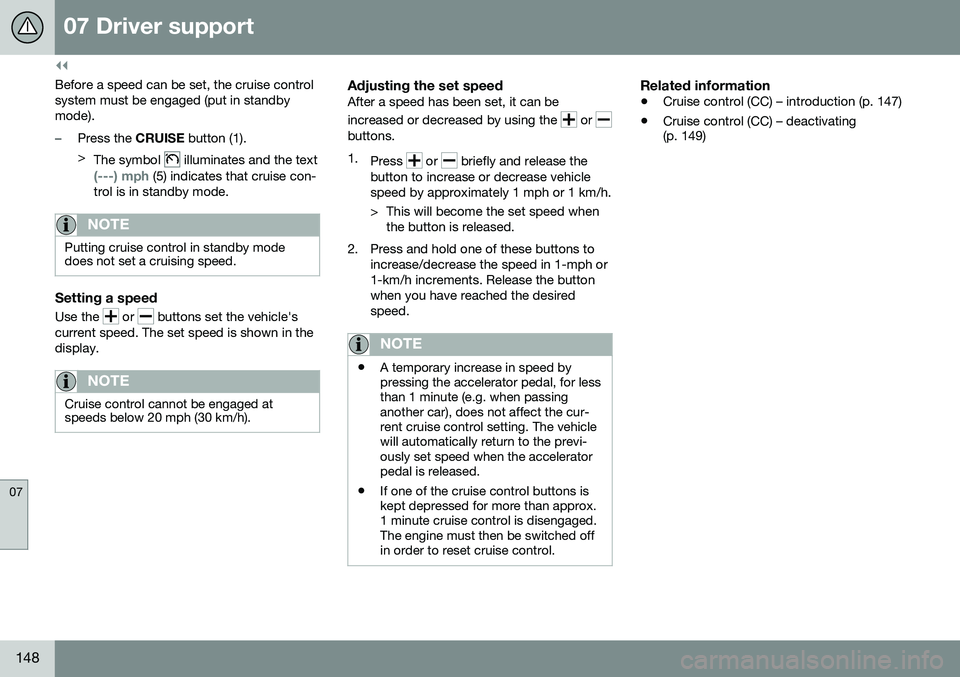
Before a speed can be set, the cruise control system must be engaged (put in standbymode).
–Press the CRUISE button (1).
> The symbol
illuminates and the text
(---) mph (5) indicates that cruise con-
trol is in standby mode.
NOTE
Putting cruise control in standby mode does not set a cruising speed.
Setting a speed
Use the or buttons set the vehicle's
current speed. The set speed is shown in the display.
NOTE
Cruise control cannot be engaged at speeds below 20 mph (30 km/h).
Adjusting the set speedAfter a speed has been set, it can be increased or decreased by using the
or buttons. 1. Press
or briefly and release the
button to increase or decrease vehicle speed by approximately 1 mph or 1 km/h.
> This will become the set speed when the button is released.
2. Press and hold one of these buttons to increase/decrease the speed in 1-mph or 1-km/h increments. Release the buttonwhen you have reached the desiredspeed.
NOTE
•A temporary increase in speed by pressing the accelerator pedal, for lessthan 1 minute (e.g. when passinganother car), does not affect the cur-rent cruise control setting. The vehiclewill automatically return to the previ-ously set speed when the acceleratorpedal is released.
• If one of the cruise control buttons iskept depressed for more than approx.1 minute cruise control is disengaged.The engine must then be switched offin order to reset cruise control.
Related information
•
Cruise control (CC) – introduction (p. 147)
• Cruise control (CC) – deactivating (p. 149)
Page 153 of 344

07 Driver support
07
}}
151
Operation
Controls and display
Resume previous settings.
Off/On/Standby mode
Decrease/increase time interval
Put in active mode and set a speed (each additional press increases/decreasesspeed by 1 mph (approximately 2 km/h))
Set speed (shown in green when active,
shown in white when in standby mode)
Time interval
ACC active ( green symbol) or in standby
mode ( white symbol)
Related information
•Toggling between ACC and CC (standard Cruise Control) (p. 149)
• Cruise control (CC) – introduction (p. 147) •
Adaptive Cruise Control – troubleshooting(p. 163)
• Adaptive Cruise Control – symbols andmessages (p. 161)
• Adaptive Cruise Control – setting timeinterval (p. 155)
• Adaptive Cruise Control – setting speed(p. 154)
• Radar sensor (p. 159)
• Adaptive Cruise Control (ACC) – QueueAssist (p. 157)
• Adaptive Cruise Control – passinganother vehicle (p. 157)
• Adaptive Cruise Control – limitations(p. 159)
• Adaptive Cruise Control – function(p. 151)
• Adaptive Cruise Control – engaging(p. 153)
• Adaptive Cruise Control – deactivating(p. 155)
Adaptive Cruise Control – function
Function
Function overview 1
Warning light, braking by driver required
Controls in steering wheel
Radar sensor in front grille
Adaptive Cruise Control consists of: • A cruise control system to maintain a set speed
• A system to maintain a set distance to thevehicle ahead, which is expressed as atime interval. For example, you canchoose to remain approximately 2 sec-onds behind the vehicle ahead. Theactual distance required to maintain a2-second interval will vary according thespeed of the vehicles.