wheel VOLVO S60 INSCRIPTION 2016 Owner´s Manual
[x] Cancel search | Manufacturer: VOLVO, Model Year: 2016, Model line: S60 INSCRIPTION, Model: VOLVO S60 INSCRIPTION 2016Pages: 344, PDF Size: 7.24 MB
Page 184 of 344
||
07 Driver support
07
182* Option/accessory, for more information, see Introduction.
WARNING
• In certain situations, the system can- not provide warnings or warnings maybe delayed if traffic conditions or otherexternal factors make it impossible forthe radar sensor or camera to detect apedestrian, a cyclist or a vehicleahead.
• Warnings may not be provided if thedistance to the vehicle ahead is short,or if movements of the steering wheel/brake pedal are great, such as duringactive driving.
• The sensor system has a limited rangefor pedestrians/cyclists and provideswarnings and braking effect mosteffectively at speeds up to 30 mph(50 km/h). For stationary or slow-mov-ing vehicles, the system functions bestif your vehicle’s speed is belowapproximately 45 mph (70 km/h).
• Warnings for stationary or slow-mov-ing vehicles may not be provided indark conditions or in poor visibility.
The Pedestrian and Cyclist Detection with Full Auto Brake system uses the same radar sen-sors as Adaptive Cruise Control. For moreinformation on the radar sensor and its limita-tions, see Adaptive Cruise Control – limita-tions (p. 159).
NOTE
If warnings are given too frequently, the warning distance can be reduced (see Col-lision warning* – operation (p. 178)). Thiscauses the system to provide later warn-ings, which decreases the total number ofwarnings provided.
WARNING
•The system is not activated at speeds under approx. 2 mph (4 km/h). There-fore, it will not brake your vehicle if youapproach a vehicle ahead at very lowspeed, such as when parking.
• The driver's actions always have high-est priority and override the Pedestrianand Cyclist Detection with Full AutoBrake system. This means that thesystem will not intervene in situationswhere the driver is actively steering,braking or pressing the acceleratorpedal, even if a collision is imminent.
• When Auto-brake has prevented a col-lision with a stationary object, yourvehicle will remain at a standstill forapprox. 1.5 seconds. If your vehiclehas been braked for a moving vehicleahead, your vehicle's speed will bereduced to the same speed as thatvehicle's.
Related information
•
Collision warning – introduction (p. 175)
• Collision warning* – operation (p. 178)
• Collision warning* – function (p. 177)
• Collision warning* – Pedestrian detection (p. 180)
• Collision warning* – Cyclist detection(p. 179)
• The camera’s limitations (p. 183)
• Collision warning – symbols and mes-sages (p. 186)
• Collision warning – troubleshooting(p. 184)
Page 190 of 344
07 Driver support
07
188
Driver Alert System
The Driver Alert System is designed to help a driver who may be becoming fatigued or whois inadvertently leaving the lane.
IntroductionThe Driver Alert System consists of two differ-ent functions that can be switched ontogether or separately.• Driver Alert Control (DAC)
, see Driver
Alert Control (DAC) – introduction (p. 188)
• Lane Departure Warning (LDW)
, see
Lane Departure Warning (LDW) – intro-duction (p. 193)
When one or both of the functions has been switched on, it is in standby mode and is acti-vated when the vehicle exceeds a speed of40 mph (65 km/h). The function deactivates if the vehicle's speed goes under 37 mph (60 km/h). Both functions use a camera that is depend- ent on the road/lane being clearly marked bypainted lines on each side.
WARNING
The Driver Alert System does not function in all situations and is designed to be asupplementary aid. It is not, however,intended to replace the driver’s attentionand judgement.
Driver Alert Control (DAC) – introduction
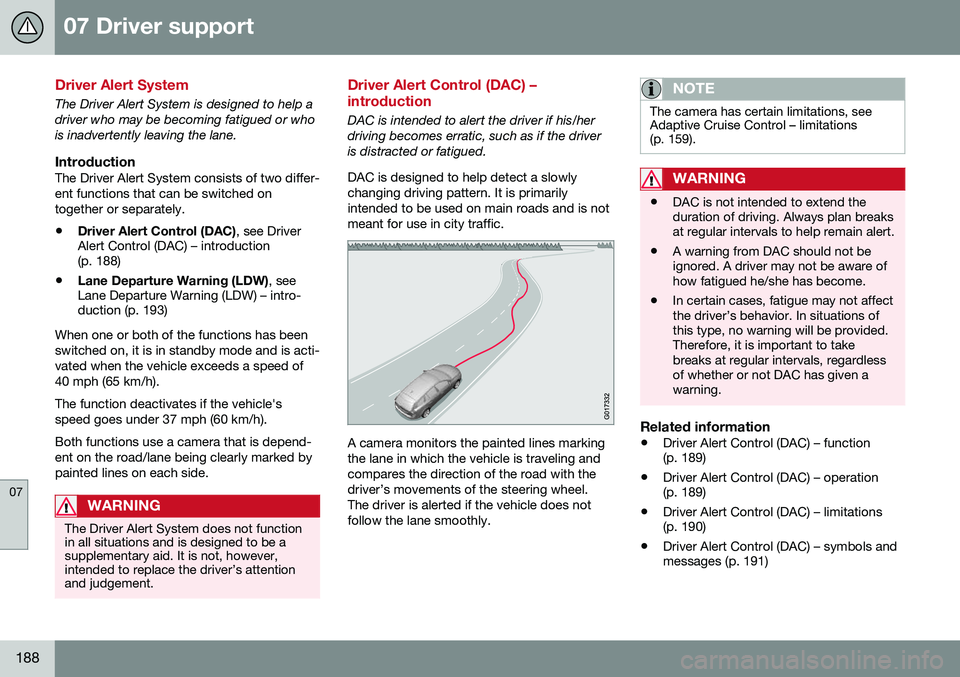
DAC is intended to alert the driver if his/her driving becomes erratic, such as if the driveris distracted or fatigued. DAC is designed to help detect a slowly changing driving pattern. It is primarilyintended to be used on main roads and is notmeant for use in city traffic.
A camera monitors the painted lines marking the lane in which the vehicle is traveling andcompares the direction of the road with thedriver’s movements of the steering wheel.The driver is alerted if the vehicle does notfollow the lane smoothly.
NOTE
The camera has certain limitations, see Adaptive Cruise Control – limitations(p. 159).
WARNING
• DAC is not intended to extend the duration of driving. Always plan breaksat regular intervals to help remain alert.
• A warning from DAC should not beignored. A driver may not be aware ofhow fatigued he/she has become.
• In certain cases, fatigue may not affectthe driver’s behavior. In situations ofthis type, no warning will be provided.Therefore, it is important to takebreaks at regular intervals, regardlessof whether or not DAC has given awarning.
Related information
•
Driver Alert Control (DAC) – function (p. 189)
• Driver Alert Control (DAC) – operation(p. 189)
• Driver Alert Control (DAC) – limitations(p. 190)
• Driver Alert Control (DAC) – symbols andmessages (p. 191)
Page 196 of 344
||
07 Driver support
07
194
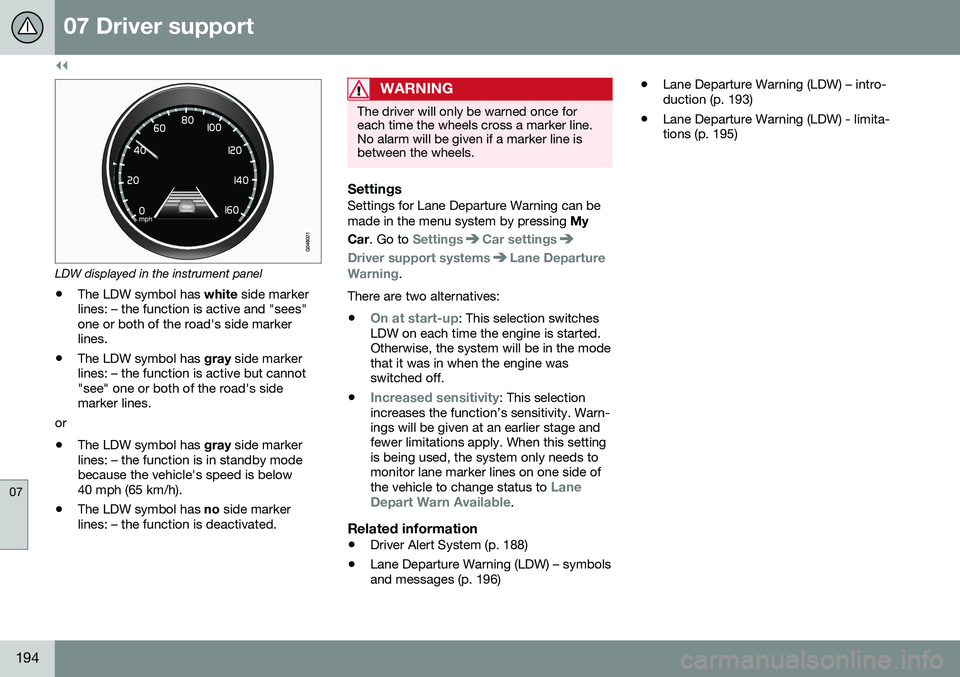
LDW displayed in the instrument panel
• The LDW symbol has
white side marker
lines: – the function is active and "sees" one or both of the road's side markerlines.
• The LDW symbol has
gray side marker
lines: – the function is active but cannot"see" one or both of the road's sidemarker lines.
or
• The LDW symbol has
gray side marker
lines: – the function is in standby modebecause the vehicle's speed is below40 mph (65 km/h).
• The LDW symbol has
no side marker
lines: – the function is deactivated.
WARNING
The driver will only be warned once for each time the wheels cross a marker line.No alarm will be given if a marker line isbetween the wheels.
SettingsSettings for Lane Departure Warning can be made in the menu system by pressing My
Car . Go to
SettingsCar settings
Driver support systemsLane Departure
Warning.
There are two alternatives:
•
On at start-up: This selection switches
LDW on each time the engine is started. Otherwise, the system will be in the modethat it was in when the engine wasswitched off.
•
Increased sensitivity: This selection
increases the function’s sensitivity. Warn- ings will be given at an earlier stage andfewer limitations apply. When this settingis being used, the system only needs tomonitor lane marker lines on one side of the vehicle to change status to
Lane
Depart Warn Available.
Related information
• Driver Alert System (p. 188)
• Lane Departure Warning (LDW) – symbols and messages (p. 196) •
Lane Departure Warning (LDW) – intro-duction (p. 193)
• Lane Departure Warning (LDW) - limita-tions (p. 195)
Page 197 of 344
07 Driver support
07
195
Lane Departure Warning (LDW) - limitations
LimitationsThe camera used by LDW has the same limi- tations as the human eye. See The camera’slimitations (p. 183) for more information aboutthe camera's limitations.
NOTE
No warning signal will be given in the cer-
tain situations, such as:
• If the turn signal is being used
• The driver’s foot is on the brake pedal 6
• The accelerator pedal is pressed quickly 6
• If the steering wheel is moved quickly 6
• In sharp turns that cause the vehicle’s body to sway
Related information
•
Driver Alert System (p. 188)
• Lane Departure Warning (LDW) – symbols and messages (p. 196)
• Lane Departure Warning (LDW) – opera-tion (p. 193)
• Lane Departure Warning (LDW) – intro-duction (p. 193)
6
When Increased sensitivity has been selected, a warning will be issued if a side marker line is crossed in this situation.
Page 204 of 344
07 Driver support
07
202
Rear Park Assist Camera (PAC) – function
FunctionThe driver sees what is behind the vehicle and if a person or animal should suddenlyappear from the side. The camera has built-in electronics that help reduce the “fish-eye” effect so that the imageshown on the screen is as natural as possi-ble. This may cause some objects on thescreen to “lean,” which is normal.
Ambient lighting conditionsThe camera automatically monitors the ambi- ent lighting conditions behind the vehicle andconstantly adjusts sensitivity to light. Thismay cause the brightness and quality of theimage on the screen to vary slightly. Sensitiv-ity to light is increased in dark conditions or inbad weather, which may affect image quality. If the image on the screen seems too dark, brightness can be increased with the thumbwheel on the lighting panel.
NOTE
In order to function properly, the camera lens should always be kept clean. This isparticularly important in bad weather.Keep the lens free of dirt, ice or snow.
Related information
•Rear Park Assist Camera (PAC) – intro- duction (p. 201)
• Rear Park Assist Camera (PAC) – opera-tion (p. 202)
• Rear Park Assist Camera (PAC) – limita-tions (p. 204)
Rear Park Assist Camera (PAC) – operation
Activation
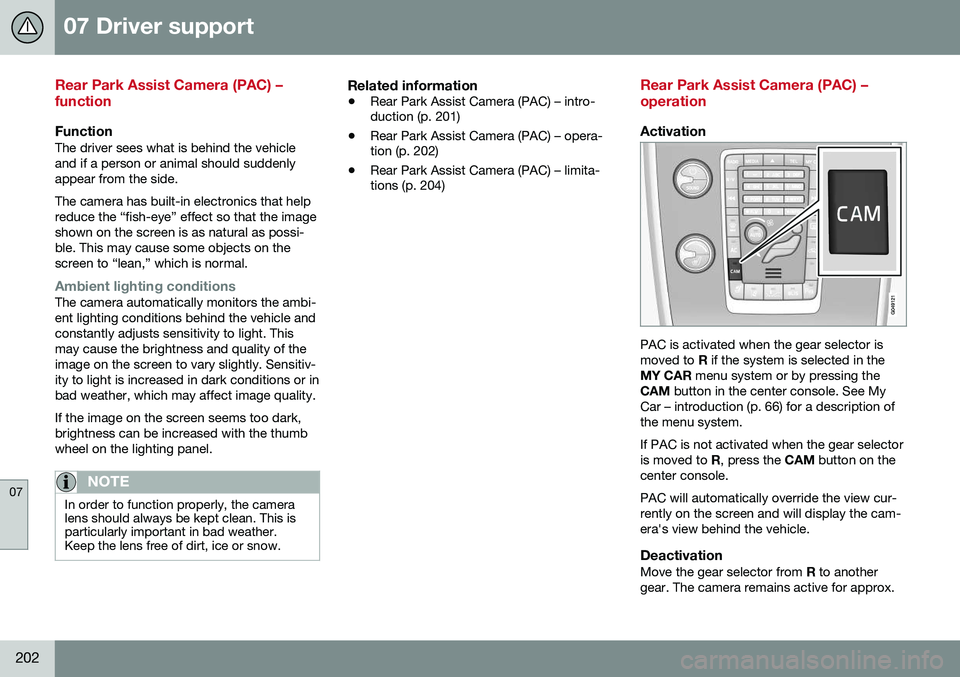
PAC is activated when the gear selector is moved to
R if the system is selected in the
MY CAR menu system or by pressing the
CAM button in the center console. See My
Car – introduction (p. 66) for a description ofthe menu system. If PAC is not activated when the gear selector is moved to R, press the CAM button on the
center console. PAC will automatically override the view cur- rently on the screen and will display the cam-era's view behind the vehicle.
DeactivationMove the gear selector from R to another
gear. The camera remains active for approx.
Page 205 of 344
07 Driver support
07
203
5 seconds after the gear selector has been moved from
R or until the vehicle's forward
speed exceeds 6 mph/10 km/h(21 mph/35 km/h in reverse). The screen willthen revert to the view that was displayedbefore R was selected.
NOTE
If any button on the center console control panel is pressed, the camera image willdisappear from the display. Pressing CAM
will return the camera image to the display.
SettingsBy default, PAC is set to activate when the gear selector is moved to R
To change PAC settings when a camera viewis displayed:
1. Press OK/MENU when a camera view is
on the screen. A menu will be displayed.
2. Turn TUNE to scroll to the desired set-
ting.
3. Press OK/MENU to make the setting and
exit the menu by pressing EXIT.
Summary
•Pressing
CAM will activate the camera
even if the gear selector is not in Reverse.
Related information
• Park assist – introduction (p. 198)
• Park assist – function (p. 198) •
Park assist – troubleshooting (p. 201)
• Park assist – limitations (p. 200)
• Rear Park Assist Camera (PAC) – intro- duction (p. 201)
Rear Park Assist Camera (PAC) – guiding and marker lines
Guiding linesThe lines on the screen are projected as if they were a path on the ground behind thevehicle and are directly affected by the way inwhich the steering wheel is turned. This ena-bles the driver to see path the vehicle willtake, even if he/she turns the steering wheelwhile backing up.
NOTE
When backing up with a trailer, the guiding lines show the path that the
vehicle will
take, not the trailer.
WARNING
Keep in mind that the image on the screen only shows the area behind the vehicle.The driver must always watch for people,animals, other vehicles, etc., near the sidesof the vehicle when turning while backingup.
Related information
• Rear Park Assist Camera (PAC) – opera- tion (p. 202)
• Rear Park Assist Camera (PAC) – limita-tions (p. 204)
Page 208 of 344
07 Driver support
07
206* Option/accessory, for more information, see Introduction.
BLIS* – operation
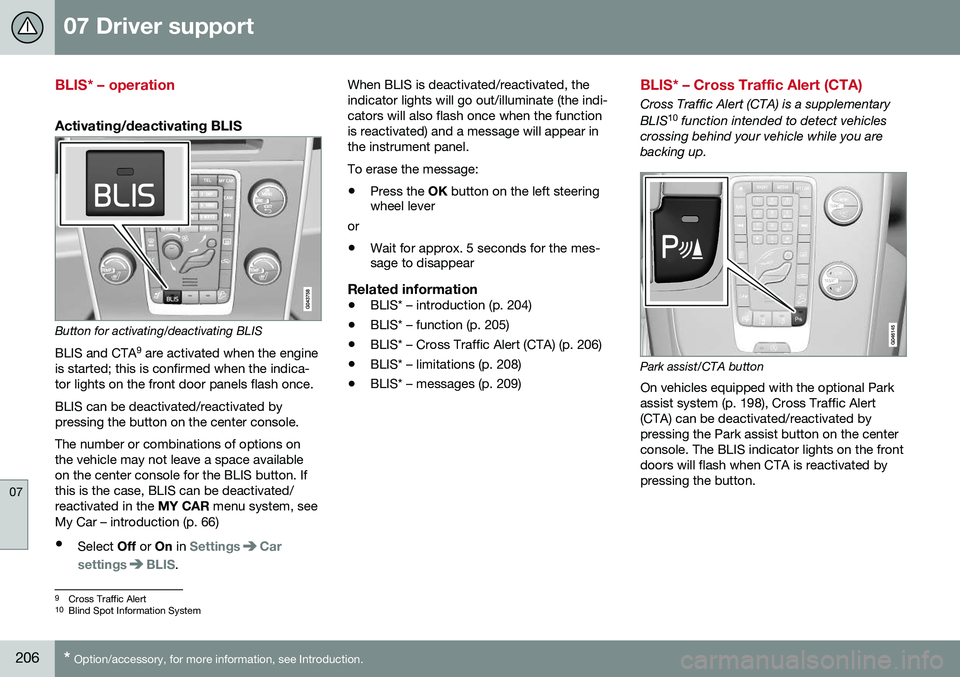
Activating/deactivating BLIS
Button for activating/deactivating BLIS BLIS and CTA 9
are activated when the engine
is started; this is confirmed when the indica- tor lights on the front door panels flash once. BLIS can be deactivated/reactivated by pressing the button on the center console. The number or combinations of options on the vehicle may not leave a space availableon the center console for the BLIS button. Ifthis is the case, BLIS can be deactivated/reactivated in the MY CAR menu system, see
My Car – introduction (p. 66)
• Select Off or On in
SettingsCar
settings
BLIS. When BLIS is deactivated/reactivated, the indicator lights will go out/illuminate (the indi-cators will also flash once when the functionis reactivated) and a message will appear inthe instrument panel. To erase the message: •
Press the
OK button on the left steering
wheel lever
or
• Wait for approx. 5 seconds for the mes- sage to disappear
Related information
•BLIS* – introduction (p. 204)
• BLIS* – function (p. 205)
• BLIS* – Cross Traffic Alert (CTA) (p. 206)
• BLIS* – limitations (p. 208)
• BLIS* – messages (p. 209)
BLIS* – Cross Traffic Alert (CTA)
Cross Traffic Alert (CTA) is a supplementary BLIS 10
function intended to detect vehicles
crossing behind your vehicle while you are backing up.
Park assist/CTA button On vehicles equipped with the optional Park assist system (p. 198), Cross Traffic Alert(CTA) can be deactivated/reactivated bypressing the Park assist button on the centerconsole. The BLIS indicator lights on the frontdoors will flash when CTA is reactivated bypressing the button.
9 Cross Traffic Alert
10 Blind Spot Information System
Page 211 of 344
07 Driver support
07
* Option/accessory, for more information, see Introduction.209
BLIS* – messages
If BLIS/CTA 13
are not functioning normally, a
symbol will illuminate in the instrument panel and a text message will be displayed. Followany instructions that may be provided. These messages include:
MessageSystem status
CTA OFFCTA has been switched off manually. BLIS remainsactive.
BLIS and CTA OFFTrailerattachedBLIS and CTA are tempo- rarily deactivated becausea trailer's wiring has beenconnected to the vehicle'selectrical system.
BLIS and CTA Serv-ice requiredBLIS and CTA are not functioning normally.
• If this message recurs, the systems should beinspected by a trainedand qualified Volvoservice technician.
Messages can be erased by pressing the
OK
button on the left steering wheel lever.
Related information
• BLIS* – introduction (p. 204)
• BLIS* – function (p. 205)
• BLIS* – operation (p. 206)
• BLIS* – Cross Traffic Alert (CTA) (p. 206)
• BLIS* – limitations (p. 208)
13
Cross Traffic Alert
Page 213 of 344
08 Starting and driving
08
}}
* Option/accessory, for more information, see Introduction.211
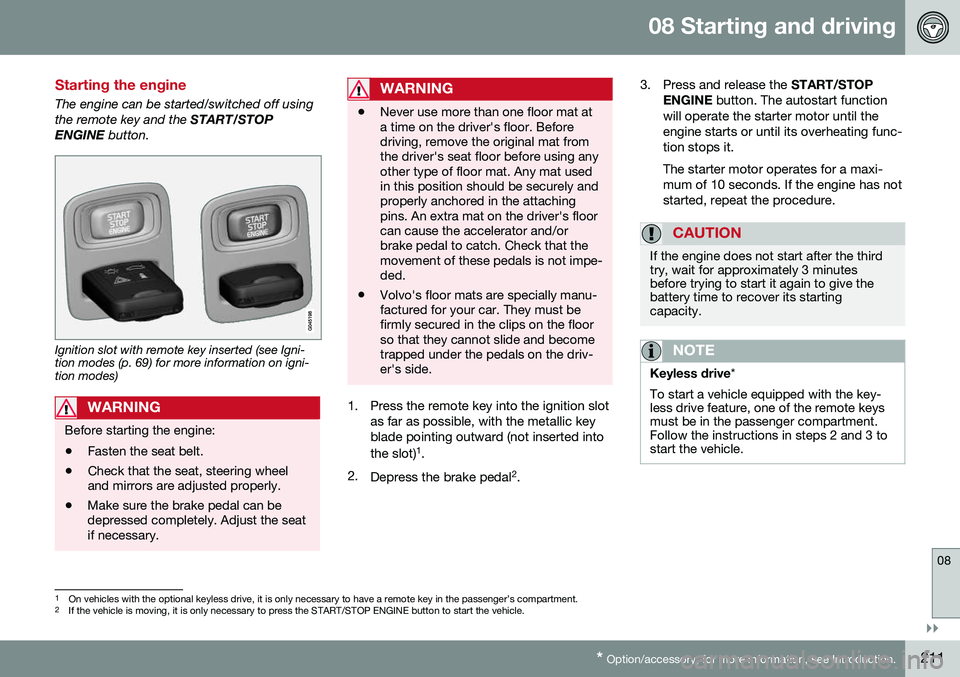
Starting the engine
The engine can be started/switched off using the remote key and the START/STOP
ENGINE button.
Ignition slot with remote key inserted (see Igni- tion modes (p. 69) for more information on igni-tion modes)
WARNING
Before starting the engine:
• Fasten the seat belt.
• Check that the seat, steering wheel and mirrors are adjusted properly.
• Make sure the brake pedal can bedepressed completely. Adjust the seatif necessary.
WARNING
•Never use more than one floor mat at a time on the driver's floor. Beforedriving, remove the original mat fromthe driver's seat floor before using anyother type of floor mat. Any mat usedin this position should be securely andproperly anchored in the attachingpins. An extra mat on the driver's floorcan cause the accelerator and/orbrake pedal to catch. Check that themovement of these pedals is not impe-ded.
• Volvo's floor mats are specially manu-factured for your car. They must befirmly secured in the clips on the floorso that they cannot slide and becometrapped under the pedals on the driv-er's side.
1. Press the remote key into the ignition slot
as far as possible, with the metallic key blade pointing outward (not inserted into the slot) 1
.
2. Depress the brake pedal 2
. 3. Press and release the
START/STOP
ENGINE button. The autostart function
will operate the starter motor until the engine starts or until its overheating func-tion stops it. The starter motor operates for a maxi- mum of 10 seconds. If the engine has notstarted, repeat the procedure.
CAUTION
If the engine does not start after the third try, wait for approximately 3 minutesbefore trying to start it again to give thebattery time to recover its startingcapacity.
NOTE
Keyless drive *
To start a vehicle equipped with the key- less drive feature, one of the remote keysmust be in the passenger compartment.Follow the instructions in steps 2 and 3 tostart the vehicle.
1 On vehicles with the optional keyless drive, it is only necessary to have a remote key in the passenger’s compartment.
2 If the vehicle is moving, it is only necessary to press the START/STOP ENGINE button to start the vehicle.
Page 218 of 344
08 Starting and driving
08
216
Transmission – general information
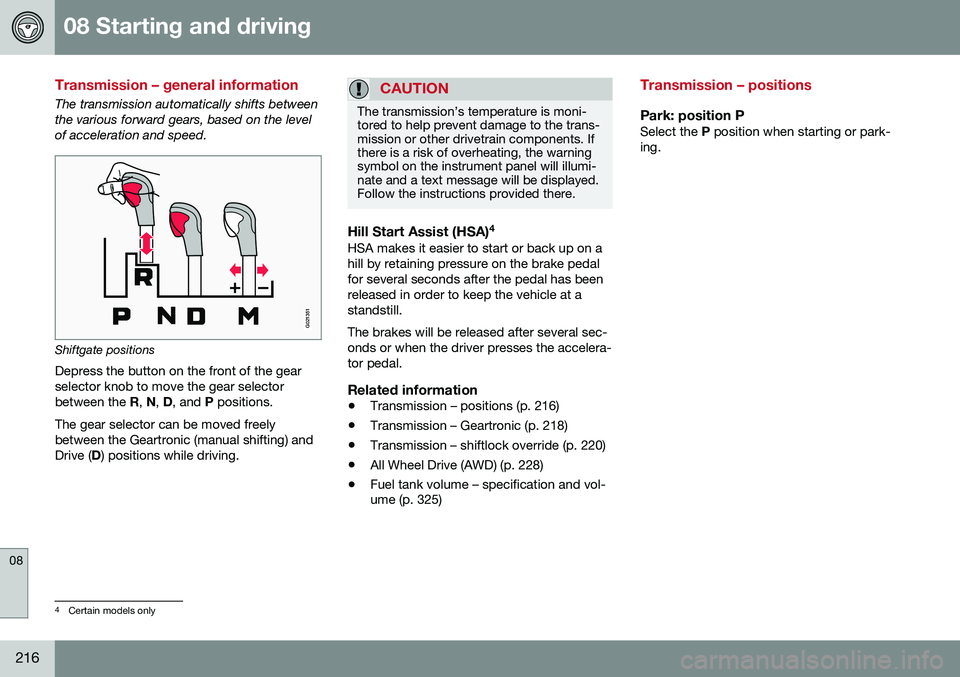
The transmission automatically shifts between the various forward gears, based on the levelof acceleration and speed.
G021351
Shiftgate positions
Depress the button on the front of the gear selector knob to move the gear selectorbetween the R, N , D , and P positions.
The gear selector can be moved freelybetween the Geartronic (manual shifting) andDrive ( D) positions while driving.
CAUTION
The transmission’s temperature is moni- tored to help prevent damage to the trans-mission or other drivetrain components. Ifthere is a risk of overheating, the warningsymbol on the instrument panel will illumi-nate and a text message will be displayed.Follow the instructions provided there.
Hill Start Assist (HSA) 4HSA makes it easier to start or back up on a hill by retaining pressure on the brake pedalfor several seconds after the pedal has beenreleased in order to keep the vehicle at astandstill. The brakes will be released after several sec- onds or when the driver presses the accelera-tor pedal.
Related information
•
Transmission – positions (p. 216)
• Transmission – Geartronic (p. 218)
• Transmission – shiftlock override (p. 220)
• All Wheel Drive (AWD) (p. 228)
• Fuel tank volume – specification and vol- ume (p. 325)
Transmission – positions
Park: position PSelect the
P position when starting or park-
ing.
4 Certain models only