ECO mode VOLVO S60 INSCRIPTION 2017 Owner´s Manual
[x] Cancel search | Manufacturer: VOLVO, Model Year: 2017, Model line: S60 INSCRIPTION, Model: VOLVO S60 INSCRIPTION 2017Pages: 398, PDF Size: 9.45 MB
Page 150 of 398

||
LOCKS AND ALARM
* Option/accessory, for more information, see Introduction.
148
Unlock – Press the Unlock button on the
remote once to unlock the driver's door. After a short pause, press the Unlock button a second time within 10 seconds to unlock theother doors and the trunk. This function can be changed so that all doors unlock at the same time by pressing My Car and
going to
SettingsCar settingsLock
settings
Change doors unlock setting. For
a description of the menu system, see My Car – introduction (p. 71).
Approach lighting – As you approach the
vehicle, press the button on the remote key to light the interior lighting, parking lights, license plate lighting and the lights in the door mirrors *.
These lights will switch off automatically after 30, 60 or 90 seconds. For a description of the menusystem, see My Car – introduction (p. 71).
Unlock/open trunk
Press once: This unlocks the trunk (but does
not open it) and disarms the alarm (the alarm indicator light on the dashboard will go out). If thetrunk is not opened within two minutes it willautomatically relock and the alarm will berearmed. Press twice: This both unlocks the trunk and
pops it open slightly.
NOTE
Any excess weight (snow, etc.) on the trunk lid may prevent it from opening.
For information on opening the trunk from the passenger compartment, see Locking/unlocking– trunk (p. 160). After closing, the trunk will not automatically relock. Press Lock to relock it and rearm thealarm.
Panic alarm – This button can be used to
attract attention during emergency situations. To activate the panic alarm, press and hold this button for at least 3 seconds or press it twicewithin 3 seconds. The turn signals and horn willbe activated. The panic alarm will stop automati-cally after 2 minutes and 45 seconds. To deactivate, wait approximately 5 seconds and press the button again. The Panic alarm button will not unlock the vehi- cle.
Related information
• Locking/unlocking – from inside (p. 158)
• Locking/unlocking – from the outside(p. 157)
• Locking/unlocking confirmation (p. 146)
Remote key – range The remote key has a range of approximately 60 ft. (20 m) from the vehicle.
NOTE
Buildings or other obstacles may interfere with the function of the remote key. The vehi-cle can also be locked or unlocked with thekey blade, see Alarm-related functions(p. 164).
If the remote key is removed from the vehicle while the engine is running or if the ignition is in mode
I or II and all of the doors are closed, a
message will appear in the instrument panel dis- play and there will be an audible signal. When the remote key is returned to the vehicle, the message will be erased and the audible sig-nal will stop after one of the following has beendone:
• The remote key is inserted in the ignition slot
• The vehicle's speed exceeds 20 mph(30 km/h)
• The
OK button on the left steering wheel
lever is pressed
Related information
• Remote key – functions (p. 147)
Page 164 of 398
LOCKS AND ALARM
162
Alarm – general information
The alarm system provides a warning if an attempt is made to break into the vehicle. The alarm is automatically armed (p. 163) whenever the vehicle is locked with the remotekey. When armed, the alarm continuously monitors a number of points on the vehicle. The followingconditions will trigger the alarm:
• The hood is forced open.
• The trunk is forced open
• A door is forced open.
• The ignition slot is tampered with.
• An attempt is made to start the vehicle with a non-approved key (a key not coded to thecar's ignition).
• The battery is disconnected (while the alarmis armed).
• The siren is disconnected when the alarm isdisarmed.
A message will appear in the information displayif a fault should occur in the alarm system. Con-tact a trained and qualified Volvo service techni-cian.
NOTE
Do not attempt to repair any of the compo- nents in the alarm system yourself. This couldaffect the insurance policy on the vehicle.
Related information
• Alarm – turning off (p. 164)
• Alarm signal (p. 163)
• Alarm indicator (p. 162)
Alarm indicator
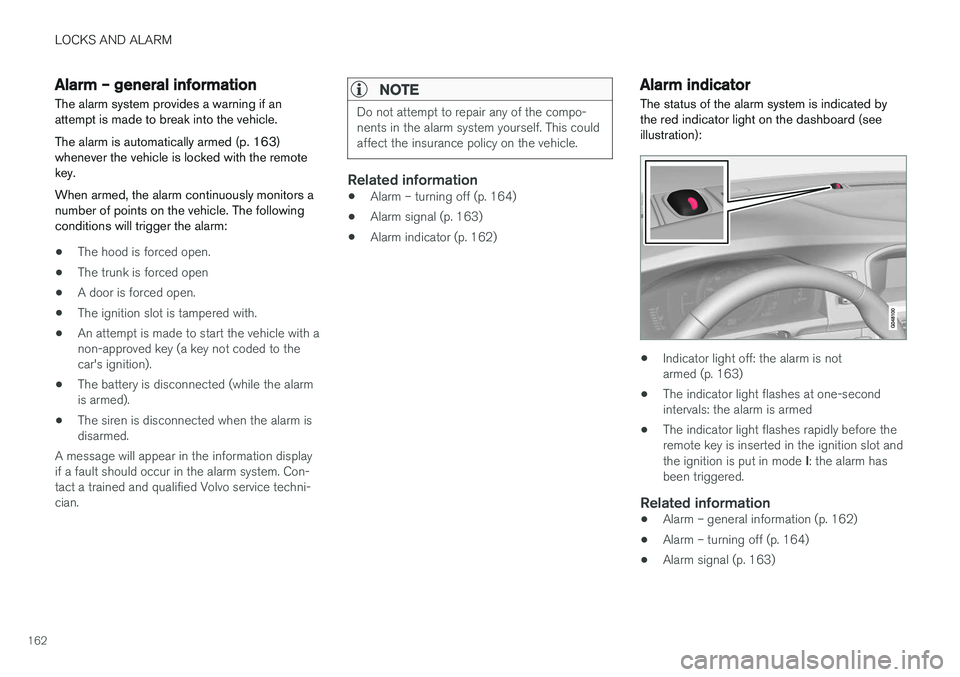
The status of the alarm system is indicated by the red indicator light on the dashboard (seeillustration):
• Indicator light off: the alarm is not armed (p. 163)
• The indicator light flashes at one-secondintervals: the alarm is armed
• The indicator light flashes rapidly before theremote key is inserted in the ignition slot and the ignition is put in mode
I: the alarm has
been triggered.
Related information
• Alarm – general information (p. 162)
• Alarm – turning off (p. 164)
• Alarm signal (p. 163)
Page 176 of 398
||
DRIVER SUPPORT
174Before a speed can be set, the cruise control system must be engaged (put in standby mode).
–Press the
CRUISE button (1).
> The symbol
illuminates and the text(---) mph (5) indicates that cruise control
is in standby mode.
NOTE
Putting cruise control in standby mode does not set a cruising speed.
Setting a speed
Use the or buttons set the vehicle's cur-
rent speed. The set speed is shown in the display.
NOTE
Cruise control cannot be engaged at speeds below 20 mph (30 km/h).
Adjusting the set speedAfter a speed has been set, it can be increased or decreased by using the
or buttons.
1. Press
or briefly and release the but-
ton to increase or decrease vehicle speed by approximately 1 mph or 1 km/h.
> This will become the set speed when the button is released. 2. Press and hold one of these buttons to
increase/decrease the speed in 1-mph or 1- km/h increments. Release the button whenyou have reached the desired speed.
NOTE
• A temporary increase in speed by press- ing the accelerator pedal, for less than1 minute (e.g. when passing another car),does not affect the current cruise controlsetting. The vehicle will automaticallyreturn to the previously set speed whenthe accelerator pedal is released.
• If one of the cruise control buttons iskept depressed for more than approx.1 minute cruise control is disengaged.The engine must then be switched off inorder to reset cruise control.
Related information
•Cruise control (CC) – introduction (p. 173)
• Cruise control (CC) – deactivating (p. 175)
Toggling between ACC and CC (standard Cruise Control)
Adaptive Cruise Control (ACC) helps the driver maintain a safe distance/time interval to the vehi-cle ahead.
Switching from ACC to CCThis may be useful if, for example, the radar sen- sor is obstructed in some way. See AdaptiveCruise Control – limitations (p. 186) for addi-tional information.
• Press and hold the
button; the symbol in
the instrument panel will switch from
to
.
> This activates the standard cruise control function (see Cruise control (CC) – introduc- tion (p. 173)).
WARNING
Switching from ACC to CC means that:
• Your vehicle will
no longer automatically
maintain a set distance to a vehicle ahead.
• Only the set speed will be maintained andthe driver will have to apply the brakeswhen needed.
Switching from CC to ACC
Switch off cruise control by pressing once or
twice as needed according to the instructions in
Page 178 of 398
DRIVER SUPPORT
176
Adaptive Cruise Control – introductionACC is an optional system designed to assist the driver by maintaining a set speed or a settime interval to the vehicle ahead. It is primarilyintended for use on long straight roads in steadytraffic, such as on highways and other mainroads.
When the driver has set the desired speed and the time interval to the vehicle ahead, ACC func-tions as follows:
• If there are no other vehicles in the laneahead of you, your vehicle will travel at theset speed.
• If ACC's radar sensor detects a slower mov-ing vehicle in the lane ahead, the system willadapt your vehicle's speed to help maintainthe set time interval to the vehicle ahead.When there are no longer slower movingvehicles ahead, your vehicle will accelerate toresume the set speed.
If ACC is switched off completely or in standbymode and your vehicle comes too close toanother vehicle ahead, the driver will be warnedby the Distance Alert system (see Distance Alert– introduction (p. 191)).
WARNING
• Adaptive Cruise Control cannot cover all driving situations and traffic, weather androad conditions. The "Function" sectionprovides information about limitations thatthe driver must be aware of before usingthis feature.
• This system is designed to be a supple-mentary driving aid. It is not, however,intended to replace the driver's attentionand judgement. The driver is responsiblefor maintaining a safe distance and speedand must intervene if Adaptive CruiseControl does not maintain a suitablespeed or suitable distance to the vehicleahead.
• Maintenance of ACC components mayonly be performed by a trained and quali-fied Volvo technician.
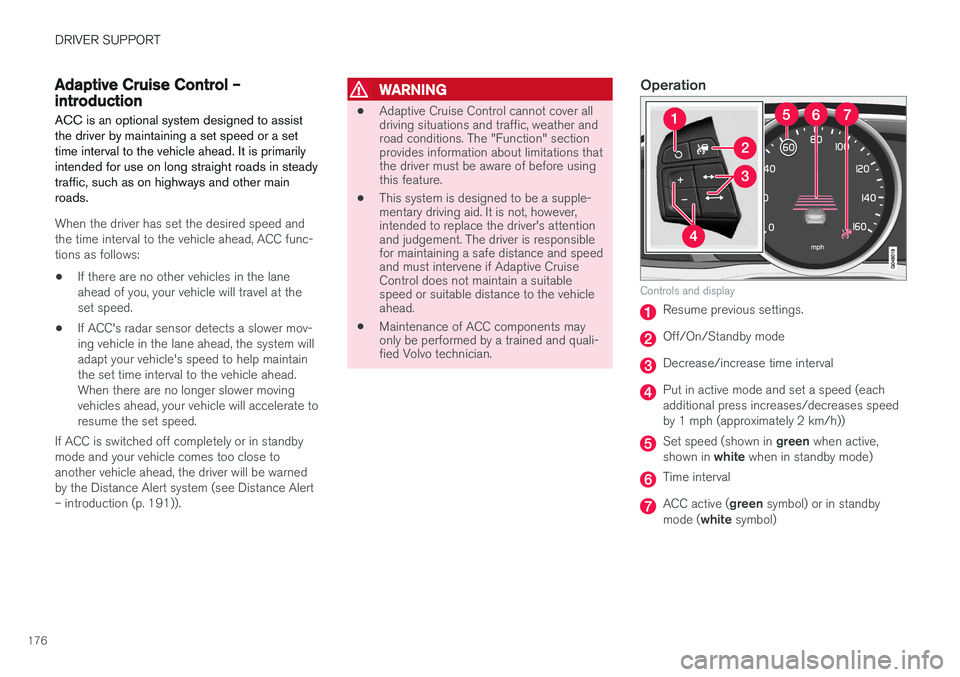
Operation
Controls and display
Resume previous settings.
Off/On/Standby mode
Decrease/increase time interval
Put in active mode and set a speed (each additional press increases/decreases speedby 1 mph (approximately 2 km/h))
Set speed (shown in
green when active,
shown in white when in standby mode)
Time interval
ACC active ( green symbol) or in standby
mode ( white symbol)
Page 179 of 398
DRIVER SUPPORT
}}
177
Radar sensor type approval
USA FCC ID: L2C0038TR Canada IC: 3432A-0038TR This device complies with Part 15 of the FCC Rules and with Industry Canada license-exemptRSS standard(s). Operation is subject to the fol-lowing two conditions: (1) This device may notcause harmful interference, and (2) This devicemust accept any interference received, includinginterference that may cause undesired operation. The term “IC:” before the radio certification num- ber only signifies that Industry Canada technicalspecifications were met.
WARNING
Changes or modifications not expressively approved by the party responsible for compli-ance could void the user's authority to oper-ate the equipment.
Related information
•Toggling between ACC and CC (standard Cruise Control) (p. 174)
• Cruise control (CC) – introduction (p. 173)
• Adaptive Cruise Control – troubleshooting(p. 190) •
Adaptive Cruise Control – symbols and mes-sages (p. 188)
• Adaptive Cruise Control – setting time inter-val (p. 181)
• Adaptive Cruise Control – setting speed(p. 180)
• Radar sensor (p. 185)
• Adaptive Cruise Control (ACC) – QueueAssist (p. 183)
• Adaptive Cruise Control – passing anothervehicle (p. 183)
• Adaptive Cruise Control – limitations(p. 186)
• Adaptive Cruise Control – function (p. 177)
• Adaptive Cruise Control – engaging (p. 179)
• Adaptive Cruise Control – deactivating(p. 181)
Adaptive Cruise Control – function
Function
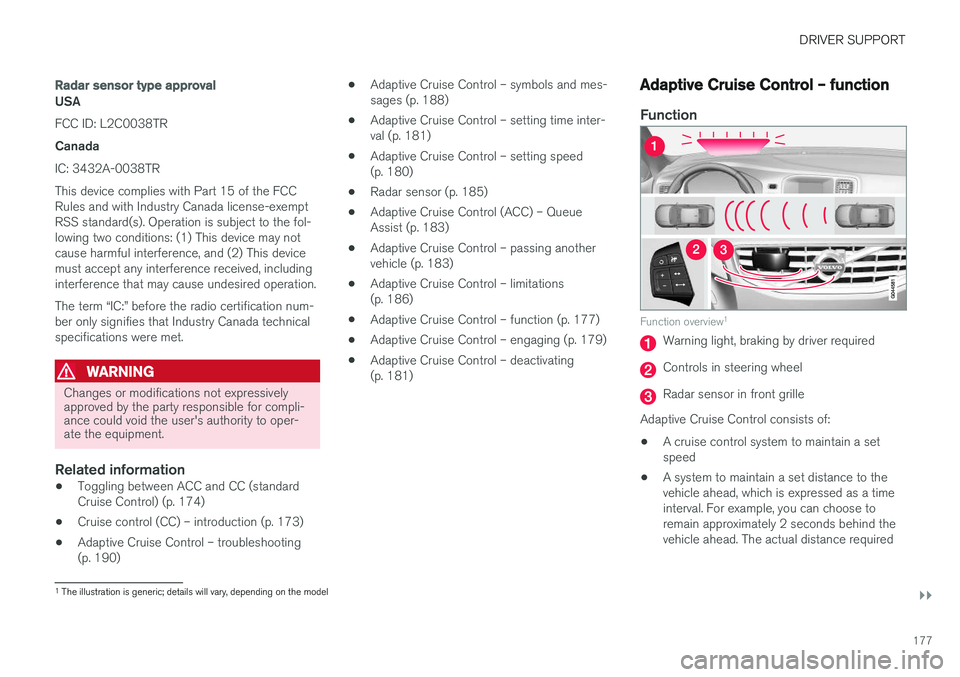
Function overview 1
Warning light, braking by driver required
Controls in steering wheel
Radar sensor in front grille
Adaptive Cruise Control consists of:
• A cruise control system to maintain a set speed
• A system to maintain a set distance to thevehicle ahead, which is expressed as a timeinterval. For example, you can choose toremain approximately 2 seconds behind thevehicle ahead. The actual distance required
1
The illustration is generic; details will vary, depending on the model
Page 180 of 398
||
DRIVER SUPPORT
* Option/accessory, for more information, see Introduction.
178 to maintain a 2-second interval will vary according the speed of the vehicles.
WARNING
•
Adaptive Cruise Control is not a collision avoidance system. The driver is alwaysresponsible for applying the brakes if thesystem does not detect another vehicle.
• Adaptive Cruise Control does not react topeople or animals, or small vehicles suchas bicycles and motorcycles. It also doesnot react to slow moving, parked orapproaching vehicles, or stationaryobjects.
• Do not use Adaptive Cruise Control indemanding driving conditions such as citydriving or other heavy traffic situations, inslippery conditions, when there is a greatdeal of water or slush on the road, duringheavy rain or snow, in poor visibility, onwinding roads or on highway on- or off-ramps.
The distance to the vehicle ahead (in the same lane) is monitored by a radar sensor. Your vehi-cle's speed is regulated by accelerating andbraking. The brakes may emit a sound when theyare being modulated by the adaptive cruise con-trol system. This is normal.
WARNING
The brake pedal moves when the adaptive cruise control system modulates the brakes.Do not rest your foot under the brake pedal.
The ACC system is designed to smoothly regu- late speed. However, the driver must apply thebrakes in situations that require immediate brak-ing. This applies when there are great differencesin speed between vehicles, or if the vehicle aheadbrakes suddenly.
WARNING
Due to limitations in the radar sensor, braking may occur unexpectedly or not at all, seeAdaptive Cruise Control – limitations (p. 186).
Adaptive Cruise Control can be put in active mode at any permitted speed. However, if thevehicle's speed falls below 18 mph (30 km/h) orif engine speed (rpm) becomes too low, ACC dis-engages (goes into standby mode) and will nolonger modulate the brakes. The driver will thenhave to maintain a safe distance to the vehicleahead.
WARNING
When Adaptive Cruise Control is in standby mode or is switched off completely, thebrakes will not be modulated automatically.The driver must assume full control over thevehicle.
Warning light—driver braking requiredAdaptive Cruise Control can exert brake force that is equivalent to approximately 40% of thevehicle's total braking capacity. In situationsrequiring more brake force than ACC can provideand if the driver does not apply the brakes, anaudible signal from the Collision Warning systemwill sound and warning light will illuminate (see Collision warning * – function (p. 204)) in the
windshield to alert the driver to react.
NOTE
Strong sunlight, reflections, extreme light con- trasts, the use of sunglasses, or if the driver isnot looking straight ahead may make the vis-ual warning signal in the windshield difficult tosee.
Page 182 of 398
DRIVER SUPPORT
180
Adaptive Cruise Control – setting speed
Setting a speedOnce ACC has been put in standby mode:
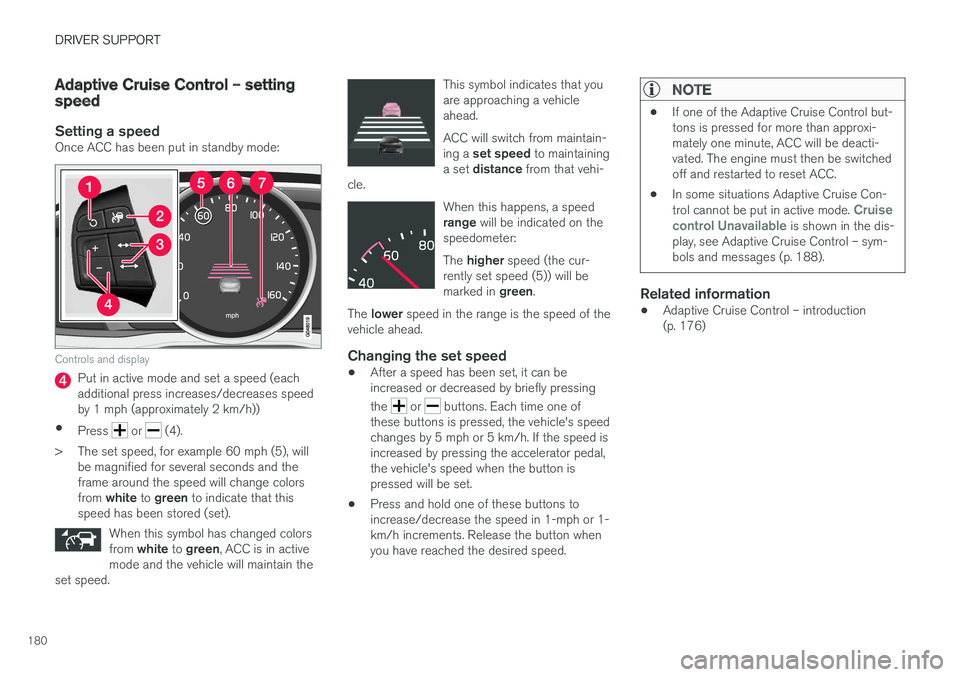
Controls and display
Put in active mode and set a speed (each additional press increases/decreases speedby 1 mph (approximately 2 km/h))
• Press
or (4).
> The set speed, for example 60 mph (5), will be magnified for several seconds and the frame around the speed will change colors from white to green to indicate that this
speed has been stored (set).
When this symbol has changed colorsfrom white to green , ACC is in active
mode and the vehicle will maintain the
set speed.
This symbol indicates that you are approaching a vehicleahead. ACC will switch from maintain- ing a set speed to maintaining
a set distance from that vehi-
cle.
When this happens, a speed range will be indicated on the
speedometer: The higher speed (the cur-
rently set speed (5)) will be marked in green.
The lower speed in the range is the speed of the
vehicle ahead.
Changing the set speed
• After a speed has been set, it can be increased or decreased by briefly pressing the
or buttons. Each time one of
these buttons is pressed, the vehicle's speed changes by 5 mph or 5 km/h. If the speed isincreased by pressing the accelerator pedal,the vehicle's speed when the button ispressed will be set.
• Press and hold one of these buttons toincrease/decrease the speed in 1-mph or 1-km/h increments. Release the button whenyou have reached the desired speed.
NOTE
•
If one of the Adaptive Cruise Control but- tons is pressed for more than approxi-mately one minute, ACC will be deacti-vated. The engine must then be switchedoff and restarted to reset ACC.
• In some situations Adaptive Cruise Con- trol cannot be put in active mode.
Cruise
control Unavailable is shown in the dis-
play, see Adaptive Cruise Control – sym- bols and messages (p. 188).
Related information
• Adaptive Cruise Control – introduction (p. 176)
Page 183 of 398
DRIVER SUPPORT
}}
181
Adaptive Cruise Control – setting time interval
Setting a time interval
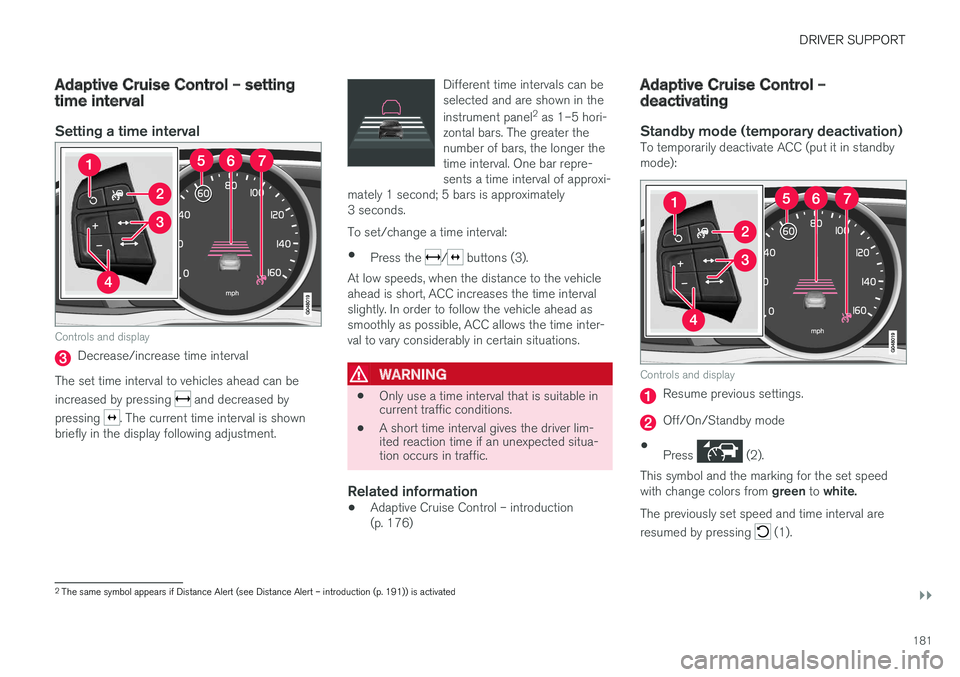
Controls and display
Decrease/increase time interval
The set time interval to vehicles ahead can be increased by pressing
and decreased by
pressing
. The current time interval is shown
briefly in the display following adjustment. Different time intervals can be selected and are shown in the instrument panel
2
as 1–5 hori-
zontal bars. The greater the number of bars, the longer thetime interval. One bar repre-sents a time interval of approxi-
mately 1 second; 5 bars is approximately3 seconds.
To set/change a time interval:
• Press the
/ buttons (3).
At low speeds, when the distance to the vehicle ahead is short, ACC increases the time intervalslightly. In order to follow the vehicle ahead assmoothly as possible, ACC allows the time inter-val to vary considerably in certain situations.
WARNING
• Only use a time interval that is suitable in current traffic conditions.
• A short time interval gives the driver lim-ited reaction time if an unexpected situa-tion occurs in traffic.
Related information
• Adaptive Cruise Control – introduction (p. 176)
Adaptive Cruise Control – deactivating
Standby mode (temporary deactivation)To temporarily deactivate ACC (put it in standby mode):
Controls and display
Resume previous settings.
Off/On/Standby mode
• Press
(2).
This symbol and the marking for the set speed with change colors from green to white.
The previously set speed and time interval are resumed by pressing
(1).
2 The same symbol appears if Distance Alert (see Distance Alert – introduction (p. 191)) is activated
Page 217 of 398
DRIVER SUPPORT
}}
215
Driver Alert SystemThe Driver Alert System is designed to help a driver who may be becoming fatigued or who isinadvertently leaving the lane.
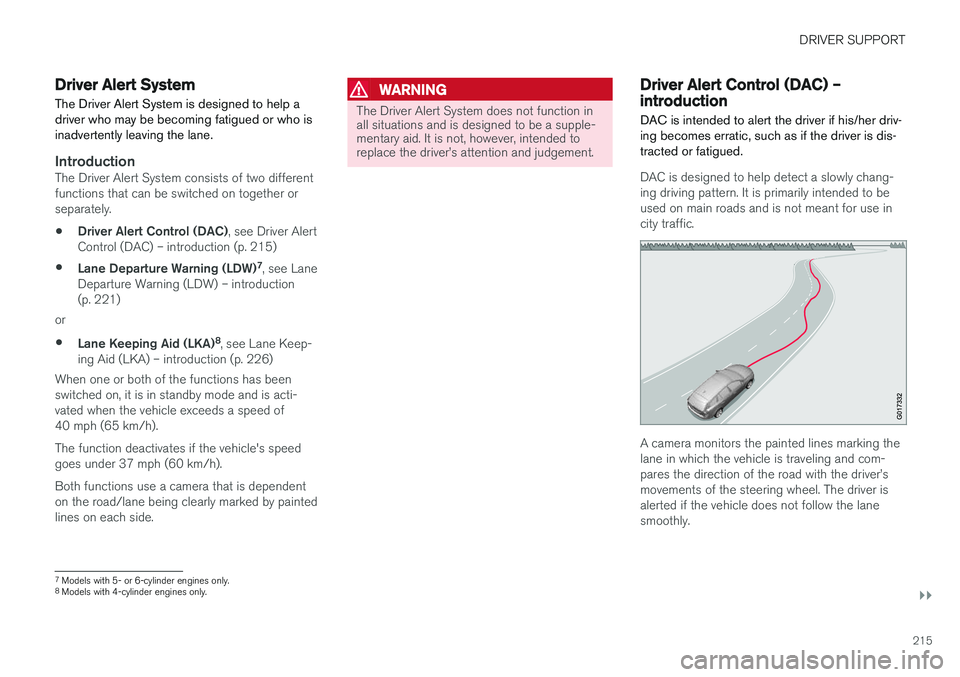
IntroductionThe Driver Alert System consists of two different functions that can be switched on together orseparately.
• Driver Alert Control (DAC)
, see Driver Alert
Control (DAC) – introduction (p. 215)
• Lane Departure Warning (LDW) 7
, see Lane
Departure Warning (LDW) – introduction(p. 221)
or
• Lane Keeping Aid (LKA) 8
, see Lane Keep-
ing Aid (LKA) – introduction (p. 226)
When one or both of the functions has beenswitched on, it is in standby mode and is acti-vated when the vehicle exceeds a speed of40 mph (65 km/h). The function deactivates if the vehicle's speed goes under 37 mph (60 km/h). Both functions use a camera that is dependent on the road/lane being clearly marked by paintedlines on each side.
WARNING
The Driver Alert System does not function in all situations and is designed to be a supple-mentary aid. It is not, however, intended toreplace the driver
Page 244 of 398
||
DRIVER SUPPORT
242
Automatic zoom
Automatic zoom is a feature that is available on
models equipped with a trailer hitch and the optional (p. 231)Park assist system. With thisalternative selected, the camera will zoom in onthe trailer hitch automatically if the vehicleapproaches an object/trailer. See also the "Settings" section below.
DeactivationMove the gear selector from R to another gear.
The camera remains active for approx. 5 seconds after the gear selector has been moved from R or
until the vehicle's forward speed exceeds 6 mph/10 km/h (21 mph/35 km/h in reverse).The screen will then revert to the view that was displayed before R was selected.
NOTE
If any button on the center console control panel is pressed, the camera image will disap- pear from the display. Pressing CAM will
return the camera image to the display.
SettingsBy default, PAC is set to activate when the gear selector is moved to R
To change PAC settings when a camera view is displayed: 1.
Press OK/MENU when a camera view is on
the screen. A menu will be displayed.
2. Turn TUNE to scroll to the desired setting.
3. Press OK/MENU to make the setting and
exit the menu by pressing EXIT.
Summary
•Pressing
CAM will activate the camera even
if the gear selector is not in Reverse.
• Toggle between normal view and zoom by pressing
CAM or by turning TUNE.
Related information
•Park assist – introduction (p. 231)
• Park assist – function (p. 231)
• Park assist – troubleshooting (p. 239)
• Park assist – limitations (p. 234)
• Rear Park Assist Camera (PAC) – introduc- tion (p. 240)
Rear Park Assist Camera (PAC) – guiding and marker lines
Guiding lines
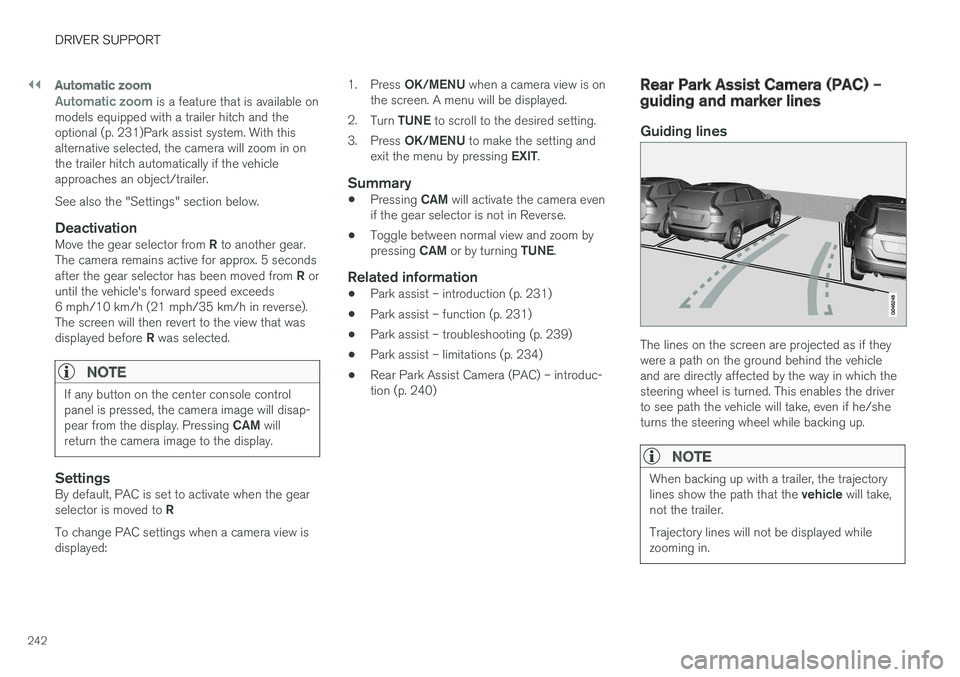
The lines on the screen are projected as if they were a path on the ground behind the vehicleand are directly affected by the way in which thesteering wheel is turned. This enables the driverto see path the vehicle will take, even if he/sheturns the steering wheel while backing up.
NOTE
When backing up with a trailer, the trajectory lines show the path that the
vehicle will take,
not the trailer. Trajectory lines will not be displayed while zooming in.