change time VOLVO S60 TWIN ENGINE 2019 Owner's Manual
[x] Cancel search | Manufacturer: VOLVO, Model Year: 2019, Model line: S60 TWIN ENGINE, Model: VOLVO S60 TWIN ENGINE 2019Pages: 645, PDF Size: 13.96 MB
Page 235 of 645
KEY, LOCKS AND ALARM
* Option/accessory.233
Settings for remote and inside doorunlock
Several different sequences are available forremote unlocking.
To change this setting:
1.Tap Settings in the center display's Topview.
2.Tap My CarLockingRemote andInterior Unlock.
3.Select alternative:
All Doors – unlocks all doors at the sametime.
Single Door – unlocks the driver's door.Press the remote key unlock button twiceto unlock all doors.
The settings made here also affect central lock-ing using the inside door handle.
Related information
Locking and unlocking using the remote key(p. 232)
Locking and unlocking from inside the vehi-cle (p. 249)
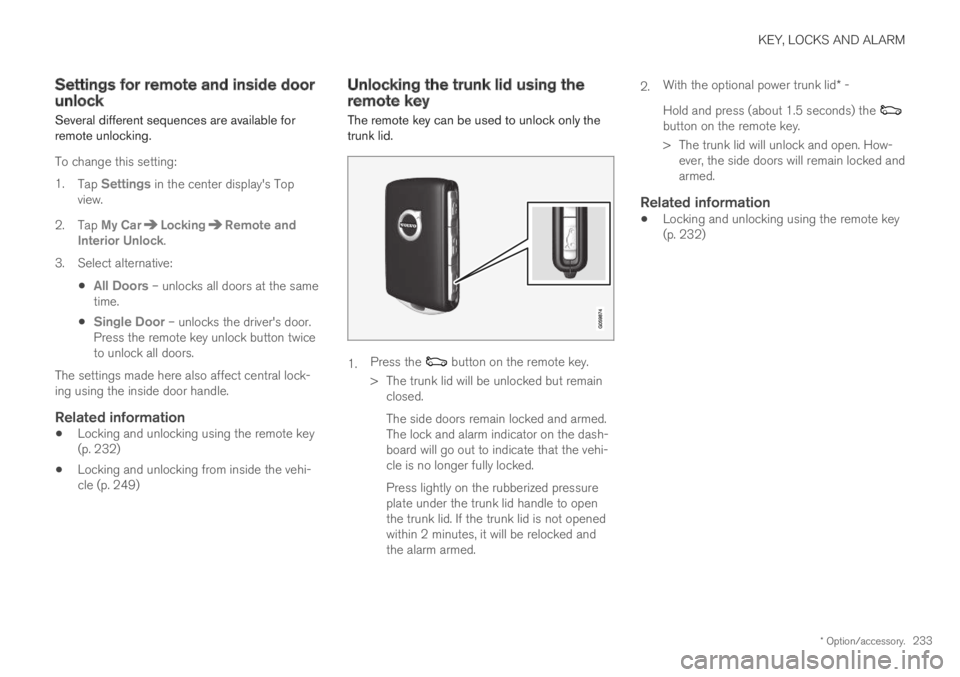
Unlocking the trunk lid using theremote key
The remote key can be used to unlock only thetrunk lid.
1.Press the button on the remote key.
>The trunk lid will be unlocked but remainclosed.
The side doors remain locked and armed.The lock and alarm indicator on the dash-board will go out to indicate that the vehi-cle is no longer fully locked.
Press lightly on the rubberized pressureplate under the trunk lid handle to openthe trunk lid. If the trunk lid is not openedwithin 2 minutes, it will be relocked andthe alarm armed.
2.With the optional power trunk lid* -
Hold and press (about 1.5 seconds) the button on the remote key.
>The trunk lid will unlock and open. How-ever, the side doors will remain locked andarmed.
Related information
Locking and unlocking using the remote key(p. 232)
Page 241 of 645
KEY, LOCKS AND ALARM
}}
* Option/accessory.239
Driver profile for Red Key
A Red Key is linked to a specific Red Key driverprofile, and when it is active the key's settingscannot be changed. It is also not possible toswitch to another driver profile, as this requires aregular remote key.
The Red Key driver profile is activated when thevehicle is unlocked using a Red Key without aregular remote key nearby.
NOTE
If the vehicle changes owners, the vehiclemust be locked and then unlocked for a newdriver profile to be activated.
Ordering a Red Key
One or more Red Key can be ordered from aVolvo retailer. A total of twelve keys can be pro-grammed and used for the same vehicle. Up toten may be restricted keys, but at least two mustbe standard remote keys.
Related information
Settings for Red Key* (p. 239)
Remote key (p. 230)
Settings for Red Key*
The holder of a regular remote key can adjustsettings for a Red Key. Certain driver supportfunctions are always active, however.
To change this setting:
1.Unlock the vehicle using a regular remotekey.
2.Tap Settings in the center display's Topview.
3.Tap SystemDriver ProfilesRed Key.
> The following settings can be made:
Set Time Gap For Adaptive CruiseControl*
Reduced Maximum Volume
Max Speed Limit
Speed Limit Warning
Details and default settings
Set Time Gap For Adaptive Cruise Control
Set the time gap (1 is the shortest and 5 isthe longest gap).
The default setting is 5.0.
Reduced Maximum Volume
Lower maximum volume for media sources.
The function is "On" by default.
Max Speed Limit
Set a maximum speed for this key.
By default, the function is "On" and the speed is120 km/h (75 mph).
Setting interval: 50-250 km/h (30-160 mph)
Increments: 1 km/h (1 mph)
Speed limit symbol.
Speed Limit Warning
Warns when vehicle moves above setvalues.
By default, the function is "On" and the valuesare 50, 70 and 90 km/h (30, 45 and 55 mph).
Setting interval: 0-250 km/h (0-160 mph)
Increments: 1 km/h (1 mph)
Maximum number of simultaneous remind-ers: 6
Driver support functions
The following driver support functions will alwaysbe active for a Red Key user:
Blind Spot Information (BLIS)*
Lane Keeping Aid (LKA)*
Distance Alert*
City Safety
Page 248 of 645

||
KEY, LOCKS AND ALARM
* Option/accessory.246
Keyless locking
All of the doors have to be closed before thevehicle can be locked. However, the trunk lid canbe open when a door handle is used for locking.
–Touch the marked area on the outside of oneof the door handles after the door is closed.
>The lock indicator light on the dashboardwill flash to confirm that the vehicle islocked.
To close all door windows at the same time -place your finger on the pressure-sensitiveindentation on the outside of the door handle andhold it there until the side windows have closed.
Locking when the trunk lid is open
NOTE
If the vehicle is locked and the trunk lid is stillopen, make sure that the remote key is notleft in the trunk when the trunk lid is closed.
If the key is detected in the vehicle, the trunklid will not lock when it is closed.
Keyless unlocking
–To unlock, grasp a door handle or lightlypress the rubberized button on the undersideof the trunk lid handle.
>The lock indicator light on the dashboardwill stop flashing to confirm that the vehi-cle is unlocked.
The rubberized button on the trunk lid can only be usedfor unlocking.
Automatic relocking
If none of the doors or trunk lid are opened withintwo minutes after being unlocked, they will auto-matically relock. This function reduces the risk ofinadvertently leaving the vehicle unlocked.
Related information
Keyless unlock settings* (p. 246)
Keyless trunk lid unlock* (p. 247)
Keyless and touch-sensitive surfaces*(p. 244)
Keyless unlock settings*
Several different sequences are available forkeyless unlocking.
To change this setting:
1.Tap Settings in the center display's Topview.
2.Tap My CarLockingKeyless Unlock
3. Select alternative:
All Doors – unlocks all doors at the sametime.
Single Door – unlocks the selected door.
Related information
Keyless locking and unlocking* (p. 245)
Keyless and touch-sensitive surfaces*(p. 244)
Page 255 of 645
KEY, LOCKS AND ALARM
}}
253
Automatic locking when driving
The doors and trunk lid will automatically lockwhen the vehicle begins to move.
Related information
Locking and unlocking from inside the vehi-cle (p. 249)
Private Locking
The trunk lid and rear seat backrests can belocked using the private locking function, e.g.when the vehicle is left at a workshop or with avalet. This function prevents the trunk lid frombeing opened and locks the rear seat backrestsin the upright position.
The function button for privatelocking is located in the centerdisplay's Function view.Depending on the current sta-tus of the lock, PrivateLocking Unlocked or PrivateLocking Locked will be dis-played.
Related information
Activating and deactivating private locking(p. 253)
Activating and deactivating privatelocking
Private locking is activated using the functionbutton in the center display and a PIN code.
NOTE
For the valet lock function to be activated thecar must be in at least ignition mode I.
Two codes are used for private locking:
A security code, which is created the firsttime the function is used.
A PIN code, which is changed each time thefunction is activated.
Entering security code before initial use
The first time the function is used, a securitycode must be selected. This code can then beused to deactivate private locking if the selectedPIN code has been forgotten or lost. The securitycode functions as a PUK (security) code for allPIN codes used for private locking.
Save the security code in a safe place.
Page 280 of 645

||
DRIVER SUPPORT
* Option/accessory.278
2.Tap the Cruise Control button in the centerdisplay's Function view. The button's indica-tor will change from GRAY to GREEN.
>The symbol in the instrument panel will
change from ACC to CC, indicating that Adaptive Cruise Con-trol is off and Cruise Control is in standbymode.
3.Pressing the button on the steeringwheel keypad.
>Cruise Control will start and the vehicle'scurrent speed will be set.
WARNING
Switching from ACC to CC means that thevehicle:
will no longer maintain a preset timeinterval to the vehicle ahead.
will only follow the stored speed and thedriver must therefore apply the brakeswhen necessary.
If CC is active when the engine is turned off, ACCwill be automatically activated the next time theengine is started.
Switching from CC to ACC
To do so:
1.Press the button on the steering wheelkeypad to put Cruise Control in standbymode.
2.Tap the Cruise Control button in Functionview. The button's indicator will change fromGREEN to GRAY.
>The symbols in the instrument panel will
switch from CC to ACCto indicate that Adaptive Cruise Control isin standby mode.
3.Pressing the button on the steeringwheel keypad.
>Adaptive Cruise Control will go into activemode and set the vehicle's current speedand the selected time interval to the vehi-cle ahead.
Related information
Adaptive Cruise Control* (p. 272)
Cruise control (p. 266)
Page 283 of 645

DRIVER SUPPORT
}}
281
Pilot Assist30
Pilot Assist helps the driver keep the vehicle inthe current traffic lane by providing steeringassistance and maintaining an even speed and aset time interval to the vehicle ahead.
How Pilot Assist works
The Pilot Assist function is primarily intended foruse on highways and other major roads where itcan help provide a more comfortable and relaxingdriving experience.
The camera/radar sensor monitors the distance to thevehicle ahead and detects lane markings.
Camera and radar sensor
Distance monitor
Lane marker line monitors
The driver sets the desired speed and distance tothe vehicle ahead. Pilot Assist monitors the dis-tance to the vehicle ahead and the traffic lane'sside markers using the camera and radar sensor.The system maintains the set time interval to thevehicle ahead by automatically adjusting yourvehicle's speed and keeps your vehicle in its laneby providing steering assistance.
Pilot Assist's steering assistance is based onmonitoring the direction of the vehicle ahead andthe traffic lane's side marker lines. The driver canoverride Pilot Assist's steering recommendationsat any time and steer in another direction, e.g. tochange lanes or avoid obstacles on the road.
If the camera/radar sensor cannot detect thelane's side marker lines or if Pilot Assist is unablefor some other reason to clearly interpret thelane, Pilot Assist will temporarily deactivate steer-ing assistance until it can once again interpretthe lane markings. However, the speed and dis-tance warnings will remain active.
WARNING
Pilot Assist is deactivated automatically andresumes working without prior notice.
The color of the steering wheelsymbol indicates the currentstatus of steering assistance:
• GREEN indicates that steer-ing assistance is active.
• GRAY (as shown in illustra-tion) indicates that steering assistance is deacti-vated.
WARNING
Pilot Assist should only be used if there areclear lane lines painted on each side of thelane. All other use will increase the risk ofcontact with nearby obstacles that cannot bedetected by the functions.
30Depending on market, this function can be either standard or optional.
Page 286 of 645
||
DRIVER SUPPORT
284
Instrument panel
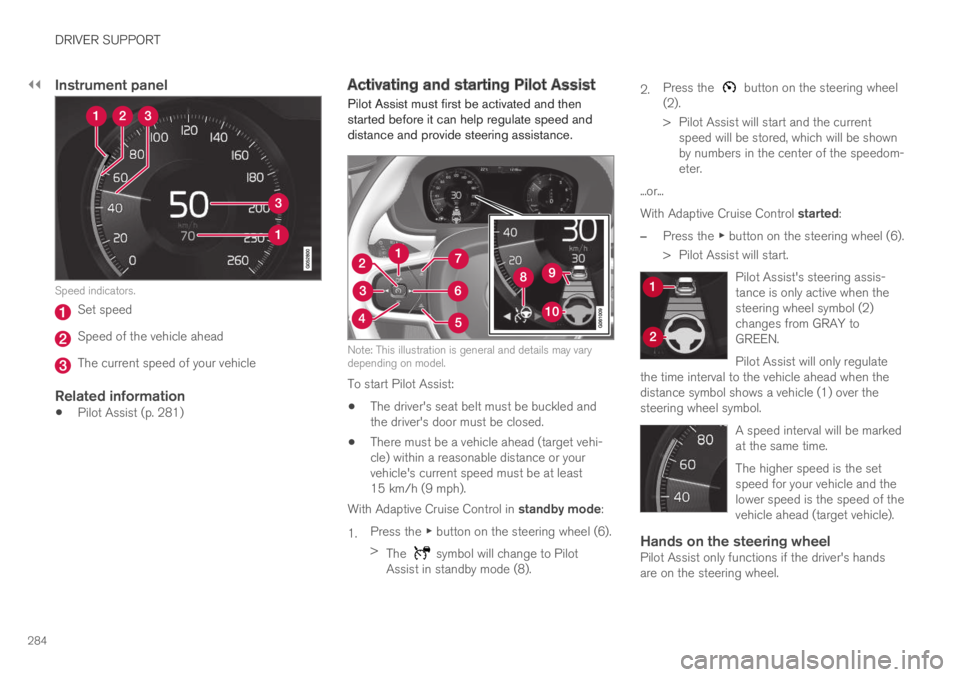
Speed indicators.
Set speed
Speed of the vehicle ahead
The current speed of your vehicle
Related information
Pilot Assist (p. 281)
Activating and starting Pilot Assist
Pilot Assist must first be activated and thenstarted before it can help regulate speed anddistance and provide steering assistance.
Note: This illustration is general and details may varydepending on model.
To start Pilot Assist:
The driver's seat belt must be buckled andthe driver's door must be closed.
There must be a vehicle ahead (target vehi-cle) within a reasonable distance or yourvehicle's current speed must be at least15 km/h (9 mph).
With Adaptive Cruise Control in standby mode:
1.Press the ▶ button on the steering wheel (6).
>The symbol will change to PilotAssist in standby mode (8).
2.Press the button on the steering wheel(2).
>Pilot Assist will start and the currentspeed will be stored, which will be shownby numbers in the center of the speedom-eter.
...or...
With Adaptive Cruise Control started:
–Press the ▶ button on the steering wheel (6).
>Pilot Assist will start.
Pilot Assist's steering assis-tance is only active when thesteering wheel symbol (2)changes from GRAY toGREEN.
Pilot Assist will only regulatethe time interval to the vehicle ahead when thedistance symbol shows a vehicle (1) over thesteering wheel symbol.
A speed interval will be markedat the same time.
The higher speed is the setspeed for your vehicle and thelower speed is the speed of thevehicle ahead (target vehicle).
Hands on the steering wheel
Pilot Assist only functions if the driver's handsare on the steering wheel.
Page 296 of 645

||
DRIVER SUPPORT
* Option/accessory.294
–Change a set speed by pressing the (1)
or (2) buttons briefly or by pressing andholding them:
Brief press: Each press changes thespeed in +/- 5 km/h (+/- 5 mph) incre-ments.
Press and hold: Release the button whenthe set speed indicator (3) has moved tothe desired speed.
NOTE
For vehicles without Adaptive Cruise Control*,speed instead increases by +/- 1km/h(+/- 1 mph) each time the button is pressed.
The most recently set speed will be stored.
If speed is increased by depressing the accelera-
tor pedal while pressing the (1) button onthe steering wheel, the vehicle's speed when thebutton is pressed will be stored as the set speed.
Temporarily increasing speed using the accelera-tor pedal, e.g. when passing another vehicle, willnot affect the setting. The vehicle will return tothe set speed when the accelerator pedal isreleased.
Automatic transmission
The driver support functions can follow anothervehicle at speeds from a standstill up to200 km/h (125 mph).
Pilot Assist can provide steering assistance fromnear-stationary speeds up to 140 km/h(87 mph).
The lowest speed that can be set is 30 km/h(20 mph). When following another vehicle, ACCcan monitor that vehicle's speed and slow yourown vehicle down to a standstill, but it is not pos-sible to set speeds lower than 30 km/h(20 mph).
Related information
Driver support systems (p. 260)
Cruise control (p. 266)
Adaptive Cruise Control* (p. 272)
Pilot Assist (p. 281)
Auto-hold braking with driversupport
Pilot Assist and Adaptive Cruise Control*
(ACC39) have a special brake function in slowtraffic and while stationary.
Braking function in slow traffic and at a
standstill
In slow-moving, stop-and-go traffic or when stop-ped at a traffic light, driving will resume automati-cally if the vehicle is stopped for less thanapprox. 3 seconds. If it takes more than 3 sec-onds for the vehicle ahead to begin moving again,the driver support function will go into standbymode and the auto-hold brake function will acti-vate.
–The function can be reactivated by:
Pressing the button on the steeringwheel keypad.
Pressing the accelerator pedal.
>The function will resume following thevehicle ahead if it begins to move withinapprox. 6 seconds.
Page 297 of 645

DRIVER SUPPORT
}}
* Option/accessory.295
NOTE
Driver support can keep the vehicle stationaryfor no more than 5 minutes – after that timethe parking brake is applied and the functionis deactivated.
The parking brake must be released beforedriver support can be reactivated.
Deactivation of the Auto-hold brake function
In certain situations, auto-hold will be deactivatedwhen the vehicle is at a standstill and the func-tion will go into standby mode. This means thatthe brakes will be released and the vehicle couldbegin to roll. The driver must actively apply thebrakes to keep the vehicle stationary.
This can occur if:
the driver depresses the brake pedal
the parking brake is applied
the gear selector is moved to the P, N or Rpositions
the driver puts the function in standby mode.
Auto Activate Parking Brake
In certain situations, the parking brake will beapplied to keep the vehicle at a standstill.
This occurs if the function is keeping the vehiclestationary using the brakes and:
the driver opens the door or unbuckleshis/her seat belt
the function has kept the vehicle at a stand-still for more than approx. 5 minutes
the brakes overheat
the driver switches off the engine manually.
Related information
Driver support systems (p. 260)
Adaptive Cruise Control* (p. 272)
Pilot Assist (p. 281)
Brake functions (p. 396)
Passing assistance
Passing assistance can assist the driver whenpassing other vehicles. The function can beused with Pilot Assist or Adaptive Cruise Con-
trol* (ACC40).
How passing assistance works
When Pilot Assist or ACC is following anothervehicle and you indicate that you intend to pass
that vehicle by using the turn signal41, the systemwill begin accelerating toward the vehicle aheadbefore your vehicle has moved into the passinglane.
The function will then delay a speed reduction toavoid early braking as your vehicle approaches aslower-moving vehicle.
The function remains active until your vehicle haspassed the other vehicle.
WARNING
Please note that this function can be acti-vated in more situations than just passinganother vehicle, such as when a direction indi-cator is used to indicate a lane change orbefore exiting to another road – the vehiclewill then briefly accelerate.
39Adaptive Cruise Control40Adaptive Cruise Control41Only the left-hand turn signal for left-hand drive vehicles, or right-hand turn signal for right-hand drive vehicles.
Page 298 of 645
||
DRIVER SUPPORT
* Option/accessory.296
Related information
Driver support systems (p. 260)
Using passing assistance (p. 296)
Adaptive Cruise Control* (p. 272)
Pilot Assist (p. 281)
Using passing assistance
Several conditions must be met for passingassistance to be possible.
In order to activate passing assistance:
your vehicle must be following a vehicleahead (target vehicle)
your vehicle's current speed must beat least 70 km/h (43 mph)
the set speed must be high enough tosafely pass another vehicle.
To start passing assistance:
–Turn on the left turn signal.
>Passing assistance will start.
WARNING
The driver should be aware that if conditionssuddenly change when using Passing Assis-tance, the function may implement an unde-sired acceleration in certain conditions.
Some situations should be avoided, e.g. if:
the vehicle is approaching an exit in thesame direction as passing would normallyoccur
the vehicle ahead slows before your vehi-cle has had time to switch to the passinglane
traffic in the passing lane slows down
Situations of this type can be avoided by tempo-rarily putting Adaptive Cruise Control or PilotAssist in standby mode.
Related information
Passing assistance (p. 295)
Adaptive Cruise Control* (p. 272)
Pilot Assist (p. 281)