change time VOLVO S60 TWIN ENGINE 2019 Owner's Guide
[x] Cancel search | Manufacturer: VOLVO, Model Year: 2019, Model line: S60 TWIN ENGINE, Model: VOLVO S60 TWIN ENGINE 2019Pages: 645, PDF Size: 13.96 MB
Page 307 of 645

DRIVER SUPPORT
}}
305
City Safety™
City Safety47 can alert the driver with light,sound and pulsations in the brake pedal to helpthe driver detect pedestrians, cyclists, large ani-mals and vehicles that appear suddenly – thevehicle will then attempt to automatically brake ifthe driver does not act within a reasonableamount of time.
Location of the camera and radar sensor.
City Safety can help prevent a collision or lowerthe vehicle's speed at the point of impact.
City Safety is an aid intended to assist the driverif a collision with a pedestrian, large animal,cyclist or vehicle is imminent.
City Safety can help the driver avoid a collisionwhen e.g. driving in stop-and-go traffic, when
changes in the traffic ahead and driver distractioncould lead to an incident.
The function assists the driver by automaticallyapplying the brakes if there is an imminent risk ofa collision and the driver does not react in time bybraking and/or steering away.
City Safety activates a brief, forceful braking in anattempt to stop your vehicle immediately behindthe vehicle or object ahead.
City Safety is activated in situations in which thedriver should have applied the brakes much ear-lier, which means that the system will not be ableto assist the driver in all situations.
City Safety is designed to be activated as late aspossible to help avoid unnecessary intervention.
Normally, the occupants of the vehicle will not beaware of City Safety except when the systemintervenes when a collision is imminent.
WARNING
The City Safety auto-brake function canprevent a collision or reduce collisionspeed, but to ensure full brake perform-ance the driver should always depress thebrake pedal – even when the car auto-brakes.
The warning and steering assistance areonly activated if there is a high risk of col-lision – you must therefore never wait forthe collision warning or City Safety tointervene.
Warnings and brake interventions forpedestrians and cyclists are disengagedat vehicle speeds over 80 km/h(50 mph).
City Safety does not activate auto-brakingintervention during heavy acceleration.
47This function is not available on all markets.
Page 310 of 645

||
DRIVER SUPPORT
* Option/accessory.308
3 - Auto-brake
The automatic braking function is activated at thelast moment.
If the driver has not taken evasive action by thisstage and a collision is imminent, the automaticbraking function will be triggered. This occurswhether or not the driver is pressing the brakepedal. Full braking force will be applied to reducethe speed at impact or reduced braking effect willbe applied if this is sufficient to avoid the colli-sion.
The seat belt tensioner may be activated whenthe automatic braking function is triggered.
In certain situations, auto-braking may begin witha limited braking force before applying full brak-ing force.
If City Safety has prevented a collision, the vehi-cle will be kept at a standstill until the drivertakes action. If the vehicle has slowed to avoidcolliding with a slower-moving vehicle ahead, yourspeed will be reduced to that vehicle's speed.
Auto-braking can always be cancelled if thedriver presses hard on the accelerator pedal.
NOTE
When City Safety activates the brakes, thebrake lights come on.
When City Safety applies the brakes, a text mes-sage will appear in the instrument panel to notifythe driver that the function is/was activated.
WARNING
City Safety may not be used to change howthe driver operates the vehicle. The drivermust not only rely on City Safety to brake thevehicle.
Related information
City Safety™ (p. 305)
Head-up display* (p. 140)
Seat belt tensioners (p. 50)
Setting a warning distance for CitySafety
City Safety is always active, but the function'swarning distance can be adjusted.
NOTE
The City Safety function cannot be deacti-vated. It is activated automatically each timethe engine/electric motor is started.
The alert distance determines the sensitivity ofthe system and regulates the distance at whichthe light, sound and brake pulsations will be acti-vated.
To select warning distance:
1.Select SettingsMy CarIntelliSafe inthe center display's Top view.
2.Under City Safety Warning, tap Late,Normal or Early to set the desired warningdistance.
If the driver feels that the Early setting is givingtoo many warnings or finds them irritating, theNormal or Late warning distance settings canbe selected instead.
If the driver feels that the warnings are too fre-quent and distracting, the warning distance canbe reduced. This will reduce the total number ofwarnings, but it will also result in City Safety pro-viding warnings at a later stage.
Page 322 of 645

DRIVER SUPPORT
320
Rear Collision Warning51
The Rear Collision Warning52 (RCW) functioncan help the driver avoid rear-end collisions fromvehicles approaching from behind.
The function is automatically activated each timethe engine is started.
The function can alert drivers of following vehi-cles of the risk of a collision by rapidly flashingthe turn signals.
If, at a speed below 30 km/h (20 mph), the func-tion detects that the vehicle is in danger of beinghit from behind, the seatbelt tensioners may ten-sion the front seat belts and activate theWhiplash Protection System safety system.
Immediately before a collision from behind, thefunction may also activate the brakes in order toreduce the forward acceleration of the vehicleduring the collision. However, the brakes will onlybe applied if your vehicle is stationary. The brakeswill be immediately released if the acceleratorpedal is depressed.
Related information
Driver support systems (p. 260)
Rear Collision Warning limitations (p. 320)
Whiplash Protection System (p. 46)
Rear Collision Warning53 limitations
In some situations, it may be difficult for RearCollision Warning (RCW) to warn the driver of acollision risk.
This may be the case if:
the vehicle approaching from the rear isdetected at a late stage
the vehicle approaching from the rearchanges lanes at a late stage
a trailer, bicycle holder or similar is con-nected to the vehicle's electrical system - thefunction will then be automatically deacti-vated.
NOTE
In certain markets RCW does not warn withthe direction indicators due to local trafficregulations – in such cases, that part of thefunction is deactivated.
NOTE
The warning with direction indicators for RearCollision Warning is deactivated if the colli-sion warning distance in the City Safety func-tion is set to the lowest level "Late".
The seat belt tensioning and braking func-tions remain active.
Related information
Rear Collision Warning (p. 320)
51RCW: Warning of collision from the rear.52This function is not available on all markets.53RCW: Warning of collision from the rear.
Page 362 of 645

||
DRIVER SUPPORT
* Option/accessory.360
1.Tap Towbar (1).
>The trajectory line for the towbar's antici-pated path toward the vehicle will appearand the vehicle's trajectory lines will dis-appear.
Trajectory lines cannot be displayed forboth the vehicle and the towbar at thesame time.
2.Tap Zoom (2) for a close-up view for moreprecise maneuvering.
>The camera will zoom in.
Related information
Park Assist Camera* (p. 355)
Sensor field from Park Assist forPark Assist Camera
If the vehicle is equipped with Park Assist, dis-tances will be shown in the 360° view with col-ored fields for each sensor that has detected anobstacle.
Front and rear sensors
The screen can display colored sensor fields on thevehicle symbol.
The front and rear fields change colors (fromYELLOW to ORANGE to RED) as the vehiclemoves closer to an obstacle.
Field color rear-wardDistance in meters (feet)
Yellow0.6-1.5 (2.0-4.9)
Orange0.3–0.6 (1.0–2.0)
Red0-0.3 (0-1.0)
Field color forwardDistance in meters (feet)
Yellow0.6–0.8 (2.0–2.6)
Orange0.3–0.6 (1.0–2.0)
Red0-0.3 (0-1.0)
When the sensor field color is red, the audiblepulsing sounds will change to a continuous tone.
Page 411 of 645
STARTING AND DRIVING
409
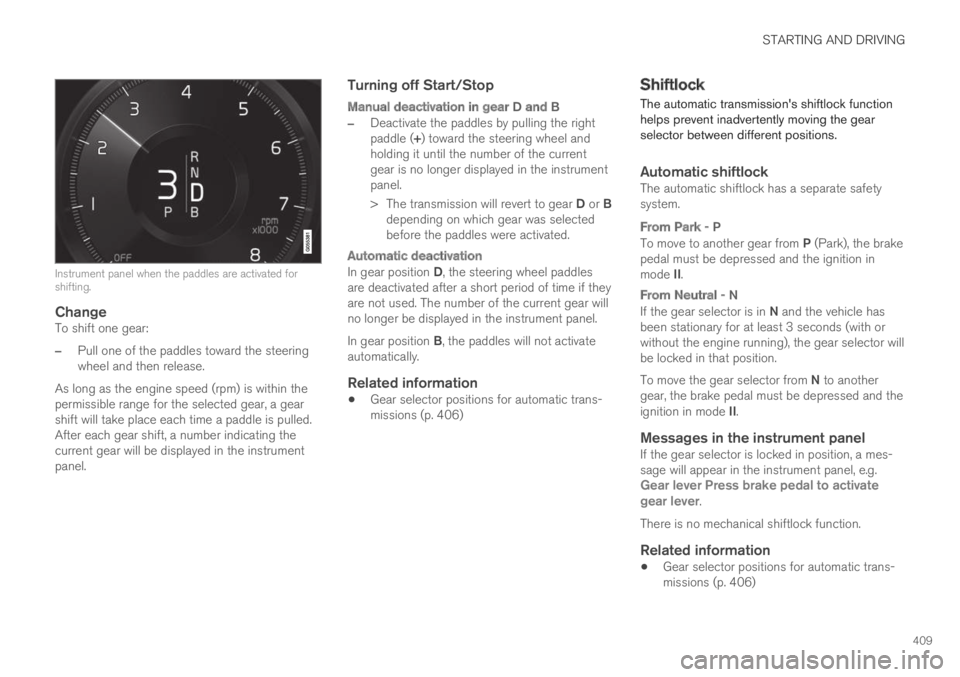
Instrument panel when the paddles are activated forshifting.
Change
To shift one gear:
–Pull one of the paddles toward the steeringwheel and then release.
As long as the engine speed (rpm) is within thepermissible range for the selected gear, a gearshift will take place each time a paddle is pulled.After each gear shift, a number indicating thecurrent gear will be displayed in the instrumentpanel.
Turning off Start/Stop
Manual deactivation in gear D and B
–Deactivate the paddles by pulling the rightpaddle (+) toward the steering wheel andholding it until the number of the currentgear is no longer displayed in the instrumentpanel.
>The transmission will revert to gear D or Bdepending on which gear was selectedbefore the paddles were activated.
Automatic deactivation
In gear position D, the steering wheel paddlesare deactivated after a short period of time if theyare not used. The number of the current gear willno longer be displayed in the instrument panel.
In gear position B, the paddles will not activateautomatically.
Related information
Gear selector positions for automatic trans-missions (p. 406)
Shiftlock
The automatic transmission's shiftlock functionhelps prevent inadvertently moving the gearselector between different positions.
Automatic shiftlock
The automatic shiftlock has a separate safetysystem.
From Park - P
To move to another gear from P (Park), the brakepedal must be depressed and the ignition inmode II.
From Neutral - N
If the gear selector is in N and the vehicle hasbeen stationary for at least 3 seconds (with orwithout the engine running), the gear selector willbe locked in that position.
To move the gear selector from N to anothergear, the brake pedal must be depressed and theignition in mode II.
Messages in the instrument panel
If the gear selector is locked in position, a mes-sage will appear in the instrument panel, e.g.Gear lever Press brake pedal to activategear lever.
There is no mechanical shiftlock function.
Related information
Gear selector positions for automatic trans-missions (p. 406)
Page 462 of 645
AUDIO, MEDIA AND INTERNET
* Option/accessory.460
HD Radio™ limitations
Limitations
Main channel vs. sub-channels (FM only):The main channel is the only channel thatcan receive in hybrid mode (both digital andanalog). If a frequency has sub-channels,they are broadcast in digital mode only. Themain FM channel will be displayed as, forexample, "WRIF-FM HD1". The sub-FMchannels will be displayed as"WRIF-FMHD2", "WRIF-FM HD3", etc.
Reception coverage area: Due to currentIBOC transmitter power limitations, thereception coverage area in digital mode issomewhat more limited than the station'sanalog coverage area. Be aware that, like allradio transmission technology, terrain, time ofday, vegetation and buildings can have apositive or negative effect on radio reception.
Analog to digital/digital to analog blend-ing: Analog to digital blending will occur asthe signal strength reaches a preset thresh-old in the receiver. This will be noticeable infringe areas (areas with weak reception) andis normal.
NOTE
There may be a noticeable difference insound quality when a change from analogueto digital or digital to analogue occurs, suchas:
Volume increase or decrease
Equalizer settings, i.e., Bass/ Midrange/Treble cut or boost
Time alignment (Digital program materialin extreme cases can be as much as 8seconds behind the analogue). This willnoticeable as a "stuttering" effect.
The above items are dependant on thebroadcaster's equipment settings and donot indicate a fault in the vehicle's radioreceiver or antenna systems.
Related information
HD Radio™ (p. 457)
Activating and deactivating the HD Radio™(p. 458)
HD Radio™ sub-channels (p. 459)
SiriusXM® Satellite radio*
The SiriusXM® Satellite system broadcasts fromof a number of high elevation satellites in geo-synchronous orbit.
Listening to satellite radio
The digital signals from the satellites are line-of-sight, which means that physical obstructionssuch as bridges, tunnels, etc, may temporarilyinterfere with signal reception.
Avoid any obstructions, such as metallic objectstransported on roof racks or in a ski box, or otherantennas that may impede signals from the
SiriusXM® satellites.
Selecting SiriusXM ®
Satellite radio
mode
1. From the center display's Home view, swipefrom right to left to come to App view.
2.Tap the SiriusXM® Satellite radio icon.
Page 474 of 645

AUDIO, MEDIA AND INTERNET
472
Controlling and changing media
Media playback can be controlled using voicecommands, the steering wheel keypad or thecenter display.
The media player can be con-trolled using voice commands,the right-side steering wheelkeypad or the center display.
Volume - turn the knob under the center display
or tap on the right-side steering wheelkeypad to raise or lower the volume.
Play/pause - tap the image for the track youwould like to play, or press the button below the
center display or on the right-side steeringwheel keypad.
Changing track/song - tap the desired track in
the center display, or press or belowthe center display or on the right-side steeringwheel keypad.
Rewinding/fast-forwarding - tap the time axis inthe center display and drag it sideways, or press
and hold or below the center display oron the right-side steering wheel keypad.
Changing media source - select from among pre-vious sources in the app, tap the desired app inApp view or use the right-side steering wheel
keypad to select the app in the app menu .
Library - tap the button to playfrom the library.
Shuffle - tap the button to playtracks in a random order.
Similar - tap the button to useGracenote to search for similarmusic on the USB device andcreate a playlist from the musicfound. The playlist can containup to 50 tracks.
Change device - tap the but-ton to toggle between USBdevices when more than one isconnected.
Related information
Media player (p. 470)
Media searches (p. 473)
Sound settings (p. 448)
Apps (p. 450)
Gracenote® (p. 473)
Voice control for radio and media (p. 146)
Page 483 of 645
AUDIO, MEDIA AND INTERNET
* Option/accessory.481
2. Tap SoundSystem Volumes to changethe settings for the following:
Voice Control
Navi Voice Guidance
Phone Ringtone
Related information
Apple® CarPlay®* (p. 479)
Using Apple® CarPlay®* (p. 479)
Resetting center display settings (p. 132)
Tips for using Apple® CarPlay®*
Here are some useful tips for when you use
CarPlay®.
Update your iOS device with the latest ver-sion of the iOS operating system and ensurethat the apps have been updated.
In the event of a problem with CarPlay,unplug the iOS device from the USB portand then plug it in again. Otherwise, try toclose the app on the device that is not work-ing and then restart the app, or try closing allapps and restart your device.
If the apps do not appear when CarPlaystarts (black screen), try minimizing andexpanding the tile for CarPlay.
Using apps that are not compatible withCarPlay may sometimes cause the connec-tion between the iOS device and the vehicleto be broken. Information about supportedapps and compatible devices can be foundon Apple's website. You can also search forCarPlay in the App Store to find informationabout apps that are compatible with CarPlayin your market.
You can use Siri to write or dictate messagesor have them read aloud. Messages are readaloud and dictated in the language selectedin the Siri settings. When a message is writ-
ten/dictated, it will be displayed in the iOSdevice, but not in the center display.
If the device is connected to the vehiclethrough Bluetooth, the connection will bebroken when CarPlay is used. Resume Inter-net connection in the vehicle by tetheringusing the device's Wi-Fi hotspot.
CarPlay only works with iPhone9.
NOTE
Availability and functionality can vary depend-ing on market.
Related information
Apple® CarPlay®* (p. 479)
Connecting the vehicle to the Internet via aphone (Wi-Fi) (p. 495)
8Apple and CarPlay are registered trademarks of Apple Inc..9Apple, CarPlay and iPhone are registered trademarks owned by Apple Inc.
Page 487 of 645
AUDIO, MEDIA AND INTERNET
}}
485
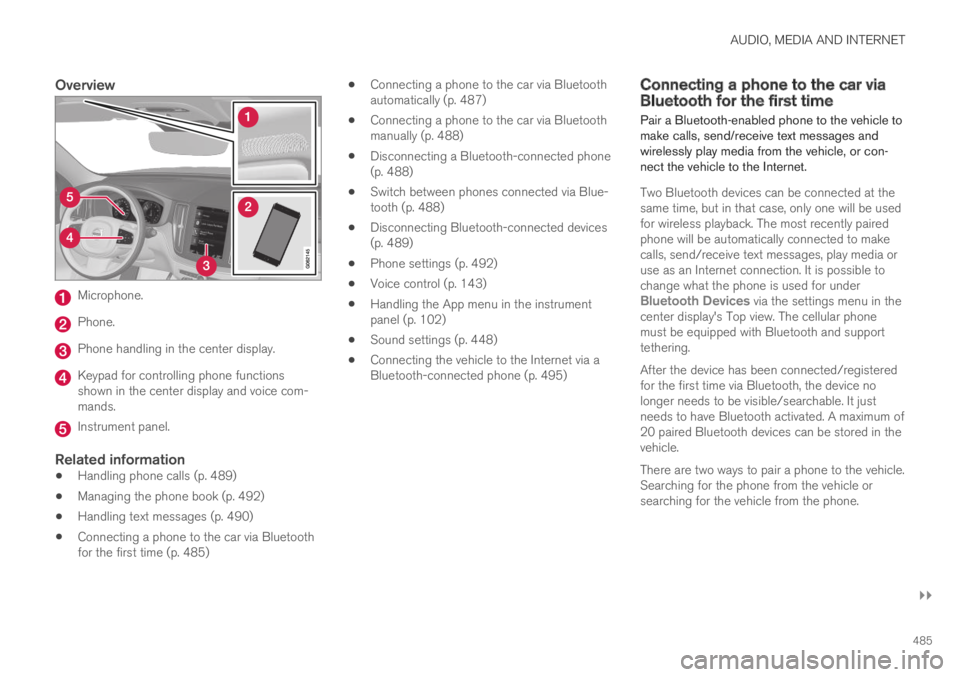
Overview
Microphone.
Phone.
Phone handling in the center display.
Keypad for controlling phone functionsshown in the center display and voice com-mands.
Instrument panel.
Related information
Handling phone calls (p. 489)
Managing the phone book (p. 492)
Handling text messages (p. 490)
Connecting a phone to the car via Bluetoothfor the first time (p. 485)
Connecting a phone to the car via Bluetoothautomatically (p. 487)
Connecting a phone to the car via Bluetoothmanually (p. 488)
Disconnecting a Bluetooth-connected phone(p. 488)
Switch between phones connected via Blue-tooth (p. 488)
Disconnecting Bluetooth-connected devices(p. 489)
Phone settings (p. 492)
Voice control (p. 143)
Handling the App menu in the instrumentpanel (p. 102)
Sound settings (p. 448)
Connecting the vehicle to the Internet via aBluetooth-connected phone (p. 495)
Connecting a phone to the car viaBluetooth for the first time
Pair a Bluetooth-enabled phone to the vehicle tomake calls, send/receive text messages andwirelessly play media from the vehicle, or con-nect the vehicle to the Internet.
Two Bluetooth devices can be connected at thesame time, but in that case, only one will be usedfor wireless playback. The most recently pairedphone will be automatically connected to makecalls, send/receive text messages, play media oruse as an Internet connection. It is possible tochange what the phone is used for underBluetooth Devices via the settings menu in thecenter display's Top view. The cellular phonemust be equipped with Bluetooth and supporttethering.
After the device has been connected/registeredfor the first time via Bluetooth, the device nolonger needs to be visible/searchable. It justneeds to have Bluetooth activated. A maximum of20 paired Bluetooth devices can be stored in thevehicle.
There are two ways to pair a phone to the vehicle.Searching for the phone from the vehicle orsearching for the vehicle from the phone.
Page 490 of 645
AUDIO, MEDIA AND INTERNET
* Option/accessory.488
Connecting a phone to the car viaBluetooth manually
A phone can be manually connected to the vehi-cle via Bluetooth. The phone must have firstbeen paired with the vehicle.
1. Activate Bluetooth in the phone.
2.Open the phone tile.
> A list of available phones will be displayed.
3. Tap the name of the phone you would like toconnect.
> The phone will be connected.
Related information
Phone (p. 484)
Connecting a phone to the car via Bluetoothfor the first time (p. 485)
Connecting a phone to the car via Bluetoothautomatically (p. 487)
Disconnecting a Bluetooth-connected phone(p. 488)
Switch between phones connected via Blue-tooth (p. 488)
Disconnecting Bluetooth-connected devices(p. 489)
Settings for Bluetooth devices (p. 493)
Internet-connected vehicle* (p. 494)
Connecting the vehicle to the Internet via aBluetooth-connected phone (p. 495)
Disconnecting a Bluetooth-connected phone
A Bluetooth-connected phone can be discon-nected from the vehicle.
When the phone is out of range of the vehi-cle, it will be automatically disconnected. If acall is in progress when the phone is discon-nected from the vehicle, the call will be trans-ferred from the vehicle's speakers and micro-phone to the cellular phone.
The phone can also be disconnected bymanually deactivating Bluetooth.
Related information
Phone (p. 484)
Phone settings (p. 492)
Switch between phones connected via Blue-tooth (p. 488)
Disconnecting Bluetooth-connected devices(p. 489)
Settings for Bluetooth devices (p. 493)
Switch between phones connectedvia Bluetooth
It is possible to switch between Bluetooth-con-nected phones.
1. Open the phone tile.
2.Tap Change or pull down Top view and
tap SettingsCommunication
Bluetooth DevicesAdd device.
> A list of available Bluetooth devices will bedisplayed.
3. Tap the name of the phone you would like toconnect.
Related information
Phone (p. 484)
Connecting a phone to the car via Bluetoothfor the first time (p. 485)
Settings for Bluetooth devices (p. 493)
Disconnecting a Bluetooth-connected phone(p. 488)
Disconnecting Bluetooth-connected devices(p. 489)