phone VOLVO S60 TWIN ENGINE 2020 Repair Manual
[x] Cancel search | Manufacturer: VOLVO, Model Year: 2020, Model line: S60 TWIN ENGINE, Model: VOLVO S60 TWIN ENGINE 2020Pages: 657, PDF Size: 13.6 MB
Page 494 of 657
||
AUDIO, MEDIA AND INTERNET
492opened using the
button on the right-side
steering wheel keypad.
Making multiple calls
While the call is in progress: 1. Tap
Add call.
2. Select from the list of recent calls, favor- ites or contacts.
3. Tap an item/row in the list of recent calls or
for the contact in the phone book.
4. Tap
Swap call to switch between calls.
5. Tap
to end the current call.
Group (conference) calls
While multiple calls are in progress: 1.
Tap
Join calls to merge ongoing calls.
2. Tap
to end the call.
Incoming callsIncoming phone calls will be shown on the instrument panel and in the center display.Manage the calls using the right-side steeringwheel keypad or the center display. 1.
Tap
Answer/Reject.
2. Tap
to end the call.
Incoming calls while another call is in progress
1.
Tap Answer/Reject. 2.
Tap
to end the call.
Privacy–While a call is in progress, tap Privacyand select setting:
Switch to mobile phone - the hands-
free function will be disabled and the call will proceed on the cellular phone.
Driver focused - the microphone in the
ceiling liner on the passenger side will be muted and the call will proceedusing the vehicle's hands-free function.
Related information
Phone (p. 487)
Connecting a phone to the car via Blue-tooth for the first time (p. 488)
Voice control for cellular phones (p. 145)
Handling the App menu in the instrumentpanel (p. 102)
Entering characters, letters and words byhand in the center display (p. 126)
Managing the phone book (p. 494)
Handling text messages (p. 492)
Sound settings (p. 450)
Handling text messages 10
A Bluetooth-connected cellular phone's text messages can be handled in the vehicle.
Text message functionality needs to be acti- vated in certain phones. Not all phones arefully compatible and therefore cannot displaycontacts and messages in the vehicle.
Handling text messages in the center
display
Text messages are only shown in the centerdisplay if the relevant setting is made.
Tap
Messages in App view
to handle text messages in the center display.
NOTE
When the vehicle is moving:
Only one row of the message will be displayed. Tap
Read out to have the
entire message read aloud.
The center display's keyboard cannot be used.
Page 495 of 657
AUDIO, MEDIA AND INTERNET
* Option/accessory.493
Reading text messages in the center display aloud
Tap the icon to have the message read aloud.
Sending text messages in the center display11
1. It is possible to reply to text messages or
create a new message.
To reply to a text message - tap the name of the contact who sent the mes- sage and then tap
Answer.
To create a new message - tap
Create
new. Select a contact or enter a phone
number.
2. Write the message. 3. Tap
Send.
Handling test messages in the instrument panel
Text messages are only shown in the instru- ment panel if the relevant setting is made.
Reading new text messages in the instrument panel aloud
–To have the message read aloud, selectRead out using the steering wheel key-
pad.
Dictating replies in the instrument panel
After the test message has been read aloud, it is possible to answer briefly with dictation ifthe vehicle has an Internet connection.
–Tap Answer using the steering wheel key-
pad. A dictation dialog will start.
Message alertAlerts can be activated and deactivated in the text message settings.
Related information
Phone (p. 487)
Text message settings (p. 493)
Phone settings (p. 494)
Internet-connected vehicle
* (p. 496)
Voice control for cellular phones (p. 145)
Entering characters, letters and words byhand in the center display (p. 126)
Connecting a phone to the car via Blue-tooth for the first time (p. 488)
Terms of use and data sharing (p. 502)
Text message settings Settings for handling text messages received through a connected phone can be personal-ized.
1.
Tap Settings in the Top view.
2. Tap
CommunicationText Messagesand select settings:
Notification in center display - dis-
play text message notifications in the center display's status bar.
Notification in driver display - dis-
plays notifications in the driver's display and incoming messages can be man-aged using the steering wheel's right-hand keypad.
Text message tone - select tone for
incoming text messages.
Related information
Phone (p. 487)
Connecting a phone to the car via Blue- tooth for the first time (p. 488)
Handling text messages (p. 492)
Phone settings (p. 494)
10
Only applies to certain markets. Contact a Volvo retailer for more information.11Not all phones can send messages via the vehicle.
Page 496 of 657
AUDIO, MEDIA AND INTERNET
* Option/accessory.
494
Managing the phone book When a phone is connected with Bluetooth to the vehicle, contacts can be manageddirectly in the center display.
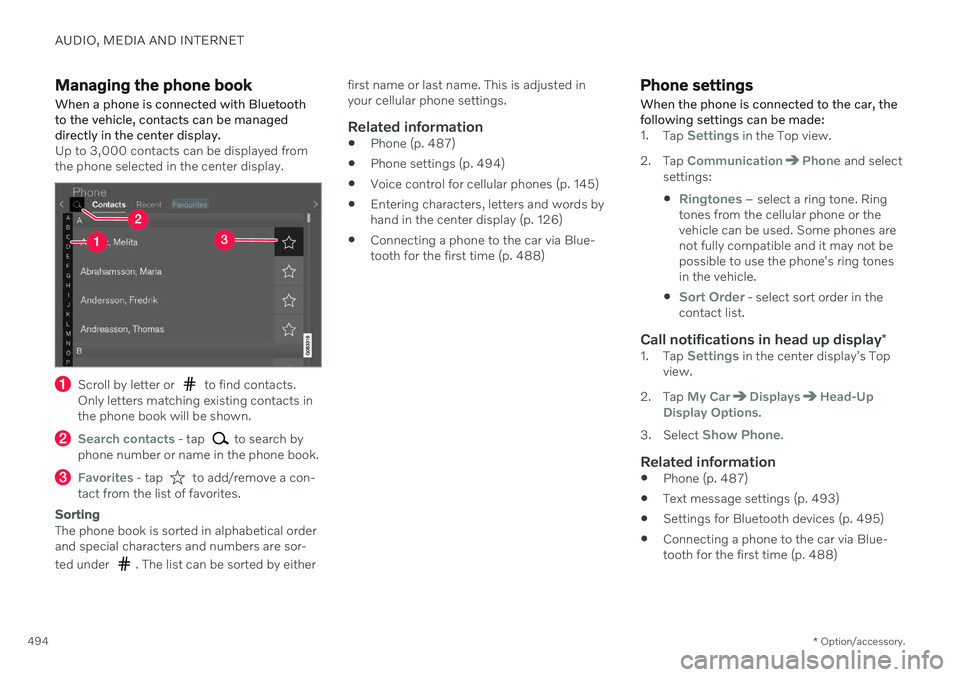
Up to 3,000 contacts can be displayed from the phone selected in the center display.
Scroll by letter or to find contacts.
Only letters matching existing contacts in the phone book will be shown.
Search contacts - tap to search by
phone number or name in the phone book.
Favorites - tap to add/remove a con-
tact from the list of favorites.
Sorting
The phone book is sorted in alphabetical order and special characters and numbers are sor- ted under
. The list can be sorted by either first name or last name. This is adjusted in your cellular phone settings.
Related information
Phone (p. 487)
Phone settings (p. 494)
Voice control for cellular phones (p. 145)
Entering characters, letters and words byhand in the center display (p. 126)
Connecting a phone to the car via Blue-tooth for the first time (p. 488)
Phone settings When the phone is connected to the car, the following settings can be made:
1.
Tap Settings in the Top view.
2. Tap
CommunicationPhone and select
settings:
Ringtones – select a ring tone. Ring
tones from the cellular phone or the vehicle can be used. Some phones arenot fully compatible and it may not bepossible to use the phone's ring tonesin the vehicle.
Sort Order - select sort order in the
contact list.
Call notifications in head up display *1.
Tap Settings in the center display's Top
view.
2. Tap
My CarDisplaysHead-Up
Display Options.
3. Select
Show Phone.
Related information
Phone (p. 487)
Text message settings (p. 493)
Settings for Bluetooth devices (p. 495)
Connecting a phone to the car via Blue- tooth for the first time (p. 488)
Page 497 of 657
AUDIO, MEDIA AND INTERNET
* Option/accessory.495
Head-up display
* (p. 139)
Sound settings (p. 450)
Settings for Bluetooth devices
Settings for Bluetooth-connected devices.
1. Tap Settings in the Top view.
2. Tap
CommunicationBluetooth
Devices and select settings:
Add device - start the procedure for pair-
ing a new device.
Previously paired devices - lists regis-
tered/paired devices.
Remove device - remove a connected
device.
Allowed services for this device - select
what the device will be used for: making calls, sending/receiving messages,streaming media, Internet connection.
Internet connection connect the vehicle
to the Internet using the device's Bluetooth connection.
Bluetooth ®
declaration of conformityUSA FCC CAUTIONChanges or modifications not expressly approved by the party responsible for compli-ance could void the user's authority to operatethe equipment. This transmitter must not beco-located or operated in conjunction with anyother antenna or transmitter. Canada This device complies with Industry Canada license-exempt RSS standard(s). Operation issubject to the following two conditions: (1) this device may not cause interference, and (2) this device must accept any interference, including interference that may cause unde-sired operation of the device.
Related information
Phone (p. 487)
Phone settings (p. 494)
Internet-connected vehicle
* (p. 496)
Connecting a phone to the car via Blue-tooth for the first time (p. 488)
Page 498 of 657
AUDIO, MEDIA AND INTERNET
* Option/accessory.
496
Internet-connected vehicle *
When the vehicle is connected to the Inter- net, it is possible to use web radio and musicservices via apps, download software andcontact retailers from the vehicle.
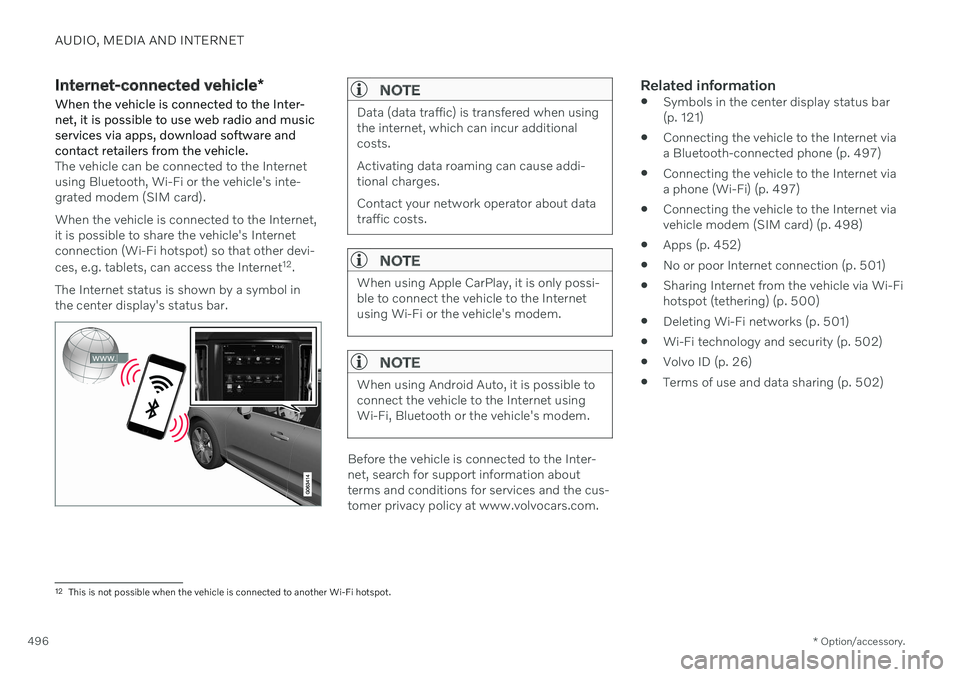
The vehicle can be connected to the Internet using Bluetooth, Wi-Fi or the vehicle's inte-grated modem (SIM card). When the vehicle is connected to the Internet, it is possible to share the vehicle's Internetconnection (Wi-Fi hotspot) so that other devi- ces, e.g. tablets, can access the Internet 12
.
The Internet status is shown by a symbol in the center display's status bar.
NOTE
Data (data traffic) is transfered when using the internet, which can incur additionalcosts. Activating data roaming can cause addi- tional charges. Contact your network operator about data traffic costs.
NOTE
When using Apple CarPlay, it is only possi- ble to connect the vehicle to the Internetusing Wi-Fi or the vehicle's modem.
NOTE
When using Android Auto, it is possible to connect the vehicle to the Internet usingWi-Fi, Bluetooth or the vehicle's modem.
Before the vehicle is connected to the Inter- net, search for support information aboutterms and conditions for services and the cus-tomer privacy policy at www.volvocars.com.
Related information
Symbols in the center display status bar(p. 121)
Connecting the vehicle to the Internet viaa Bluetooth-connected phone (p. 497)
Connecting the vehicle to the Internet viaa phone (Wi-Fi) (p. 497)
Connecting the vehicle to the Internet viavehicle modem (SIM card) (p. 498)
Apps (p. 452)
No or poor Internet connection (p. 501)
Sharing Internet from the vehicle via Wi-Fihotspot (tethering) (p. 500)
Deleting Wi-Fi networks (p. 501)
Wi-Fi technology and security (p. 502)
Volvo ID (p. 26)
Terms of use and data sharing (p. 502)
12
This is not possible when the vehicle is connected to another Wi-Fi hotspot.
Page 499 of 657
AUDIO, MEDIA AND INTERNET
}}
* Option/accessory.497
Connecting the vehicle to the Internet via a Bluetooth-connectedphone
Establish an Internet connection using
Bluetooth and tethering from a phone andget access to multiple connected services inyour vehicle.
1. To connect the vehicle to the Internet via a Bluetooth-connected phone, the phone must first be paired with the vehicle viaBluetooth.
2. Make sure that the phone supports Inter- net sharing (tethering) and that the func-tion is activated. In an iPhone, the functionis called "personal hotspot". In Androidphones, the function can have differentnames, but is often called "hotspot". ForiPhone phones, the "personal hotspot"menu page must also be open until theInternet connection has been made.
3. If the phone has been connected via Blue- tooth previously, tap
Settings in the cen-
ter display's Top view.
4. Tap
CommunicationBluetooth
Devices.
5. Mark the window for
Bluetooth Internet
connection under the heading Internet
connection. 6. If a different connection is being used,
confirm the connection change.
> Your vehicle is now connected to theInternet via your Bluetooth-connected phone.
NOTE
The cellular phone and network operator must support tethering (sharing of Internetconnection) and the subscription mustinclude data traffic.
NOTE
When using Apple CarPlay, it is only possi- ble to connect the vehicle to the Internetusing Wi-Fi or the vehicle's modem.
Related information
Internet-connected vehicle
* (p. 496)
Connecting the vehicle to the Internet via vehicle modem (SIM card) (p. 498)
Connecting a phone to the car via Blue-tooth for the first time (p. 488)
Connecting the vehicle to the Internet viaa phone (Wi-Fi) (p. 497)
Apple ®
CarPlay ®
* (p. 480)
No or poor Internet connection (p. 501)
Settings for Bluetooth devices (p. 495)
Connecting the vehicle to the Internet via a phone (Wi-Fi) Establish an Internet connection using Wi-Fi through Internet sharing (tethering) from aphone and get access to the connected servi-ces in your vehicle.
1. Make sure that the phone supports Inter-
net sharing (tethering) and that the func- tion is activated. In an iPhone, the functionis called "personal hotspot". In Androidphones, the function can have differentnames, but is often called "hotspot". ForiPhone phones, the "personal hotspot"menu page must also be open until theInternet connection has been made.
2. Tap
Settings in the Top view.
3. Proceed to
CommunicationWi-Fi.
4. Activate/deactivate by tapping to check/ uncheck the Wi-Fi box.
5. If a different connection is being used, confirm the connection change.
6. Tap the name of the network you would like to connect.
7. Enter the network password. > The vehicle will connect to the network.
Please note that certain cellular phones will disable Internet sharing (tethering) when theconnection to the vehicle has been broken,e.g. when the phone has been removed from
Page 500 of 657
||
AUDIO, MEDIA AND INTERNET
* Option/accessory.
498 the vehicle. The phone's tethering function will then need to be reactivated the next time thephone's hotspot is used to connect to theInternet. When a phone is connected to the vehicle, it will be saved for future use. To display a list ofsaved networks or to manually delete saved networks, tap
SettingsCommunication
Wi-FiSaved networks.
NOTE
The cellular phone and network operator must support tethering (sharing of Internetconnection) and the subscription mustinclude data traffic.
Technical and security requirements for Wi-Fi connection are described in a separate sec-tion.
Related information
Internet-connected vehicle
* (p. 496)
Deleting Wi-Fi networks (p. 501)
No or poor Internet connection (p. 501)
Wi-Fi technology and security (p. 502)
Connecting the vehicle to the Internet via vehicle modem (SIMcard)
It is possible to establish an Internet connec- tion via the vehicle modem and a personal
SIM card (P-SIM).
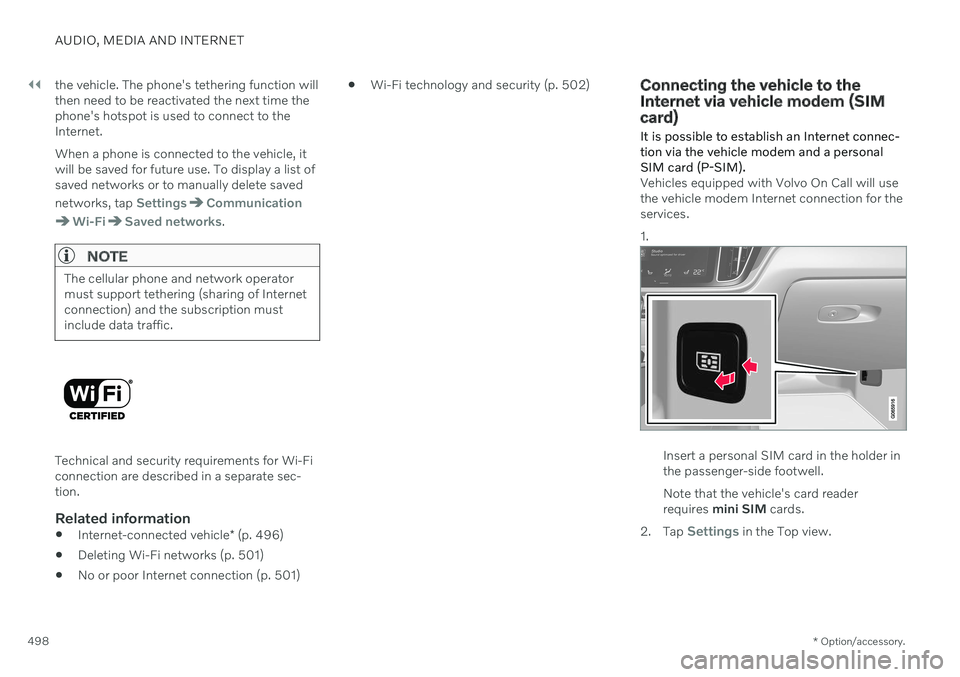
Vehicles equipped with Volvo On Call will use the vehicle modem Internet connection for theservices. 1.
Insert a personal SIM card in the holder in the passenger-side footwell. Note that the vehicle's card reader requires mini SIM cards.
2. Tap
Settings in the Top view.
Page 501 of 657

AUDIO, MEDIA AND INTERNET
* Option/accessory.499
3. Tap
CommunicationVehicle Modem
Internet.
4. Activate/deactivate by tapping to check/ uncheck the
Vehicle modem Internetbox.
5. If a different connection is being used, confirm the connection change.
6. Enter the SIM card's PIN code. > The vehicle will connect to the network.
NOTE
Please note that the SIM card used for Internet connection via P-SIM cannot havethe same telephone number as the SIMcard used in the cellular phone. If the samecard is used for both, phone calls will notbe connected properly to the cellularphone. Use a SIM card with a separatephone number for the Internet connectionor a data card that does not handle phonecalls and can therefore not interfere withphone function.
Related information
Internet-connected vehicle
* (p. 496)
No or poor Internet connection (p. 501)
Vehicle modem settings (p. 499)
Vehicle modem settings Your vehicle is equipped with a modem that can be used to connect the vehicle to theInternet. It is also possible to share this Inter-net connection over Wi-Fi.
1.
Tap Settings in the Top view.
2. Tap
CommunicationVehicle Modem
Internet and select settings:
Vehicle modem Internet - select this to
use the vehicle's modem to connect to the Internet.
Data usage - tap Reset to reset the coun-
ter for the amount of data received and sent.
Network.
Select carrier - select a service provider
manually or automatically.
Data roaming - if the box is checked, the
vehicle modem will attempt to connect to the Internet when the vehicle is outside itshome network (e.g. if you are in anothercountry). Please note that this could entailadditional charges. Consult with your serv-ice provider for data roaming terms underyour contract.
SIM card PIN.
Change PIN - a maximum of 4 digits can
be entered.
Disable PIN - select whether a PIN code
will be required to access the SIM card.
Send request code - used to e.g. down-
load or check the balance remaining on a prepaid phone card. This function is spe-cific to your service provider.
NOTE
Please note that the SIM card used for Internet connection via P-SIM cannot havethe same telephone number as the SIMcard used in the cellular phone. If the samecard is used for both, phone calls will notbe connected properly to the cellularphone. Use a SIM card with a separatephone number for the Internet connectionor a data card that does not handle phonecalls and can therefore not interfere withphone function.
Related information
Connecting the vehicle to the Internet via vehicle modem (SIM card) (p. 498)
No or poor Internet connection (p. 501)
Page 503 of 657
AUDIO, MEDIA AND INTERNET
* Option/accessory.501
No or poor Internet connection Factors affecting the Internet connection.
The amount of data transmitted depends on the services or apps currently in use in thevehicle. Streaming music, for example,involves the transmission of a large amount ofdata, and this requires a good connection anda strong signal.
Phone to vehicleInternet connection speed may vary depend-ing on the location of the cellular phone in thevehicle. Move the phone closer to the centerdisplay to increase signal strength. Make surethat nothing is between the phone and centerdisplay that could be blocking the signal.
Phone to network operatorThe speed of the mobile network variesdepending on the coverage in the vehicle'scurrent location. Coverage may be poorer ine.g. tunnels, mountainous areas, deep valleysor indoors. Connection speed is also depend-ent on the subscription you have with yourservice provider.
NOTE
If you experience any problems with data traffic, contact your network service pro-vider.
Restarting the phoneIf you experience any Internet connection problems, it may help to restart your phone.
Related information
Internet-connected vehicle
* (p. 496)
Wi-Fi technology and security (p. 502)
Deleting Wi-Fi networks
Networks that are not needed can be deleted.
1. Tap Settings in the Top view.
2. Proceed to
CommunicationWi-FiSaved networks.
3. Tap
Forget to delete the network.
4. Confirm the selection. > The vehicle will no longer connect tothe deleted network.
Deleting all networksAll networks can be deleted at once by per- forming a factory reset. Please note that alluser data and system settings will be restoredto original default factory settings.
Related information
Internet-connected vehicle
* (p. 496)
No or poor Internet connection (p. 501)
Resetting center display settings (p. 131)
Connecting the vehicle to the Internet viaa phone (Wi-Fi) (p. 497)
Page 508 of 657
||
AUDIO, MEDIA AND INTERNET
506Portions of the content are copyright
© of
Gracenote or its providers. Gracenote, the Gracenote logo and logotype, "Powered by Gracenote" and GracenoteMusicID are either registered trademarks ofGracenote, Inc. in the United States and/orother countries.
Gracenote ®
End User License Agreement
This application or device contains software from Gracenote, Inc. in Emeryville, California,United States (“Gracenote”). The softwarefrom Gracenote (the “Gracenote Software”)enables this application to perform disc and/orfile identification and obtain music-relatedinformation, including name, artist, track, andtitle information (“Gracenote Data”) fromonline servers or embedded databases (collec-tively “Gracenote Servers”) and to performother functions. You may use Gracenote Dataonly by means of the intended End-User func-tions of this application or device. You agree that you will use Gracenote Data, the Gracenote Software, and Gracenote Serv-ers for your own personal non-commercial useonly. You agree not to assign, copy, transfer ortransmit the Gracenote Software or anyGracenote Data to any third party. YOUAGREE NOT TO USE OR EXPLOIT GRACE-NOTE DATA, THE GRACENOTE SOFTWARE,OR GRACENOTE SERVERS, EXCEPT ASEXPRESSLY PERMITTED HEREIN. You agree that your non-exclusive license touse the Gracenote Data, the Gracenote Soft-ware, and Gracenote Servers will terminate ifyou violate these restrictions. If your licenseterminates, you agree to cease any and all useof the Gracenote Data, the Gracenote Soft-ware, and Gracenote Servers. Gracenotereserves all rights in all Gracenote Data, allGracenote Software, and all Gracenote Serv-ers, including all ownership rights. Under nocircumstances will Gracenote become liablefor any payment to you for any informationthat you provide. You agree that Gracenote,Inc. may enforce its rights under this Agree-ment against you directly in its own name. The Gracenote service uses a unique identifier to track queries for statistical purposes. Thepurpose of a randomly assigned numeric iden-tifier is to allow the Gracenote service to countqueries without knowing anything about whoyou are. For more information, see the webpage for the Gracenote Privacy Policy for theGracenote service. The Gracenote Software and each item of Gracenote Data are licensed to you “AS IS.”Gracenote makes no representations or war-ranties, express or implied, regarding theaccuracy of any Gracenote Data from in theGracenote Servers. Gracenote reserves theright to delete data from the Gracenote Serv-ers or to change data categories for any causethat Gracenote deems sufficient. No warranty is made that the Gracenote Software orGracenote Servers are error-free or that func-tioning of Gracenote Software or GracenoteServers will be uninterrupted. Gracenote is notobligated to provide you with new enhancedor additional data types or categories thatGracenote may provide in the future and isfree to discontinue its services at any time. GRACENOTE DISCLAIMS ALL WARRAN- TIES EXPRESS OR IMPLIED, INCLUDING,BUT NOT LIMITED TO, IMPLIED WARRAN-TIES OF MERCHANTABILITY, FITNESS FORA PARTICULAR PURPOSE, TITLE, ANDNON-INFRINGEMENT. GRACENOTE DOESNOT WARRANT THE RESULTS THAT WILLBE OBTAINED BY YOUR USE OF THEGRACENOTE SOFTWARE OR ANY GRACE-NOTE SERVER. IN NO CASE WILL GRACE-NOTE BE LIABLE FOR ANY CONSEQUEN-TIAL OR INCIDENTAL DAMAGES OR FORANY LOST PROFITS OR LOST REVENUES.
©
Gracenote, Inc. 2009
Sensus software
This software uses parts of sources from clib2 and Prex Embedded Real-time OS - Source (Copyright (c) 1982, 1986, 1991, 1993, 1994),and Quercus Robusta (Copyright (c) 1990, 1993), The Regents of the University ofCalifornia. All or some portions are derived from material licensed to the University ofCalifornia by American Telephone and