audio VOLVO S80 2008 User Guide
[x] Cancel search | Manufacturer: VOLVO, Model Year: 2008, Model line: S80, Model: VOLVO S80 2008Pages: 275, PDF Size: 7.17 MB
Page 132 of 275
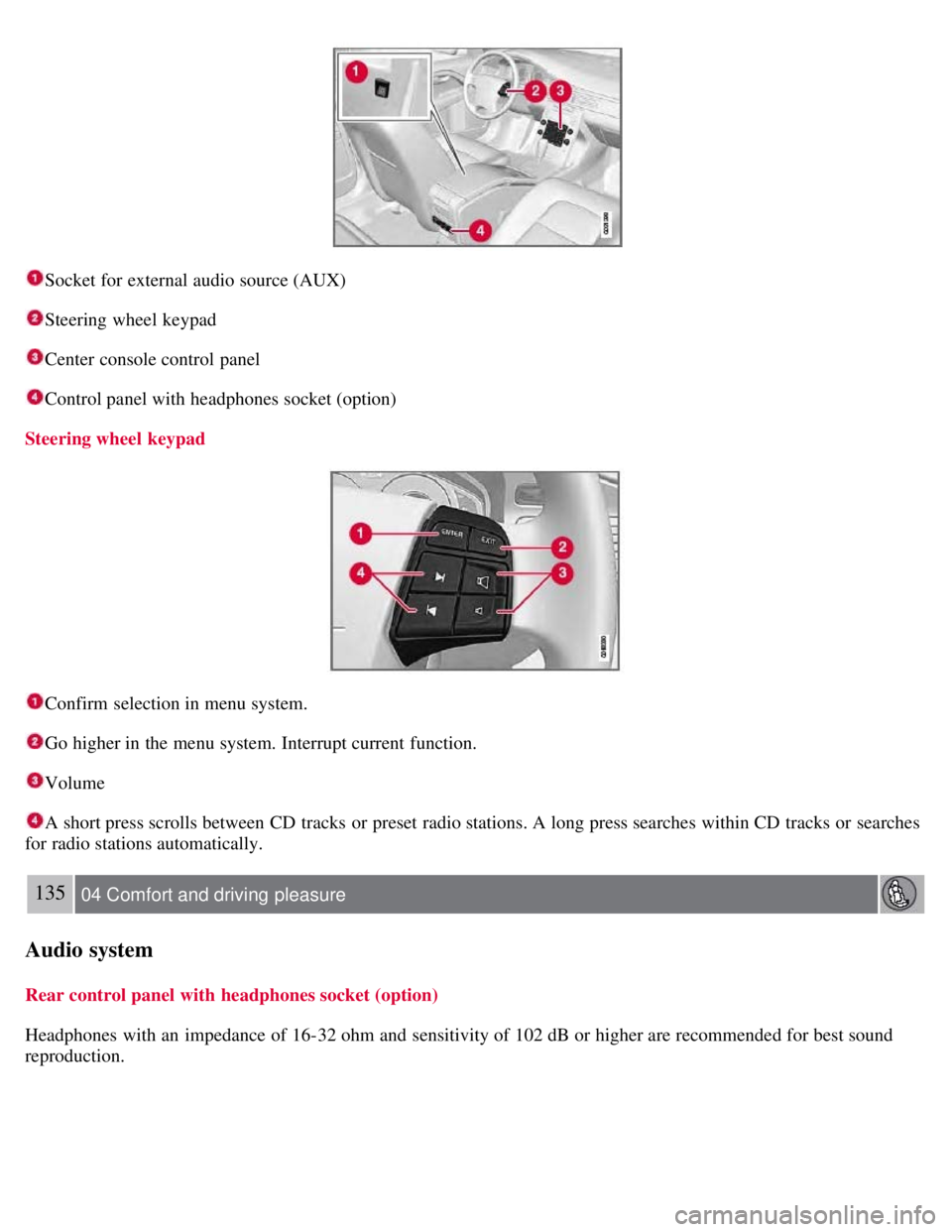
Socket for external audio source (AUX)
Steering wheel keypad
Center console control panel
Control panel with headphones socket (option)
Steering wheel keypad
Confirm selection in menu system.
Go higher in the menu system. Interrupt current function.
Volume
A short press scrolls between CD tracks or preset radio stations. A long press searches within CD tracks or searches
for radio stations automatically.
135 04 Comfort and driving pleasure
Audio system
Rear control panel with headphones socket (option)
Headphones with an impedance of 16-32 ohm and sensitivity of 102 dB or higher are recommended for best sound
reproduction.
Page 133 of 275
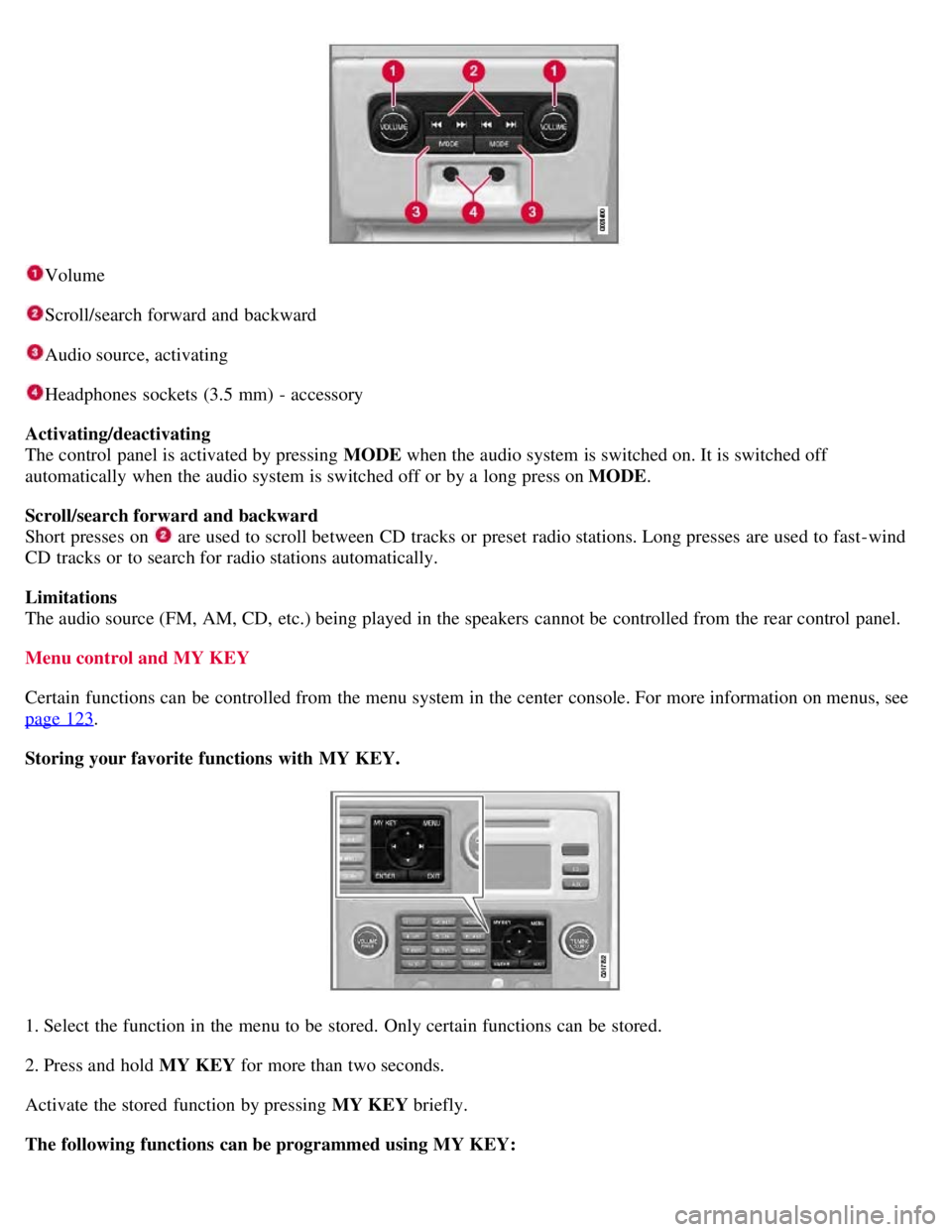
Volume
Scroll/search forward and backward
Audio source, activating
Headphones sockets (3.5 mm) - accessory
Activating/deactivating
The control panel is activated by pressing MODE when the audio system is switched on. It is switched off
automatically when the audio system is switched off or by a long press on MODE .
Scroll/search forward and backward
Short presses on
are used to scroll between CD tracks or preset radio stations. Long presses are used to fast -wind
CD tracks or to search for radio stations automatically.
Limitations
The audio source (FM, AM, CD, etc.) being played in the speakers cannot be controlled from the rear control panel.
Menu control and MY KEY
Certain functions can be controlled from the menu system in the center console. For more information on menus, see
page 123
.
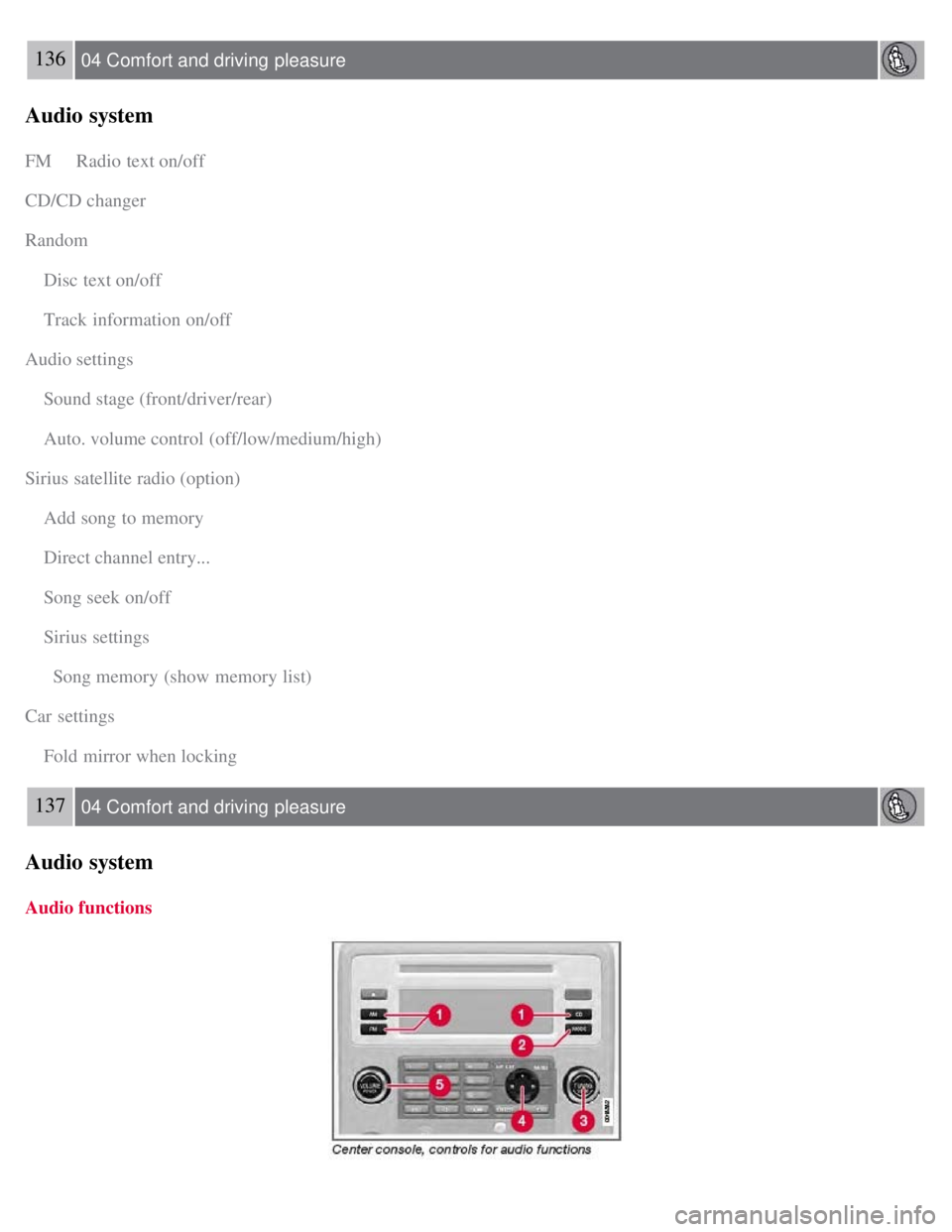
Storing your favorite functions with MY KEY.
1. Select the function in the menu to be stored. Only certain functions can be stored.
2. Press and hold MY KEY for more than two seconds.
Activate the stored function by pressing MY KEY briefly.
The following functions can be programmed using MY KEY:
Page 134 of 275
136 04 Comfort and driving pleasure
Audio system
FM Radio text on/off
CD/CD changer
Random
Disc text on/off
Track information on/off
Audio settings
Sound stage (front/driver/rear)
Auto. volume control (off/low/medium/high)
Sirius satellite radio (option)
Add song to memory
Direct channel entry...
Song seek on/off
Sirius settings
Song memory (show memory list)
Car settings
Fold mirror when locking
137 04 Comfort and driving pleasure
Audio system
Audio functions
Page 135 of 275
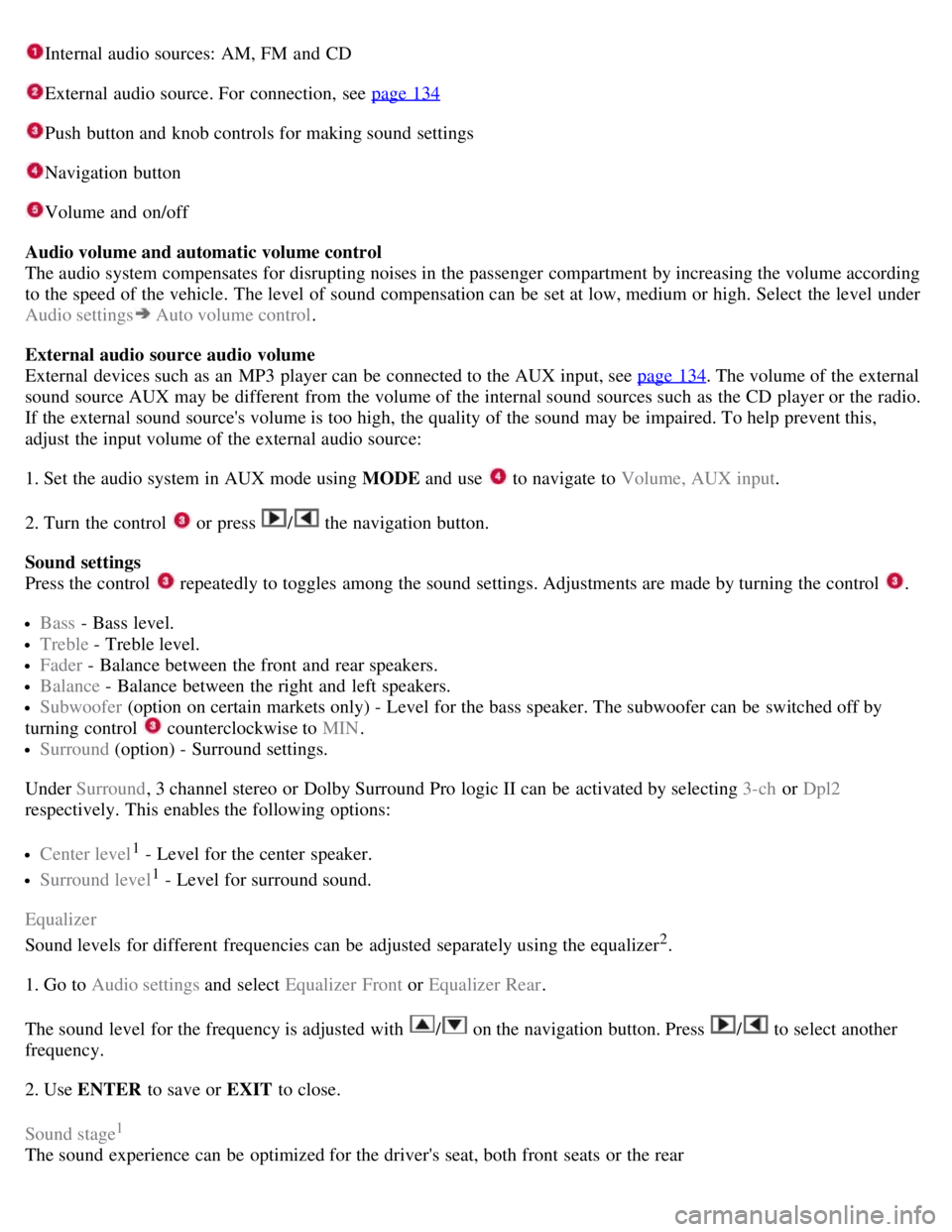
Internal audio sources: AM, FM and CD
External audio source. For connection, see page 134
Push button and knob controls for making sound settings
Navigation button
Volume and on/off
Audio volume and automatic volume control
The audio system compensates for disrupting noises in the passenger compartment by increasing the volume according
to the speed of the vehicle. The level of sound compensation can be set at low, medium or high. Select the level under
Audio settings
Auto volume control .
External audio source audio volume
External devices such as an MP3 player can be connected to the AUX input, see page 134
. The volume of the external
sound source AUX may be different from the volume of the internal sound sources such as the CD player or the radio.
If the external sound source's volume is too high, the quality of the sound may be impaired. To help prevent this,
adjust the input volume of the external audio source:
1. Set the audio system in AUX mode using MODE and use
to navigate to Volume, AUX input.
2. Turn the control
or press / the navigation button.
Sound settings
Press the control
repeatedly to toggles among the sound settings. Adjustments are made by turning the control .
Bass - Bass level.
Treble - Treble level.
Fader - Balance between the front and rear speakers.
Balance - Balance between the right and left speakers.
Subwoofer (option on certain markets only) - Level for the bass speaker. The subwoofer can be switched off by
turning control
counterclockwise to MIN .
Surround (option) - Surround settings.
Under Surround , 3 channel stereo or Dolby Surround Pro logic II can be activated by selecting 3-ch or Dpl2
respectively. This enables the following options:
Center level1 - Level for the center speaker.
Surround level1 - Level for surround sound.
Equalizer
Sound levels for different frequencies can be adjusted separately using the equalizer
2.
1. Go to Audio settings and select Equalizer Front or Equalizer Rear.
The sound level for the frequency is adjusted with
/ on the navigation button. Press / to select another
frequency.
2. Use ENTER to save or EXIT to close.
Sound stage
1
The sound experience can be optimized for the driver's seat, both front seats or the rear
Page 136 of 275
1Premium Sound
2Certain audio systems
138 04 Comfort and driving pleasure
Audio system
seat. Select one of the options under Audio settings Soundstage.
Optimal sound reproduction
The audio system is calibrated for optimal sound reproduction using digital signal processing.
This calibration takes into account factors such as the speakers, amplifier, cabin acoustics, the listeners' seating
positions, etc., for each combination of vehicle/audio system.
There is also a dynamic calibration that takes into consideration the volume level, radio reception, and the speed of the
vehicle.
The settings that are described in this manual, such as Bass , Treble, and Equalizer are only intended to enable the user
to adapt sound reproduction to his/her personal tastes.
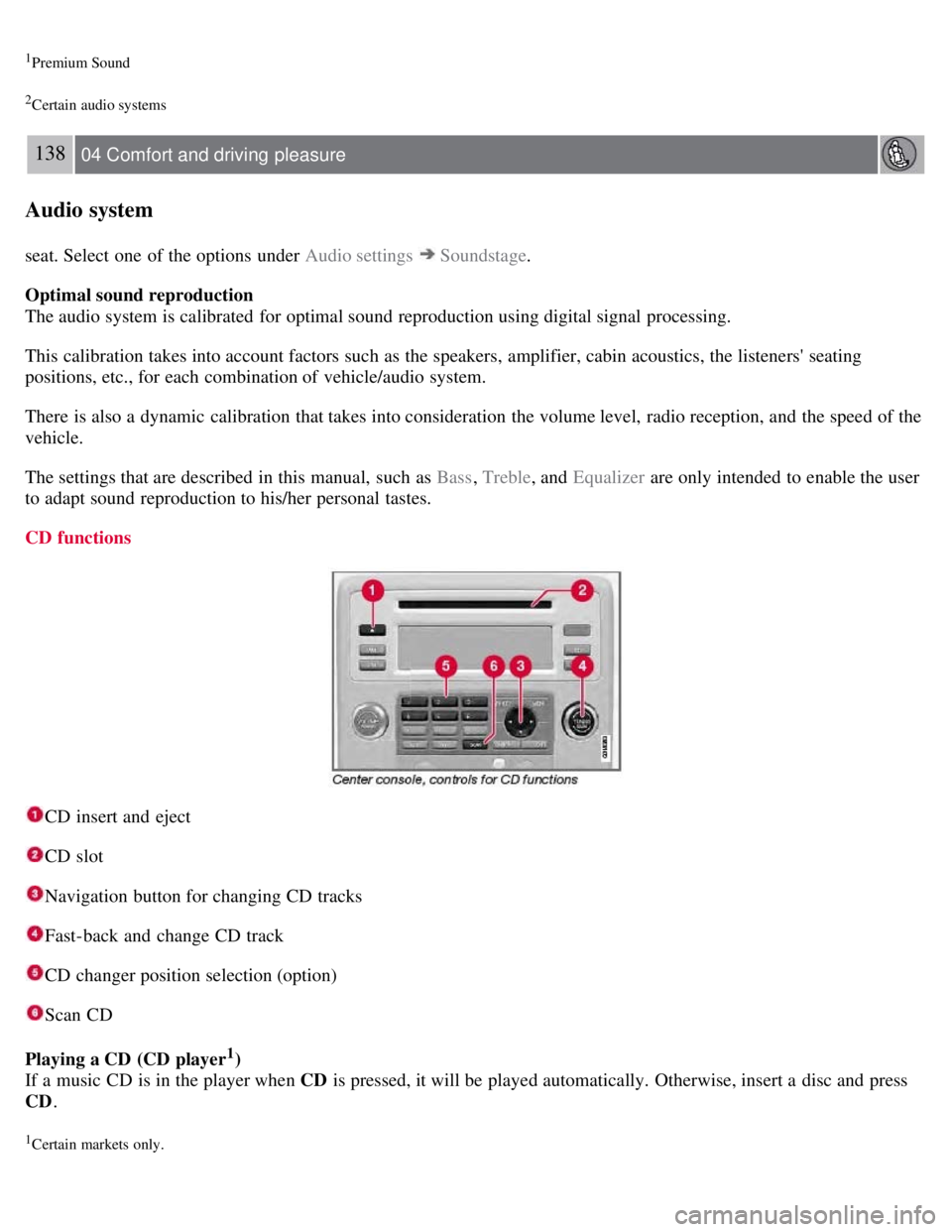
CD functions
CD insert and eject
CD slot
Navigation button for changing CD tracks
Fast-back and change CD track
CD changer position selection (option)
Scan CD
Playing a CD (CD player
1)
If a music CD is in the player when CD is pressed, it will be played automatically. Otherwise, insert a disc and press
CD .
1Certain markets only.
Page 137 of 275
Playing a CD (CD changer)
If a CD position with a music CD is already selected when CD is pressed, it will be played automatically. Otherwise
select a disc with the number buttons 1-6 or
/on the navigation button.
Insert a CD (CD changer)
1. Select an empty position with the number buttons 1-6 or
/ on the navigation button.
An empty position is marked on the display. The text Insert disc shows that a new disc can be inserted. The CD
changer can hold up to six CDs.
2. Insert a CD in the CD changer slot.
Disc eject
For reasons of traffic safety, an ejected CD must be removed within 12 seconds or it will be automatically drawn back
into the slot and the CD player will enter pause mode. Press the CD button to restart the disc.
Eject individual discs by pressing the eject button.
139 04 Comfort and driving pleasure
Audio system
Eject all discs with a long press on the eject button. The entire magazine is emptied disc by disc.
NOTE
The Eject all function can only be used while the vehicle is at a standstill and will be cancelled if the vehicle begins
to move.
Pause
When the audio system volume is turned off completely, the CD player will pause and will resume playing when the
volume is turned up again.
Sound files
In addition to playing normal music CDs, the CD player/changer can also play discs containing files in mp3 or wma
format.
NOTE
Some copy protected sound files may not be read by the player.
When a CD containing sound files is inserted into the player the disc's directory structure is scanned before the CD
begins playing. The length of time that this takes depends on the quality of the disc.
Navigating the disc and playing tracks
If a disc containing sound files is inside the CD player, press ENTER to display the disc's directory structure. The
directory structure is navigated in the same way as the audio system's menu structure. Sound files have the
symbol
and directories have the
symbol. Press ENTER to play a selected folder or a file.
When the music file has been played, the player will continue to play the rest of the files in the current folder. When
all of the files in the folder have been played, the player will automatically go to the next folder and play the files in it.
Page 138 of 275
Fast-forward/change CD tracks and sound files
Short presses
/ on the navigation button are used to scroll between CD tracks/sound files. Long presses are used
to search within CD tracks/sound files. TUNING (or the steering wheel keypad) can also be used for this purpose.
Scan CD
This function plays the first ten seconds of each CD track/sound file. Press SCAN to activate. Interrupt with EXIT or
SCAN to continue playing the current CD track/sound file.
Random
This function plays the tracks in random order (shuffle). The random CD tracks/sound files can be scrolled through in
the normal way.
NOTE
It is only possible to scroll between random CD tracks on the current disc.
Different messages are displayed depending on which random function has been selected:
RANDOM means that the tracks from only one music CD are played
RND ALL means that all tracks on all music CDs in the optional CD changer are played.
RANDOM FOLDER means that the sound files in a directory on the current CD are played.
CD player
If a normal music CD is being played, activate/deactivate under Random .
If a disc with sound files is being played, activate/deactivate under Random
Folder .
140 04 Comfort and driving pleasure
Audio system
CD changer
If a normal music CD is being played under Random
Single disc or Random All discs. The option All discs only
applies to the music CDs in the changer.
If a CD with sound files is being played, activate/deactivate instead under Random
Folder . If you select another CD
the function is deactivated.
Disc text
If title information is stored on a music CD it can be shown on the display
1. Activate/deactivate in CD mode under CD
settings
Disc text.
1Only applies to the CD changer.
141 04 Comfort and driving pleasure
Audio system
Radio functions
Page 140 of 275
Once Autostoring... disappears from the display, the stations are stored. The radio continues in Auto mode and Auto
appears on the display. The automatically stored presets can now be selected using the preset buttons. Automatic
preset storage can be cancelled using EXIT .
Auto mode is cancelled by pressing for example AUTO or FM.
Returning to Auto mode provides access to the autostored presets:
1. Press AUTO .
Auto appears on the display.
2. Press a preset button.
Scan
The function automatically searches the current wave band for strong stations. When a station is found, it is played for
approx. eight seconds before scanning is resumed. While the station is playing it can be stored as a preset as usual.
1. Select a wave band using AM or FM.
2. Press SCAN .
SCAN appears on the display. Close using SCAN or EXIT.
142 04 Comfort and driving pleasure
Audio system
Radio text
Some stations transmit information on program content, artists, etc. This information can be shown on the display.
Activate/deactivate in FM mode under Radio text.
143 04 Comfort and driving pleasure
Audio system
Sirius satellite radio (option)
Listening to satellite radio
The Sirius satellite system consists of a number of high elevation satellites in geosynchronous orbit.
NOTE
The digital signals from the Sirius satellites are line-of-sight, which means that physical obstructions such as
bridges, tunnels, etc, may temporarily interfere with signal reception.
Avoid any obstructions, such as metallic objects transported on roof racks or in a ski box, or other antennas that
may impede signals from the SIRIUS satellites.
Selecting Sirius radio mode
1. Press Power to switch on the audio system (see pages 137
and 141 for information on the standard audio and radio
functions).
Page 141 of 275
2. Press the MODE button repeatedly until Sirius 1 or 2 is displayed.
Activating Sirius radio
1. Tune to a satellite channel that has no audio, which means that the channel is unsubscribed and the text "Call 888-
539- SIRIUS TO SUBSCRIBE" is displayed (see also "Selecting a channel".
2. Call Sirius at 1-888-539-SIRIUS (7474).
3. When asked for the Sirius ID number press AUTO to display this number. It is also possible to retrieve the Sirius ID
from the menu.
4. UPDATING SUBSCRIPTION will be displayed while the subscription is being updated, after which the display
will return to the normal view.
SIRIUS ID
The SIRIUS ID is required when contacting the Sirius Call Center. It is used to activate your account and when making
any account transactions. The SIRIUS ID is sometimes referred to as the Electronic Serial Number (ESN).
Selecting a channel category
1. Select Sirius radio mode as described above.
2. Press ENTER .
3. Use the up/down arrow keys to scroll through the list of categories.
4. Press ENTER or the right arrow key to select a category.
The first channel in the selected category will then be played.
NOTE
The category ALL is default, which enables you to scroll through the entire list of available satellite channels.
The channel categories are automatically updated several times a year. This takes approximately two minutes and
will interrupt normal broadcasting. A message will be displayed while updating is in progress. Information on
channel or feature updates is available at www.sirius.com.
Selecting a channel
There are three ways of tuning in a channel:
Using the left and right arrow keys
By turning the tuning control
Through direct channel entry.
NOTE
The numbers of skipped or locked channels will not be displayed.
If a channel is locked, the access code must be entered before the channel can be selected. See "Unlocking a
channel" on page 145
.
144 04 Comfort and driving pleasure
Audio system
Page 142 of 275
Direct channel entry
The Sirius satellite channels are in numerical order throughout all of the categories. To access a channel directly:
1. Press MENU and scroll to Direct channel entry .
2. Use the numerical keypad to enter the channel's number.
3. Press ENTER . The radio will tune to this channel, even if it belongs to a category other than the currently selected
one.
Scanning
SCAN automatically searches through the list of satellite channels. The search will only be carried out in the selected
category. See page 141
for more detailed information.
Storing a channel
A total of 20 satellite channels can be stored; 10 channels each for Sirius 1 and 2. See page 141
for detailed
information on storing channels.
A long press on one of the number keys stores the currently tuned channel on that key.
A short press on a number key while the radio is in Sirius 1or 2 mode will tune to the preset satellite channel stored
on that button, regardless of the currently selected channel category.
Song Seek and Song Memory
The Song Seek and Song Memory functions provide both audio and visual notification when Sirius is broadcasting
your favorite songs. Song Seek enables you to store the name of the song for future advance notification when that
song is being played. The Song Memory feature makes it possible to view all of the current songs that are stored in
memory.
Song memory
Up to ten songs can be saved in the system's memory.
1. Press MENU .
2. Scroll to Add song to song mem. and follow the instructions shown in the display.
If a new song is selected when the memory is full, you will be prompted to press ENTER to delete the last song on
the list.
NOTE
The remaining songs in the list will move down one position, and the newly added song will be placed at the top of
the list.
Song seek
When a satellite radio channel plays one of the songs stored in the song memory, the listener will be alerted by a text
message and an audible signal.
Press ENTER to listen to the song or EXIT to cancel.
To activate/deactivate the song seek function:
1. Press MENU
2. Scroll to Song seek