lock VOLVO S80 2008 Repair Manual
[x] Cancel search | Manufacturer: VOLVO, Model Year: 2008, Model line: S80, Model: VOLVO S80 2008Pages: 275, PDF Size: 7.17 MB
Page 128 of 275
Turn the control clockwise to increase or counterclockwise to decrease the blower speed. Pressing the AUTO switch
will automatically regulate blower speed and override manual adjustment.
NOTE
If the blower is turned off completely, the air conditioning is disengaged, which may result in fogging on the
windows.
Heated front seats (option)
Press the button once for the highest heat level - three indicator lights come on.
Press the button twice for a lower heat level - two indicator lights come on.
Press the button three times for the lowest heat level - one indicator light comes on.
Press the button four times to switch off the heat - no indicator lights come on.
130 04 Comfort and driving pleasure
Climate system
Heated rear seats (option)
Heat control for the outboard seating positions takes place in the same way as for the front seat.
Air distribution
The figure consists of three buttons. When the buttons are pressed, an indicator light in front of the respective part of
the figure illuminates and shows which air distribution is selected, see page 133
.
Auto
Page 134 of 275
136 04 Comfort and driving pleasure
Audio system
FM Radio text on/off
CD/CD changer
Random
Disc text on/off
Track information on/off
Audio settings
Sound stage (front/driver/rear)
Auto. volume control (off/low/medium/high)
Sirius satellite radio (option)
Add song to memory
Direct channel entry...
Song seek on/off
Sirius settings
Song memory (show memory list)
Car settings
Fold mirror when locking
137 04 Comfort and driving pleasure
Audio system
Audio functions
Page 135 of 275
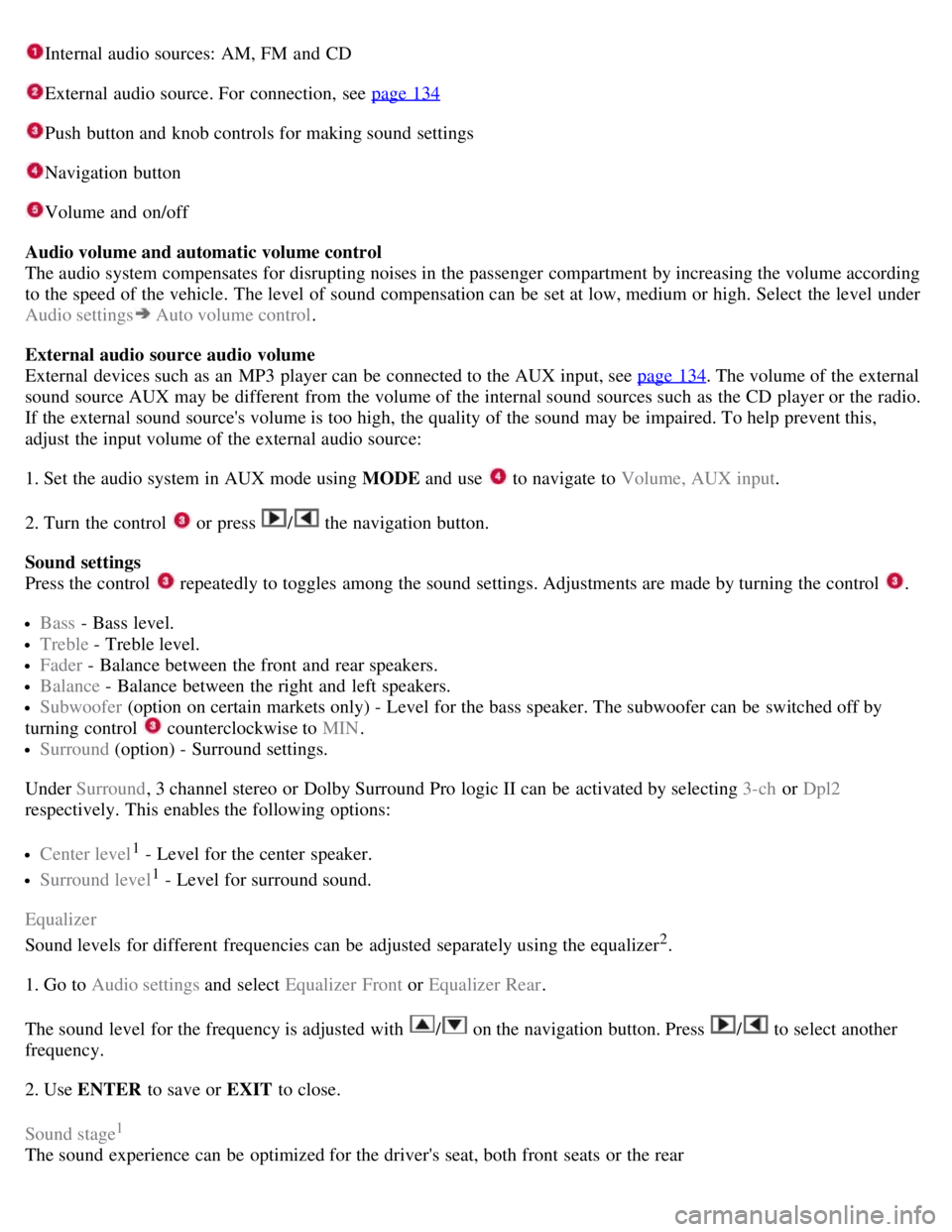
Internal audio sources: AM, FM and CD
External audio source. For connection, see page 134
Push button and knob controls for making sound settings
Navigation button
Volume and on/off
Audio volume and automatic volume control
The audio system compensates for disrupting noises in the passenger compartment by increasing the volume according
to the speed of the vehicle. The level of sound compensation can be set at low, medium or high. Select the level under
Audio settings
Auto volume control .
External audio source audio volume
External devices such as an MP3 player can be connected to the AUX input, see page 134
. The volume of the external
sound source AUX may be different from the volume of the internal sound sources such as the CD player or the radio.
If the external sound source's volume is too high, the quality of the sound may be impaired. To help prevent this,
adjust the input volume of the external audio source:
1. Set the audio system in AUX mode using MODE and use
to navigate to Volume, AUX input.
2. Turn the control
or press / the navigation button.
Sound settings
Press the control
repeatedly to toggles among the sound settings. Adjustments are made by turning the control .
Bass - Bass level.
Treble - Treble level.
Fader - Balance between the front and rear speakers.
Balance - Balance between the right and left speakers.
Subwoofer (option on certain markets only) - Level for the bass speaker. The subwoofer can be switched off by
turning control
counterclockwise to MIN .
Surround (option) - Surround settings.
Under Surround , 3 channel stereo or Dolby Surround Pro logic II can be activated by selecting 3-ch or Dpl2
respectively. This enables the following options:
Center level1 - Level for the center speaker.
Surround level1 - Level for surround sound.
Equalizer
Sound levels for different frequencies can be adjusted separately using the equalizer
2.
1. Go to Audio settings and select Equalizer Front or Equalizer Rear.
The sound level for the frequency is adjusted with
/ on the navigation button. Press / to select another
frequency.
2. Use ENTER to save or EXIT to close.
Sound stage
1
The sound experience can be optimized for the driver's seat, both front seats or the rear
Page 141 of 275
2. Press the MODE button repeatedly until Sirius 1 or 2 is displayed.
Activating Sirius radio
1. Tune to a satellite channel that has no audio, which means that the channel is unsubscribed and the text "Call 888-
539- SIRIUS TO SUBSCRIBE" is displayed (see also "Selecting a channel".
2. Call Sirius at 1-888-539-SIRIUS (7474).
3. When asked for the Sirius ID number press AUTO to display this number. It is also possible to retrieve the Sirius ID
from the menu.
4. UPDATING SUBSCRIPTION will be displayed while the subscription is being updated, after which the display
will return to the normal view.
SIRIUS ID
The SIRIUS ID is required when contacting the Sirius Call Center. It is used to activate your account and when making
any account transactions. The SIRIUS ID is sometimes referred to as the Electronic Serial Number (ESN).
Selecting a channel category
1. Select Sirius radio mode as described above.
2. Press ENTER .
3. Use the up/down arrow keys to scroll through the list of categories.
4. Press ENTER or the right arrow key to select a category.
The first channel in the selected category will then be played.
NOTE
The category ALL is default, which enables you to scroll through the entire list of available satellite channels.
The channel categories are automatically updated several times a year. This takes approximately two minutes and
will interrupt normal broadcasting. A message will be displayed while updating is in progress. Information on
channel or feature updates is available at www.sirius.com.
Selecting a channel
There are three ways of tuning in a channel:
Using the left and right arrow keys
By turning the tuning control
Through direct channel entry.
NOTE
The numbers of skipped or locked channels will not be displayed.
If a channel is locked, the access code must be entered before the channel can be selected. See "Unlocking a
channel" on page 145
.
144 04 Comfort and driving pleasure
Audio system
Page 143 of 275
3. Press ENTER to activate or deactivate the function.
NOTE
When the song has ended, the radio will remain tuned to the channel on which the song was played.
Radio text
The text that is displayed about the song that is currently playing can be changed. Use the AUTO button or the menu
to display the Artist, Title, Composer, or switch radio text off.
145 04 Comfort and driving pleasure
Audio system
Advanced settings
This menu function enables you to make settings on certain Sirius satellite radio functions. To access this menu:
1. Press MENU .
2. Scroll to the Sirius menu.
3. Select Advanced Sirius settings .
WARNING
Settings should be made when the vehicle is at a standstill.
The following settings can be made in the Sirius menu:
The list of saved songs can be displayed
Channel skip settings can be made
Channel lock settings can be made
The channel access code can be displayed or changed
Your Sirius ID can be displayed
Skip options
This function is used to remove a channel from the list of available channels.
Skipping a channel
1. Select CHANNEL SKIP LIST and press ENTER.
2. Select a category in the list and press ENTER .
3. Skip channels in the list presented by pressing ENTER or right arrow key.
Unskip all channels
This permanently removes all channels from the skip list and makes them available for selection.
Temp. unskip all ch.
This function will temporarily unskip all channels and make them available for selection. The channels remain on the
skip list and will again be skipped the next time the ignition is switched on.
Page 144 of 275
Channel lock
Access to specific channels can be restricted (locked). A locked channel will not provide audio, song titles, or artist
information.
NOTE
All channels are initially unlocked.
Locking a channel:
1. Select Sirius ID in the menu and select LOCK OPTIONS and press ENTER.
2. Select CHANNEL LOCK LIST and press ENTER
3. Enter the channel access code
1 and press ENTER .
4. Select a category in the list and press ENTER .
5. Lock channels in the list presented by pressing ENTER or right arrow.
The channel is now locked and a checked box will be displayed to indicate this. It will be necessary to enter the
channel access code
1 in order to listen to a locked channel.
Unlocking a channel
A channel's access code
1 is required to unlock a channel.
Unlock all channels
This permanently removes all channels from the locked list and makes them available for selection.
Temp. unlock all ch.
This function will temporarily unlock all channels and make them available for selection. The channels remain on the
locked list and will again be locked the next time the ignition is switched on.
1The default code is 0000. If you have changed the code and forgotten it, see the section "If you have forgotten the access code."
146 04 Comfort and driving pleasure
Audio system
CHANGE CODE
This function makes it possible to change the channel access code. The default code is 0000.
To change the code:
1. Select CHANGE CODE and press ENTER.
2. Enter the current code and press ENTER .
3. Enter the new code and press ENTER .
4. Confirm the new code and press ENTER .
If an incorrect code is entered, the text WRONG CODE! is displayed.
Page 152 of 275
Adjusting the set speed
After a speed has been set, it can be increased or decreased by using the
or buttons.
Press and hold down or until the vehicle reaches the desired speed. This will become the set speed when the
button is released.
Press or for approximately a half second and release the button to increase or decrease vehicle speed by
approximately 1 mph (1.6 km/h).
NOTE
A temporary increase in speed by pressing the accelerator pedal, for less than 1 minute (e.g. when passing another
car), does not affect the current cruise control setting. The vehicle will automatically return to the previously set
speed when the accelerator pedal is released.
If one of the cruise control buttons is kept depressed for more than approx. 1 minute cruise control is disengaged.
The engine must then be switched off in order to reset cruise control.
Automatic deactivation
Cruise control is automatically deactivated temporarily if one of the following occurs:
If the speed drops below approximately 20 mph (30 km/h).
When the brake pedal is depressed.
If the gear selector is moved to position N.
During wheel spin or wheel lock-up.
If the vehicle's speed is increased by using the accelerator pedal for more than 1 minute.
The currently set speed will be saved in the system's memory.
155 04 Comfort and driving pleasure
Cruise control
Temporary deactivation
The driver can temporarily deactivate cruise control by pressing 0. The saved speed is shown in brackets in the
information display.
Resume set speed
If cruise control has been deactivated temporarily, it can be reactivated by pressing
. The vehicle's speed returns to
the most recently set speed.
WARNING
There may be a significant increase in speed after the
button has been pressed.
Deactivation
Cruise control is disengaged with CRUISE , by putting the gear selector in Neutral, or by switching off the engine. The
set speed is cleared.
WARNING
Cruise control should not be used in heavy traffic or when driving on wet or slippery roads. Cruise control may not
Page 157 of 275
The set speed, for example 55 mph, is then shown in parentheses. Speed and time interval are resumed by pressing .
WARNING
There may be a significant increase in speed after the
button has been pressed.
A short press on
in standby mode or a long press in active mode deactivates ACC.
The set speed is then cleared and cannot be resumed.
When ACC is activated, the vehicle's speed increases by approximately 1 mph (1 km/h) each additional time
is
pressed.
Deactivation due to action by the driver
ACC is deactivated:
when the brakes are applied
if the gear selector is moved to N
if the accelerator pedal is depressed for an extended period.
NOTE
If the accelerator pedal is only depressed for a short time, such as when passing another vehicle, ACC is deactivated
temporarily and is reactivated when the pedal is released.
Automatic deactivation
Adaptive cruise control is linked to other systems such as ABS, the stability and traction control system (DSTC) and
the Distance Alert system. If any of these systems are not functioning properly, adaptive cruise control is automatically
deactivated.
In the event of automatic deactivation a signal will sound and the message Cruise Control Canceled is shown in the
display. The driver must then intervene and adapt the vehicle's speed to the surrounding traffic.
Automatic deactivation may be caused if:
the vehicle's speed falls below 20 mph (30 km/h)
the wheels lose traction or if the anti-lock brake system (ABS) is activated
brake temperature is high
engine speed (rpm) is too low
the radar sensor is obstructed by, for example, wet snow or rain.
160 04 Comfort and driving pleasure
Adaptive Cruise Control-ACC
The radar sensor and its limitations
The radar sensor is used by both Adaptive Cruise Control and the Collision Warning System with Auto-brake (see
page 166
). It is designed to detect cars or larger vehicles driving in the same direction as your vehicle.
WARNING
Page 158 of 275
Accessories or other objects must not be installed in front of the grille.
Modification of the radar sensor could make its use illegal.
The radar sensor's capacity to detect vehicles ahead is impeded:
if the radar sensor is obstructed and cannot detect other vehicles, for example in heavy rain, or if snow or other
objects are obscuring the radar sensor.
NOTE
Keep the area in front of the radar sensor clean.
if the speed of vehicles ahead is significantly different from your own speed.
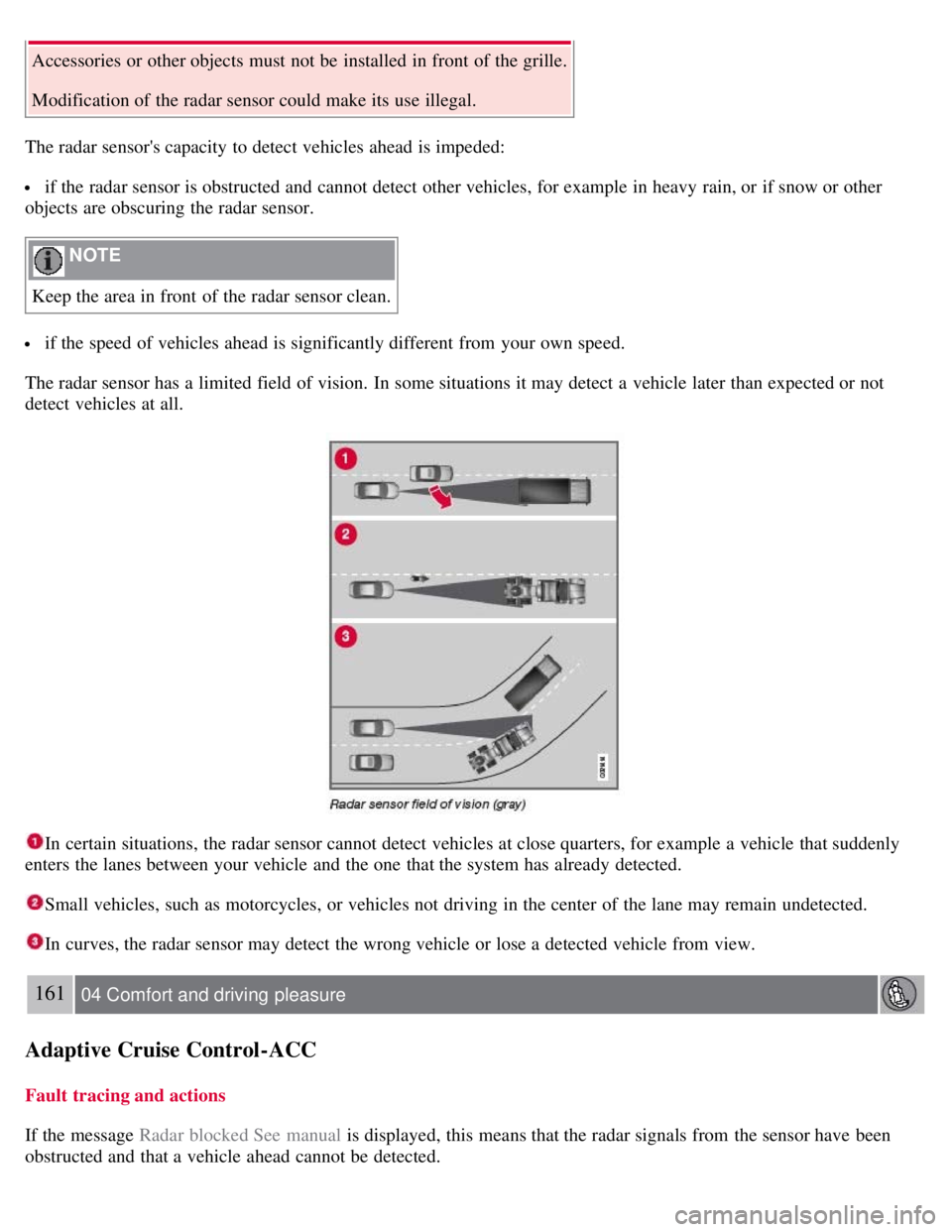
The radar sensor has a limited field of vision. In some situations it may detect a vehicle later than expected or not
detect vehicles at all.
In certain situations, the radar sensor cannot detect vehicles at close quarters, for example a vehicle that suddenly
enters the lanes between your vehicle and the one that the system has already detected.
Small vehicles, such as motorcycles, or vehicles not driving in the center of the lane may remain undetected.
In curves, the radar sensor may detect the wrong vehicle or lose a detected vehicle from view.
161 04 Comfort and driving pleasure
Adaptive Cruise Control-ACC
Fault tracing and actions
If the message Radar blocked See manual is displayed, this means that the radar signals from the sensor have been
obstructed and that a vehicle ahead cannot be detected.
Page 166 of 275
169 04 Comfort and driving pleasure
Collision Warning with Auto-brake (option)
WARNING
The camera has the same limitations as the human eye. In other words, its "vision is impaired" by adverse weather
conditions such as heavy snowfall, dense fog, etc. These conditions may reduce the function of systems that depend
on the camera or cause these systems to temporarily stop functioning.
Never place any objects, decals, etc., on the windshield in front of the camera. This could reduce or block the
camera's function, and could cause one or more of the systems that utilize the camera to stop functioning.
Strong sunlight, reflections from the road surface, a dirty road surface, or unclear lane marker lines may
drastically reduce the camera's capacity to detect the side of a lane or another vehicle.
Fault tracing and actions
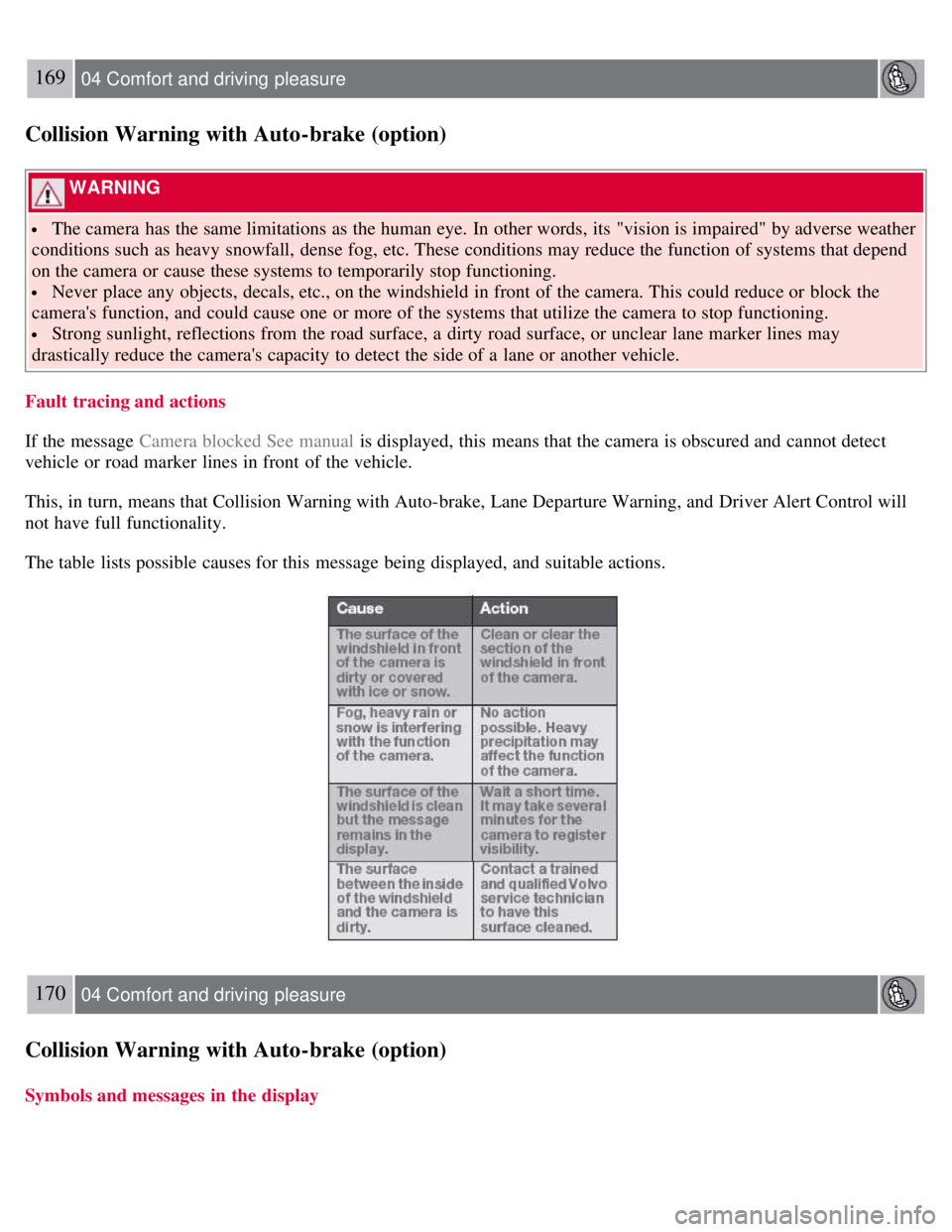
If the message Camera blocked See manual is displayed, this means that the camera is obscured and cannot detect
vehicle or road marker lines in front of the vehicle.
This, in turn, means that Collision Warning with Auto-brake, Lane Departure Warning, and Driver Alert Control will
not have full functionality.
The table lists possible causes for this message being displayed, and suitable actions.
170 04 Comfort and driving pleasure
Collision Warning with Auto-brake (option)
Symbols and messages in the display