steering VOLVO S80 2014 Owner´s Manual
[x] Cancel search | Manufacturer: VOLVO, Model Year: 2014, Model line: S80, Model: VOLVO S80 2014Pages: 380, PDF Size: 10.83 MB
Page 125 of 380
03 Your driving environment
Transmission
03
123
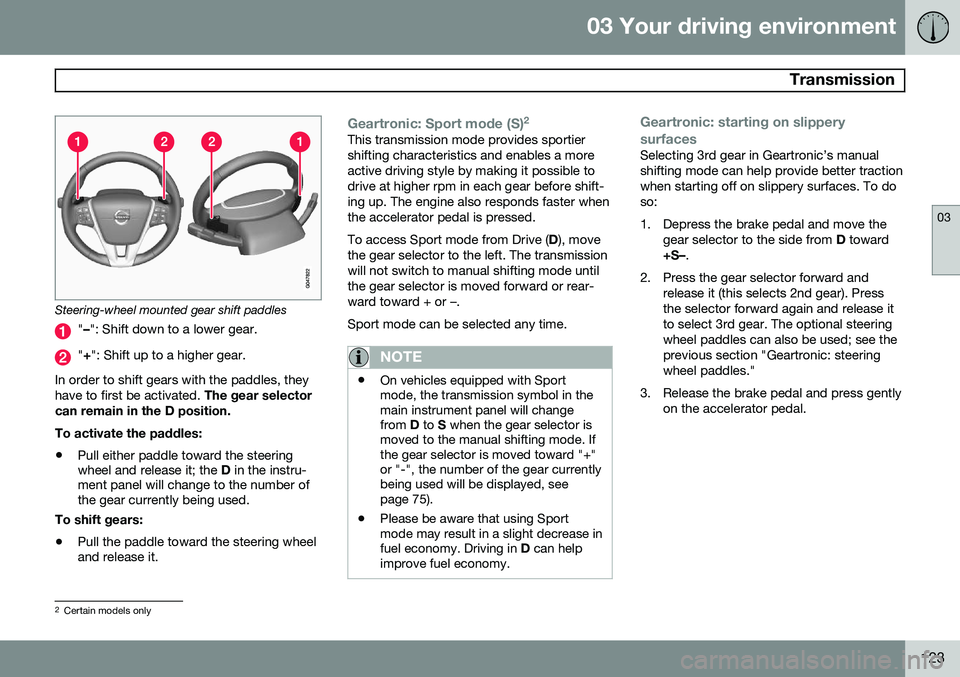
Steering-wheel mounted gear shift paddles
"– ": Shift down to a lower gear.
"+ ": Shift up to a higher gear.
In order to shift gears with the paddles, they have to first be activated. The gear selector
can remain in the D position. To activate the paddles:
• Pull either paddle toward the steering wheel and release it; the
D in the instru-
ment panel will change to the number ofthe gear currently being used.
To shift gears:
• Pull the paddle toward the steering wheeland release it.
Geartronic: Sport mode (S) 2This transmission mode provides sportier shifting characteristics and enables a moreactive driving style by making it possible todrive at higher rpm in each gear before shift-ing up. The engine also responds faster whenthe accelerator pedal is pressed. To access Sport mode from Drive (
D), move
the gear selector to the left. The transmission will not switch to manual shifting mode untilthe gear selector is moved forward or rear-ward toward + or –. Sport mode can be selected any time.
NOTE
• On vehicles equipped with Sport mode, the transmission symbol in themain instrument panel will changefrom
D to S when the gear selector is
moved to the manual shifting mode. Ifthe gear selector is moved toward "+"or "-", the number of the gear currentlybeing used will be displayed, seepage 75).
• Please be aware that using Sportmode may result in a slight decrease infuel economy. Driving in
D can help
improve fuel economy.
Geartronic: starting on slippery surfaces
Selecting 3rd gear in Geartronic’s manual shifting mode can help provide better tractionwhen starting off on slippery surfaces. To doso:
1. Depress the brake pedal and move the
gear selector to the side from D toward
+S– .
2. Press the gear selector forward and release it (this selects 2nd gear). Press the selector forward again and release itto select 3rd gear. The optional steeringwheel paddles can also be used; see theprevious section "Geartronic: steeringwheel paddles."
3. Release the brake pedal and press gently on the accelerator pedal.
2Certain models only
Page 138 of 380
04 Driver support
Stability system
04
136
Introduction
The Dynamic Stability and Traction Control system (DSTC) consists of a number of func-tions designed to help reduce wheel spin,counteract skidding, and to generally helpimprove directional stability.
CAUTION
A pulsating sound will be audible when the system is actively operating and is normal.
Traction control (TC)This function is designed to help reduce wheel spin by transferring power from a drivewheel that begins to lose traction to thewheel on the opposite side of the vehicle (onthe same axle). TC is most active at low speeds.This is one of DSTC's permanent functions and cannot be switched off.
Active Yaw Control (AYC)This function helps maintain directional stabil-ity, for example when cornering, by brakingone or more of the wheels if the vehicleshows a tendency to skid or slide laterally. This is one of DSTC's permanent functions and cannot be switched off.
Spin control (SC)The spin control function is designed to helpprevent the drive wheels from spinning whilethe vehicle is accelerating.
Operation
Sport modeThe stability system is always activated and cannot be switched off. However, the driver can select
Sport mode,
which offers more active driving characteris- tics. In this mode, the engine managementsystem monitors movement of the acceleratorpedal and steering wheel for sportier drivingby allowing more lateral movement of the rearwheels before DSTC is activated. Under certain circumstances, such as when driving with snow chains, or driving in deep snow or loose sand, it may be advisable totemporarily use
Sport mode for maximum
tractive force. If the driver releases pressure on the acceler- ator pedal, DSTC will also activate to helpstabilize the vehicle. To switch to Sport mode:
1. Press the My Car button in the center
console control panel and select
My S80
DSTC in the menu.
2. Unselect the symbol and leave the menu by pressing EXIT.
> This puts DSTC in Sport mode.
Sport mode remains active until the driver
switches it off in the menu or until the engine is switched off. DSTC will return to normalmode when the engine is restarted.
Page 142 of 380
04 Driver support
Cruise control
04
140
Operation
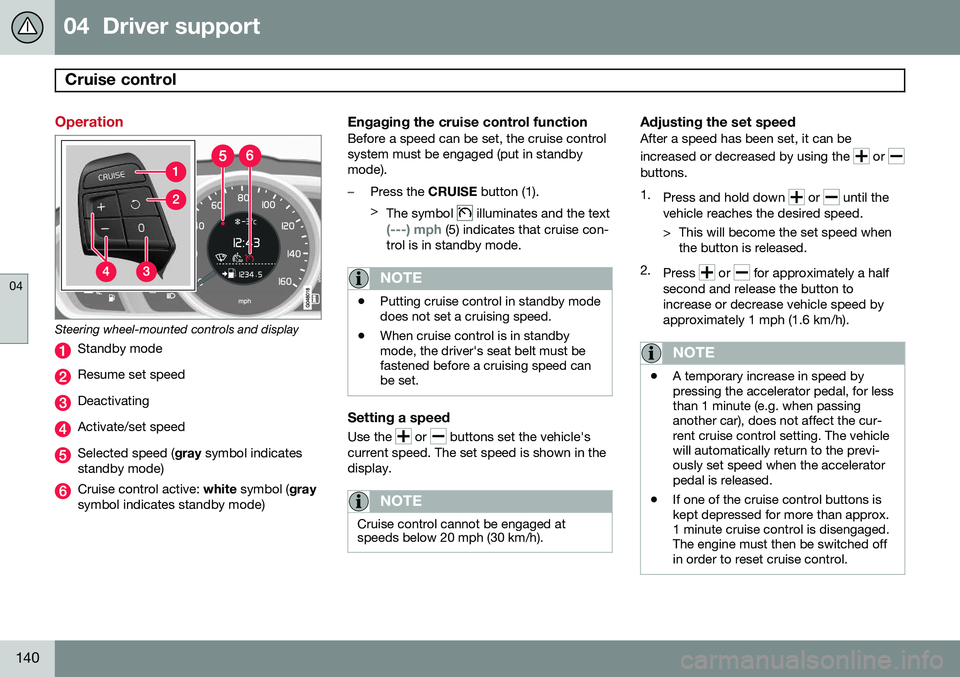
Steering wheel-mounted controls and display
Standby mode
Resume set speed
Deactivating
Activate/set speed
Selected speed (gray symbol indicates
standby mode)
Cruise control active: white symbol ( gray
symbol indicates standby mode)
Engaging the cruise control functionBefore a speed can be set, the cruise control system must be engaged (put in standbymode).
–Press the CRUISE button (1).
> The symbol
illuminates and the text
(---) mph (5) indicates that cruise con-
trol is in standby mode.
NOTE
• Putting cruise control in standby mode does not set a cruising speed.
• When cruise control is in standbymode, the driver's seat belt must befastened before a cruising speed canbe set.
Setting a speed
Use the or buttons set the vehicle's
current speed. The set speed is shown in the display.
NOTE
Cruise control cannot be engaged at speeds below 20 mph (30 km/h).
Adjusting the set speedAfter a speed has been set, it can be increased or decreased by using the
or buttons. 1. Press and hold down
or until the
vehicle reaches the desired speed.
> This will become the set speed when the button is released.
2. Press
or for approximately a half
second and release the button to increase or decrease vehicle speed byapproximately 1 mph (1.6 km/h).
NOTE
• A temporary increase in speed by pressing the accelerator pedal, for lessthan 1 minute (e.g. when passinganother car), does not affect the cur-rent cruise control setting. The vehiclewill automatically return to the previ-ously set speed when the acceleratorpedal is released.
• If one of the cruise control buttons iskept depressed for more than approx.1 minute cruise control is disengaged.The engine must then be switched offin order to reset cruise control.
Page 144 of 380
04 Driver support
Adaptive Cruise Control (ACC)*
04
142* Option/accessory, for more information, see Introduction.
Introduction
Adaptive Cruise Control (ACC) is an optional system designed to assist the driver by main-taining a set speed or a set time interval tothe vehicle ahead. It is primarily intended foruse on long straight roads in steady traffic,such as on highways and other main roads. When the driver has set the desired speed and the time interval to the vehicle ahead,ACC functions as follows:
• If there are no other vehicles in the lane ahead of you, your vehicle will travel atthe set speed.
• If ACC's radar sensor detects a slowermoving vehicle in the lane ahead, the sys-tem will adapt your vehicle's speed tohelp maintain the set time interval to thevehicle ahead. When there are no longerslower moving vehicles ahead, your vehi-cle will accelerate to resume the setspeed.
If ACC is switched off completely or in standby mode and your vehicle comes tooclose to another vehicle ahead, the driver willbe warned by the Distance Alert system (seepage 153).WARNING
• Adaptive Cruise Control cannot cover all driving situations and traffic,weather and road conditions. The"Function" section provides informa-tion about limitations that the drivermust be aware of before using thisfeature.
• This system is designed to be a sup-plementary driving aid. It is not, how-ever, intended to replace the driver'sattention and judgement. The driver isresponsible for maintaining a safe dis-tance and speed and must intervene ifAdaptive Cruise Control does notmaintain a suitable speed or suitabledistance to the vehicle ahead.
• Maintenance of ACC components mayonly be performed by a trained andqualified Volvo technician.
Function
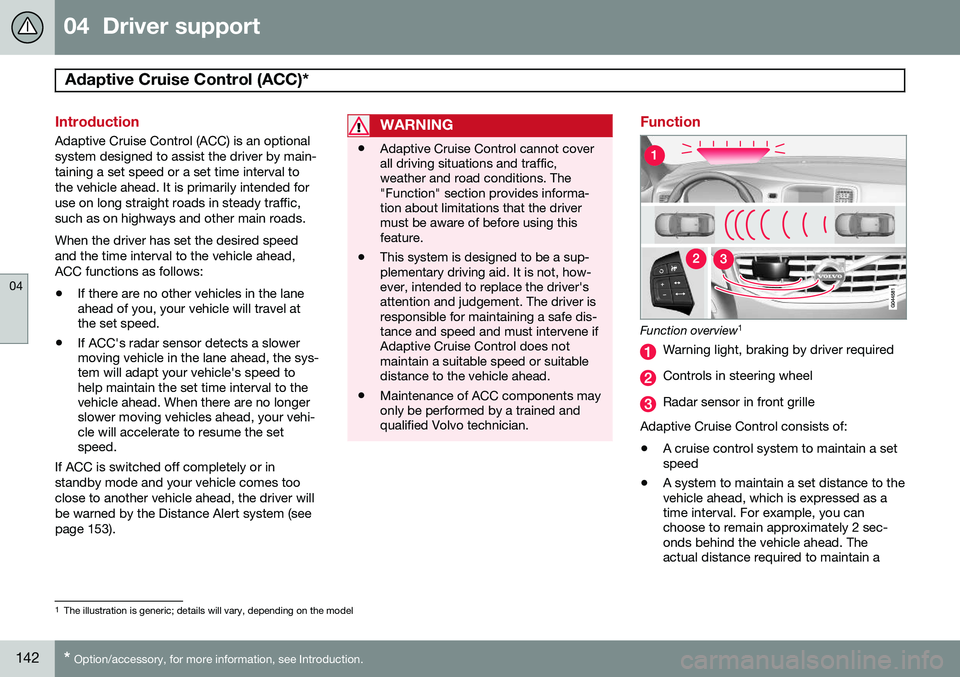
Function overview 1
Warning light, braking by driver required
Controls in steering wheel
Radar sensor in front grille
Adaptive Cruise Control consists of: • A cruise control system to maintain a set speed
• A system to maintain a set distance to thevehicle ahead, which is expressed as atime interval. For example, you canchoose to remain approximately 2 sec-onds behind the vehicle ahead. Theactual distance required to maintain a
1
The illustration is generic; details will vary, depending on the model
Page 148 of 380
04 Driver support
Adaptive Cruise Control (ACC)*
04
146* Option/accessory, for more information, see Introduction.
Standby mode (temporary deactivation)To temporarily deactivate ACC (put it in standby mode):
• Press
.
This symbol and the marking for the set speed with change colors from green to
white. The previously set speed and time interval are resumed by pressing
.
WARNING
The vehicle may accelerate quickly after
has been pressed if its current speed is
considerably lower than the set speed.
Standby mode due to action by the driver
ACC is temporarily deactivated and put in standby mode:
• if the brakes are applied
• if the gear selector is moved to
N
• if the driver drives faster than the set speed for more than
1 minute.
In this happens, the driver will have to regu- late the vehicle's speed.
NOTE
If the accelerator pedal is only depressed for a short time, such as when passinganother vehicle, ACC is deactivated tem-porarily and is reactivated when the pedalis released.
Automatic standby modeACC is linked to other systems such as the stability and traction control system (DSTC). Ifthis system is not functioning properly, ACCwill switch off automatically. In the event of automatic deactivation, an audible signal will sound and the message
Cruise control Cancelled is shown in the
instrument panel. The driver must then inter- vene and adapt the vehicle's speed to thesurrounding traffic and regulate the distanceto the vehicle ahead. An automatic switch to standby mode may be caused if:
• engine speed (rpm) is too high/low
• The driver's door is opened
• The driver unbuckles his/her seat belt
• the vehicle's speed goes below 18 mph (30 km/h) 4
• the wheels lose traction •
brake temperature is high
• the radar sensor is obstructed by, for example, wet snow or rain.
Resuming the set speedIf ACC is in standby mode, it can be reactiva- ted by pressing the
button on the steering
wheel keypad. The vehicle will return to the most recently set speed.
WARNING
The vehicle may accelerate quickly after
has been pressed if its current speed is
considerably lower than the set speed.
Passing another vehicleIf your vehicle’s speed is being regulated by ACC and the driver indicates that he/shewould like to pass the vehicle ahead by usingthe left turn signal, ACC can assist by accel-
erating briefly. This function is active at speeds above approximately 45 mph (70 km/h).
4 Does not apply to vehicles equipped with the optional Queue Assist
Page 167 of 380
04 Driver support
Collision warning with Full Auto-brake and Pedestrian Detection*
04
* Option/accessory, for more information, see Introduction.165
console control panel and going to
Settings
Car settingsDriver support systems
Collision Warning.
Maintenance
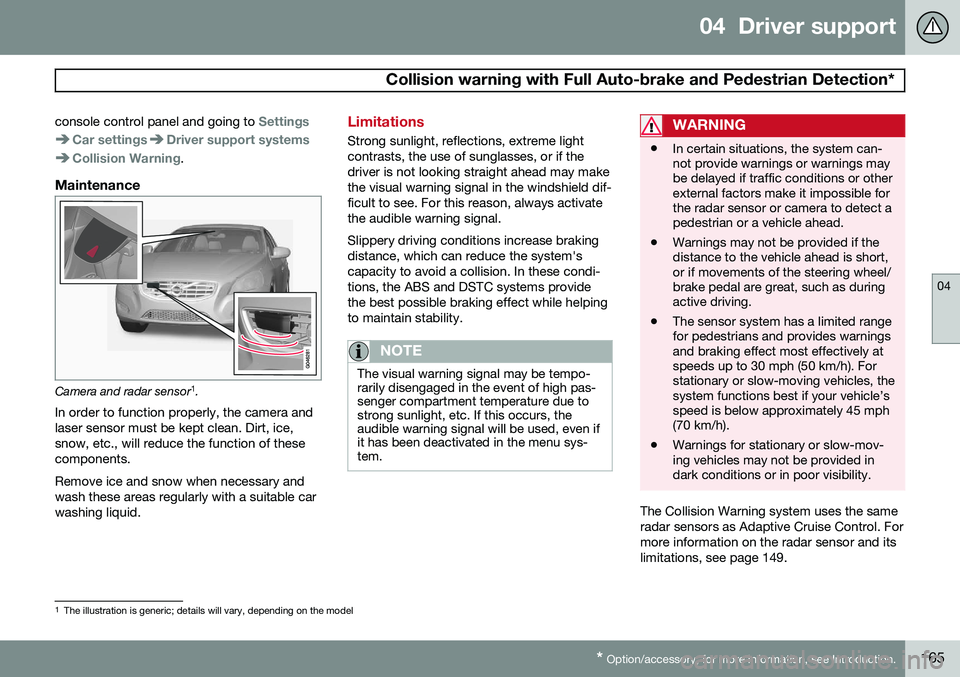
Camera and radar sensor
1
.
In order to function properly, the camera and laser sensor must be kept clean. Dirt, ice,snow, etc., will reduce the function of thesecomponents. Remove ice and snow when necessary and wash these areas regularly with a suitable carwashing liquid.
Limitations
Strong sunlight, reflections, extreme light contrasts, the use of sunglasses, or if thedriver is not looking straight ahead may makethe visual warning signal in the windshield dif-ficult to see. For this reason, always activatethe audible warning signal. Slippery driving conditions increase braking distance, which can reduce the system'scapacity to avoid a collision. In these condi-tions, the ABS and DSTC systems providethe best possible braking effect while helpingto maintain stability.
NOTE
The visual warning signal may be tempo- rarily disengaged in the event of high pas-senger compartment temperature due tostrong sunlight, etc. If this occurs, theaudible warning signal will be used, even ifit has been deactivated in the menu sys-tem.
WARNING
• In certain situations, the system can- not provide warnings or warnings maybe delayed if traffic conditions or otherexternal factors make it impossible forthe radar sensor or camera to detect apedestrian or a vehicle ahead.
• Warnings may not be provided if thedistance to the vehicle ahead is short,or if movements of the steering wheel/brake pedal are great, such as duringactive driving.
• The sensor system has a limited rangefor pedestrians and provides warningsand braking effect most effectively atspeeds up to 30 mph (50 km/h). Forstationary or slow-moving vehicles, thesystem functions best if your vehicle’sspeed is below approximately 45 mph(70 km/h).
• Warnings for stationary or slow-mov-ing vehicles may not be provided indark conditions or in poor visibility.
The Collision Warning system uses the same radar sensors as Adaptive Cruise Control. Formore information on the radar sensor and itslimitations, see page 149.
1
The illustration is generic; details will vary, depending on the model
Page 168 of 380
04 Driver support
Collision warning with Full Auto-brake and Pedestrian Detection*
04
166* Option/accessory, for more information, see Introduction.
NOTE
If warnings are given too frequently, the warning distance can be reduced (seepage 164). This causes the system to pro-vide later warnings, which decreases thetotal number of warnings provided.
WARNING
• The system is not activated at speeds under approx. 2 mph (4 km/h). There-fore, it will not brake your vehicle if youapproach a vehicle ahead at very lowspeed, such as when parking.
• The driver's actions always have high-est priority and override the CollisionWarning system. This means that thesystem will not intervene in situationswhere the driver is actively steering,braking or pressing the acceleratorpedal, even if a collision is imminent.
• When Auto-brake has prevented a col-lision with a stationary object, yourvehicle will remain at a standstill forapprox. 1.5 seconds. If your vehiclehas been braked for a moving vehicleahead, your vehicle's speed will bereduced to the same speed as thatvehicle's.
The camera’s limitationsThe camera is used by Collision Warning with Auto-brake, Driver Alert Control (seepage 170), and Lane Departure Warning (seepage 173).
NOTE
•To help protect the camera in very hot conditions, it may be temporarilyswitched off for approximately 15minutes after the engine has beenstarted.
• Keep the section of the windshield infront of the camera clean and free ofice, snow, or condensation.
WARNING
•The camera has the same limitations as the human eye. In other words, its“vision is impaired” by adverseweather conditions such as heavysnowfall, dense fog, etc. These condi-tions may reduce the function of sys-tems that depend on the camera orcause these systems to temporarilystop functioning.
• Never place any objects, decals, etc.,on the windshield in front of the cam-era. This could reduce or block thecamera’s function, and could causeone or more of the systems that utilizethe camera to stop functioning.
• Strong sunlight, reflections from theroad surface, ice or snow covering theroad, a dirty road surface, or unclearlane marker lines may drasticallyreduce the camera’s capacity todetect the side of a lane, a pedestrianor another vehicle.
Page 172 of 380
04 Driver support
Driver Alert System*
04
170* Option/accessory, for more information, see Introduction.
Introduction
The Driver Alert System is designed to help a driver who may be becoming fatigued or whois inadvertently leaving the lane. The Driver Alert System consists of two differ- ent functions that can be switched ontogether or separately.
• Driver Alert Control (DAC)
• Lane Departure Warning (LDW)
, see
page 173
When one or both of the functions has beenswitched on, it is in standby mode and is acti-vated when the vehicle exceeds a speed of40 mph (65 km/h). The function deactivates if the vehicle's speed goes under 37 mph (60 km/h). Both functions use a camera that is depend- ent on the road/lane being clearly marked bypainted lines on each side.
WARNING
The Driver Alert System does not function in all situations and is designed to be asupplementary aid. It is not, however,intended to replace the driver’s attentionand judgement.
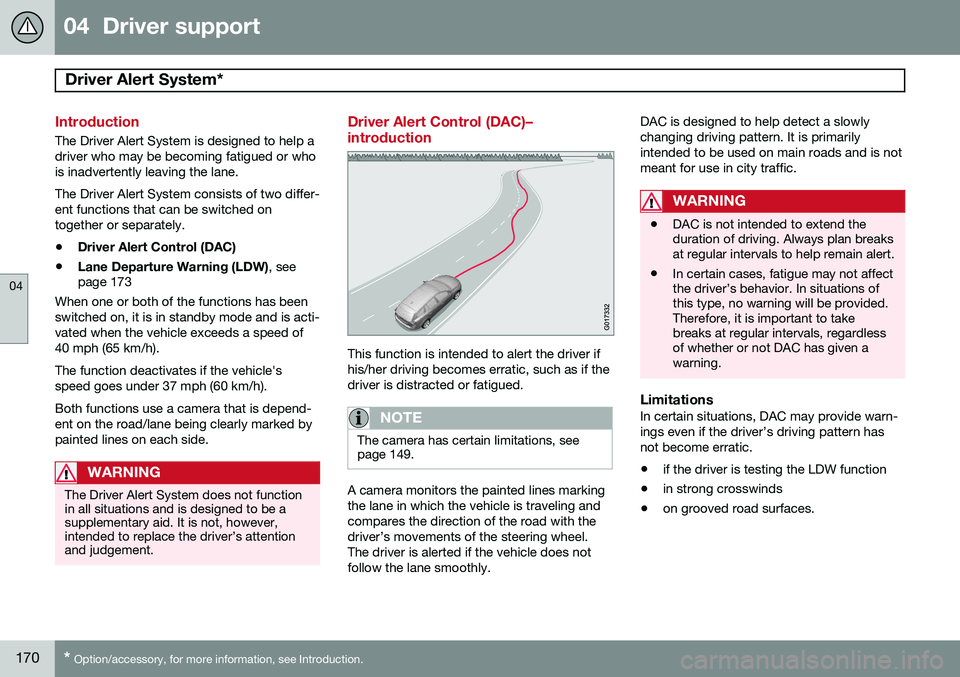
Driver Alert Control (DAC)– introduction
This function is intended to alert the driver if his/her driving becomes erratic, such as if thedriver is distracted or fatigued.
NOTE
The camera has certain limitations, see page 149.
A camera monitors the painted lines marking the lane in which the vehicle is traveling andcompares the direction of the road with thedriver’s movements of the steering wheel.The driver is alerted if the vehicle does notfollow the lane smoothly. DAC is designed to help detect a slowlychanging driving pattern. It is primarilyintended to be used on main roads and is notmeant for use in city traffic.
WARNING
•
DAC is not intended to extend the duration of driving. Always plan breaksat regular intervals to help remain alert.
• In certain cases, fatigue may not affectthe driver’s behavior. In situations ofthis type, no warning will be provided.Therefore, it is important to takebreaks at regular intervals, regardlessof whether or not DAC has given awarning.
LimitationsIn certain situations, DAC may provide warn- ings even if the driver’s driving pattern hasnot become erratic.
• if the driver is testing the LDW function
• in strong crosswinds
• on grooved road surfaces.
Page 176 of 380
04 Driver support
Driver Alert System*
04
174* Option/accessory, for more information, see Introduction.
WARNING
The driver will only be warned once for each time the wheels cross a marker line.No alarm will be given if a marker line isbetween the wheels.
Limitations
The camera used by LDW has the same limi- tations as the human eye. See page166 for
more information about the camera's limita-tions.
NOTE
No warning signal will be given in the cer-
tain situations, such as:
• If the turn signal is being used
• The driver’s foot is on the brake pedal 1
• The accelerator pedal is pressed quickly 1
• If the steering wheel is moved quickly 1
• In sharp turns that cause the vehicle’s body to sway
Settings
Settings for Lane Departure Warning can be made in the menu system by pressing
My
Car . Go to
SettingsCar settings
Driver support systemsLane Departure
Warning.
There are two alternatives:
On at start-up: This selection switches LDW
on each time the engine is started. Otherwise, the system will be in the mode that it was inwhen the engine was switched off.
Increased sensitivity: This selection increa-
ses the function’s sensitivity. Warnings will be given at an earlier stage and fewer limitationsapply. When this setting is being used, thesystem only needs to monitor lane markerlines on one side of the vehicle to change sta- tus to
Lane Depart Warn Available.
1 When Increased sensitivity has been selected, a warning will be issued if a side marker line is crossed in this situation.
Page 183 of 380
04 Driver support
Rear Park Assist Camera (PAC)*
04
* Option/accessory, for more information, see Introduction.181
Using PAC
Activation
PAC is activated when the gear selector is moved to R if the system is selected in the
MY CAR menu system or by pressing the
CAM button in the center console. See page
193 for a description of the menu system. If the Volvo Navigation System (VNS) is in use, PAC will automatically override the navi-gation system to show the camera's imageon the screen instead of navigation informa-tion, for as long as reverse gear is selected.
DeactivationMove the gear selector from R to another
position. There is a slight delay in the PACsystem, which means that the view from behind the vehicle will remain on the screenfor approximately 15 seconds after the gearselector has been moved from the
R position
or until the vehicle reaches a forward speedof 6 mph (10 km/h). The screen will thenrevert to the mode that it was in before R was
selected and will, for example, display navi-gation system information.
NOTE
If any button on the center console control panel is pressed, the camera image willdisappear from the display. Pressing CAM
will return the camera image to the display.
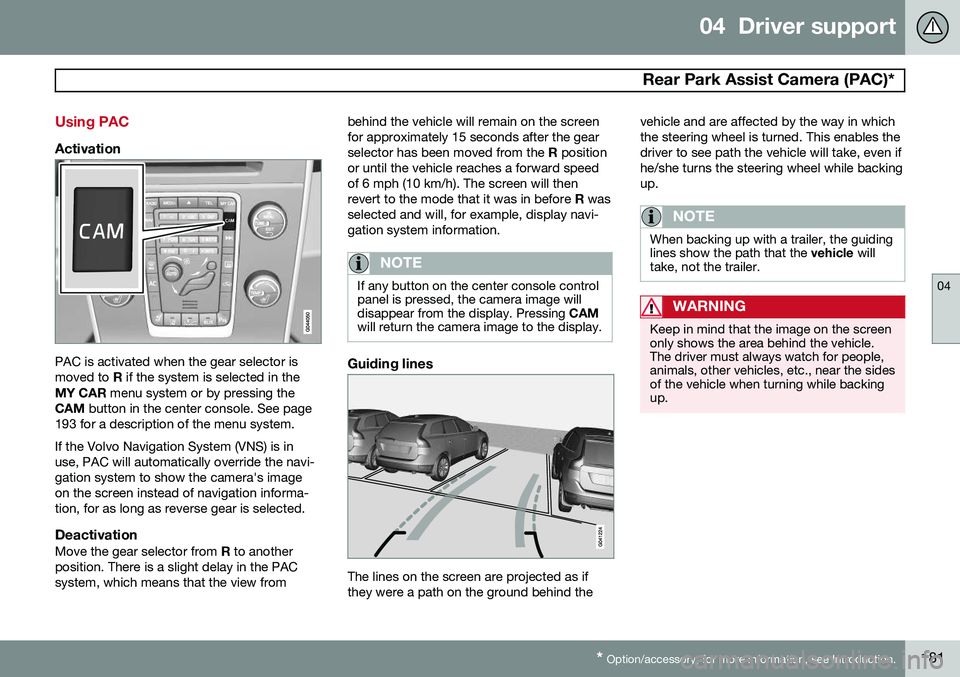
Guiding lines
The lines on the screen are projected as if they were a path on the ground behind the vehicle and are affected by the way in whichthe steering wheel is turned. This enables thedriver to see path the vehicle will take, even ifhe/she turns the steering wheel while backingup.
NOTE
When backing up with a trailer, the guiding lines show the path that the
vehicle will
take, not the trailer.
WARNING
Keep in mind that the image on the screen only shows the area behind the vehicle.The driver must always watch for people,animals, other vehicles, etc., near the sidesof the vehicle when turning while backingup.