lock VOLVO S80 2015 Owner´s Manual
[x] Cancel search | Manufacturer: VOLVO, Model Year: 2015, Model line: S80, Model: VOLVO S80 2015Pages: 392, PDF Size: 10.66 MB
Page 179 of 392
04 Driver support
Pedestrian and Cyclist Detection with Full Auto Brake*
04
}}
* Option/accessory, for more information, see Introduction.177
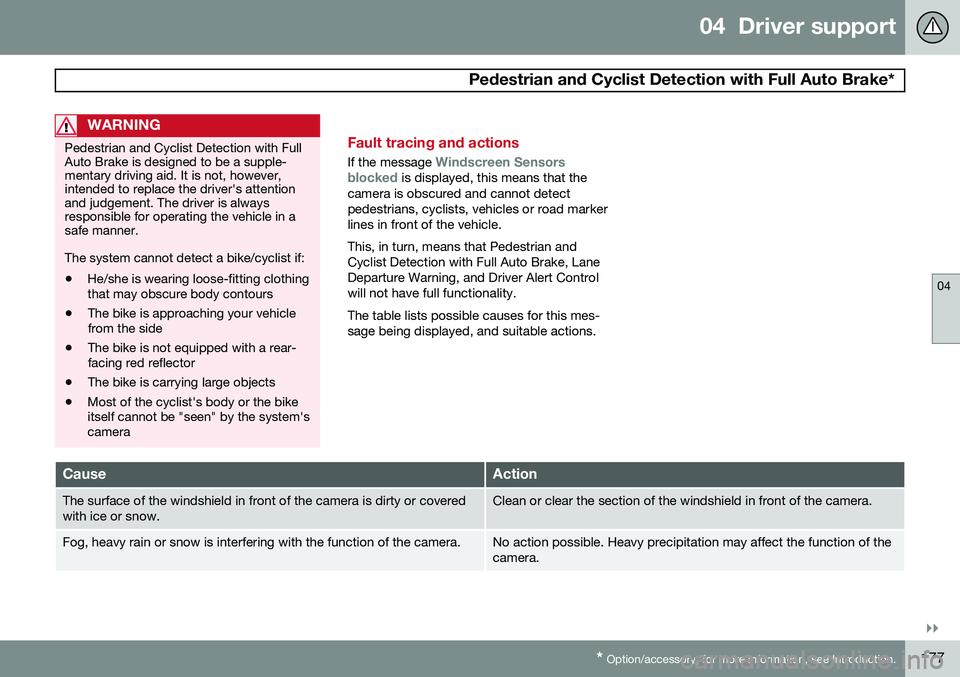
WARNING
Pedestrian and Cyclist Detection with Full Auto Brake is designed to be a supple-mentary driving aid. It is not, however,intended to replace the driver's attentionand judgement. The driver is alwaysresponsible for operating the vehicle in asafe manner. The system cannot detect a bike/cyclist if: • He/she is wearing loose-fitting clothing that may obscure body contours
• The bike is approaching your vehiclefrom the side
• The bike is not equipped with a rear-facing red reflector
• The bike is carrying large objects
• Most of the cyclist's body or the bikeitself cannot be "seen" by the system'scameraFault tracing and actions
If the message Windscreen Sensors
blocked is displayed, this means that the
camera is obscured and cannot detect pedestrians, cyclists, vehicles or road markerlines in front of the vehicle. This, in turn, means that Pedestrian and Cyclist Detection with Full Auto Brake, LaneDeparture Warning, and Driver Alert Controlwill not have full functionality. The table lists possible causes for this mes- sage being displayed, and suitable actions.
CauseAction
The surface of the windshield in front of the camera is dirty or covered with ice or snow.Clean or clear the section of the windshield in front of the camera.
Fog, heavy rain or snow is interfering with the function of the camera.No action possible. Heavy precipitation may affect the function of the camera.
Page 180 of 392
04 Driver support
Pedestrian and Cyclist Detection with Full Auto Brake*
04
178* Option/accessory, for more information, see Introduction.
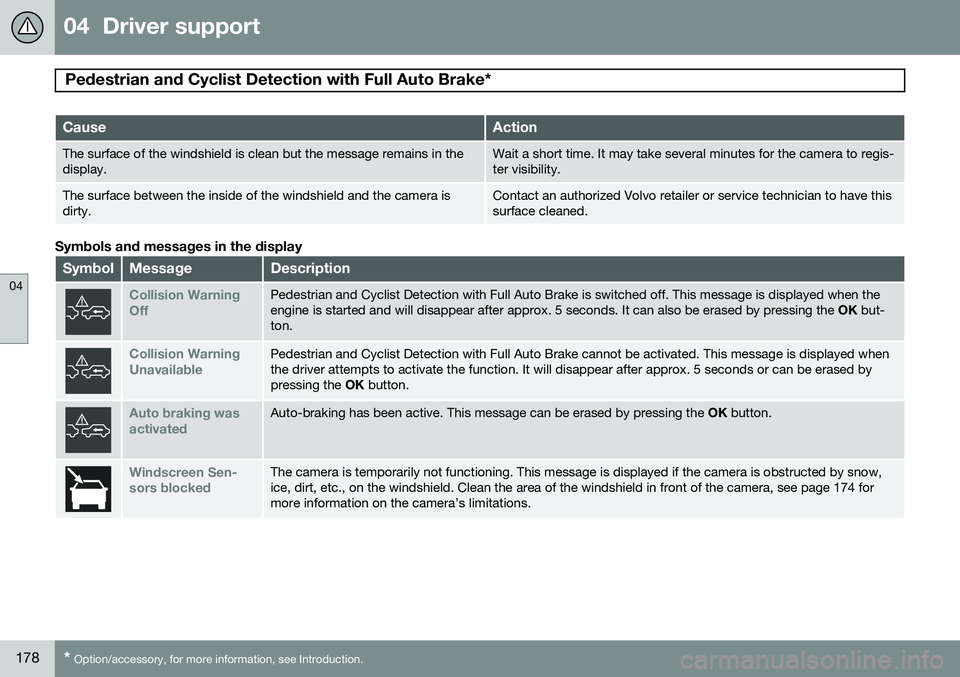
CauseAction
The surface of the windshield is clean but the message remains in the display.Wait a short time. It may take several minutes for the camera to regis- ter visibility.
The surface between the inside of the windshield and the camera is dirty.Contact an authorized Volvo retailer or service technician to have this surface cleaned.
Symbols and messages in the display
SymbolMessageDescription
Collision Warning OffPedestrian and Cyclist Detection with Full Auto Brake is switched off. This message is displayed when the engine is started and will disappear after approx. 5 seconds. It can also be erased by pressing the OK but-
ton.
Collision Warning UnavailablePedestrian and Cyclist Detection with Full Auto Brake cannot be activated. This message is displayed when the driver attempts to activate the function. It will disappear after approx. 5 seconds or can be erased bypressing the OK button.
Auto braking was activatedAuto-braking has been active. This message can be erased by pressing the OK button.
Windscreen Sen- sors blockedThe camera is temporarily not functioning. This message is displayed if the camera is obstructed by snow, ice, dirt, etc., on the windshield. Clean the area of the windshield in front of the camera, see page 174 formore information on the camera’s limitations.
Page 181 of 392
04 Driver support
Pedestrian and Cyclist Detection with Full Auto Brake*
04
* Option/accessory, for more information, see Introduction.179
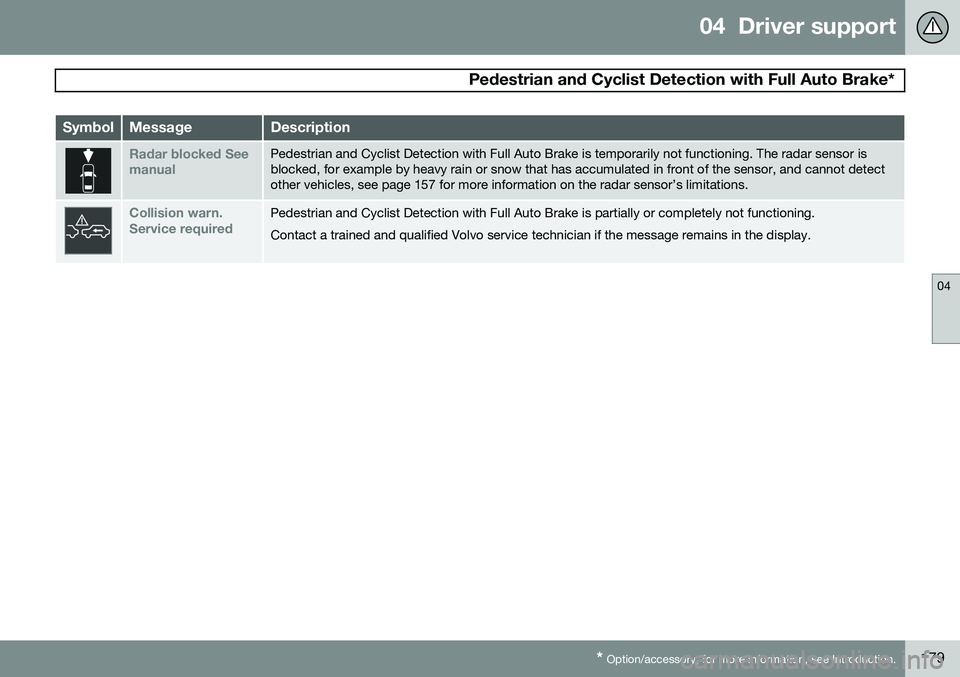
SymbolMessageDescription
Radar blocked See manualPedestrian and Cyclist Detection with Full Auto Brake is temporarily not functioning. The radar sensor is blocked, for example by heavy rain or snow that has accumulated in front of the sensor, and cannot detectother vehicles, see page 157 for more information on the radar sensor’s limitations.
Collision warn. Service requiredPedestrian and Cyclist Detection with Full Auto Brake is partially or completely not functioning. Contact a trained and qualified Volvo service technician if the message remains in the display.
Page 183 of 392
04 Driver support
Driver Alert System*
04
}}
* Option/accessory, for more information, see Introduction.181
On/OffTo put Driver Alert in standby mode:
• In the
MY CAR menu, scroll to
Car
settings
Driver support systemsDriver Alert and check the box. If the box
is not checked, the function is off.
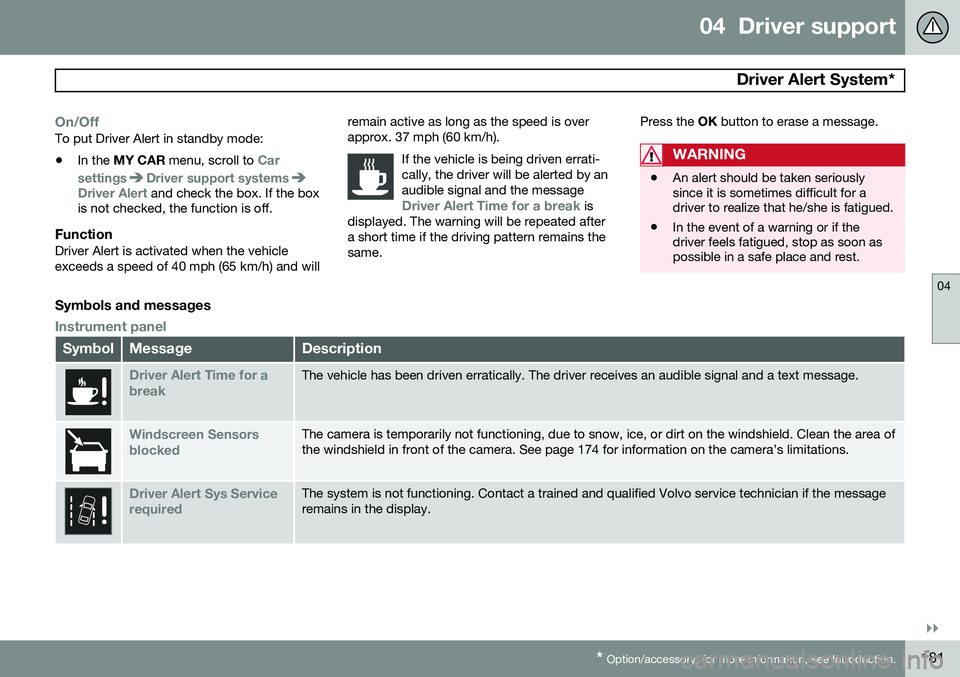
FunctionDriver Alert is activated when the vehicle exceeds a speed of 40 mph (65 km/h) and will remain active as long as the speed is overapprox. 37 mph (60 km/h).
If the vehicle is being driven errati-cally, the driver will be alerted by anaudible signal and the message
Driver Alert Time for a break is
displayed. The warning will be repeated after a short time if the driving pattern remains thesame.
Press the OK button to erase a message.
WARNING
• An alert should be taken seriously since it is sometimes difficult for adriver to realize that he/she is fatigued.
• In the event of a warning or if thedriver feels fatigued, stop as soon aspossible in a safe place and rest.
Symbols and messages
Instrument panel
SymbolMessageDescription
Driver Alert Time for a breakThe vehicle has been driven erratically. The driver receives an audible signal and a text message.
Windscreen Sensors blockedThe camera is temporarily not functioning, due to snow, ice, or dirt on the windshield. Clean the area of the windshield in front of the camera. See page 174 for information on the camera’s limitations.
Driver Alert Sys Service requiredThe system is not functioning. Contact a trained and qualified Volvo service technician if the message remains in the display.
Page 186 of 392
04 Driver support
Driver Alert System*
04
184* Option/accessory, for more information, see Introduction.
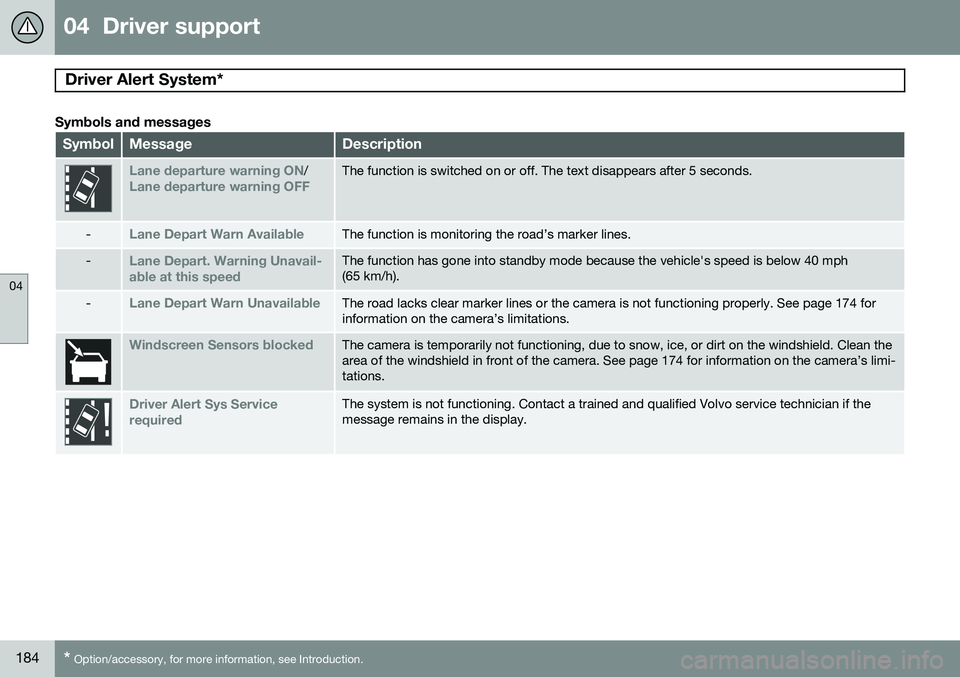
Symbols and messages
SymbolMessageDescription
Lane departure warning ON/Lane departure warning OFFThe function is switched on or off. The text disappears after 5 seconds.
-Lane Depart Warn AvailableThe function is monitoring the road’s marker lines.
-Lane Depart. Warning Unavail-
able at this speedThe function has gone into standby mode because the vehicle's speed is below 40 mph (65 km/h).
-Lane Depart Warn UnavailableThe road lacks clear marker lines or the camera is not functioning properly. See page 174 for information on the camera’s limitations.
Windscreen Sensors blockedThe camera is temporarily not functioning, due to snow, ice, or dirt on the windshield. Clean the area of the windshield in front of the camera. See page 174 for information on the camera’s limi-tations.
Driver Alert Sys Service requiredThe system is not functioning. Contact a trained and qualified Volvo service technician if the message remains in the display.
Page 196 of 392
04 Driver support
Blind Spot Information System (BLIS)*
04
194* Option/accessory, for more information, see Introduction.
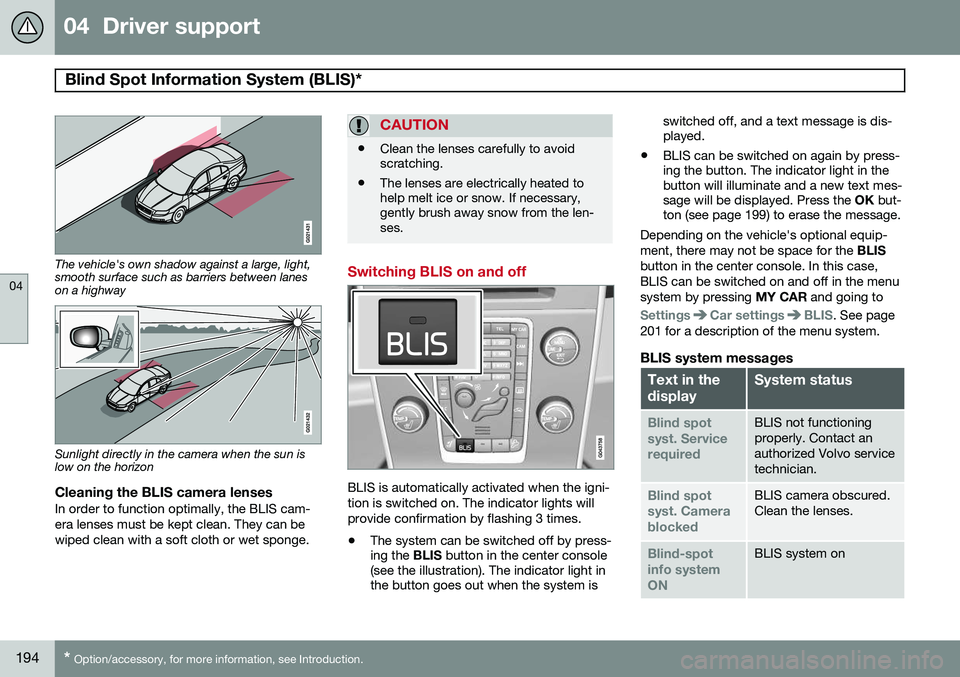
The vehicle's own shadow against a large, light, smooth surface such as barriers between laneson a highway
Sunlight directly in the camera when the sun is low on the horizon
Cleaning the BLIS camera lensesIn order to function optimally, the BLIS cam- era lenses must be kept clean. They can bewiped clean with a soft cloth or wet sponge.
CAUTION
• Clean the lenses carefully to avoid scratching.
• The lenses are electrically heated tohelp melt ice or snow. If necessary,gently brush away snow from the len-ses.
Switching BLIS on and off
BLIS is automatically activated when the igni- tion is switched on. The indicator lights willprovide confirmation by flashing 3 times.
• The system can be switched off by press- ing the
BLIS button in the center console
(see the illustration). The indicator light inthe button goes out when the system is switched off, and a text message is dis-played.
• BLIS can be switched on again by press-ing the button. The indicator light in thebutton will illuminate and a new text mes-sage will be displayed. Press the
OK but-
ton (see page 199) to erase the message.
Depending on the vehicle's optional equip- ment, there may not be space for the BLIS
button in the center console. In this case,BLIS can be switched on and off in the menusystem by pressing MY CAR and going to
SettingsCar settingsBLIS. See page
201 for a description of the menu system.
BLIS system messages
Text in the displaySystem status
Blind spot syst. ServicerequiredBLIS not functioning properly. Contact anauthorized Volvo servicetechnician.
Blind spot syst. CamerablockedBLIS camera obscured. Clean the lenses.
Blind-spot info systemONBLIS system on
Page 200 of 392
05 Comfort and driving pleasure
Volvo Sensus
05
198* Option/accessory, for more information, see Introduction.
Introduction
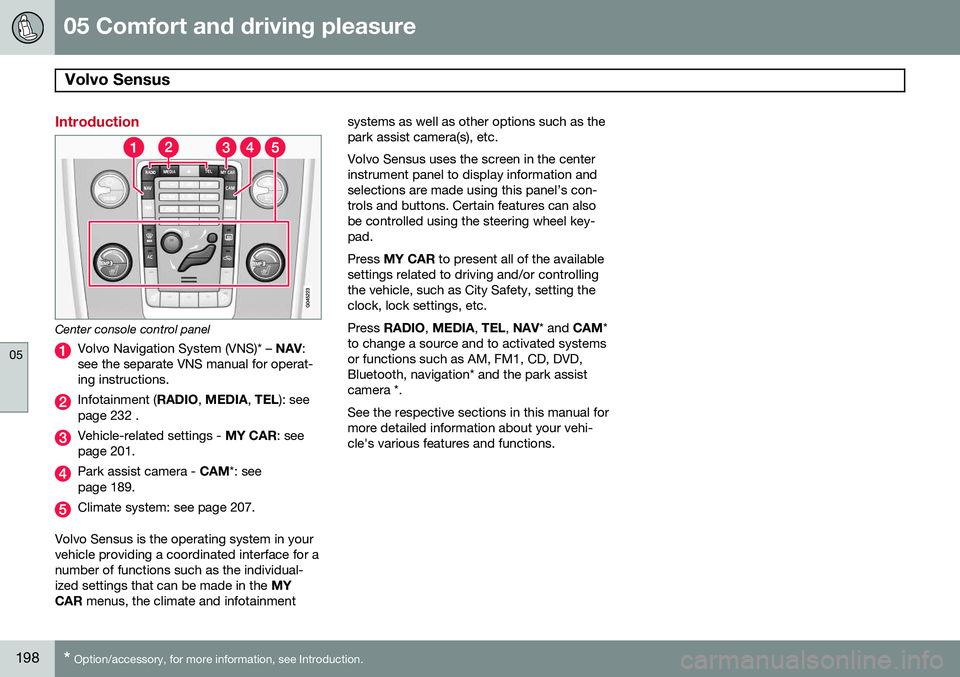
Center console control panel
Volvo Navigation System (VNS)* – NAV:
see the separate VNS manual for operat- ing instructions.
Infotainment ( RADIO, MEDIA , TEL ): see
page 232 .
Vehicle-related settings - MY CAR: see
page 201.
Park assist camera - CAM*: see
page 189.
Climate system: see page 207.
Volvo Sensus is the operating system in your vehicle providing a coordinated interface for anumber of functions such as the individual-ized settings that can be made in the MY
CAR menus, the climate and infotainment systems as well as other options such as thepark assist camera(s), etc. Volvo Sensus uses the screen in the center instrument panel to display information andselections are made using this panel’s con-trols and buttons. Certain features can alsobe controlled using the steering wheel key-pad. Press
MY CAR to present all of the available
settings related to driving and/or controlling the vehicle, such as City Safety, setting theclock, lock settings, etc. Press RADIO , MEDIA , TEL , NAV * and CAM*
to change a source and to activated systems or functions such as AM, FM1, CD, DVD,Bluetooth, navigation* and the park assistcamera *. See the respective sections in this manual for more detailed information about your vehi-cle's various features and functions.
Page 203 of 392
05 Comfort and driving pleasure
The MY CAR menus
05
}}
201
Introduction
The menu system provides access to menus for operating many of the vehi-cle's functions, such as setting the
clock, door mirrors, locks, etc.
Navigating in the menus is done using the buttons on the center console control panelor with the right-side steering wheel keypad. Some of the features mentioned in this sec- tion are optional.
Operation
Center console controls
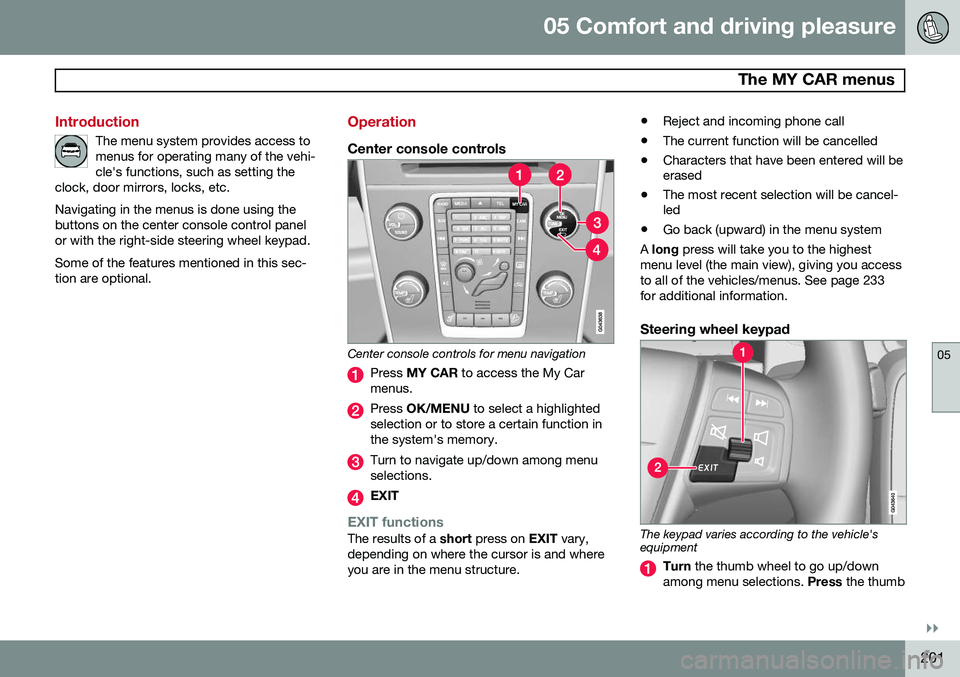
Center console controls for menu navigation
Press MY CAR to access the My Car
menus.
Press OK/MENU to select a highlighted
selection or to store a certain function in the system's memory.
Turn to navigate up/down among menu selections.
EXIT
EXIT functionsThe results of a short press on EXIT vary,
depending on where the cursor is and where you are in the menu structure. •
Reject and incoming phone call
• The current function will be cancelled
• Characters that have been entered will be erased
• The most recent selection will be cancel-led
• Go back (upward) in the menu system
A long press will take you to the highest
menu level (the main view), giving you access to all of the vehicles/menus. See page 233for additional information.
Steering wheel keypad
The keypad varies according to the vehicle's equipment
Turn the thumb wheel to go up/down
among menu selections. Press the thumb
Page 204 of 392
05 Comfort and driving pleasure
The MY CAR menus
05
202
wheel to make a selection or store a func tion in the system's memory.
EXIT.
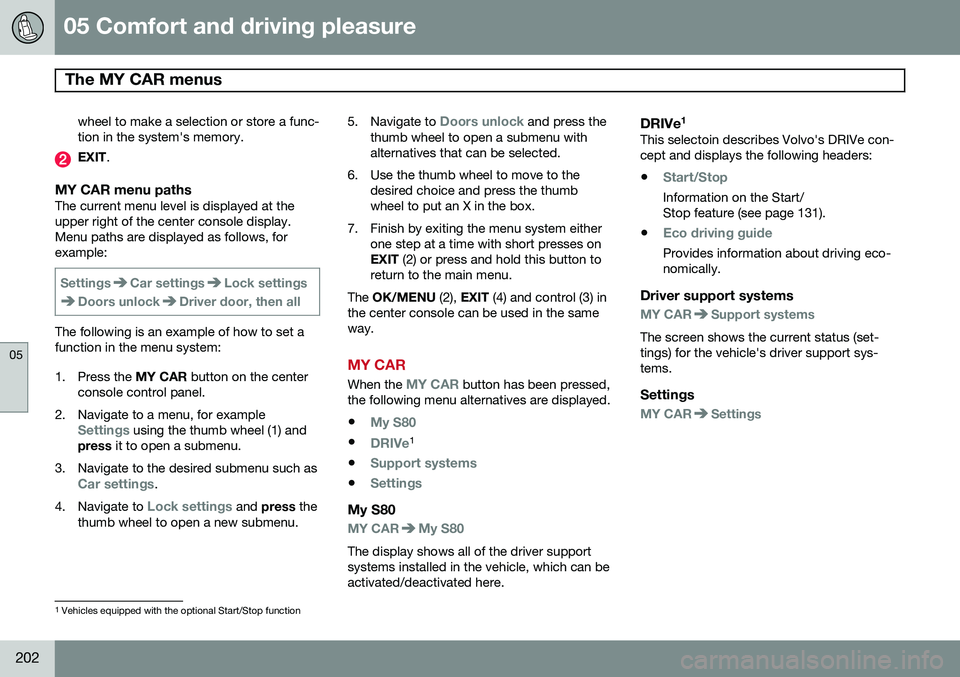
MY CAR menu pathsThe current menu level is displayed at the upper right of the center console display.Menu paths are displayed as follows, forexample:
SettingsCar settingsLock settings
Doors unlockDriver door, then all
The following is an example of how to set a function in the menu system:
1. Press the MY CAR button on the center
console control panel.
2. Navigate to a menu, for example
Settings using the thumb wheel (1) and
press it to open a submenu.
3. Navigate to the desired submenu such as
Car settings.
4. Navigate to
Lock settings and press the
thumb wheel to open a new submenu. 5.
Navigate to
Doors unlock and press the
thumb wheel to open a submenu with alternatives that can be selected.
6. Use the thumb wheel to move to the desired choice and press the thumbwheel to put an X in the box.
7. Finish by exiting the menu system either one step at a time with short presses onEXIT (2) or press and hold this button to
return to the main menu.
The OK/MENU (2), EXIT (4) and control (3) in
the center console can be used in the sameway.
MY CAR
When the MY CAR button has been pressed,
the following menu alternatives are displayed.
•
My S80
•DRIVe1
•
Support systems
•Settings
My S80
MY CARMy S80
The display shows all of the driver support systems installed in the vehicle, which can beactivated/deactivated here.
DRIVe 1This selectoin describes Volvo's DRIVe con-cept and displays the following headers:
•
Start/Stop
Information on the Start/ Stop feature (see page 131).
•
Eco driving guide
Provides information about driving eco- nomically.
Driver support systems
MY CARSupport systems
The screen shows the current status (set- tings) for the vehicle's driver support sys-tems.
Settings
MY CARSettings
1 Vehicles equipped with the optional Start/Stop function
Page 205 of 392
05 Comfort and driving pleasure
The MY CAR menus
05
}}
203
Menu settings
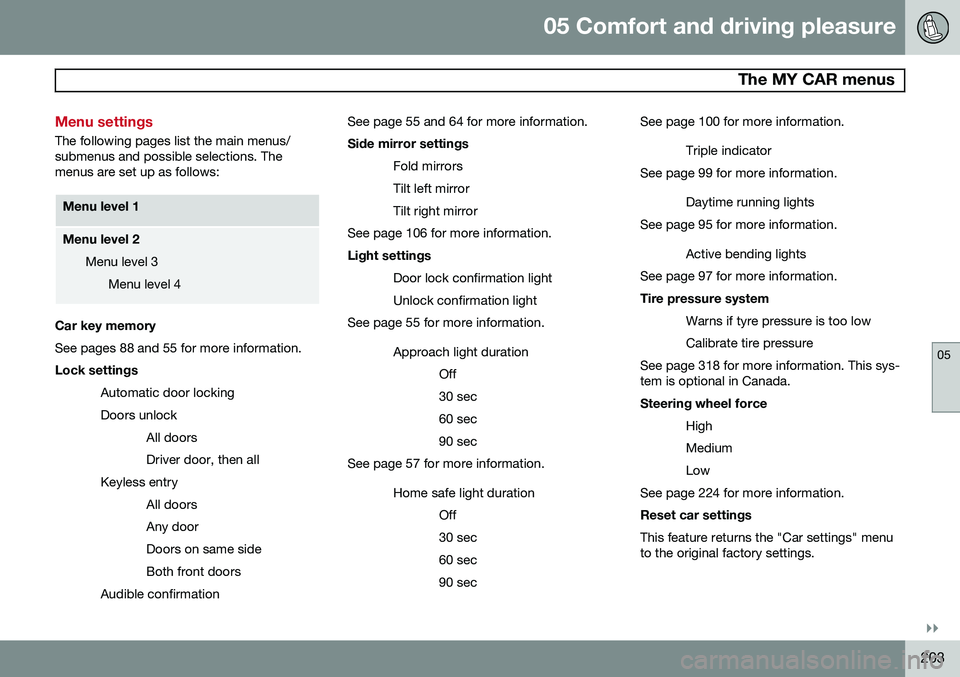
The following pages list the main menus/ submenus and possible selections. Themenus are set up as follows:
Menu level 1
Menu level 2Menu level 3Menu level 4
Car key memory See pages 88 and 55 for more information. Lock settings
Automatic door locking Doors unlockAll doorsDriver door, then all
Keyless entry All doorsAny doorDoors on same sideBoth front doors
Audible confirmation See page 55 and 64 for more information. Side mirror settings
Fold mirrors Tilt left mirrorTilt right mirror
See page 106 for more information. Light settings
Door lock confirmation light Unlock confirmation light
See page 55 for more information.
Approach light durationOff30 sec60 sec90 sec
See page 57 for more information.
Home safe light durationOff30 sec60 sec90 sec See page 100 for more information.
Triple indicator
See page 99 for more information.
Daytime running lights
See page 95 for more information.
Active bending lights
See page 97 for more information. Tire pressure system
Warns if tyre pressure is too low Calibrate tire pressure
See page 318 for more information. This sys- tem is optional in Canada. Steering wheel force
High MediumLow
See page 224 for more information. Reset car settings This feature returns the "Car settings" menu to the original factory settings.