lock VOLVO S80 2015 Owner´s Manual
[x] Cancel search | Manufacturer: VOLVO, Model Year: 2015, Model line: S80, Model: VOLVO S80 2015Pages: 392, PDF Size: 10.66 MB
Page 209 of 392
05 Comfort and driving pleasure
Climate system
05
}}
* Option/accessory, for more information, see Introduction.207
Introduction
Air conditioningThe vehicle is equipped with Electronic Cli- mate Control (ECC). The climate control sys-tem cools, heats or dehumidifies the air in thepassenger compartment.
NOTE
• The air conditioning can be switched off, but to ensure the best possible cli-mate comfort in the passenger com-partment and to prevent the windowsfrom misting, it should always be on.
• In warm weather, a small amount ofwater may accumulate under the carwhen it has been parked. This water iscondensation from the A/C systemand is normal.
Sensor location
•
The sunlight sensor is located on the top side of the dashboard.
NOTE
The sunlight sensor monitors which side of the car that is most exposed to sunlight.This can mean that the temperature maydiffer between the right and left-side airvents, even if the temperatures set for bothsides of the passenger compartment arethe same.
•The temperature sensor for the passen- ger compartment is located below the cli-mate control panel.
• The outside (ambient) temperature sensoris located on the door mirror.
• The humidity sensor* is located in theinterior rearview mirror.
NOTE
Do not cover or block the sensors with clothing or other objects.
Side windows and moonroofTo ensure that the air conditioning works optimally, the side windows, and the optionalmoonroof should be closed.
Fog on the inside of the windowsThe defroster function should be used toremove fog or mist from the inside of the win-dows. Keeping the windows clean with acommercially available window washing spray will also help prevent fogging or mist-ing.
Vents in the parcel shelf
NOTE
The air vents at the rear of the parcel shelf should never be obstructed.
Temporary shut-off of the air conditioning
The air conditioning is momentarily disen- gaged during full acceleration or when drivinguphill with a trailer. This may result in a tem-porary increase in cabin temperature.
Ice and snowAlways keep the air intake grille at the base ofthe windshield free of snow.
Climate system maintenanceSpecial tools and equipment are required tomaintain and carry out repairs on the climatesystem. Work of this type should only bedone by a trained and qualified Volvo servicetechnician.
RefrigerantVolvo cares about the environment. The airconditioning system in your car contains aCFC-free refrigerant – R134a. This substancewill not deplete the ozone layer. See page
Page 214 of 392
05 Comfort and driving pleasure
Climate system
05
212
Blower controlTurn the control clockwise to increase or counterclockwiseto decrease the blowerspeed. If AUTO is selected,
blower speed will be regula-ted automatically and thiswill override manual adjust-
ment.
NOTE
If the blower is turned off completely, the air conditioning is disengaged, which mayresult in fogging on the windows.
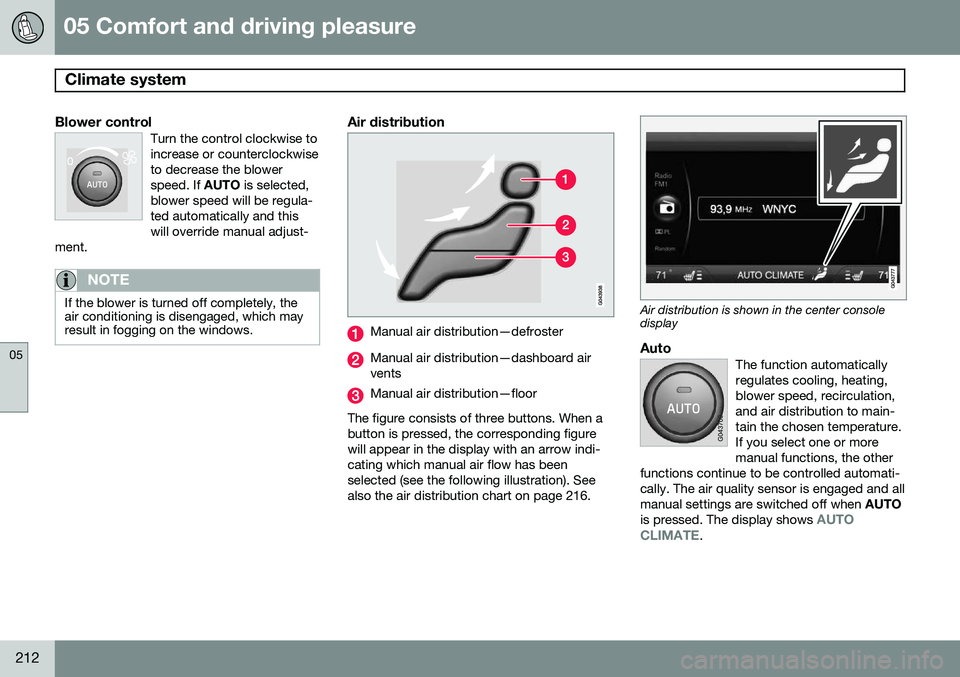
Air distribution
Manual air distribution—defroster
Manual air distribution—dashboard air vents
Manual air distribution—floor
The figure consists of three buttons. When a button is pressed, the corresponding figurewill appear in the display with an arrow indi-cating which manual air flow has beenselected (see the following illustration). Seealso the air distribution chart on page 216.
Air distribution is shown in the center console display
AutoThe function automatically regulates cooling, heating,blower speed, recirculation,and air distribution to main-tain the chosen temperature.If you select one or moremanual functions, the other
functions continue to be controlled automati-cally. The air quality sensor is engaged and allmanual settings are switched off when AUTO
is pressed. The display shows
AUTO
CLIMATE.
Page 219 of 392
05 Comfort and driving pleasure
Trip computer
05
}}
217
Introduction
The content and appearance of the trip com- puter varies depending on whether the vehi-cle is equipped with an analog or digital
instrument panel. The instrument panel illuminates as soon as the vehicle is unlocked and trip computer set-tings can be made. If none of the trip com-puter's controls are used within 30 secondsafter the driver's door has been opened, theinstrument panel lighting will go out and thetrip computer cannot be used again until: • the ignition is put in mode II1
• the engine is started
NOTE
If a warning message appears while you are using the trip computer, this messagemust be acknowledged in order to returnto the trip computer function. Acknowl-edge a message by pressing
OK.
Trip computer in models with an analog instrument panel
The trip computer has two different menu groups: •
Trip computer functions
• Trip computer information headings in the instrument panel
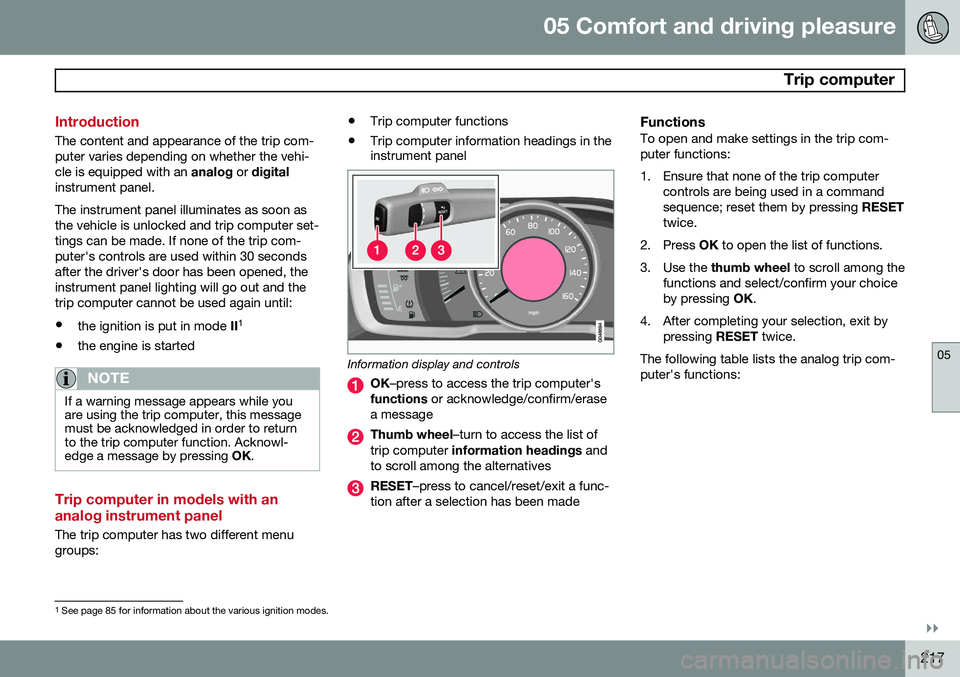
Information display and controls
OK
–press to access the trip computer's
functions or acknowledge/confirm/erase
a message
Thumb wheel –turn to access the list of
trip computer information headings and
to scroll among the alternatives
RESET –press to cancel/reset/exit a func-
tion after a selection has been made
FunctionsTo open and make settings in the trip com- puter functions:
1. Ensure that none of the trip computer controls are being used in a command sequence; reset them by pressing RESET
twice.
2. Press OK to open the list of functions.
3. Use the thumb wheel to scroll among the
functions and select/confirm your choiceby pressing OK.
4. After completing your selection, exit by pressing RESET twice.
The following table lists the analog trip com-puter's functions:
1 See page 85 for information about the various ignition modes.
Page 228 of 392
05 Comfort and driving pleasure
Passenger compartment convenience
05
226
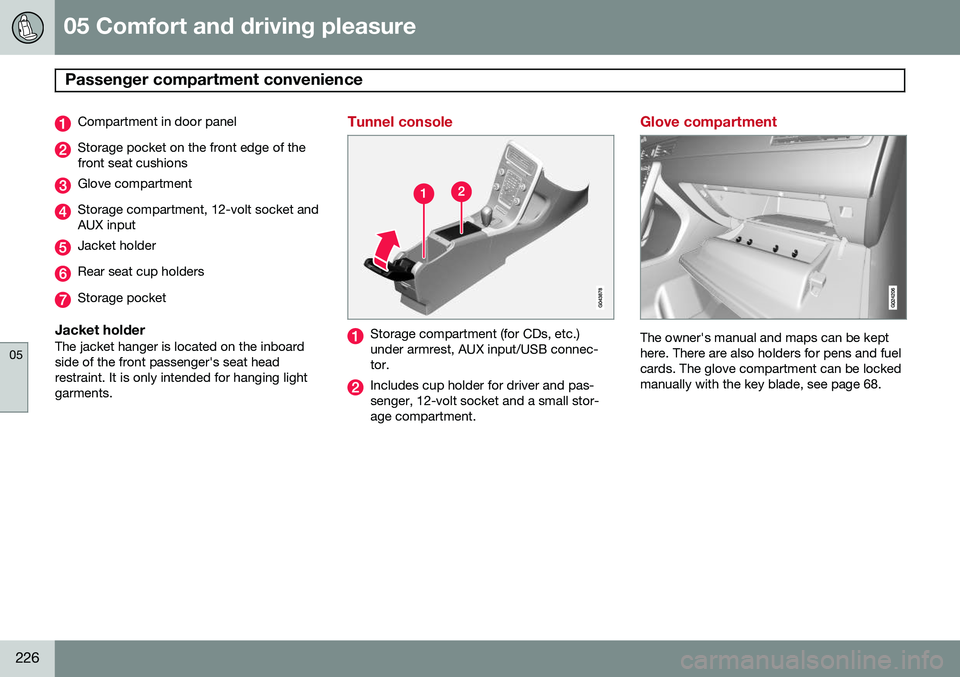
Compartment in door panel
Storage pocket on the front edge of the front seat cushions
Glove compartment
Storage compartment, 12-volt socket and AUX input
Jacket holder
Rear seat cup holders
Storage pocket
Jacket holderThe jacket hanger is located on the inboard side of the front passenger's seat headrestraint. It is only intended for hanging lightgarments.
Tunnel console
Storage compartment (for CDs, etc.) under armrest, AUX input/USB connec-tor.
Includes cup holder for driver and pas- senger, 12-volt socket and a small stor-age compartment.
Glove compartment
The owner's manual and maps can be kept here. There are also holders for pens and fuelcards. The glove compartment can be lockedmanually with the key blade, see page 68.
Page 241 of 392
06 Infotainment
Introduction
06
}}
* Option/accessory, for more information, see Introduction.239
There is also a dynamic calibration that takes into consideration the volume level, radioreception, and the speed of the vehicle. The settings that are described in this man- ual, (
Bass, Treble, Equalizer etc.) are only
intended to enable the user to adapt sound reproduction to his/her personal tastes.
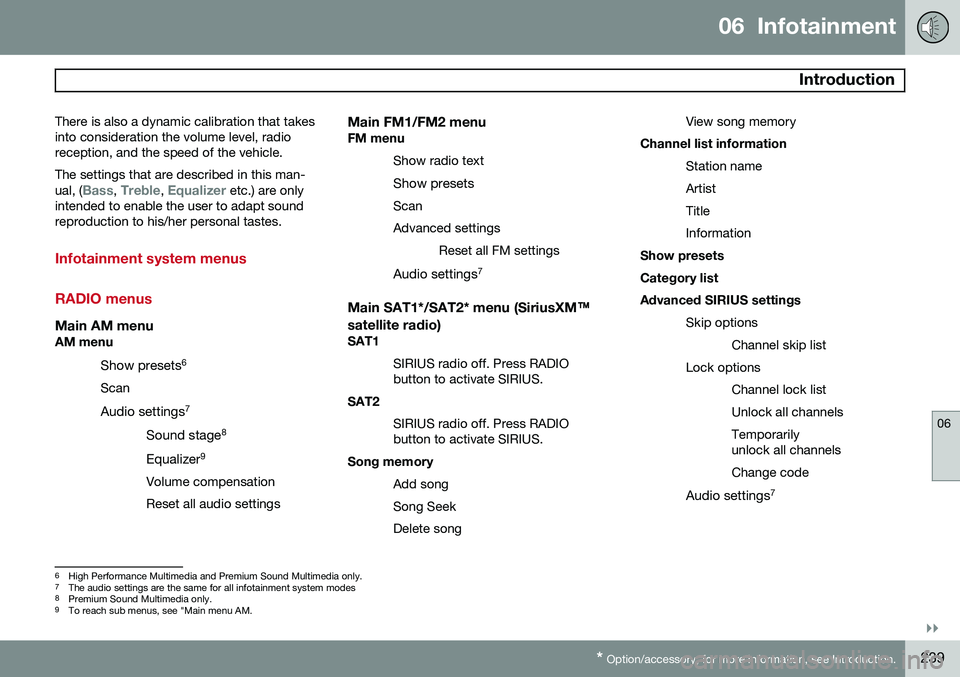
Infotainment system menus RADIO menus
Main AM menuAM menu
Show presets 6
Scan
Audio settings 7
Sound stage 8
Equalizer 9
Volume compensation Reset all audio settings
Main FM1/FM2 menuFM menu Show radio text
Show presets
ScanAdvanced settings Reset all FM settings
Audio settings 7
Main SAT1*/SAT2* menu (SiriusXM™
satellite radio)
SAT1
SIRIUS radio off. Press RADIO button to activate SIRIUS.
SAT2
SIRIUS radio off. Press RADIObutton to activate SIRIUS.
Song memory
Add song Song SeekDelete song View song memory
Channel list information
Station nameArtistTitleInformation
Show presetsCategory listAdvanced SIRIUS settings
Skip optionsChannel skip list
Lock options Channel lock listUnlock all channelsTemporarily unlock all channels Change code
Audio settings 7
6
High Performance Multimedia and Premium Sound Multimedia only.
7 The audio settings are the same for all infotainment system modes
8 Premium Sound Multimedia only.
9 To reach sub menus, see "Main menu AM.
Page 249 of 392
06 Infotainment
Radio
06
}}
247
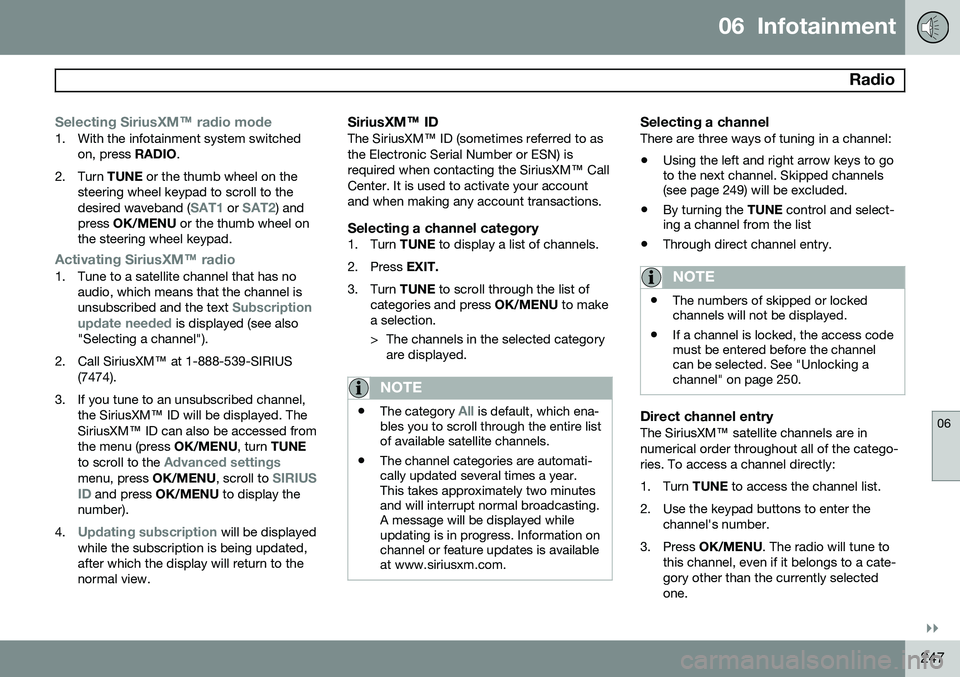
Selecting SiriusXM™ radio mode
1. With the infotainment system switched
on, press RADIO.
2. Turn TUNE or the thumb wheel on the
steering wheel keypad to scroll to the desired waveband (
SAT1 or SAT2) and
press OK/MENU or the thumb wheel on
the steering wheel keypad.
Activating SiriusXM ™ radio
1. Tune to a satellite channel that has no
audio, which means that the channel is unsubscribed and the text
Subscription
update needed is displayed (see also
"Selecting a channel").
2. Call SiriusXM ™ at 1-888-539-SIRIUS
(7474).
3. If you tune to an unsubscribed channel, the SiriusXM ™ ID will be displayed. The
SiriusXM ™ ID can also be accessed from
the menu (press OK/MENU, turn TUNE
to scroll to the
Advanced settingsmenu, press OK/MENU, scroll to SIRIUS
ID and press OK/MENU to display the
number).
4.
Updating subscription will be displayed
while the subscription is being updated, after which the display will return to thenormal view.
SiriusXM™ ID
The SiriusXM ™ ID (sometimes referred to as
the Electronic Serial Number or ESN) is required when contacting the SiriusXM ™ Call
Center. It is used to activate your accountand when making any account transactions.
Selecting a channel category1. Turn TUNE to display a list of channels.
2. Press EXIT.
3. Turn TUNE to scroll through the list of
categories and press OK/MENU to make
a selection.
> The channels in the selected category are displayed.
NOTE
• The category All is default, which ena-
bles you to scroll through the entire list of available satellite channels.
• The channel categories are automati-cally updated several times a year.This takes approximately two minutesand will interrupt normal broadcasting.A message will be displayed whileupdating is in progress. Information onchannel or feature updates is availableat www.siriusxm.com.
Selecting a channelThere are three ways of tuning in a channel:
• Using the left and right arrow keys to go to the next channel. Skipped channels(see page 249) will be excluded.
• By turning the
TUNE control and select-
ing a channel from the list
• Through direct channel entry.
NOTE
•The numbers of skipped or locked channels will not be displayed.
• If a channel is locked, the access codemust be entered before the channelcan be selected. See "Unlocking achannel" on page 250.
Direct channel entryThe SiriusXM
™ satellite channels are in
numerical order throughout all of the catego- ries. To access a channel directly:
1. Turn TUNE to access the channel list.
2. Use the keypad buttons to enter the channel's number.
3. Press OK/MENU . The radio will tune to
this channel, even if it belongs to a cate- gory other than the currently selectedone.
Page 251 of 392
06 Infotainment
Radio
06
}}
249
WARNING
Settings should be made when the vehicle is at a standstill.
The following settings can be made in the satellite menus: •Channel skip settings can be made
• Channel lock settings can be made
• The channel access code can be dis- played or changed (see also "Locking achannel" on page 249)
• Your SiriusXM
™ ID can be displayed
• Reset SiriusXM
™ settings
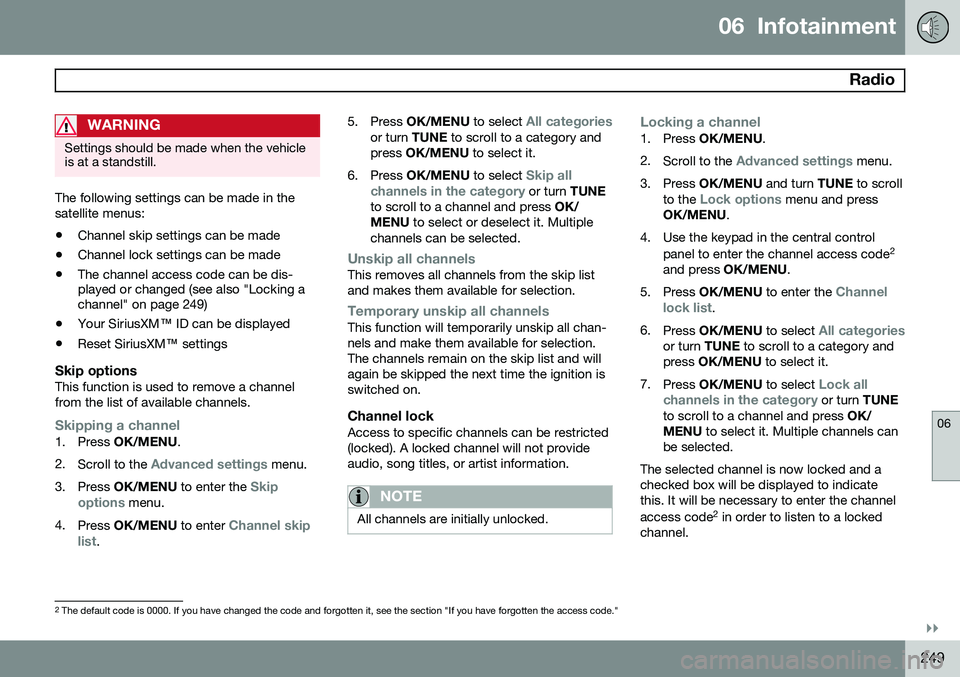
Skip optionsThis function is used to remove a channel from the list of available channels.
Skipping a channel1. Press OK/MENU .
2. Scroll to the
Advanced settings menu.
3. Press OK/MENU to enter the
Skip
options menu.
4. Press OK/MENU to enter
Channel skip
list. 5.
Press OK/MENU to select
All categoriesor turn TUNE to scroll to a category and
press OK/MENU to select it.
6. Press OK/MENU to select
Skip all
channels in the category or turn TUNE
to scroll to a channel and press OK/
MENU to select or deselect it. Multiple
channels can be selected.
Unskip all channelsThis removes all channels from the skip list and makes them available for selection.
Temporary unskip all channelsThis function will temporarily unskip all chan- nels and make them available for selection.The channels remain on the skip list and willagain be skipped the next time the ignition isswitched on.
Channel lockAccess to specific channels can be restricted(locked). A locked channel will not provideaudio, song titles, or artist information.
NOTE
All channels are initially unlocked.
Locking a channel1. Press OK/MENU .
2. Scroll to the
Advanced settings menu.
3. Press OK/MENU and turn TUNE to scroll
to the
Lock options menu and press
OK/MENU .
4. Use the keypad in the central control panel to enter the channel access code 2
and press OK/MENU .
5. Press OK/MENU to enter the
Channel
lock list.
6. Press OK/MENU to select
All categoriesor turn TUNE to scroll to a category and
press OK/MENU to select it.
7. Press OK/MENU to select
Lock all
channels in the category or turn TUNE
to scroll to a channel and press OK/
MENU to select it. Multiple channels can
be selected.
The selected channel is now locked and a checked box will be displayed to indicatethis. It will be necessary to enter the channel access code 2
in order to listen to a locked
channel.
2 The default code is 0000. If you have changed the code and forgotten it, see the section "If you have forgotten the access code."
Page 252 of 392
06 Infotainment
Radio
06
250
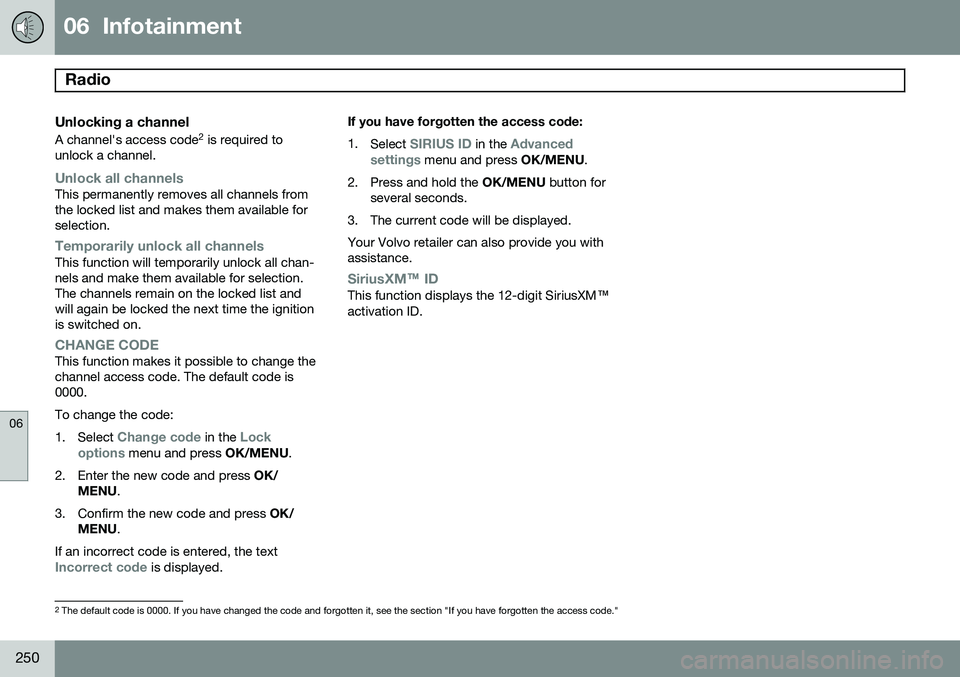
Unlocking a channel
A channel's access code2
is required to
unlock a channel.
Unlock all channelsThis permanently removes all channels from the locked list and makes them available forselection.
Temporarily unlock all channelsThis function will temporarily unlock all chan- nels and make them available for selection.The channels remain on the locked list andwill again be locked the next time the ignitionis switched on.
CHANGE CODEThis function makes it possible to change the channel access code. The default code is0000. To change the code:1. Select
Change code in the Lock
options menu and press OK/MENU.
2. Enter the new code and press OK/
MENU .
3. Confirm the new code and press OK/
MENU .
If an incorrect code is entered, the text
Incorrect code is displayed. If you have forgotten the access code: 1.
Select
SIRIUS ID in the Advanced
settings menu and press OK/MENU.
2. Press and hold the OK/MENU button for
several seconds.
3. The current code will be displayed. Your Volvo retailer can also provide you with assistance.
SiriusXM™ ID
This function displays the 12-digit SiriusXM ™
activation ID.
2 The default code is 0000. If you have changed the code and forgotten it, see the section "If you have forgotten the access code."
Page 264 of 392
06 Infotainment
Bluetooth® hands-free connection
06
262
Bluetooth ®
functions in the center
console control panel
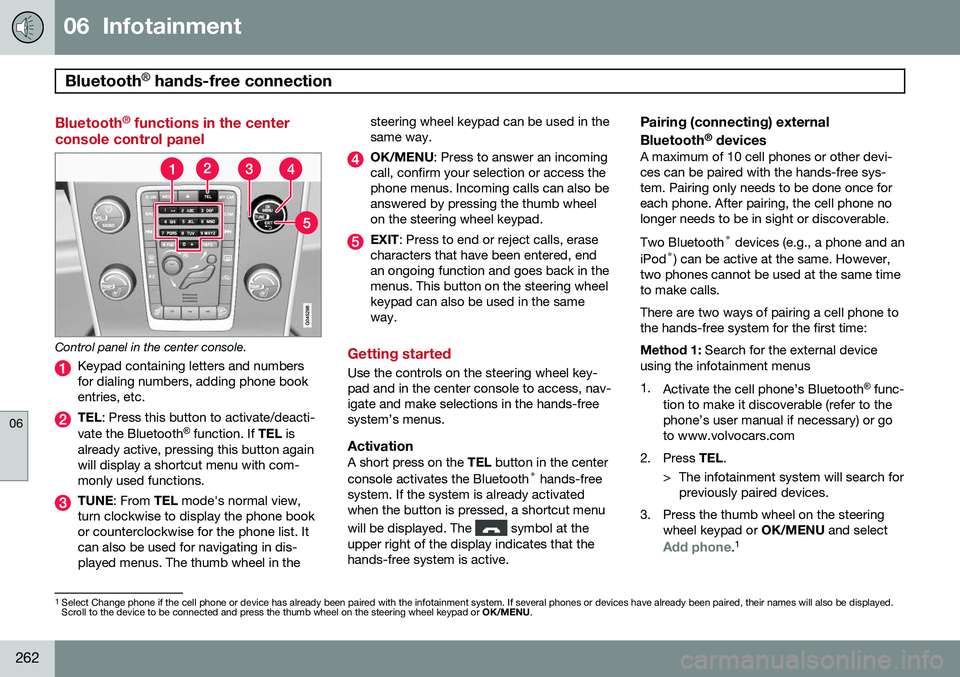
Control panel in the center console.
Keypad containing letters and numbers for dialing numbers, adding phone bookentries, etc.
TEL : Press this button to activate/deacti-
vate the Bluetooth ®
function. If TEL is
already active, pressing this button again will display a shortcut menu with com-monly used functions.
TUNE : From TEL mode's normal view,
turn clockwise to display the phone book or counterclockwise for the phone list. Itcan also be used for navigating in dis-played menus. The thumb wheel in the steering wheel keypad can be used in thesame way.
OK/MENU
: Press to answer an incoming
call, confirm your selection or access the phone menus. Incoming calls can also beanswered by pressing the thumb wheelon the steering wheel keypad.
EXIT : Press to end or reject calls, erase
characters that have been entered, end an ongoing function and goes back in themenus. This button on the steering wheelkeypad can also be used in the sameway.
Getting started
Use the controls on the steering wheel key- pad and in the center console to access, nav-igate and make selections in the hands-freesystem’s menus.
ActivationA short press on the TEL button in the center
console activates the Bluetooth ®
hands-free
system. If the system is already activatedwhen the button is pressed, a shortcut menu will be displayed. The
symbol at the
upper right of the display indicates that the hands-free system is active.
Pairing (connecting) external Bluetooth ®
devices
A maximum of 10 cell phones or other devi- ces can be paired with the hands-free sys-tem. Pairing only needs to be done once foreach phone. After pairing, the cell phone nolonger needs to be in sight or discoverable. Two Bluetooth ®
devices (e.g., a phone and an
iPod ®
) can be active at the same. However,
two phones cannot be used at the same time to make calls. There are two ways of pairing a cell phone to the hands-free system for the first time: Method 1: Search for the external device
using the infotainment menus1. Activate the cell phone’s Bluetooth ®
func-
tion to make it discoverable (refer to the phone’s user manual if necessary) or goto www.volvocars.com
2. Press TEL.
> The infotainment system will search for previously paired devices.
3. Press the thumb wheel on the steering wheel keypad or OK/MENU and select
Add phone.1
1
Select Change phone if the cell phone or device has already been paired with the infotainment system. If several phones or devices have already been paired, their names will also be displayed. Scroll to the device to be connected and press the thumb wheel on the steering wheel keypad or OK/MENU.
Page 266 of 392
06 Infotainment
Bluetooth® hands-free connection
06
264
Making a call1. Ensure that is shown at the top of
the center console display and that the hands-free function is in telephone mode.
2. Dial the desired phone number using the center console keypad or use the speeddial function (see page 268). In normalview (see page see page 233 for informa-tion about the various display views), it isalso possible to turn TUNE clockwise to
access the phone book and then counter-clockwise for the call list. See page 269for more information about the phonebook.
3. Press the thumb wheel or OK/MENU.
End or reject a call by pressing EXIT.
Disconnecting the cell phoneThe cell phone is automatically disconnectedfrom the infotainment system if it is movedout of range. The cell phone can be manually disconnected from the hands-free system by pressing andholding TEL or in phone mode, going to
Phone menuDisconnect phone. See also
page 265 for more information about con- nections. The hands-free system is also deactivatedwhen the ignition is switched off (or if thedriver’s door is opened). When the cell phone is disconnected from the hands-free system, a call in progress can becontinued using the cell phone’s own speakerand microphone. Even if the cell phone has been disconnected manually, some phones may reconnect auto-matically, for example when a new call is initi-ated.
Removing a paired deviceA paired phone or device can be removedfrom the list. To do so:
1. Press
TEL.
2. Select
Phone menuRemove
Bluetooth device.
Handling calls
Incoming calls–Press OK/MENU (or the thumb wheel on
the steering wheel keypad) to answer a call, even if the infotainment system is currently in another mode (e.g.,
RADIO orMEDIA).
Press EXIT to reject a call.
Auto answerThis function means that incoming calls will be answered automatically. Activate or deac-tivate the function in the menu system under
Phone menuCall optionsAuto
answer.
Call settingsWhile a call is in progress, press OK/MENU
or the thumb wheel on the steering wheel keypad to access the following functions:
•
Mute: mute the infotainment system’s
microphone.
•
Mobile phone: transfer the call from
hands-free to the cell phone. On certain cell phones, the connection will be bro-ken, which is normal. The hands-freefunction will ask if you would like toreconnect.
•
Dial number: dial a third party during an
ongoing call using the keypad (the current call will be put on hold).
Call listsCall lists are copied to the hands-free func- tion each time a cell phone is connected andthe lists are updated while the phone is con-nected. In normal view, turn TUNE counter-
clockwise to see the
All calls list.