display VOLVO S90 2017 Owner´s Manual
[x] Cancel search | Manufacturer: VOLVO, Model Year: 2017, Model line: S90, Model: VOLVO S90 2017Pages: 548, PDF Size: 11.42 MB
Page 266 of 548
||
DRIVER SUPPORT
* Option/accessory.
264
Related information
• Starting and activating Adaptive Cruise Control (ACC)
* (p. 264)
• Changing Adaptive Cruise Control (ACC) speed (p. 267)
• Setting an Adaptive Cruise Control timeinterval (p. 267)
• Changing target vehicles and automaticbraking with Adaptive Cruise Control (ACC)(p. 269)
• Switching between Cruise Control and Adaptive Cruise Control
* (p. 258)
• Passing Assistance with Adaptive Cruise Control or Pilot Assist (p. 268)
• Deactivating/resuming Adaptive CruiseControl (ACC) (p. 265)
• Adaptive Cruise Control (ACC) - trouble-shooting (p. 271)
• Adaptive Cruise Control (ACC) symbols andmessages (p. 273)
• Pilot Assist
* (p. 275)
• Distance Alert
* (p. 259)
• Head-up display (HUD)
* (p. 116)
• Radar sensor limitations (p. 289)
Starting and activating Adaptive Cruise Control (ACC)
*
ACC must first be put in active mode before it can be started in order to regulate speed or aset time interval to the vehicle ahead.
Starting ACC (putting it in standby
mode)
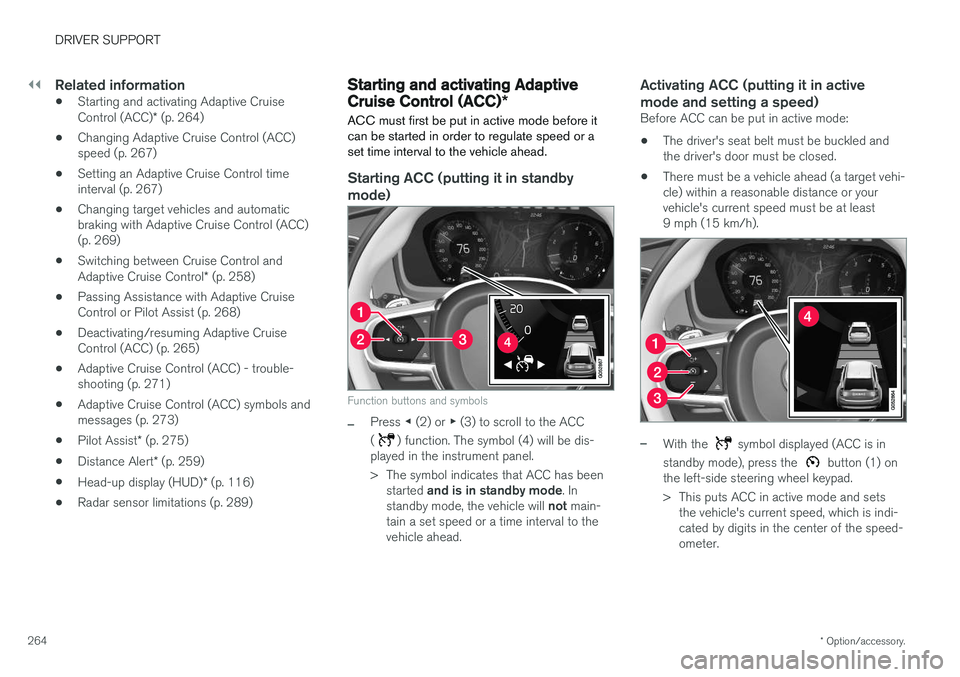
Function buttons and symbols
–Press ◀ (2) or ▶ (3) to scroll to the ACC
(
) function. The symbol (4) will be dis-
played in the instrument panel.
> The symbol indicates that ACC has been
started and is in standby mode . In
standby mode, the vehicle will not main-
tain a set speed or a time interval to the vehicle ahead.
Activating ACC (putting it in active mode and setting a speed)
Before ACC can be put in active mode:
• The driver's seat belt must be buckled and the driver's door must be closed.
• There must be a vehicle ahead (a target vehi-cle) within a reasonable distance or yourvehicle's current speed must be at least9 mph (15 km/h).
–With the symbol displayed (ACC is in
standby mode), press the
button (1) on
the left-side steering wheel keypad.
> This puts ACC in active mode and sets the vehicle's current speed, which is indi- cated by digits in the center of the speed-ometer.
Page 269 of 548
DRIVER SUPPORT
}}
* Option/accessory.267
Changing Adaptive Cruise Control (ACC) speed
ACC makes it possible to set various speeds.
Changing a set speed
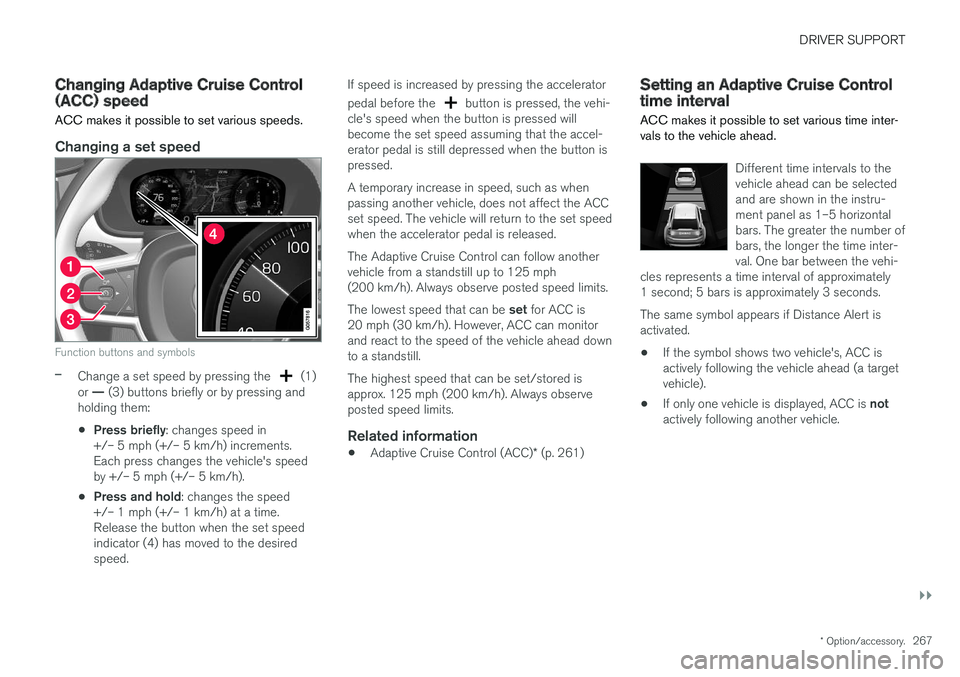
Function buttons and symbols
–Change a set speed by pressing the (1)
or — (3) buttons briefly or by pressing and
holding them:
• Press briefly
: changes speed in
+/– 5 mph (+/– 5 km/h) increments. Each press changes the vehicle's speedby +/– 5 mph (+/– 5 km/h).
• Press and hold
: changes the speed
+/– 1 mph (+/– 1 km/h) at a time.Release the button when the set speedindicator (4) has moved to the desiredspeed. If speed is increased by pressing the accelerator pedal before the
button is pressed, the vehi-
cle's speed when the button is pressed will become the set speed assuming that the accel-erator pedal is still depressed when the button ispressed. A temporary increase in speed, such as when passing another vehicle, does not affect the ACCset speed. The vehicle will return to the set speedwhen the accelerator pedal is released. The Adaptive Cruise Control can follow another vehicle from a standstill up to 125 mph(200 km/h). Always observe posted speed limits. The lowest speed that can be set for ACC is
20 mph (30 km/h). However, ACC can monitor and react to the speed of the vehicle ahead downto a standstill. The highest speed that can be set/stored is approx. 125 mph (200 km/h). Always observeposted speed limits.
Related information
• Adaptive Cruise Control (ACC)
* (p. 261)
Setting an Adaptive Cruise Control time interval
ACC makes it possible to set various time inter- vals to the vehicle ahead.
Different time intervals to the vehicle ahead can be selectedand are shown in the instru-ment panel as 1–5 horizontalbars. The greater the number ofbars, the longer the time inter-val. One bar between the vehi-
cles represents a time interval of approximately1 second; 5 bars is approximately 3 seconds. The same symbol appears if Distance Alert is activated.
• If the symbol shows two vehicle's, ACC is actively following the vehicle ahead (a targetvehicle).
• If only one vehicle is displayed, ACC is
not
actively following another vehicle.
Page 273 of 548
DRIVER SUPPORT
* Option/accessory.271
Adaptive Cruise Control (ACC) - troubleshooting
If this symbol is displayed in the instru- ment panel and the message
Windscreen sensor Sensor
blocked, see Owner's manual
appears, the ACC radar sensor is blocked and cannot detect vehicles ahead.
This message also indicates that the following systems may have reduced functionality:
• Distance Alert
• City Safety
• Driver Alert Control
• Pilot Assist
• Lane Keeping Aid (LKA) •
Road Sign Information (RSI)
The following table lists possible causes for this message being displayed and suitable actions:
Cause Action
The windshield in front of the radar is dirty or covered with snow/ice. Clean/clear the windshield in front of the radar.
Heavy rain or snow is interfering with the radar signals. No action possible. Heavy precipitation may affect the function of the radar.Swirling water or snow from the surface of the road may interfere with the radar signals. No action possible. A very wet or snow-covered road surface may affect thefunction of the radar.
The windshield in front of the radar is clean but the message remains in thedisplay. Wait a short time. It may take several minutes for the radar to detect that it isno longer obstructed.
A text message can be erased by briefly pressing the
O button on the right-side steering wheel
keypad. If the message recurs, contact a trained and authorized Volvo service technician orretailer.
Related information
• Adaptive Cruise Control (ACC)
* (p. 261)
Page 275 of 548
DRIVER SUPPORT
}}
* Option/accessory.273
Adaptive Cruise Control (ACC) symbols and messages A number of ACC symbols and/or messages may appear in the instrument panel or the head- up display*.
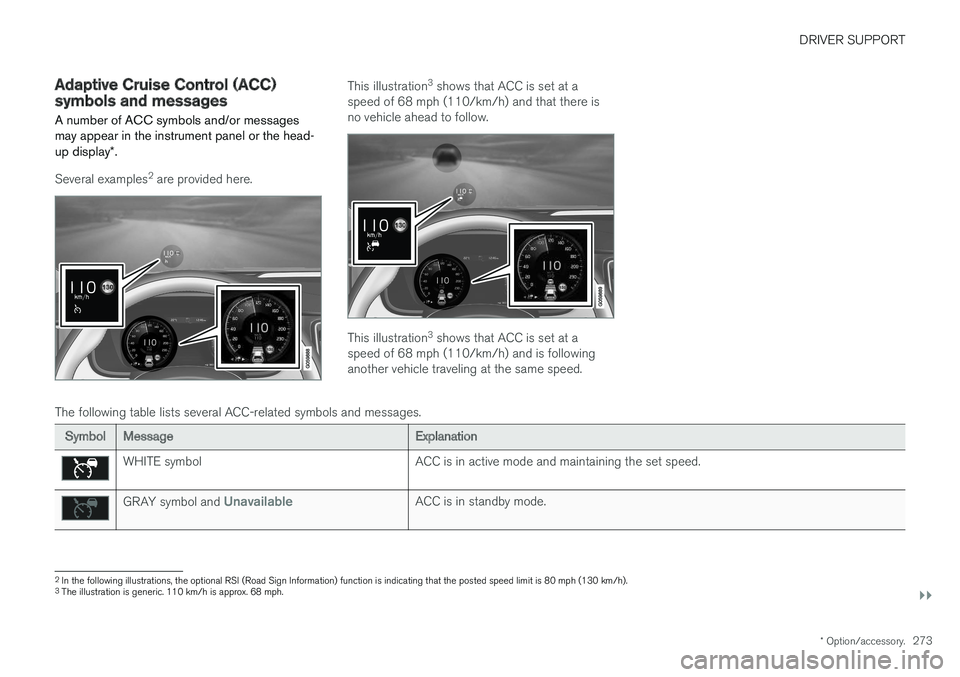
Several examples 2
are provided here.
This illustration 3
shows that ACC is set at a
speed of 68 mph (110/km/h) and that there is no vehicle ahead to follow.
This illustration 3
shows that ACC is set at a
speed of 68 mph (110/km/h) and is following another vehicle traveling at the same speed.
The following table lists several ACC-related symbols and messages.
Symbol Message Explanation
WHITE symbolACC is in active mode and maintaining the set speed.
GRAY symbol and UnavailableACC is in standby mode.
2
In the following illustrations, the optional RSI (Road Sign Information) function is indicating that the posted speed limit is 80 mph (130 km/h).
3 The illustration is generic. 110 km/h is approx. 68 mph.
Page 280 of 548
||
DRIVER SUPPORT
* Option/accessory.
278
Head-up-display *
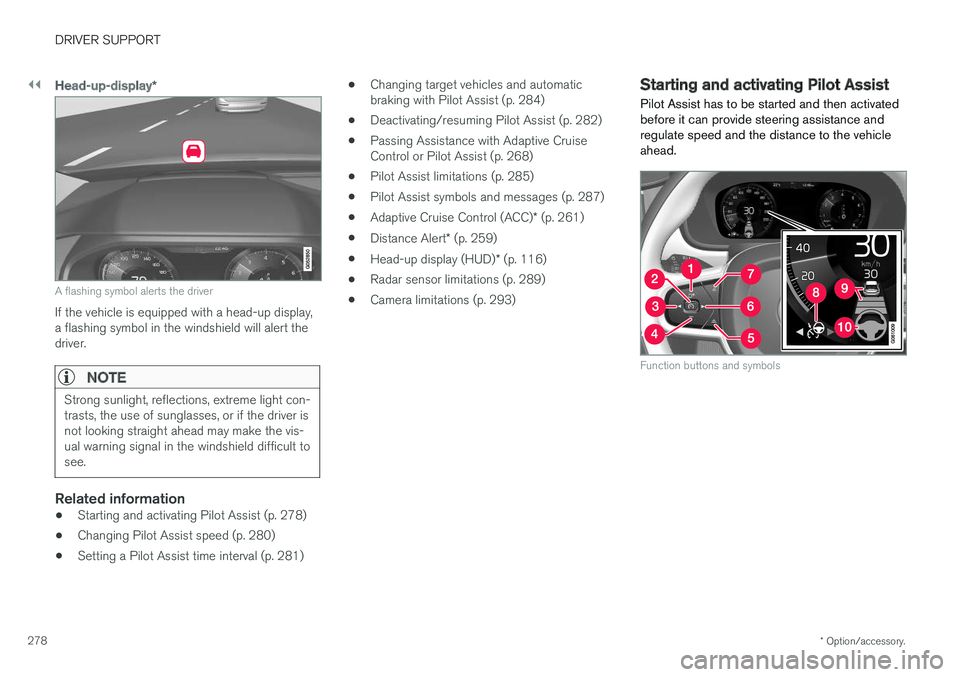
A flashing symbol alerts the driver
If the vehicle is equipped with a head-up display, a flashing symbol in the windshield will alert thedriver.
NOTE
Strong sunlight, reflections, extreme light con- trasts, the use of sunglasses, or if the driver isnot looking straight ahead may make the vis-ual warning signal in the windshield difficult tosee.
Related information
•Starting and activating Pilot Assist (p. 278)
• Changing Pilot Assist speed (p. 280)
• Setting a Pilot Assist time interval (p. 281) •
Changing target vehicles and automatic braking with Pilot Assist (p. 284)
• Deactivating/resuming Pilot Assist (p. 282)
• Passing Assistance with Adaptive CruiseControl or Pilot Assist (p. 268)
• Pilot Assist limitations (p. 285)
• Pilot Assist symbols and messages (p. 287)
• Adaptive Cruise Control (ACC)
* (p. 261)
• Distance Alert
* (p. 259)
• Head-up display (HUD)
* (p. 116)
• Radar sensor limitations (p. 289)
• Camera limitations (p. 293)
Starting and activating Pilot Assist
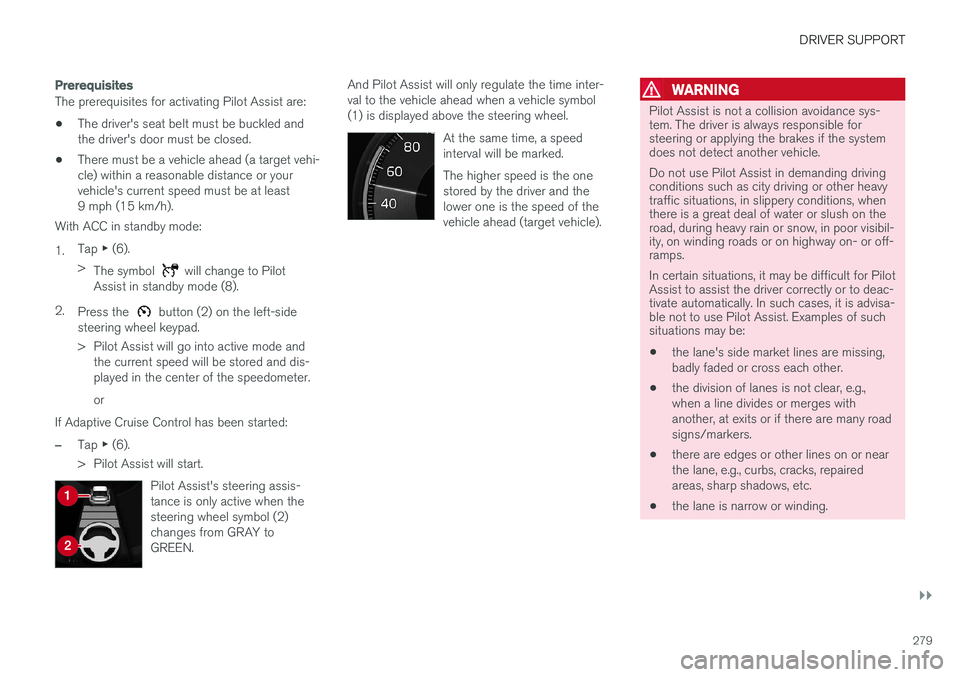
Pilot Assist has to be started and then activated before it can provide steering assistance andregulate speed and the distance to the vehicleahead.
Function buttons and symbols
Page 281 of 548
DRIVER SUPPORT
}}}}
279
Prerequisites
The prerequisites for activating Pilot Assist are:• The driver's seat belt must be buckled and the driver's door must be closed.
• There must be a vehicle ahead (a target vehi-cle) within a reasonable distance or yourvehicle's current speed must be at least9 mph (15 km/h).
With ACC in standby mode: 1. Tap
▶ (6).
> The symbol
will change to Pilot
Assist in standby mode (8).
2. Press the
button (2) on the left-side
steering wheel keypad.
> Pilot Assist will go into active mode and the current speed will be stored and dis- played in the center of the speedometer. or
If Adaptive Cruise Control has been started:
–Tap ▶ (6).
> Pilot Assist will start.
Pilot Assist's steering assis- tance is only active when thesteering wheel symbol (2)changes from GRAY toGREEN.
And Pilot Assist will only regulate the time inter- val to the vehicle ahead when a vehicle symbol(1) is displayed above the steering wheel. At the same time, a speedinterval will be marked. The higher speed is the one stored by the driver and thelower one is the speed of thevehicle ahead (target vehicle).WARNING
Pilot Assist is not a collision avoidance sys- tem. The driver is always responsible forsteering or applying the brakes if the systemdoes not detect another vehicle. Do not use Pilot Assist in demanding driving conditions such as city driving or other heavytraffic situations, in slippery conditions, whenthere is a great deal of water or slush on theroad, during heavy rain or snow, in poor visibil-ity, on winding roads or on highway on- or off-ramps. In certain situations, it may be difficult for Pilot Assist to assist the driver correctly or to deac-tivate automatically. In such cases, it is advisa-ble not to use Pilot Assist. Examples of suchsituations may be:
• the lane's side market lines are missing, badly faded or cross each other.
• the division of lanes is not clear, e.g.,when a line divides or merges withanother, at exits or if there are many roadsigns/markers.
• there are edges or other lines on or nearthe lane, e.g., curbs, cracks, repairedareas, sharp shadows, etc.
• the lane is narrow or winding.
Page 283 of 548
DRIVER SUPPORT
}}
* Option/accessory.281
become the set speed assuming that the accel- erator pedal is still depressed when the button ispressed. A temporary increase in speed, such as when passing another vehicle, does not affect thespeed set for Pilot Assist. The vehicle will returnto the set speed when the accelerator pedal isreleased. Pilot Assist can follow another vehicle from a standstill up to a speed of approx. 125 mph(200 km/h). Always observe posted speed limits. The lowest speed that can be set/stored for Pilot Assist is 20 mph (30 km/h). However, PilotAssist can monitor and react to the speed of thevehicle ahead down to a standstill. The highest speed that can be set/stored is approx. 125 mph (200 km/h). Always observeposted speed limits.
Related information
•
Pilot Assist
* (p. 275)
• Starting and activating Pilot Assist (p. 278)
• Setting a Pilot Assist time interval (p. 281)
• Changing target vehicles and automaticbraking with Pilot Assist (p. 284)
• Deactivating/resuming Pilot Assist (p. 282)
• Passing Assistance with Adaptive CruiseControl or Pilot Assist (p. 268)
• Pilot Assist limitations (p. 285) •
Pilot Assist symbols and messages (p. 287)
Setting a Pilot Assist time interval
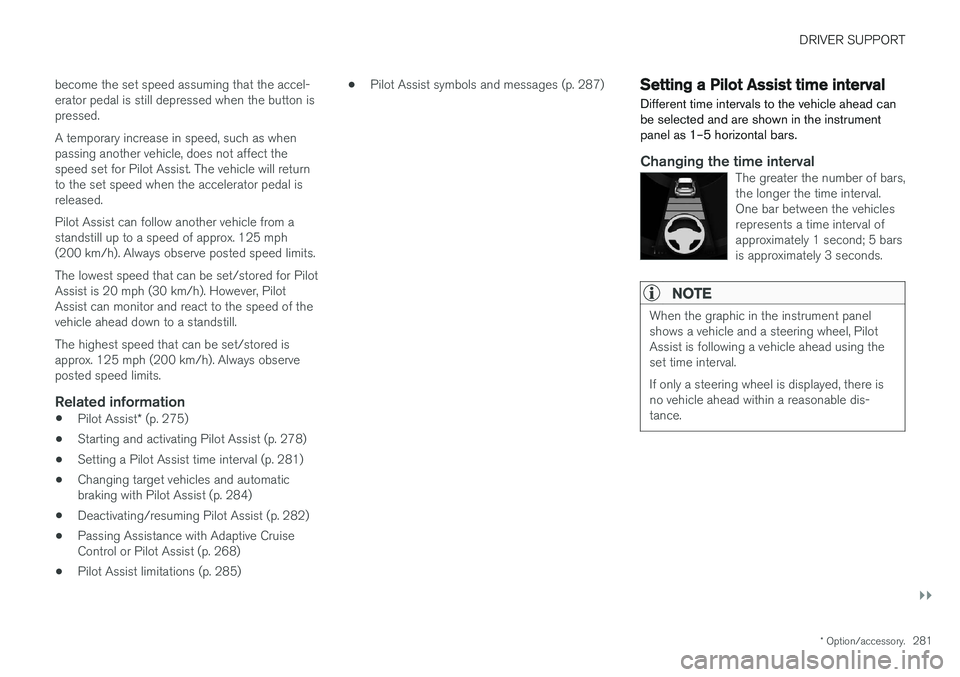
Different time intervals to the vehicle ahead can be selected and are shown in the instrumentpanel as 1–5 horizontal bars.
Changing the time intervalThe greater the number of bars, the longer the time interval.One bar between the vehiclesrepresents a time interval ofapproximately 1 second; 5 barsis approximately 3 seconds.
NOTE
When the graphic in the instrument panel shows a vehicle and a steering wheel, PilotAssist is following a vehicle ahead using theset time interval. If only a steering wheel is displayed, there is no vehicle ahead within a reasonable dis-tance.
Page 289 of 548
DRIVER SUPPORT
}}
* Option/accessory.287
Pilot Assist symbols and messages
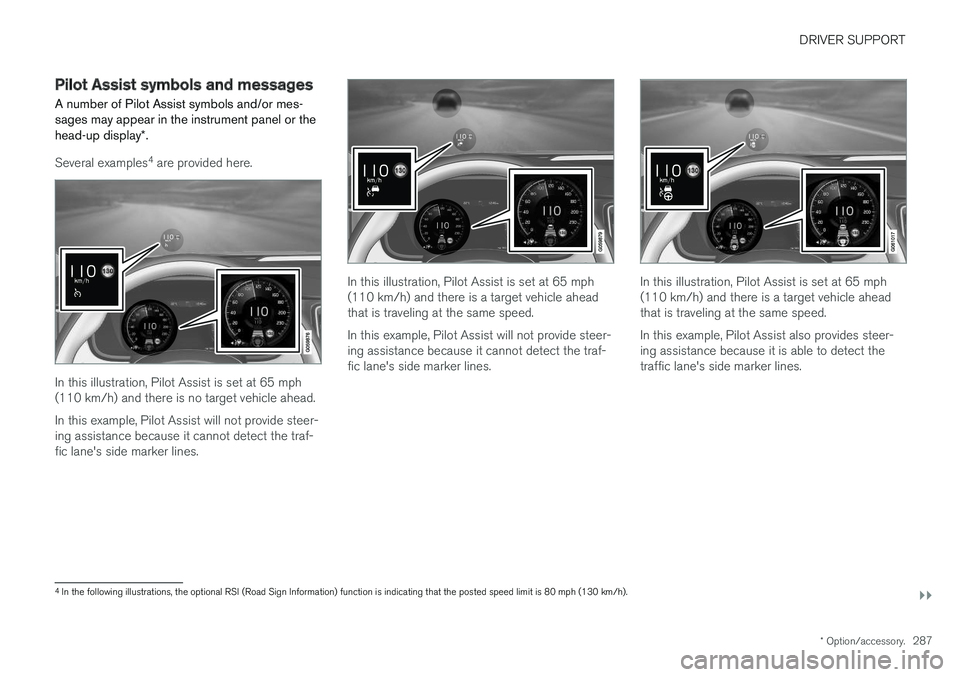
A number of Pilot Assist symbols and/or mes- sages may appear in the instrument panel or the head-up display *.
Several examples 4
are provided here.
In this illustration, Pilot Assist is set at 65 mph (110 km/h) and there is no target vehicle ahead. In this example, Pilot Assist will not provide steer- ing assistance because it cannot detect the traf-fic lane's side marker lines.
In this illustration, Pilot Assist is set at 65 mph (110 km/h) and there is a target vehicle aheadthat is traveling at the same speed. In this example, Pilot Assist will not provide steer- ing assistance because it cannot detect the traf-fic lane's side marker lines.In this illustration, Pilot Assist is set at 65 mph (110 km/h) and there is a target vehicle aheadthat is traveling at the same speed. In this example, Pilot Assist also provides steer- ing assistance because it is able to detect thetraffic lane's side marker lines.
4 In the following illustrations, the optional RSI (Road Sign Information) function is indicating that the posted speed limit is 80 mph (130 km/h).
Page 291 of 548
DRIVER SUPPORT
}}
289
Radar sensor limitations
The radar sensor used by several of the driver support systems has certain limitations, whichalso affect the systems using it.
Obstructions
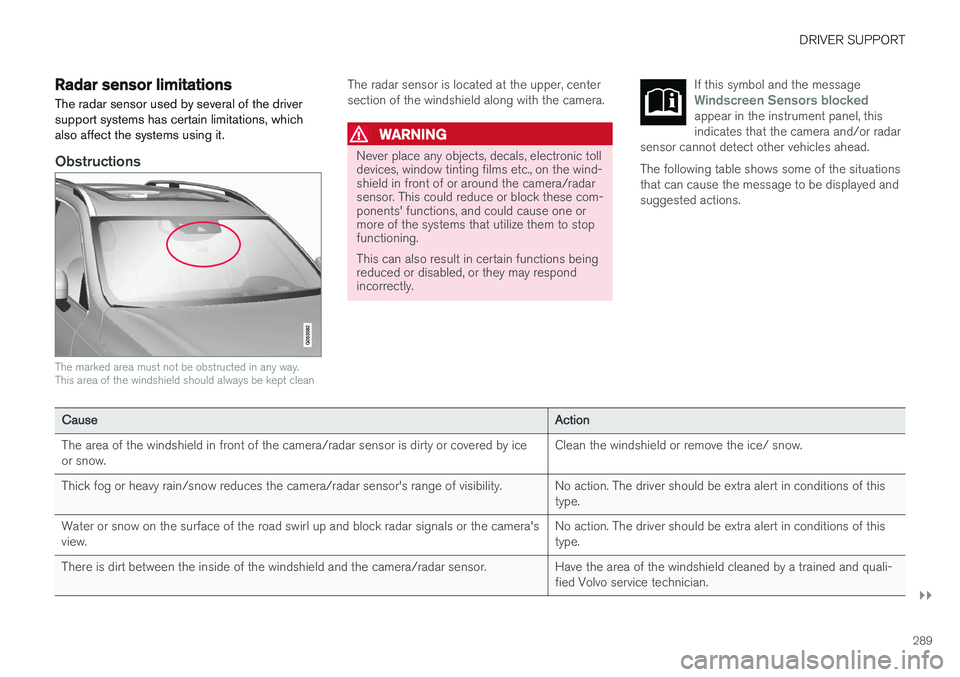
The marked area must not be obstructed in any way. This area of the windshield should always be kept clean
The radar sensor is located at the upper, center section of the windshield along with the camera.
WARNING
Never place any objects, decals, electronic toll devices, window tinting films etc., on the wind-shield in front of or around the camera/radarsensor. This could reduce or block these com-ponents' functions, and could cause one ormore of the systems that utilize them to stopfunctioning. This can also result in certain functions being reduced or disabled, or they may respondincorrectly. If this symbol and the message
Windscreen Sensors blockedappear in the instrument panel, this indicates that the camera and/or radar
sensor cannot detect other vehicles ahead.
The following table shows some of the situations that can cause the message to be displayed andsuggested actions.
Cause Action
The area of the windshield in front of the camera/radar sensor is dirty or covered by ice or snow. Clean the windshield or remove the ice/ snow.
Thick fog or heavy rain/snow reduces the camera/radar sensor's range of visibility. No action. The driver should be extra alert in conditions of this type.
Water or snow on the surface of the road swirl up and block radar signals or the camera'sview. No action. The driver should be extra alert in conditions of thistype.
There is dirt between the inside of the windshield and the camera/radar sensor. Have the area of the windshield cleaned by a trained and quali- fied Volvo service technician.
Page 300 of 548
||
DRIVER SUPPORT
298If City Safety has prevented a collision, the vehi- cle will be kept at a standstill until the drivertakes action. If the vehicle has slowed to avoidcolliding with the vehicle ahead, your speed willbe reduced to that vehicle's speed. When auto-brake is triggered, the seat belt pre- tensioners may also be activated, see the article"Seat belts" for additional information. Auto-braking can be cancelled if the driver presses hard on the accelerator pedal. When City Safety applies the brakes, the brake lights will illuminate. When City Safety is triggered and applies the brakes, a text message will be displayed in theinstrument panel.
Related information
•
City Safety
™ troubleshooting (p. 302)
• City Safety in crossing traffic (p. 301)
• City Safety limitations (p. 304)
• City Safety symbols and messages (p. 307)
• Detecting obstructions with City Safety(p. 299)
• Rear Collision Warning (RCW) (p. 308)
• City Safety warning level settings (p. 298)
• City Safety in crossing traffic (p. 301)
• Seat belts (p. 60)
• City Safety when evasive action is not possi-ble (p. 302)
City Safety warning level settings
City Safety is always activated but the function's warning distance can be adjusted.
NOTE
City Safety cannot be turned off and activates automatically each time the engine is started.
Setting a warning level (distance)
The distance set for warnings determines the system's responsiveness and sets the distance atwhich visual, audible and tangible (haptic) warn-ings will be triggered. To do so:1. Tap
Settings in the center display's Top
view.
2. Tap
My CarIntelliSafeCity Safety.
3. Choose among
Earlier, Normal or Later.
Begin by choosing
Earlier. If too many warnings
are given, change to Normal.
If the driver feels that warnings are given too often, the warning level can be lowered. Thismeans that warnings will be provided later, result-ing in fewer warnings being given. The setting
Later should only used in exceptional
circumstances, e.g., for a more dynamic driving style.
WARNING
• No automatic system can be guaranteed to function 100% correctly in all situa-tions. For that reason, never test CitySafety by driving toward a person orobject. This could result in serious injuryor death.
• Even if the setting
Earlier has been
selected, warnings may be perceived as being given late, e.g., if the difference inspeed is great or if the vehicle aheadbrakes suddenly.
• City Safety can provide a warning for apotential collision but it can never shortenthe driver's reaction time.
• To help make City Safety as effective as possible, always using the setting
Earlieris recommended.
NOTE
•
Due to local traffic regulations in certain markets, Rear Collision Warning (RCW) will
not activate the rear turn signals.
That part of the function will be deacti- vated.
• The use of the rear turn signals will alsobe deactivated if the City Safety warning level is set at
Later. See also the section